

Developing a Multi-Currency Expert Advisor (Part 30): From Trading Strategy to Launching a Multi-Currency Expert Advisor
 1 438
1 438
 2
2

Introduction
In the previous part, we began work aimed not at expanding the trading logic, but at eliminating the practical inconveniences identified during real-world use of the automated optimization pipeline. We continued separating the library (core) and project (specific strategy) parts of the code. This is necessary so that, to add a new trading idea, it is sufficient to configure the parameters within the project repository — without having to modify the library code. Although this process is not yet fully complete, it is already proving effective and will continue.
We have implemented time limits for optimization tasks. This feature provides flexible control over the duration of the entire pipeline: we can intentionally shorten the duration of the first two stages without waiting for the genetic search to fully complete if we have already obtained a sufficient number of high-quality solutions. This approach is particularly valuable in iterative development and for quickly testing the potential of the trading strategies being used.
The interface of the optimization Expert Advisor has also been improved. Instead of simply displaying the current task number, the Expert Advisor shows much more detailed information — the optimization stage, symbol, timeframe, elapsed and remaining time, as well as overall project progress.
Taken together, all these refinements made it possible to demonstrate the entire workflow — from project creation to obtaining a test-ready Expert Advisor with correctly normalized position sizes, which can eventually be deployed on a live trading account. And if it performs well, this Expert Advisor can also be installed on multiple trading accounts. But we have not discussed this next step yet. Therefore, in this article, we will try to solve a practical problem — not only to obtain, but also to run three different instances of the final Expert Advisor on various trading accounts with different settings. Let's start with a brief description of some minor refinements, and then move on to a general overview of the entire project and the creation of a roadmap that takes into account the experience we have gained so far.
Refining CConsoleDialog
While developing the multi-currency Expert Advisor, we tried to pay attention to various aspects. It goes without saying that the tasks related to fulfilling the primary objective — achieving good trading results — took priority. However, developing the Expert Advisor's appearance for operation in the terminal is not an essential component that we cannot do without, so we handled it on a lower-priority basis. So far, we have used a custom dialog class — inherited from the corresponding class in the standard library — to display multi-line text information on the terminal chart, with support for zooming and scrolling (CConsoleDialog).
The simple interface made it possible to see which trading instruments were being used and how many instances of trading strategies there were. If the close manager or risk manager was enabled in the input parameters of the final Expert Advisor, they also displayed information about their current status. Overall, the chart window with the Expert Advisor running looked something like this:
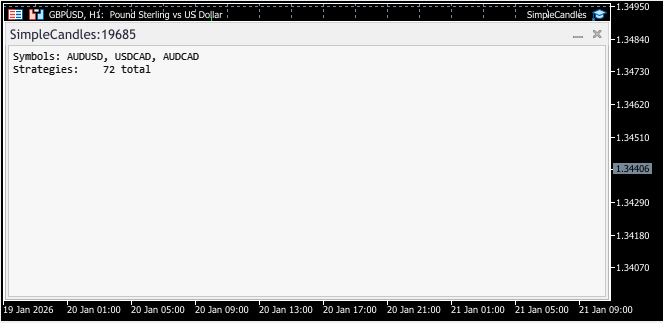
However, during use, some non-critical bugs were discovered: when the Expert Advisor was restarted for various reasons (recompilation, parameter changes, or a terminal restart), its window would be duplicated; that is, the graphical objects of the old window were not removed when the new one was created. The cause was that the mechanism for destroying the window when the OnDeinit() function was called had not been implemented properly.
In addition, while this article was being written, a new chart rendering engine, Blend2D, was being introduced into the terminal (although it was ultimately decided to abandon it). One of the noticeable effects of the transition was the anti-aliasing of the on-screen fonts for all text elements on the chart. But, for example, on a screen with a resolution of 1920x1080, the small text used for the trading instrument name, the Expert Advisor name, and the labels on the price and time axes began to look less appealing. So we solved this problem in a radical way: we disabled the display of all elements on the chart where the Expert Advisor interface window would be placed. In fact, whatever used to remain visible on the screen around the Expert Advisor window was not used in any way anyway. If we want to view the chart of the trading instrument on which the Expert Advisor is running, we can simply open another chart next to it.
This also automatically eliminates the drawing of trading levels and position open/close arrows for the current trading instrument over the Expert Advisor window. Previously, we had to disable them first manually, and later programmatically. This makes the button for minimizing the Expert Advisor window unnecessary, since there is nothing behind it anyway. After performing a few steps to remove the effects of the non-obvious way the border around OBJ_EDIT objects is rendered, we were able to achieve the following window appearance:
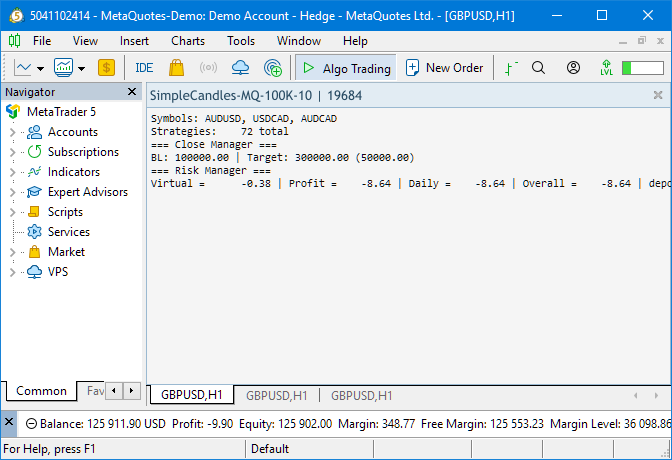
Unfortunately, in order to disable minimization, we had to make some changes to the CDialog and CAppDialog classes from the standard library, so they were included in our repository as a separate file. But after this brief digression, let's get back to the main topic.
Project Overview
So, the goal of the project is to develop a methodology for building multi-currency Expert Advisors based on one or more simple trading strategies (rules for opening and closing positions), which will allow multiple instances of trading strategies with different parameter values to be combined into a single final Expert Advisor. Let's try to create a hierarchical diagram that covers everything we have done as part of this project. At the top level, we will need to perform the following steps:
- Step 0. Preparing the environment. Previously, all the code written was divided into library and project components. We called the code that will be used without modification the library component. The project component is the code that will need to be modified for new trading strategies. It is convenient to keep these two components as two separate code repositories, so at the beginning they need to be cloned from existing repositories or created from scratch.
- Step 1. Developing a trading strategy. It is assumed that the trading strategy underlying all subsequent work will be simple enough that running a large number of instances of the trading strategy in parallel will not lead to a shortage of computational or time resources. A trading strategy must be implemented as a separate class inherited from a ready-made base class for trading strategies.
- Step 2. Creating the optimization pipeline. We need to decide which trading instruments and timeframes the individual instances of the trading strategy will use within the final Expert Advisor, how many of them there will be, the time interval over which optimization will be performed, and so on. All of these parameters need to be fixed in some way. To do this, we create an optimization pipeline. This is what we will call a database with a specific structure and several supporting Expert Advisors. The database will initially store the values of all source parameters and, later, the intermediate results of subsequent optimization and the final results for building the final Expert Advisor. Supporting Expert Advisors will populate the database with results.
Within a single optimization pipeline, we can create one or more optimization projects — complete sets of source parameter values in the database, the processing of which leads to the creation of a single final Expert Advisor (more precisely, a single group of individual instances of a trading strategy that the final Expert Advisor can load and use). - Step 3. Launching the optimization pipeline. Once the optimization project database is populated and the supporting Expert Advisors have been compiled, you can begin the optimization process, which is divided into several stages. The stages are performed in sequence. For now, we have settled on performing three stages for a single optimization project. In the first stage, a single instance of the trading strategy is optimized. In the second stage, groups made up of a small number of instances are selected from the many good single instances obtained in the first stage; when working together, these groups show the best results in terms of normalized profit. In the third stage, all the groups obtained in the second stage are combined into a single normalized final group. It is stored in a separate final Expert Advisor database.
- Step 4. Launching final Expert Advisors. After obtaining the final Expert Advisor database, you must distribute it among several instances of the final Expert Advisors and configure them to use the corresponding parameters from the database when running on trading accounts.
This is a general overview of the set of actions that, taken together, lead to the stated goal. Let's take a closer look at each step.
Step 0. Preparing the Environment
The purpose of this step is to place all the files needed to complete the remaining steps on the target computer.
- Step 0.1. Install the terminal. To perform optimization, it is recommended that you have a separate copy of the terminal and sufficient free disk space to store historical data for the desired trading instruments and the database containing the optimization results. It should be noted that the database is stored in the common terminal data folder, which is typically located on the system drive; therefore, you must ensure there is sufficient free space on that drive. Depending on the composition of the optimization projects, the database size can reach several gigabytes.
Let's place a new copy of the terminal in C:/MT5_Projects/MetaTrader5/. All subsequent paths will be specified relative to this root folder. - Step 0.2. Library repository. We will need to fork or clone the Adwizard library repository into the MQL5/Shared Projects/Adwizard folder. This is the library part; you do not need to make any changes to it as long as you place it in the specified folder. To clone the repository, you can run the following console command from the MQL5/Shared Projects/ folder: git clone https://forge.mql5.io/antekov/Adwizard.gitIf you fork the repository into your own MQL5 Algo Forge storage beforehand, it will appear in the list of available repositories within MetaEditor, and you will be able to clone it directly from the editor. Or, in the simplest case, you can simply download this repository's archive and extract it into the specified folder.
- Step 0.3. Project repository. For the second repository, you can do the same as for the previous one: create a fork or clone the Expert Advisor project repository. This repository will contain a specific trading strategy and files for optimization Expert Advisors. The ready-made SimpleCandles repository can be used as an example and as a template for creating your own trading strategies and projects to optimize them. All changes related to creating final Expert Advisors for various optimization projects will be made in this repository. Therefore, clone it by running the following console command from the MQL5/Shared Projects/ folder: git clone https://forge.mql5.io/antekov/SimpleCandles.gitIn the following steps, we will look at what changes may need to be made to it. By the end of this article, we plan to have taken all the necessary steps, so once it has been cloned or extracted from the archive, it will already contain everything needed to accomplish the task at hand. Further changes will only be needed if it becomes necessary to modify the optimization projects: to change or add trading instruments, timeframes, or optimization intervals, or to add new projects to generate additional final Expert Advisors.
After completing this step, we have two code repositories: the library repository (Adwizard) and the project repository (SimpleCandles), located in the Shared Projects folder of the MQL5 working folder in the dedicated copy of the MetaTrader 5 trading terminal:
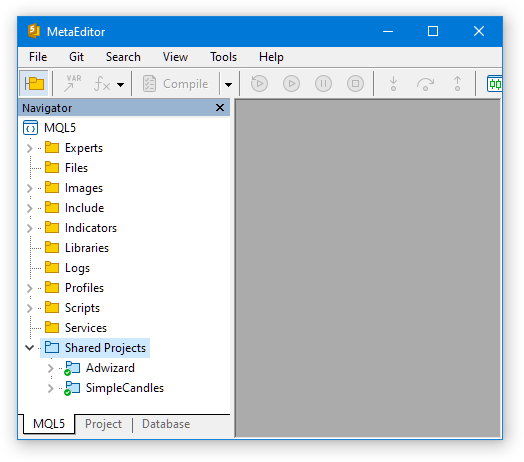
If the concept of a repository confuses you, you can simply think of them as two folders containing a set of files, located in the appropriate places. They become repositories when they are able to track the history of all changes made to the files they contain. If this feature is not used, though, they are essentially just regular folders on the computer.
Step 1. Developing a Trading Strategy
The purpose of this step is to obtain a software implementation of the trading strategy that can be used in the automated optimization pipeline we have developed. While working on this series of articles, we implemented two simple trading strategies to demonstrate that the tools being developed work. The first strategy, called SimpleVolumes, was described in Part 1, and the second, called SimpleCandles, in Part 24 and Part 25.
For now, we will not be developing a new strategy; instead, we will use the one we already have. As shown in the previous step, we selected the project repository with the SimpleCandles strategy. This is because we have already set this strategy up as a separate repository and made various additional changes that became necessary as the overall project evolved. Here is what the file structure of this repository looked like before work began on this part:
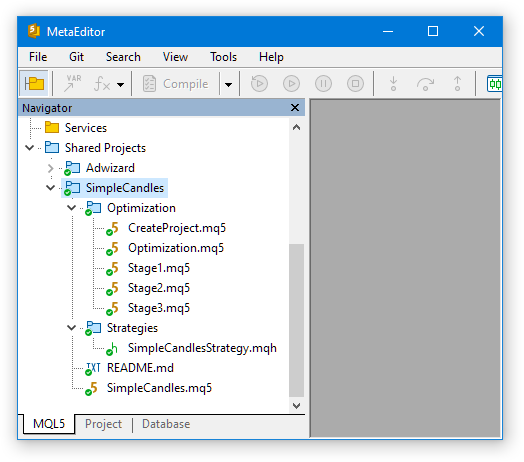
Let's see what these files are. First of all, there is a single file in the Strategies folder
- SimpleCandlesStrategy.mqh is the file containing the SimpleCandles trading strategy class itself. All of the trading logic is contained in this file alone. If we wanted to use a different trading strategy, we could place its implementation in this same folder.
Next, the Optimization folder contains files for creating and running the automated optimization pipeline:
- CreateProject.mq5 — a project creation Expert Advisor for creating an automated optimization project in the optimization database. Each project in the database is represented as three stages, each consisting of one or more jobs. Each job consists of one or more optimization tasks executed by the stage Expert Advisors.
- Stage1.mq5 — an Expert Advisor for the first stage of the automatic optimization pipeline. Optimizes a single instance of a trading strategy.
- Stage2.mq5 — an Expert Advisor for the second stage of the automatic optimization pipeline. During optimization, it selects, from the many good single instances obtained at the first stage, a small group of instances (usually 8 or 16) that delivers the best normalized profit when working together.
- Stage3.mq5 — an Expert Advisor for the third stage of the automatic optimization pipeline. It combines all the groups obtained at the second stage, normalizes the position sizes, and saves the resulting group with a scaling factor to the Expert Advisor database specified in the settings.
- Optimization.mq5 — an Expert Advisor that runs tasks from the automatic optimization project. Previously, we also referred to the process of sequentially executing such tasks as an automatic optimization pipeline.
Finally, the following file is located in the root folder of the project repository:
- SimpleCandles.mq5 — a final Expert Advisor that combines many single instances of trading strategies of the SimpleCandles type. It will retrieve information about the composition of these instances from the Expert Advisor database. The Expert Advisor for the third stage of the automatic optimization pipeline will write this information to the Expert Advisor database.
In this step, we will examine only the trading strategy class file and the first-stage Expert Advisor file. The remaining files will be covered in the following steps.
Trading Strategy Class
To create the required trading strategy class, we did the following:
- We created a new class that inherits from the CVirtualStartegy class from the Adwizard library
#include "../../Adwizard/Virtual/VirtualStrategy.mqh"

// ...

//+------------------------------------------------------------------+
//| Trading strategy using unidirectional candlesticks               |
//+------------------------------------------------------------------+
class CSimpleCandlesStrategy : public CVirtualStrategy {
   // ...
};
- We made the new class constructor private and added a static class method, through which objects of this class will be created. To do this, we used the STATIC_CONSTRUCTOR() macro we had written earlier:
class CSimpleCandlesStrategy : public CVirtualStrategy {
protected:
   string            m_symbol;            // Symbol (trading instrument)
   ENUM_TIMEFRAMES   m_timeframe;         // Chart period (timeframe)

   // ...

   // Private constructor
                     CSimpleCandlesStrategy(string p_params);

public:
   // Static constructor
                     STATIC_CONSTRUCTOR(CSimpleCandlesStrategy);

};
- We registered a new class as a class derived from CFactorable; its constructor will accept only a single string containing all the initialization parameter values. To do this, we also used a macro we had written earlier:
class CSimpleCandlesStrategy : public CVirtualStrategy {
   // ...
};

// Registering a CFactorable-derived class
REGISTER_FACTORABLE_CLASS(CSimpleCandlesStrategy);
- In the constructor, we used methods for reading values of different types from the initialization string to initialize the class fields. These methods are inherited from the CFactorable class:
//+------------------------------------------------------------------+
//| Constructor                                                      |
//+------------------------------------------------------------------+
CSimpleCandlesStrategy::CSimpleCandlesStrategy(string p_params) {
// Reading parameters from the initialization string
   m_params = p_params;
   m_symbol = ReadString(p_params);
   m_timeframe = (ENUM_TIMEFRAMES) ReadLong(p_params);
   m_signalSeqLen = (int) ReadLong(p_params);
   m_periodATR = (int) ReadLong(p_params);
   m_stopLevel = ReadDouble(p_params);
   m_takeLevel = ReadDouble(p_params);
   m_maxCountOfOrders = (int) ReadLong(p_params);
   m_maxSpread = (int) ReadLong(p_params);

   if(IsValid()) {
      // ...
   }
}
- We overrode two virtual methods from the parent class — for handling a tick and converting an object to a string — and wrote their implementations:
class CSimpleCandlesStrategy : public CVirtualStrategy {
   //...

public:
   // ...
   virtual string    operator~() override;   // Convert an object to a string
   virtual void      Tick() override;        // OnTick event handler
};
We have covered the basics here, but you can find more details on creating a new strategy in part 24. Once the trading strategy class is ready, you can create a first-stage optimization Expert Advisor for that specific trading strategy.
First-Stage Optimization Expert Advisor
For any trading strategy, we can follow this structure to create a first-stage optimization Expert Advisor:
- We define a constant with the name of the Expert Advisor. The presence of this constant is checked in the included code that follows in order to perform the necessary actions. There are no specific requirements for it, except that it must be unique within a single project.
- Include the desired strategy. The optimization Expert Advisor must have access to the trading strategy's source code.
- We include the common code from the Adwizard library. Everything else required for the first-stage optimization Expert Advisor to function — aside from the trading strategy — is implemented in the corresponding include file within the library part.
- We define the Expert Advisor's input parameters. These parameters will be used to pass values to the trading strategy itself, so we add as many input parameters as are needed for the implemented strategy, ensuring that the data types match.
- We define a function for generating the strategy initialization string. The first-stage optimization Expert Advisor must contain a function with the signature string GetStrategyParams(), which constructs and returns an initialization string from the Expert Advisor’s input parameters for subsequently creating an instance of our trading strategy class. The use of initialization strings was discussed in more detail in Part 10, and the most recent revisions were made in Part 24.
Here is what it looks like in the code:
// 1. Define a constant with the Expert Advisor name
#define  __NAME__ "SimpleCandles" + MQLInfoString(MQL_PROGRAM_NAME)

// 2. Include the desired strategy
#include "../Strategies/SimpleCandlesStrategy.mqh";

// 3. Include the common part of the first-stage optimization Expert Advisor from the Adwizard library
#include "../../Adwizard/Experts/Stage1.mqh"

//+------------------------------------------------------------------+
//| 4. Input parameters  for the strategy                            |
//+------------------------------------------------------------------+
sinput string     symbol_              = "";    // Symbol
sinput ENUM_TIMEFRAMES period_         = PERIOD_CURRENT;   // Candlestick timeframe

input group "===  Open signal parameters"
input int         signalSeqLen_        = 6;     // Number of unidirectional candlesticks
input int         periodATR_           = 0;     // ATR period (if 0, then TP/SL in points)

input group "===  Pending order parameters"
input double      stopLevel_           = 25000; // Stop Loss (as a fraction of ATR or in points)
input double      takeLevel_           = 3630;  // Take Profit (as a fraction of ATR or in points)

input group "===  Money management parameters"
input int         maxCountOfOrders_    = 9;     // Maximum number of simultaneously open orders
input int         maxSpread_           = 10;    // Maximum allowable spread (in points)


//+------------------------------------------------------------------+
//| 5. Function for generating a strategy initialization string      |
//|    from the input parameters                                     |
//+------------------------------------------------------------------+
string GetStrategyParams() {
   return StringFormat(
             "class CSimpleCandlesStrategy(\"%s\",%d,%d,%d,%.3f,%.3f,%d,%d)",
             (symbol_ == "" ? Symbol() : symbol_), period_,
             signalSeqLen_, periodATR_, stopLevel_, takeLevel_,
             maxCountOfOrders_, maxSpread_
          );
}
So, the trading strategy has been created, and the first-stage optimization Expert Advisor for optimizing the parameters of single instances of this trading strategy has also been created. Let's move on to the next step.
Step 2. Creating an Optimization Project
Our goal now is to prepare everything needed to launch the optimization pipeline. We have already completed this step in the project repository, but now we want to make changes to the project — for example, change the symbols, timeframes, number of passes, or the ranges of the trading strategy’s input parameters. Therefore, we need to make and save these changes somehow, and then create an optimization project in the database.
Previously, all information about the optimization project was contained within the Optimization/CreateProject.mq5 file. However, in the course of the work, it became clear that different optimization projects share common components that can be moved to a library repository. Therefore, this file in the project repository now essentially contains only a list of input parameters with their default values. It is in these values that we specify the desired parameters for creating the optimization project.
Also, in the project-specific part of this file, the definition remains for the function that creates a string listing the parameters for the Strategy Tester, paramsTemplate1(). It specifies which input parameters of the first-stage optimization Expert Advisor participate in a single optimization pass and which do not, as well as the ranges within which the optimized parameters can vary and the step size.
Everything else has been moved to the CreateProject.mqh file, which is now part of the Adwizard library in the Experts folder. More specifically, all the content from the previous optimization project creation Expert Advisor file has been transferred to this file, but we have used preprocessor directives to add blocks of code that may be excluded from compilation if they need to be replaced with blocks of code from an external file.
For example, if the project repository’s external file Optimization/CreateProject.mq5 declares the constant __INPUT_PARAMS__, the input parameter block will be taken specifically from that file, and the corresponding block from the library file Experts/CreateProject.mqh will not be used.
We wanted to create three optimization projects with different sets of trading instruments. Let's say, for example, that in the first project we'll be working with the GBPUSD, EURUSD, and EURGBP symbols. In the second project, we'll use the three symbols AUDUSD, AUDCAD, and USDCAD. For the third project, let's use, for example, GBPJPY, EURJPY, and USDJPY. These particular trading instruments were chosen simply as examples; there’s no need to look for any mystical meaning in these sets. Instead of using a large number of symbols in each project, we limited ourselves to just three in order to reduce the total processing time. On the other hand, if an Expert Advisor works with three symbols, it will definitely be considered a multi-currency Expert Advisor.
To simplify the creation of different optimization projects, let’s create a separate file for each one, using CreateProject.mq5 as a template. In other words, each file will serve as a project creation Expert Advisor, and the only differences will be the default input parameter values. All three projects will use the same type of trading strategy.
Here is an example of the first such file for GBPUSD, EURUSD, and EURGBP:
// 1. Define a constant: a flag indicating the presence of input parameters
#define __INPUT_PARAMS__

// 2. Define a constant: a flag indicating the presence of a first-stage parameter template function
#define __PARAMS_TEMPLATE1__

// 3. Define a constant: a flag indicating the presence of a second-stage parameter template function
// #define __PARAMS_TEMPLATE2__

// 4. Define a constant: a flag indicating the presence of a third-stage parameter template function
// #define __PARAMS_TEMPLATE3__

// 5. Include the project creation Expert Advisor template
#include "../../Adwizard/Experts/CreateProject.mqh"

//+------------------------------------------------------------------+
//| Input parameters                                                 |
//+------------------------------------------------------------------+
sinput group "::: Data base"
sinput string fileName_  = "article.19684.db.sqlite"; // - Optimization database file

sinput group "::: Project parameters - Main"
sinput string  projectName_ = "SimpleCandles";        // - Name
sinput string  projectVersion_ = "1.01";              // - Version
sinput string  symbols_ = "GBPUSD,EURUSD,EURGBP";     // - Symbols
sinput string  timeframes_ = "M3,M5,M12";             // - Timeframes
//sinput ENUM_OPT_STAGE_ORDER
//   stageOrder_ = OPT_STAGE_ORDER_SEQUENTAL;         // - Stage order

sinput group "::: Project parameters - Optimization interval"
sinput datetime fromDate_ = D'2025-01-01';            // - Start Date
sinput datetime toDate_ = D'2025-10-01';              // - End Date

sinput group "::: Project parameters - Account"
sinput string   mainSymbol_ = "GBPUSD";               // - Main symbol
sinput int      deposit_ = 100000;                    // - Initial deposit

sinput group "::: Stage 1. Search"
sinput string   stage1ExpertName_ = "Stage1.ex5";     // - Stage Expert Advisor
sinput string   stage1Criterions_ = "6,6,6,6,6,6";    // - Optimization criteria for optimization tasks
sinput long     stage1MaxDuration_ = 120;              // - Max. task duration (s)

sinput group "::: Stage 2. Grouping"
sinput string   stage2ExpertName_ = "Stage2.ex5";     // - Stage Expert Advisor
sinput string   stage2Criterion_  = "6";              // - Optimization criterion for optimization tasks
sinput long     stage2MaxDuration_ = 300;             // - Max. task duration (s)
//sinput bool     stage2UseClusters_= false;          // - Use clustering?
sinput double   stage2MinCustomOntester_ = 500;       // - Minimum normalized profit value
sinput uint     stage2MinTrades_  = 20;               // - Minimum number of trades
sinput double   stage2MinSharpeRatio_ = 0.7;          // - Min. Sharpe ratio
sinput uint     stage2Count_      = 8;                // - Number of strategies in the group (1–16)


sinput group "::: Stage 3. Final"
sinput string   stage3ExpertName_ = "Stage3.ex5";      // - Stage Expert Advisor
sinput ulong    stage3Magic_      = 1968401;           // - Magic number
sinput bool     stage3Tester_     = true;              // - For the Strategy Tester?


// First-stage optimization parameter template
string paramsTemplate1(COptimizationProject *p) {
   string params = StringFormat(
                      "symbol_=%s\n"
                      "period_=%d\n"
                      "; ===  Open signal parameters\n"
                      "signalSeqLen_=4||2||1||8||Y\n"
                      "periodATR_=28||28||2||210||N\n"
                      "; ===  Pending order parameters\n"
                      "stopLevel_=2.34||0.01||0.01||20.0||Y\n"
                      "takeLevel_=4.55||0.01||0.01||10.0||Y\n"
                      "; ===  Money management parameters\n"
                      "maxCountOfOrders_=20||1||1||30||N\n"
                      "maxSpread_=100||10||1||100||N\n",
                      p.m_symbol, p.StringToTimeframe(p.m_timeframe));
   return params;
}
//+------------------------------------------------------------------+
Let's take a look at the "Project Parameters — General" parameter group. The project name and version are self-explanatory; next come two parameters in which we will pass comma-separated lists of symbols and timeframes. They will be used to obtain single instances of the trading strategy. For each symbol, all timeframes will be taken in turn. Thus, if we specify three symbols and three timeframes in the default values, this will result in the creation of nine combinations that will appear in single instances of trading strategies.
Let's save this file in the project repository, in the Optimization folder, under the name CreateProject.1968401.mq5. In other words, we added the magic number specified in the parameters of the third stage to the original filename. The other two files will have different magic numbers — for example, 1968402 and 1968403 — so we can include them in the names of the project creation Expert Advisors in exactly the same way and obtain different files for different projects. It is not necessary to use this specific method for generating names; it is sufficient that the names of these Expert Advisors be different.
The constants __PARAMS_TEMPLATE2__ and __PARAMS_TEMPLATE3__ in the project part file were not declared (they remained commented out), so the functions for generating parameters for the second and third optimization stages will be taken from the library part (the Experts/CreateProject.mqh file):
#ifndef __PARAMS_TEMPLATE2__
// Second-stage optimization parameter template
string paramsTemplate2(COptimizationProject *p) {

   // Find the parent job ID for the current job
   // based on a match between the symbol and the timeframe at the current and parent stages
   int i;
   SEARCH(p.m_stage.parent_stage.jobs,
          (p.m_stage.parent_stage.jobs[i].symbol == p.m_symbol
           && p.m_stage.parent_stage.jobs[i].timeframe == p.m_timeframe),
          i);

   ulong parentJobId = p.m_stage.parent_stage.jobs[i].id_job;
   string params = StringFormat(
                      "idParentJob_=%I64u\n"
                      "useClusters_=%s\n"
                      "minCustomOntester_=%f\n"
                      "minTrades_=%u\n"
                      "minSharpeRatio_=%.2f\n"
                      "count_=%u\n",
                      parentJobId,
                      (string) false, //(string) stage2UseClusters_,
                      stage2MinCustomOntester_,
                      stage2MinTrades_,
                      stage2MinSharpeRatio_,
                      stage2Count_
                   );
   return params;
}
#endif

#ifndef __PARAMS_TEMPLATE3__
// Third-stage optimization parameter template
string paramsTemplate3(COptimizationProject *p) {
   string params = StringFormat(
                      "groupName_=%s\n"
                      "advFileName_=%s\n"
                      "passes_=\n",
                      StringFormat("%s_v.%s_%s",
                                   p.name, p.version, TimeToString(toDate_, TIME_DATE)),
                      StringFormat("%s-%I64u%s.db.sqlite",
                                   p.name, stage3Magic_, (stage3Tester_ ? ".test" : "")));
   return params;
}
#endif
We can use virtually the same second- and third-stage Expert Advisors as those written in the previous part, since the code in their library part does not mention the trading strategy classes being used. And in the project repository, we will need to add an include directive for the new strategy file to their code. In that case, the code of the second-stage optimization Expert Advisor (Optimization/Stage2.mq5) will look like this:
// 1. Define a constant with the Expert Advisor name
#define  __NAME__ "SimpleCandles" + MQLInfoString(MQL_PROGRAM_NAME)

// 2. Include the desired strategy
#include "../Strategies/SimpleCandlesStrategy.mqh";

// 3. Include the common part of the second-stage Expert Advisor from the Adwizard library
#include "../../Adwizard/Experts/Stage2.mqh"
And similarly for the third-stage optimization Expert Advisor (Optimization/Stage3.mq5):
// 1. Define a constant with the Expert Advisor name
#define  __NAME__ "SimpleCandles" + MQLInfoString(MQL_PROGRAM_NAME)

// 2. Include the desired strategy
#include "../Strategies/SimpleCandlesStrategy.mqh";

// 3. Include the common part of the third-stage Expert Advisor from the Adwizard library
#include "../../Adwizard/Experts/Stage3.mqh"
If we want to include a new strategy in the future, we will need to make some changes to the project creation Expert Advisor in the optimization database. At the very least, the changes will affect the input parameter template for the first-stage Expert Advisor, since the set of input parameters in the new trading strategy will differ from that of the current strategy.
It is very important not to forget to compile the optimization Expert Advisors for each stage — and be sure not to do so in debug mode — so that they can run on remote testing agents. The project creation Expert Advisors for optimization projects must also be compiled.
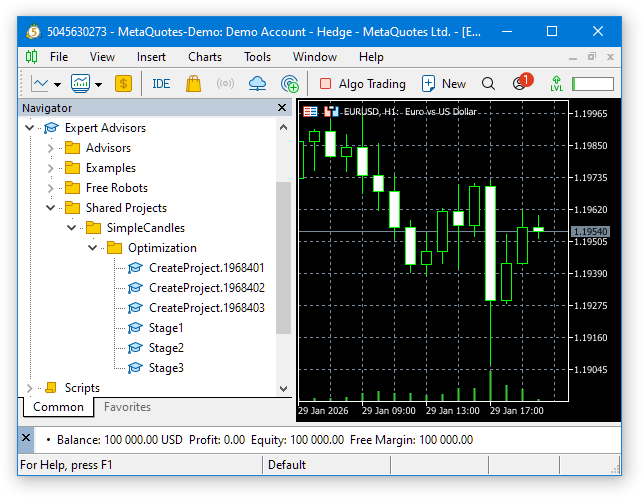
After that, we can run each project creation Expert Advisor one by one on a terminal chart (not in the Strategy Tester!):
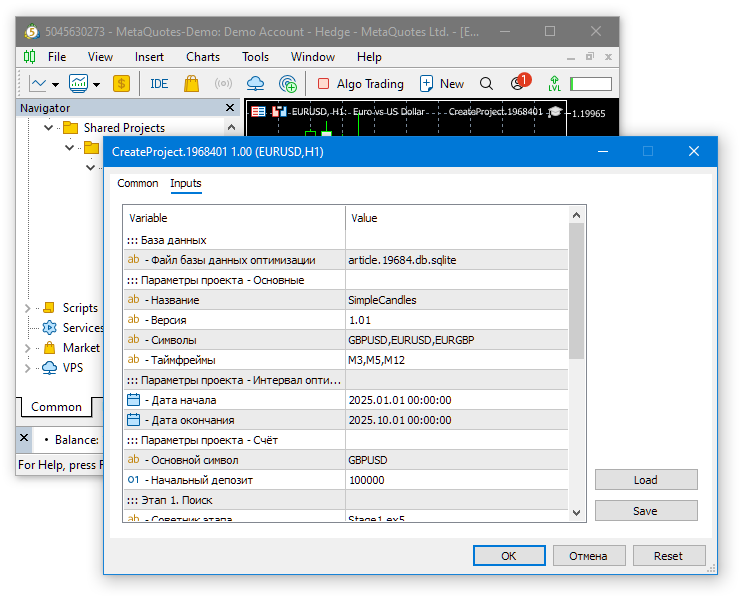
Since we have entered all the necessary parameter values for various projects into the project creation Expert Advisor files, we do not need to change anything in the input parameters dialogs when running these Expert Advisors. Just click OK.
When you run the first project creation Expert Advisor, an optimization database named article.19684.db.sqlite will be created in the common terminal data folder. The optimization tasks required for this project will be added to it. Since we specified the same database name for the other project creation Expert Advisors, when we run them, the optimization projects will be created in the existing database.
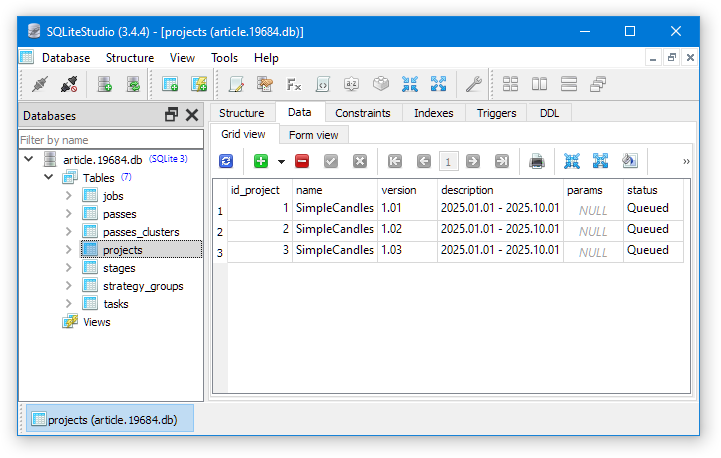
As you can see, the projects table now contains three entries for three projects. Project names and versions are taken directly from the parameters of the project creation Expert Advisors, and the project description is currently generated automatically based on the start and end dates of the optimization interval. If you wish, you can change this behavior, but to do so, you'll need to make changes to the library code.
For different projects, you can use either separate databases or a single optimization database. Since we set fairly strict time limits for each run of the optimization processes in the first and second stages (120 and 300 seconds), the number of passes will not be very large. Consequently, the database size after optimization is complete will also be much smaller than it would have been if we hadn't imposed a time limit.
As a result of this step, we created jobs to launch the automated optimization pipeline. The launch itself will be performed by another Expert Advisor in the next step.
Step 3. Launching the Optimization Pipeline
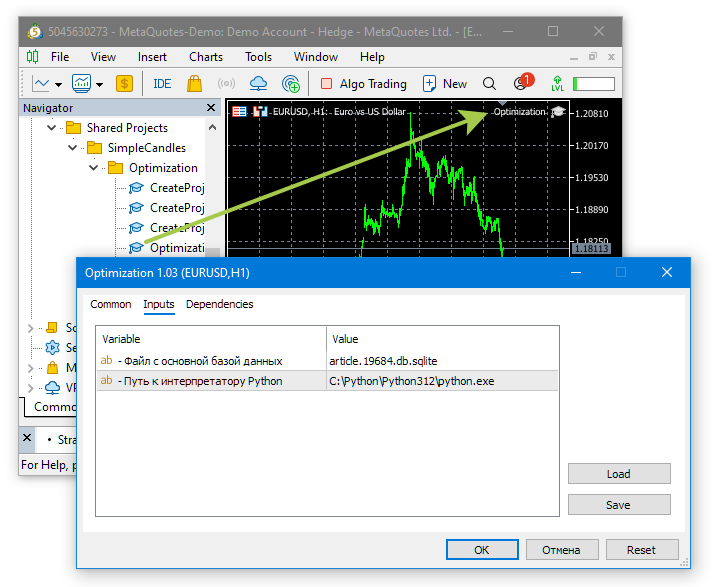
The purpose of this step is to compile and run the automated project optimization Expert Advisor. It is located in the project repository in the file Optimization/Optimization.mq5. In it, we only need to specify a constant with the previously selected name of the optimization database file:
// Constants with default values for the project:
// - Main database file
#define OPT_FILEMNAME "article.19684.db.sqlite"

// - Path to the Python interpreter
#define OPT_PYTHONPATH "C:\\Python\\Python312\\python.exe"

#include "../../Adwizard/Experts/Optimization.mqh"
The constant with the path to the Python interpreter is not used, since we have so far chosen not to include any Python-based stages in the optimization pipeline. In the future, they may appear again, and when they do, this constant will be used.
The main code for the automated optimization Expert Advisor is located entirely in the library part and is included in this file at the end. Let's compile it.
The automated optimization pipeline can take quite a long time to run. Its duration depends on the selected optimization time interval (the longer the interval, the longer the process), the complexity of the trading strategy itself (the more complex it is, the longer it takes), and, of course, the number of available testing agents for the optimization (the more there are, the faster it is). However, by limiting the execution time of the optimization tasks in the first and second stages of the optimization pipeline, we can roughly estimate the total running time.
If, in a single optimization project, we have three trading instruments and three timeframes, and in the parameter
sinput string stage1Criterions_ = "6,6,6,6,6,6"; // - Optimization criteria for optimization tasks
the criterion value "6" (Custom max) is specified six times, separated by commas, then at the first stage of the optimization pipeline a total of 3 * 3 * 6 = 54 optimization runs of the Expert Advisor Optimization/Stage1.ex5 will be performed (54 optimization tasks). Given the following parameter,
sinput long stage1MaxDuration_ = 120; // - Max. task duration (s)
The duration of each task will be limited to 2 minutes (120 seconds). In that case, the entire first stage of a single project will take about 54 * 2 = 108 minutes.
At the second stage, the best groups will be selected for each symbol-timeframe combination; therefore, 3 * 3 = 9 optimization runs of the Expert Advisor Optimization/Stage2.ex5 will be performed. Taking the parameters into account
sinput string   stage2Criterion_  = "6";              // - Optimization criterion for optimization tasks
sinput long     stage2MaxDuration_ = 300;             // - Max. task duration (s)
The duration of a single optimization task with criterion "6" (Custom max) will be 5 minutes (300 seconds). The second optimization stage for a single project will then take 9 * 5 = 45 minutes.
The duration of the third stage, during which a single test run of the Expert Advisor Optimization/Stage3.ex5 will be performed, is not specified, but as a rough estimate it may take, for example, about 30 minutes to complete.
In that case, the entire automatic optimization pipeline for the three projects will take approximately 3 * (108 + 45 + 30) = 549 minutes, or about 9 hours.
Let's run the automatic optimization pipeline by dragging the Optimization/Optimization.ex5 Expert Advisor onto any chart in the terminal:
In this terminal, to speed up optimization, it is recommended to connect all available testing agents on your local network; alternatively, you can enable the use of paid cloud agents in the MQL5 Cloud Network.
Once launched, the automatic optimization Expert Advisor will perform all assigned optimization tasks one by one, starting with the first project and then moving on to the rest. Information about the current status is displayed in the Expert Advisor window:
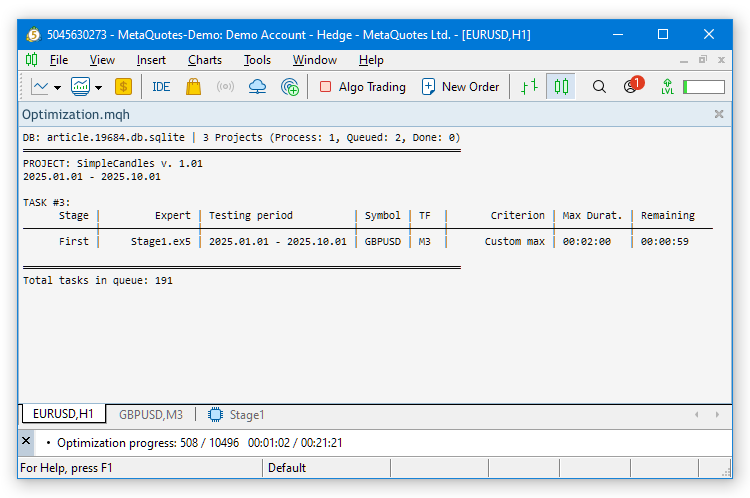
At the start of each new optimization process, the terminal creates and switches to a new chart displaying the results of the current optimization process. Each point on the graph corresponds to the result of a single pass of the first-stage optimization Expert Advisor with a particular set of parameters. The point's height is the value of the user-defined criterion, for which we use normalized annual profit at a 10% drawdown with a $10,000 deposit:

As shown in the figure above, 1 minute and 46 seconds after optimization of the Stage1.ex5 Expert Advisor was started for the GBPUSD symbol on the M3 timeframe, 1,187 passes had been completed out of the planned 10,496. Among them are already more than a dozen passes that generated profits ranging from $3,000 to $6,000, as well as several dozen with profits exceeding $500.
In the parameter
sinput double stage2MinCustomOntester_ = 500; // - Min. normalized profit value
We set the value to 500, which means that only those results from the first stage that yielded a normalized profit of more than $500 will be selected for the second stage. In just 2 minutes, quite a few such results had already been gathered. Given that we run the optimization six times for each symbol-timeframe combination, several hundred good parameter combinations will advance to the second stage. Therefore, it appears that the time allocated for a single optimization task in the first stage is sufficient.
However, it is worth noting that the optimization involved 1 agent on the local computer and 32 additional testing agents on the local network. If the number of agents used increases, the number of passes completed in the same 2 minutes will only go up; conversely, if the number of agents decreases, it will go down. In the latter case, it may be necessary to increase the time allotted for each optimization task so that a sufficient number of good instances can be found within that time for the second stage.
Once all the tasks in the automatic optimization pipeline have been completed, we will see that all three projects are in the "Done" state (completed):
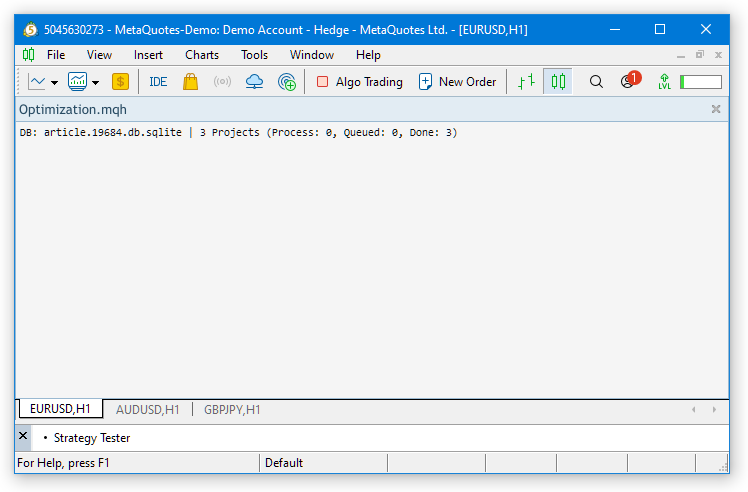
The automatic optimization Expert Advisor switches to waiting for new tasks. Such tasks may appear if, for example, we add a new project to this same optimization database or change the status of an existing project. You can safely remove it from the chart.
The pipeline produces the final Expert Advisor database files in the common terminal data folder. They are intended to store all the necessary information for the final Expert Advisor running on a trading account. At this step, only information about the composition of the group of single instances of trading strategies being used has been added to these databases.
The file names of these databases are generated from the project name and the magic number specified in the third-stage Expert Advisor settings. As shown in the following figure, two new files have appeared in the common folder, and their names begin with the project name "SimpleCandles":
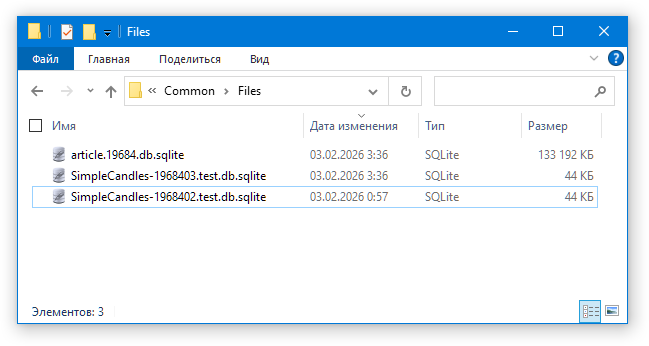
Actually, we expected to see three files, but for now let's not investigate why the file for magic number 1968401 is missing. We will definitely come back to this later.
As we expected, the optimization database took up relatively little space: the file article.19684.db.sqlite was only about 130 MB in size.
So, now that we have the final Expert Advisor databases, we can move on to the next step.
Step 4. Launching the final Expert Advisors
The purpose of the final step is to run the final Expert Advisors on trading accounts or run them in the Strategy Tester to evaluate the optimization results. Let's look straight away at the steps for launching them on a trading account.
Let's take the existing final Expert Advisor file in the project part, SimpleCandles.mq5, and save it under three different names. For clarity, we'll include the main distinguishing parameters in each name. For example, the name SimpleCandles-MQ-100K-10.mq5 would mean that the Expert Advisor is intended to be launched on a demo account from MetaQuotes, the initial account balance will be $100000, and the maximum allowable calculated drawdown will be 10%. Here is what the root directory of the project repository will look like after that:
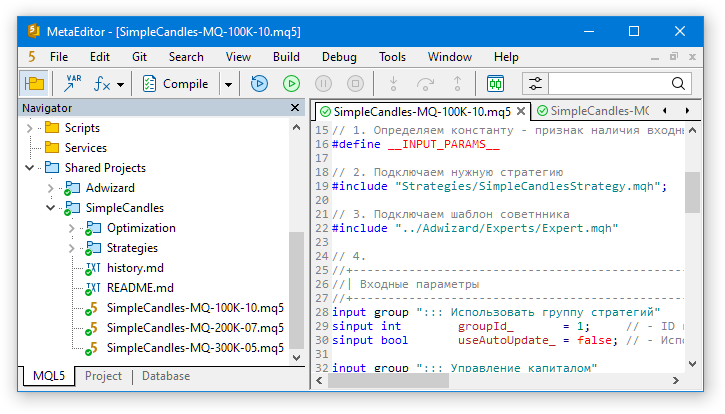
To run the final Expert Advisor, it is important that its name and magic number generate the same final Expert Advisor database name that we already have. Otherwise, it will create an empty Expert Advisor database and terminate, since it does not contain a group with the required identifier. By the way, you can actually do this to find out what the final Expert Advisor database should be named.
Let's run, for example, the compiled file SimpleCandles-MQ-100K-10.ex5 on a chart and see that a file with the name SimpleCandles-MQ-100K-10-1968401.db.sqlite: has appeared in the common terminal data folder
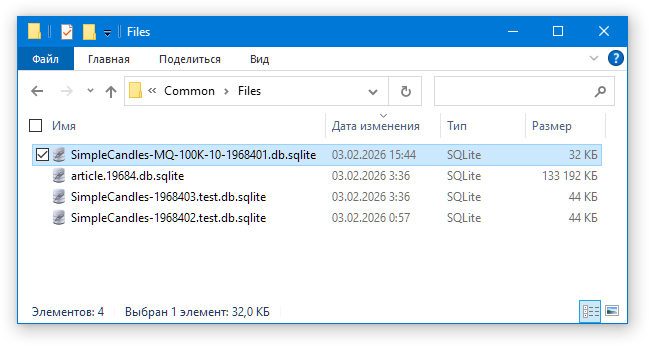
So, this is exactly what the database for this final Expert Advisor should be called. Therefore, we can take either SimpleCandles-1968402.test.db.sqlite or SimpleCandles-1968403.test.db.sqlite and create a copy with the required name, SimpleCandles-MQ-100K-10-1968401.db.sqlite.
If the final Expert Advisor finds its database under the specified name, it attempts to load the strategy group with the specified identifier, or the most recently added group if the identifier is 0. We specified a group ID of 1 in all three final Expert Advisors:
input group "::: Use a group of strategies"
sinput int        groupId_       = 1;     // - Group ID from the new library (0 = the most recent)
Since we ran the optimization pipeline once, a single strategy group with ID 1 was created in each final Expert Advisor database:
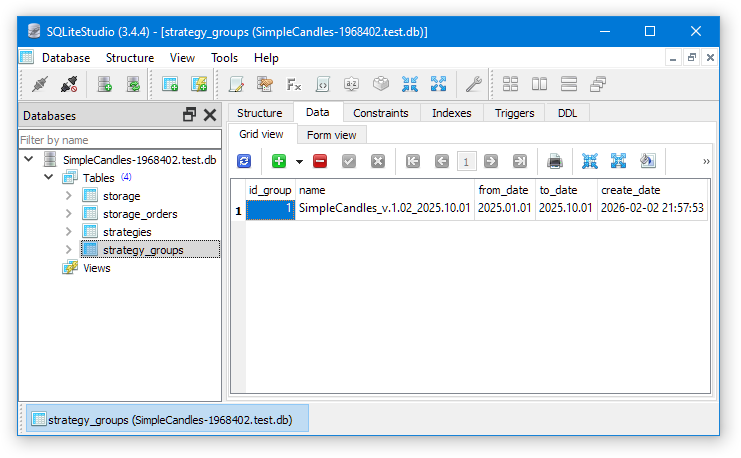
Therefore, this is the group that will be loaded for operation in the final Expert Advisor. Let's copy the final Expert Advisor database files, giving them names that correspond to the names of the final Expert Advisors themselves:
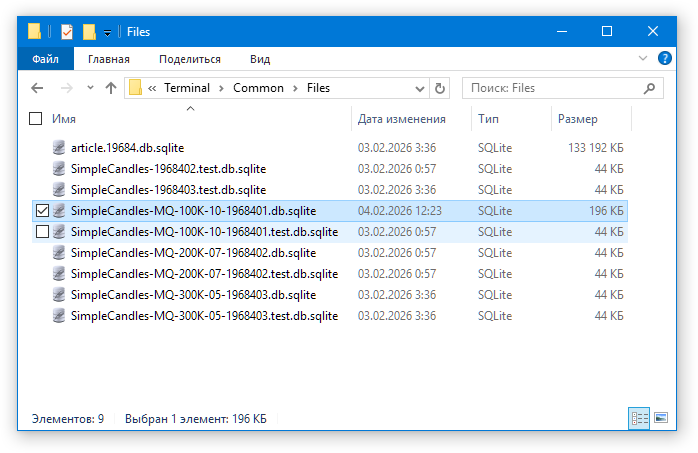
We obtained six new final Expert Advisor database files. Files with the .test suffix in their names can only be used in the Strategy Tester, while files without this suffix will be used when running the final Expert Advisors on a trading account. Let’s reiterate that this separation is intended to prevent a situation in which starting a test run could accidentally make changes to the database of an Expert Advisor that is already running on a trading account.
Adding a magic number to the database name is another layer of protection against one final Expert Advisor making changes to another Expert Advisor's database. We deliberately set the magic number in the default input parameters so that no launch would require changing it in the parameters dialog, while it would still be visible there.
Since these files are stored in the common terminal data folder, they will be accessible to any terminal installed on this computer. Let's use the three new terminal installations located in a separate folder, such as C:/MT5
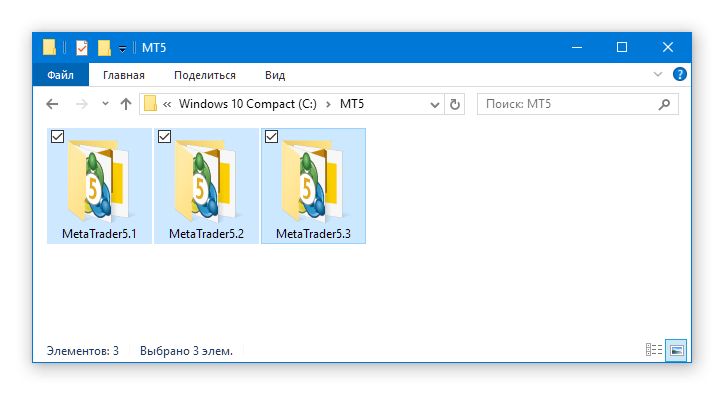
In each of these folders, we can either clone the library and project repositories and compile the final Expert Advisors, or copy the pre-compiled versions of the final Expert Advisors from the terminal instance where the optimization was performed:
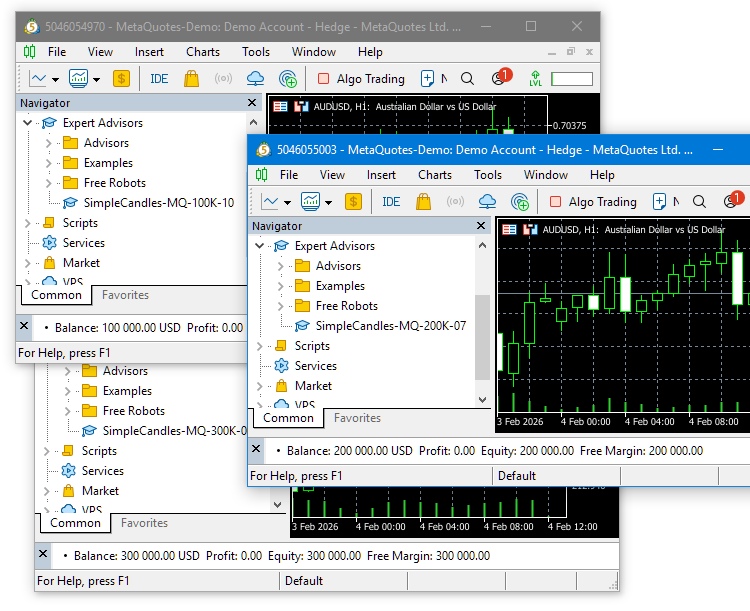
The final step is to drag the added final Expert Advisor onto any chart in each terminal, enable automatic trading, and leave all input parameters at their default values.

If we do decide to change the values of any parameters, we recommend doing so in the source code and recompiling the final Expert Advisor so that, in the event of an unplanned restart or migration to another folder, we will not have to worry about changing the input parameters in the parameters dialog when launching the Expert Advisor on the chart.
This is it — the final Expert Advisors have been deployed to the trading accounts. You can leave them alone for a while and focus on further refinements. To conclude, here are the results of a test pass of one of the final Expert Advisors:
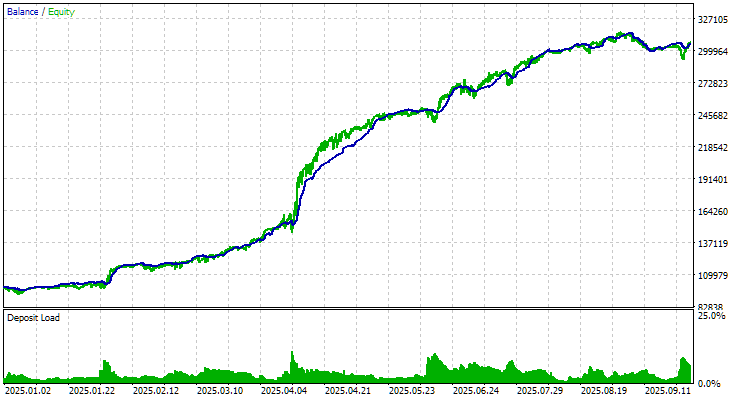
As can be seen, over the 9-month testing period, the trading strategy experienced periods of both successful and less successful trading, but the final result was quite good. The position sizes were chosen correctly, and the drawdown over the entire period did not exceed the maximum calculated value of 10%. In this test, the Expert Advisor was allowed to use all available funds in the account.
Conclusion
So, we have gone the entire way from formulating a trading strategy to turning it into several final multi-currency Expert Advisors that operate on trading accounts. We demonstrated in tests the potential for improving results by combining a large number of instances of a simple trading strategy in a single Expert Advisor.
We can now safely create separate Expert Advisors for each account, each with its own individual parameters, which will always be loaded correctly. In the future, we are considering moving the parameter management interface out to an external web application layer and creating an API for managing the Expert Advisor. It is not entirely clear how necessary this is, but time will tell.
However, things do not always go as planned. For example, we encountered a situation where one of the optimization projects did not result in the creation of a final Expert Advisor database. Let's try to figure out the reasons behind this behavior and continue working on improving the code as a whole.
Thank you for your attention. See you soon!
Important Warning
All results presented in this article and in all previous articles in the series are based solely on historical testing data and do not guarantee any profit whatsoever in the future. The work carried out as part of this project is research-oriented. All published results may be used by anyone at their own risk.
| # | Name | Version | Description | Latest Changes |
|---|---|---|---|---|
| SimpleCandles | Project working folder (inside MQL5/Shared Projects) | |||
| 1 | SimpleCandles-MQ-100K-10.mq5 SimpleCandles-MQ-200K-07.mq5 SimpleCandles-MQ-300K-05.mq5 | 1.05 | Final Expert Advisors for running multiple groups of model strategies in parallel. The parameters will be taken from the built-in group library. There may be several such Expert Advisors, and each of them can serve as a template. | Part 30 |
| └ Optimization | Project optimization Expert Advisors folder | |||
| 2 | CreateProject.1968401.mq5 CreateProject.1968401.mq5 CreateProject.1968401.mq5 | 1.05 | A project creation Expert Advisor script with stages, jobs, and optimization tasks. | Part 30 |
| 3 | Optimization.mq5 | 1.03 | Expert Advisor for automatic project optimization | Part 29 |
| 4 | Stage1.mq5 | 1.04 | Optimization Expert Advisor for a single instance of a trading strategy (Stage 1) | Part 30 |
| 5 | Stage2.mq5 | 1.04 | Optimization Expert Advisor for a group of trading strategy instances (Stage 2) | Part 30 |
| 6 | Stage3.mq5 | 1.04 | Expert Advisor that saves the generated normalized group of strategies to the Expert Advisor database under a specified name. | Part 30 |
| └ Strategies | Project strategies folder | Part 25 | ||
| 7 | SimpleCandlesStrategy.mqh | 1.03 | SimpleCandles trading strategy class | Part 30 |
| Adwizard | Adwizard library folder (inside MQL5/Shared Projects) | |||
| └ Base | Base classes from which other project classes are derived | |||
| 8 | Advisor.mqh | 1.04 | Expert Advisor base class | Part 10 |
| 9 | Factorable.mqh | 1.06 | The base class for objects created from a string | Part 28 |
| 10 | FactorableCreator.mqh | 1.00 | Creator class that maps names to the static constructors of classes derived from CFactorable | Part 24 |
| 11 | Interface.mqh | 1.01 | Base class for rendering various objects | Part 4 |
| 12 | Receiver.mqh | 1.04 | Base class for converting open volumes into market positions | Part 12 |
| 13 | Strategy.mqh | 1.04 | Base class for a trading strategy | Part 10 |
| └ Database | Files for working with all types of databases used by the project's Expert Advisors | |||
| 14 | Database.mqh | 1.13 | Class for working with a database | Part 29 |
| 15 | db.adv.schema.sql | 1.00 | Final Expert Advisor database schema | Part 22 |
| 16 | db.cut.schema.sql | 1.00 | Trimmed optimization database schema | Part 22 |
| 17 | db.opt.schema.sql | 1.06 | Optimization database schema | Part 29 |
| 18 | Storage.mqh | 1.01 | Class for working with the Key-Value store for the final Expert Advisor in the Expert Advisor database | Part 23 |
| └ Experts | Files containing common components used by different types of Expert Advisors | |||
| CreateProject.mqh | 1.07 | Library file for the project creation Expert Advisor script with stages, jobs, and optimization tasks | Part 30 | |
| 19 | Expert.mqh | 1.24 | Library file for the final Expert Advisor. Group parameters can be retrieved from the Expert Advisor database | Part 28 |
| 20 | Optimization.mqh | 1.06 | Library file for the Expert Advisor that manages the execution of optimization tasks | Part 29 |
| 21 | Stage1.mqh | 1.19 | Library file for the optimization Expert Advisor for a single instance of a trading strategy (Stage 1) | Part 23 |
| 22 | Stage2.mqh | 1.04 | Library file for the optimization Expert Advisor for a group of trading strategy instances (Stage 2) | Part 23 |
| 23 | Stage3.mqh | 1.04 | Library file for an Expert Advisor that saves a generated normalized group of strategies to the Expert Advisor database with a specified name. | Part 23 |
| └ Optimization | Classes responsible for automatic optimization | |||
| 24 | OptimizationJob.mqh | 1.00 | Class for a job in an optimization project stage | Part 25 |
| 25 | OptimizationProject.mqh | 1.00 | Class for an optimization project | Part 25 |
| 26 | OptimizationStage.mqh | 1.00 | Class for an optimization project stage | Part 25 |
| 27 | OptimizationTask.mqh | 1.01 | Class for an optimization task (for creation) | Part 29 |
| 28 | Optimizer.mqh | 1.04 | Class for the automated project optimization manager | Part 29 |
| 29 | OptimizerTask.mqh | 1.06 | Class for an optimization task (for the optimization pipeline) | Part 29 |
| └ Strategies | Examples of trading strategies used to demonstrate how the project works | |||
| 24 | HistoryStrategy.mqh | 1.00 | Class for a trading strategy that replays trade history | Part 16 |
| 25 | SimpleVolumesStrategy.mqh | 1.11 | Class for a trading strategy using tick volumes | Part 22 |
| └ Utils | Helper utilities and macros for shortening code | |||
| 26 | ConsoleDialog.mqh | 1.01 | Class for displaying text information on the chart | Part 28 |
| 26 | ExpertHistory.mqh | 1.00 | Class for exporting trade history to a file | Part 16 |
| 27 | Macros.mqh | 1.07 | Useful macros for array operations | Part 26 |
| 28 | MTTester.mqh | — | File from the MultiTester library for working with the Strategy Tester | Part 28 |
| 29 | NewBarEvent.mqh | 1.00 | Class for detecting a new bar for a specific symbol | Part 8 |
| 30 | SymbolsMonitor.mqh | 1.01 | Class for obtaining information about trading instruments (symbols) | Part 28 |
| └ Virtual | Classes for creating various objects unified by their use of a system of virtual trading orders and positions | |||
| 31 | Money.mqh | 1.01 | Base class for money management | Part 12 |
| 32 | TesterHandler.mqh | 1.07 | Class for handling optimization events | Part 23 |
| 33 | VirtualAdvisor.mqh | 1.12 | Expert Advisor class for working with virtual positions (orders) | Part 28 |
| 34 | VirtualChartOrder.mqh | 1.02 | Graphical virtual position class | Part 28 |
| 35 | VirtualCloseManager.mqh | 1.00 | Close manager class | Part 28 |
| 36 | VirtualHistoryAdvisor.mqh | 1.00 | Expert Advisor class for replaying trade history | Part 16 |
| 37 | VirtualInterface.mqh | 1.00 | Expert Advisor graphical interface class | Part 4 |
| 38 | VirtualOrder.mqh | 1.09 | Virtual orders and positions class | Part 22 |
| 39 | VirtualReceiver.mqh | 1.04 | Class for converting open volumes into market positions (receiver) | Part 23 |
| 40 | VirtualRiskManager.mqh | 1.06 | Risk management class (risk manager) | Part 28 |
| 41 | VirtualStrategy.mqh | 1.09 | Trading strategy class with virtual positions | Part 23 |
| 42 | VirtualStrategyGroup.mqh | 1.04 | Class for a group of trading strategies or groups of trading strategies | Part 28 |
| 43 | VirtualSymbolReceiver.mqh | 1.00 | Symbol receiver class | Part 3 |
The source code is also available in the SimpleCandles and Adwizard public repositories
Translated from Russian by MetaQuotes Ltd.
Original article: https://www.mql5.com/ru/articles/19684
Warning: All rights to these materials are reserved by MetaQuotes Ltd. Copying or reprinting of these materials in whole or in part is prohibited.
This article was written by a user of the site and reflects their personal views. MetaQuotes Ltd is not responsible for the accuracy of the information presented, nor for any consequences resulting from the use of the solutions, strategies or recommendations described.

 Neural Networks in Trading: The Temporal Query Model (TQNet)
 Measuring What Matters (Part 4): Reading the Spectrum — What Eigenvalues Tell You About Risk
 Butterfly Optimization Algorithm (BOA)
 Building Your Personal Expert Advisor (Part 6): Risk Management V — Portfolio and Correlated Risk

- Free trading apps
- Over 8,000 signals for copying
- Economic news for exploring financial markets
You agree to website policy and terms of use
Hello Yuriy,
I really appreciate your work, and this article has finally clarified for me how to proceed with testing a single EA strategy. May I ask whether your roadmap will cover how to optimise different EA strategies simultaneously (e.g. SimpleCandles + SimpleVolumes)?
Thanks
Gianluca
Hello. Thank you for your interest. An article on combining two different trading strategies within a single project has been in the pipeline for quite some time. However, it is only now, having received the finalised solution for launching optimisation projects, that we will be able to get started on it. This topic will certainly be covered in one of the forthcoming instalments.
Hello. Thank you for your interest. An article on combining two different trading strategies within a single project has been planned for quite some time. However, it is only now, having received the final solution for launching optimisation projects, that we will be able to get started on it. This topic will certainly be covered in one of the forthcoming instalments.