
Grid Scalper MA MT5 EA
- Uzmanlar
- Sürüm: 11.49
- Güncellendi: 16 Eylül 2026

Grid Scalper MA MT5 EA
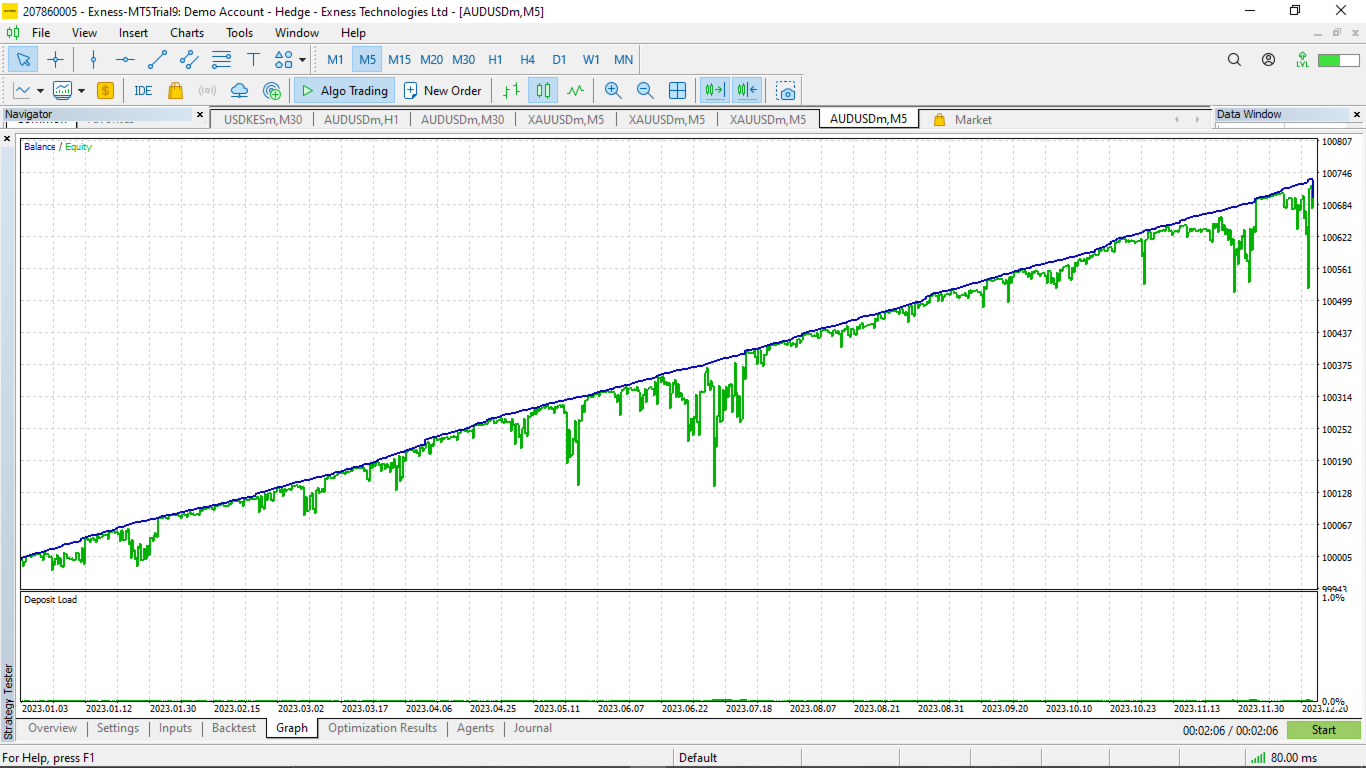
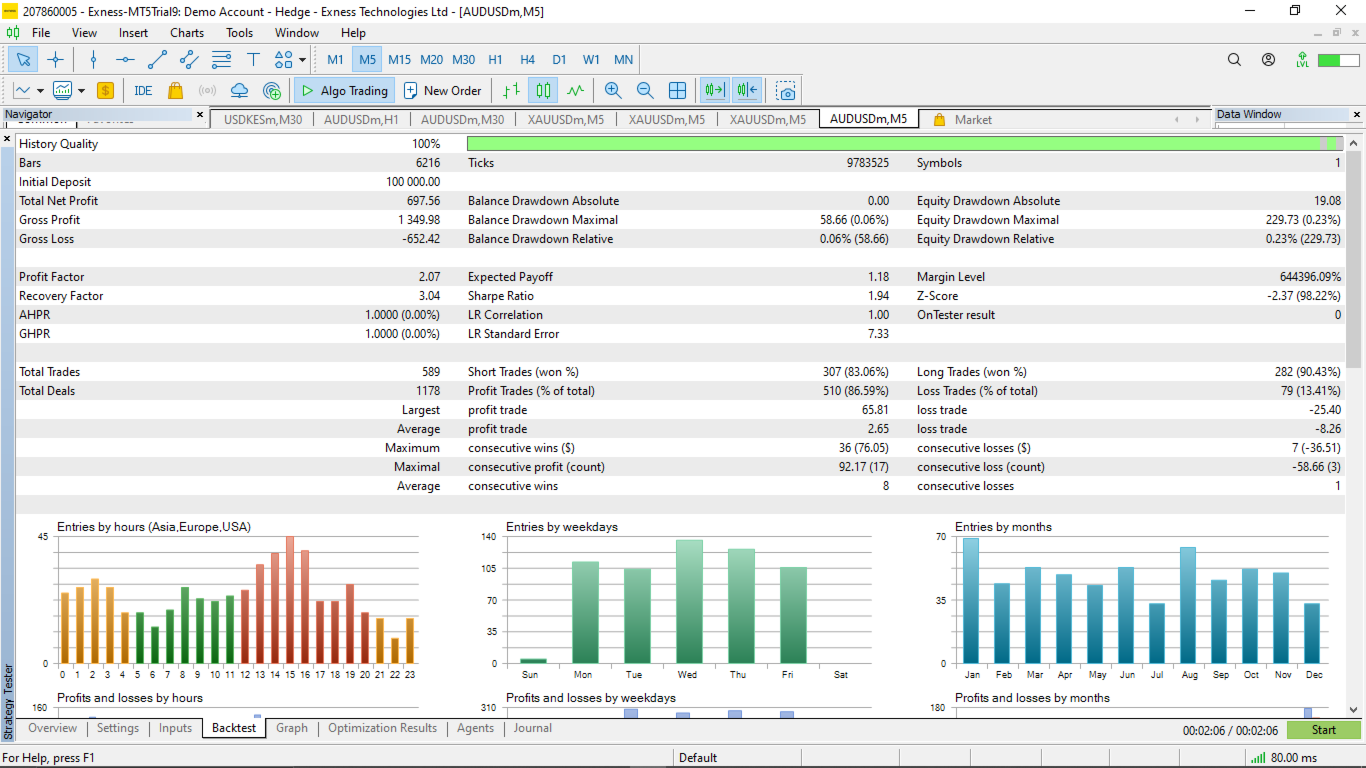
Grid Scalper MT5 EA is a MetaTrader 5 expert advisor built around a dynamic grid trading engine with two selectable signal strategies — Price vs MA (price crossing a single moving average) and BOS (Break of Structure, trading confirmed swing high/low breakouts). When price moves against an open basket, the EA layers in additional grid trades at defined intervals, targeting recovery via a volume-weighted breakeven close. Note:
The EA is developed under Gold (XAUUSD) currency pair and thus the default settings make sense there for a 3 digits (e.g.7101.123) chart version. For a 2 digits version (e.g. 7101.12), reduce all the input values for points' parameters by one zero - the EA uses points, not pips convention (e.g. if tp points in 3 digits is 11000, tp points in 2 digits is 1100). If you are to use the EA in diffenet instances, that is different charts, recall to use different magic numbers, that is the only way the instances will not collide and will work independently, even on charts with same pair, period and settings. We urge you to carry out your own backtesting and optimization on any pair or timeframe to find the best fitting settings of your own.
JOIN ALL OUR TOOLS public channel: CLICK HERE.
It has been updated with a vast extended control parameters and new logics and thus highly recommended to take a keen look at the inputs, and understand what each input controls. Be sure to read the inputs description section for some insight on the upgrades, as they impact the system significantly.
Our other EAs:
Grid Scalper Pro MT5: https://www.mql5.com/en/market/product/188047
Spectra Zone Scalper: https://www.mql5.com/en/market/product/129771
Break of Structure: https://www.mql5.com/en/market/product/119022
Supply and Demand: https://www.mql5.com/en/market/product/151952
At its core, Grid Scalper MT5 EA supports two signal strategies selectable via the Signal Strategy input: Price vs MA, where a close price crossing the Moving Average (set via MA Period) triggers a new basket, and BOS (Break of Structure), where a close breaking above a confirmed swing high fires a buy and breaking below a swing low fires a sell. Each signal initiates a fresh basket with its own unique magic number offset. The basket expands as price moves against the initial position, adding grid trades at defined Grid Size Points intervals. Lot sizing per grid trade is controlled by the Grid Lot Mode — either multiplier-based (progressive scaling) or recovery-based (mathematically sized to recover the basket at a defined target distance).
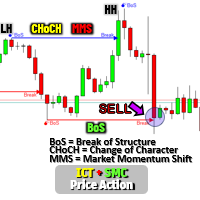
Risk management tools include optional per-trade Stop Loss, trailing stops exclusively for the first trade in each basket (activating after a minimum profit threshold), and breakeven-based closure for multi-trade baskets. Cap the maximum trades per basket, choose what happens when the cap is hit (hold or close all), and cap the total number of simultaneous active baskets. The Smart Grid mode adds structural intelligence — if a confirmed trend forms against an open basket, grid additions pause (cooldown) and resume only after a CHoCH (Change of Character) confirms structural reversal. A Daily Drawdown protection system monitors equity against start-of-day balance and halts trading for the session if the limit is breached. A Trading Time Filter restricts new basket signals to a defined server-time window. The Geometry Filter prevents clustering by blocking new entries too close to an existing same-direction position.
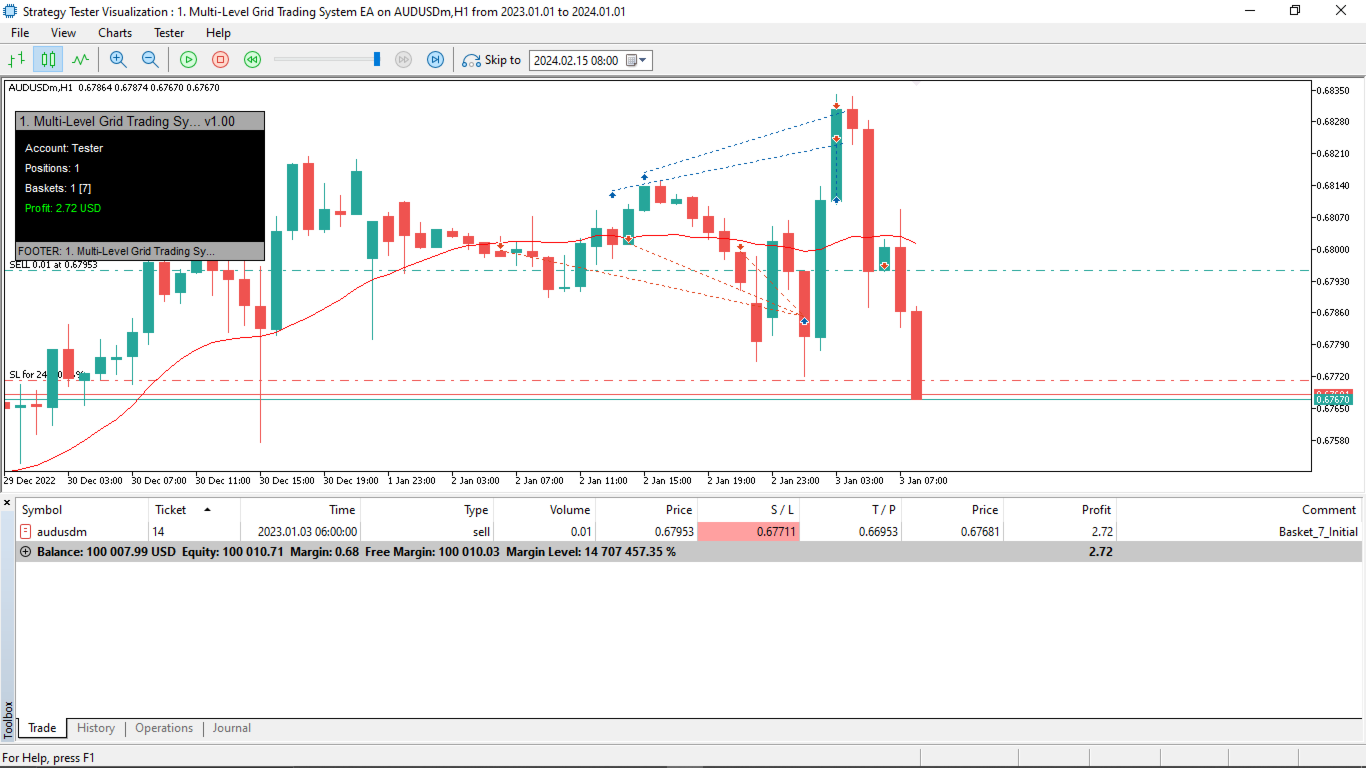
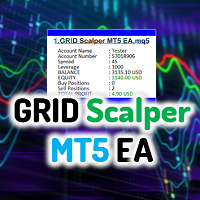
The real-time dashboard displays account info, active positions, basket details with floating P&L per basket, strategy in use, and daily drawdown status — available in minimized or maximized view, dark or light theme. Baskets persist across restarts via global variables for full continuity.
Key Features:
- Two signal strategies: Price vs MA crossover and BOS (Break of Structure swing breakout).
- Grid trading with adjustable spacing, two lot progression modes (multiplier or recovery-based), and per-basket trade caps.
- Smart Grid mode with automatic CHoCH cooldown — pauses grid on adverse structure, resumes on confirmed reversal.
- Daily Drawdown protection — closes losing trades and halts new entries when equity loss limit is hit.
- Trailing stop for initial positions and breakeven closure for multi-trade baskets, plus optional per-trade Stop Loss.
- Geometry Filter preventing clustered same-direction entries within a defined price range.
- Trading Time Filter restricting new signals to a defined server-time window.
- Real-time dashboard with per-basket P&L, strategy display, and dark/light theme support.
- Animated on-chart notification bar for trade events, rejections, and system alerts.
- Basket persistence via global variables — full state restoration after restarts or disconnections.
- Built-in checks for volume, margin, stop/freeze levels, and symbol limits ensuring reliable execution.
Inputs Description
The inputs are grouped into "EA GENERAL SETTINGS" and "MA Indicator Settings" for easy navigation in the MT5 EA properties window. Each input is designed for flexibility, with defaults that suit moderate strategies. Always optimize based on your symbol, timeframe, and risk tolerance. Below is a detailed breakdown to help you understand and configure them clearly.
EA GENERAL SETTINGS
Signal Strategy (enum: Price vs MA or BOS, default: Price vs MA): Selects the signal generation strategy the EA uses to open new baskets. "Price vs MA" fires a buy when price closes above the MA after being below it, and a sell when price closes below after being above — a single moving average price crossover. "BOS" (Break of Structure) fires a buy when price closes above a detected swing high, and a sell when price closes below a detected swing low — a structural breakout approach. Each strategy is fully self-contained; switching between them requires no other setting changes.
Lot Size Mode (enum: Static Lot Size or Dynamic Lot, default: Static Lot Size): Controls how the initial lot for each basket is calculated. "Static Lot Size" uses the fixed value in "Lot size (Static Mode)" for every basket entry regardless of account size. "Dynamic Lot" calculates the lot based on "Risk % of Equity" and the current grid size, scaling automatically as equity grows or shrinks.
Lot size (Static Mode) (double, default: 0.01): The fixed opening volume for the first trade in every basket when Lot Size Mode is set to Static Lot Size. Subsequent grid trades in the same basket scale this up according to the Grid Lot Mode. The EA validates and normalizes this against the symbol's minimum, maximum, and step volume constraints.
Risk % of Equity (Dynamic Mode) (double, default: 1.0): Active only when Lot Size Mode is Dynamic Lot. The percentage of current account equity to risk per basket entry, using the grid size as the risk distance. For example, 1.0 means the EA sizes the initial lot so that one full grid movement equals 1% of equity. Recalculated fresh for each new basket.
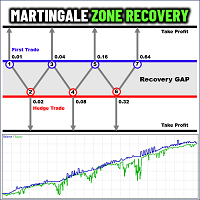
Grid Lot Mode (enum: Multiplier-Based Grid Lots or Recovery-Based Grid Lots, default: Multiplier-Based Grid Lots): Determines how lot sizes are calculated for each additional grid trade added to a basket. "Multiplier-Based Grid Lots" scales each new grid trade by the Multiplier — a classic martingale-style progression. "Recovery-Based Grid Lots" calculates the exact lot needed so that when price reaches a defined recovery target (based on Recovery % of Grid Size plus Extra Profit Points), the entire basket becomes profitable, regardless of the number of open trades.
Multiplier (Multiplier Mode) (double, default: 1.5): Active when Grid Lot Mode is Multiplier-Based Grid Lots. The factor by which each successive grid trade's lot is multiplied relative to the previous trade. Values above 1.0 increase exposure with each grid level (martingale-like); 1.0 keeps all grid lots equal to the initial size.
Recovery % of Grid Size (Recovery Mode) (int, default: 30): Active when Grid Lot Mode is Recovery-Based Grid Lots. Defines the recovery target distance as a percentage of the grid size. For example, 30 means the recovery target sits 30% of one grid spacing beyond the latest grid entry, plus the Extra Profit Points buffer.
Extra Profit Points (Recovery Mode) (int, default: 100): Active when Grid Lot Mode is Recovery-Based Grid Lots. An additional profit buffer in points added on top of the recovery distance. Ensures the basket closes with a small profit margin rather than exactly at breakeven.
Magic Number (long, default: 1234567): A base identifier for all trades managed by this EA instance. Each basket receives a unique offset derived from this base (base + basketId × 10000), ensuring all positions are correctly owned and isolated. Change this if running multiple EA instances on the same symbol to prevent cross-identification.
Take profit points (int, default: 11000): The profit target in points for the initial trade of each basket. If price reaches this level before any grid trades are added, the single position closes at this target. Once grid trades are added, the basket TP is dynamically recalculated to breakeven plus Breakeven Points for all positions.
Grid size points (int, default: 11000): The distance in points from the current entry price at which a new grid trade is added if price moves against the basket. Smaller values create denser grids with more frequent additions; larger values space grid levels further apart and suit trending or wider-ranging markets.
Breakeven Points (int, default: 50): The profit buffer in points beyond the basket's volume-weighted average entry price (breakeven) that triggers closure of all positions in the basket. Once price moves this many points past breakeven in the basket's favour, all trades close together. Smaller values close faster with less profit; larger values hold longer for bigger returns but risk reversal.
Stop Loss Mode (enum: No SL Mode or SL Mode, default: No SL Mode): Controls whether individual trades receive a stop loss. "No SL Mode" places trades without a stop loss, allowing the grid to recover freely but exposing the account to unlimited drawdown on a single trade. "SL Mode" applies a fixed stop loss in points from each trade's entry price using the value in "Stop loss points if SL Mode enabled."
Stop loss points if SL Mode enabled (int, default: 11000): Active only when Stop Loss Mode is SL Mode. The distance in points below each buy entry (or above each sell entry) where the stop loss is placed. The EA validates this against the broker's stop and freeze levels and adjusts if necessary.
Basket Trades Cap (enum: No Maximum Cap or Maximum Cap, default: No Maximum Cap): Controls whether a limit is placed on how many trades can exist inside a single basket. "No Maximum Cap" allows the grid to keep adding trades indefinitely as price moves against the basket. "Maximum Cap" enforces the limit set in "Max Trades per Basket if cap enabled."
Max Trades per Basket if cap enabled (int, default: 11): Active when Basket Trades Cap is Maximum Cap. The maximum total number of positions (initial trade plus all grid trades) allowed in one basket before the cap action is triggered.
Action when trades cap reached (enum: Hold or Close all trades, default: Hold): Active when Basket Trades Cap is Maximum Cap. "Hold" stops adding new grid trades once the cap is reached but keeps existing positions open to recover naturally. "Close all trades" immediately closes every position in the basket the moment the cap is hit, cutting the loss outright.
Baskets Cap Mode (enum: No Baskets Cap or Baskets Cap, default: No Baskets Cap): Controls the maximum number of simultaneous baskets the EA can have open at one time. "No Baskets Cap" allows unlimited concurrent baskets. "Baskets Cap" enforces the limit in "Maximum Baskets/Trade Positions if cap enabled" and ignores new signals once that number is reached.
Maximum Baskets/Trade Positions if cap enabled (int, default: 3): Active when Baskets Cap Mode is Baskets Cap. The maximum number of active baskets allowed simultaneously. New entry signals are skipped until an existing basket closes and frees a slot.
Use Trailing Stop for first position (bool, default: true): When enabled, the EA applies a trailing stop loss to the initial trade of each basket only — not to subsequent grid trades. The trail activates once the position reaches "Minimum Profit points to activate trailing" and then follows price at the distance set in "Trailing Stop points."
Trailing Stop points (int, default: 30): The distance in points at which the stop loss trails behind the current price once trailing is active on the initial position. For a buy, the SL sits this many points below current bid; for a sell, above current ask. Checked and adjusted against broker stop levels.
Minimum Profit points to activate trailing (int, default: 100): The minimum unrealized profit in points a basket's initial trade must reach before the trailing stop activates. Prevents the trail from engaging prematurely on minor price moves.
Trade Direction (enum: Both buys and sells, Buys only, Sells only, default: Both buys and sells): Restricts which direction the EA trades. "Both buys and sells" allows signals in either direction. "Buys only" ignores all sell signals. "Sells only" ignores all buy signals. Useful for applying a directional bias or complying with broker hedging restrictions.
Geometry Filter Mode (enum: No Geometry Filter or Apply Geometry Filter, default: Apply Geometry Filter): Controls whether the EA checks existing open positions before allowing a new basket entry in the same direction. "Apply Geometry Filter" rejects a new signal if an existing same-direction position is already open within the range set by "Geometry Range % of Grid Size," preventing clusters of entries at nearly identical price levels. "No Geometry Filter" disables this check entirely.
Geometry Range % of Grid Size (int, default: 50): Active when Geometry Filter Mode is Apply Geometry Filter. Defines the exclusion zone around existing same-direction positions as a percentage of the grid size. A value of 50 means no new same-direction entry is allowed within half a grid spacing of an existing same-direction position.
DAILY DRAWDOWN SETTINGS
Daily Drawdown Mode (enum: Disabled or Enabled, default: Disabled): Enables or disables the daily drawdown protection system. When Enabled, the EA monitors the current session's equity loss relative to the start-of-day balance. If the drawdown limit is breached, losing positions are closed immediately and all new trading is halted for the remainder of that day.
Daily Drawdown % of Balance (double, default: 10.0): Active when Daily Drawdown Mode is Enabled. The maximum allowable equity drawdown as a percentage of the start-of-day account balance. When equity drops this percentage below the opening balance, the protection triggers — losing trades are closed, profitable ones are locked in via trailing stop, and no new baskets open until the next calendar day.
SMART GRID SETTINGS
Grid Mode (enum: Normal Grid or Smart Grid, default: Normal Grid): Selects the grid management behaviour. "Normal Grid" adds trades at every grid level as price moves against the basket with no restrictions. "Smart Grid" activates the CHoCH (Change of Character) cooldown system — if a confirmed structural trend forms against an open basket, the grid pauses adding trades (cooldown) until the structure breaks back in the basket's favour (CHoCH confirmed), at which point the grid resumes automatically.
Swing Point Lookback Bars (each side) (int, default: 5): The number of bars to the left and right of a candidate pivot bar used to confirm a swing high or swing low. A bar is classified as a swing high only if its high is strictly greater than all bars within this lookback on both sides. Higher values identify fewer, more significant structural points; lower values detect more frequent, smaller pivots. Used by both Smart Grid CHoCH detection and the BOS signal strategy.
CHoCH Bullish Color (color, default: Blue): The line and label color for bullish CHoCH drawings — displayed when a basket in sell cooldown detects a structural break upward, indicating the downtrend has ended and the grid is resuming.
CHoCH Bearish Color (color, default: Red): The line and label color for bearish CHoCH drawings — displayed when a basket in buy cooldown detects a structural break downward, indicating the uptrend has ended and the grid is resuming.
CHoCH Label Font Size (int, default: 10): The base font size for CHoCH and BOS break level labels on the chart. Automatically scaled relative to the current chart zoom level so labels remain readable at any scale.
CHoCH Line Width (int, default: 2): The base line width for CHoCH arrowed lines and BOS break level lines. Automatically scaled with chart zoom — thinner at small scales, capped at this value at full scale.
Swing High Marker Color (color, default: Orange): The color used for swing high markers (HH and LH labels) drawn on the chart when swing points are detected. Also used as the highlight color for Higher Low markers on swing lows.
Swing Low Marker Color (color, default: DodgerBlue): The color used for swing low markers (LL and HL labels) drawn on the chart. Also used as the highlight color for Lower High markers on swing highs.
MA INDICATOR SETTINGS
MA Period (MA Strategy only) (int, default: 21): The lookback period for the Simple Moving Average applied to closing prices. Only relevant when Signal Strategy is set to Price vs MA. The EA triggers a buy basket when the previous bar's close crosses above this MA, and a sell basket when it crosses below. Shorter periods generate more signals and are more sensitive to noise; longer periods filter for stronger trends but react more slowly.
DASHBOARD SETTINGS
Show Dashboard (enum: None, Minimized, Maximized, default: Maximized): Controls the on-chart information panel. "None" hides it entirely. "Minimized" shows a compact single-column summary of strategy, account name, open positions, active baskets, floating profit, and daily drawdown if enabled. "Maximized" expands to full sections covering account info, EA stats including active strategy and symbol, daily drawdown status if enabled, and a per-basket breakdown.
Dashboard Persistence (enum: Show only when active trades or Always show dashboard, default: Always show dashboard): "Show only when active trades" hides the dashboard when there are no open positions and shows it as soon as a basket becomes active. "Always show dashboard" keeps it visible at all times regardless of trade state.
Dashboard Theme (enum: Dark Theme or Light Theme, default: Dark Theme): Sets the color scheme of the dashboard. "Dark Theme" uses a black background with light text, suited for dark chart environments. "Light Theme" uses a white background with dark text, suited for light or white chart backgrounds.
Dashboard X Position (pixels from left) (int, default: 10): The horizontal pixel offset of the dashboard from the left edge of the chart window. Adjust to avoid overlap with price action or other indicators.
Dashboard Y Position (pixels from top) (int, default: 30): The vertical pixel offset of the dashboard from the top edge of the chart window. Adjust to position it below the toolbar or out of the way of price.
Footer Text (string, default: "Username [Your Name. e.g. Allan - Forex Algo-Trader]"): Custom text displayed centered in the dashboard footer bar. Replace with your name, username, or any identifier you want shown on the chart.
VISUALIZATION SETTINGS
Visualize Signals (bool, default: true): When enabled, the EA draws directional arrows on the chart at the bar where each new basket signal fires — below the bar for buys, above for sells. Both Price vs MA and BOS strategies draw arrows when this is on.
Buy Arrow Code (string, default: "p"): The character code within the Wingdings 3 font used to draw buy signal arrows. "p" renders as an upward arrow. Change to any valid Wingdings character code to customize the buy marker symbol.
Sell Arrow Code (string, default: "q"): The character code within the Wingdings 3 font used to draw sell signal arrows. "q" renders as a downward arrow. Change to any valid Wingdings character code to customize the sell marker symbol.
Font for Arrows (string, default: "Wingdings 3"): The font family applied to signal arrow markers. Should be a Wingdings variant to ensure the arrow codes render as intended symbols rather than text characters.
Buy Arrow Color (color, default: Green): The color of buy signal arrow markers drawn on the chart.
Sell Arrow Color (color, default: Red): The color of sell signal arrow markers drawn on the chart.
Arrow Offset Points (double, default: 10): The vertical distance in points between the bar's low (for buys) or high (for sells) and where the arrow is placed. Larger values push arrows further from the candle for cleaner visibility; smaller values place them tighter to the bar.
LOGGING SETTINGS
Print Prefix (string, default: "-> "): A custom text prefix prepended to every message the EA writes to the MT5 Journal tab. Useful for filtering EA-specific messages when multiple EAs or scripts are running simultaneously. Set to an empty string to disable the prefix.
Show Print Statements in Journal (bool, default: true): Controls whether the EA writes any messages to the MT5 Journal tab at all. Setting this to false suppresses all EA log output entirely, which can slightly improve performance during intensive backtesting or optimization runs with large datasets.
NOTIFICATION SETTINGS
Show Notification Bar (enum: Show Notification Bar or Hide Notification Bar, default: Show Notification Bar): Controls whether animated on-chart notification panels appear for EA events such as new basket entries, grid additions, CHoCH detections, geometry rejections, and daily drawdown alerts. "Hide Notification Bar" suppresses all notification panels while leaving Journal logging unaffected.
Notification Bar Theme (enum: Dark Theme or Light Theme, default: Dark Theme): Sets the color scheme of the notification panels. "Dark Theme" uses a near-black background with light-colored text. "Light Theme" uses a light grey background with dark text. Text colors automatically adapt to remain readable on whichever background is selected.
Notification Duration (seconds) (double, default: 5.0): How long each notification panel remains visible on the chart before its progress bar depletes and it disappears. Multiple notifications stack vertically and each counts down independently.
TRADING TIME FILTER SETTINGS
Use Trading Time Filter (bool, default: false): When enabled, the EA only opens new baskets during the defined server-time window between Start Hour/Minute and End Hour/Minute. Grid additions to existing baskets, trailing stops, breakeven closes, and daily drawdown protection continue to operate outside trading hours — only new basket signals are blocked.
Start Hour (0-23, Server Time) (int, default: 8): The hour at which the trading window opens, in 24-hour server time. Active only when Use Trading Time Filter is enabled.
Start Minute (0-59) (int, default: 0): The minute component of the trading window start time. Combined with Start Hour to define the exact start of the allowed trading period.
End Hour (0-23, Server Time) (int, default: 20): The hour at which the trading window closes, in 24-hour server time. Active only when Use Trading Time Filter is enabled. Wrap-around windows (e.g., 22:00 to 06:00) are supported — if Start Hour is later than End Hour the filter treats it as an overnight window.
End Minute (0-59) (int, default: 0): The minute component of the trading window end time. Combined with End Hour to define the exact end of the allowed trading period.
Disclaimer:
Grid Scalper MA MT5 EA utilizes a GRID trading approach, which can offer significant profit potential but also carries substantial risks. By opening multiple positions at set intervals, the EA may increase exposure during unfavorable market conditions, such as strong trends or high volatility. While it includes protective features like trailing stops, breakeven closure, optional SL, and caps, these do not eliminate the risk of loss, particularly with aggressive settings (e.g., high multipliers, no caps) or insufficient capital. Users are urged to carefully backtest and optimize all inputs on a demo account before risking real funds. Past performance is not a reliable indicator of future results. Trading involves risk, and losses can exceed your initial investment. Proceed with caution, understanding the grid strategy’s implications, and note that past performance does not guarantee future performance. Best luck.
















































Excelente bot,very gold!!!