SL TP Toggle Button MT4
- Indicatori
-
Mariusz Franciszek Szczepanczyk
 I have been trading since 2005. Over the years I have built my own set of tools because I could not find what I actually needed on the market. Not magic entry signals. Not promises. Just clean, reliable trade management that works while I am away from the screen.
 - Versione: 1.1
- Aggiornato: 26 aprile 2026
- Attivazioni: 5
IMPORTANTE: QUESTO NON È UN INDICATORE AUTONOMO
Questo strumento NON gestisce autonomamente Stop Loss o Take Profit e NON esegue alcuna logica di trading in modo indipendente.
È progettato esclusivamente per funzionare in combinazione con One Click B3 MT4 Expert Advisor.
Senza One Click B3 MT4 in esecuzione sullo stesso simbolo, questo indicatore visualizzerà solo il pulsante e NON controllerà la funzionalità SL/TP.
Se non possiedi o non utilizzi One Click B3 MT4, questo prodotto non fornirà alcuna funzionalità di trading.
B SL_TS_TP MT4 — SL Toggle per EA One Click B3 MT4
SCOPO PRINCIPALE: Pulsante di attivazione/disattivazione di EA One Click B3 MT4 – blocca l'apertura automatica di SL/TP con un clic. Indicatore del pulsante SL di livello industriale per MT4 build 5430+ con sistema di protezione avanzata: riparazione automatica dei file danneggiati, convalida delle posizioni, pulizia dei vecchi oggetti, sincronizzazione completa dello stato su tutti i grafici.
CARATTERISTICHE PRINCIPALI:
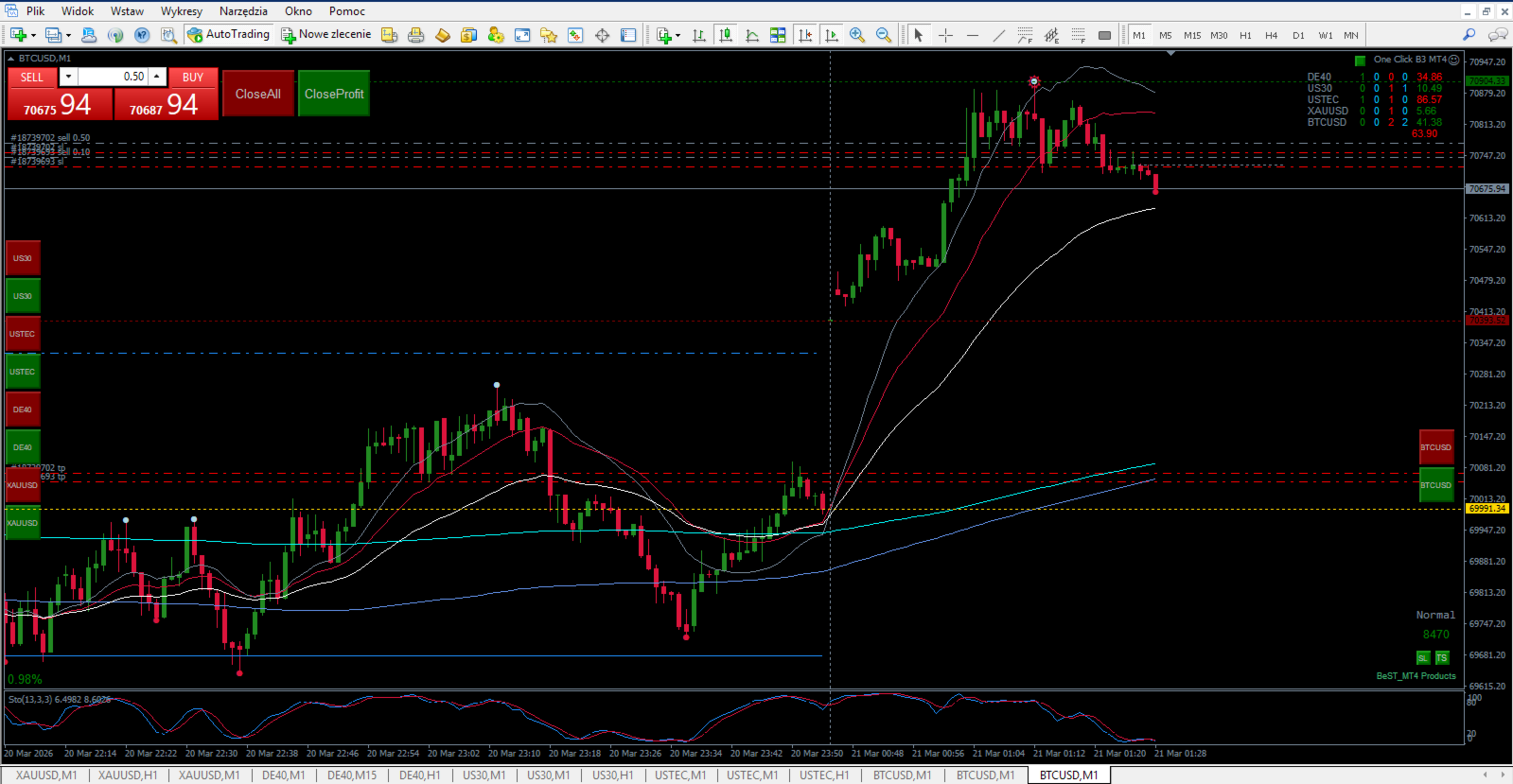
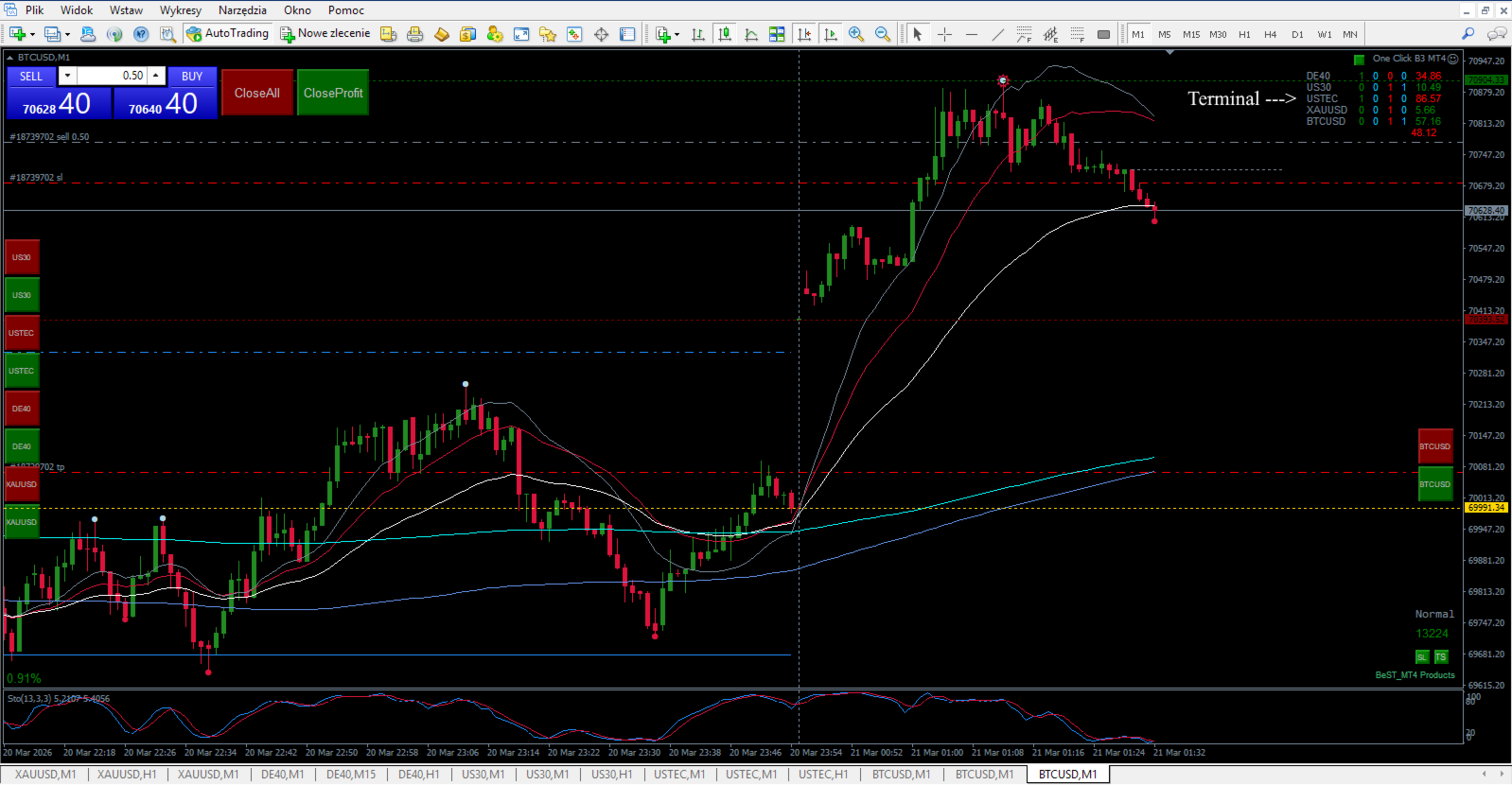
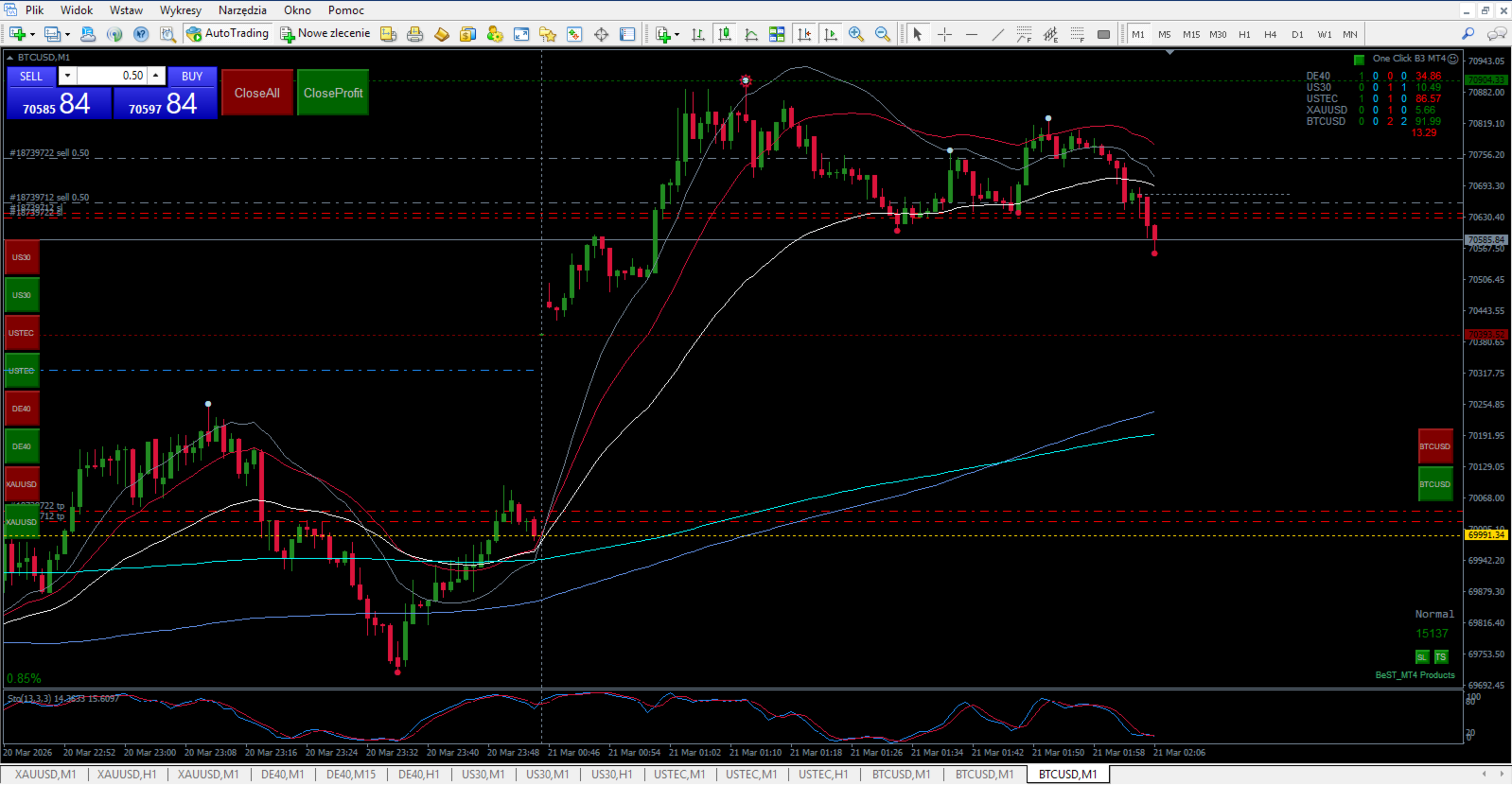
Controllo EA One Click B3 MT4 – Verde = EA attivo (SL/TP ON), Rosso = EA disabilitato (nessun SL/TP).
Affidabilità di livello industriale: resiste a crash della piattaforma, file danneggiati e riavvii.
Convalida dei file a prova di proiettile: rileva e ripara automaticamente le posizioni/stati .ini non validi.
Sincronizzazione multi-grafico: GlobalVariables + file .ini = stato coerente su tutta la piattaforma.
Posizionamento tramite trascinamento della selezione: pulsante completamente mobile con limiti di posizione (0–5000 px).
Dimensionamento preciso al millimetro: ButtonSize_mm viene convertito automaticamente in pixel.
Ancoraggio a 4 angoli: TopLeft(0), TopRight(1), BottomLeft(2), BottomRight(3).
Feedback visivo sullo stato: Verde = SL ON (EA attivo), Rosso = SL OFF (EA disabilitato), testo “SL” argentato.
Nessun conflitto: rimuove automaticamente i vecchi oggetti tramite prefisso a ogni inizializzazione.
Logica di sincronizzazione 1s: aggiornamenti di stato frequenti senza sovraccarico della CPU.
Funziona su conti reali e demo.
Supporto di copertura/compensazione: funziona con tutti i tipi di conto MT4.
Sistema di protezione hardcore:
- Convalida file: verifica i limiti X/Y (0–5000), ripara le posizioni non valide.
- Ripristino dello stato: carica da .ini → GlobalVariable → impostazioni predefinite (chiarimento della gerarchia).
- Pulizia degli oggetti: RemoveObjectsByPrefix() rimuove tutti i vecchi pulsanti all'inizializzazione.
- Limiti di posizione: IsValidPosition() impedisce arresti anomali dovuti a coordinate errate.
- Protezione da trascinamento: ripristina automaticamente le impostazioni predefinite se trascinato fuori dallo schermo.
- Backup multistrato: file .ini + variabili globali riducono al minimo il rischio di perdita di dati.
Caratteristiche del pulsante perfetto:
- Testo "SL" argentato in font Arial, dimensione derivata da ButtonSize_mm (predefinita 4.0) per una conversione pixel-perfect.
- Dimensioni configurabili in mm (scalatura indipendente dall'hardware).
- Trascinamento abilitato/disabilitato tramite il parametro AllowDrag.
- Ordine Z 100: visualizzato sopra gli oggetti del grafico ma completamente interattivo.
- Cambiamenti di colore in tempo reale al clic e sincronizzazione con GlobalVariables.
Architettura di sincronizzazione completa:
- EA_SL_Button_%s.ini – posizione (X,Y).
- EA_button_state_%s.ini – Stato ON/OFF.
- EA_Toggle_State_%s – Stato SL ON/OFF della variabile globale.
- EA_Toggle_PosX_%s – Posizione X della variabile globale.
- EA_Toggle_PosY_%s – Posizione Y della variabile globale.
Distribuzione perfetta:
Collega a QUALSIASI grafico: genera automaticamente file specifici per i simboli.
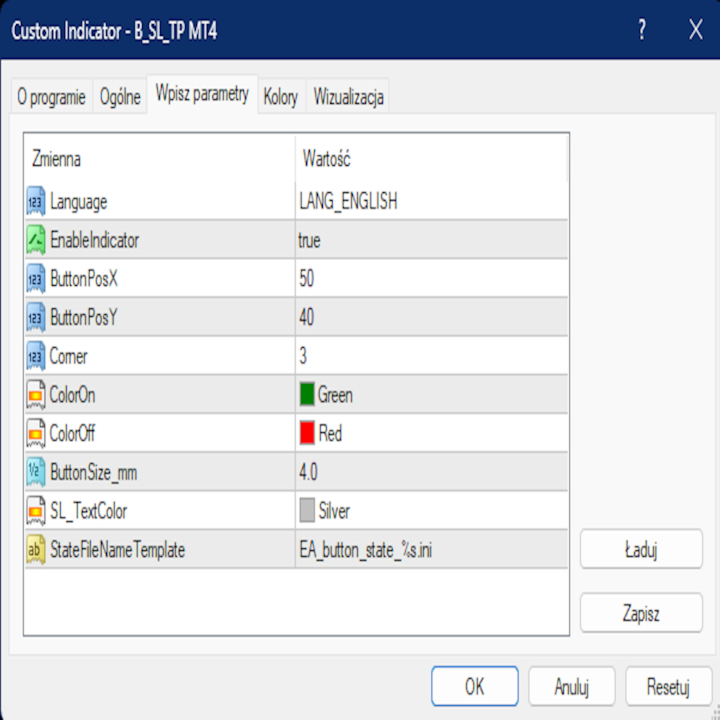
Per impostazione predefinita, il pulsante appare in ButtonPosX/ButtonPosY (50,40) nell'angolo 3 (in basso a destra).
Trascina ovunque OPPURE imposta manualmente i parametri X/Y.
Verde = EA One Click B3 MT4 ATTIVATO (SL/TP attivo), Rosso = EA DISATTIVATO (nessun SL/TP).
Sincronizzazione automatica dello stato/posizione su TUTTI i grafici dello stesso simbolo.
Resiste a riavvii, arresti anomali e danneggiamenti dei file grazie alla logica di ripristino a più livelli.
Superiorità tecnica:
- MmToPx() – 96 dpi / 25,4 mm = conversione precisa dei pixel.
- ValidateAndRepairFiles() – inizializzazione robusta e auto-riparazione.
- Sincronizzazione periodica OnTick/OnTimer: aggiornamenti frequenti senza sovraccarico.
- RemoveObjectsByPrefix() – nessun conflitto tra i vecchi pulsanti.
- Caricamento triplo stato: GlobalVariable → .ini → input predefiniti.
Compagno perfetto per EA One Click B3 MT4: attiva la protezione SL con un clic, affidabilità di livello industriale, zero manutenzione, pronto per il trading live su QUALSIASI broker.
Impostazioni:
Lingua: seleziona la lingua dell'interfaccia utilizzata dall'indicatore per etichette e messaggi.
EnableIndicator: abilita o disabilita la funzionalità dell'indicatore del pulsante SL.
ButtonPosX: imposta la posizione orizzontale (X) del pulsante SL rispetto all'angolo selezionato.
ButtonPosY: imposta la posizione verticale (Y) del pulsante SL rispetto all'angolo selezionato.
Angolo (0-3): seleziona quale angolo del grafico viene utilizzato come punto di ancoraggio per il pulsante SL.
AllowDrag: abilita o disabilita il trascinamento del pulsante SL sul grafico.
ColorOn: imposta il colore di sfondo del pulsante SL quando abilitato (ON).
ColorOff: imposta il colore di sfondo del pulsante SL quando è disabilitato (OFF).
ButtonSize_mm – definisce la dimensione del pulsante SL sul grafico in millimetri.
SL_TextColor: imposta il colore del testo "SL" visualizzato sul pulsante.
PosFileNameTemplate: nome del file modello utilizzato per salvare la posizione del pulsante per ciascun simbolo.
StateFileNameTemplate: nome del file modello utilizzato per salvare lo stato del pulsante per ciascun simbolo.