MSRLab Context Matrix Workstation
- Utilities
-
Adebayo Oluwaseun Ojo
 I’m Dr. Adebayo Ojo, a geophysicist and systematic trading researcher based in Canada with decades of experience.
 - Version: 2.228
- Activations: 10
MSRLab Context Matrix Workstation
Context Matrix Workstation is a utility for traders who want a calmer, repeatable process before they act. It is not an automated strategy, a signal service or a promise of profitable trading. The EA stays on one chart and helps you move through a practical workflow:
1. Scan → 2. Inspect → 3. Decide independently → 4. Plan the risk → 5. Journal and monitor.
The product is one compiled Expert Advisor with no DLL, WebRequest, cloud relay, licence server, external indicator or additional runtime file.What you see
1. Monitor — scan your watchlist
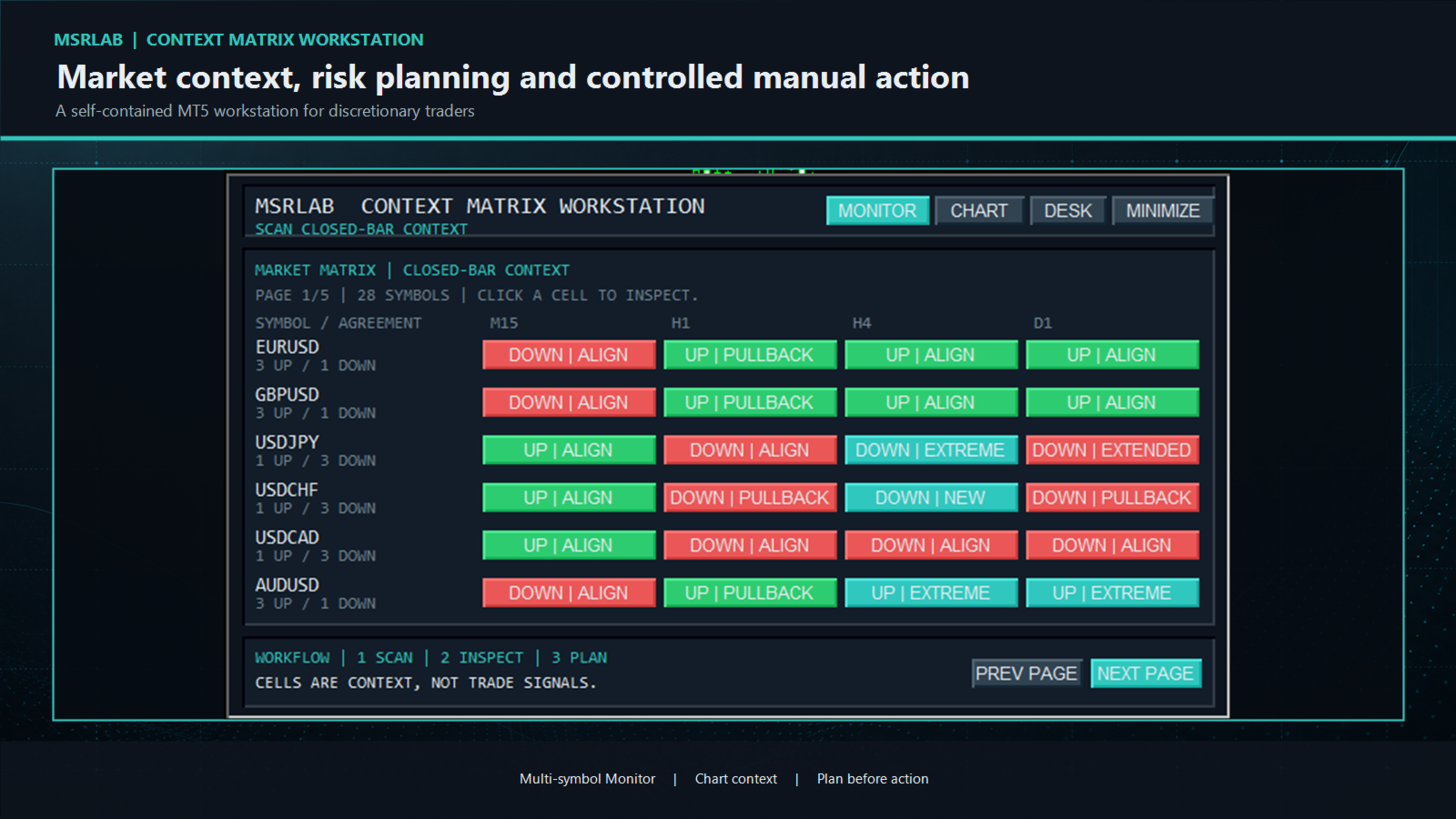
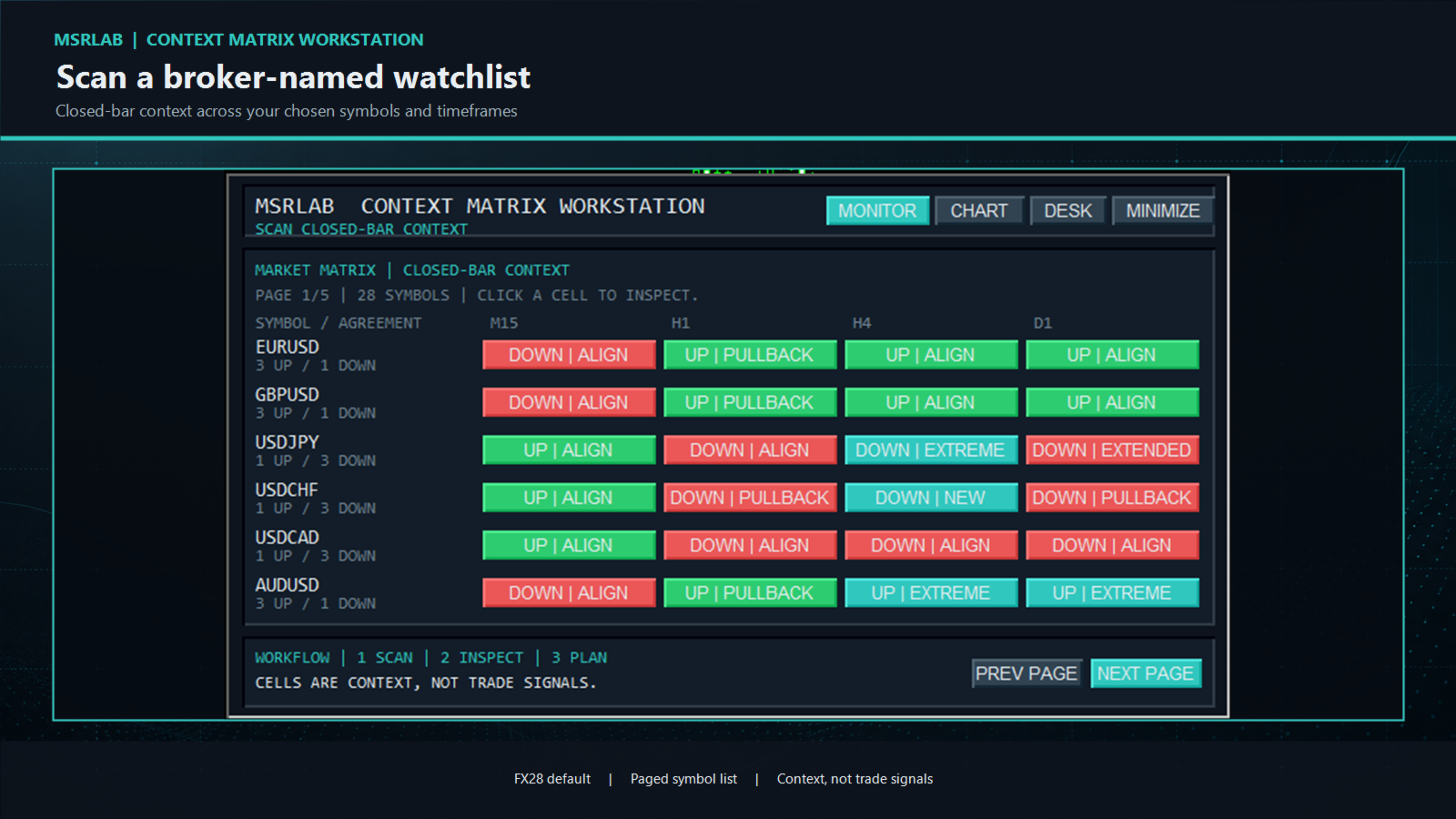
The Monitor starts first. Enter broker-exact symbol names in one CSV input and review a paged list across your chosen timeframes. The default list is the commonly traded FX28 universe. Each coloured cell is a closed-bar observation such as `UP | ALIGN`, `DOWN | PULLBACK`, `CONFLICT` or `EXTENDED`. Use the pages for longer lists. Click a populated cell to open that exact symbol and timeframe in the Workstation's Chart view. A coloured cell is an invitation to inspect; it is never a buy, sell or probability signal.
2. Chart — inspect structure in context
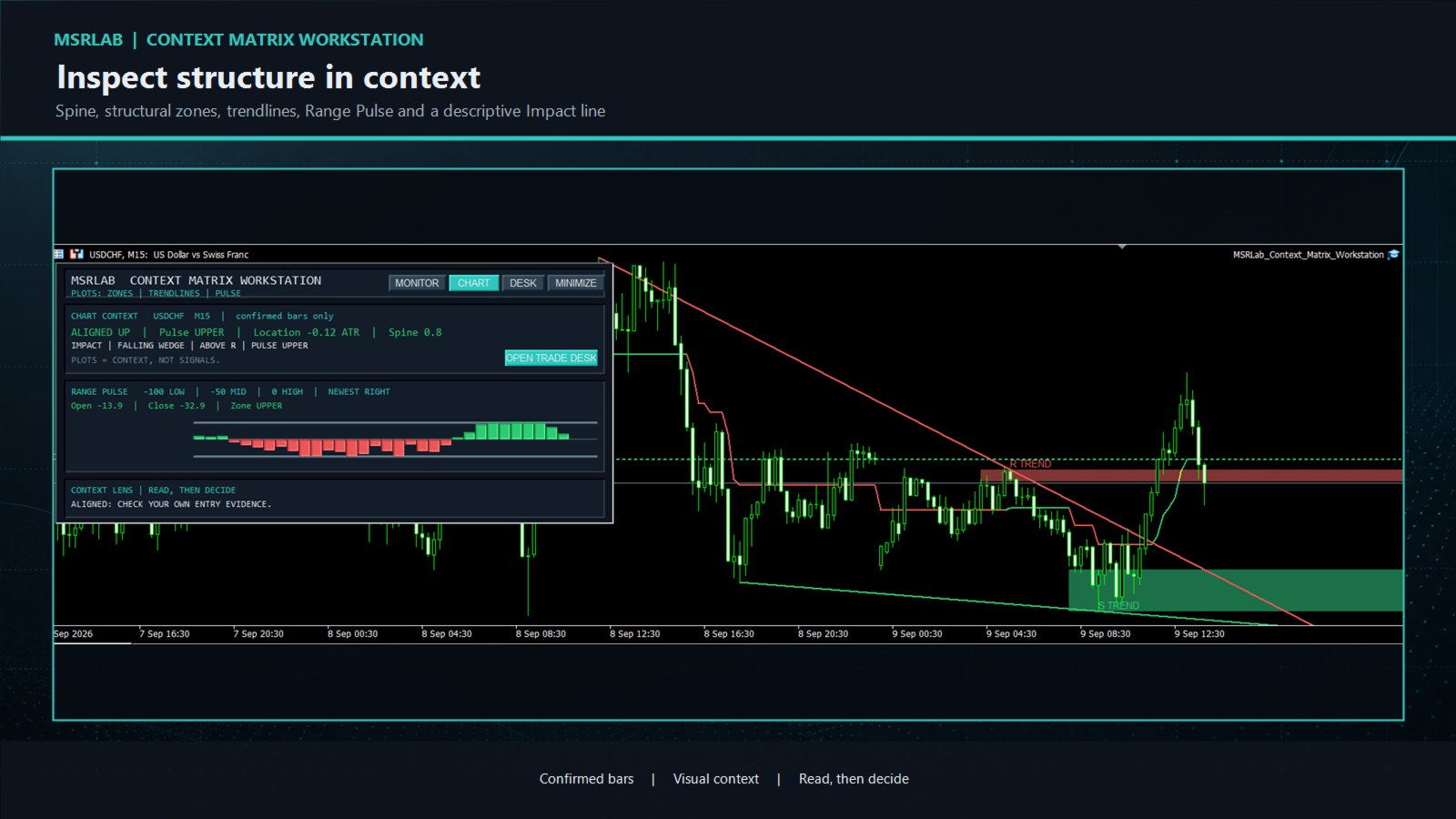
The Chart view presents several descriptive observations from completed bars: Structure Spine: a confirmed visual trail of the current structural state. It updates only from closed bars.
Support and Resistance zones: shaded references constructed from the recent confirmed swing cycle. They begin from the older qualifying pivot, contain the relevant pivot prices and project a configurable distance right. They are places to examine price response, not instructions to fade or trade a break.
Swing trendlines: projected lines linking the two latest qualifying swing highs or lows. Their slopes contribute to the geometry description.
Range Pulse: an MSRLab implementation that shows where confirmed close behaviour sits within its recent range. The ribbon is a context display, not a standalone oscillator strategy.
Impact: a short plain-language summary of direction, Pulse, location, simple two-pivot geometry and zone relationship. Terms such as triangle, channel, wedge and broadening are descriptive labels; they do not predict a breakout, reversal or target.
The chart view may return `WAIT` or `NOT READY` when history is insufficient. That is an intentional safety state, not an error or signal.
3. Planning Desk — define risk before action
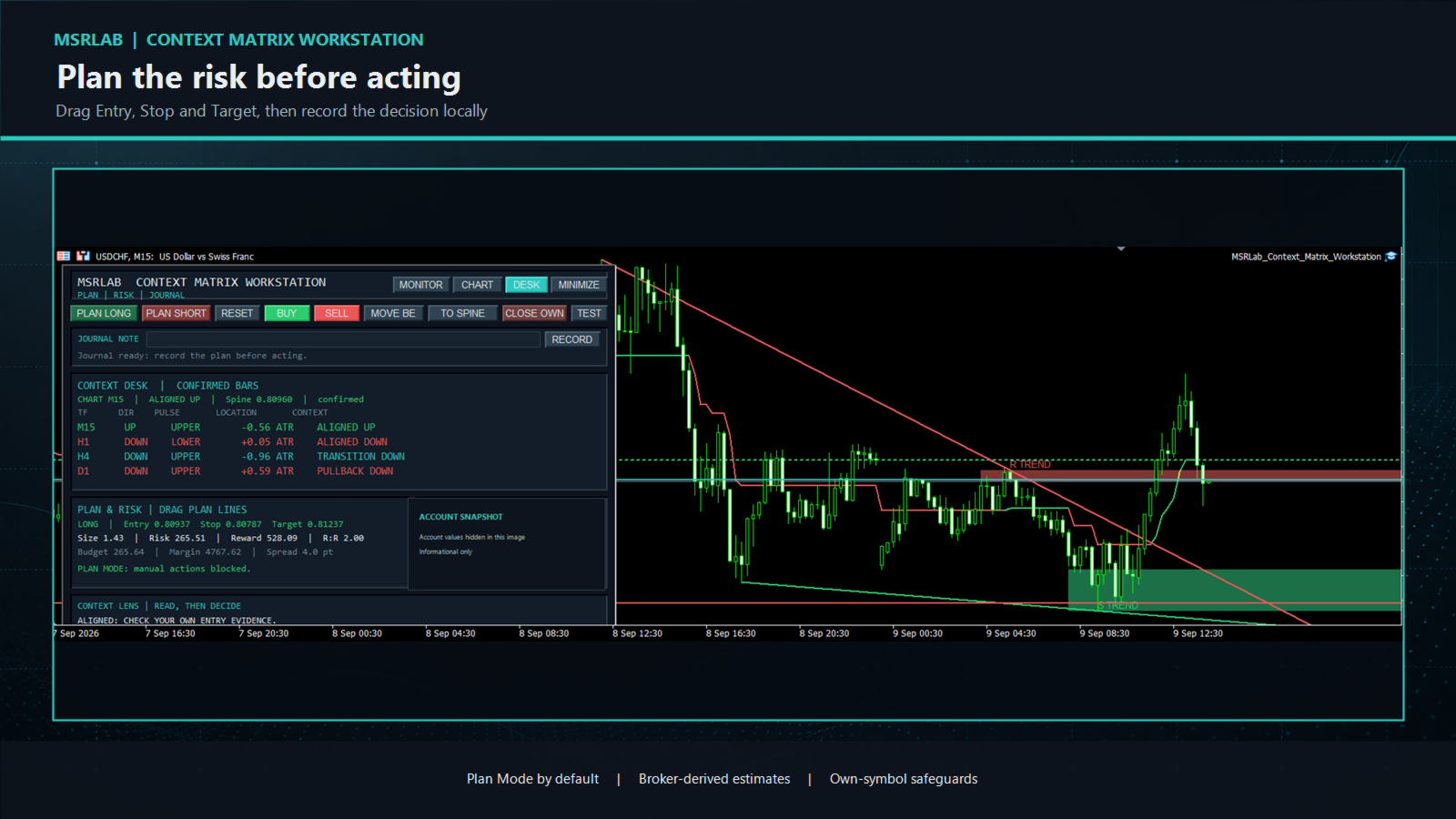
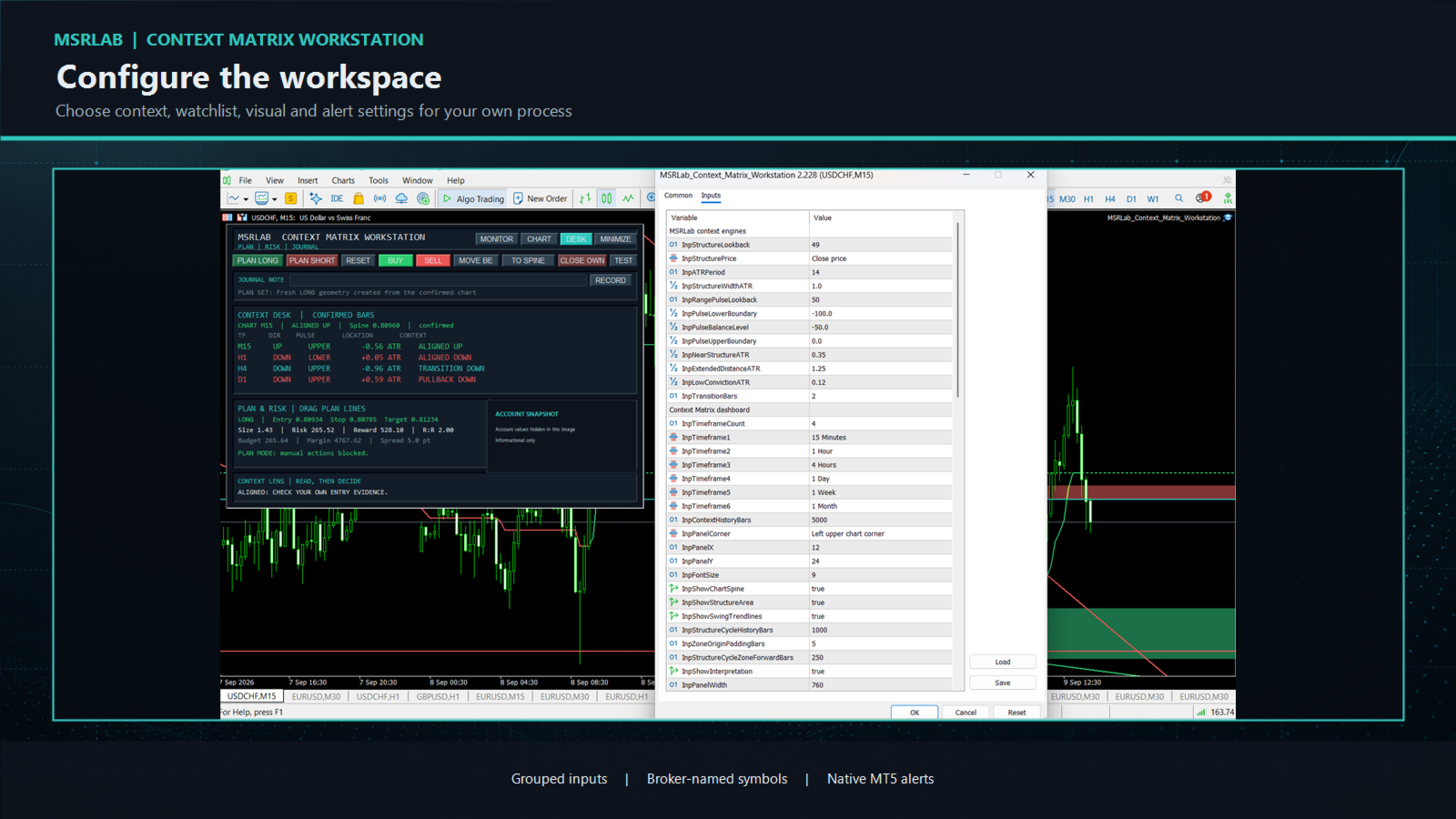
The Account Snapshot is informational. The position panel and any management actions are limited to the current chart symbol and the Workstation's own magic number. The EA neither chooses a trade direction nor manages unrelated positions.
Manual trading controls are **disabled by default**. When deliberately enabled by the user, every order or management action remains guarded by plan geometry, protective-stop, broker-volume, stop-distance, spread, daily-loss, margin and owned-position checks, and requires a deliberate two-click confirmation.
4. Journal — make the decision reviewable
Write a short note and press `RECORD` to append the plan/action context to a local journal. The journal is designed for review of a discretionary process; it is not a cloud service, broker statement or backup. Use it to record why a context was accepted, rejected or left alone.
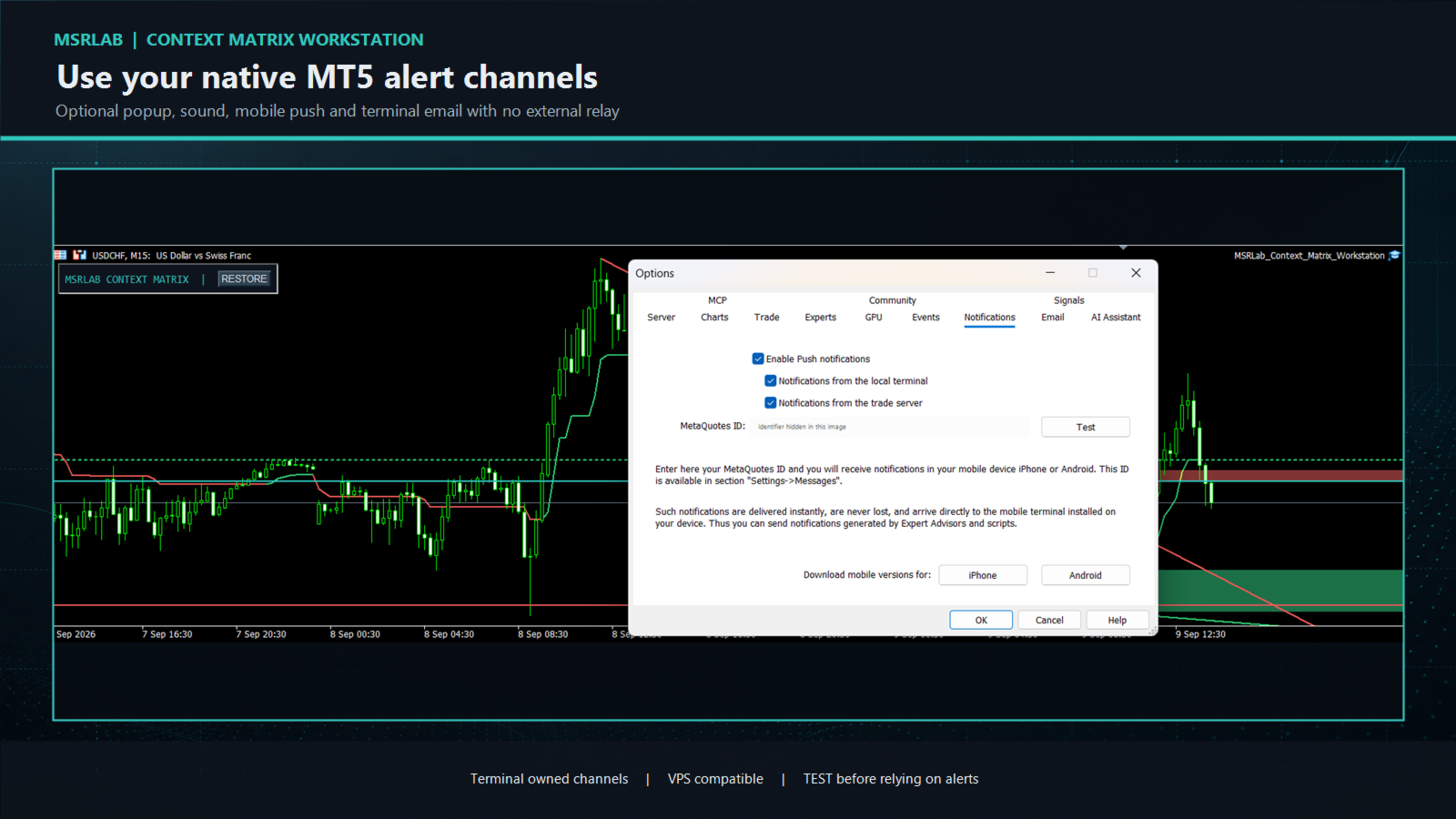
5. Alerts — step away without a separate service
Alert Center is optional. It can use native MT5 popup, sound, mobile push and terminal-email channels for selected closed-bar context, geometry or price/plan events. Delivery is handled by the buyer's MT5 terminal/VPS settings, not an external MSRLab server. Set up and test the desired native channel first in **Tools → Options**, then use the Workstation `TEST` control before relying on an alert. Cooldowns and caps help control repeated messages.
No alert can place, close or modify a position.
How to use the workstation responsibly
A practical routine:
1. Attach the EA to a demo chart and check that the Monitor opens.2. Enter the exact symbol spelling used by your broker; keep only liquid and relevant markets in your watchlist at first.3. Scan the Monitor and click a cell worth examining.4. Read the Chart view: direction, Spine location, Pulse, zone relationship and geometry are context. Bring your own entry and exit evidence.5. If your independent plan still qualifies, open the Desk and drag Entry, Stop and Target. Reject any plan outside your risk, margin or spread rules.6. Record the decision before acting. Leave manual trading disabled while you learn the tool, and test every enabled action on demo first.7. Review alerts and journal records regularly. Change or stop a process when its own monitoring criteria say it is no longer behaving as intended.
Inputs and parameters
The Inputs tab is organised in plain groups. Start with the defaults and change one group at a time on demo. All names and on-screen messages are English.
Context engines:
InpStructureLookback: completed-bar lookback used by Structure Spine.InpStructurePrice: price source used by the structure calculation.InpATRPeriod and InpStructureWidthATR: volatility reference and visual Spine width.InpRangePulseLookback: completed-bar range used by Range Pulse.InpPulseLowerBoundary, InpPulseBalanceLevel and InpPulseUpperBoundary: the Pulse display bands.InpNearStructureATR, InpExtendedDistanceATR and InpLowConvictionATR: distance thresholds used for descriptive context.InpTransitionBars: confirmed bars used to label a recent structural change as transition.
Dashboard and chart visuals:
InpTimeframeCount and InpTimeframe1 to InpTimeframe6: timeframes shown in the current-chart context desk.InpContextHistoryBars: history requested for context calculation.InpPanelCorner, InpPanelX, InpPanelY, InpPanelWidth and InpFontSize: panel position and scale.InpShowChartSpine, InpShowStructureArea, InpShowSwingTrendlines and InpShowInterpretation: enable or hide chart/context elements.InpStructureCycleHistoryBars, InpSpineTrailBars, InpZoneOriginPaddingBars and InpStructureCycleZoneForwardBars: history and rightward visual extent for confirmed structure references.
Monitor watchlist:
InpWatchSymbolsCSV: comma- or semicolon-separated broker-exact symbols. The default is 28 commonly traded major and cross currency pairs. Replace it if your broker uses suffixes, prefixes or a different symbol universe.InpWatchRowsPerPage: number of watchlist symbols visible on each page.InpWatchTimeframeCount and InpWatchTimeframe1 to InpWatchTimeframe4: Monitor columns.
Alert Center:
InpEnableAlerts: master switch. It is off by default.InpAlertPopup, InpAlertSound, InpAlertPush and InpAlertEmail: native MT5 delivery channels. Configure and test each channel in terminal settings.InpAlertContextChange, InpAlertStructureFlip, InpAlertPulseChange, InpAlertGeometryChange, InpAlertPriceEvents, InpAlertPlanEvents and InpAlertActionEvents: event types that may be reported.InpAlertCooldownMinutes, InpAlertMaxPerHour and InpAlertScanContextsPerTimer: rate-control and scan-load settings.
Manual plan and risk:
InpEnableManualOrders: keeps all manual order controls blocked until the user explicitly enables them. It is off by default.InpMagicNumber: identifier used to isolate the Workstation's own positions.InpRiskPercent or InpRiskCash: planned risk budget. A positive cash value takes precedence when configured.InpMaxOwnedPositions, InpMaxDailyLossCash, InpMaxSpreadPoints and InpMaxDeviationPoints: optional action guards.InpRequireProtectiveStop, InpArmSeconds, InpDefaultStopATR and InpDefaultRewardRisk: protective-stop, confirmation and initial-plan settings.
Journal and theme:
InpEnableJournal, InpJournalFile, InpJournalTag, InpJournalUseCommonFiles and InpDefaultJournalNote: local journal storage and default-note settings.InpBullColor, InpBearColor, InpAccentColor, InpPanelColor, InpPanelBorderColor, InpTextColor and InpMutedTextColor: visual theme colours only. They do not alter context or risk calculations.
Educational research questions — not trade signals
The Workstation is built to support questions a trader can test independently:
Does an existing entry rule behave differently when higher-timeframe context agrees than when it conflicts?Is a Pulse pullback near the Spine distinct from an extended move far from the Spine for your own setup?Do entries or management decisions have a different distribution when price responds at a displayed zone?Does a separately defined breakout, retest or mean-reversion method behave differently in a labelled two-pivot structure?Do written risk, spread and margin constraints improve adherence to your process?
For any idea, define the market, data range, trigger, entry, invalidation, exit, costs, development/validation split, risk cap and monitoring rule before looking at results. The product provides no hidden entry rules, private portfolio mappings, presets, trade history or performance evidence.
Important limitations
Trading involves risk. No software can guarantee future performance.Context labels, zones, trendlines, geometry and alerts are descriptive observations, not recommendations or instructions to trade.Use closed-bar readings. Intrabar price can change while a current candle is still forming.Test the product and any personal workflow on demo with your intended broker, symbol, account type and VPS before live use.The journal is stored locally. Maintain your own backups and records.Push and email availability depend on the buyer's MT5 setup and native delivery channels. Test them before relying on them.
Installation and support
Install through the MQL5 Market in MetaTrader 5, attach the EA to one chart, and begin with Monitor and manual order controls disabled. The supplied manual covers Monitor, Chart, Desk, plan lines, controls, journal, alerts, inputs, privacy and troubleshooting.
For support, contact the seller through the MQL5 Market product discussion or private messages. Include MT5 build, broker server, symbol, timeframe, a screenshot and a description of the observed behaviour. Never share passwords, MetaQuotes IDs or account credentials.
Product boundary
This is single self-contained MT5 Expert Advisor for discretionary workflow. It does not include a developer indicator, buffer/API interface,automated strategy, third-party logic, private MSRLab research, portfolio presets, account information or performance claims.