Monitor Dashboard
- Utilities
- Version: 1.3
- Updated: 4 June 2026
- Activations: 20

Clear EA & Internal Strategy Performance Separation
The core purpose of MONIT Dashboard MT5 is to help traders clearly identify where their real performance comes from.
On a MetaTrader 5 account, the global balance result is often not enough. A profitable account can hide a weak EA, an overactive strategy, a manual trading loss, or one specific Magic Number group generating most of the drawdown. This becomes even more important when several Expert Advisors are running on the same account, or when a single advanced EA contains multiple internal strategies.
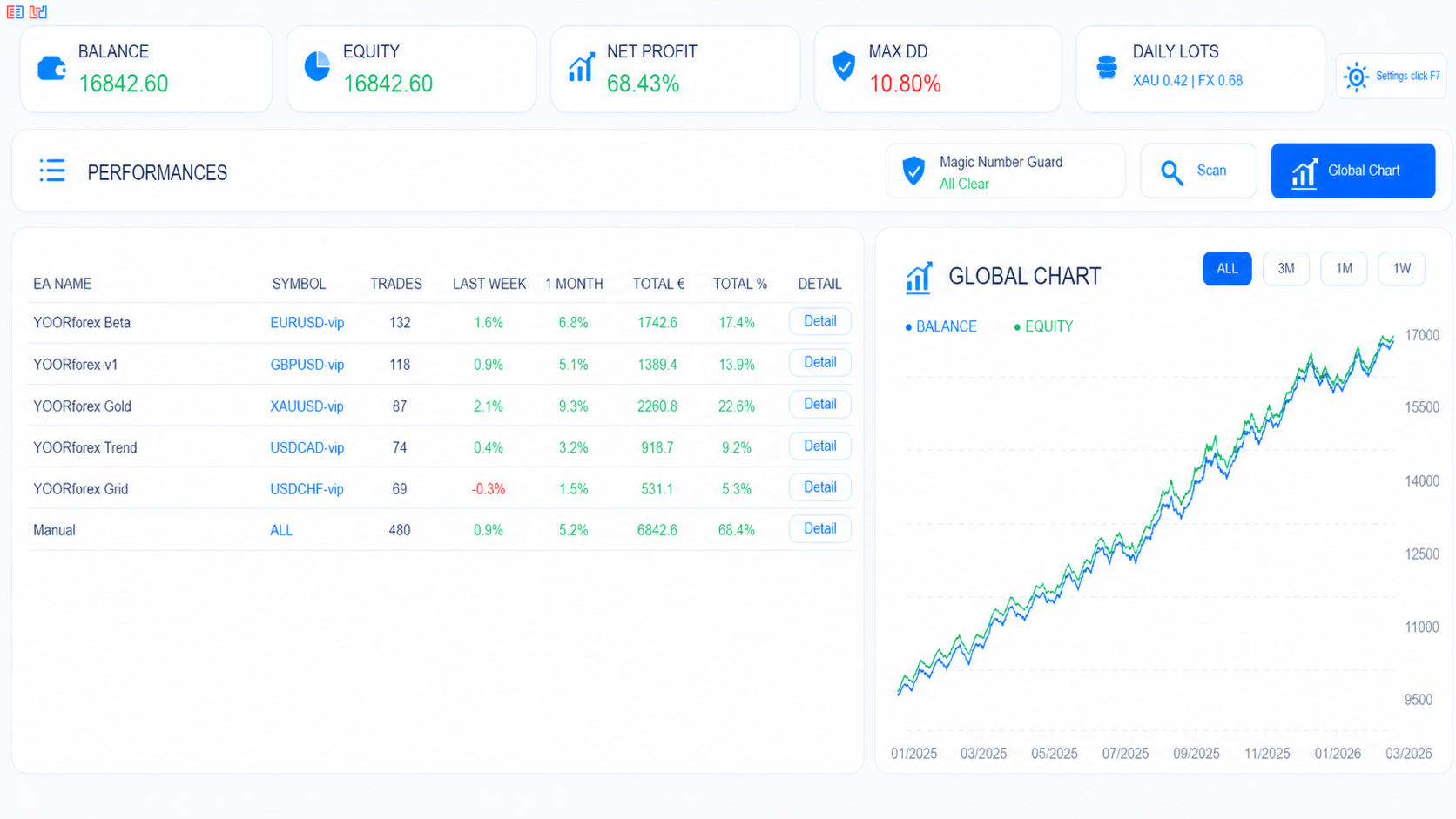
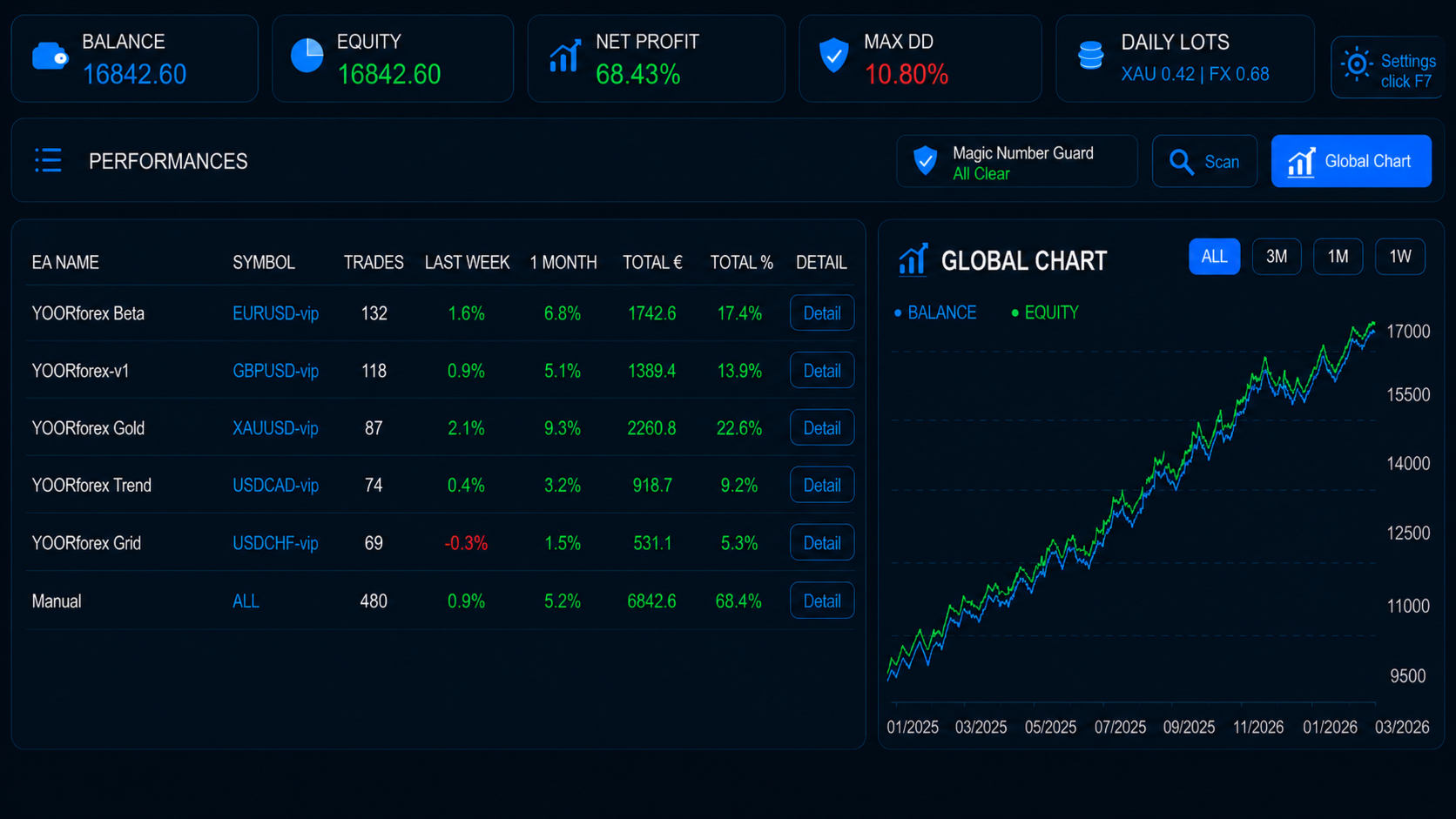
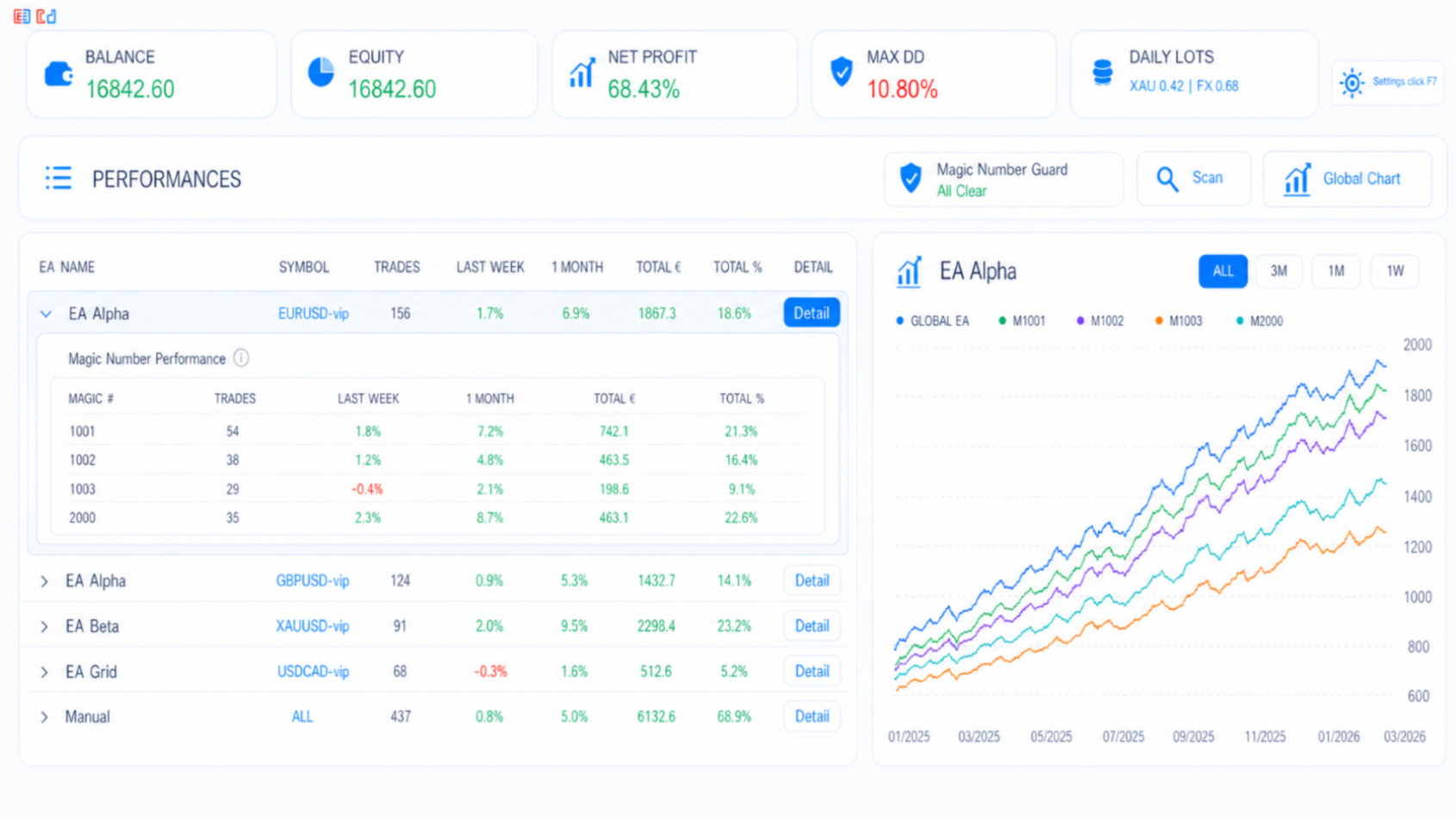
MONIT Dashboard MT5 separates and displays performance by EA, symbol, manual trades and Magic Number groups, allowing you to clearly compare each source of performance.
This means you can quickly see:
- which EA is profitable or underperforming;
- which symbol contributes the most to profit or drawdown;
- how manual trades compare to automated trades;
- which Magic Number group is responsible for specific results;
- which internal strategy inside the same EA is really working;
- which strategy should be optimized, reduced, disabled or monitored more closely.
For multi-strategy Expert Advisors, this is especially useful. If one EA contains several systems such as trend, grid, breakout, hedge, scalping or recovery modules, each strategy can be tracked through its own Magic Number group. Instead of judging the EA only as a single block, you can analyze the contribution of each internal strategy separately.
The main value of MONIT Dashboard MT5 is simple: you no longer monitor only your global account result — you understand exactly which EA, symbol or internal strategy is creating that result.
Regarding PROP firm compatibility, we confirm at least that with FTMO, there is absolutely no restriction, or whitelisting need. Such a tool helps improving the win-win relation of funded accounts. Feel free to ask your provider in case you want to be sure.
Installation & Quick Start
- setup your email in MT5
- use one dedicated chart for MONIT Dashboard MT5. Do not attach it to every chart.
- do an initial scan, you will receive by email all informations ready to configure the EA monitor
How to Use MONIT Dashboard MT5
Basic Usage
- Attach the dashboard to one chart.
- Let your other EAs run normally on their own charts.
- Check the top widgets for account status:
- Balance
- Equity
- Net Profit
- Max DD
- Daily Lots
- Use the Performances table to compare EAs, symbols, manual trades and Magic Number groups.
- Use the Detail buttons to inspect more specific performance information when needed.
- Use Global Chart to view balance and equity evolution.
- Click Scan to check Magic Number safety.
Magic Number Guard Usage
Manual Scan
Click the Scan button to manually check the current Magic Number configuration across your active MT5 charts.
Possible results:
All Clear
No Magic Number conflict was detected.
Problem Detected
At least one possible Magic Number conflict was detected. Check the report and correct the Magic Number settings of the concerned EA charts.
You will receive an email with all issues if there is. Also, a scan report with correct syntex that you can then input in the EA monitor to begin to see performances.
Best Practice
Use unique or several Magic Number for each EA, symbol or internal strategy group.
For example:
- EA 1 / Strategy 1 → Magic Number 1001, 1003, 1004
- EA 1 / Strategy 2 → Magic Number 1002
- EA 2 / Main Strategy → Magic Number 2001, 2002
- Manual trades → no EA Magic Number
This allows MONIT Dashboard MT5 to separate performance clearly and makes the Magic Number Guard more useful.
Important Notes
MONIT Dashboard MT5 does not open, close or modify trades.
It is designed to monitor:
- account performance;
- EA performance;
- manual trades;
- symbol performance;
- Magic Number groups;
- internal strategies inside the same EA;
- possible Magic Number conflicts.
For best results, test the utility first on a demo account and confirm that the displayed information matches your trading setup.