[ English ] [ Русский ] [ 中文 ] [ Español ] [ Português ] [ 日本語 ] [ Deutsch ] [ 한국어 ] [ Français ] [ Italiano ] [ Türkçe ]
Setup Guide: MT5 to Telegram MultiChannel Sender
This guide takes you from zero to a working signal channel: create your Telegram bot, connect it to MetaTrader 5 and decide what each channel receives. Everything is configured from the panel on the chart — the inputs can stay blank.
Total preparation time: about 5 minutes. Want to see the messages before setting anything up? See Try it in the Strategy Tester below.
Product page: MT5 to Telegram MultiChannel Sender (Expert Advisor for MetaTrader 5).
The EA does not trade. It watches your MT5 account and posts every opening, modification, partial close, close and pending order to one or more Telegram channels, groups or private chats.
📑 Table of contents
|
Step 1: Create your Telegram bot
The EA posts through your own bot. Creating one is free and takes one minute.
Step 1: In Telegram, search for @BotFather (the official one has a blue check mark) and open the chat.
Step 2: Send the command /newbot.
Step 3: Choose a display name (for example "My Signals") and then a username that ends in bot (for example "mysignals_alerts_bot").
Step 4: BotFather replies with your token, a line like 1234567890:AAH.... Copy it; you will paste it in the panel in Step 4.
| ⚠️ Important: the token is the password of your bot. Anyone who has it can post in your channels. Never share it. If it leaks, send /revoke to @BotFather, get a new one and paste it in the panel (⚙ Settings → Change). 💡 Tip: use a bot that is dedicated to this EA. If another program already uses the same bot (another signal tool, a copier), the "Detect channels" button cannot read the bot's updates. |
Step 2: Add the bot to your channel
Step 1: Open your channel → channel name → Administrators → Add Admin → search your bot's username.
Step 2: Give it at least Post messages. If you want the signal message to be updated in place (see "How SL/TP changes and closes appear in the channel"), also enable Edit messages of others.
Step 3: Post any message in the channel (a simple "hello" is enough). The EA finds your channels from recent activity, so this post is what makes "Detect channels" work.
Repeat for every channel you want to use (for example a VIP channel and a Free channel). Groups work the same way; for a private chat, just send a message to your bot.
Step 3: Allow Telegram in MetaTrader 5
MetaTrader only lets an EA talk to websites you allow. This is a one-time setting per terminal.
Step 1: In MT5 go to Tools → Options → Expert Advisors (or press Ctrl+O).
Step 2: Tick Allow WebRequest for listed URL.
Step 3: Add this address and press OK:
| https://api.telegram.org |
Without this step nothing can be sent. The panel shows it as step 2 of the setup and has a Check button to test it.
Step 4: Attach the EA and follow the 3 setup steps
Step 1: Open any one chart (the symbol does not matter — the EA reports the whole account) and drag the EA onto it. Make sure Algo Trading is enabled in the toolbar.
| ⚠️ Attach the EA to ONE chart only. If you attach it twice on the same account, the second copy stays silent on purpose (the panel shows "Duplicate EA on another chart") so your subscribers never receive a message twice. |
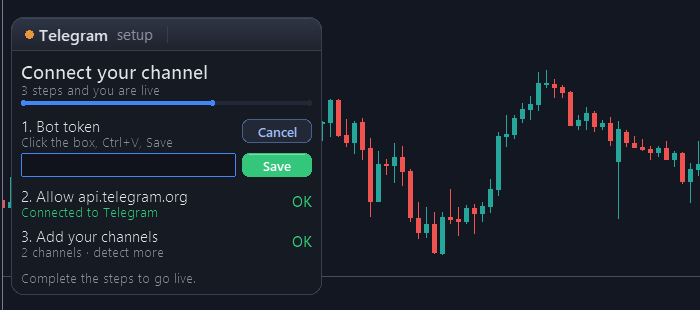
Step 2: You can leave every input blank and press OK. The panel opens in the top-left corner with the setup assistant "Connect your channel — 3 steps and you are live". Each step has its own button:
- Bot token → Paste. A box appears under the step. Click inside the box, press Ctrl+V (or right-click → Paste) and press Save. The EA verifies the token with Telegram and the step turns green with your bot's name. If you copied the whole BotFather message, it still works: the token is extracted automatically.
- Allow api.telegram.org → Check. Tests the connection. If Step 3 above was not done, the box shows the address ready to copy.
- Add your channels → Detect. The EA asks Telegram which channels your bot belongs to and adds them to the list. New channels are added switched OFF — turn them on in the channel list.
When the three steps are green the assistant turns into the normal panel with your channel list. Press the paper plane to send a test message and confirm that the channel receives it (the EA asks for a Yes/No confirmation before posting). If you prefer a test on every start, switch on the input "Send a test message when the EA starts".
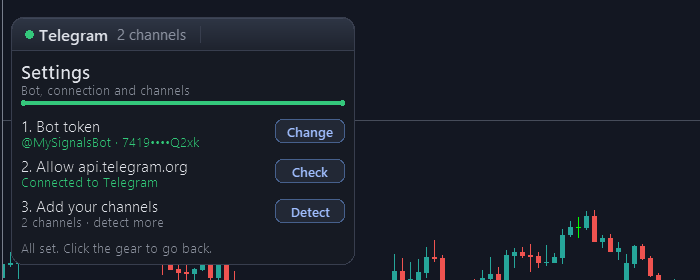
| ℹ️ Note: what you set in the panel (token, detected channels, on/off, content and delay per channel) is saved on your computer and survives restarts. You only need the inputs if you prefer to type everything there, or for a VPS (see "Running on a VPS"). |
The panel
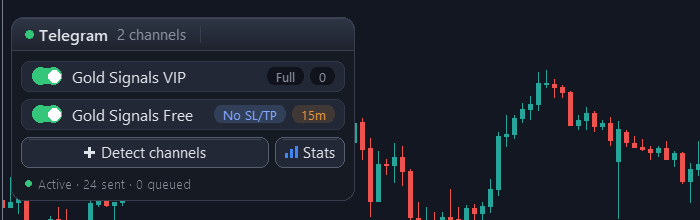
Title bar (hover any icon to see what it does):
- Pause: mutes all sending. The button turns red while paused. Nothing is queued while paused — trades made during the pause are not posted later.
- Paper plane: sends a test message to the enabled channels, after a Yes/No confirmation.
- Pencil: opens the message editor.
- Gear: Settings — bot token (Change), connection (Check) and channels (Detect), at any time.
- Arrow: folds the panel into a small bar so it does not cover the chart.
Channel list — one row per channel:
- Switch: click the row to turn the channel on or off. Switching a channel off also discards what it still had waiting for that channel.
- Content tag (Full / No SL/TP / Results): what this channel receives. Click to change. See "VIP and Free channels".
- Delay tag (0, 1m, 5m, 15m, 30m, 1h): how long the OPEN signal waits before it is posted in this channel. Click to cycle. 0 = instant.
Detect channels adds channels your bot was added to after the first setup. Stats posts, after a Yes/No confirmation, a performance summary (win rate, profit factor, best and worst trade, net result and current streak for the last N days, set by "Days covered by the Stats button of the panel").
The footer shows the status: Active / Paused, messages sent, queued and failed.
VIP and Free channels
The EA is built for the classic setup where paying members see everything instantly and a free channel sees less, later. Each channel has two independent settings in its row.
1. Content tag
| Full | Every message: signals with SL/TP, modifications, results, pending orders, screenshots, reports. |
| No SL/TP | The signal arrives with the levels locked (SL: 🔒 TP: 🔒), plus results and cancellations. SL/TP modifications and screenshots are not sent (a chart picture would reveal the levels). |
| Results | Only closed trades, reports and stats. Ideal for a public "track record" channel. |
On No SL/TP and Results channels you can add an invitation line to every signal and result with "Extra line on No SL/TP and Results channels", for example 🔒 Full signals in VIP: t.me/yourvip.
2. Delay tag
The delay applies only to the opening signal — that is where the value is. Modifications and closes are sent at once, but they always wait behind their own signal, so a delayed channel never sees a close before the signal it belongs to.
| ✅ Typical setup VIP channel: Full · 0 (instant) Free channel: No SL/TP · 15m Results channel: Results · 0 |
The message editor
Click the pencil in the panel. The editor opens next to it, with the text on the left and a live preview of the Telegram post on the right.
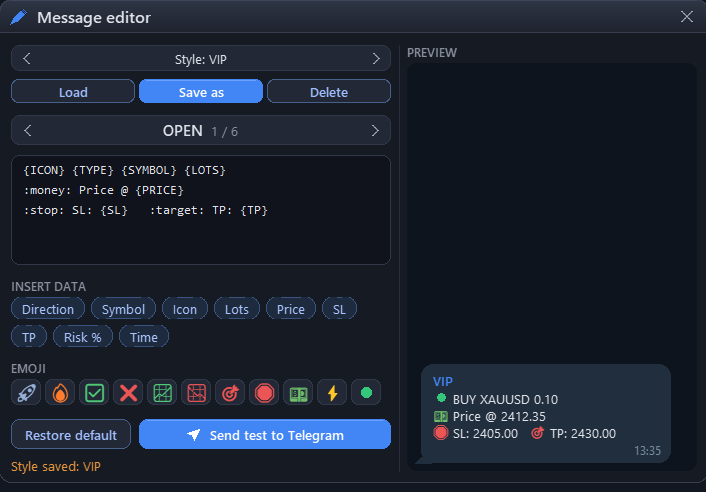
- ‹ › move between the six messages: OPEN, CLOSE, PARTIAL, SL/TP, PENDING and CANCEL.
- The text box has 5 lines (one Telegram line each, up to 63 characters per line — an MT5 limit).
- INSERT DATA: click a chip (Direction, Symbol, Price, SL, TP, Profit...) to add its value to the message. Hover a chip to see an example. If a line is full, the chip goes to the next line.
- EMOJI: click to insert. Emojis are written as short codes such as :fire: and become real emojis when the message is sent.
- Everything is saved automatically. Restore default brings back the original message; Send test to Telegram posts the current message with sample data.
- A line whose data the event does not have is left out of the post: a pips line on the SL/TP message, for example, is simply not sent. A message that ends up empty is not posted.
Message styles
The row at the top of the editor keeps whole sets of messages under a name. Write one style for your VIP channel and a shorter one for the free channel, and switch between them in two clicks.
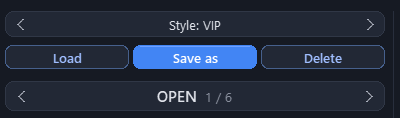
- Save as: the row turns into a box. Type a name, press Save, and the six messages are stored together under that name.
- ‹ ›: move through the styles you have saved.
- Load: replaces the six messages with the ones of the selected style.
- Delete: removes the selected style. The messages you are using now are not touched.
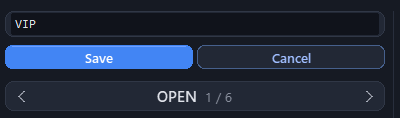
Styles and the messages in use are saved on your computer and survive restarts.
Available data per message
| All messages | {TYPE} {SYMBOL} {TIME} {ACCOUNT} {BROKER} {BALANCE} {EQUITY} {CURRENCY} |
| OPEN | {ICON} {LOTS} {PRICE} {SL} {TP} {RISK} |
| CLOSE / PARTIAL | {ICON} {PROFIT} {PIPS} {OPEN} {CLOSE} {DURATION} {REASON} · PARTIAL also {PCT} (share of the position closed, for example "— CLOSE 50%") |
| SL/TP | {OLDSL} {SL} {OLDTP} {TP} |
| PENDING | {LOTS} {PRICE} {SL} {TP} |
| CANCEL | {PRICE} {REASON} |
Telegram formatting is allowed: <b>bold</b>, <i>italic</i>, <u>underline</u>, <code>code</code>.
Emoji codes: :rocket: :fire: :check: :x: :up: :down: :target: :stop: :money: :bolt: :green: :red: :warn: :bell: :star: :clock: :moneybag: :chart: :bull: :bear: :tool: :hourglass:
The messages are written in the language chosen in "Message language" (10 languages). A message you edit keeps your own words. The word CLOSE of the close message and the Price @ of the opening stay the same in every language (see the next section).
Screenshots and watermark
With "Attach a chart screenshot to open/close messages" the signal is posted as a picture of the chart with the message as caption. The picture shows the symbol's chart at the timeframe of "Timeframe of the screenshot chart". The panel never appears in the picture.
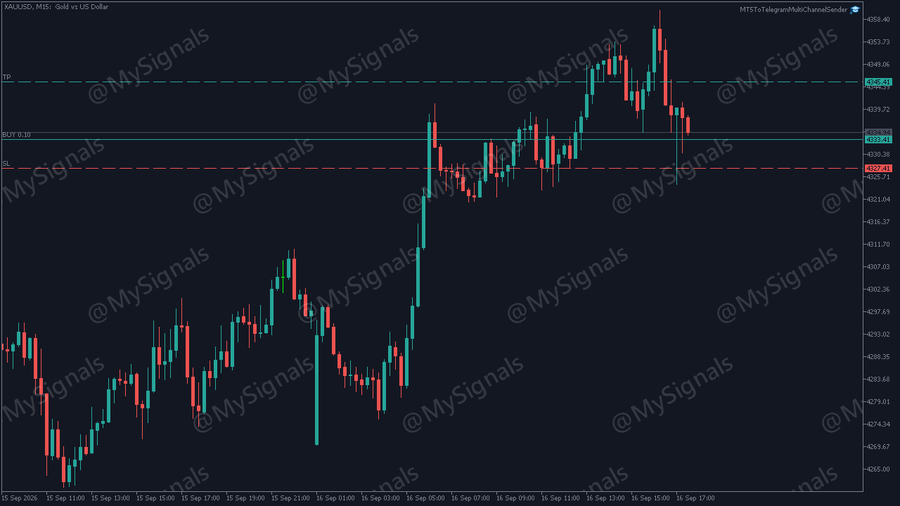
To protect your signals from being copied, type your brand in "Text stamped on screenshots" (for example @MySignals) and choose where it goes:
- A corner — discreet, clear of the price and time scales.
- Large, in the center.
- Diagonal pattern over the whole image — the strongest protection; use an opacity of 10-20 % so the candles stay readable.
Works with the Telegram to MT5 MultiChannel Copier
Your subscribers can copy your channel automatically with the Telegram to MT5 MultiChannel Copier. The default messages of this EA are read by the copier out of the box: the opening (direction, symbol, lots, price, SL and TP), the SL/TP changes, the partial closes with the percentage closed and the closes. Every update replies to its own signal, so the copier applies it to the right trade even when several trades of the same symbol are open.
- Rename symbols in signals: if your broker names a symbol in its own way, post it under the name your subscribers know. The input takes pairs broker name=shown name, comma-separated, for example WS30=US30,GDAXI=DE40. It applies to every message and to the {SYMBOL} data of the editor.
- Several accounts or EAs in one channel: each account runs its own Sender with the same bot and channel. Set "Max messages per minute per channel" (see Advanced) according to how many of them share the channel; nothing is lost or mixed up.
- Custom messages: the default messages are the ones the copier reads. If you write your own, keep their structure; Restore default brings them back at any time.
Try it in the Strategy Tester
Nothing can reach Telegram from the Strategy Tester, so there the Sender shows on the chart what it would post. Run it in visual mode on any symbol:
- With no channel set up, it uses two demo channels: VIP channel (Full, signals instantly) and Free channel (No SL/TP, signals 30 minutes late).
- It opens demo trades on the tested symbol, with stop loss and take profit, closes half of the trade in profit and moves the stop loss to the entry price, so every kind of message appears.
- Each message appears as a bubble in the column of its channel, replying to its signal, as your subscribers would read it.
- Without visual mode, the messages are written to the Journal tab of the Strategy Tester.

The demo trades exist only in the Strategy Tester. On a live or demo account the Sender never opens a trade.
Inputs reference
Every input can stay at its default value. The names below are the labels you see in the Inputs tab.
1. Telegram connection
| Bot token (text, default: empty) Can be blank: paste the token in the panel. If you fill it here, the input is used until you paste another token in the panel. |
| Chat ID(s) (text, default: empty) Can be blank: use Detect. Comma-separated IDs or @usernames, for example -1001234567890,@mychannel. Channels detected in the panel are added to these. |
| Channel names (text, default: empty) Friendly names for the panel, same order as the IDs. Example: VIP,Free. |
| Delay per channel in seconds (text, default: empty) Same order as the IDs. Example: 0,900. A delay set in the panel wins. |
| Content per channel (text, default: empty) Same order as the IDs: 0 = Full, 1 = No SL/TP, 2 = Results. A choice made in the panel wins. |
| Send a test message when the EA starts (true/false, default: false) The paper plane of the panel sends one at any time. |
| WebRequest timeout in milliseconds (number, default: 10000) |
2. Events to notify
| Position opened, Position closed, Partial close of a position, SL/TP modified on an open position, Pending order placed, Pending order modified, Pending order cancelled or expired (true/false, default: true) Turn off any event you do not want to post. |
| Group SL/TP changes into one message every N seconds (number, default: 60) A trailing stop moves the SL every few seconds. Instead of flooding the channel, the EA sends one message per period with the first and the final level ("SL: 4346.06 → 4348.46"). If the level returns to where it started, nothing is sent. 0 = one message per change. |
| EA started / stopped on the account (true/false, default: false) |
3. Message content
| Message language (list, default: English) English, Español, Português, Deutsch, Français, Italiano, Русский, Türkçe, العربية, 中文. |
| Use emojis in messages (true/false, default: true) |
| Position size shown in signals (list, default: Lot size) Lot size, Risk % of balance (the money lost at the stop loss as a percentage of your balance — needs a stop loss) or Hidden. Risk % lets subscribers with any account size copy you without revealing your lots. |
| Show SL and TP levels (true/false, default: true) |
| Show profit on close (true/false, default: true) |
| How profit and balance are shown (list, default: In account currency) In account currency, As % of balance or Hidden. With % or Hidden, reports and stats do not show your balance or equity. |
| Show profit in pips on close, Show how long the trade was open (true/false, default: true); Show server time on each message (default: false) |
| Show masked account number + broker (true/false, default: false) |
| How SL/TP changes and closes appear in the channel (list, default: New message replying to the signal) New message replying to the signal: every update is a reply linked to its signal. Edit the signal message: the signal post itself is updated with the change or the result — one clean post per trade (the bot needs "Edit messages of others"). Edit the signal AND send a reply: both. If a signal can no longer be edited, a normal message is posted. |
| Optional first line / Optional last line (text, default: empty) Added to every message. Formatting allowed, for example <b>MySignals VIP</b> or t.me/mychannel. |
| Extra line on No SL/TP and Results channels (text, default: empty) Your invitation to the VIP, added to signals and results of limited channels. |
| Rename symbols in signals (text, default: empty) Pairs broker name=shown name, comma-separated, for example WS30=US30,GDAXI=DE40. The symbol is posted under the shown name in every message. |
| Attach a chart screenshot to open/close messages (list, default: No screenshots) No screenshots, On position open, On position close, On open and close. |
| Timeframe of the screenshot chart (default: M15), Screenshot width in pixels (default: 1024), Screenshot height in pixels (default: 768) |
| Text stamped on screenshots (text, default: empty) · Watermark position (default: Bottom left corner) · Watermark text size in pixels (default: 20) · Watermark opacity % (default: 40) · Watermark color (default: white) |
4. Filters (which trades to send)
| Send trades placed manually (true/false, default: true) · Send trades from EAs (true/false, default: true) |
| Allowed magics / Blocked magics (text, default: empty) Comma-separated magic numbers. Use them to post only one strategy of several running on the account. The filters decide on new trades only: a signal already posted keeps receiving its changes and its close even if you block its magic or symbol afterwards. |
| Allowed symbols / Blocked symbols (text, default: empty) Comma-separated symbols, for example XAUUSD,EURUSD. Empty = all. |
5. Reports (daily / weekly / monthly)
| Daily report of closed trades (true/false, default: false) · Server time HH:MM to send the reports (default: 22:00) |
| Weekly report (true/false, default: false) · Day of the weekly report (default: Friday) · Monthly report (true/false, default: false — sent on day 1 for the previous month) |
| Days covered by the Stats button of the panel (number, default: 30) |
6. Interactive panel
| Show the on-chart control panel (true/false, default: true) · Which corner the panel is anchored to (default: Top left) · Panel width in pixels · Panel font size (default: 9) |
| Panel background color, Accent color, Channel enabled color, Channel disabled color, Pause / close color — to match your chart theme. |
7. Advanced
| Seconds between retries of failed sends (default: 10) · Max retries per message before discarding (default: 5) If Telegram or your internet is briefly unavailable, messages are retried instead of lost. |
| Max messages per minute per channel (number, default: 18) Telegram limits what a bot can post in a channel; above this rate the messages wait a few seconds and go out in order. Lower it when several Senders share the same bot and channel, for example 6 with three accounts. |
| Also show a plain status line (default: false) · Verbose log in the Experts tab (default: false — turn on only when support asks for it) |
Running on a VPS
The EA works on any Windows VPS where MT5 runs 24/5 — set it up exactly as on your PC.
On the MQL5 built-in VPS (migration from the terminal) keep in mind:
- Allow https://api.telegram.org (Step 3) before migrating; the setting travels with the migration.
- The migration copies the EA and its inputs, not what you set in the panel. Fill Bot token, Chat ID(s) and, if you use them, Channel names, Delay per channel in seconds and Content per channel in the inputs, then migrate.
- Screenshots need a chart window; on the MQL5 VPS keep them off.
Troubleshooting
The Experts tab (Toolbox → Experts) always says why a message was not sent. Look for lines starting with "Not sent".
| Nothing arrives in the channel 1. The panel is not paused (pause button not red). 2. The channel row is switched on. 3. Its content tag accepts that message (a Results channel does not receive openings). 4. The bot is an administrator with "Post messages". 5. Send a test with the paper plane. |
| "WebRequest failed, error 4014" https://api.telegram.org is not in Tools → Options → Expert Advisors (Step 3). Check the spelling, with https. |
| Detect finds no channel Post a new message in the channel after adding the bot and press Detect again — Telegram only shows recent activity. "Bot busy (another app)" means another program uses the same bot: use a dedicated bot. |
| "Invalid token" The token was revoked or mistyped. Get it again from @BotFather and paste it in ⚙ Settings → Change. |
| "Duplicate EA on another chart" The EA is attached twice on this account. Remove one copy; the silent copy takes over automatically if the main one is removed. |
| A trailing stop shows only one SL message per minute That is the grouping of SL/TP changes. Set "Group SL/TP changes..." to 0 for one message per change. |
| "Edit the signal message" posts new messages The bot needs "Edit messages of others" in the channel, and the signal must have been posted by this EA. |
| Pasting in the panel box does nothing Click inside the box first, then Ctrl+V or right-click → Paste, and press Save. |
| Messages arrive a few seconds late when many trades happen at once Telegram limits what a bot can post in a channel ("Max messages per minute per channel"). Nothing is lost. |
| A change or a close was not posted A trade opened while the EA was not running has no signal in the channel, so its changes and close are not posted — the Experts tab says so. Trades opened while the EA was running keep their signal, also after a restart. |
What's new in 1.12
|
What's new in 1.1
|
Support
If something does not work as described, send me a private message on MQL5 with a screenshot of the panel and the last lines of the Experts tab. I will help you personally.
Product page: MT5 to Telegram MultiChannel Sender · Copying signals the other way round? Telegram to MT5 MultiChannel Copier