How to Send MT4 and MT5 Trade Updates to Telegram or Discord with Multi Risk Manager Pro

Suppose you close half of a position while managing a trade in MetaTrader. In your private trading journal, you may want to record the volume closed, the volume remaining and a chart image. In a channel shared with other traders, you may prefer to publish only the symbol, direction and exit update. Multi Risk Manager Pro lets you choose which events to post and how much detail each destination receives.
In this guide, we will connect one demo account to a Telegram or Discord destination, create a trade-update format and verify a partial-close message against the actual trade in MetaTrader.
Multi Risk Manager Pro for MT5 · Multi Risk Manager Pro for MT4 · MQLEXP public channel on MQL5
1. Choose the Events You Want to Publish
Start by deciding what the reader should learn from a message. For a private journal, an opening post records the original trade, a stop-change post explains how protection changed, and a closing post records the exit. For an end-of-day review, a daily report may be easier to read than a notification for every adjustment.
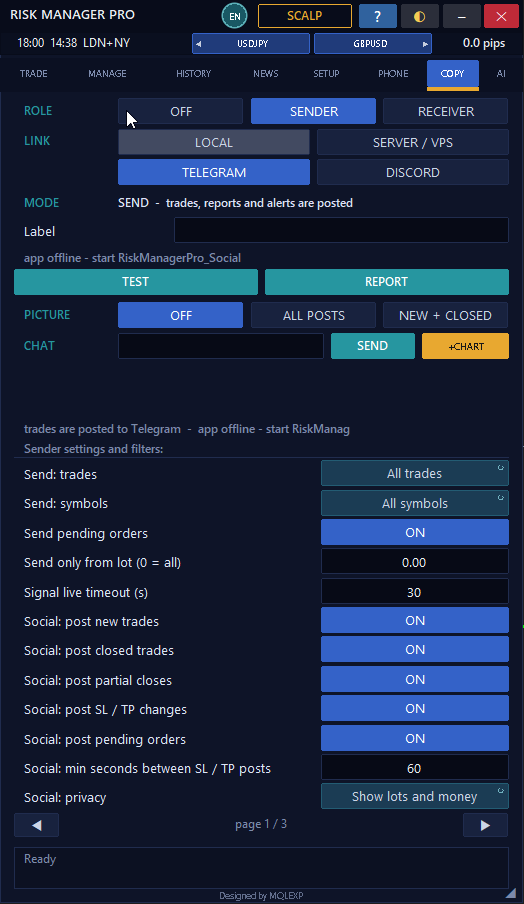
Under SETUP → COPY in the EA, review the social posting options. You can select events such as new trades, full or partial closes, and changes to Stop Loss or Take Profit. For the first test, enable new trades and partial closes. This makes it easy to follow one position from its opening message to its first reduction.
Keep MetaTrader and the Windows companion running on the same Windows computer or VPS. In the companion’s Accounts page, verify that the intended demo account is visible.
2. Connect a Telegram or Discord Destination
Telegram
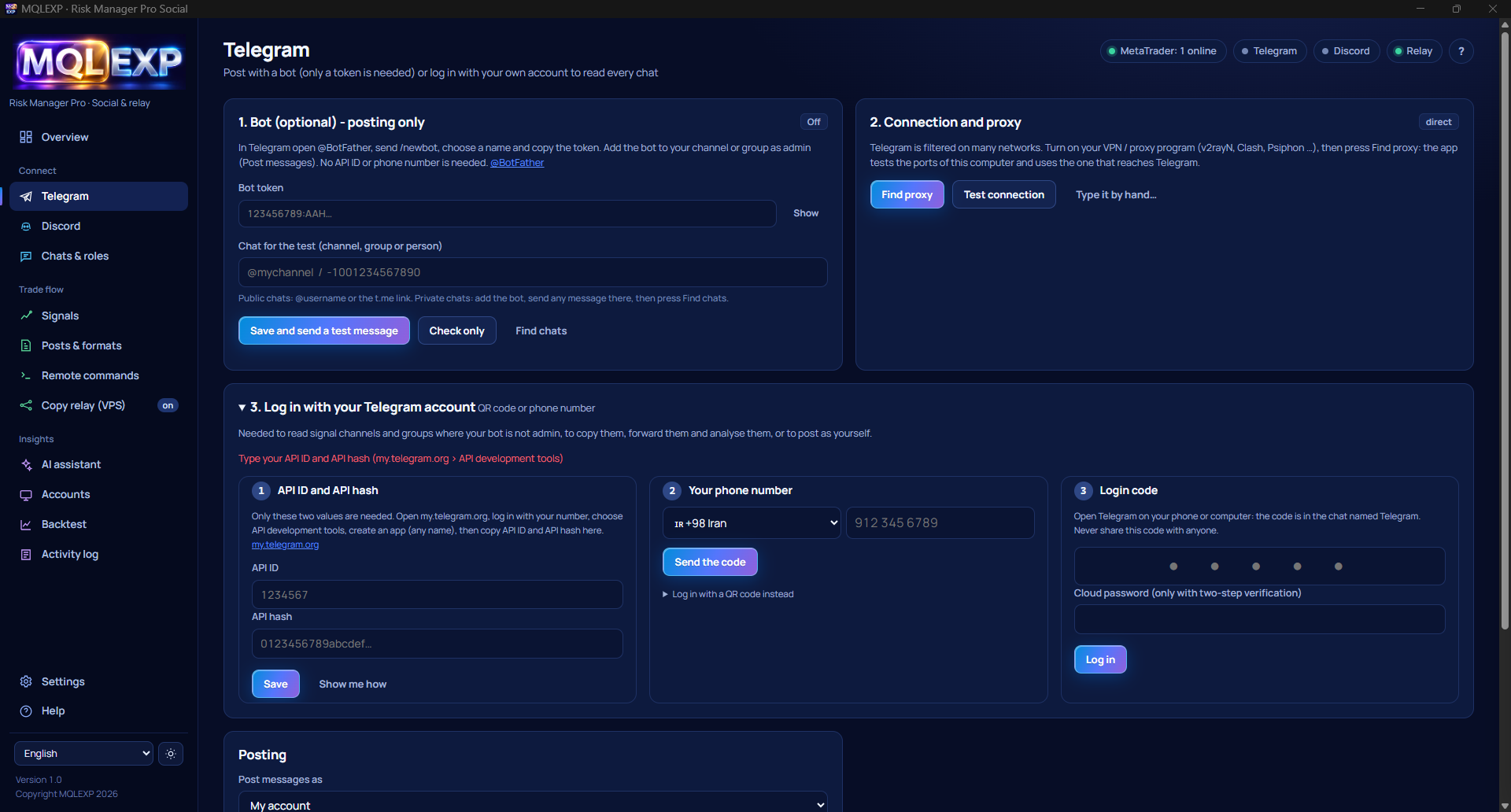
To post through a Telegram bot, open Telegram in the Windows companion, enter the bot token and specify the destination chat or channel. If you are posting to a channel, give the bot permission to post messages there. Use Save and send a test message, then open Telegram and check the destination itself.
The companion also supports signing in with your own Telegram account. That setup uses your Telegram API ID and API hash, followed by account authorization. Choose the connection you intend to use before assigning the destination.
Discord
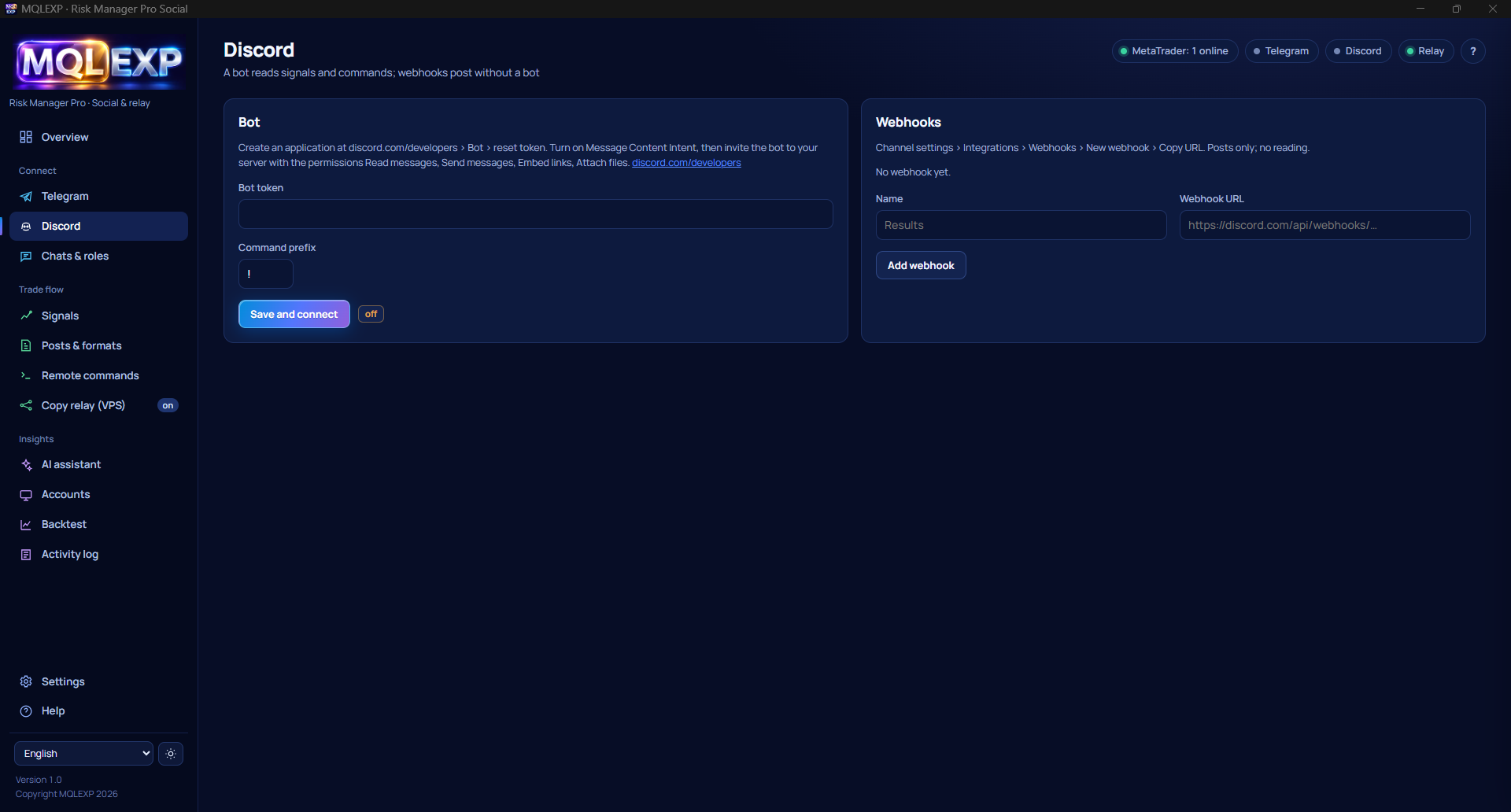
For outgoing posts to one Discord channel, you can use a webhook. In Discord, open the destination channel’s Settings → Integrations → Webhooks, create a webhook and copy its URL. In the companion, open Discord → Add webhook and enter the URL. Keep the webhook URL private because it grants posting access to that channel.
A Discord bot connection is also available. If you use a bot, check its permissions in the specific destination channel. Include permission to attach files if you intend to send chart images.
3. Set the EA to Sender and Choose the Destination
Once the service connection works, configure the route from the trading account to the chat.
- In the Windows companion, open Chats & roles and assign Destination to the chat or channel that should receive your posts.
- Open the destination’s settings and review the account, symbols, event types, post language and privacy options.
- In MetaTrader, open the EA’s COPY tab. Set ROLE to SENDER and LINK to TELEGRAM or DISCORD, matching the service you configured.
- Give the sender a recognizable account label, such as MT5 Demo. Confirm that posting is active in the companion.
- Press TEST in the EA and check the destination. This second test verifies that a message originating from the MetaTrader panel can reach the chat.
For outgoing reports, the chat needs the Destination role. You can leave incoming signal copying and remote commands disabled throughout this workflow.
4. Format the Message and Protect Account Details
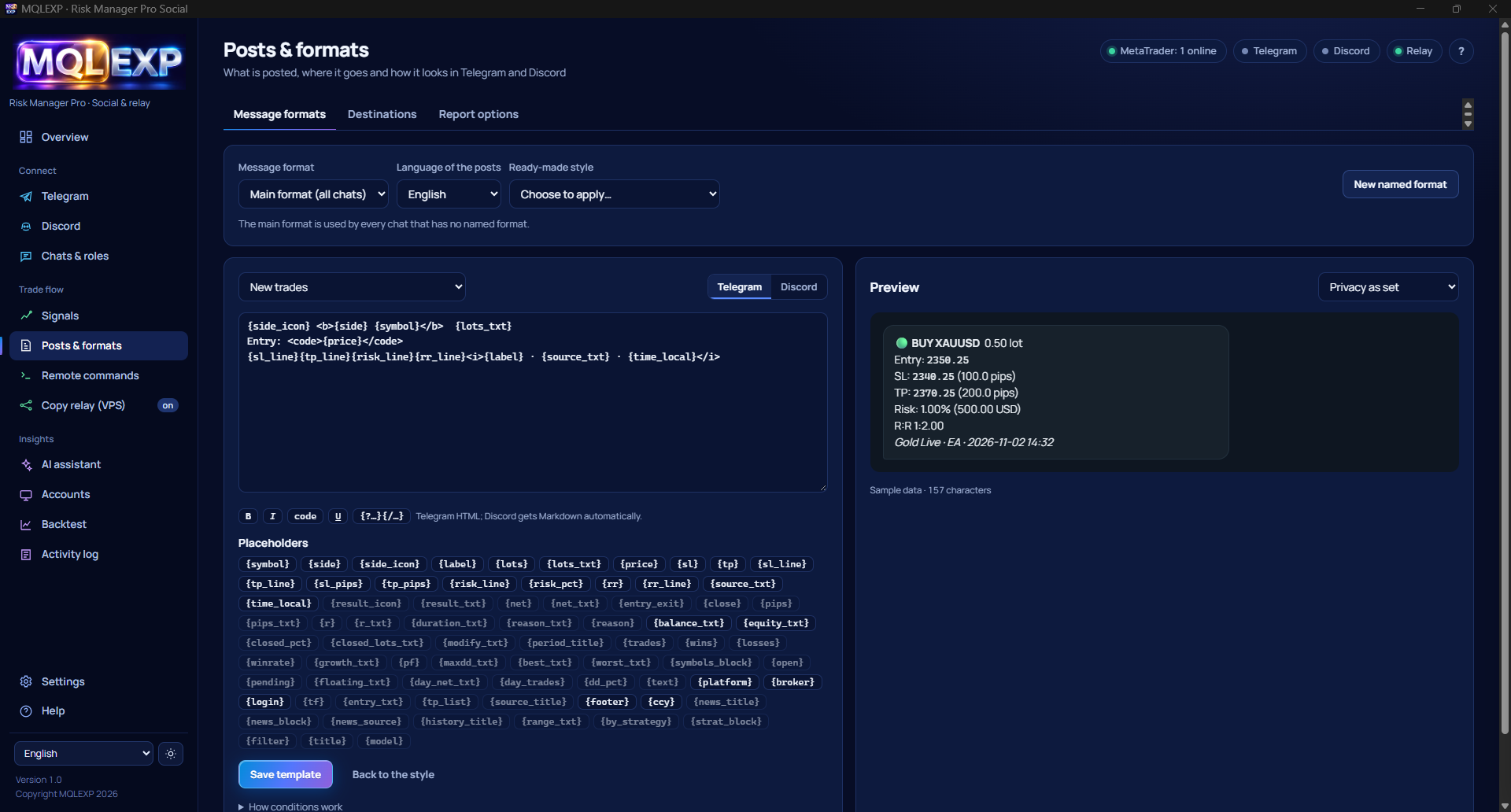
Open Posts & formats → Message formats in the Windows companion. Choose a format, inspect the preview and save it under a name you will recognize. You can assign different named formats to different chats.
For an opening message, start with the trade direction, symbol and entry price. The following template adds the protective levels when their values are available:
{side} {symbol} @ {price} {?sl}SL: {sl}{/sl} {?tp}TP: {tp}{/tp}
For a shared destination, review the privacy options before enabling regular posts. You can hide lot sizes, or hide both lot sizes and monetary amounts. A private demo post is the quickest way to see exactly what a recipient will read.
If you enable PICTURE, check the chart separately. A template may hide a monetary value while the chart still displays it in an account overlay, trade label or chart comment. Review both the text and the attached image.
5. Verify a Partial-Close Update on Demo
Use a demo symbol that permits the volumes in this example. Open a 0.10-lot position, then close 0.04 lots. The remaining volume should be 0.06 lots. Compare each stage with the messages in the destination chat.
| Stage | What to verify |
|---|---|
| Position opened | The opening post identifies the intended account label, symbol and direction. If volume is visible, it shows the original 0.10 lots. |
| Position partially closed | The message identifies a partial exit. If the template displays volume, check whether the figure describes the 0.04 lots closed or the 0.06 lots remaining. |
| Remaining position | MetaTrader shows 0.06 lots still open. Read the message from a recipient’s perspective and check that it cannot be mistaken for a full exit. |
If you hide volume in public posts, run this test first in a private destination with volume visible. Then apply your public privacy settings and repeat the preview.
6. Send Reports and Keep Posting Active
For daily, weekly or monthly summaries, review the reporting options under SETUP → COPY and the destination settings in the companion. Use REPORT on the EA’s COPY tab to check a report before relying on scheduled delivery. Compare its account label, period and result with the corresponding records in HISTORY.
One Windows setting matters if you want unattended reporting. Under Settings → This app, enable Keep running in the background when the window is closed and save. You can then close the dashboard and leave the companion running in the system tray. Choosing Quit from the tray stops the companion and its posting service.
7. If a Message Does Not Arrive
- The service test fails. Check the Telegram bot’s posting permission or the Discord webhook’s destination channel. Read the latest attempt in Activity log.
- The service test arrives, but the EA test does not. Check the account in Accounts, then verify ROLE = SENDER, the selected LINK and the destination.
- The EA test arrives, but a partial close is missing. Check that partial-close posting is enabled and that the destination’s account and symbol filters include the trade.
- Messages stop after you close the dashboard. Check the background setting and confirm that the companion is still running in the Windows system tray.
Conclusion
A useful trade feed lets the reader reconstruct what happened. The opening post identifies the trade, the partial-close update explains what changed, and the report summarizes the selected period. Once those three agree with the demo account history, you have a tested format that you can assign to a private journal or adapt for a shared channel.