
MetaTrader 5 custom indicator | Product version 1.00 | Publisher: MSMO FX | Product family: MSMO Trade Suite
1. What MSMO Risk Pro does
MSMO Risk Pro is a chart-based pre-trade risk and position-size planning indicator for MetaTrader 5. It helps you place visual Entry, Stop Loss (SL), Take Profit 1 (TP1) and Take Profit 2 (TP2) references; calculate position size and estimated actual risk; examine reward-to-risk values; and store up to four planning scenarios.
Planning only. The indicator does not send, change, close or manage trading orders. It does not generate buy/sell signals. Its chart lines are not broker-side orders, and touching a visual SL or TP line does not close a position. If you decide to trade, you must enter the volume and all relevant order levels manually in MetaTrader 5.
2. Install and open the indicator
- Open MetaTrader 5 and sign in to the MQL5 account that owns the purchase. In desktop MT5 this is generally available under Tools > Options > Community.
- In Navigator > Market > My Purchases, find MSMO Risk Pro and install or update it. The corresponding Market indicator can then be found under Navigator > Indicators > Market. The exact interface labels may vary with your MT5 build.
- Open a symbol and timeframe with market data, such as EURUSD H1, and attach MSMO Risk Pro from Navigator.
- Open the indicator Inputs. Set a short Instance ID / Plan ID (for example, A) and select Visual Plan Direction (BUY or SELL).
- Allow the chart data and symbol specifications to load. Review the dashboard status and the Entry, SL, TP1 and TP2 lines before using any displayed calculation.
The indicator uses regular chart interaction, including moving planning lines and clicking its dashboard buttons. Algo Trading does not need to be enabled to use the planning indicator. An MQL5 Market purchase is installed through your authenticated Market account; merely copying a protected purchased EX5 file to another computer does not replace Market activation.
3. Five-minute first plan
- Choose the direction. Set InpPlanMode to BUY or SELL.
- Choose a sizing method. Set InpRiskMode to Risk by Percent, Fixed Money Risk, or Fixed Lot Size. Enter the relevant risk or lot input.
- Choose the account base when using percentage risk: Balance, Equity, Custom Value, Lower of Balance/Equity, or Higher of Balance/Equity.
- Set Entry and SL. For manual planning, drag the chart reference lines; for calculated placement, select a suitable Stop Loss reference method. Use Reset Market, Reset Entry, or SL Ref when you intentionally want the relevant placement recalculated.
- Set targets. Use draggable TP lines, or select R-Multiple Targets and enter TP1/TP2 R values.
- Check the actual result. Read CALCULATED LOT, ACTUAL RISK, the Price Map, notices and any available cost estimate. Actual risk may differ from your requested budget due to volume restrictions, price movement or symbol specifications.
- Enter a trade manually only if you choose to proceed. Independently verify the volume, price and protection levels in the native MT5 order dialog.
Points are not necessarily pips. All input distances labeled points use the symbol's SYMBOL_POINT unit. A 5-digit FX symbol often has 10 points per pip, but this relationship should not be assumed for every broker or instrument.
4. Understand the chart and dashboard
The dashboard can show the plan direction and instrument, a prominent calculated lot, actual risk in account currency and percent, Risk Setup, Price Map, estimated costs, Scenario Vault slots A–D, status messages and action buttons. The chart displays visual Entry, SL, TP1 and optional TP2 lines with configurable risk/reward zones and price labels.
Figure 1. MSMO Risk Pro dashboard and visual planning levels.
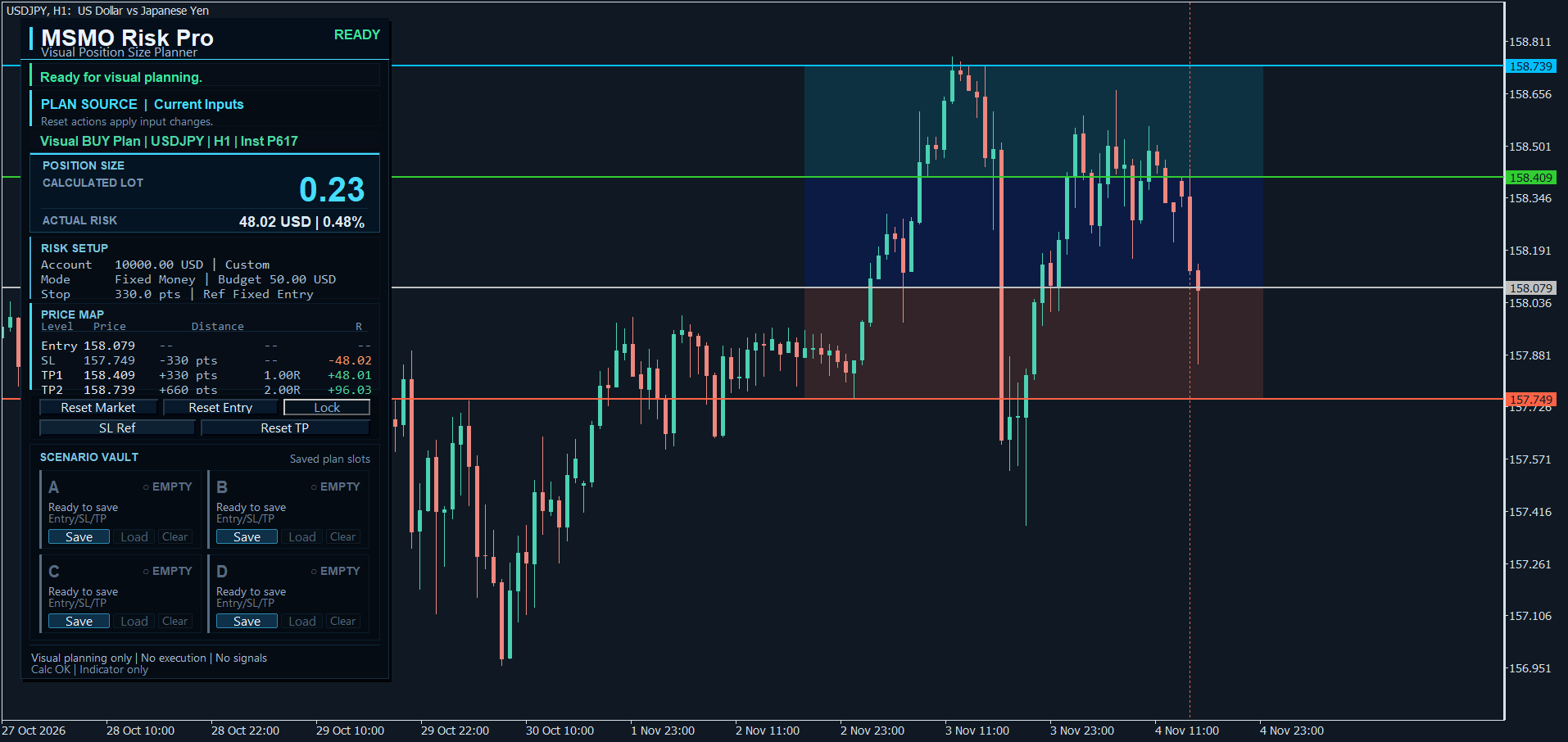
- READY / calculation status: the indicator has enough valid data for the current calculation. Read notices as well; a valid calculation is not an endorsement of a trade.
- CALCULATED LOT: the volume for the current sizing setup, adjusted for available broker constraints.
- ACTUAL RISK: the estimated loss at the chart SL for the displayed volume, which can differ from target risk.
- PRICE MAP / R: distances, reference prices, target money estimates and reward-to-risk figures based on the visual plan.
- COST IMPACT: estimates, not execution charges or broker quotes. See section 10.
- Scenario Vault: Save, Load and Clear for four slots; a loaded scenario may remain the active source instead of Current Inputs.
If the chart is not tall enough, the dashboard can use multiple pages. Increase chart height, move the dashboard, enable Compact Dashboard Mode, or reduce optional rows. This affects the presentation, not the trading logic. In some cases, not every optional section can fit on one page.
5. Position-size and risk modes
A. Risk by Percent (percentage risk)
Set InpRiskMode to Risk by Percent and enter InpRiskPercent. The indicator applies the selected account base to determine a monetary risk budget, then derives the position size from the Entry-to-SL distance and the broker's symbol specifications.
For percentage risk, InpAccountBase supports Balance, Equity, Custom Value, Lower of Balance / Equity and Higher of Balance / Equity. When using Custom Value, set InpCustomAccountValue carefully.
B. Fixed Money Risk
Set InpRiskMode to Fixed Money Risk and enter InpFixedRiskMoney in the trading account currency. The indicator estimates a volume consistent with the specified risk amount and the visual Stop Loss distance.
C. Fixed Lot Size
Set InpRiskMode to Fixed Lot Size and enter InpFixedLot. In this mode the chosen volume is the starting point; the indicator shows the resulting actual risk. A fixed lot does not keep monetary risk constant when SL distance changes.
Broker volume and actual risk
The indicator uses the broker's minimum/maximum volume, lot step, and any applicable aggregate symbol volume limit. When the broker specifies a non-zero aggregate symbol volume limit, the indicator reads volumes of open positions and pending orders on the same symbol and in the same direction as the visual BUY/SELL plan to estimate remaining volume capacity. It reads those orders only for this limit check and does not place, modify, close, or manage them. InpLotRoundingMode offers Round Down - Conservative (default) and Nearest Broker Step. Because a below-minimum calculated volume may be raised to the broker minimum, and nearest-step rounding may round upward, actual risk can exceed the requested risk budget. Review the displayed value before making a decision.
The risk value is a planning calculation and is not a promise of maximum realized loss. Spreads, slippage, gaps, execution conditions, swaps and other costs may affect results.
6. Six Stop Loss planning methods
Select the method using InpSLMode. Technical SL references are snapshots for planning, not auto-trailing stops or trading signals. Some methods require sufficient historical closed-candle data. If a reference is unavailable or on the wrong side for the chosen BUY/SELL direction, the indicator displays a notice rather than silently treating it as a valid reference.
6.1 Manual SL Line
Select Manual SL Line, then move the SL line on the chart. You can reposition the Entry line as needed; inspect actual risk immediately after adjustment. This is the most direct mode for a trade idea with a manually selected invalidation level.
6.2 Fixed Distance from Entry
Select Fixed Distance from Entry and set InpFixedSLPoints in points. Use Reset Entry to reapply placement using the current Entry reference when needed. By default InpApplySLPointsOnInputChange is off: changing the input alone may not immediately reapply the distance. Turn it on only if you want its explicit input-change behavior.
6.3 ATR Reference
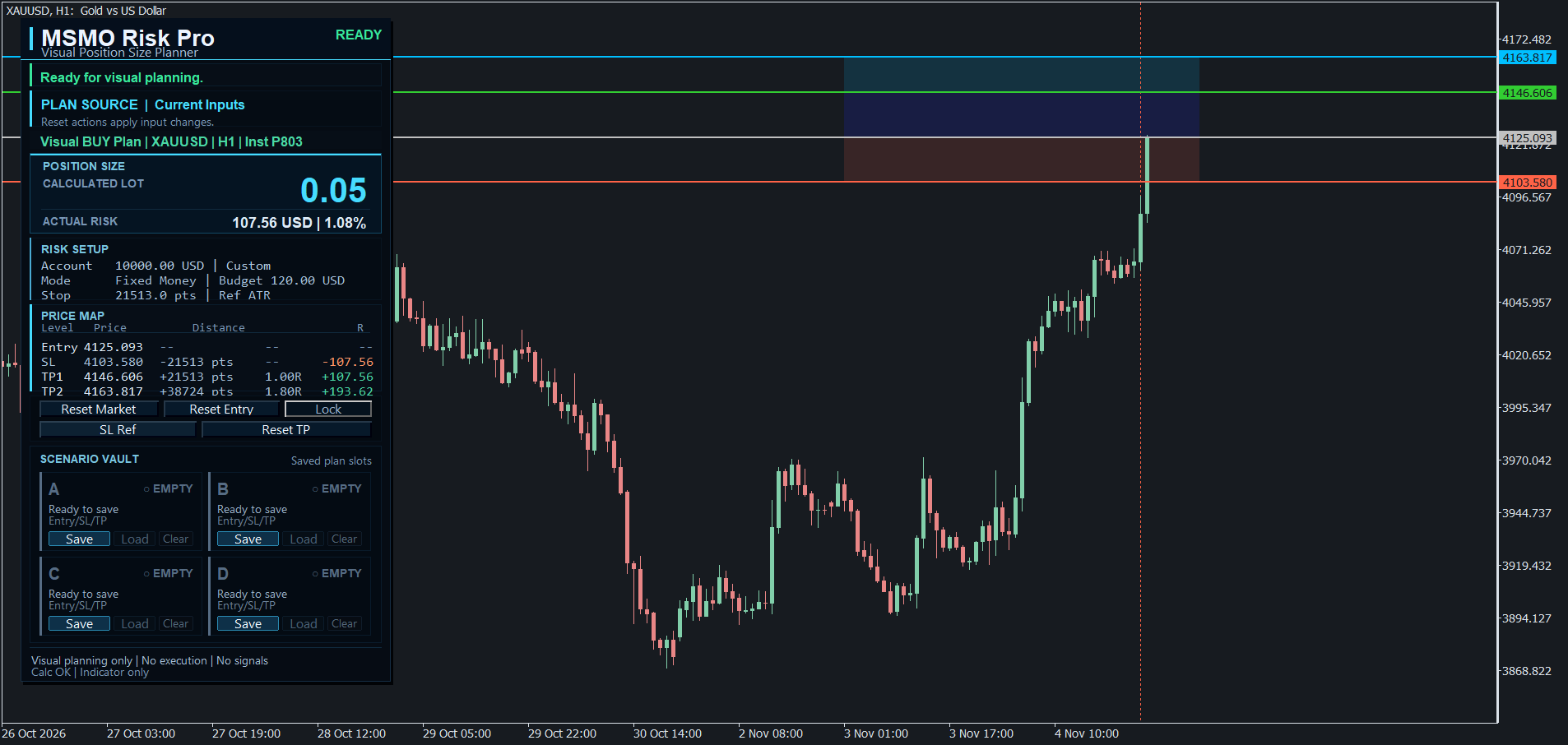
Select ATR Reference, set InpATRPeriod and InpATRMultiplier, and explicitly apply or refresh the reference when appropriate. ATR depends on historical price data and is used to calculate a proposed visual SL placement; it does not guarantee that the level will remain appropriate later.
Figure 2. XAUUSD ATR reference example from MT5.
6.4 Structure Reference (price structure)
Select Structure Reference and choose one of three InpStructureSLMethod options: Fractal Swing High / Low, Highest/Lowest of Recent N Candles, or Previous Candle. Adjust the lookback/confirmation settings and InpSwingBufferPoints when relevant. The selected reference is based on price structure, not a predictive buy/sell signal.
6.5 Moving Average Reference
Select Moving Average Reference. Configure InpMAPeriod, InpMAMethod, InpMAPrice, InpMABufferPoints and InpMAShift. The default shift is 1, representing the most recently closed candle. This is a snapshot reference; it does not trail the moving average continuously. If the necessary MA value is unavailable or directionally unsuitable, the panel shows a notice.
6.6 Parabolic SAR Reference
Select Parabolic SAR Reference. Configure InpSARStep and InpSARMaximum, then apply the reference. Like the MA/ATR/Structure methods, this is a snapshot for planning, not a trailing stop attached to an executed trade. Respect the warning if the SAR reference is missing or unsuitable.
Refreshing a technical reference: Use the SL Ref dashboard button when a newly calculated reference is wanted. InpApplySLReferenceOnInputChange controls whether relevant changed Inputs are re-applied automatically on an input change. Neither option turns the visual line into a broker-side Stop Loss.
7. Take Profit 1, Take Profit 2 and R-multiples
InpTPMode has two choices:
- Manual TP Lines: move the visible TP1 and optional TP2 lines to the desired planning levels. Inputs InpDefaultTP1Points and InpDefaultTP2Points define their reset distances.
- R-Multiple Targets: TP1 and TP2 are derived from the Entry-to-SL distance using InpTP1RMultiple and InpTP2RMultiple. Change the R inputs, Entry or SL to update the calculated levels. Target lines in this mode are derived output lines, not freely draggable independent prices.
InpShowTP2 can hide the second target. The displayed R values describe the visual price geometry; actual realized trades can differ due to fills, fees and execution conditions.
8. Scenario Vault: save, load, compare and return to Inputs
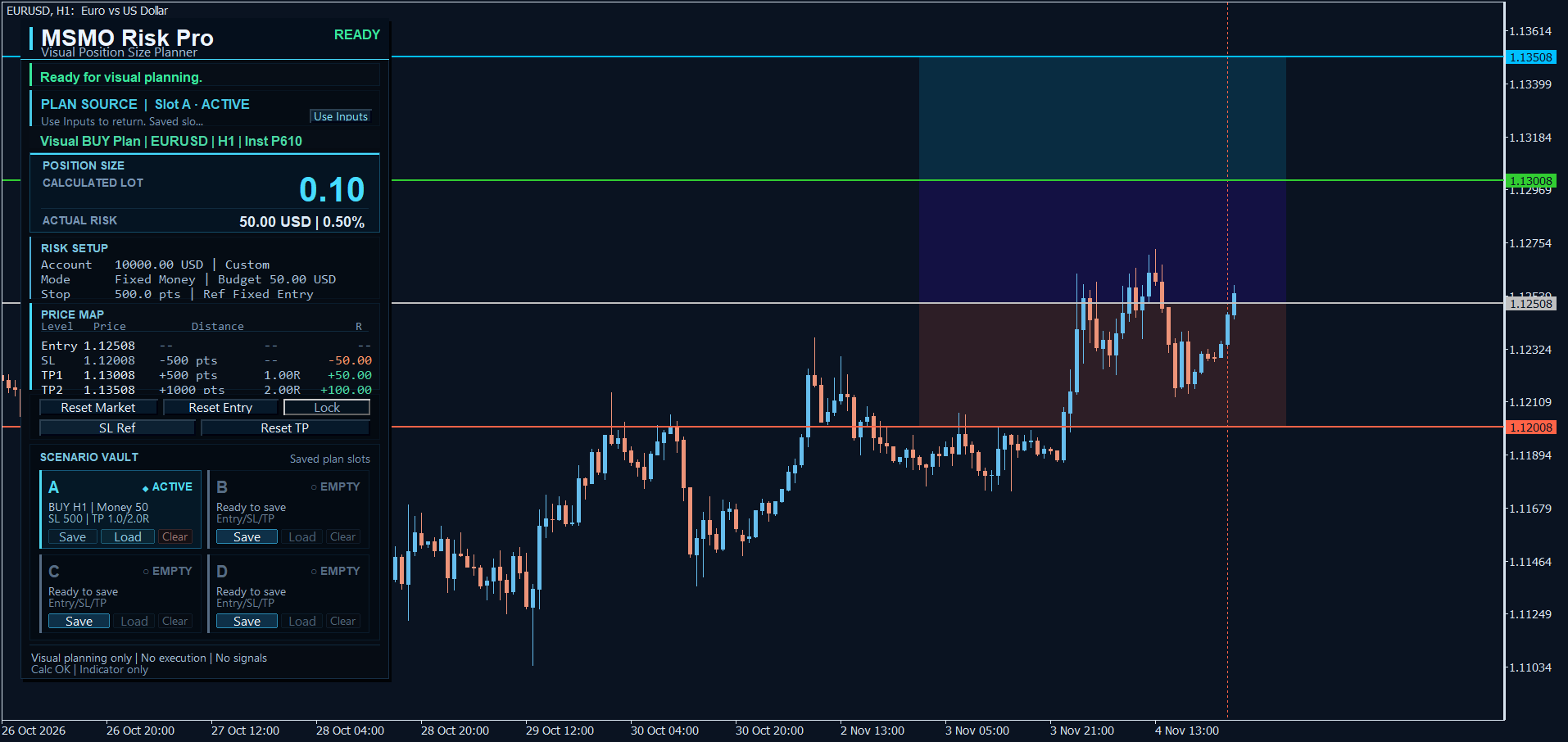
Scenario Vault provides four slots: A, B, C and D. Each can store a planning scenario. With the dashboard buttons enabled, press Save to store the current plan, Load to activate a saved one, and Clear to remove a saved scenario.
Figure 3. Scenario Vault with saved plan slots.
- Overwrite confirmation is optional and enabled by default. You may need to confirm a second time within the configured window.
- Clear confirmation is required; use the confirm step rather than expecting an immediate deletion.
- When a saved scenario is loaded, the dashboard can show that the loaded settings are active. The Use Inputs button switches back to the current indicator Inputs. Changing Inputs while a saved scenario remains active may not have the effect you expect until you return to Inputs.
- The slots are stored in MT5 terminal global variables and are not permanent backups. Unaccessed terminal global variables are automatically deleted under MT5's retention rules, generally after four weeks. Back up important trade plans separately.
- For more than one independent plan on the same symbol and timeframe, use a different InpInstanceID for each instance (for example A and B). A duplicate Plan ID can place the second copy into a read-only duplicate state.
- If the account currency changes and a saved scenario depends on a fixed monetary amount or custom account base, the scenario can be held rather than automatically applied. Review the status before using it.
A Scenario Vault slot (A–D) is not the same thing as the InpInstanceID used to distinguish indicator instances.
9. Lock button, reset and appearance controls
The Lock dashboard button protects the indicator's visual planning lines against ordinary dragging while the lock is active. It is not an order lock or a promise that a trade cannot change.
The dashboard also offers Reset Market, Reset Entry, SL Ref and Reset TP actions. Reset actions intentionally reposition planning references; check the resulting lot, actual risk and R values again afterwards. A changed Inputs value may require an explicit reset depending on the relevant apply-on-input-change settings.
Under Appearance and Panel Inputs you can change the line theme, custom colors, width, price labels, risk/reward zones, dashboard corner and offsets, compact mode, detailed rows and font size. For two independent instances, use visibly distinct colors and plan IDs to make the plans easier to distinguish.
10. Spread, commission, margin and advisory notices
The dashboard can estimate the effect of spread and a manually entered round-turn commission per 1.00 lot (InpCommissionPerLotRoundTurn). A margin estimate appears only when Show Estimated Margin is enabled and you manually enter InpManualMarginPerLot greater than zero. It is not an automatic broker margin quote.
Estimates do not include swap, slippage, price gaps or costs you did not enter. The indicator also checks selected broker/symbol constraints and can display notices regarding minimum lot size, volume-step rounding, risk differences, spread versus SL distance, broker stop/freeze levels, available reference data and invalid plan geometry.
Treat warnings as decision-support information, not instructions to trade. If a warning says actual risk exceeds the target, decrease the planned risk or reconsider the trade; the indicator cannot override the broker's minimum lot size.
11. Optional SL/TP line-touch alerts
InpEnableTouchAlerts is off by default. When enabled, the indicator can issue notices when market price touches the visual SL, TP1 or TP2 planning levels, subject to its options and cooldown. Available delivery options include terminal popup, sound, mobile push and email, depending on terminal configuration and permissions.
These alerts do not verify that a market order was opened, stopped out, filled at a target or closed. Push and email delivery depend on the corresponding MetaTrader settings and may be restricted in the Strategy Tester.
12. Market demo: what you can and cannot test
The free Market demo runs in MT5 Strategy Tester visual mode. The chart and calculations can be observed using configured indicator Inputs. However, the MT5 tester does not generate the interactive chart/object/mouse events needed by the indicator's draggable planning lines and clickable dashboard buttons. Therefore, in the demo, change settings through Inputs before the test and observe the resulting planning display, rather than expecting full interactive dashboard operation.
Full on-chart interaction is intended for a normal MT5 chart after the product has been installed through the Market. The demo's interface limitation does not imply that the paid indicator executes trades; it remains indicator-only.
13. Common problems and practical fixes
The lot looks too large or actual risk is above the budget. Check SL distance and point units, the chosen risk mode, broker minimum lot and volume step, then inspect any warnings. A minimum-lot clamp may exceed the requested risk.
An SL reference is unavailable. Load more history, confirm the selected timeframe, period, buffers and symbol data, and ensure the reference is on the correct side of Entry for BUY/SELL. Do not treat an invalid reference as a valid stop.
A change in SL points did not move the line. If fixed-points input-change application is disabled, use Reset Entry. For technical SL references, use SL Ref when a fresh snapshot is needed.
The TP line will not stay where I drag it. Check whether R-Multiple Targets is active. In that mode TP1/TP2 are derived from Entry/SL and R inputs; use Manual TP Lines for freely chosen targets.
The indicator reports Duplicate / Read-only. Change InpInstanceID so independently running plans on the same symbol/timeframe have unique IDs. Do not try to use the duplicate read-only copy as a second editable plan.
Inputs do not appear to change the loaded plan. A saved Scenario Vault plan may currently be active. Use Use Inputs to return to current input settings, then check the calculation.
The dashboard is split into pages. Increase chart height or enable Compact Dashboard Mode, adjust panel position, and optionally reduce detailed rows.
Saved slots disappeared. MT5 terminal global variables are not permanent backups; expired or manually cleared variables cannot be assumed recoverable. Recreate the plan if needed.
The demo dashboard buttons do not respond. This is a Strategy Tester event limitation. Test Input-driven configurations in the demo; use a normal chart for interactive operation after installation.
14. Important safety and accuracy notes
- MSMO Risk Pro does not make trade recommendations and does not guarantee lower losses or better performance.
- All displayed entries, stops and targets are planning references, not attached broker orders.
- Calculations use available broker symbol specifications and market/historical data. Values must be reviewed for each broker and symbol; universal compatibility is not guaranteed.
- Actual losses and fees can exceed estimates, especially during gaps, slippage or abnormal market conditions.
- A saved scenario is not a permanent external record. Keep independent notes or backups where needed.
15. Parameter reference — input groups
This appendix lists the actual input names and source comments present in the reviewed version 1.00 MQ5 source, organized under 18 group headings. Group numbering is omitted here to avoid confusion with guide section numbers; the group names correspond to the MetaTrader 5 Inputs groups. Values not relevant to your chosen workflow can usually remain at their defaults. The listing is a reference, not a recommendation to change every setting.
Plan / Instance
| Input | Default | Description |
| InpInstanceID | A | Instance ID / Plan ID. |
| InpPlanMode | PLAN_BUY | Visual Plan Direction. |
Risk / Position Size
| Input | Default | Description |
| InpAccountBase | ACCOUNT_BASE_BALANCE | Account Base for Risk. |
| InpRiskMode | RISK_MODE_PERCENT | Position Sizing Mode. |
| InpRiskPercent | 1.0 | Risk Percent per Plan (%). |
| InpFixedRiskMoney | 100.0 | Fixed Risk Amount. |
| InpFixedLot | 0.10 | Fixed Lot Size. |
| InpCustomAccountValue | 10000.0 | Custom Account Base. |
| InpLotRoundingMode | LOT_ROUND_CONSERVATIVE_DOWN | Lot Rounding Mode. |
Entry / Planning Lines
| Input | Default | Description |
| InpLineResetMode | LINE_RESET_FROM_MARKET_PRICE | Startup / Reset Placement. |
| InpDefaultEntryOffsetPoints | 0.0 | Entry Offset on Reset (points). |
Stop Loss / SL Mode
| Input | Default | Description |
| InpSLMode | SL_MODE_MANUAL_LINE | SL Method / Reference. |
| InpFixedSLPoints | 200.0 | Fixed SL Distance from Entry (points). |
| InpApplySLPointsOnInputChange | false | Re-apply Fixed SL Points changes (off = use Reset Entry). |
| InpApplySLReferenceOnInputChange | true | Re-apply ATR/Fractal/MA/SAR reference changes immediately. |
| InpShowSLReferenceSnapshotMarker | true | Show SL Reference Snapshot Marker. |
ATR SL Reference
| Input | Default | Description |
| InpATRPeriod | 14 | ATR Period. |
| InpATRMultiplier | 1.5 | ATR Multiplier. |
Structure / Fractal SL Reference
| Input | Default | Description |
| InpStructureSLMethod | STRUCTURE_SL_SWING_FRACTAL | Structure Method. |
| InpSwingLookbackBars | 20 | Structure Lookback Closed Candles. |
| InpSwingConfirmationCandles | 2 | Fractal Swing Confirmation Candles. |
| InpSwingBufferPoints | 50.0 | Structure SL Buffer (points). |
Moving Average SL Reference
| Input | Default | Description |
| InpMAPeriod | 50 | MA Period. |
| InpMAMethod | MODE_EMA | MA Method. |
| InpMAPrice | PRICE_CLOSE | MA Price Source. |
| InpMABufferPoints | 50.0 | MA SL Buffer (points). |
| InpMAShift | 1 | MA Candle Shift (1 = last closed candle). |
Parabolic SAR SL Reference
| Input | Default | Description |
| InpSARStep | 0.02 | SAR Step. |
| InpSARMaximum | 0.20 | SAR Maximum. |
Take Profit / Targets
| Input | Default | Description |
| InpTPMode | TP_MODE_LINES | TP Method: Manual TP Lines or R-Multiple Targets. |
| InpShowTP2 | true | Show TP2. |
| InpDefaultTP1Points | 300.0 | TP1 Reset Distance (points, TP Lines mode). |
| InpDefaultTP2Points | 600.0 | TP2 Reset Distance (points, TP Lines mode). |
| InpTP1RMultiple | 1.0 | TP1 R Multiple. |
| InpTP2RMultiple | 2.0 | TP2 R Multiple. |
| InpApplyTPDefaultsOnInputChange | true | Re-apply TP settings on input change. |
Scenario Plans / Saved Plans
| Input | Default | Description |
| InpShowScenarioPlanButtons | true | Show Save/Load Scenario Plan Buttons. |
| InpShowSaveBeforeOverwrite | true | Confirm before overwriting Scenario Plans. |
| InpScenarioPlanOverwriteConfirmSeconds | 4 | Scenario overwrite confirm window (seconds). |
| InpScenarioPlanNoticeSeconds | 4 | Scenario notice duration (seconds). |
Broker / Symbol / Margin Checks
| Input | Default | Description |
| InpShowBrokerSymbolWarnings | true | Show Broker/Symbol Warnings. |
| InpShowEstimatedMargin | true | Show Estimated Margin when manual margin is provided. |
| InpManualMarginPerLot | 0.0 | Manual estimated margin per 1.00 Lot (0 hides margin). |
| InpMarginWarningPercent | 80.0 | Estimated margin warning (% of free margin). |
Cost Impact / Spread Display
| Input | Default | Description |
| InpShowCostEstimate | true | Show Cost Impact estimate. |
| InpCommissionPerLotRoundTurn | 0.0 | Commission per 1.00 Lot Round Turn. |
| InpCostWarningPercentOfRisk | 20.0 | Cost Impact warning threshold (% of displayed denominator: Risk Budget or Actual Risk). |
| InpEnableSpreadWarning | true | Enable spread cost/SL warnings. |
| InpMaxSpreadPointsWarning | 0.0 | Max Spread Warning in points (0 = disabled). |
| InpMaxSpreadToSLPercent | 20.0 | Spread vs SL Warning (%). |
Warnings / Safety Notices
| Input | Default | Description |
| InpEnableWarnings | true | Enable Advisory Warnings. |
| InpActualRiskWarningPercent | 5.0 | Actual Risk Warning Level (%). |
| InpRiskDifferenceWarningPercent | 2.0 | Target vs Actual Risk Difference (%). |
| InpActualRiskCriticalPercent | 25.0 | Critical Risk Highlight Level (%). |
| InpShowLotStepRoundingNotice | false | Show lot-step rounding notice. |
| InpMinSLPointsWarning | 0.0 | Minimum SL Warning (points). |
| InpMaxRiskPercentWarn | 3.0 | Dashboard Risk Limit (%). |
SL / TP Touch Alerts
| Input | Default | Description |
| InpEnableTouchAlerts | false | Enable SL/TP line-touch alerts only. |
| InpAlertSLTouched | true | Alert when SL is touched. |
| InpAlertTP1Touched | true | Alert when TP1 is touched. |
| InpAlertTP2Touched | true | Alert when TP2 is touched. |
| InpAlertPopup | true | Show MT5 popup alert. |
| InpAlertSound | true | Play alert sound. |
| InpAlertSoundFile | alert.wav | Sound file name. |
| InpAlertPush | false | Send mobile push notification. |
| InpAlertEmail | false | Send email notification. |
| InpAlertCooldownSeconds | 60 | Re-alert cooldown (seconds). |
Chart Lines / Appearance
| Input | Default | Description |
| InpColorMode | COLOR_MODE_AUTO_BY_INSTANCE | Line Color Theme. |
| InpEntryLineColor | clrSilver | Entry Line Color. |
| InpSLLineColor | clrTomato | Stop Loss Line Color. |
| InpTP1LineColor | clrLimeGreen | TP1 Line Color. |
| InpTP2LineColor | clrDeepSkyBlue | TP2 Line Color. |
| InpLineWidth | 2 | Line Width. |
| InpDrawLinesBehindDashboard | true | Draw Lines Behind Dashboard. |
| InpShowLinePriceLabels | true | Show Right-Axis Price Tags. |
Visual Risk / Reward Zones
| Input | Default | Description |
| InpShowRiskZone | true | Show Risk Zone. |
| InpShowRewardZoneTP1 | true | Show TP1 Reward Zone. |
| InpShowRewardZoneTP2 | true | Show TP2 Reward Zone. |
| InpZoneOpacity | 25 | Zone Opacity. |
| InpZonePastBars | 80 | Zone Bars to Left. |
| InpZoneFutureBars | 7 | Zone Bars to Right. |
Dashboard / Panel
| Input | Default | Description |
| InpDashboardCorner | CORNER_TOP_LEFT | Dashboard Corner. |
| InpDashboardX | 20 | Dashboard X Offset. |
| InpDashboardY | 30 | Dashboard Y Offset. |
| InpCompactMode | false | Compact Dashboard Mode. |
| InpShowAdvancedInfo | true | Show Detailed Dashboard Rows. |
| InpDashboardFontSize | 9 | Dashboard Font Size. |
| InpShowPlanLockButton | true | Show Line Lock Button. |
| InpShowCalculationConfidence | true | Show Calculation Confidence Text. |
| InpShowLaunchHelpHint | true | Show first-run workflow hint. |
Support / Maintenance
| Input | Default | Description |
| InpDebugMode | false | Enable Support Debug Logs. |
| InpCleanOnDeinit | true | Clean Chart Objects When Removed; saved Scenario Plans persist. |
16. Support and product identification
Product: MSMO Risk Pro
Platform: MetaTrader 5
Type: Custom Indicator (planning only)
Release: 1.00
Publisher / brand: MSMO FX
Product family: MSMO Trade Suite
For support, use the product's MQL5 comments or the MQL5 internal messaging system. Include the symbol and timeframe, selected risk/SL/TP modes, the relevant dashboard notice, terminal build and a screenshot with private account details concealed. Do not post passwords or other private credentials.
Documentation revision: 05 November 2026. Product version: 1.00.