
How to set additional Take Profit and Stop Loss levels for an order or position
8 August 2026, 03:03

0
129
How to set additional Take Profit and Stop Loss?
Additional Take Profit and Stop Loss are set using the partial position closing function.
▶️ YouTube: https://youtu.be/fdz6oidmdFc
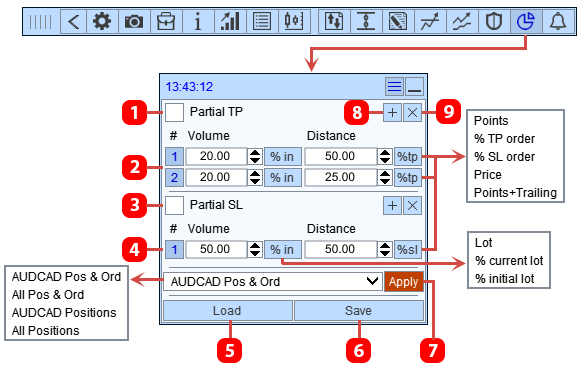
- Enable Partial Close in Profit Zone.
- List of Partial Close levels in Profit Zone.
- Enable Partial Close in Loss Zone.
- List of Partial Close levels in Loss Zone.
- Load Partial Close settings from template.
- Save Partial Close settings to template.
- Apply settings to selected orders and positions.
- Create a new Partial Close level.
- Delete Partial Close level.
The Partial Close function can be configured in three ways:
How to set a Partial close for a new order or position
- Before opening an order or position, go to the Partial Close function panel.
- Configure the required number of Partial Close levels 2, 4 and enable the Partial Close function 1, 3.
- After setting up the Partial Close function, open an order or position. The opened position or order will have these settings for the Partial Close function.
The Partial Close settings on this panel apply only to new orders and positions. To apply changes to the Partial Close settings on this panel to already open orders and positions, click button 7 (see below).
How to set/edit Partial close of existing orders and positions opened on the current symbol
- Go to the Partial Close function panel.
- Configure the required number of Partial Close levels 2, 4 and enable the Partial Close function 1, 3.
- After configuring the Partial Close settings, select the orders and positions to which you want to apply these settings and click the "Apply" button (7). After clicking button 7, these Partial Close settings will be applied to the selected orders and positions open on the current symbol.
How to set/edit a Partial close for an order or position

- Button for going to order or position settings.
- Tab for setting up Partial Close of an order or position.
- Enable Partial Close of Profit.
- Partial Close of Profit levels.
- Enable Partial Close of Loss.
- Partial Close of Loss levels.
- Load Partial Close template.
- Save Partial Close settings to template.
- Labels for setting up Partial Close levels.
To edit or set the Partial Close feature:
- Go to the Order Management panel, to the Pc tab.
- Configure the required number of Partial Close levels 4, 6 and enable the function 3, 5.
- These partial close settings will be applied to the current order or position.