

Price Action Analysis Toolkit Development (Part 78): Extending the Indicator Search Panel with Symbol Selection in MQL5
 2 658
2 658
 0
0

Contents
Introduction
In Part 77, we developed an indicator search panel that enabled traders to quickly locate and attach built-in indicators to the active chart. This significantly improved finding and opening indicators. However, the panel was limited to the chart where the Expert Advisor was running. As a result, applying an indicator to a different symbol required opening that chart and attaching another Expert Advisor instance. This made the workflow repetitive and time-consuming.
In this article, we remove that limitation by extending the panel with symbol selection capabilities. The enhanced interface lets users select or enter a target symbol before attaching an indicator. This makes it possible to apply indicators to different symbols from a single panel. This enhancement streamlines the workflow, reduces unnecessary chart switching, and makes the tool more practical for multi-symbol analysis. Read on as we implement this functionality and integrate symbol switching into our indicator search panel.
Continuing from Part 77
Previous Implementation
Our complete system relied on five modules: IndicatorCatalog.mqh, SearchEngine.mqh, ChartLauncher.mqh, SearchPanel.mqh, and IndicatorSearchEA.mq5. Together, they formed a searchable indicator panel. Users could type a built-in indicator name, and the system would create and attach it to the appropriate chart window. Depending on the indicator type, it was displayed either in the main chart window or in a dedicated indicator subwindow. Table 1 summarizes the role of each module before we enhance the system with symbol selection capabilities.
Table 1. Modules implemented in the indicator search panel and their responsibilities:
| Module | Primary Responsibility | Key Functionality |
|---|---|---|
| IndicatorCatalog.mqh | Maintains the catalog of supported built-in indicators. | Stores indicator metadata, including display names and corresponding ENUM_INDICATOR values, enabling fast lookup during searches. |
| SearchEngine.mqh | Implements the indicator search logic. | Filters the indicator catalog based on the user's search query and returns matching indicators for display in the panel. |
| ChartLauncher.mqh | Creates and attaches indicators to the chart. | Creates indicator handles, determines whether an indicator belongs in the main chart or a subwindow, and attaches it to the appropriate location. |
| SearchPanel.mqh | Provides the graphical user interface (GUI). | Displays the search box, dynamically updates search results, captures user interactions, and coordinates communication between the search engine and chart launcher. |
| IndicatorSearchEA.mq5 | Serves as the application's entry point. | Initializes the search panel, processes chart and timer events, and manages the application's lifecycle from startup to shutdown. |
The figure below illustrates the final outcome of the indicator search system developed in the previous article. The application was tested in MetaTrader 5 and demonstrated successful indicator searching, creation, and automatic attachment to the appropriate chart window.

Figure 1. Completed indicator search panel in MetaTrader 5.
Introducing Symbol Selection
The previous implementation successfully achieved its intended objective by providing a fast and intuitive way to search for and attach built-in indicators to the active chart. However, one limitation remained. The application operated only on the chart hosting the Expert Advisor. To attach an indicator to a different symbol, users had to open that chart and load another Indicator Search EA instance. This repetitive process became increasingly inefficient when working across multiple symbols.
What we do next is extend the existing implementation by introducing symbol selection capabilities. The enhanced panel enables users to search for an indicator and specify the target symbol from the same interface before attaching it. By extending the panel in this way, a single instance of the Expert Advisor can search for indicators and apply them to different symbols without requiring additional chart switching or multiple EA instances.
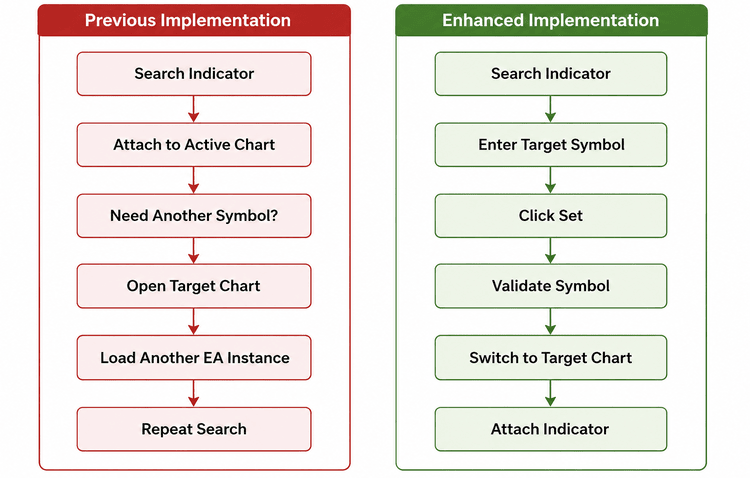
Figure 2. Indicator attachment workflow before and after introducing symbol selection.
The following sections walk through the modifications required to integrate symbol selection into the existing indicator search panel.
MQL5 Implementation
In this section, we extend the indicator search panel developed in Part 77 by introducing symbol selection functionality. To preserve the existing architecture, we modify only the components responsible for the user interface and indicator attachment. The remaining modules continue to perform their original responsibilities without requiring any changes.
Overview of the Modifications
Table 2. Summary of the modifications introduced to support symbol selection:
| Module | Modification |
|---|---|
| SearchPanel.mqh | Extend the graphical interface by adding symbol selection controls, update the panel layout, handle symbol selection events, and modify OpenSelected() to attach indicators to the selected symbol. |
| ChartLauncher.mqh | Extend the indicator creation and attachment functions to accept a target symbol, validate the selected symbol, and ensure indicators are attached to the appropriate chart. |
| IndicatorSearchEA.mq5 | Adjust the panel dimensions to accommodate the additional symbol selection controls. |
| IndicatorCatalog.mqh | No changes required. The indicator catalog remains unchanged. |
| SearchEngine.mqh | No changes required. The existing search functionality is reused without modification. |
With the modifications outlined, let's begin extending the application.
1. Updating the Main Expert Advisor
We'll begin with the simplest modification. Since we're introducing another row of controls to the panel, we first need to increase its height to provide enough space for the new interface elements.
Updated OnInit() implementation:
//+------------------------------------------------------------------+
//| Expert initialization function                                   |
//+------------------------------------------------------------------+
int OnInit()
  {
//--- Create panel with increased height (450) to accommodate symbol controls
   if(!ExtPanel.Create(0, "Indicator Search", 0, 100, 100, 350, 450))
     {
      Print(__FUNCTION__, " panel creation failed");
      return(INIT_FAILED);
     }
//--- Show the panel
   ExtPanel.Show();
   return(INIT_SUCCEEDED);
  }
The only modification we make here is increasing the panel height from 400 to 450. This additional space accommodates the symbol input field and the Set button while leaving the remainder of the Expert Advisor unchanged.
With the Expert Advisor updated, we can now begin extending the user interface.
2. Extending SearchPanel.mqh
Most of our work takes place inside SearchPanel.mqh, where we'll extend both the graphical interface and the panel logic to support symbol selection.
Adding the Required Member Variables
Our first task is to introduce the controls required for symbol selection together with a variable that stores the selected symbol.
//+------------------------------------------------------------------+
//| Main search panel class                                          |
//+------------------------------------------------------------------+
class CSearchPanel : public CAppDialog
  {
private:
   //--- Search input field
   CEdit             m_editSearch;
   //--- Symbol input field
   CEdit             m_editSymbol;
   //--- Button to confirm symbol selection
   CButton           m_btnSetSymbol;
   //--- Button to open the first result
   CButton           m_btnOpen;
   //--- Button to close the panel
   CButton           m_btnClose;
   //--- Dynamic array of result buttons (one per matching indicator)
   CButton           m_resultButtons[];
   //--- Number of currently displayed result buttons
   int               m_resultCount;

   //--- Currently selected target symbol
   string            m_targetSymbol;
   //--- Search engine instance
   CSearchEngine     m_engine;
   //--- Filtered indicator results from search
   SIndicatorInfo    m_filtered[];
   //--- Last search text (to avoid re-filtering unnecessarily)
   string            m_lastSearchText;

   //--- Refreshes the list of result buttons based on current filter
   void              UpdateList();
   //--- Attaches the indicator at the given filtered-list index
   void              OpenSelected(int index);
   //--- Removes all existing result buttons from the panel
   void              ClearButtons();

public:
                     CSearchPanel();
                    ~CSearchPanel();

   //--- Creates the panel and all its child controls
   virtual bool      Create(const long chart, const string name, const int subwin, const int x1, const int y1, const int x2, const int y2);
   //--- Event handler – routes all custom events to appropriate actions
   virtual bool      OnEvent(const int id, const long &lparam, const double &dparam, const string &sparam);
   //--- Forwards chart events to the base class
   void              ChartEvent(const int id, const long &lparam, const double &dparam, const string &sparam);
   //--- Timer callback – checks if the search text has changed
   void              OnTimer();
   //--- Stops the internal timer
   void              KillTimer();
   //--- Hides the panel and stops the timer
   void              ClosePanel();
  };
We introduce two additional controls:
- m_editSymbol, which allows the user to enter the desired trading symbol.
- m_btnSetSymbol, which validates and stores the entered symbol.
We also introduce m_targetSymbol, which stores the validated symbol independently of the edit control. This allows us to validate the user's input once and reuse it whenever an indicator is attached.
The remaining member variables continue to perform their original responsibilities.
Initializing the Target Symbol
Now that we've introduced the new member variable, we need to ensure it always starts in a known state.
Updated constructor:
//+------------------------------------------------------------------+
//| Constructor / Destructor                                         |
//+------------------------------------------------------------------+
CSearchPanel::CSearchPanel() :
   m_resultCount(0),
   m_lastSearchText(""),
   m_targetSymbol("")
  {
  }

//--- Stop the timer before destroying the panel
CSearchPanel::~CSearchPanel()
  {
   KillTimer();
  }
With the initialization complete, we're ready to extend the graphical interface.
Extending the Panel Layout
The next step is to introduce a dedicated row for symbol selection inside the panel.
Updated Create() implementation:
//+------------------------------------------------------------------+
//| Creates the panel                                                |
//+------------------------------------------------------------------+
bool CSearchPanel::Create(const long chart, const string name, const int subwin, const int x1, const int y1, const int x2, const int y2)
  {
//--- Create the parent dialog first
   if(!CAppDialog::Create(chart, name, subwin, x1, y1, x2, y2))
      return(false);

   int w = x2 - x1;
   int h = y2 - y1;

//--- Indicator search edit box (top row)
   int editX = PANEL_MARGIN;
   int editY = PANEL_MARGIN;
   int editW = w - 2 * PANEL_MARGIN;
   if(!m_editSearch.Create(chart, name + "Edit", subwin, editX, editY, editX + editW, editY + EDIT_HEIGHT))
      return(false);
   if(!Add(m_editSearch))
      return(false);
   m_editSearch.Text("Type indicator name...");
   m_lastSearchText = "";

//--- Symbol input edit box (second row)
   int symY = editY + EDIT_HEIGHT + PANEL_MARGIN;
   int symW = w - 2 * PANEL_MARGIN - 60 - PANEL_MARGIN;
   if(!m_editSymbol.Create(chart, name + "Symbol", subwin, editX, symY, editX + symW, symY + EDIT_HEIGHT))
      return(false);
   if(!Add(m_editSymbol))
      return(false);
   m_editSymbol.Text(Symbol());
   m_targetSymbol = Symbol();

//--- Set button (confirms the entered symbol)
   int btnX = editX + symW + PANEL_MARGIN;
   if(!m_btnSetSymbol.Create(chart, "SetSymbolBtn", subwin, btnX, symY, btnX + 60, symY + EDIT_HEIGHT))
      return(false);
   if(!Add(m_btnSetSymbol))
      return(false);
   m_btnSetSymbol.Text("Set");

//--- Open button (opens the first search result)
   int btnY = h - PANEL_MARGIN - BUTTON_HEIGHT;
   int btnW = 60;
   int btnH = BUTTON_HEIGHT;
   btnX = w / 2 - btnW - 5;
   if(!m_btnOpen.Create(chart, "OpenBtn", subwin, btnX, btnY, btnX + btnW, btnY + btnH))
      return(false);
   if(!Add(m_btnOpen))
      return(false);
   m_btnOpen.Text("Open");

//--- Close button (closes the panel)
   btnX = w / 2 + 5;
   if(!m_btnClose.Create(chart, "CloseBtn", subwin, btnX, btnY, btnX + btnW, btnY + btnH))
      return(false);
   if(!Add(m_btnClose))
      return(false);
   m_btnClose.Text("Close");

//--- Initialize the result list (empty at start)
   UpdateList();

//--- Start a timer to poll the search box for text changes
   EventSetTimer(1);
   return(true);
  }
Here, we position the symbol input field directly beneath the existing indicator search box and place the Set button alongside it. This creates a compact layout that groups all user input controls together.
To improve usability, we initialize both the edit control and m_targetSymbol using Symbol(). As a result, the panel remains fully functional immediately after loading without requiring the user to configure anything.
At this stage, our interface can collect both the indicator name and the desired trading symbol.
Processing Symbol Selection
With the new controls in place, we can now extend the event handler to process clicks on the Set button.
Updated OnEvent() implementation:
//+------------------------------------------------------------------+
//| Event handler – uses sparam for control identification           |
//+------------------------------------------------------------------+
bool CSearchPanel::OnEvent(const int id, const long &lparam, const double &dparam, const string &sparam)
  {
//--- Let base class handle system events (X button, resizing, etc.)
   bool handled = CAppDialog::OnEvent(id, lparam, dparam, sparam);

//--- Only process custom events generated by our controls
   if(id == CHARTEVENT_CUSTOM)
     {
      //--- Set Symbol button: validates and stores the entered symbol
      if(sparam == "SetSymbolBtn")
        {
         string sym = m_editSymbol.Text();
         //--- Validate symbol using SymbolSelect (adds to Market Watch if valid)
         if(SymbolSelect(sym, true))
           {
            m_targetSymbol = sym;
            Print("Symbol set to: ", m_targetSymbol);
           }
         else
           {
            //--- Invalid symbol – revert to current chart symbol
            Print("Invalid symbol: ", sym, " – using current chart");
            m_editSymbol.Text(Symbol());
            m_targetSymbol = Symbol();
           }
         return(true);
        }

      //--- Open button: attaches the first search result (if any)
      if(sparam == "OpenBtn")
        {
         if(m_resultCount > 0)
            OpenSelected(0);
         return(true);
        }

      //--- Close button: hides the panel and stops the timer
      else
         if(sparam == "CloseBtn")
           {
            ClosePanel();
            return(true);
           }

         //--- Result buttons: sparam starts with "ResultBtn_"
         else
            if(StringFind(sparam, "ResultBtn_") == 0)
              {
               //--- Extract the index from the button name, e.g., "ResultBtn_3" → 3
               int index = (int)StringToInteger(StringSubstr(sparam, 10));
               OpenSelected(index);   // attach the indicator at the selected index
               return(true);
              }

            //--- For all other events, return the base class result
            else
              {
               return(handled);
              }
     }

   return(handled);
  }
Whenever the Set button is pressed, we retrieve the symbol entered by the user and validate it using SymbolSelect(). If the symbol is valid, we store it in m_targetSymbol for later use. Otherwise, we restore the current chart symbol and notify the user that the requested symbol could not be found.
Validating the symbol at this stage prevents invalid values from propagating into the indicator attachment logic.
Adjusting the Result Layout
Adding another row of controls changes the available space for the dynamically generated indicator buttons. We therefore need to update the starting position of the result list.
Updated UpdateList() implementation:
//+------------------------------------------------------------------+
//| Refreshes the list of result buttons based on current filter     |
//+------------------------------------------------------------------+
void CSearchPanel::UpdateList()
  {
//--- Clear any existing result buttons before rebuilding
   ClearButtons();

//--- Get the total number of filtered indicators
   int total = ArraySize(m_filtered);
   if(total == 0)
      return;

//--- Calculate the starting Y position for result buttons
//--- The start is below both the search box and the symbol input box
   int startY = PANEL_MARGIN + EDIT_HEIGHT + PANEL_MARGIN + EDIT_HEIGHT + PANEL_MARGIN;
   int btnY = Height() - PANEL_MARGIN - BUTTON_HEIGHT;
   int availableHeight = btnY - startY - PANEL_MARGIN;
   if(availableHeight < BUTTON_HEIGHT)
      return;

//--- Determine how many buttons can fit vertically
   int maxButtons = availableHeight / (BUTTON_HEIGHT + BUTTON_GAP);
   if(maxButtons < 1)
      maxButtons = 1;

//--- Limit the number of buttons to what fits
   int count = (total < maxButtons) ? total : maxButtons;
   ArrayResize(m_resultButtons, count);

//--- Create one button for each matching indicator
   int btnWidth = Width() - 2 * PANEL_MARGIN;
   int yPos = startY;

   for(int i = 0; i < count; i++)
     {
      //--- Each button gets a unique name for event identification
      string btnName = "ResultBtn_" + IntegerToString(i);

      //--- Create the button at the calculated position
      if(!m_resultButtons[i].Create(0, btnName, 0, PANEL_MARGIN, yPos, PANEL_MARGIN + btnWidth, yPos + BUTTON_HEIGHT))
         continue;

      //--- Set the button text to the indicator name
      m_resultButtons[i].Text(m_filtered[i].name);

      //--- Add the button to the panel and make it visible
      if(!Add(m_resultButtons[i]))
         continue;
      m_resultButtons[i].Show();

      //--- Move down for the next button
      yPos += BUTTON_HEIGHT + BUTTON_GAP;
     }

//--- Store the actual number of buttons displayed
   m_resultCount = count;
  }
The only adjustment required is updating the value of startY so that the search results begin beneath the newly added symbol controls. All remaining layout calculations remain unchanged from the previous implementation.
Our interface layout is now complete.
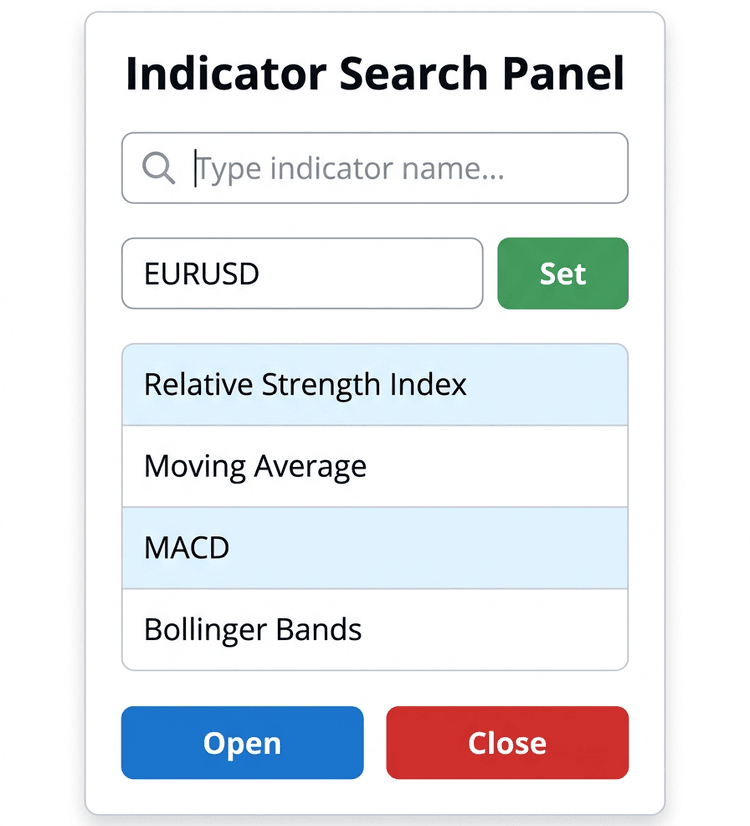
Figure 3. Target layout of the enhanced SearchPanel interface with symbol selection controls.
Attaching Indicators to the Selected Symbol
The final modification within SearchPanel.mqh updates the indicator launch routine.
Updated OpenSelected() implementation:
//+------------------------------------------------------------------+
//| Opens selected indicator on the stored symbol                    |
//+------------------------------------------------------------------+
void CSearchPanel::OpenSelected(int index)
  {
//--- Validate the index is within the filtered results range
   if(index < 0 || index >= ArraySize(m_filtered))
      return;

//--- Determine which symbol to use for attachment
   string symbol = m_targetSymbol;
   if(symbol == "")
      symbol = Symbol();

//--- Log the action for debugging and user feedback
   Print("Attaching ", m_filtered[index].name, " to ", symbol);

//--- Retrieve the indicator type and attach it to the chart
   ENUM_INDICATOR type = m_filtered[index].type;
   AttachIndicator(type, symbol);
  }
Instead of always passing Symbol() to the attachment routine, we now retrieve the symbol stored in m_targetSymbol. If the user hasn't selected another symbol, we simply fall back to the current chart symbol, preserving the behavior implemented in the previous article.
At this point, our panel is capable of collecting both the selected indicator and the destination symbol. The remaining task is to extend the chart launcher so it can make use of this information.
3. Extending ChartLauncher.mqh
With the user interface complete, we can now extend the chart launcher to create and attach indicators for any selected symbol.
Extending CreateIndicator()
We'll begin by modifying the indicator creation routine.
Updated CreateIndicator() implementation:
//+------------------------------------------------------------------+
//| Creates an indicator handle on a specific symbol                 |
//+------------------------------------------------------------------+
int CreateIndicator(const ENUM_INDICATOR type, const string symbol)
  {
   MqlParam params[];
   int paramCount = 0;

//--- Build the parameter array for the requested indicator type
   switch(type)
     {
      //--- RSI: period (14) and applied price (close)
      case IND_RSI:
         ArrayResize(params, 2);
         params[0].type = TYPE_INT;
         params[0].integer_value = 14;
         params[1].type = TYPE_INT;
         params[1].integer_value = PRICE_CLOSE;
         paramCount = 2;
         break;

      //--- Moving Average: period (10), shift (0), method (SMA), applied price (close)
      case IND_MA:
         ArrayResize(params, 4);
         params[0].type = TYPE_INT;
         params[0].integer_value = 10;
         params[1].type = TYPE_INT;
         params[1].integer_value = 0;
         params[2].type = TYPE_INT;
         params[2].integer_value = MODE_SMA;
         params[3].type = TYPE_INT;
         params[3].integer_value = PRICE_CLOSE;
         paramCount = 4;
         break;

      //--- MACD: fast EMA (12), slow EMA (26), signal (9), applied price (close)
      case IND_MACD:
         ArrayResize(params, 4);
         params[0].type = TYPE_INT;
         params[0].integer_value = 12;
         params[1].type = TYPE_INT;
         params[1].integer_value = 26;
         params[2].type = TYPE_INT;
         params[2].integer_value = 9;
         params[3].type = TYPE_INT;
         params[3].integer_value = PRICE_CLOSE;
         paramCount = 4;
         break;

      //--- Stochastic: %K (5), %D (3), slowing (3), MA method (SMA), price (close)
      case IND_STOCHASTIC:
         ArrayResize(params, 5);
         params[0].type = TYPE_INT;
         params[0].integer_value = 5;
         params[1].type = TYPE_INT;
         params[1].integer_value = 3;
         params[2].type = TYPE_INT;
         params[2].integer_value = 3;
         params[3].type = TYPE_INT;
         params[3].integer_value = MODE_SMA;
         params[4].type = TYPE_INT;
         params[4].integer_value = PRICE_CLOSE;
         paramCount = 5;
         break;

      //--- MFI: period (14), applied volume (tick)
      case IND_MFI:
         ArrayResize(params, 2);
         params[0].type = TYPE_INT;
         params[0].integer_value = 14;
         params[1].type = TYPE_INT;
         params[1].integer_value = VOLUME_TICK;
         paramCount = 2;
         break;

      //--- CCI: period (14), applied price (close)
      case IND_CCI:
         ArrayResize(params, 2);
         params[0].type = TYPE_INT;
         params[0].integer_value = 14;
         params[1].type = TYPE_INT;
         params[1].integer_value = PRICE_CLOSE;
         paramCount = 2;
         break;

      //--- Bollinger Bands: period (20), deviation (2.0), shift (0), price (close)
      case IND_BANDS:
         ArrayResize(params, 4);
         params[0].type = TYPE_INT;
         params[0].integer_value = 20;
         params[1].type = TYPE_DOUBLE;
         params[1].double_value = 2.0;
         params[2].type = TYPE_INT;
         params[2].integer_value = 0;
         params[3].type = TYPE_INT;
         params[3].integer_value = PRICE_CLOSE;
         paramCount = 4;
         break;

      //--- ADX, ADXW, ATR: single period parameter (14)
      case IND_ADX:
      case IND_ADXW:
      case IND_ATR:
         ArrayResize(params, 1);
         params[0].type = TYPE_INT;
         params[0].integer_value = 14;
         paramCount = 1;
         break;

      //--- Alligator: six parameters (jaw/teeth/lips periods and shifts)
      case IND_ALLIGATOR:
         ArrayResize(params, 6);
         params[0].type = TYPE_INT;
         params[0].integer_value = 13;
         params[1].type = TYPE_INT;
         params[1].integer_value = 8;
         params[2].type = TYPE_INT;
         params[2].integer_value = 5;
         params[3].type = TYPE_INT;
         params[3].integer_value = 8;
         params[4].type = TYPE_INT;
         params[4].integer_value = 5;
         params[5].type = TYPE_INT;
         params[5].integer_value = 3;
         paramCount = 6;
         break;

      //--- Zero-parameter indicators: AO, AC, AD, OBV, BWMFI, GATOR, VOLUMES, FRACTALS
      case IND_AO:
      case IND_AC:
      case IND_AD:
      case IND_OBV:
      case IND_BWMFI:
      case IND_GATOR:
      case IND_VOLUMES:
      case IND_FRACTALS:
         paramCount = 0;
         break;

      //--- Single-parameter indicators: WPR, DeMarker (period 14)
      case IND_WPR:
      case IND_DEMARKER:
         ArrayResize(params, 1);
         params[0].type = TYPE_INT;
         params[0].integer_value = 14;
         paramCount = 1;
         break;

      //--- DEMA, TEMA, TRIX, Momentum: period (14), applied price (close)
      case IND_DEMA:
      case IND_TEMA:
      case IND_TRIX:
      case IND_MOMENTUM:
         ArrayResize(params, 2);
         params[0].type = TYPE_INT;
         params[0].integer_value = 14;
         params[1].type = TYPE_INT;
         params[1].integer_value = PRICE_CLOSE;
         paramCount = 2;
         break;

      //--- Envelopes: period (10), shift (0), method (SMA), price (close), deviation (0.1)
      case IND_ENVELOPES:
         ArrayResize(params, 5);
         params[0].type = TYPE_INT;
         params[0].integer_value = 10;
         params[1].type = TYPE_INT;
         params[1].integer_value = 0;
         params[2].type = TYPE_INT;
         params[2].integer_value = MODE_SMA;
         params[3].type = TYPE_INT;
         params[3].integer_value = PRICE_CLOSE;
         params[4].type = TYPE_DOUBLE;
         params[4].double_value = 0.1;
         paramCount = 5;
         break;

      //--- Ichimoku: tenkan (9), kijun (26), senkou span B (52), chikou (26), offset (26)
      case IND_ICHIMOKU:
         ArrayResize(params, 5);
         params[0].type = TYPE_INT;
         params[0].integer_value = 9;
         params[1].type = TYPE_INT;
         params[1].integer_value = 26;
         params[2].type = TYPE_INT;
         params[2].integer_value = 52;
         params[3].type = TYPE_INT;
         params[3].integer_value = 26;
         params[4].type = TYPE_INT;
         params[4].integer_value = 26;
         paramCount = 5;
         break;

      //--- SAR: step (0.02), max step (0.2)
      case IND_SAR:
         ArrayResize(params, 2);
         params[0].type = TYPE_DOUBLE;
         params[0].double_value = 0.02;
         params[1].type = TYPE_DOUBLE;
         params[1].double_value = 0.2;
         paramCount = 2;
         break;

      //--- VIDYA: period (14), volatility (0.2), applied price (close)
      case IND_VIDYA:
         ArrayResize(params, 3);
         params[0].type = TYPE_INT;
         params[0].integer_value = 14;
         params[1].type = TYPE_DOUBLE;
         params[1].double_value = 0.2;
         params[2].type = TYPE_INT;
         params[2].integer_value = PRICE_CLOSE;
         paramCount = 3;
         break;

      //--- AMA: period (9), fast (30), slow (2), efficiency ratio (30), price (close)
      case IND_AMA:
         ArrayResize(params, 5);
         params[0].type = TYPE_INT;
         params[0].integer_value = 9;
         params[1].type = TYPE_INT;
         params[1].integer_value = 30;
         params[2].type = TYPE_INT;
         params[2].integer_value = 2;
         params[3].type = TYPE_INT;
         params[3].integer_value = 30;
         params[4].type = TYPE_INT;
         params[4].integer_value = PRICE_CLOSE;
         paramCount = 5;
         break;

      //--- Force Index: period (13), MA method (SMA), volume (tick)
      case IND_FORCE:
         ArrayResize(params, 3);
         params[0].type = TYPE_INT;
         params[0].integer_value = 13;
         params[1].type = TYPE_INT;
         params[1].integer_value = MODE_SMA;
         params[2].type = TYPE_INT;
         params[2].integer_value = VOLUME_TICK;
         paramCount = 3;
         break;

      //--- RVI: period (10), MA method (SMA)
      case IND_RVI:
         ArrayResize(params, 2);
         params[0].type = TYPE_INT;
         params[0].integer_value = 10;
         params[1].type = TYPE_INT;
         params[1].integer_value = MODE_SMA;
         paramCount = 2;
         break;

      //--- OSMA: fast EMA (12), slow EMA (26), signal (9), price (close)
      case IND_OSMA:
         ArrayResize(params, 4);
         params[0].type = TYPE_INT;
         params[0].integer_value = 12;
         params[1].type = TYPE_INT;
         params[1].integer_value = 26;
         params[2].type = TYPE_INT;
         params[2].integer_value = 9;
         params[3].type = TYPE_INT;
         params[3].integer_value = PRICE_CLOSE;
         paramCount = 4;
         break;

      //--- Chaikin Oscillator: fast (3), slow (10), MA method (SMA), shift (0.0)
      case IND_CHAIKIN:
         ArrayResize(params, 4);
         params[0].type = TYPE_INT;
         params[0].integer_value = 3;
         params[1].type = TYPE_INT;
         params[1].integer_value = 10;
         params[2].type = TYPE_INT;
         params[2].integer_value = MODE_SMA;
         params[3].type = TYPE_DOUBLE;
         params[3].double_value = 0.0;
         paramCount = 4;
         break;

      //--- Bears/Bulls Power: period (13), volume (tick)
      case IND_BEARS:
      case IND_BULLS:
         ArrayResize(params, 2);
         params[0].type = TYPE_INT;
         params[0].integer_value = 13;
         params[1].type = TYPE_INT;
         params[1].integer_value = VOLUME_TICK;
         paramCount = 2;
         break;

      //--- Standard Deviation: period (10), shift (0), price (close)
      case IND_STDDEV:
         ArrayResize(params, 3);
         params[0].type = TYPE_INT;
         params[0].integer_value = 10;
         params[1].type = TYPE_INT;
         params[1].integer_value = 0;
         params[2].type = TYPE_INT;
         params[2].integer_value = PRICE_CLOSE;
         paramCount = 3;
         break;

      //--- Unsupported indicator type – log and return invalid handle
      default:
         Print("Unsupported indicator type: ", EnumToString(type));
         return(INVALID_HANDLE);
     }

//--- Create the indicator using the specified symbol and parameters
   int handle = IndicatorCreate(symbol, PERIOD_CURRENT, type, paramCount, params);
   if(handle == INVALID_HANDLE)
      Print("Failed to create ", EnumToString(type), " on ", symbol, ", error: ", GetLastError());
   return(handle);
  }
The function now accepts an additional symbol parameter, allowing us to replace the previous dependency on Symbol(). Instead of always creating indicators for the active chart, we can now generate indicator handles for any valid trading symbol selected by the user.
Including the symbol name in the error message also provides more meaningful debugging information whenever indicator creation fails.
Extending AttachIndicator()
With indicator creation updated, we can now extend the attachment routine.
Updated AttachIndicator() implementation:
//+------------------------------------------------------------------+
//| Attaches an indicator to the current chart                       |
//+------------------------------------------------------------------+
bool AttachIndicator(const ENUM_INDICATOR type, const string symbol = "")
  {
//--- Determine which symbol to use (user-specified or current chart)
   string targetSymbol = (symbol == NULL) ? Symbol() : symbol;

   Print("Attaching ", EnumToString(type), " to ", targetSymbol);

//--- Ensure the target symbol is available in Market Watch
//--- The 'true' parameter adds the symbol if it's not already present
   if(!SymbolSelect(targetSymbol, true))
     {
      Print("Failed to select symbol ", targetSymbol);
      return(false);
     }

//--- Save the current chart symbol for comparison
   string currentSymbol = Symbol();

//--- If target symbol differs from current chart, switch the chart
   if(targetSymbol != currentSymbol)
     {
      Print("Changing chart symbol from ", currentSymbol, " to ", targetSymbol);
      //--- Switch the chart to the target symbol while preserving the timeframe
      ChartSetSymbolPeriod(0, targetSymbol, PERIOD_CURRENT);
      Sleep(300);
     }

//--- Create the indicator handle using the target symbol and default parameters
   int handle = CreateIndicator(type, targetSymbol);
   if(handle == INVALID_HANDLE)
      return(false);

//--- Determine the correct chart window for this indicator type
//--- 0 = main chart (overlay indicators), >0 = new sub-window (oscillators)
   int window = GetTargetWindow(type);

//--- Add the indicator to the chart at the appropriate window
   if(!ChartIndicatorAdd(0, window, handle))
     {
      Print("Failed to add indicator, error: ", GetLastError());
      IndicatorRelease(handle);
      return(false);
     }

//--- Force the chart to redraw so the indicator appears immediately
   ChartRedraw();
   Print("Indicator attached successfully");
   return(true);
  }
Before attaching the indicator, we perform several additional operations.
- First, we validate the requested symbol using SymbolSelect(). This ensures the symbol exists and is available in the Market Watch window.
- Next, if the requested symbol differs from the current chart, we switch the chart using ChartSetSymbolPeriod(). A brief delay allows the chart to refresh before the indicator is attached.
- Once the chart is ready, we create the indicator handle for the selected symbol, determine the appropriate destination window, attach the indicator, and finally redraw the chart.
This change removes the main limitation of the previous implementation. A single instance of the indicator search panel can now search for indicators and attach them to multiple symbols without requiring additional Expert Advisor instances.
Summary of the Enhancements
We've successfully extended the original indicator search panel with symbol selection support while preserving the modular architecture developed in the previous article.
Table 3. Workflow for attaching a built-in indicator to a user-selected symbol:
| Step | Action |
|---|---|
| 1 | Enter the name of the desired built-in indicator. |
| 2 | Enter the target symbol and click Set. |
| 3 | Select the desired indicator from the filtered results. |
| 4 | The application validates the symbol, switches to the requested chart when necessary, and automatically attaches the selected indicator. |
These enhancements transform our original single-chart implementation into a more flexible multi-symbol indicator search panel, enabling traders to perform indicator searches and apply them across different symbols from a single interface.
Testing
By following the testing steps presented in the previous section, we verify that the enhanced application behaves as expected. The panel now supports searching for built-in indicators, selecting the destination symbol, and attaching the chosen indicator directly from a single interface. The GIF below demonstrates the result.
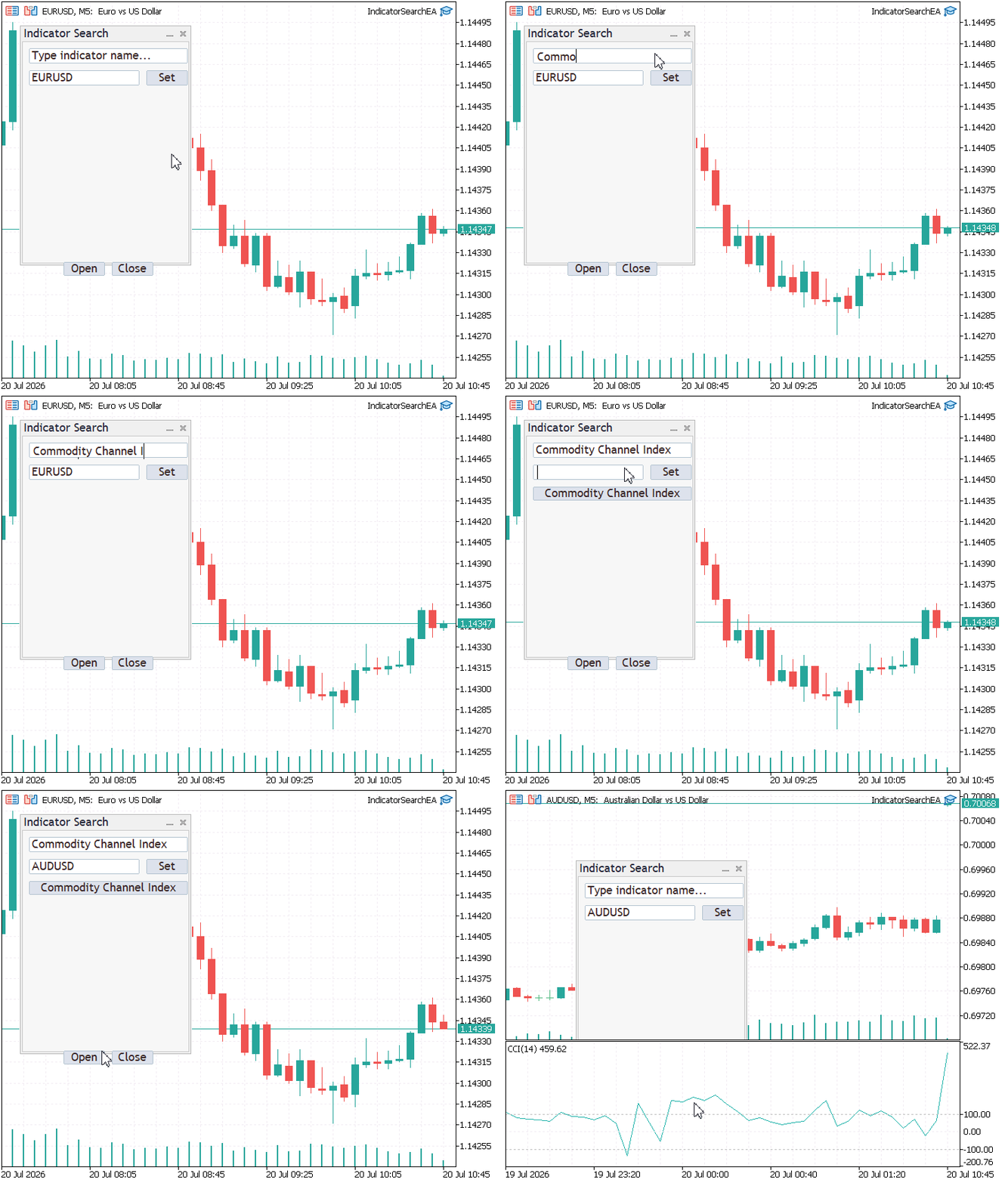
Figure 4. Testing the enhanced indicator search panel with symbol selection.
Conclusion
Our indicator search panel has now evolved into a more capable tool for multi-symbol analysis. By extending the existing modular architecture, we introduced symbol selection without altering the core search functionality. Users can now choose a target symbol directly from the panel and attach the selected built-in indicator without manually opening or switching between charts.
This enhancement was achieved by:
- Extending the user interface with a symbol input field and Set button.
- Updating the panel logic to validate and retain the selected symbol using SymbolSelect().
- Extending the chart launcher to switch to the requested symbol using ChartSetSymbolPeriod() before creating and attaching the selected indicator.
Because responsibilities are separated across these modules, the enhancements required minimal code changes. As a result, we produced a more efficient and scalable indicator search panel that simplifies multi-symbol analysis while preserving the modular design established throughout this series.
Attachments
Table 4. Project source files and their recommended locations:
| File | Location | Description |
|---|---|---|
| IndicatorSearchEA.mq5 | MQL5\Experts\SymbolSelection\ | Main Expert Advisor that creates and manages the indicator search panel. |
| SearchPanel.mqh | MQL5\Include\SymbolSelection\ | Implements the graphical user interface, symbol selection controls, search functionality, and user interactions. |
| ChartLauncher.mqh | MQL5\Include\SymbolSelection\ | Creates indicator handles, switches charts when necessary, and attaches built-in indicators to the selected symbol. |
| SearchEngine.mqh | MQL5\Include\SymbolSelection\ | Performs case-insensitive filtering of the built-in indicator catalog based on the user's search input. |
| IndicatorCatalog.mqh | MQL5\Include\SymbolSelection\ | Stores the catalog of supported built-in indicators and their corresponding ENUM_INDICATOR mappings. |
| MQL5.zip | Root Archive | Complete project archive containing all source files arranged in the required MetaTrader 5 directory structure. Extract the archive into the terminal's Data Folder so all files are placed automatically in their correct locations. |
Warning: All rights to these materials are reserved by MetaQuotes Ltd. Copying or reprinting of these materials in whole or in part is prohibited.
This article was written by a user of the site and reflects their personal views. MetaQuotes Ltd is not responsible for the accuracy of the information presented, nor for any consequences resulting from the use of the solutions, strategies or recommendations described.

 Feature Engineering for ML (Part 12): Fractal Features in MQL5
 Measuring What Matters (Part 3): The Reconstruction Engine — Validating Risk Footprints with Matrix Algebra
 Elite Crystal Evolution Algorithm (CEO-inspired): Practical Implementation
 Detecting Structural Breakpoints in Price Series Using CUSUM in MQL5 (Part 2): Implementing the Detector as a Native MQL5 Indicator

- Free trading apps
- Over 8,000 signals for copying
- Economic news for exploring financial markets
You agree to website policy and terms of use