

Price Action Analysis Toolkit Development (Part 80): Building a History Navigator for MetaTrader 5
 3 045
3 045
 0
0

Contents
Introduction
Finding a particular candle in a large historical dataset can become inconvenient when analyzing price action. The difficulty becomes more noticeable on lower timeframes, where relatively short periods can contain thousands of bars. When the same historical location must be revisited repeatedly, manually scrolling through the chart becomes unnecessarily time-consuming.
In this article, we develop a History Navigator Expert Advisor. It lets the user enter a date and time and moves the chart to the corresponding historical period. The application validates the requested values, searches the available history, positions the chart around the selected bar, and provides a second command for returning to the current market view.
The implementation uses several MQL5 techniques: building a dialog with the Standard Library, handling control events, validating calendar input, converting values into datetime, searching historical bars, and navigating the chart programmatically.
Application Design
This article is presented as part of our Price Action Analysis Toolkit Development series, continuing our broader effort to build practical tools for price-action analysis in MetaTrader 5. While it does not directly depend on a specific previous installment, it contributes to the overall development of the toolkit.
Understanding the Problem
Historical price action is useful when reviewing previous trades, studying support and resistance reactions, comparing recurring market structures, or examining how a trend developed before a breakout. It can also be used when validating trading rules and researching ideas before implementing them as automated strategies.
However, reaching a specific historical date on a chart can be time-consuming. When the required period is far back in history, traders may have to scroll through a large amount of chart data before reaching the desired location. Depending on the task, the required historical period may range from a few hours to several years, making manual navigation increasingly inconvenient.
The diagram below illustrates the process of manually scrolling through the chart to reach a specific historical date:
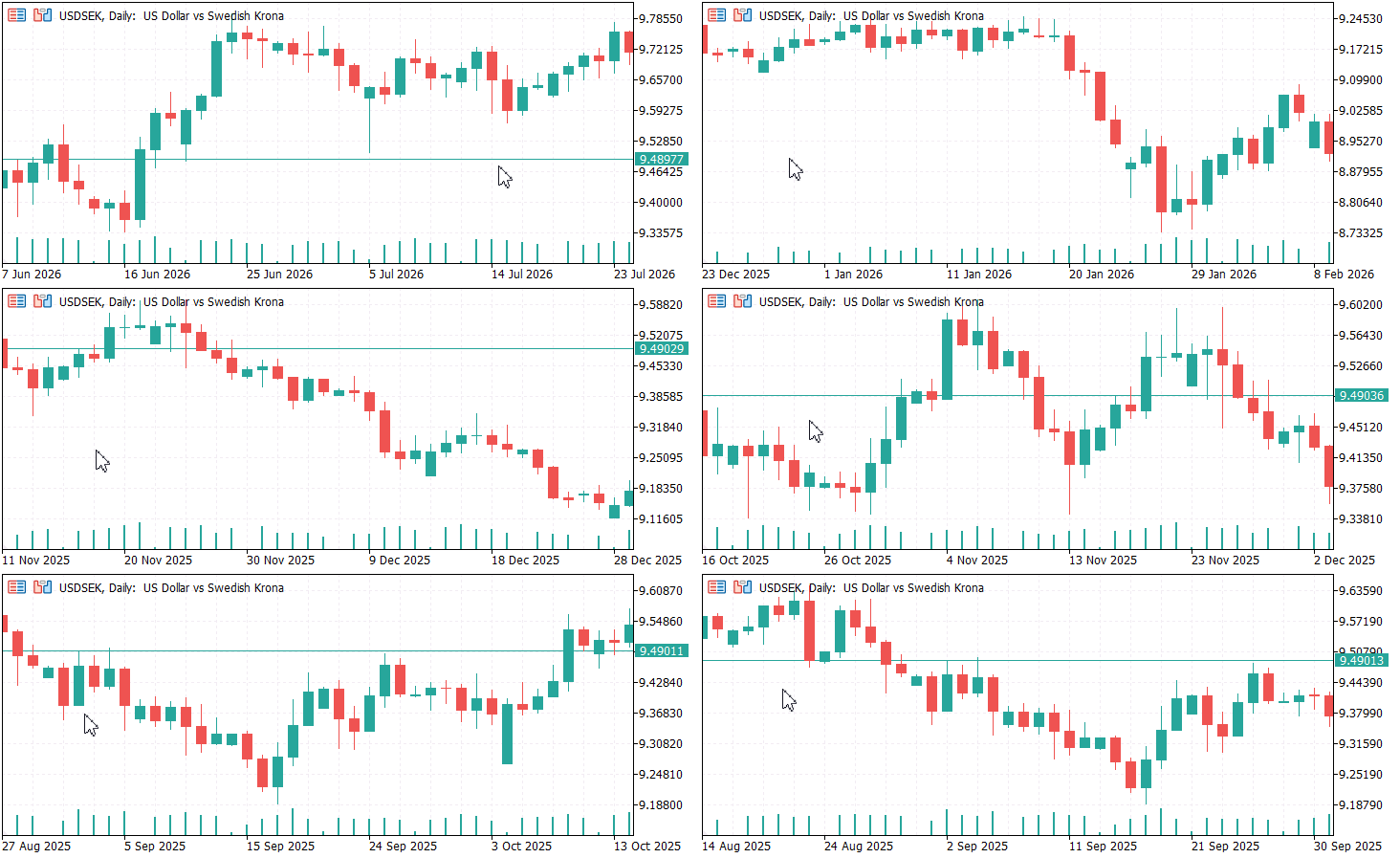
This limitation led to the development of the History Navigator, which provides a more efficient way to navigate directly to a specified historical date and time. Its design and implementation are explained in detail in the sections that follow.
Navigation Model
The navigator treats historical navigation as two separate operations:
- Finding the appropriate bar.
- Positioning the chart around that bar.
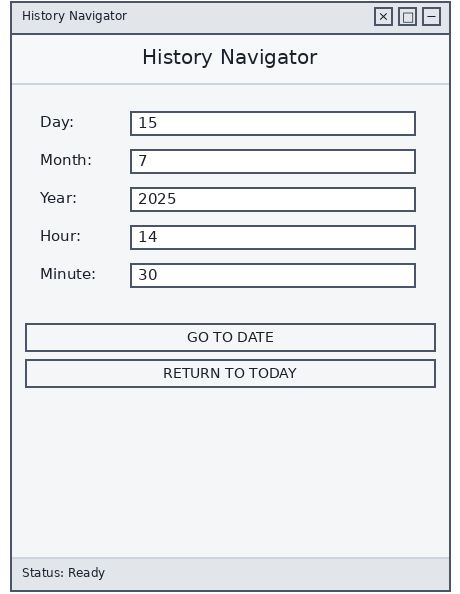
This distinction is important because finding a bar does not automatically guarantee that the selected candle will appear at a useful location on the screen. After the search returns a bar index, the navigator calculates the visible chart range. It then adjusts the position so the selected candle appears near the center. Separating these operations also makes the implementation easier to test because the search logic can be examined independently from the chart-navigation logic.
The implementation separates lifecycle handling from navigation logic. HistoryNavigator.mq5 creates the dialog, forwards chart events, and releases the dialog when the Expert Advisor is removed. CNavigatorDialog manages the controls, input validation, historical search, and chart positioning. This keeps the EA entry point small while concentrating the application logic inside a dedicated class.
MQL5 Implementation
The project has two source files: HistoryNavigator.mq5 (entry point and lifecycle) and CNavigatorDialog.mqh (UI, validation, historical search, and chart navigation).
Creating the Expert Advisor
The Expert Advisor serves as the application's entry point. Its responsibilities are creating the dialog, forwarding chart events, and releasing allocated resources. All navigation logic is implemented inside CNavigatorDialog, keeping the Expert Advisor entry point focused on application lifecycle management.
The EA implements the three standard event handlers shown in the table below.
| Function | Purpose |
|---|---|
| OnInit() | Creates the dialog, positions it on the chart, and calls Run() to initialize the application. |
| OnChartEvent() | Forwards chart events to the dialog so that control interactions and other chart events can be processed by the Standard Library event system. |
| OnDeinit() | Destroys the dialog instance and releases the allocated memory before the Expert Advisor is unloaded. |
//+------------------------------------------------------------------+
//| ChartEvent function                                              |
//+------------------------------------------------------------------+
void OnChartEvent(const int id,
                  const long &lparam,
                  const double &dparam,
                  const string &sparam)
{
   if(g_dialog != NULL)
      g_dialog.ChartEvent(id, lparam, dparam, sparam);
}
Below is the complete Expert Advisor code:
//+------------------------------------------------------------------+
//|                                             HistoryNavigator.mq5 |
//|                                               Christian Benjamin |
//|                          https://www.mql5.com/en/users/lynnchris |
//+------------------------------------------------------------------+
#property copyright "Copyright 2026, Christian Benjamin"
#property link      "https://www.mql5.com/en/users/lynnchris"
#property version   "1.0"
#property strict

#include <CNavigatorDialog.mqh>

//--- Global pointer to the dialog instance
CNavigatorDialog *g_dialog = NULL;

//+------------------------------------------------------------------+
//| Expert initialization function                                   |
//+------------------------------------------------------------------+
int OnInit()
  {
//--- Define the dialog position and size (width widened for button text)
   int x1 = 20, y1 = 20;
   int width = 270, height = 290;
   int x2 = x1 + width;
   int y2 = y1 + height;

//--- Create and display the dialog
   g_dialog = new CNavigatorDialog();
   if(!g_dialog.Create(0, "HistoryNavigator", 0, x1, y1, x2, y2))
     {
      delete g_dialog;
      g_dialog = NULL;
      return(INIT_FAILED);
     }

   g_dialog.Run();
   return(INIT_SUCCEEDED);
  }

//+------------------------------------------------------------------+
//| Expert deinitialization function                                 |
//+------------------------------------------------------------------+
void OnDeinit(const int reason)
  {
//--- Clean up the dialog to avoid memory leaks
   if(g_dialog != NULL)
     {
      g_dialog.Destroy();
      delete g_dialog;
      g_dialog = NULL;
     }
  }

//+------------------------------------------------------------------+
//| ChartEvent function                                              |
//+------------------------------------------------------------------+
void OnChartEvent(const int id, const long &lparam, const double &dparam, const string &sparam)
  {
   if(g_dialog != NULL)
      g_dialog.ChartEvent(id, lparam, dparam, sparam);
  }
//+------------------------------------------------------------------+
Building the Dialog Interface
The application's user interface is implemented in CNavigatorDialog, which derives from CAppDialog. By building on the MetaQuotes Standard Library, the dialog automatically inherits a draggable window, Close and Minimize buttons, and the framework's event-dispatching mechanism. The custom interface is created in CreateControls(), where each control is instantiated, configured, and added to the dialog.
Since the interface is created programmatically, the controls are positioned using shared layout metrics rather than unrelated coordinate values throughout the implementation. This keeps the layout consistent and makes later adjustments easier.
The interface consists of five date and time input fields, two command buttons, and a status bar. Each input field combines a CLabel with a corresponding CEdit control, allowing the user to enter the day, month, year, hour, and minute. Two CButton controls provide the application's primary actions: GO TO DATE searches for the requested candle, while RETURN TO TODAY restores the chart to the latest market data. A status label at the bottom of the dialog displays progress, validation errors, and navigation results.
//+------------------------------------------------------------------+
//|                                             CNavigatorDialog.mqh |
//|                                               Christian Benjamin |
//|                          https://www.mql5.com/en/users/lynnchris |
//+------------------------------------------------------------------+
#property copyright "Copyright 2026, Christian Benjamin"
#property link      "https://www.mql5.com/en/users/lynnchris"
#property version   "1.0"
#property strict

#ifndef __CNAVIGATORDIALOG_MQH__
#define __CNAVIGATORDIALOG_MQH__

#include <Controls\Dialog.mqh>
#include <Controls\Edit.mqh>
#include <Controls\Button.mqh>
#include <Controls\Label.mqh>

//+------------------------------------------------------------------+
//| CNavigatorDialog class                                           |
//+------------------------------------------------------------------+
class CNavigatorDialog : public CAppDialog
{
private:
   //--- UI controls
   CLabel             m_lblTitle;
   CLabel             m_lblDay;
   CLabel             m_lblMonth;
   CLabel             m_lblYear;
   CLabel             m_lblHour;
   CLabel             m_lblMinute;
   CLabel             m_lblStatus;

   CEdit              m_editDay;
   CEdit              m_editMonth;
   CEdit              m_editYear;
   CEdit              m_editHour;
   CEdit              m_editMinute;

   CButton            m_btnGo;
   CButton            m_btnToday;

   //--- Layout metrics (in pixels)
   int                m_margin;
   int                m_rowHeight;
   int                m_spacing;
   int                m_labelWidth;
   int                m_editWidth;
   int                m_buttonWidth;
   int                m_clientWidth;
   int                m_clientHeight;

   //--- Event map for custom buttons (proper Standard Library mechanism)
   EVENT_MAP_BEGIN(CNavigatorDialog)
      ON_EVENT(ON_CLICK, m_btnGo, OnGoClick)
      ON_EVENT(ON_CLICK, m_btnToday, OnTodayClick)
   EVENT_MAP_END(CAppDialog)

public:
   CNavigatorDialog(void);
   ~CNavigatorDialog(void);

   //--- Override base Create to set up the layout and initial values
   virtual bool Create(const long chart, const string name, const int subwin,
                       const int x1, const int y1, const int x2, const int y2) override;

   //--- Handlers for custom buttons (called automatically via event map)
   void OnGoClick(void);
   void OnTodayClick(void);

private:
   bool CreateControls(void);
   void UpdateStatus(string text, color clr);
   bool ValidateInput(int &day, int &month, int &year, int &hour, int &minute);
   bool IsValidDate(int day, int month, int year);
   void NavigateToDate(void);
   void ReturnToToday(void);
   int  iBarShift(datetime time, bool exact);
   void CenterChartOnBar(int barIndex);
   void SetStatusReady(void);
};
The class declaration therefore provides a compact overview of the application. The controls, layout values, event handlers, validation routines, search function, and chart-navigation methods are grouped in one place, making the relationship between the interface and navigation logic easier to follow.
Event-Driven Programming
The event map also avoids the need to manually inspect chart-object click events and identify the corresponding control. For comparison, the following example shows how the same button handling could be implemented by overriding OnEvent() and comparing the names of the clicked controls:
//--- Event map for custom buttons
   EVENT_MAP_BEGIN(CNavigatorDialog)
      ON_EVENT(ON_CLICK, m_btnGo, OnGoClick)
      ON_EVENT(ON_CLICK, m_btnToday, OnTodayClick)
   EVENT_MAP_END(CAppDialog)
Each ON_EVENT entry specifies the event type, the control that generates it, and the member function that will handle it. When either button is clicked, the Standard Library automatically invokes the corresponding handler.
The handlers themselves remain focused on a single responsibility.
//+------------------------------------------------------------------+
//| "Go" button handler – starts navigation                          |
//+------------------------------------------------------------------+
void CNavigatorDialog::OnGoClick(void)
  {
   NavigateToDate();
  }

//+------------------------------------------------------------------+
//| "Today" button handler – returns to current time                 |
//+------------------------------------------------------------------+
void CNavigatorDialog::OnTodayClick(void)
  {
   ReturnToToday();
  }
Without the event map, you would handle clicks by overriding OnEvent() and comparing control names. The actual implementation uses the event map shown above, while the OnEvent() example demonstrates the manual approach that the event map eliminates.
//+------------------------------------------------------------------+
//| ChartEvent function                                              |
//+------------------------------------------------------------------+
bool OnEvent(const int id,
             const long &lparam,
             const double &dparam,
             const string &sparam)
{
   if(id == CHARTEVENT_OBJECT_CLICK)
   {
      if(sparam == m_btnGo.Name())
         NavigateToDate();
      else if(sparam == m_btnToday.Name())
         ReturnToToday();
   }

   return CAppDialog::OnEvent(id, lparam, dparam, sparam);
}
The event map therefore keeps button routing close to the control declarations, while the individual handlers contain the actions performed after a click.
Validating User Input
Before the historical search begins, the application validates all five input fields: day, month, year, hour, and minute. The text entered into the controls is converted to integers using StringToInteger(), after which each value is checked against its allowed range.
Range checks alone cannot determine whether a complete calendar date exists. The validation is therefore performed in two stages: first, each individual component is checked against its permitted range; second, the complete day-month-year combination is checked against the calendar. For example, 31 April satisfies the normal day and month ranges but is not a valid date. The IsValidDate() check therefore performs an additional calendar validation, including leap-year handling.
If validation fails, the dialog reports the error through the status bar and stops the navigation operation. Only validated values are passed to the timestamp-conversion stage.
The calendar validation applies the standard leap-year rule:
bool leap = (year % 4 == 0 && year % 100 != 0) || (year % 400 == 0);
The implementation also limits the accepted year to the range 1970–3000. This application-level rule prevents unreasonable input. It does not represent the full date range supported by the platform.
The complete validation routine is shown below.
//+------------------------------------------------------------------+
//| Validates the five input fields                                  |
//+------------------------------------------------------------------+
bool CNavigatorDialog::ValidateInput(int &day, int &month, int &year,
                                     int &hour, int &minute)
  {
//--- Convert text inputs to integers
   day    = (int)StringToInteger(m_editDay.Text());
   month  = (int)StringToInteger(m_editMonth.Text());
   year   = (int)StringToInteger(m_editYear.Text());
   hour   = (int)StringToInteger(m_editHour.Text());
   minute = (int)StringToInteger(m_editMinute.Text());

//--- Range checks
   if(day < 1 || day > 31)      { UpdateStatus("Invalid day (1-31)", clrRed); return(false); }
   if(month < 1 || month > 12)  { UpdateStatus("Invalid month (1-12)", clrRed); return(false); }
   if(year < 1970 || year > 3000) { UpdateStatus("Invalid year (1970-3000)", clrRed); return(false); }
   if(hour < 0 || hour > 23)    { UpdateStatus("Invalid hour (0-23)", clrRed); return(false); }
   if(minute < 0 || minute > 59){ UpdateStatus("Invalid minute (0-59)", clrRed); return(false); }

//--- Date existence check (e.g. 31 April)
   if(!IsValidDate(day, month, year))
     {
      UpdateStatus("Invalid date (e.g., 31 April)", clrRed);
      return(false);
     }
   return(true);
  }
Converting User Input into datetime
After validation, the five date and time components are stored in an MqlDateTime structure. StructToTime() then converts the structure into a single datetime value that can be passed to the historical search routine. Using StructToTime() allows the validated calendar components to be converted into the platform's datetime representation without manually calculating the timestamp.
//--- Build a datetime structure from the validated inputs
   MqlDateTime dt;
   dt.year  = year;
   dt.mon   = month;
   dt.day   = day;
   dt.hour  = hour;
   dt.min   = minute;
   dt.sec   = 0;
   datetime target = StructToTime(dt);
Locating the Historical Bar
Once the target datetime has been created, the navigator must determine which bar corresponds to that time. The copied time series is arranged in reverse chronological order, so the search routine works with a descending array of candle opening times.
A sequential search could require checking bars one by one and would become increasingly inefficient as the amount of available history grows. The implementation therefore uses binary search. At each iteration, the middle element is compared with the requested time, and the half of the remaining search range that cannot contain the result is discarded.
The search begins by obtaining the number of available bars with Bars(_Symbol, _Period) and copying their opening times with CopyTime(). The search is therefore performed against the history available for the current symbol and timeframe rather than against an assumed fixed amount of historical data.
This also means that the navigator cannot locate a candle that is outside the history currently available to the terminal. The amount of available history may differ between symbols and timeframes, so the result depends on the data available for the chart on which the navigator is running.
Consequently, a valid calendar date does not necessarily guarantee a successful navigation. The requested date must also fall within the historical data currently available to the terminal for the selected symbol and timeframe.
The search is not limited to exact timestamp matches. If the requested time falls between two candle opens, the routine selects the latest opening time that is less than or equal to the request. In practical terms, this identifies the candle that contains the requested timestamp.
//+------------------------------------------------------------------+
//| Binary search for a bar index by time (descending order)         |
//+------------------------------------------------------------------+
int CNavigatorDialog::iBarShift(datetime target, bool exact = false)
  {
   int total = Bars(_Symbol, _Period);
   if(total <= 0)
      return(-1);

//--- Copy all times into an array (in descending order)
   datetime times[];
   ArraySetAsSeries(times, true);
   if(CopyTime(_Symbol, _Period, 0, total, times) < total)
      return(-1);

//--- Binary search (times are descending, so mid < target means we are to the left)
   int left = 0, right = total - 1;
   int ans = -1;

   while(left <= right)
     {
      int mid = (left + right) / 2;
      if(times[mid] == target)
        { ans = mid; break; }
      else if(times[mid] < target)
        { ans = mid; right = mid - 1; }
      else
         left = mid + 1;
     }

//--- If exact match required, verify the found bar is exactly the target
   if(exact && ans >= 0 && times[ans] != target)
      return(-1);

   return(ans);
  }
Because the search range is approximately halved on every iteration, the number of comparisons grows logarithmically with the number of available bars rather than linearly. The ans variable preserves the best candidate found during the search, allowing the routine to return the appropriate earlier candle when no exact opening time exists.
For example, on an H1 chart, a request for 14:15 selects the candle opened at 14:00 because its opening time is the latest available opening time that does not exceed the requested timestamp.
Navigating the Chart
Locating the correct bar and displaying it on the chart are two separate operations. After the search returns the target bar index, the navigator takes control of the chart view and adjusts its position so that the selected candle is visible with surrounding price action available for analysis.
Automatic scrolling and chart shifting are temporarily disabled because MetaTrader would otherwise continue favoring the most recent market data. The routine then reads the number of currently visible bars and calculates an offset that places the selected candle approximately near the center of the chart.
This approach avoids using a fixed offset for every chart configuration. A chart displaying many candles requires a different positioning adjustment from one displaying only a small number. The current CHART_VISIBLE_BARS value is therefore used to estimate an offset that places the target candle near the middle of the visible range.
The navigation routine performs four operations:
- Disable Auto Scroll and Chart Shift.
- Determine the number of bars currently visible.
- Calculate the offset required to center the requested candle.
- Refresh the chart after navigation.
The implementation also prints diagnostic information when navigating, which is useful during development for verifying the calculated bar indices and fallback behavior.
The implementation is shown below:
//+------------------------------------------------------------------+
//| Centres the chart on the given bar index                         |
//+------------------------------------------------------------------+
void CNavigatorDialog::CenterChartOnBar(int barIndex)
  {
   int totalBars = Bars(_Symbol, _Period);
   if(totalBars <= 0)
      return;

//--- Temporarily disable auto-scroll/shift to take manual control
   ChartSetInteger(0, CHART_AUTOSCROLL, false);
   ChartSetInteger(0, CHART_SHIFT, false);

//--- Determine how many bars are visible
   int visibleBars = (int)ChartGetInteger(0, CHART_VISIBLE_BARS);
   if(visibleBars < 1)
      visibleBars = 50;

//--- Calculate the offset so the target bar is near the centre
   int shiftFromEnd = (totalBars - 1) - barIndex;
   int desiredShift = shiftFromEnd - visibleBars / 2;
   if(desiredShift < 0)
      desiredShift = 0;

//--- Debug: print the calculated values
   Print("DEBUG CenterChart: barIndex = ", barIndex,
         " totalBars = ", totalBars,
         " visibleBars = ", visibleBars,
         " desiredShift = ", desiredShift);

//--- Try to navigate using ChartNavigate (preferred)
   if(!ChartNavigate(0, CHART_BEGIN, desiredShift))
     {
      //--- Fallback: set the first visible bar directly
      int firstVisible = barIndex - visibleBars / 2;
      if(firstVisible < 0)
         firstVisible = 0;
      ChartSetInteger(0, CHART_FIRST_VISIBLE_BAR, firstVisible);
      Print("DEBUG: ChartNavigate failed, using CHART_FIRST_VISIBLE_BAR = ", firstVisible);
     }

   ChartRedraw();
   Sleep(50);
  }
ChartNavigate() is used as the primary positioning method. If it fails, the routine falls back to setting CHART_FIRST_VISIBLE_BAR directly. This provides a second mechanism for positioning the chart when the primary navigation call does not produce the expected result.
Returning to the Current Market
After reviewing historical price action, the user can restore the normal chart view with a single click. The routine re-enables automatic scrolling and chart shifting, navigates to the end of the chart, and redraws the chart so that the latest market data is displayed.
//+------------------------------------------------------------------+
//| Returns the chart view to the most recent bar                    |
//+------------------------------------------------------------------+
void CNavigatorDialog::ReturnToToday(void)
  {
//--- Enable auto-scroll and shift to see the latest data
   ChartSetInteger(0, CHART_AUTOSCROLL, true);
   ChartSetInteger(0, CHART_SHIFT, true);
   ChartNavigate(0, CHART_END, 0);
   ChartRedraw();
   UpdateStatus("Viewing current market", clrBlack);
   SetStatusReady();
  }
Testing
I tested the History Navigator on the GBPUSD Daily chart to verify four main aspects of the implementation: valid date navigation, input validation, calendar validation, and restoration of the current market view.
The first test used 07 March 2020 as the requested historical date. After clicking GO TO DATE, the chart was repositioned to the corresponding historical period, allowing the selected price action to be inspected without manually scrolling through the chart.
The second test used an invalid month value of 18. The application rejected the input and displayed an "Invalid month (1-12)" message in the status bar before attempting any historical search.
I also tested calendar validation by entering an invalid date such as 31 April. Although the individual day and month values were within their permitted ranges, the complete calendar date was rejected by IsValidDate().
Finally, I clicked RETURN TO TODAY. The chart returned to the latest available market data, and automatic scrolling and chart shifting were restored.
Test Results
| Test Case | Input | Expected Result | Result |
|---|---|---|---|
| Historical navigation | 07 March 2020 | Chart moves to the requested historical period | Passed |
| Invalid month | 18 | Input rejected with validation message | Passed |
| Invalid calendar date | 31 April | Date rejected | Passed |
| Return to current market | RETURN TO TODAY | Chart returns to the latest data | Passed |
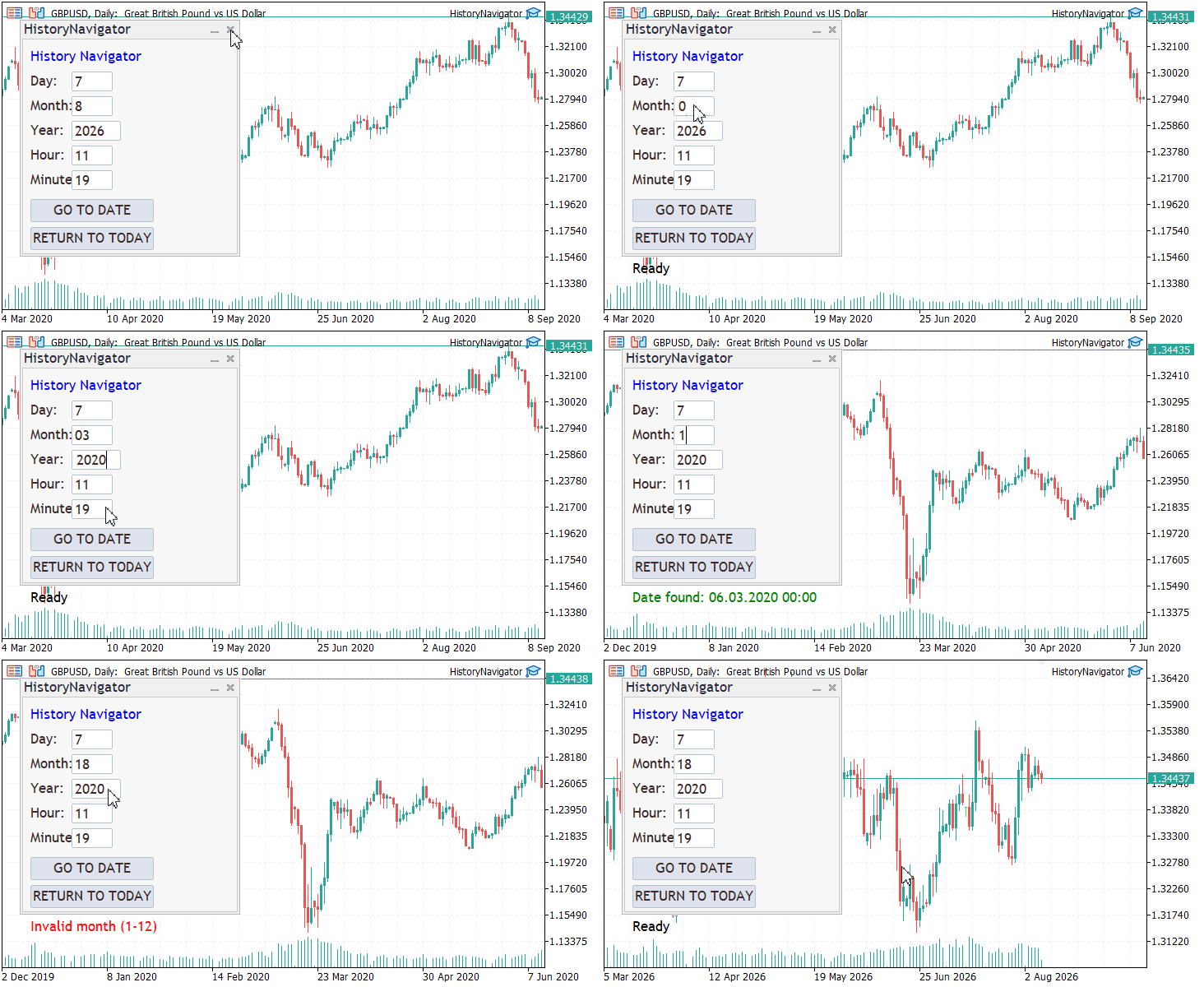
These tests demonstrated that the application validates user input, locates the requested historical period when the data is available, provides feedback when invalid values are entered, and restores the chart to the latest market data when requested.
Conclusion
Navigating repeatedly to specific locations in chart history can become inefficient when large amounts of historical data are involved. The History Navigator addresses this problem by providing direct date-and-time navigation through a dedicated dialog.
In this article, we developed a History Navigator that provides direct access to any historical date and time from a simple floating dialog. Along the way, we built a reusable CAppDialog interface, implemented event-driven interaction with the Standard Library, validated user input, converted calendar values into datetime, located historical bars efficiently, and navigated the chart programmatically.
With these techniques, you can now build similar navigation tools for your own projects or extend this one to suit different trading workflows. Whether the goal is to review historical trade setups, inspect important market events, or build more advanced chart-analysis utilities, the same separation between user input, historical search, and chart positioning can serve as a reusable foundation for future tools.
Attachments
| Name | Type | Purpose |
|---|---|---|
| CNavigatorDialog.mqh | Include File | Implements the History Navigator dialog, including the user interface, input validation, date conversion, search algorithm, and chart navigation logic. |
| HistoryNavigator.mq5 | Expert Advisor | Creates the dialog, forwards chart events, and manages the application's lifecycle. |
| MQL5.zip | Complete Project Archive | Contains all source files arranged in the required MetaTrader 5 directory structure. Extract the archive into the terminal's Data Folder so that all files are placed automatically in their correct locations. |
Warning: All rights to these materials are reserved by MetaQuotes Ltd. Copying or reprinting of these materials in whole or in part is prohibited.
This article was written by a user of the site and reflects their personal views. MetaQuotes Ltd is not responsible for the accuracy of the information presented, nor for any consequences resulting from the use of the solutions, strategies or recommendations described.

 Building a Hull Moving Average Momentum Oscillator in MQL5
 Creating a Cairo-Inspired Graphics Library for MetaTrader 5 (Part 1): Why the terminal needs its own 2D-renderer Contents
 MetaTrader 5 Machine Learning Blueprint (Part 20): Denoising, Detoning, and Clustering the Feature Correlation Matrix
 Neural Networks in Trading: An End-to-End Multivariate Time Series Forecasting Model (Conclusion)

- Free trading apps
- Over 8,000 signals for copying
- Economic news for exploring financial markets
You agree to website policy and terms of use