

Engineering Trading Discipline into Code (Part 6): Building a Unified Discipline Framework in MQL5
 2 088
2 088
 0
0

Introduction
In live trading, discipline is often managed through separate controls such as symbol filtering, trading-hours restrictions, news blackout periods, and daily trade limits. The challenge is that these rules are often separated, while trade execution may originate from manual orders or multiple Expert Advisors. As a result, one part of the system may allow a trade while another would reject it.
This article addresses the problem by unifying the previously developed modules into a single discipline framework. The framework is centered on _CDisciplineEngine.mqh_. The engine acts as the central validation layer, checking whether trading is allowed and synchronizing discipline data between the dashboard and the Expert Advisor. The result is a unified system that improves consistency and simplifies discipline management across the terminal.
The following table of contents summarizes the main sections of the framework before moving into the detailed implementation of each component.
System Overview
In the previous parts of this series, the discipline components were developed independently, including symbol whitelisting, trading session control, news blackout filtering, and daily trade limits. In this part, these components are unified into a centralized discipline framework that governs trading behavior across the terminal.
The objective of the system is to control when trading is permitted, restricted, or enforced. The framework introduces a validation layer between strategy execution and market access.
At the center of the architecture is CDisciplineEngine.mqh, which acts as the coordination layer for all discipline operations. The engine validates trading permissions and updates discipline state. It also exposes monitoring data to the dashboard and the Expert Advisor, keeping the environment synchronized.
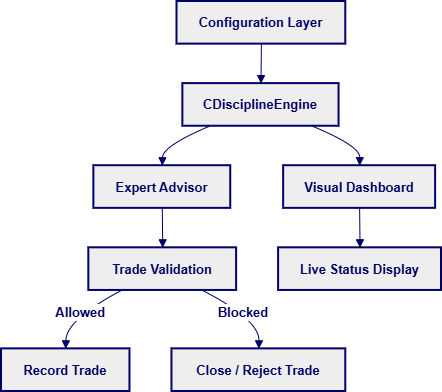
The framework is organized into four primary layers:
- Configuration Layer
- Discipline Engine
- Visual Dashboard
- Expert Advisor Integration
1. Configuration Layer
The configuration layer contains the external files used by the system. These files define which symbols may be traded, which trading sessions are allowed, and which time periods must be avoided because of scheduled news events. Because these settings are externalized, the framework can be adjusted without recompiling the project. The engine simply reloads the updated configuration during runtime.
2. Discipline Engine
The core of the framework is the unified discipline engine implemented in CDisciplineEngine.mqh. This component coordinates the validation process before a trade is allowed to proceed. It checks whether the symbol is permitted, verifies the current trading session and news state, and confirms that the daily trade limit has not been exceeded.
The engine also exposes monitoring functions for the dashboard and the EA, such as trade count, daily limit, amber zone(warning threshold), next session, and next news. This makes the engine both a validation layer and a shared source of discipline data.
By keeping the rule logic inside one engine, the framework remains separate from strategy logic and can be reused across different trading tools.
3. Visual Dashboard
The dashboard component provides the visual layer of the framework. It shows the current trading status, active permissions, daily trade usage, session availability, and upcoming news directly on the chart.
In addition to monitoring, the dashboard acts as a live status panel. It does not make trading decisions itself; instead, it reads the current engine state and presents it in a form that is easy to inspect during trading.
4. Expert Advisor Integration
The Expert Advisor integrates directly with the discipline engine rather than performing independent validation. Before executing any trade, the EA requests authorization through the engine using IsTradeAllowed(). Only after all discipline conditions are satisfied can execution proceed.
After a successful trade, the EA records the event so that the framework can update the daily trade statistics. A background timer continuously scans open positions to ensure that they remain compliant with the selected discipline rules. This keeps strategy execution under centralized control.
Enforcement Flow
The complete data flow of the framework begins with the supporting modules, moves into the discipline engine, and then reaches the dashboard and Expert Advisor. The dashboard displays the current state of the system, while the EA enforces the rules during live trading.
This structure ensures that every trade is checked before execution and monitored after execution, keeping the terminal under centralized discipline control.
MQL5 Implementation
The discipline framework is built around a single control engine and split into three parts: the engine, the dashboard, and the enforcement EA. The implementation combines previously developed modules into a unified discipline layer controlled by _CDisciplineEngine.mqh_. These modules include the daily trade limit system, symbol whitelist manager, and trading hours/news filter. The engine is then shared between the dashboard indicator and the Expert Advisor, ensuring that all components follow the same discipline rules.
Step 1: Creating the Discipline Engine — Building the Core Control Layer
The first stage of the implementation focuses on developing the central coordination module: CDisciplineEngine.mqh. This file acts as the core of the framework, validating trading conditions and synchronizing discipline behavior across connected components.
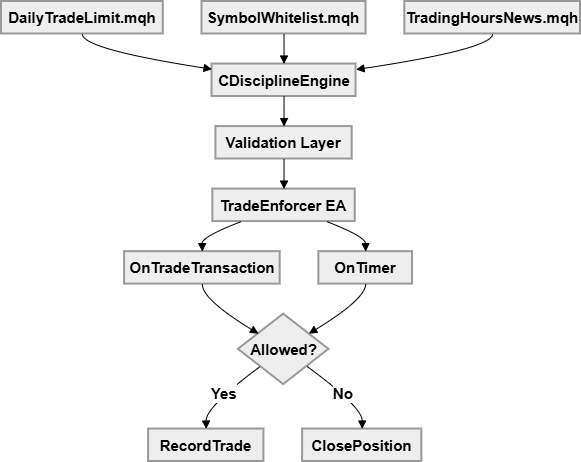
Integrating the Supporting Modules
We begin by importing the previously developed .mqh modules that provide the core discipline functionality used by the engine.
#property copyright "Copyright 2026, Christian Benjamin"
#property link      "https://www.mql5.com/en/users/lynnchris"
#property version   "1.0"

#include "DisciplineFramework/DailyTradeLimit.mqh"
#include "DisciplineFramework/SymbolWhitelist.mqh"
#include "DisciplineFramework/TradingHoursNews.mqh"
These modules separate the framework into specialized components. _DailyTradeLimit.mqh_ handles daily trade counting and enforcement, _SymbolWhitelist.mqh_ restricts trading to approved symbols, while _TradingHoursNews.mqh_ manages trading sessions and news blackout periods.
Rather than embedding restrictions directly into the Expert Advisor, the framework centralizes them through a single engine. This improves maintainability and allows every trading decision to pass through one controlled validation layer.
Designing the Main Engine Class
The following excerpt shows the main validation interface used by CDisciplineEngine.
//+------------------------------------------------------------------+
//| Unified trading gate                                             |
//+------------------------------------------------------------------+
class CDisciplineEngine
  {
private:
   bool m_initialized;

public:
   CDisciplineEngine();

   bool Init();

   bool IsTradeAllowed(string symbol);

   bool IsInitialized() const;
   bool IsSymbolAllowed(string s);
   bool IsTradingHoursAllowed();
   bool IsDailyLimitAllowed();

   void RecordTrade();

   int GetTradesToday();
   int GetDailyLimit();
   int GetAmberZone();

   string GetNextSession();
   string GetNextNews();
  };
The constructor initializes the internal m_initialized state to false, preventing the engine from validating trades before preparation is complete. The Init() function acts as the startup routine for the framework. During initialization, the engine refreshes both the daily trade limit system and the trading-hours/news filter. This guarantees that all trading decisions are based on current market conditions and updated discipline data before trading begins. Once initialization completes successfully, the engine enables internal access by setting m_initialized to true.
Creating the Unified Trade Validation Gate
The most important component of the framework is the centralized trade permission function.
//--- pre‑trade gate: whitelist + hours/news + daily limit
   bool              IsTradeAllowed(string symbol)
     {
      if(!m_initialized)
         return false;
      if(!SWL::IsSymbolAllowed(symbol))
         return false;
      THN::Refresh();
      if(!THN::IsAllowedNow())
         return false;
      DTL::Refresh();
      if(!DTL::IsTradingAllowed())
         return false;
      return true;
     }
This function validates every trade request before execution. The first condition verifies that the engine has already been initialized. This prevents invalid checks from occurring before the framework is fully prepared. The second validation checks whether the requested symbol exists in the whitelist module. If the symbol is not approved, the trade is immediately rejected. The engine then refreshes the trading hours and news filters before evaluating whether trading is currently permitted. This prevents execution during restricted sessions or scheduled high-impact news periods. Finally, the function refreshes the daily trade statistics and confirms whether the trader still has trades available for the day. Only when all conditions pass successfully does the engine return true, allowing the EA to continue with execution.
The framework uses the active chart symbol through Symbol(), though the engine can also be extended with normalized symbol handling for broker-specific suffixes when required.
Recording and Monitoring Trading Activity
After a trade is executed, the engine updates the daily count and provides the values used by the dashboard and EA.
//--- dashboard getters
bool IsInitialized() const
  {
   return m_initialized;
  }

bool IsSymbolAllowed(string s)
  {
   return SWL::IsSymbolAllowed(s);
  }

bool IsTradingHoursAllowed()
  {
   THN::Refresh();
   return THN::IsAllowedNow();
  }

bool IsDailyLimitAllowed()
  {
   DTL::Refresh();
   return DTL::IsTradingAllowed();
  }

void RecordTrade()
  {
   DTL::ForceRefresh();
  }

int GetTradesToday()
  {
   DTL::Refresh();
   return DTL::TradesToday();
  }

int GetDailyLimit()
  {
   return DTL::GetParamLimit();
  }

int GetAmberZone()
  {
   return DTL::GetParamAmber();
  }

string GetNextSession()
  {
   THN::Refresh();
   return THN::GetNextSession();
  }

string GetNextNews()
  {
   THN::Refresh();
   return THN::GetNextNews();
  }
The RecordTrade() function refreshes the daily trade statistics after execution so the engine reflects the latest trade count maintained by the daily trade limit module. This ensures that the engine always maintains an accurate count of trades taken throughout the session. The remaining functions expose trade count, daily limit, amber zone, next session, and next news.
Step 2: Creating the Dashboard Indicator — Visualizing the Discipline System
After the engine is built, the indicator serves as a monitoring interface and displays the current discipline state directly on the chart.
Integrating the Discipline Engine
We begin by linking the dashboard indicator to the discipline framework through the required MQL5 properties and supporting modules. These settings define how the indicator behaves inside the MetaTrader environment before any logic is executed.
#property copyright "Copyright 2026, Christian Benjamin"
#property link      "https://www.mql5.com/en/users/lynnchris"
#property version   "1.0"
#property indicator_chart_window
#property indicator_plots 0

#include <DisciplineFramework/CDisciplineEngine.mqh>

//--- input parameters
input int      RefreshSeconds    = 2;
input color    PanelBackColor    = C'25,30,45';
input color    PanelBorderColor  = C'80,90,110';
input color    TextMainColor     = clrWhite;
input color    TextLabelColor    = C'160,170,190';
input color    AllowedColor      = C'50,205,50';
input color    BlockedColor      = C'255,70,70';
input color    CautionColor      = C'255,180,50';
input int      PanelX            = 20;
input int      PanelY            = 40;
input int      PanelWidth        = 340;

CDisciplineEngine g_engine;
string            g_prefix = "DisciplinePanel_";
The #property settings define how the indicator is registered in MetaTrader 5. By using indicator_chart_window, the dashboard is displayed directly on the main price chart instead of a separate sub-window, which keeps the discipline panel aligned with trading activity. The indicator_plots 0 directive confirms that no traditional indicator buffers are used, since the indicator functions only as a monitoring panel. Connection to the core discipline system is established through #include _<DisciplineFramework/CDisciplineEngine.mqh>_. It provides validation logic for symbol filtering, trading session checks, and daily trade limits. The dashboard itself does not calculate these rules; it only reads the engine state.
Runtime behavior is controlled through the input parameters. RefreshSeconds determines how often the dashboard updates through the timer system, while the color inputs define the visual state mapping for allowed, blocked, and cautionary conditions. PanelX, PanelY, and PanelWidth control where the panel appears on the chart without changing the underlying logic. At runtime, _g_engine_ is the single access point to the discipline system, so dashboard values remain synchronized. The _g_prefix_ variable gives each graphical object a unique name for safe cleanup during deinitialization.
Initialization and Runtime Setup
//+------------------------------------------------------------------+
//| Initialization                                                   |
//+------------------------------------------------------------------+
int OnInit()
  {
   if(!g_engine.Init())
     {
      Print("Dashboard: Engine init failed.");
      return INIT_FAILED;
     }
   EventSetTimer(RefreshSeconds);
   CreatePanel();
   UpdateDashboard();
   return INIT_SUCCEEDED;
  }
OnInit() prepares the dashboard before it becomes active on the chart. It first calls g_engine.Init() to initialize the discipline engine and refresh the supporting modules, including daily trade limits and trading-session rules. If initialization fails, the indicator returns INIT_FAILED so the dashboard does not run in an incomplete state.
EventSetTimer(RefreshSeconds) then starts the timed refresh cycle for OnTimer(), allowing the dashboard to update independently of tick activity. After that, CreatePanel() builds the visual interface and UpdateDashboard() loads the current trading state so the panel shows accurate information immediately after the indicator is attached.
The framework also performs defensive refresh operations during runtime. If configuration files such as NewsEvents.csv or TradingSessions.txt cannot be loaded, the framework safely falls back to restricted trading conditions and prevents trade authorization until valid configuration data becomes available. This prevents the dashboard and enforcement layer from operating on incomplete information.
Deinitialization and Object Management
//+------------------------------------------------------------------+
//| Deinitialization                                                 |
//+------------------------------------------------------------------+
void OnDeinit(const int reason)
  {
   EventKillTimer();
   for(int i = ObjectsTotal(0)-1; i >= 0; i--)
     {
      string name = ObjectName(0, i);
      if(StringFind(name, g_prefix) == 0)
         ObjectDelete(0, name);
     }
   Comment("");
  }
The OnDeinit() function ensures proper cleanup when the indicator is removed from the chart. By calling EventKillTimer(), it stops all scheduled updates, preventing the system from continuing to execute OnTimer() after shutdown. A loop through ObjectsTotal() then removes all graphical objects created by the dashboard. This process uses the g_prefix naming convention to remove only objects created by the dashboard. Finally, Comment("") clears any remaining chart text, restoring the chart to a clean state.
Building the Dashboard Interface (Panel Construction Layer)
The _CreatePanel()_ builds the dashboard’s visual layout and begins by defining the local positioning values used to control spacing and alignment. The prefix, yOff, rowH, and y variables control naming, placement, and spacing. These values keep the dashboard aligned consistently across different chart sizes and resolutions. The main background is then created with OBJ_RECTANGLE_LABEL, which provides both precise positioning and background coloring. Its fixed width and height help keep the panel layout stable across symbols and timeframes.
//+------------------------------------------------------------------+
//| Create static panel elements                                     |
//+------------------------------------------------------------------+
void CreatePanel()
  {
   string prefix = g_prefix;
   int yOff = PanelY;
   int rowH = 24;
   int y = yOff + 32;

//--- background (taller to fit news)
   ObjectCreate(0, prefix+"Bg", OBJ_RECTANGLE_LABEL, 0, 0, 0);
   ObjectSetInteger(0, prefix+"Bg", OBJPROP_XDISTANCE, PanelX);
   ObjectSetInteger(0, prefix+"Bg", OBJPROP_YDISTANCE, yOff);
   ObjectSetInteger(0, prefix+"Bg", OBJPROP_XSIZE, PanelWidth);
   ObjectSetInteger(0, prefix+"Bg", OBJPROP_YSIZE, 230);
   ObjectSetInteger(0, prefix+"Bg", OBJPROP_BGCOLOR, PanelBackColor);
   ObjectSetInteger(0, prefix+"Bg", OBJPROP_BORDER_COLOR, PanelBorderColor);
   ObjectSetInteger(0, prefix+"Bg", OBJPROP_WIDTH, 2);

//--- title bar
   ObjectCreate(0, prefix+"TitleBar", OBJ_RECTANGLE_LABEL, 0, 0, 0);
   ObjectSetInteger(0, prefix+"TitleBar", OBJPROP_XDISTANCE, PanelX);
   ObjectSetInteger(0, prefix+"TitleBar", OBJPROP_YDISTANCE, yOff);
   ObjectSetInteger(0, prefix+"TitleBar", OBJPROP_XSIZE, PanelWidth);
   ObjectSetInteger(0, prefix+"TitleBar", OBJPROP_YSIZE, 28);
   ObjectSetInteger(0, prefix+"TitleBar", OBJPROP_BGCOLOR, C'45,55,75');

//--- title text
   ObjectCreate(0, prefix+"TitleText", OBJ_LABEL, 0, 0, 0);
   ObjectSetInteger(0, prefix+"TitleText", OBJPROP_XDISTANCE, PanelX+10);
   ObjectSetInteger(0, prefix+"TitleText", OBJPROP_YDISTANCE, yOff+6);
   ObjectSetInteger(0, prefix+"TitleText", OBJPROP_COLOR, clrWhite);
   ObjectSetInteger(0, prefix+"TitleText", OBJPROP_FONTSIZE, 12);
   ObjectSetString(0, prefix+"TitleText", OBJPROP_FONT, "Arial Bold");
   ObjectSetString(0, prefix+"TitleText", OBJPROP_TEXT, "TRADING GATE");

//--- labels
   CreateLabel(prefix+"LblSymbol",    PanelX+10, y,    "Symbol:", TextLabelColor, 9);
   CreateLabel(prefix+"LblTime",      PanelX+180, y,   "Time:", TextLabelColor, 9);
   CreateLabel(prefix+"LblWhitelist", PanelX+10, y+rowH*1, "Whitelist:", TextLabelColor, 9);
   CreateLabel(prefix+"LblHours",     PanelX+10, y+rowH*2, "Trading Hours:", TextLabelColor, 9);
   CreateLabel(prefix+"LblDaily",     PanelX+10, y+rowH*3, "Daily Limit:", TextLabelColor, 9);
   CreateLabel(prefix+"LblNextSess",  PanelX+10, y+rowH*4, "Next Session:", TextLabelColor, 9);
   CreateLabel(prefix+"LblNextNews",  PanelX+10, y+rowH*5, "Next News:", TextLabelColor, 9);

//--- value fields
   CreateLabel(prefix+"SymbolVal",    PanelX+70,  y,    "", TextMainColor, 9);
   CreateLabel(prefix+"TimeVal",      PanelX+220, y,    "", TextMainColor, 9);
   CreateLabel(prefix+"WhitelistVal", PanelX+100, y+rowH*1, "", TextMainColor, 9);
   CreateLabel(prefix+"HoursVal",     PanelX+120, y+rowH*2, "", TextMainColor, 9);
   CreateLabel(prefix+"DailyVal",     PanelX+100, y+rowH*3, "", TextMainColor, 9);
   CreateLabel(prefix+"NextSessVal",  PanelX+100, y+rowH*4, "", TextMainColor, 9);
   CreateLabel(prefix+"NextNewsVal",  PanelX+100, y+rowH*5, "", TextMainColor, 9);

//--- overall status bar
   int overallY = yOff + 32 + rowH*6 + 10;
   ObjectCreate(0, prefix+"OverallBg", OBJ_RECTANGLE_LABEL, 0, 0, 0);
   ObjectSetInteger(0, prefix+"OverallBg", OBJPROP_XDISTANCE, PanelX);
   ObjectSetInteger(0, prefix+"OverallBg", OBJPROP_YDISTANCE, overallY);
   ObjectSetInteger(0, prefix+"OverallBg", OBJPROP_XSIZE, PanelWidth);
   ObjectSetInteger(0, prefix+"OverallBg", OBJPROP_YSIZE, 38);
   ObjectSetInteger(0, prefix+"OverallBg", OBJPROP_BGCOLOR, C'45,55,75');

   ObjectCreate(0, prefix+"OverallText", OBJ_LABEL, 0, 0, 0);
   ObjectSetInteger(0, prefix+"OverallText", OBJPROP_XDISTANCE, PanelX+PanelWidth/2-60);
   ObjectSetInteger(0, prefix+"OverallText", OBJPROP_YDISTANCE, overallY+10);
   ObjectSetInteger(0, prefix+"OverallText", OBJPROP_FONTSIZE, 12);
   ObjectSetString(0, prefix+"OverallText", OBJPROP_FONT, "Arial Bold");
   ObjectSetString(0, prefix+"OverallText", OBJPROP_TEXT, "TRADING BLOCKED");
   ObjectSetInteger(0, prefix+"OverallText", OBJPROP_COLOR, BlockedColor);
  }
PanelBackColor and PanelBorderColor visually separate the dashboard from the chart, while the title bar provides a clear header for the panel. A darker background distinguishes the title area from the main panel, and the title text displays TRADING GATE. OBJ_LABEL is used for the title because it renders without a background, while font styling and positioning keep the text centered within the title bar.
Labels are then created to display each discipline rule and market condition monitored by the engine. The CreateLabel() helper function keeps formatting consistent across all elements, while each field reflects values returned by CDisciplineEngine.
//+------------------------------------------------------------------+
//| Create dashboard label                                           |
//+------------------------------------------------------------------+
void CreateLabel(string name,
                 int x,
                 int y,
                 string text,
                 color clr=colorWhite,
                 int fontSize=9)
  {
   ObjectCreate(0,name,OBJ_LABEL,0,0,0);
   ObjectSetInteger(0,name,OBJPROP_XDISTANCE,x);
   ObjectSetInteger(0,name,OBJPROP_YDISTANCE,y);
   ObjectSetInteger(0,name,OBJPROP_COLOR,clr);
   ObjectSetInteger(0,name,OBJPROP_FONTSIZE,fontSize);
   ObjectSetString(0,name,OBJPROP_TEXT,text);
  }
These values are refreshed dynamically in UpdateDashboard() to display symbol access, trading hours, daily usage, next session, and upcoming news. The final section of the panel acts as a summary block that combines all discipline conditions into a single overall trading status. UpdateDashboard() continuously updates the displayed text and colors based on the current engine state.
Live Synchronization Between Engine and Dashboard
//+------------------------------------------------------------------+
//| Update dashboard values                                          |
//+------------------------------------------------------------------+
void UpdateDashboard()
  {
   if(!g_engine.IsInitialized())
      return;

   string symbol = Symbol();
   datetime now = TimeCurrent();

   bool symAllowed = g_engine.IsSymbolAllowed(symbol);
   bool hoursAllowed = g_engine.IsTradingHoursAllowed();
   int trades = g_engine.GetTradesToday();
   int limit = g_engine.GetDailyLimit();
   bool dailyAllowed = (trades < limit);
   string nextSession = g_engine.GetNextSession();
   string nextNews = g_engine.GetNextNews();
   if(nextNews == "")
      nextNews = "None";

//--- update text
   ObjectSetString(0, g_prefix+"SymbolVal", OBJPROP_TEXT, symbol);
   ObjectSetString(0, g_prefix+"TimeVal", OBJPROP_TEXT, TimeToString(now, TIME_MINUTES));

   ObjectSetString(0, g_prefix+"WhitelistVal", OBJPROP_TEXT, symAllowed ? "ALLOWED" : "BLOCKED");
   ObjectSetInteger(0, g_prefix+"WhitelistVal", OBJPROP_COLOR, symAllowed ? AllowedColor : BlockedColor);

   ObjectSetString(0, g_prefix+"HoursVal", OBJPROP_TEXT, hoursAllowed ? "OPEN" : "BLOCKED");
   ObjectSetInteger(0, g_prefix+"HoursVal", OBJPROP_COLOR, hoursAllowed ? AllowedColor : BlockedColor);

   string dailyText = StringFormat("%d/%d", trades, limit);
   color dailyColor = dailyAllowed ? ((limit - trades) <= g_engine.GetAmberZone() ? CautionColor : AllowedColor) : BlockedColor;
   ObjectSetString(0, g_prefix+"DailyVal", OBJPROP_TEXT, dailyText);
   ObjectSetInteger(0, g_prefix+"DailyVal", OBJPROP_COLOR, dailyColor);

   ObjectSetString(0, g_prefix+"NextSessVal", OBJPROP_TEXT, (nextSession!="" ? nextSession : "None"));
   ObjectSetString(0, g_prefix+"NextNewsVal", OBJPROP_TEXT, nextNews);

//--- overall status
   bool overallAllowed = symAllowed && hoursAllowed && dailyAllowed;
   string overallText = overallAllowed ? "TRADING ALLOWED" : "TRADING BLOCKED";
   color overallColor = overallAllowed ? AllowedColor : BlockedColor;
   ObjectSetString(0, g_prefix+"OverallText", OBJPROP_TEXT, overallText);
   ObjectSetInteger(0, g_prefix+"OverallText", OBJPROP_COLOR, overallColor);
   ObjectSetInteger(0, g_prefix+"OverallBg", OBJPROP_BGCOLOR, overallAllowed ? C'30,70,30' : C'70,30,30');
  }
UpdateDashboard() is the runtime bridge between CDisciplineEngine and the visual panel. It first checks IsInitialized() so no values are displayed before the engine has loaded its internal modules. After that, it reads the current symbol and server time with Symbol() and TimeCurrent(), then queries the engine for the live discipline state, including symbol permission, trading-hours status, daily trade usage, the daily limit, and the next session and news event. This keeps the dashboard tied directly to the engine state rather than to any separate calculation inside the indicator.
The displayed values are then updated with ObjectSetString() and ObjectSetInteger(). Symbol and trading-hours status are shown as ALLOWED or BLOCKED, daily usage is formatted with StringFormat(), and GetAmberZone() adds a warning state when the limit is nearing exhaustion. GetNextSession() and GetNextNews() provide forward-looking context, while the final boolean check combines whitelist, trading-hours, and daily-limit conditions into one overall result. When all conditions pass, the panel shows TRADING ALLOWED; otherwise, it switches to TRADING BLOCKED.
Step 3: Creating the Trade Enforcement Expert Advisor
The final layer of the framework is the enforcement EA. Unlike the dashboard indicator, which only visualizes discipline conditions, this Expert Advisor actively monitors trading activity and immediately reacts to violations. Its role is not to generate trading signals or execute strategies. Instead, it validates open positions against the rules defined in CDisciplineEngine.
//+------------------------------------------------------------------+
//|                                                TradeEnforcer.mq5 |
//|                               Copyright 2026, Christian Benjamin |
//|                          https://www.mql5.com/en/users/lynnchris |
//+------------------------------------------------------------------+
#property copyright "Copyright 2026, Christian Benjamin"
#property link      "https://www.mql5.com/en/users/lynnchris"
#property version   "1.00"
#property strict

#include <Trade/Trade.mqh>
#include <DisciplineFramework/CDisciplineEngine.mqh>

//--- input
input int EnforceIntervalSec = 5;

CDisciplineEngine g_enforcer;
#property strict enables stricter type checking and stronger compiler validation, which helps reduce silent logic errors in the enforcement EA. The file also includes <Trade/Trade.mqh> for position-closing operations through CTrade, and <DisciplineFramework/CDisciplineEngine.mqh> to connect the EA to the centralized discipline framework rather than duplicating validation logic inside the EA itself.
EnforceIntervalSec controls how often the EA scans active positions. This timer-based monitoring keeps the enforcement layer active even when trade events are not received immediately. At runtime, g_enforcer serves as the single engine instance, keeping the EA synchronized with the same whitelist rules, trading-session restrictions, news filters, and daily trade limits used across the framework.
Initialization
The OnInit() function prepares the enforcement layer before live monitoring begins. Initialization starts with a call to g_enforcer.Init(), which loads all supporting discipline modules required by the framework. These modules include symbol whitelist validation, trading-hours and news filtering, and daily trade-limit tracking. By centralizing initialization within the discipline engine, the EA ensures that all enforcement decisions are based on a unified validation structure.
If initialization fails, the EA immediately terminates using INIT_FAILED. This safeguards the system from operating with incomplete or invalid discipline logic, which could otherwise allow unauthorized trading activity or inconsistent enforcement behavior. Periodic supervision is then activated through EventSetTimer(). Rather than relying exclusively on incoming market ticks, the enforcement layer uses timer-based monitoring to maintain continuous oversight even during periods of low market activity or reduced price movement. This design improves enforcement reliability because validation checks continue independently of tick frequency.
//+------------------------------------------------------------------+
//| Initialization                                                     |
//+------------------------------------------------------------------+
int OnInit()
  {
   if(!g_enforcer.Init())
     {
      Print("[ENFORCER] Init failed.");
      return INIT_FAILED;
     }
   if(!EventSetTimer(EnforceIntervalSec))
     {
      Print("[ENFORCER] Timer failed.");
      return INIT_FAILED;
     }
   Print("[ENFORCER] Started. Monitoring all new trades.");
   return INIT_SUCCEEDED;
  }
After initialization completes successfully, the EA writes a confirmation message to the log indicating that trade monitoring has been activated. This provides operational feedback to confirm that the enforcement layer is running correctly and ready to supervise trading activity.
Deinitialization
The OnDeinit() function handles the safe shutdown of the enforcement system.
//+------------------------------------------------------------------+
//| Deinitialization                                                 |
//+------------------------------------------------------------------+
void OnDeinit(const int reason)
  {
   EventKillTimer();
   Print("[ENFORCER] Stopped.");
  }
EventKillTimer() is called to stop all scheduled monitoring operations, ensuring that OnTimer() can no longer execute once the EA has been removed from the chart. This prevents unnecessary background processing and avoids invalid timer callbacks after deinitialization.
A log message is then generated to confirm that the enforcement layer has been successfully terminated. This provides clear operational feedback and helps verify that the shutdown process completed correctly.
Periodic Position Monitoring
The OnTimer() function acts as the continuous scanning layer of the EA. Its responsibility is to periodically inspect all open positions and verify that they remain compliant with the discipline framework. The monitoring process iterates through all open positions using PositionsTotal(). For each position, the EA retrieves the ticket, selects the position by ticket, and reads the symbol via PositionGetString(POSITION_SYMBOL).
//+------------------------------------------------------------------+
//| Timer – periodic scan for any missed positions                   |
//+------------------------------------------------------------------+
void OnTimer()
  {
   for(int i = PositionsTotal()-1; i >= 0; i--)
     {
      ulong ticket = PositionGetTicket(i);
      if(!PositionSelectByTicket(ticket))
         continue;
      string symbol = PositionGetString(POSITION_SYMBOL);
      if(!IsPositionValid(symbol))
        {
         Print("[ENFORCER] Periodic close of ", symbol, " ticket ", ticket);
         ClosePosition(ticket);
        }
     }
  }
Validation is then delegated to IsPositionValid(), which centralizes all enforcement logic within a single reusable function. If any discipline rule fails, the EA immediately records the violation in the log and calls ClosePosition() to remove the position from the account. This timer-based supervision complements transaction-driven validation. Even if certain trade events are missed or delayed, periodic scanning ensures that unauthorized positions are eventually detected and removed.
Capturing New Trade Activity
The OnTradeTransaction() function serves as the event-driven enforcement layer of the framework. Unlike OnTimer(), which performs scheduled scans, this function reacts immediately whenever a new trade transaction occurs. Processing begins by filtering for TRADE_TRANSACTION_DEAL_ADD so that only newly created deals are evaluated. The EA then retrieves detailed deal information from account history using HistoryDealSelect(), HistoryDealGetInteger(), and HistoryDealGetString().
//+------------------------------------------------------------------+
//| OnTradeTransaction                                               |
//+------------------------------------------------------------------+
void OnTradeTransaction(const MqlTradeTransaction &trans,
                        const MqlTradeRequest &request,
                        const MqlTradeResult &result)
  {
//--- correct constant: TRADE_TRANSACTION_DEAL_ADD
   if(trans.type == TRADE_TRANSACTION_DEAL_ADD)
     {
      ulong dealTicket = trans.deal;
      if(HistoryDealSelect(dealTicket))
        {
         long entryType = HistoryDealGetInteger(dealTicket, DEAL_ENTRY);
         if(entryType == DEAL_ENTRY_IN)
           {
            string symbol = HistoryDealGetString(dealTicket, DEAL_SYMBOL);
            if(!IsPositionValid(symbol))
              {
               ulong positionTicket = HistoryDealGetInteger(dealTicket, DEAL_POSITION_ID);
               if(positionTicket > 0 && PositionSelectByTicket(positionTicket))
                 {
                  Print("[ENFORCER] Violation detected. Closing new trade on ", symbol, " ticket ", positionTicket);
                  ClosePosition(positionTicket);
                 }
              }
            else
              {
               g_enforcer.RecordTrade();
              }
           }
        }
     }
  }
The DEAL_ENTRY_IN condition ensures that only newly opened positions are validated, excluding trade exits, modifications, or partial closures. Once a qualifying trade is detected, the system immediately evaluates it through IsPositionValid(). If the position violates any discipline rule, the EA retrieves the related position ticket, selects the active position, and closes it through ClosePosition(). If the trade is valid, g_enforcer.RecordTrade() updates the daily counter. This event-driven structure allows the EA to react immediately to manual trades and positions opened by external systems.
Centralized Position Validation
The IsPositionValid() function consolidates all discipline checks into a single reusable validation block. Validation includes symbol whitelist permission through IsSymbolAllowed(), trading-session and news restrictions through IsTradingHoursAllowed(), and daily trade-limit enforcement using GetTradesToday() and GetDailyLimit() when the limit is reached.
//+------------------------------------------------------------------+
//| Check if a position is valid under all rules                     |
//+------------------------------------------------------------------+
bool IsPositionValid(string symbol)
  {
   if(!g_enforcer.IsSymbolAllowed(symbol))
      return false;
   if(!g_enforcer.IsTradingHoursAllowed())
      return false;
   int tradesNow = g_enforcer.GetTradesToday();
   int limit = g_enforcer.GetDailyLimit();
   if(tradesNow >= limit)
      return false;
   return true;
  }
By centralizing all rules within one function, the EA avoids duplicated logic and guarantees consistent enforcement across both timer-based monitoring and transaction-based validation. This modular architecture also improves extensibility, making it easier to integrate additional discipline rules in the future, such as risk controls, lot-size restrictions, maximum drawdown limits, or strategy-specific permissions.
Automatic Position Closure
The ClosePosition() function performs the actual enforcement action when a violation is detected. Trade execution is handled through the CTrade class provided by <Trade/Trade.mqh>. The PositionClose() method sends the closure request directly to the trading platform.
//+------------------------------------------------------------------+
//| Close a position                                                 |
//+------------------------------------------------------------------+
void ClosePosition(ulong ticket)
  {
   CTrade trade;
   trade.PositionClose(ticket);
   if(trade.ResultRetcode() == TRADE_RETCODE_DONE)
      Print("[ENFORCER] Closed position ", ticket);
   else
      Print("[ENFORCER] Failed to close ", ticket, " error ", trade.ResultRetcode());
  }
After execution, ResultRetcode() verifies whether the operation completed successfully. Successful closures are written to the log for monitoring purposes, while failed attempts generate detailed error information to support debugging and operational analysis. Separating execution logic into a dedicated function improves maintainability and keeps all enforcement-related actions centralized within a single component.
Outcomes
To test the framework, we attach both the indicator and the Expert Advisor to the chart. After the indicator is loaded, the terminal log confirms that the trading hours and news module is reading the scheduled events correctly. The output below confirms that the dashboard is receiving news and session data from the underlying module.
- 2026.05.12 23:11:59.368 DisciplineDashboard (EURUSD,M5) [THN] Loaded news: 2026.05.14 14:30 pre=30 post=45
- 2026.05.12 23:12:03.372 DisciplineDashboard (EURUSD,M5) [THN] Loaded news: 2026.05.15 16:00 pre=20 post=20
- 2026.05.12 23:12:03.372 DisciplineDashboard (EURUSD,M5) [THN] Total news events loaded: 3
- 2026.05.12 23:12:05.362 DisciplineDashboard (EURUSD,M5) [THN] Total news events loaded: 3
- 2026.05.12 23:12:57.552 DisciplineDashboard (EURUSD,M5) [THN] Next news: 2026.05.13 10:00
The test confirmed that the same discipline rules were applied consistently across both the dashboard and the enforcement EA.
The GIF below shows the dashboard state, including allowed and blocked conditions and the overall trading status. It also shows the enforcement EA blocking manual trade attempts while trading is restricted.
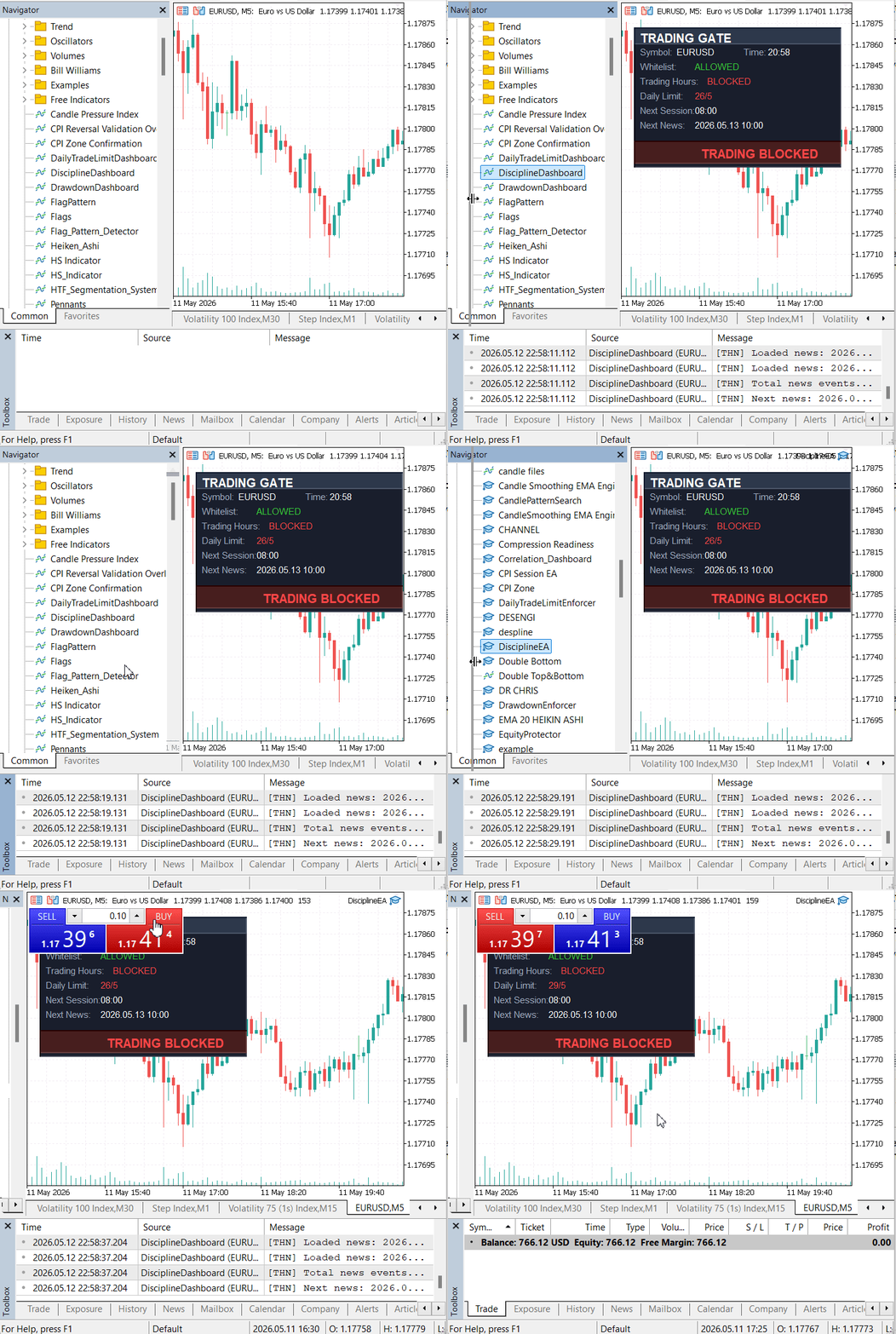
The framework was tested under several runtime conditions, including terminal restarts, session transitions, approaching the configured daily trade limit, and blocked trading periods during scheduled news events. Additional validation confirmed that timer-based synchronization restored dashboard state correctly after reinitialization and that enforcement logic remained active when the daily trade limit was reached exactly.
During testing, the system operated as expected. The next stage will integrate the discipline framework with a trading strategy so that execution can benefit from the same centralized control layer.
Conclusion
The implementation brings the discipline modules together under _CDisciplineEngine.mqh_ for centralized trade control. The system combines symbol whitelist validation, trading-hours and news restrictions, and daily trade limits into a single workflow that continuously evaluates trading conditions.
The implementation was divided into three coordinated layers: the discipline engine for centralized validation, the dashboard for real-time monitoring and visualization, and the enforcement EA for live trade supervision. The framework validates trades via _OnTradeTransaction()_ and periodic _OnTimer()_ scans. It checks both newly opened and existing positions, regardless of whether they originate from manual execution or external Expert Advisors.
As a practical result, the framework can be attached to a chart and used immediately for centralized trade control. The dashboard displays current permission states, daily trade usage, session availability, and news restrictions, while the EA automatically blocks or closes trades that violate the configured rules. This converts trading discipline from manual checks into a continuously enforced account-level system.
The table below summarizes the files included in the downloadable package and their roles within the system.
| File Name | Type | Description |
|---|---|---|
| Include/DisciplineFramework/CDisciplineEngine.mqh | MQL5 Include File | Central discipline engine coordinating symbol validation, trading-hours checks, news restrictions, and daily trade limits. |
| Include/DisciplineFramework/DailyTradeLimit.mqh | MQL5 Include File | Handles daily trade counting, limit validation, and trade usage statistics. |
| Include/DisciplineFramework/SymbolWhitelist.mqh | MQL5 Include File | Restricts trading to approved symbols defined by the framework. |
| Include/DisciplineFramework/TradingHoursNews.mqh | MQL5 Include File | Manages trading sessions, news blackout periods, and time-based trade restrictions. |
| Indicators/DisciplineDashboard.mq5 | MQL5 Indicator | Real-time dashboard displaying whitelist status, trading-hours state, daily limits, next session, and upcoming news events. |
| Experts/TradeEnforcer.mq5 | MQL5 Expert Advisor | Enforcement layer that monitors positions, validates trades through the discipline engine, and blocks or closes violating trades. |
| Files/NewsEvents.csv | CSV Data File | Contains scheduled economic news events and blackout timing information. |
| Files/TradingSessions.txt | Text Data File | Stores allowed trading sessions used by the trading-hours validation system. |
Warning: All rights to these materials are reserved by MetaQuotes Ltd. Copying or reprinting of these materials in whole or in part is prohibited.
This article was written by a user of the site and reflects their personal views. MetaQuotes Ltd is not responsible for the accuracy of the information presented, nor for any consequences resulting from the use of the solutions, strategies or recommendations described.

 3D Visualization Without External Libraries: How MetaTrader 5 Reveals Optimization Results via MQL5 + DX11
 Market Microstructure in MQL5 (Part 2): Measuring long memory in MQL5 with Hurst estimators
 Feature Engineering for ML (Part 4): Implementing Time Features in MQL5
 Building a Trade Analytics System (Part 4): Summary Metrics and Dashboard

- Free trading apps
- Over 8,000 signals for copying
- Economic news for exploring financial markets
You agree to website policy and terms of use