

From Basic to Intermediate: Handling Mouse Events
 1 250
1 250
 0
0

Introduction
In the previous article, From Basic to Intermediate: Function Pointer we discussed how to implement events in a script. But first of all, we explained how one special data type can be used: the pointer, which we already know. Because the previous article contains important foundational material—especially for anyone planning to study graphical programming in more depth—I strongly recommend reviewing it carefully. In this article, however, we will focus on a different and simpler topic.
The main topic here is mouse interaction and mouse-related events. To keep everything logically separated, we will start with the first topic of this article.
Mouse events
So, let us begin by understanding the following point: the mouse is a silly, annoying, terrible thing that seems to have crawled out of the very depths of hell. It behaves in seemingly random ways, without taking into account either the way the code works or the programmer’s own constraints. Although MetaTrader 5 is very useful and provides considerable flexibility, by default it does not generate mouse events for any applications running within a chart window. But why? The reason is precisely that MetaTrader 5 is focused on providing excellent performance and efficiency. Mouse handling, in turn, can negatively affect performance and efficiency. Moreover, chart-based applications are usually very poorly optimized for mouse-related events.
You may not have a clear idea of how serious a problem mouse events can become if an application is poorly optimized to handle them. However, we will examine this issue in more detail in the following articles. But first we need to understand some other things.
Perhaps you have already begun to think about the first of them: "Well, dear author, I think you are mistaken about using the mouse on this platform. When we right-click on the chart, we gain access to a set of elements that can be used directly there. In addition, we can send and process orders using the One Click function in MetaTrader 5. Therefore, your claim that the mouse is a problem is simply a sign of a lack of knowledge on your part."
All right, I agree with you. You are absolutely right in that statement, dear readers. However, I did not say that the mouse is a problem for this platform. I said that the mouse creates problems for chart-based applications. Especially if the event handler of that application is poorly optimized. Or, at the very least, extremely disorganized. And the larger the code, the greater the mess. For this reason I always make sure to create relatively short code and look first of all for simplicity. And that is exactly why: I want to avoid creating poorly optimized code because of any carelessness on my part.
The next point: since MetaTrader 5 does not generate mouse events by default for applications attached to a chart, we have to write code that tells MetaTrader 5 that we want to receive mouse events. And once it has been established that the chart should receive mouse events, we, as programmers, when implementing the code that triggers these events in MetaTrader 5, must indicate that mouse events should be disabled when the application is closed.
Unfortunately, in most cases this does not happen, and this leads to MetaTrader 5 continuing to generate mouse events for the chart because the application did not disable what it had previously enabled. So be careful and organized. If you turned something on, then turn it off. You should not expect the platform itself to find a way to solve the problem.
The next point: do not try to enable or use more resources than necessary. There are small differences between the events generated by MetaTrader 5 when mouse events are triggered. If the application does not require certain event-related resources, they should not be enabled. Everything should be simple and straightforward. Enable only what is truly necessary.
So this brief introduction, although it may seem somewhat harsh, in fact requires a clear explanation so that a developer who is beginning to learn programming can properly build the initial stage of his work. I have seen many people do more than necessary and then complain that the program does not work as expected.
If we stop and look at what is happening, we will find that the problem lies in too many resources being enabled unnecessarily. When the redundant components are removed, the application restores the expected level of performance. And this does not necessarily apply only to programs for MetaTrader 5; it is about this practice in general.
So, let us start with the fact that mouse events can only be captured by the OnChartEvent handler. Therefore, only two types of applications can receive and handle mouse events. One of them is an Expert Advisor, which we will talk about later. The second is an indicator. But everything said here also applies to an Expert Advisor, because all data will be sent to the OnChartEvent handler. It is important to understand this, dear readers, so that you have no questions such as: "Wow, you explained how to work with the mouse in an indicator. However, you never explained how to do this in an Expert Advisor."
Everything starts with the code shown below.
01. //+------------------------------------------------------------------+
02. #property copyright "Daniel Jose"
03. //+------------------------------------------------------------------+
04. #define def_Prefix  "Demo"
05. //+------------------------------------------------------------------+
06. int OnInit()
07. {
08.     IndicatorSetString(INDICATOR_SHORTNAME, def_Prefix);
09.
10.     return INIT_SUCCEEDED;
11. };
12. //+------------------------------------------------------------------+
13. int OnCalculate(const int rates_total, const int prev_calculated, const int begin, const double &price[])
14. {
15.     return rates_total;
16. };
17. //+------------------------------------------------------------------+
18. void OnChartEvent(const int id, const long &lparam, const double &dparam, const string &sparam)
19. {
20.     switch (id)
21.     {
22.         case CHARTEVENT_MOUSE_MOVE:
23.             break;
24.         case CHARTEVENT_MOUSE_WHEEL:
25.             break;
26.     }
27. };
28. //+------------------------------------------------------------------+
29. void OnDeinit(const int reason)
30. {
31. };
32. //+------------------------------------------------------------------+
Code 01
Here we have what we can call the basic framework of an indicator that will use the mouse in its operations. Please note the following: in the OnChartEvent handler, two types of mouse events can be captured. The first example is on line 22, and the second is on line 24. Using one event or the other does not affect the execution or compilation of the code. However, in its current form, MetaTrader 5 will not generate either of these two events. This is because both event types are disabled by default. In order for the OnChartEvent handler to receive one of these two events, we need to enable exactly the type of event we want to receive.
Enabling and disabling these events is an extremely simple and easy-to-implement procedure. However, the approach to solving such situations is somewhat different. For some reason, the CHARTEVENT_MOUSE_WHEEL event works slightly differently from the CHARTEVENT_MOUSE_MOVE event. But do not worry about that now; you will soon understand everything and will be able to use the mouse in more and more applications and in different ways. The point is that, when programmed correctly, this tool is extremely useful and versatile, especially on a graphical platform.
To be able to observe the mouse in action and, therefore, understand various other aspects that become easier to perceive when processes are visualized, we will enable one of the mouse events while simultaneously outputting certain information directly to the chart. In this way, we will learn in practice how it actually works. To do this, we will modify code 01, turning it into code 02, which is shown below.
01. //+------------------------------------------------------------------+
02. #property copyright "Daniel Jose"
03. //+------------------------------------------------------------------+
04. #define def_Prefix  "Demo"
05. //+------------------------------------------------------------------+
06. int OnInit()
07. {
08.     IndicatorSetString(INDICATOR_SHORTNAME, def_Prefix);
09.     ChartSetInteger(0, CHART_EVENT_MOUSE_MOVE, true);
10.
11.     return INIT_SUCCEEDED;
12. };
13. //+------------------------------------------------------------------+
14. int OnCalculate(const int rates_total, const int prev_calculated, const int begin, const double &price[])
15. {
16.     return rates_total;
17. };
18. //+------------------------------------------------------------------+
19. void OnChartEvent(const int id, const long &lparam, const double &dparam, const string &sparam)
20. {
21.     string sz = "";
22.
23.     switch (id)
24.     {
25.         case CHARTEVENT_MOUSE_MOVE:
26.             Comment(sz);
27.             sz += "Mouse position X: " + (string)(short)lparam;
28.             sz += "\nMouse position Y: " + (string)(short)dparam;
29.             Comment(sz);
30.             break;
31.         case CHARTEVENT_MOUSE_WHEEL:
32.             break;
33.     }
34. };
35. //+------------------------------------------------------------------+
36. void OnDeinit(const int reason)
37. {
38.     Comment("");
39.     ChartSetInteger(0, CHART_EVENT_MOUSE_MOVE, false);
40. };
41. //+------------------------------------------------------------------+
Code 02
When code 02 is executed on the chart, we will see a result similar to that shown in the following animation.
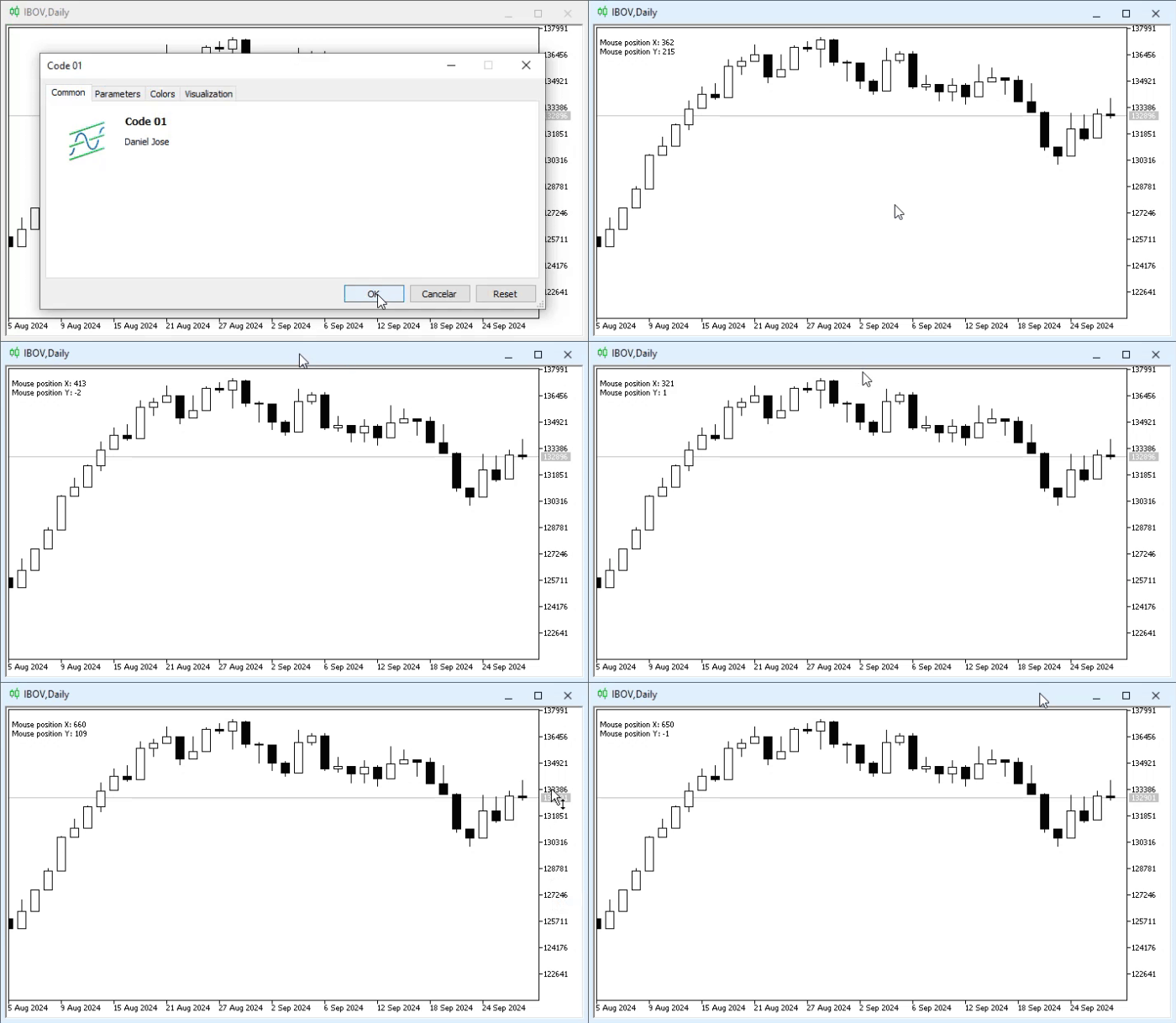
Animation 01
Please note that in the upper-left corner, as the mouse moves, the indicator of its position will change. However, there are areas where the indication will not change. Why? The reason is that the areas in which the position indicator does not change are outside the client area.
And yes, the chart window is divided into areas. Such aspects are considered when studying programming for graphical environments, for example when developing Windows applications. This is a process that includes many details. However, I will try to simplify the explanation as much as possible. In this way, you can understand what is truly important in MQL5 programming.
In a graphical interface, for example in the Windows operating system, there is a huge area called the desktop. Or, for non-professionals, the screen area. Each pixel in this area corresponds to a position in the so-called desktop area. This region can initially be divided into two additional areas. One area is where the taskbar is located, and the other is the area where application windows will be placed. It does not matter whether the current settings hide the area corresponding to the taskbar. Everything not occupied by the taskbar is considered application area.
For greater clarity, consider the following example: suppose a screen with a resolution of 1920 x 1080 pixels is used, that is, a Full HD screen. If the taskbar area occupies 48 pixels, the usable area of your screen will be 1920 x 1032 pixels. Thus, any application that is in a maximized window while the taskbar is displayed will be able to occupy the dimensions mentioned earlier, that is, less than the Full HD screen resolution. The effect is almost imperceptible. However, as a note, when viewing an image of 1920 x 1080 pixels on a slightly smaller screen, the display will be slightly different because the missing 48 pixels will have to be compensated for.
So, inside this client area, which is usually configured as the fourth quadrant (this issue will be examined in detail later), program windows can be placed. This window is also divided into sections. In practice, there are three main areas to consider. The first area is the title bar, the second is the window frame, and the third is the client area.
As on the desktop, the usable space becomes smaller because every area outside the client area reduces the space available to the application. Mouse coordinates are reported only within that client area, ranging from 0 x 0 in the upper-left corner to the maximum values in the lower-right corner. This occurs when using the standard charting model, which is located in the fourth quadrant.
Thus, once you move the mouse cursor outside the client area of the MetaTrader 5 chart window, mouse events for that window will no longer be generated. There is a way to avoid this and keep mouse events coming even when the cursor moves outside the client area of the chart window that contains the event handler. But that is a topic for another discussion. Who knows, perhaps in the future we will look at how to do this.
Thus, this part is the simplest and easiest to understand. One detail: the position of the client area on the screen does not matter. MetaTrader 5 continuously remaps screen positions so that the application perceives them within its own coordinate space—as if it were using the full area of the main screen, or in other words, the desktop.
By performing this coordinate remapping automatically, MetaTrader 5 significantly reduces the amount of work required. This is work that, in a programming environment other than MQL5, might have to be done manually. This eliminates a situation in which the application mistakenly interprets receiving events when in fact it should not respond to them.
I think this is clear now. What about the buttons? How do we determine when a particular button has been pressed? Mouse button states are handled using a bit mask. The simplest way is to use a macro in the code. This simplifies the planning and filtering of various events, since we can click an element and drag it at the same time.
Before we move on to this issue, note that in line 09 of code 02 we activated the mouse event. However, in line 39 we turned it off. And since the information is presented in different data formats, we need to convert this data so that it displays values corresponding to our expectations. That is why we use explicit type casting, as can be seen in lines 27 and 28. Simple enough.
Mouse buttons
The issue of mouse buttons is a fairly controversial topic, as is the reason for that controversy. Some users may think that implementing mouse-related functions is quite simple. However, in practice everything is somewhat more complicated than it seems. At first glance, the reason for this seems somewhat strange. In most applications, mouse buttons are used to perform certain functions. Or even by the operating system itself. In the case of MetaTrader 5, the middle mouse button is responsible for calling the standard crosshair tool used for analysis. The right button, on the other hand, opens a menu for various chart manipulations and settings.
However, our application may need to use these same buttons for other, also specific, purposes. This creates a conflict between the user’s expectations and MetaTrader 5’s default behavior. And in some cases, the operating system can also be drawn into this dispute. Well, as far as MetaTrader 5 is concerned, it does not object if we, as programmers, take over these buttons temporarily for any purpose and for a certain period of time. However, not restoring their default behavior if the application has been removed from the chart is highly unethical. Unless it breaks. In that case, it is impossible.
Our application will take these borrowed buttons with it. This will prevent the user from accessing them during the specified period of using MetaTrader 5 on this particular chart. To restore the operation of the buttons that our application used but did not return because of a malfunction, the user will have to close the symbol chart and open it again. Only in this way will MetaTrader 5 be able to regain control over these buttons. Therefore, we should be careful when planning such points. Otherwise, we will create an extremely unpleasant experience for the user of our application.
"All right, I think we have dealt with the problem. But how is this actually done? If for some reason I need to take control of the right and middle buttons, what should I do? And to return control of these same buttons to MetaTrader 5, what is the best way to do it?" Well, these are very good questions, dear readers. And because this is relevant, we will explain something else that is quite interesting. In the articles where we talked about keyboard events, we did not mention the fact that we can also gain even greater control over the keyboard. But since we are going to take control of the mouse buttons as well as other elements, I think this is a good opportunity to show how to fully manage user interaction elements. This is done using the following code:
01. //+------------------------------------------------------------------+
02. #property copyright "Daniel Jose"
03. //+------------------------------------------------------------------+
04. #define def_Prefix  "Demo"
05. //+------------------------------------------------------------------+
06. int OnInit()
07. {
08.     IndicatorSetString(INDICATOR_SHORTNAME, def_Prefix);
09.     ChartSetInteger(0, CHART_EVENT_MOUSE_MOVE, true);
10. //+----------------+
11.     ChartSetInteger(0, CHART_MOUSE_SCROLL, false);
12.     ChartSetInteger(0, CHART_CONTEXT_MENU, false);
13.     ChartSetInteger(0, CHART_CROSSHAIR_TOOL, false);
14. //+----------------+
15.     ChartSetInteger(0, CHART_KEYBOARD_CONTROL, false);
16.     ChartSetInteger(0, CHART_QUICK_NAVIGATION, false);
17. //+----------------+
18.
19.     return INIT_SUCCEEDED;
20. };
21. //+------------------------------------------------------------------+
22. int OnCalculate(const int rates_total, const int prev_calculated, const int begin, const double &price[])
23. {
24.     return rates_total;
25. };
26. //+------------------------------------------------------------------+
27. void OnChartEvent(const int id, const long &lparam, const double &dparam, const string &sparam)
28. {
29.     string sz = "";
30.
31.     switch (id)
32.     {
33.         case CHARTEVENT_MOUSE_MOVE:
34.             Comment(sz);
35.             sz += "Mouse position X: " + (string)(short)lparam;
36.             sz += "\nMouse position Y: " + (string)(short)dparam;
37.             Comment(sz);
38.             break;
39.         case CHARTEVENT_MOUSE_WHEEL:
40.             break;
41.     }
42. };
43. //+------------------------------------------------------------------+
44. void OnDeinit(const int reason)
45. {
46.     Comment("");
47.     ChartSetInteger(0, CHART_EVENT_MOUSE_MOVE, false);
48. //+----------------+
49.     ChartSetInteger(0, CHART_MOUSE_SCROLL, true);
50.     ChartSetInteger(0, CHART_CONTEXT_MENU, true);
51.     ChartSetInteger(0, CHART_CROSSHAIR_TOOL, true);
52. //+----------------+
53.     ChartSetInteger(0, CHART_KEYBOARD_CONTROL, true);
54.     ChartSetInteger(0, CHART_QUICK_NAVIGATION, true);
55. //+----------------+
56. };
57. //+------------------------------------------------------------------+
Code 03
During its execution, this code 03 will block the use of standard MetaTrader 5 elements and controls, such as, for example, the standard crosshair tool or even the ability to press the ENTER key to change the current chart symbol. So, let us see how we achieved this: first, in line 11 we tell MetaTrader 5 that the user will no longer be able to drag the chart to display bars that are not visible. To reactivate this standard MetaTrader 5 behavior, we use line 49.
In line 12, we disable the context menu of the chart on which the code is running. This menu is opened by pressing the right mouse button. To re-enable this standard MetaTrader 5 function, we use line 50. In line 13, we disable the standard crosshair tool, which is called by pressing the middle mouse button. To re-enable this feature, we use line 51.
Now, in line 15, we disable the controls related to scrolling and zooming with the keyboard. To reactivate them, we use line 53. And finally, in line 16 we disable the function that allows the user to press the ENTER key and enter the name of a symbol or timeframe. To re-enable this same feature, we use line 54.
This type of code is easier to understand if you use it directly, testing the chart before and during the execution of this code 03. In the attached file you can find the code shown, and I do not see a simpler way to make the process of learning how to handle such events easier. Only by experimenting and observing the result can you understand how to solve small problems. I say this because you can enable and disable these resources at any time. It may be interesting to enable them at certain times and disable them at others. In any case, we are simply demonstrating them here to make everything as educational as possible.
Now we can focus on a broader issue, namely the mouse buttons. But we are also going to add the keyboard. This will allow us to test the entire system much more comprehensively. This is done using the following code:
01. //+------------------------------------------------------------------+
02. #property copyright "Daniel Jose"
03. //+------------------------------------------------------------------+
04. #define def_Prefix  "Demo"
05. //+------------------------------------------------------------------+
06. int OnInit()
07. {
08.     IndicatorSetString(INDICATOR_SHORTNAME, def_Prefix);
09.     ChartSetInteger(0, CHART_EVENT_MOUSE_MOVE, true);
10. //+----------------+
11.     ChartSetInteger(0, CHART_MOUSE_SCROLL, false);
12.     ChartSetInteger(0, CHART_CONTEXT_MENU, false);
13.     ChartSetInteger(0, CHART_CROSSHAIR_TOOL, false);
14. //+----------------+
15.     ChartSetInteger(0, CHART_KEYBOARD_CONTROL, false);
16.     ChartSetInteger(0, CHART_QUICK_NAVIGATION, false);
17. //+----------------+
18.
19.     return INIT_SUCCEEDED;
20. };
21. //+------------------------------------------------------------------+
22. int OnCalculate(const int rates_total, const int prev_calculated, const int begin, const double &price[])
23. {
24.     return rates_total;
25. };
26. //+------------------------------------------------------------------+
27. void OnChartEvent(const int id, const long &lparam, const double &dparam, const string &sparam)
28. {
29.     string sz = "";
30.
31.     switch (id)
32.     {
33.         case CHARTEVENT_KEYDOWN:
34.             Comment(sz);
35.             sz += "Key press: " + (string)lparam;
36.             Comment(sz);
37.             break;
38.         case CHARTEVENT_MOUSE_MOVE:
39.             Comment(sz);
40.             sz += "Mouse position X: " + (string)(short)lparam;
41.             sz += "\nMouse position Y: " + (string)(short)dparam;
42.             sz += StringFormat("\nHexadecimal mask of mouse buttons is: 0x%02X", (uchar)sparam);
43.             Comment(sz);
44.             break;
45.         case CHARTEVENT_MOUSE_WHEEL:
46.             break;
47.     }
48. };
49. //+------------------------------------------------------------------+
50. void OnDeinit(const int reason)
51. {
52.     Comment("");
53.     ChartSetInteger(0, CHART_EVENT_MOUSE_MOVE, false);
54. //+----------------+
55.     ChartSetInteger(0, CHART_MOUSE_SCROLL, true);
56.     ChartSetInteger(0, CHART_CONTEXT_MENU, true);
57.     ChartSetInteger(0, CHART_CROSSHAIR_TOOL, true);
58. //+----------------+
59.     ChartSetInteger(0, CHART_KEYBOARD_CONTROL, true);
60.     ChartSetInteger(0, CHART_QUICK_NAVIGATION, true);
61. //+----------------+
62. };
63. //+------------------------------------------------------------------+
Code 04
Since code 04, like code 03, can be stressful for many beginners, we will first look at how to terminate it or remove it from the chart. You will not be able to do this in the same way you are probably used to doing with other indicators. To stop the above code, which completely blocks these standard MetaTrader 5 resources, we will need to access what is shown in the following image.
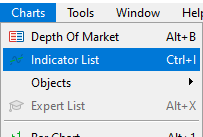
Image 01
If we select the option shown in image 01 in MetaTrader 5 while using the indicator with full blocking, we will be able to access this list. If it is an Expert Advisor, we will need to access the list of Expert Advisors. After that, we will access the list of indicators or Expert Advisors displayed on the chart or opened on the platform. This way, we will be able to remove them from the chart. Otherwise, this would be impossible. The point is that we completely block the user’s access to all standard MetaTrader 5 functionality.
So, now that all this has been explained, let us see what code 04 does.
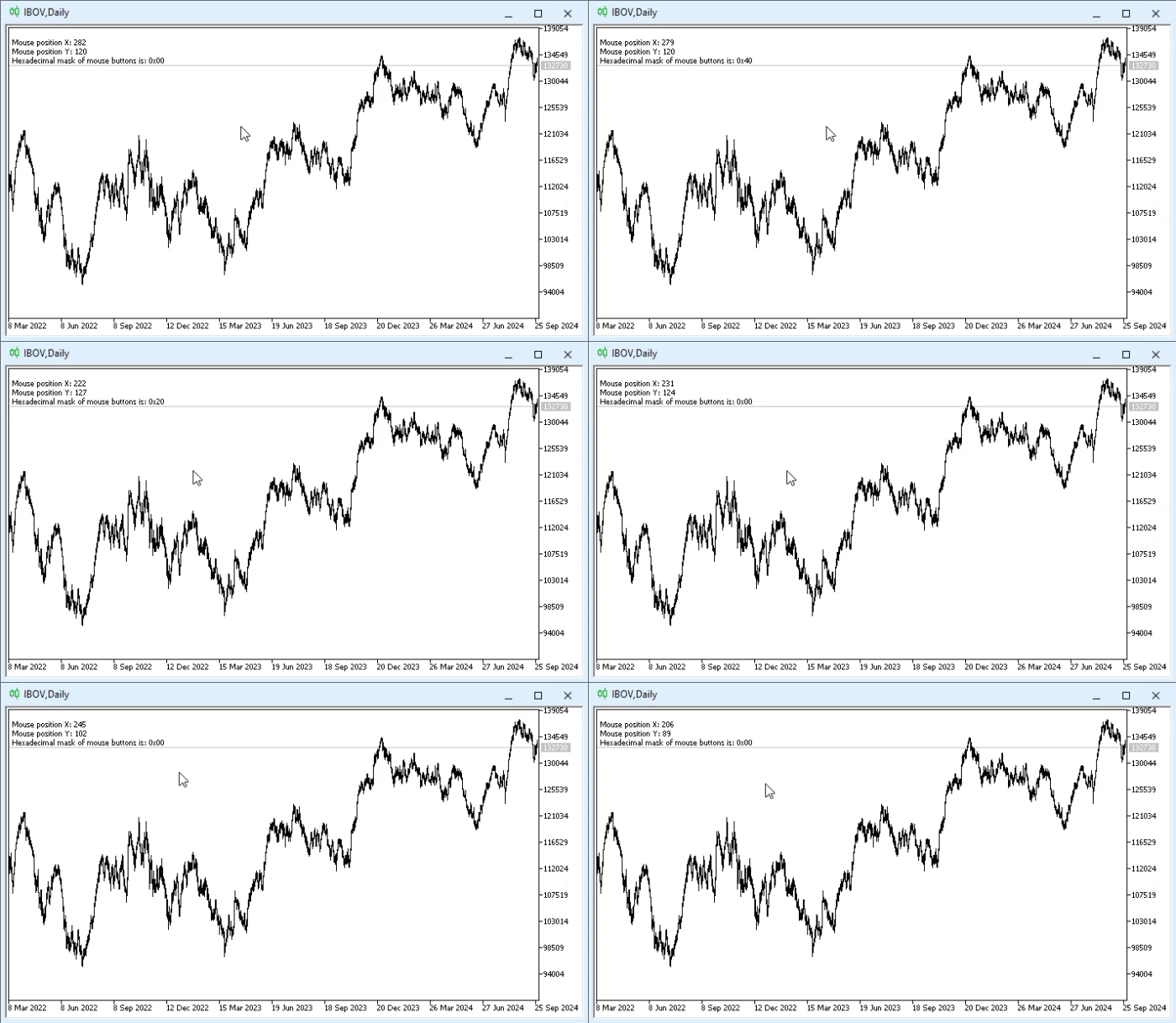
Animation 02
It is important that you pay attention to the following: animation 02 has the sole purpose of demonstrating how MQL5 interprets mouse and keyboard actions. It is extremely important to test the indicator that we see in code 04 in order to understand what a combination of buttons and keyboard can do. This is because some things are quite difficult to explain, no matter how simple they may seem. Ideally, we should try this in practice and understand how these elements can be combined.
However, if you look at the combination of buttons and keyboard, you can see that line 42 of code 04 will sometimes show one result and at other times another. This seems strange. But it happens when the SHIFT and/or CTRL keys are pressed. These two keys have an interesting feature. When pressed without moving the mouse, you will notice the result from line 35 appearing.
However, if you move the mouse, MetaTrader 5 will call an event that activates line 42. Why? The reason is that these two keys, SHIFT and CTRL, are associated with the mouse and are part of the bit mask. Understanding this will allow you to create things that would otherwise be much more difficult to make. Therefore, it is very important: if you really want to understand how the mouse and keyboard work in MQL5, you must study the results presented by code 04.
However, we still need to talk about another type of event. Namely, the one enabled in line 45 of code 04. But this mouse wheel scrolling event is, to put it mildly, quite strange. At least here in MQL5. It fires and returns a data structure that is slightly different from what one might expect. Perhaps this is why it is not used very often in applications written in MQL5.
To understand this, we will add the necessary code to the event handler so that we can visualize the difference between CHARTEVENT_MOUSE_MOVE and CHARTEVENT_MOUSE_WHEEL. And believe me, this is really very interesting to observe in practice. Thus, the code used is shown below.
01. //+------------------------------------------------------------------+
02. #property copyright "Daniel Jose"
03. //+------------------------------------------------------------------+
04. #define def_Prefix  "Demo"
05. //+------------------------------------------------------------------+
06. int OnInit()
07. {
08.     IndicatorSetString(INDICATOR_SHORTNAME, def_Prefix);
09.     ChartSetInteger(0, CHART_EVENT_MOUSE_MOVE, true);
10.     ChartSetInteger(0, CHART_EVENT_MOUSE_WHEEL, true);
11. //+----------------+
12.     ChartSetInteger(0, CHART_MOUSE_SCROLL, false);
13.     ChartSetInteger(0, CHART_CONTEXT_MENU, false);
14.     ChartSetInteger(0, CHART_CROSSHAIR_TOOL, false);
15. //+----------------+
16.     ChartSetInteger(0, CHART_KEYBOARD_CONTROL, false);
17.     ChartSetInteger(0, CHART_QUICK_NAVIGATION, false);
18. //+----------------+
19.
20.     return INIT_SUCCEEDED;
21. };
22. //+------------------------------------------------------------------+
23. int OnCalculate(const int rates_total, const int prev_calculated, const int begin, const double &price[])
24. {
25.     return rates_total;
26. };
27. //+------------------------------------------------------------------+
28. void OnChartEvent(const int id, const long &lparam, const double &dparam, const string &sparam)
29. {
30.     string sz = "";
31.
32.     switch (id)
33.     {
34.         case CHARTEVENT_KEYDOWN:
35.             Comment(sz);
36.             sz += "Key press: " + (string)lparam;
37.             Comment(sz);
38.             break;
39.         case CHARTEVENT_MOUSE_MOVE:
40.             Comment(sz);
41.             sz += " **** Chart Event Mouse Move ****";
42.             sz += "\nMouse position X: " + (string)(short)lparam;
43.             sz += "\nMouse position Y: " + (string)(short)dparam;
44.             sz += StringFormat("\nHexadecimal mask of mouse buttons is: 0x%02X", (uchar)sparam);
45.             Comment(sz);
46.             break;
47.         case CHARTEVENT_MOUSE_WHEEL:
48.             Comment(sz);
49.             sz += " **** Chart Event Mouse Wheel ****";
50.             sz += "\nMouse position X: " + (string)(short)lparam;
51.             sz += "\nMouse position Y: " + (string)(short)(lparam >> 16);
52.             sz += "\nMouse Delta: " + (string) dparam;
53.             sz += StringFormat("\nHexadecimal mask of mouse buttons is: 0x%02X", (uchar)(lparam >> 32));
54.             Comment(sz);
55.             break;
56.     }
57. };
58. //+------------------------------------------------------------------+
59. void OnDeinit(const int reason)
60. {
61.     Comment("");
62.     ChartSetInteger(0, CHART_EVENT_MOUSE_MOVE, false);
63.     ChartSetInteger(0, CHART_EVENT_MOUSE_WHEEL, false);
64. //+----------------+
65.     ChartSetInteger(0, CHART_MOUSE_SCROLL, true);
66.     ChartSetInteger(0, CHART_CONTEXT_MENU, true);
67.     ChartSetInteger(0, CHART_CROSSHAIR_TOOL, true);
68. //+----------------+
69.     ChartSetInteger(0, CHART_KEYBOARD_CONTROL, true);
70.     ChartSetInteger(0, CHART_QUICK_NAVIGATION, true);
71. //+----------------+
72. };
73. //+------------------------------------------------------------------+
Code 05
And here it is, dear reader. Code 05 completes what I wanted to show in this article. Please note that here we do not use any manipulations to work with the mouse or keyboard. We use a clear and simple approach so that you can easily understand what is happening. Using code 05, you will be able to see something similar to what is shown in the following animation.
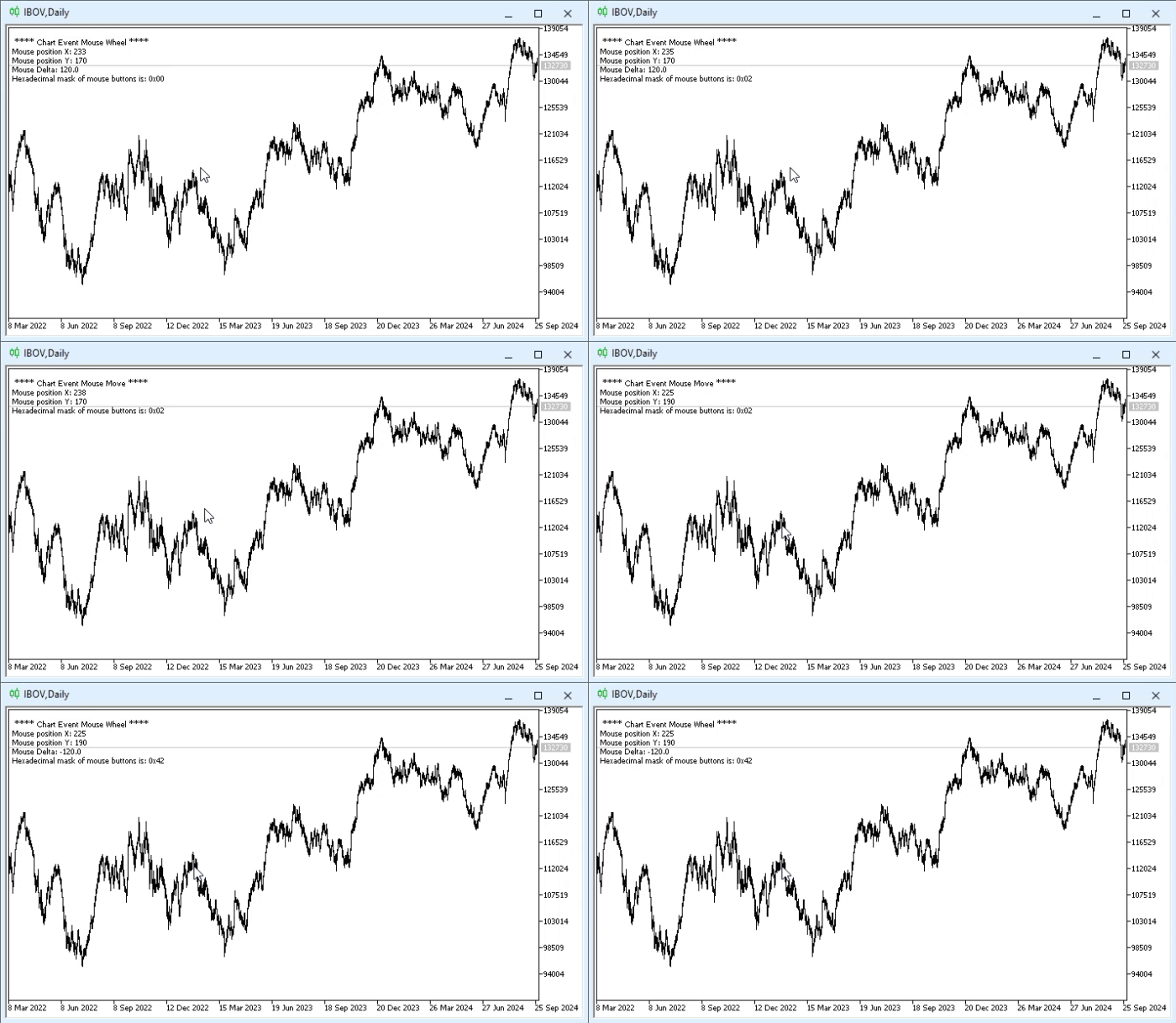
Animation 03
Note that there is practically no difference between code 04 and code 05. But this small difference means that the two codes have completely different purposes. In line 10 of code 05, we enable the event for receiving any mouse wheel movement made by the user. Similarly, in line 63 we disabled receiving those same events. However, I want to draw your attention to what is displayed in the event handler. Because here we find a fundamental difference.
Please note that the handler for CHARTEVENT_MOUSE_WHEEL is very similar to the handler for CHARTEVENT_MOUSE_MOVE. Pay attention to where these values come from. The placement of the position values and pressed-button values is different in the two cases. But this is where the difference becomes truly enormous. WE WILL RECEIVE THE CHARTEVENT_MOUSE_WHEEL EVENT ONLY if some event occurs while the mouse wheel is being scrolled. Apart from that, all other mouse events will be directed to the CHARTEVENT_MOUSE_MOVE event. This is why applications or code using the CHARTEVENT_MOUSE_WHEEL event are so rarely encountered. This is because we do not receive updates about other mouse states, such as movement or button presses, unless an event occurs on the mouse wheel.
So, as already mentioned, the mouse is a great ally. However, depending on what we want to implement, it can also be something straight from the depths of hell.
Final thoughts
Perhaps, up to this point, this article has been one of those where simply studying the code is clearly not enough to understand what is happening. In fact, it is necessary to create an executable application and run it on any chart. This is done so that you can understand small details that would otherwise be extremely difficult to grasp, such as using the keyboard and mouse together to create certain elements.
By understanding how such a combination can arise, you will certainly understand why some code does not need to enable the CHARTEVENT_KEYDOWN handler to check whether the SHIFT and CTRL keys are pressed. You can also create combinations of the mouse buttons themselves to develop much more complex and customized tools.
In the attached file you can find the codes we have examined here. Therefore, try to study the result that each of the codes produces on the chart. Experiment with combinations of movements and button and key presses in order to grasp principles that seem completely tedious in theory but in practice turn out to be very interesting and quite understandable.
| MQL5 file | Description |
|---|---|
| Code 01 | Mouse demo |
Translated from Portuguese by MetaQuotes Ltd.
Original article: https://www.mql5.com/pt/articles/16000
Warning: All rights to these materials are reserved by MetaQuotes Ltd. Copying or reprinting of these materials in whole or in part is prohibited.
This article was written by a user of the site and reflects their personal views. MetaQuotes Ltd is not responsible for the accuracy of the information presented, nor for any consequences resulting from the use of the solutions, strategies or recommendations described.

 Market Simulation: Getting started with SQL in MQL5 (IV)
 Community of Scientists Optimization (CoSO): Theory
 Neural Networks in Trading: LSTM Optimization for Multivariate Time Series Forecasting (Final Part)
 Shape of Price: An Introduction to TDA and Takens Embedding in MQL5

- Free trading apps
- Over 8,000 signals for copying
- Economic news for exploring financial markets
You agree to website policy and terms of use