
MT5 Signal to Telegram And Discord
- Utilità
-
Mostafa Mahmoud
 Proven records crushing the market with drawdown 25% got 139% gain in 1 year with records proven and verified by MyfxBook:
myfxbook.com/portfolio/old-acc-beat-market/11656325
this means almost x6 or 600% of drawdown yearly , this was amazing year , - Versione: 1.23
- Aggiornato: 14 marzo 2026
- Attivazioni: 5
The Professional Solution for Signal Providers.
Automated Broadcasting | Smart GUI Panel | Performance Reports
Stop managing your signals manually. Signal Provider Utility Pro is the realiable bridge between your MetaTrader 5 terminal and your community on Telegram and Discord. Designed for high-performance signal services, this tool gives you instant control over your broadcasts without ever needing to open the settings window.
From real-time trade copying to automated daily reports, this utility handles everything with zero latency and professional formatting.
Key Features
1. Total Control via Smart GUI Panel
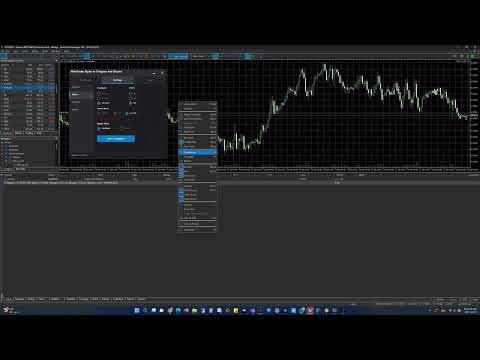
Unlike basic copiers, our utility features a powerful dashboard directly on your chart. You can change settings instantly while trading:
-
Symbol Filter: Choose to broadcast signals from the Current Chart, All Symbols, or a specific Custom List.
-
Direction Filter: Want to send only Buy trades? You can restrict the EA to broadcast Buy Only, Sell Only, or All Directions with a single click.
-
Magic Filter: Switch between broadcasting Manual Trades, All EAs, or specific Magic Numbers.
2. Automated Performance Reports
Keep your followers engaged with automatic performance summaries. The EA can generate and send reports at the start of a new Day, Week, or Month, detailing:
-
Total Trades & Win Rate.
-
Net Profit/Loss.
-
Growth Summary.
3. Smart Anti-Spam & Bulk Logic
Protect your channel’s reputation with intelligent message handling:
-
Pending Order Delay: Define a "Validation Time" (e.g., 1 minute). If you place a pending order and delete it within this time (a trap), the EA will not send it. This prevents "Signal Cancelled" spam messages.
-
Bulk Closing Detection: If multiple trades are closed simultaneously, the utility intelligently groups them into a single "Bulk Report" message instead of flooding your channel with 10 different notifications.
4. Zero-Latency Execution
Your followers receive the signal the exact moment the logic condition is met. Supports Market Execution, Pending Orders, SL/TP Modifications, and Partial/Full Closes.
Parameters Guide (Press F7)
1. Connection Setup
-
Telegram Bot Token : Paste the API Token received from BotFather.
-
Telegram Chat ID : Paste your Channel or Group ID (usually starts with -100).
-
Discord Webhook URL : Paste the Webhook link from your Discord server settings.
2. Database & Lists (For "List Mode")
-
Inp_Symbols_List : Enter specific pairs to monitor, separated by a semicolon (e.g., EURUSD;GBPUSD;XAUUSD ).
-
Inp_MagicNumbers_List : Enter specific Magic Numbers to track, separated by a semicolon (e.g., 1001;1002 ).
3. Message Customization
You can fully customize the message text using placeholders like {PRICE}, {SL}, {TP}, {PROFIT}.
-
Template Settings : Customize text for Open, Close, Modify, and Bulk Reports.
-
Profit Mode : Choose to report profit in Points (Best for Signals) or Money.
Step-by-Step Installation Guide
To ensure the EA works correctly, please follow these steps carefully.
Step 1: Allow WebRequests (Crucial)
-
Open your MT5 Terminal.
-
Click on Tools > Options > Expert Advisors tab.
-
Check the box "Allow WebRequest for listed URL".
-
Add the following URLs to the list (click the Green + icon):
-
Click OK.
Step 2: How to set up Telegram
-
Open Telegram and search for @BotFather.
-
Send the command /newbot and follow the instructions to name your bot.
-
BotFather will give you an API Token. Copy this and paste it into the Telegram Bot Token input in the EA.
-
Create your Channel or Group.
-
Add your new Bot as an Administrator to your Channel/Group.
-
To find your Chat ID : Forward a message from your channel to @userinfobot (or any ID finder bot). Copy the ID and paste it into the EA.
Step 3: How to set up Discord
-
Go to your Discord Server settings.
-
Click on Integrations > Webhooks.
-
Click New Webhook, name it, and select the channel where you want messages to appear.
-
Click Copy Webhook URL.
-
Paste this URL into the Discord Webhook URL input in the EA.
Step 4: Start Broadcasting
-
Attach the EA to one chart only (e.g., EURUSD M1).
-
The GUI Panel will appear.
-
Click the "Test Message" button on the panel to verify the connection.
Raise Your Service Standards
This tool is built for providers who care about Speed, Accuracy, and Professionalism.
If you have any questions or need support, feel free to contact me !

















































The product delivers exactly what it promises. Everything works as described and is well thought out. The support is excellent: fast responses, very helpful, and solution-oriented. Requests and customization wishes are taken seriously and implemented quickly. Overall, I am very satisfied with the purchase. Great service, reliable product, and a smooth experience. Would definitely recommend and would buy again.