TraderAi Algorithmic trading
- Experts
- Version: 2.2
- Updated: 21 July 2026

AI Trading Agent is a MetaTrader 5 Expert Advisor that uses machine learning and current large language models (LLMs) to analyze live market data and execute trades automatically.
Instead of hard-coding every trading rule, you can describe your strategy, entry conditions, position-management rules, and risk constraints using a natural-language prompt. The AI model evaluates the supplied market information and returns structured trading actions that the EA can execute on your selected trading account.
The latest release connects through OpenRouter, NVIDIA, and Router9. These providers give you access to many model families through OpenAI-compatible APIs, including models from OpenAI, Anthropic, Google, DeepSeek, Meta, Mistral, Qwen, Moonshot AI, NVIDIA, and other developers as they become available.
This may include new-generation models such as:
-
Anthropic Claude Fable 5
-
ChatGPT 5.6 Sol
-
Qwen 3.8
-
Kimi K3
-
NVIDIA Nemotron models
Supported providers offer selected free models with daily limits, allowing you to test TraderAI without paying for API usage.
A model can only be used when the selected provider lists it and exposes a compatible text chat-completions endpoint.
Model availability, names, API identifiers, prices, context limits, rate limits, and free-tier access can change. Always copy the exact model ID from the selected provider’s current model catalog.
How AI Trading Agent WorksAI Trading Agent collects the market information enabled in the EA parameters and sends it to your selected AI model.
Depending on your configuration, the model can receive:
-
Current price information
-
Recent OHLC candlestick data
-
Bid and ask tick data
-
Market-depth information
-
Current positions
-
Trade-volume restrictions
-
Your custom strategy prompt
The model follows your instructions, evaluates the supplied market state, and returns structured trading actions.
These actions can include:
-
Opening buy or sell positions
-
Closing existing positions
-
Managing multiple positions
-
Applying your strategy to changing market conditions
This removes the need to manually copy market information into an AI application or manually execute every decision produced by the model.
AI output can be incorrect, incomplete, delayed, or inconsistent. Connecting the EA to a powerful model does not automatically create a profitable trading strategy. The effectiveness of the system depends heavily on prompt quality, model capability, market conditions, and risk configuration.
Always test your strategy on a demo account before using it with real funds.
Operating ModesStandalone Mode
AI Mode is disabled by default.
When AI Mode is disabled, the EA operates as a standalone automated trading system. It uses its built-in support-and-resistance strategy and automatically calculates its Take Profit and Stop Loss levels.
This allows the EA to operate without depending on an external AI service.
AI Mode
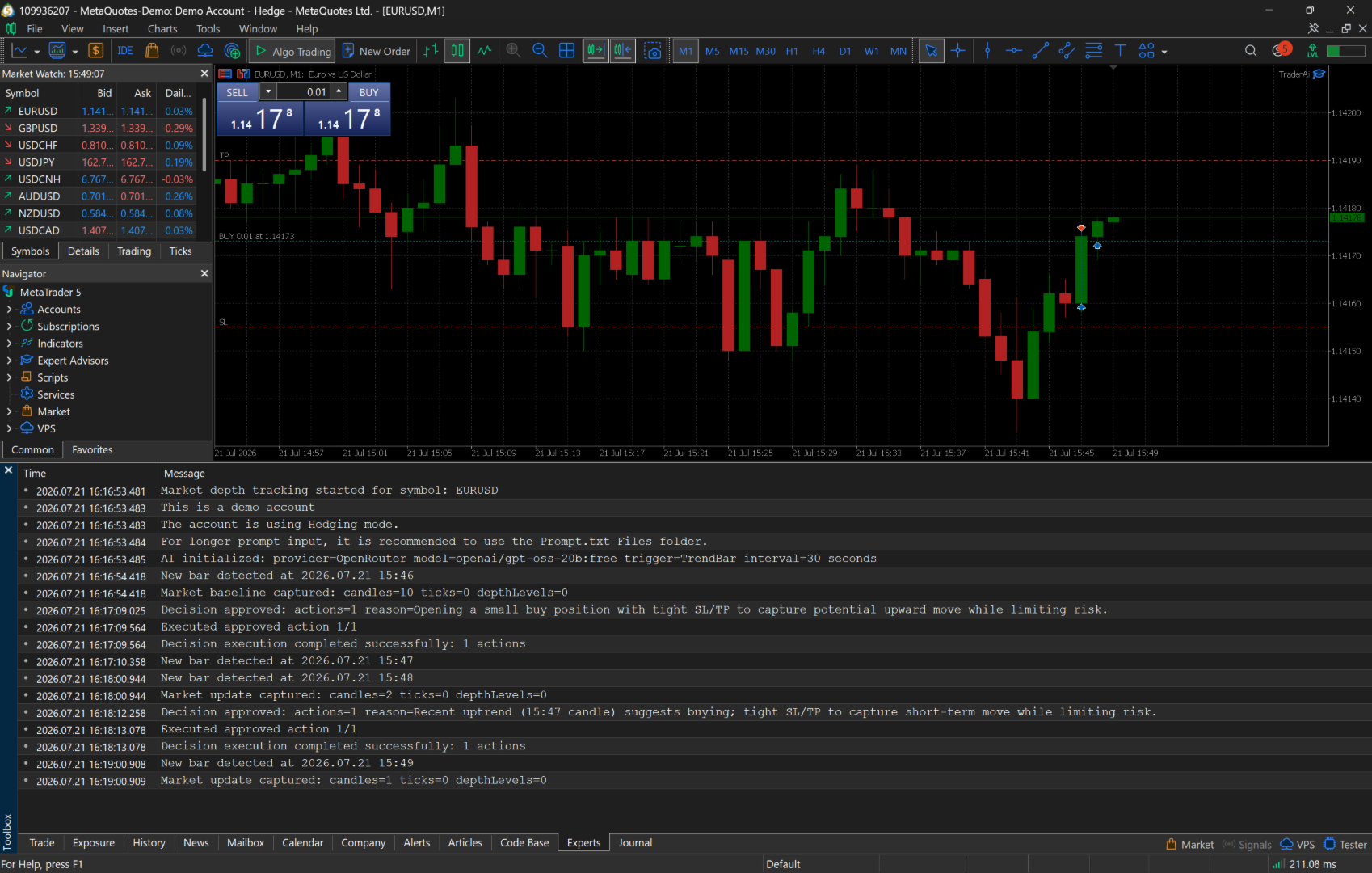
When AI Mode is enabled, the built-in standalone trading action is bypassed. Trading decisions are then generated by the selected external AI model according to your prompt and market-data configuration.
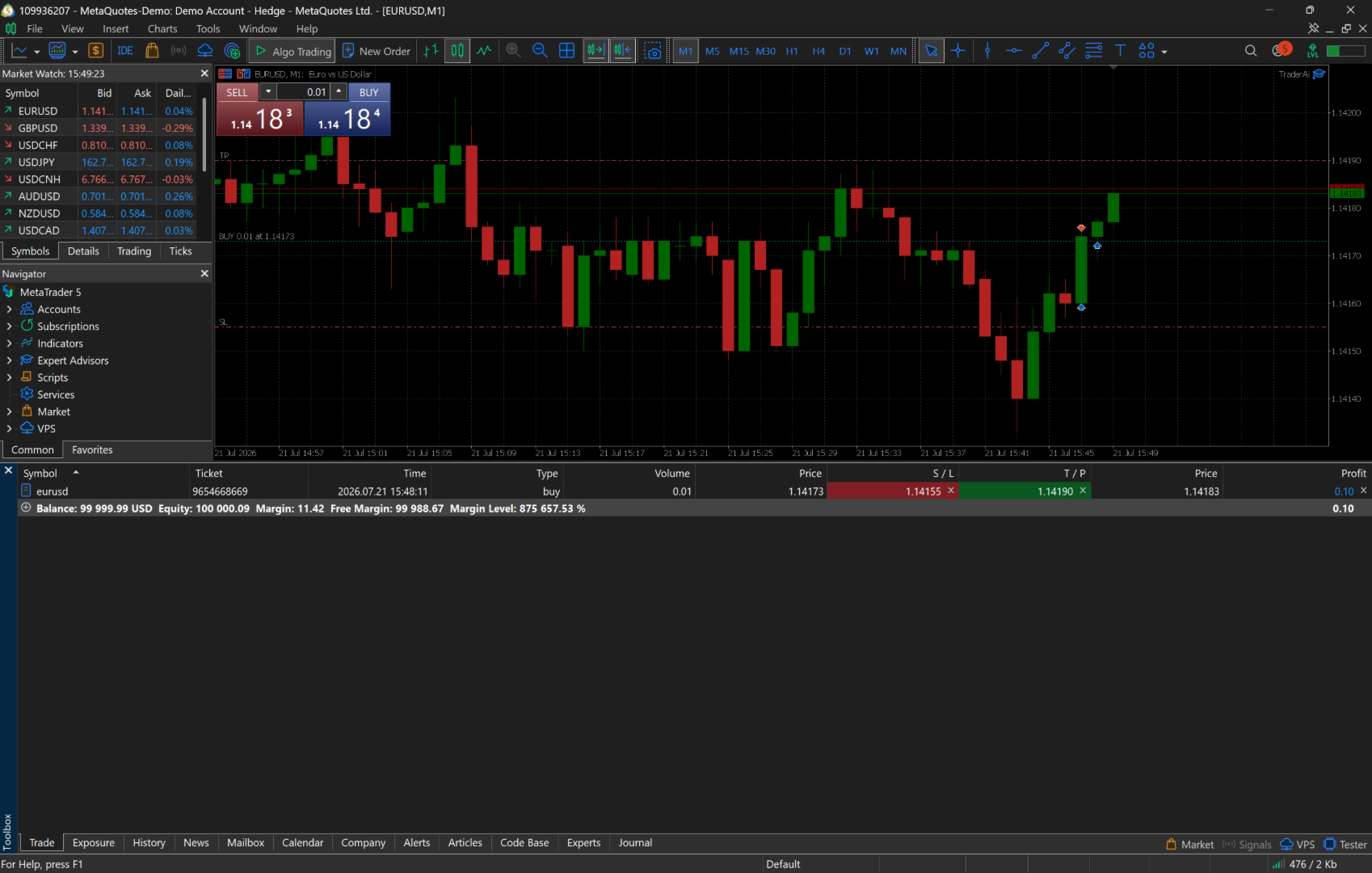
In AI Mode, the model can analyze the supplied market state and execute trades directly on the selected trading account.
A valid provider, API key, model ID, and prompt configuration are required. Without a working AI configuration, the EA cannot obtain a decision and will not perform AI-generated trading actions.
Strategy Tester LimitationExternal AI requests are not available inside the MetaTrader 5 Strategy Tester because of MetaTrader WebRequest restrictions.
This is a platform limitation and not a limitation imposed by the EA.
The AI functionality must therefore be evaluated on a live chart using a demo or real-time testing account. Use a demo account during initial prompt development and strategy validation.
EA ParametersAI Configuration
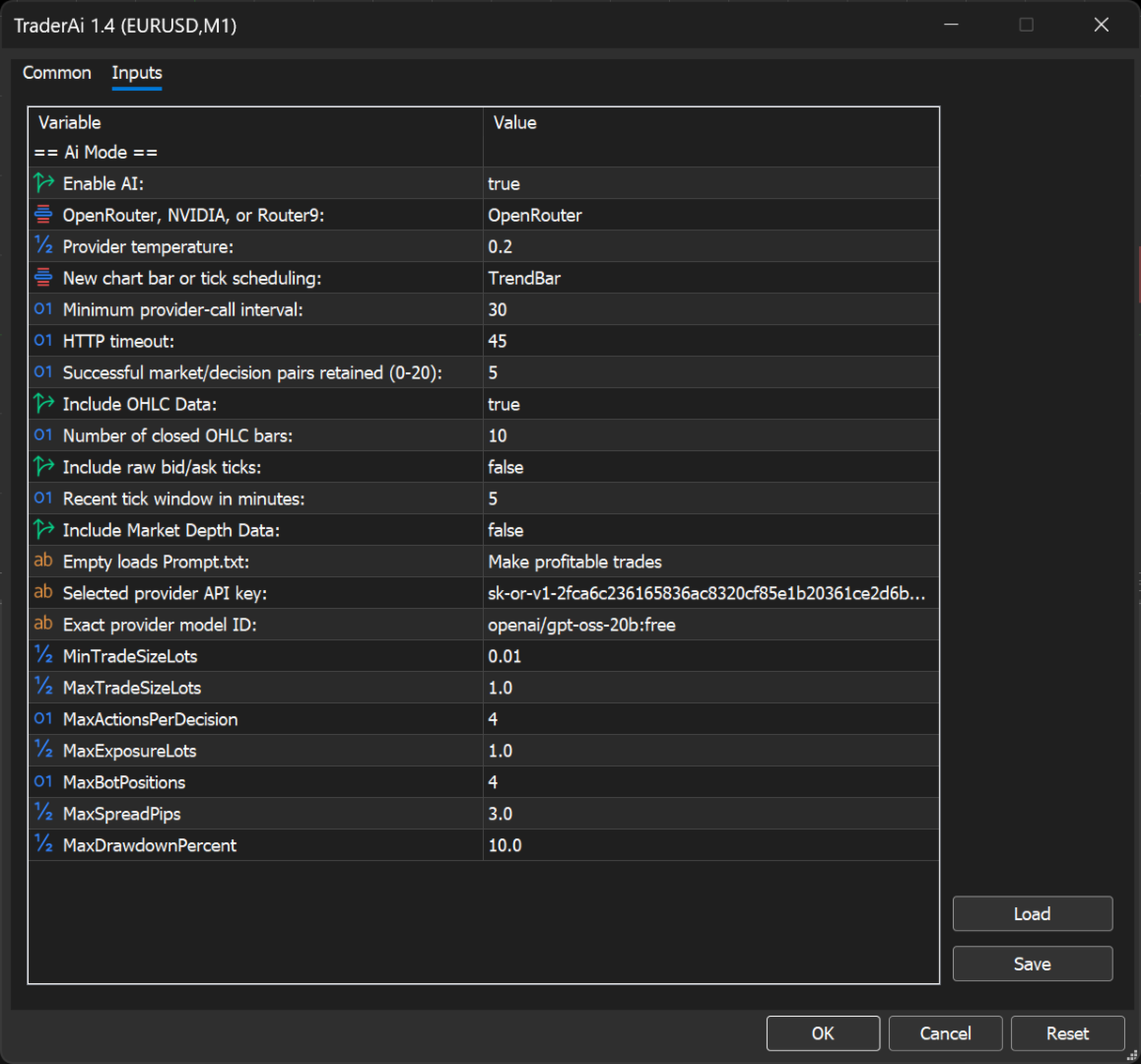
Enable AI Mode
Enables or disables external AI-generated trading decisions.
-
false : use the EA’s built-in standalone trading strategy
-
true : use the selected AI provider and model for trading decisions
Enabling AI Mode bypasses the EA’s default standalone trading action.
AI Provider
Select the provider used to process AI requests:
-
OpenRouter
-
NVIDIA
-
Router9
The provider selected here must match the API key and model ID entered in the provider configuration.
Reasoning
Enable this option when using a model that supports or requires advanced reasoning functionality.
Some reasoning-focused models may use additional tokens and take longer to respond. Other models or providers may ignore or restrict this setting.
Do not enable it automatically for every model. Check the selected provider’s model documentation first.
Temperature
Controls the variation and randomness of the model’s output.
-
0.1–0.3 : more consistent and conservative
-
0.4–0.7 : balanced
-
0.8–1.0 : more varied and experimental
Lower values are generally more suitable for repeatable, rule-based trading decisions.
The recommended starting value is 0.2 .
Some reasoning models or provider endpoints may ignore, limit, or reject the temperature parameter.
Max Tokens
Defines the maximum response-token budget requested from the provider.
A larger value allows the model to produce more detailed reasoning or more complex structured actions, but it may also increase:
-
Response time
-
API consumption
-
Provider cost
-
The possibility of unnecessary output
The exact interpretation of this parameter may vary between providers and models.
Execute On
Determines when the EA requests a new AI decision.
Bar
Requests a decision when a new completed candle becomes available on the selected chart timeframe.
This option generally produces fewer API calls and more stable decision intervals.
Tick
Requests decisions from incoming tick activity.
Tick mode can generate a very large number of API requests, especially on active symbols. This may quickly reach provider rate limits or increase usage charges.
Use Tick mode carefully and verify the provider’s request limits before enabling it.
Model Input ConfigurationThese parameters control which market information is supplied to the AI model.
Include OHLC
Includes recent candlestick data in the model input.
Each candlestick may contain:
-
Open
-
High
-
Low
-
Close
Candlestick data allows the model to evaluate price action, trends, ranges, support and resistance, and other chart structures.
Number of Past OHLC Data
Defines the number of previous candlesticks included when OHLC input is enabled.
Larger windows provide more historical context but consume more input tokens and may increase latency and cost.
Include Ticks
Includes recent bid and ask tick data in the model input.
Tick data can provide more detailed information about short-term price movement than completed candlesticks.
Number of Past Ticks
Defines how many previous tick records are included.
Large tick windows can significantly increase request size, token consumption, and response time.
Include Market Depth
Includes the current market-depth or order-book snapshot when it is available from the broker and symbol.
Market depth may not be supported for every symbol, broker, account type, or testing environment.
Trade Size ConfigurationMinimum Trade Volume Size
Defines the smallest trade volume, in lots, that the AI is allowed to request.
Any requested volume below this value should not be accepted by the EA.
Maximum Trade Volume Size
Defines the largest trade volume, in lots, that the AI is allowed to request.
Use a conservative value, particularly when testing a new prompt or model.
Maximum Number of Concurrent Open Positions
Defines the maximum total number of positions the AI Trading Agent may keep open simultaneously.
This parameter helps restrict strategies that request multiple concurrent positions, including:
-
Grid strategies
-
Hedging strategies
-
Martingale-style strategies
-
Multi-entry trend strategies
-
Momentum or price-action scaling strategies
This restriction reduces exposure but does not eliminate trading risk.
Command PromptThe Command Prompt defines the strategy, conditions, restrictions, and behavior expected from the AI model.
You can describe instructions such as:
-
When to enter a buy or sell trade
-
Which price-action patterns to consider
-
How many positions may be opened
-
When positions should be closed
-
Which market conditions must be avoided
-
How trade volume should be selected
-
How the model should respond when no valid setup exists
The model interprets these instructions together with the supplied market data.
A prompt should clearly define:
-
The trading objective
-
Entry conditions
-
Exit conditions
-
Position-management rules
-
Risk restrictions
-
Situations in which no trade should be opened
-
The required response structure
Do not assume that the model will infer missing risk rules. Explicitly describe the expected behavior and test the prompt repeatedly on a demo account.
Using Prompt.txtThe EA automatically creates a Prompt.txt file inside the MetaTrader 5 Files directory.
This file can be used for prompts that are too long or complex to enter directly through the EA parameter window.
To load the prompt from Prompt.txt , leave the Command Prompt parameter empty. The EA will then use the content of the external prompt file.
Editing Prompt.txt
-
Open MetaTrader 5.
-
Select Tools.
-
Open MetaQuotes Language Editor.
-
In MetaEditor, open the Navigator panel.
-
Expand Files.
-
Open Prompt.txt .
-
Edit and save your strategy prompt.
When the Navigator panel is not visible, select View → Navigator in MetaEditor.
Supported AI ProvidersOpenRouter
OpenRouter provides access to many commercial and open-source model families through one API key and a unified model-naming system.
Model catalog:
Default model ID:
openai/gpt-oss-20b:free
Enter the exact model ID displayed in the OpenRouter catalog. OpenRouter model IDs commonly use the following format:
publisher/model-name
Some model IDs may also include a variant or pricing suffix such as:
:free
Examples may include:
-
moonshotai/kimi-k3
-
anthropic/claude-fable-5
-
nvidia/nemotron-3-ultra-550b-a55b:free
The availability of these examples is not guaranteed. Confirm each ID in the current OpenRouter catalog before using it.
NVIDIA
NVIDIA provides hosted NVIDIA NIM endpoints for supported text-generation and reasoning models.
Model catalog:
https://build.nvidia.com/models
Select a model that provides a Free Endpoint or another hosted API endpoint compatible with the EA.
Open the selected model’s page and copy the exact API model ID.
Not every entry in the NVIDIA catalog can be used by AI Trading Agent. The selected model must support compatible text-based chat or completion requests.
The following model types are not suitable:
-
Image-generation models
-
Audio models
-
Speech models
-
Embedding-only models
-
Reranking models
-
Downloadable-only models without a hosted API endpoint
NVIDIA model IDs may contain an organization prefix. Copy the complete ID exactly as displayed by NVIDIA.
Router9
Router9 provides access to supported models from multiple upstream AI providers through a single endpoint.
Model catalog:
https://www.router9.com/models
Enter the exact value displayed in the catalog’s Model ID column.
The catalog may show:
-
Model ID
-
Model family
-
Upstream provider
-
Context limit
-
Input and output pricing
-
Free-tier availability
-
Current model status
Do not use a display name when a separate API model ID is provided.
Provider API ConfigurationBring Your Own Key
AI Trading Agent does not bundle or resell AI access.
You must create an account with your selected provider, obtain an API key, and fund or configure the provider account as required.
Provider websites:
-
OpenRouter: https://openrouter.ai/
-
NVIDIA Build: https://build.nvidia.com/
-
Router9: https://www.router9.com/
Provider usage limits, quotas, prices, free credits, and account requirements are controlled entirely by the provider.
Provider API Key
Enter the API key issued by the provider selected under AI Provider.
The key must belong to the selected provider.
For example, when OpenRouter is selected, enter an OpenRouter API key—not a direct OpenAI, Anthropic, Gemini, or DeepSeek key.
Provider Model Name
Enter the exact API model ID from the selected provider’s current model catalog.
Model IDs are:
-
Provider-specific
-
Usually case-sensitive
-
Different from consumer product or subscription names
-
Subject to change
Do not enter names such as “ChatGPT Plus,” “Claude Pro,” or “Gemini Advanced” unless that exact value appears as an API model ID in the provider catalog.
Example OpenRouter ConfigurationAI Provider: OpenRouter Provider Model Name: moonshotai/kimi-k3 Provider API Key: your OpenRouter API key
Alternative model examples:
anthropic/claude-fable-5 nvidia/nemotron-3-ultra-550b-a55b:free
These examples depend on current provider availability.
When switching providers, replace both:
-
The Provider API Key
-
The Provider Model Name
A direct OpenAI, Gemini, Anthropic, Mistral, or DeepSeek API key used by an older AI Trading Agent release is not valid unless the newly selected routing provider explicitly supports that key.
Choosing an AI ModelFor trading use, select a model that:
-
Supports text chat completions
-
Follows structured instructions reliably
-
Produces consistent machine-readable actions
-
Has enough context for the selected market-data windows
-
Responds within an acceptable time
-
Fits your provider budget and rate limits
A larger model is not automatically better for trading.
Reasoning-focused models may provide more detailed analysis, but they can also:
-
Respond more slowly
-
Consume more tokens
-
Cost more
-
Produce unnecessarily long output
-
Miss time-sensitive trading opportunities
Compare several models on a demo account using the same prompt and market-data configuration.
Evaluate:
-
Instruction-following reliability
-
Invalid-action frequency
-
Response latency
-
Token consumption
-
Cost per decision
-
Consistency across similar market conditions
Examples of model families that may be accessible through the supported providers include:
-
Anthropic: Claude Fable 5
-
OpenAI: ChatGPT 5.6 Sol
-
Alibaba: Qwen 3.8
-
Moonshot AI: Kimi K3
-
NVIDIA: Nemotron
These are model-family or display names, not guaranteed API identifiers.
Always copy the exact model ID from the provider catalog. A provider may:
-
Add an organization prefix
-
Use lowercase characters
-
Add a version suffix
-
Add a date suffix
-
Publish multiple variants
-
Remove or rename a model
When a model is absent from the selected provider’s catalog, it cannot currently be used through that provider.
Current catalogs:
-
NVIDIA: https://build.nvidia.com/models
-
OpenRouter: https://openrouter.ai/models
-
Router9: https://www.router9.com/models
Never:
-
Share your API key with another person
-
Publish it in source code
-
Include it in screenshots
-
Post it in support messages
-
Store it in public repositories
-
Send it through an untrusted website
Anyone with access to your API key may be able to use your provider account and consume your available credits.
If a key is accidentally exposed, revoke it immediately through the provider’s dashboard and create a replacement.
Third-Party AI ServicesAI Trading Agent integrates with optional third-party AI services using credentials supplied by the user.
The AI models and provider infrastructure are not embedded, hosted, managed, or controlled by the EA developer.
All provider-related matters are governed by the selected provider, including:
-
Service availability
-
Model availability
-
API compatibility
-
Pricing
-
Free-tier access
-
Rate limits
-
Context limits
-
Regional restrictions
-
Content policies
-
Account suspensions
-
Data-retention policies
-
Response latency
The EA developer cannot guarantee that a provider, endpoint, or model will remain available.
AI interactions are performed using your configured provider account and API key. Provider charges and limitations are not controlled by AI Trading Agent.
Important Risk NoticeAI Trading Agent is a technical trading tool. It does not provide financial advice and does not guarantee profitability.
AI-generated analysis and trading actions can be wrong. Losses may result from:
-
Incorrect model output
-
Poorly designed prompts
-
Unexpected market conditions
-
Provider outages
-
Network latency
-
Delayed responses
-
Rate limits
-
Invalid or incomplete responses
-
Slippage
-
Spread changes
-
Broker execution rules
-
Model hallucinations
-
Excessive position sizes
-
Grid or Martingale strategies
-
Simultaneous open positions
The EA’s volume and position restrictions can reduce risk, but they cannot eliminate losses.
Before trading with real funds:
-
Test the EA on a demo account.
-
Validate every prompt under different market conditions.
-
Use conservative trade-volume limits.
-
Restrict the maximum number of open positions.
-
Monitor provider usage and response latency.
-
Monitor the EA while it is running.
-
Confirm that automated trading is permitted by your broker.
-
Confirm that automated AI trading is permitted in your jurisdiction.
You remain fully responsible for the prompts, strategies, settings, provider account, trading decisions, and financial results associated with the EA.