
SIGNAL BRIDGE — USER MANUAL v6.20
Product links:
MT4: https://www.mql5.com/en/market/product/131683
MT5: https://www.mql5.com/en/market/product/139969
The MT4 and MT5 versions share the same logic, the same on‑chart panel and the same inputs. Everything in this manual applies to both platforms unless explicitly noted.
EXECUTIVE SUMMARY — WHY SIGNAL BRIDGE
"Elevate your trading signals with real‑time updates that are professional, visually appealing, and 100% copier‑friendly."
Signal Bridge is the most comprehensive MetaTrader‑to‑Telegram bridge on the market. It is built around five differentiators that other EAs typically do not offer or only partially cover:
| # | What makes it unique |
|---|---|
| 1 | 100% copier‑friendly signals. Every message carries the absolute lot size, exact entry/SL/TP and risk %, so third‑party copier services (e.g. TSC) can replicate the trade exactly — without translation losses. |
| 2 | Full trade life‑cycle coverage. NEW · pending activation · pending cancellation · entry / SL / TP modifications · SL moved to break‑even · trailing stop locking profit · running‑trade profit update · full close. Every event becomes a clearly formatted Telegram message — nothing is lost between the broker and your audience. |
| 3 | Total branding control. Four built‑in message layouts (Classic, Tree View, Clean Minimal, Tabled), per‑field show/hide toggles (emoji, ticket, pips, PnL, RR, lots, risk, duration, comment), custom close‑message text per scenario, custom footer with channel name. Every chart screenshot is rendered through a configurable theme or your own .tpl template, with SL/TP/close objects automatically drawn on top. |
| 4 | Reports that tell the story. Five aggregation styles — Detailed by Trade, By Pair, By Day, Win/Lose, By Magic — available on demand (one click on the panel) or on a daily/weekly schedule. Filter by magic number or symbol to publish a separate report per strategy on the same account. |
| 5 | All‑new on‑chart panel. Tabbed control panel rendered directly on the chart: change any setting at runtime, no recompile, no EA reload. Panel zoom, a full editor for long text/list fields, bidirectional sync with the classic Inputs dialog, and one‑click migration between terminals via a single .set file. |
Designed for: signal providers, managed‑account operators, prop‑firm traders running transparency channels, multi‑strategy desks that need one report per magic, and anyone who wants their Telegram channel to look as professional as the trading behind it.
Built for both platforms: the same EA, same on‑chart panel and same inputs run on both MT4 and MT5 — migrate your full configuration between terminals by simply copying one .set file (see §7).
Summary
What’s new in 6.10–6.20
0 — Important information
1 — Telegram setup (bot + channel)
2 — Install Signal Bridge in MT4 / MT5
3 — First initialization
4 — The on‑chart panel (overview)
5 — Tab reference: Main · Filters · Messages · Custom Msgs · Charts · Reports
6 — Report types explained
7 — Bidirectional UI ↔ Inputs sync (.set file)
8 — Performance tips
9 — Advanced inputs (classic Properties → Inputs dialog only)
10 — Telegram error handling
11 — Links and support
WHAT’S NEW IN 6.10–6.20
- 6.20 — List fields (Magic filter, Exclude magic, Symbol filter, Exclude pairs, Custom pips, Magic Include/Exclude in Reports, Magic names) now open an editor with 4 native boxes of 63 characters each (a MetaTrader limit per box); Ctrl+V works in every box, and the 4 boxes are joined with commas up to 252 characters. An inline value that the terminal would silently cut at 63 characters is rejected instead, with a message telling you to use the editor.
- 6.19 — Every field on the panel is now either a plain single value (validated on the spot — e.g. HH:MM, currency, numbers — red inline error on a bad format) or a list (opens the 4‑box editor above). The EA also warns at startup (Alert + Experts log) if any of 26 string inputs is 250+ characters, the point where the Inputs dialog itself starts truncating.
- 6.17 — Magic names split across 3 input fields, because the Inputs dialog truncates a single field around 250 characters. Panel zoom buttons (− / +) in the title bar, range 0.75–2.00, remembered across restarts. A pencil icon and a blue clickable label mark every field that opens a full editor — «click the blue label».
- 6.16 — Daily/weekly scheduled reports now catch up if the exact minute is missed (they fire as soon as the current time is past the scheduled time, instead of requiring an exact match). Reset EA is now a full «forget everything»: besides wiping the panel state it clears the in‑memory session buffers and the status CSV, and any order that was already open before the reset is ignored completely from then on (no NEW, no tracking, no CLOSE for it).
- 6.15 — Bot credentials can be entered directly on the panel. Without Token and Chat ID the EA starts fully inert and the panel shows a SETUP REQUIRED screen instead of the tabs — no order scan, no chart, no Telegram message until both fields are filled in. Credentials are persisted in a separate, obfuscated local file, not in clear text inside the panel .set file.
- 6.14 — The opening message header is now «NEW ORDER» for both market and pending entries (pending activation still shows «ACTIVATED»). Magic filter and Symbol filter edited on the panel now apply live, with no EA reload needed.
- 6.12–6.13 — The Custom Msgs texts open in a full multiline editor overlay: arrow keys, Home/End, Ctrl+A (select all), Enter = OK, Esc = cancel, click to place the cursor, an on‑screen emoji keyboard, and a Paste box + Insert button (MQL cannot read the Windows clipboard directly, so pasted text goes through that box). The editor shows a live «N / 250 chars» counter and blocks OK above the limit. The panel .set file is now saved in UTF‑8, so emoji and accented characters survive an EA restart.
- 6.11 — New Events filter value «All, skip trailing SL» (see §5.2).
- 6.10 — MT5 only. Hybrid event‑driven trade detection via OnTradeTransaction : new and closed trades are picked up with a latency of about 1 second, independent of ticks on the host chart. Close‑by hedge closes now generate a CLOSED message too. Kill‑switch input: UseTradeTransactions (see §9).
0 — IMPORTANT INFORMATION
Signal Bridge sends Telegram messages and, optionally, full chart screenshots for every trade event. The screenshot pipeline is the resource‑heavy part: due to MetaTrader limitations, the EA opens a temporary chart, applies a template, draws the trade objects (SL/TP rectangles, entry‑to‑close line) and captures the image. Depending on the host machine this can take from 2 to 15 seconds per chart.
On under‑powered VPS the terminal may stall during this process. To avoid it:
- Use a VPS with at least 8 GB RAM and a quad‑core CPU, not over‑sold by the provider; or
- Disable chart screenshots from the Charts tab and work with text‑only messages; or
- Set every Send Chart for … option to Send immediately after (text first, image follows seconds later). This does not save CPU but guarantees the user receives the textual signal without waiting.
1 — TELEGRAM SETUP
1.1 — Create the target channel
Create a new channel (or group) in Telegram. This is where the EA will publish messages.
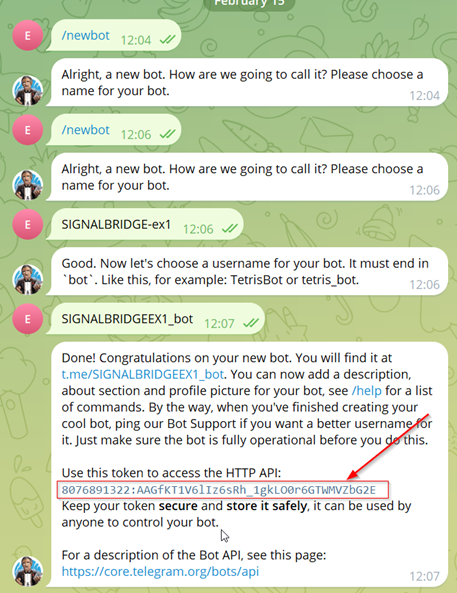
1.2 — Create the bot
Open Telegram and start a chat with @BotFather:
- Menu → /newbot
- Choose a name (e.g. mychannel) and a username ending in _bot (e.g. mychannel_bot)
- Copy the API token shown at the end (e.g. 1234567890:BBHeeTQYDprhrh1Cph2UBB7JKz6erSLWRqw ). You will paste it into the EA's Filters tab → Token.
1.3 — Add the bot to your channel as Administrator
Open the channel → Manage → Administrators → Add Administrator → search the bot username → grant Post Messages permission → Save.
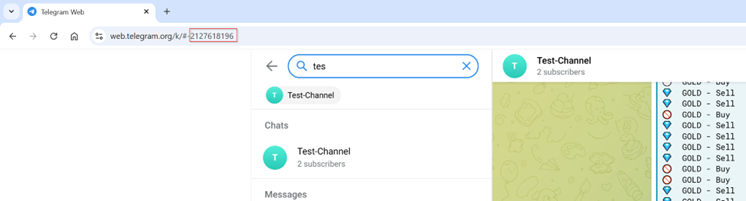
1.4 — Get the channel ID
Open https://web.telegram.org/, select the channel, and look at the URL. The trailing digits are your Chat ID. Example: in web.telegram.org/k/#-2429693223 the channel ID is 2429693223. Paste it into the EA's Filters tab → Chat ID (with or without the leading minus / "-100" prefix — the EA accepts both).
2 — INSTALL SIGNAL BRIDGE IN MT4 / MT5
2.1 — Log in to the Market
In MetaTrader: Tools → Options → Community, enter your mql5.com credentials.

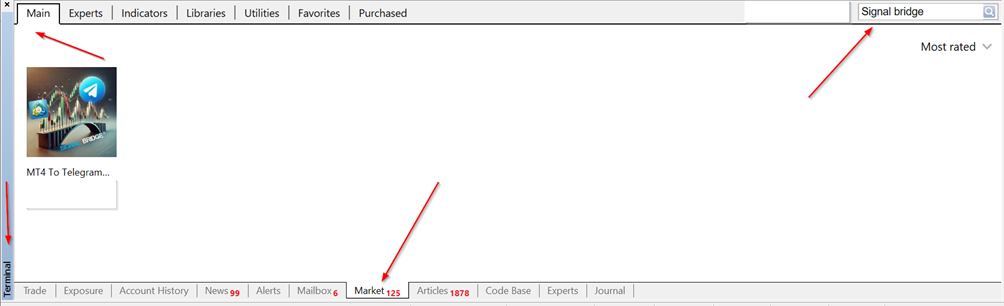
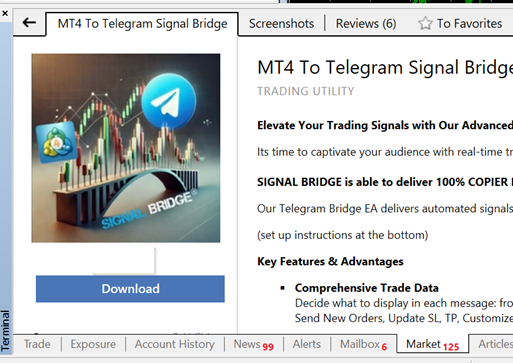
2.2 — Download Signal Bridge
Terminal → Market tab → search Signal Bridge (or go to Purchased if you already bought it) → Download.
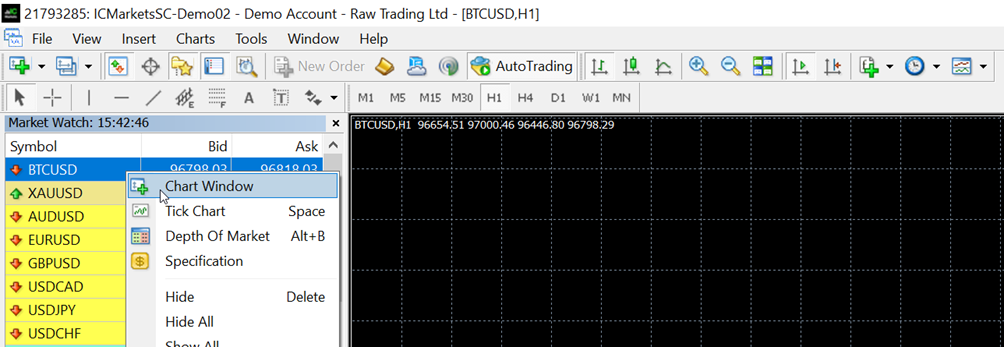
2.3 — Open a chart
We recommend BTCUSD because it runs 24/7 — this guarantees the EA receives ticks at weekends and can still send scheduled reports.
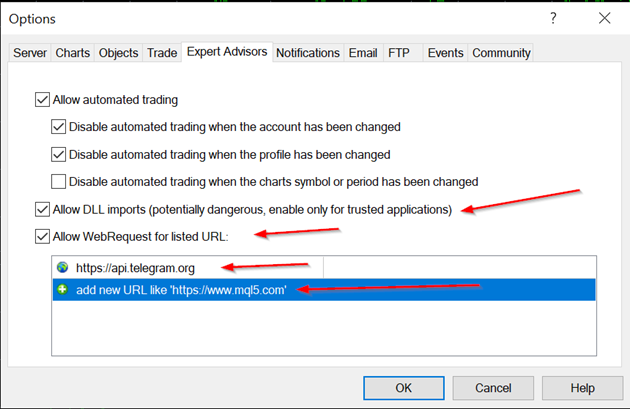
2.4 — Allow WebRequest to Telegram
Tools → Options → Expert Advisors → tick Allow WebRequest for listed URL → double‑click an empty row, type https://api.telegram.org , press Enter, OK.
2.5 — Activate AutoTrading
Click the AutoTrading button in the toolbar (it must show green / play icon).

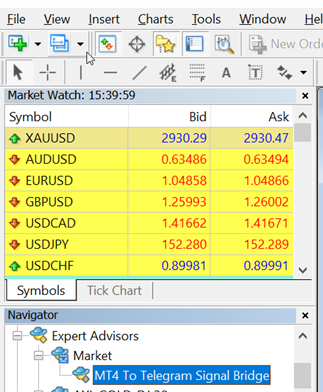
2.6 — Load the EA
Open the Navigator → Market section → double‑click or drag Signal Bridge onto the chart.
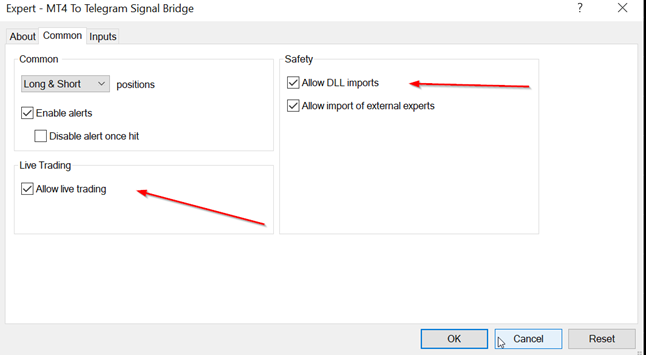
2.7 — In the EA properties dialog, tab Common: enable Allow DLL imports and Allow live trading, then OK.
3 — FIRST INITIALIZATION
- On first load the EA generates four default chart templates in Terminal\MQL4\Files (or \MQL5\Files for MT5) and saves a panel‑state file SignalBridge_panel.set .
- If Token and Chat ID are still empty, the EA starts fully inert: the panel shows a SETUP REQUIRED screen instead of the tabs, and no order scan, chart or Telegram message happens until both fields are filled in (see §5.2). Once you save the credentials, the tabs appear and only trades from that point on are tracked — trades open while the EA was in setup are treated as pre‑existing, not replayed in a burst.
- If trades are already open when you load the EA, a popup explains that, by default, those pre‑existing trades will not generate Telegram messages. You can change this in Filters → Message Filter → At EA startup (see §5.2).
- The on‑chart panel appears in the top‑left of the chart. All settings are configured directly on this panel — you no longer need to open the MT4/MT5 input dialog for daily use, although every input is still available there (right‑click chart → Expert Advisors → Properties → Inputs).
4 — THE ON‑CHART PANEL (OVERVIEW)
Signal Bridge v6.08 ships with a tabbed control panel rendered directly on the chart. It replaces the old grid of native MT4 inputs and lets you change any setting at runtime, with no recompile and no EA reload.
Every field you see in any Telegram message is fully customisable from the panel — or, for the advanced parameters, from the classic Properties dialog.
The panel has six tabs:
| Tab | Purpose |
|---|---|
| Main | Trigger a report on demand, see a live dashboard of the most important settings, and access maintenance actions (Regenerate Templates, Reset EA). |
| Filters | Telegram credentials, which orders qualify for broadcasting (StopLoss requirement, pre‑existing trades, magic/symbol filters), and risk‑calculation base. |
| Messages | Choose the message layout style and pick which fields appear in each Telegram message (pips, PnL, RR, lots, comment, duration…). Footer / channel branding. |
| Custom Msgs | Override the default close‑message text for each scenario (TP, TSL, SL, BE, manual, partial). Configure the «running trade update» that fires when a trade crosses a profit threshold. |
| Charts | Screenshot theme, template, timeframe, zoom, size, and when an image must be attached (with the signal / immediately after / never). |
| Reports | Global report config (what to show in any report) plus the daily and weekly schedules. |
Bidirectional sync. Every change you make on the panel is persisted within ~1 second to MQL4\Files\SignalBridge_panel.set (or the MT5 equivalent). When the EA reloads it compares each stored value with the current input value: if the input was edited via the Properties dialog, the input wins; otherwise the panel value is restored. See §7 for details and how to migrate a configuration to another terminal.
Zoom. Two buttons (− / +) in the panel’s title bar scale the whole panel from 0.75× to 2.00×; the chosen zoom is saved and restored on restart.
Two field types. Single‑value fields (numbers, times, currency, Token, Chat ID…) are validated in place: an invalid entry shows a red inline error right under the field. Fields that hold a comma‑separated list, or a long free text, show a pencil icon and a blue clickable label — click the label to open a full editor overlay (see §5.2, §5.4 and §5.6).
5 — TAB REFERENCE
5.1 — Main
The Main tab is split in three blocks.
SEND REPORTS NOW — manual, one‑click report sending. Pick a Type, decide whether to include currently open trades, then click Daily, Weekly or Custom.
| Control | Description |
|---|---|
| Type | Which aggregation to use: By Trade (one row per ticket), By Pair (sum per symbol), By Day (sum per calendar day), Win/Lose (counts of winning, losing and breakeven trades), By Magic (sum per magic number). |
| Open Trades? | Whether to append currently open positions at the bottom of the report. |
| Send Daily | Sends a report for the current calendar day. |
| Send Weekly | Sends a report for the current calendar week. |
| Send Custom | Sends a report for the date range defined in Start / End below, with the optional Title. |
| For [Custom] use: Start / End | Date range for the custom report, format YYYY.MM.DD. |
| Title | Free‑text title prepended to the custom report (e.g. "January Report"). |
Tip: before sending a long report load the full account history (Terminal → Account History tab → right‑click → All History), otherwise older trades will be missing.
MAIN SETTINGS — read‑only dashboard. Shows at a glance the current value of nine key settings so you can verify the EA is configured the way you expect. Each row reflects a setting that lives on another tab; to change a value, open the corresponding tab.
| Row | Mirrors | Example value |
|---|---|---|
| Mode | Filters → Message Filter → Events | All events / Open & Close only / Off (reports only) / Close only (no reply) / All, skip trailing SL |
| Risk Base | Filters → Risk → Calc Risk on | Account Balance |
| Break‑Even | Filters → Risk → BE tolerance (pips) | +/-3 pips |
| Message Style | Messages → Layout → Style | Signal Bridge Classic |
| Update msg at | Custom Msgs → Running Trade Update → Threshold | 1.0% |
| Custom Msg on close | Custom Msgs → Close Messages → Active | Active ON |
| Chart Style | Charts → Chart Theme → Theme | Blue |
| Daily Report Sched | Reports → Daily Schedule → Active | OFF |
| Weekly Report Sched | Reports → Weekly Schedule → Active | OFF |
MAINTENANCE
| Button | Description |
|---|---|
| Regenerate Templates | Re‑creates the four built‑in chart templates in Files\ (Blue, Grey, Black, White). Use it if a template file got deleted or corrupted. |
| Reset EA | Full «forget everything»: clears the in‑memory session buffers and the status CSV, wipes the persisted panel state, and restarts the EA from a clean slate. Every order that was already open before the reset is ignored from then on (no NEW, no tracking, no CLOSE for it) — only orders opened after the reset are handled. Useful when troubleshooting; do not use it routinely — you will lose every customisation that was not saved to a .set preset. |
5.2 — Filters
TELEGRAM — your bot credentials.
| Input | Description |
|---|---|
| Token | The bot API token from @BotFather. Paste it exactly as provided. |
| Chat ID | The numeric channel/chat ID. Can be entered with or without the leading - or -100 prefix. |
Until both fields are set, the panel shows a SETUP REQUIRED screen in place of the tabs and the EA is fully inert: no order scan, no chart, no Telegram message (see §3). Once saved, the credentials are stored in a separate, obfuscated local file rather than in clear text inside SignalBridge_panel.set .
MESSAGE FILTER — defines which events generate Telegram traffic. Split into three logical sub‑blocks.
| Input | Description |
|---|---|
| What to send | |
| Events | All events (open, close, partial, SL/TP modification, pending, cancel, activation, updates) · Open & Close only (skip the noise — no SL/TP edits, no updates) · Off (reports only) (the EA stays silent on trades and only sends scheduled reports) · Close only (no reply) (only CLOSED / PARTIAL messages, no NEW/ACTIVATED/CANCELLED/UPDATE, sent as standalone posts without reply threading; combine with Close only - skip losses to publish winners only) · All, skip trailing SL (everything as in All events, except the UPDATE messages produced by a trailing stop — see the box below). |
| About «All, skip trailing SL». Many EAs and traders use a trailing stop: the Stop Loss is moved again and again behind the price, sometimes every few seconds. In All events mode every one of those moves is a legitimate modification, so Signal Bridge posts an UPDATE for each of them — a single trade can easily generate 20‑30 messages before it closes, and the channel becomes unreadable. All, skip trailing SL keeps the channel clean while losing nothing important: an UPDATE is skipped only when the only change is the Stop Loss moved in the profit direction (up for a BUY, down for a SELL), i.e. a plain trailing step. Everything else is still posted: Take Profit changed, pending entry price changed, Stop Loss added or removed, Stop Loss moved against the trade (risk increased), and the first move of the Stop Loss to break‑even (or better) — that one is announced once, because «SL at BE» is a message your subscribers want. Break‑even is evaluated with the same BE tolerance (pips) used for close messages. The internal state of the trade is always kept up to date, so the final CLOSED message (pips, PnL, reason) is unaffected. Recommended for signal providers whose EAs trail the stop; leave All events if you want subscribers to mirror every SL move. | |
| Which orders qualify | |
| Require StopLoss | If ON, trades opened without a Stop Loss are ignored. Useful for signal providers who want to filter out manual scalps. |
| Late‑SL grace (sec) | How long the EA waits before deciding a trade has «no SL». Default 15 seconds — gives copiers time to attach a stop after the market order. |
| Pending → send at fill | If ON, pending orders do not generate a NEW message. Instead the EA waits for the pending to be filled and then publishes a market BUY/SELL. Recommended for copier‑driven channels where pending fills may diverge between provider and copier. |
| At EA startup | |
| Skip pre‑existing trades | If ON, trades already open when the EA starts are completely ignored (no NEW, no UPDATE, no CLOSE). If OFF, the EA picks them up — subject to the next setting. |
| Include if opened within (min) | Only when the previous switch is OFF. 0 = unlimited (every pre‑existing trade is picked up). N > 0 = only trades opened within the last N minutes from EA startup are picked up. |
RISK — how Signal Bridge computes the «risk %» and the «PnL %» you see in messages and reports.
| Input | Description |
|---|---|
| Calc Risk on | Account Balance (default) · Account Equity · Custom Balance (uses the value below). Pick Custom Balance when you want every percentage to reflect a fixed reference equity (e.g. the prop‑firm challenge starting equity). |
| Custom Balance | Reference equity used when Calc Risk on = Custom Balance. |
| Account currency | Currency symbol printed next to monetary values in messages and reports (e.g. $ , € , USD ). |
| Exclude Swap/Comm | If ON, swap and commission are excluded from PnL figures (cleaner numbers for marketing). |
| BE tolerance (pips) | Pip range around entry within which a trade is considered breakeven. Used by close messages («Trade closed at break‑even»), trade‑by‑trade reports, and win‑rate counting. |
| BE tolerance (%) | Same concept as above but expressed as a percentage of balance. Used for the By Day, By Pair and Win/Lose reports, where summing pips across XAUUSD and EURUSD would be meaningless. |
SYMBOL — broker‑specific symbol handling and final filters.
| Input | Description |
|---|---|
| Hide prefix | Prefix to strip from displayed symbol names (e.g. z if your broker uses zEURUSD ). |
| Hide suffix | Suffix to strip (e.g. .pro , m ). |
| Custom pips | Override pip calculation for specific symbols. Format: SYMBOL=digits , comma‑separated. Examples: XAUUSD=2,BTCUSD=-10 . Positive value = force that many digits. Negative value = divide the raw point delta by that absolute number (useful for BTC, indices, exotic CFDs). |
| Market text | Free‑text label shown next to the symbol in messages (e.g. "FX", "Crypto") — leave blank to hide. |
| Magic filter | Comma‑separated list of magic numbers to broadcast. Blank = no filter. Example: 12345,67890 . |
| Exclude magic | Comma‑separated list of magic numbers to always skip, applied after Magic filter. Blank = exclude none. |
| Symbol filter | Comma‑separated list of symbols to broadcast. Blank = all symbols. Example: EURUSD,XAUUSD,BTCUSD . |
| Exclude pairs | Comma‑separated list of symbols to always skip, applied after Symbol filter. Blank = exclude none. |
List field editor. Magic filter, Exclude magic, Symbol filter, Exclude pairs and Custom pips are list fields: click the blue label (pencil icon) to open an editor with 4 native boxes of 63 characters each — Ctrl+V works in every box — joined with commas for a combined limit of 252 characters. A value the terminal would cut at 63 characters inline is rejected instead of silently truncated; a value over 60 characters is shown on the panel as (N chars) - click label to edit .
5.3 — Messages
LAYOUT
| Input | Description |
|---|---|
| Style | Visual template used to format every Telegram message. Four built‑in layouts: Signal Bridge Classic (default, vertical with emoji icons), Tree View (grouped sections), Clean Minimal (no emoji, compact), Tabled View (monospace table). |
INCLUDE IN MESSAGES — toggle each piece of information on or off. Switches operate independently of each other — turn off anything you don't want to disclose to your audience.
| Toggle | Description |
|---|---|
| Emoji | Use emoji icons in the message header / event line. |
| Ticket # | Include the MT4/MT5 ticket number. |
| Pips | Show gained/lost pips. |
| PnL (%) | Show PnL as a percentage of the configured risk base (see Calc Risk on in §5.2). |
| RR | Show Risk:Reward on opening messages (requires both SL and TP to be set). |
| Close reason | Show why a trade closed (TP hit, SL hit, manual, TSL, BE…). |
| Line breaks | Insert blank lines between sections to make the message more readable. Turn off for a more compact layout. |
| Lots | Show the lot size. Strongly recommended ON if you use partial closes, because some copier services (e.g. TSC) cannot replicate partials without an absolute lot value. |
| PnL ($) | Show PnL in account currency. |
| Risk % | Show the estimated risk percentage on open messages (computed from SL distance × lot size / balance). |
| Order comment | Include the MT4/MT5 order comment field. |
| Duration | Show how long the trade stayed open (close messages only). |
FOOTER
| Input | Description |
|---|---|
| Channel name | Free text appended at the bottom of each message — usually your channel branding (e.g. "My VIP Channel"). |
| Show 'Signal Bridge' | Master switch for the «Signal Bridge - version» signature below the channel name. Highly appreciated by the developer if left ON :) |
| in New / Activated / Cancelled / Updates / Partial / Closed | Per‑event switches: independently decide which event types carry the footer. Default: footer ON for New, Partial and Closed; OFF for routine UPDATE / ACTIVATED / CANCELLED messages to avoid visual noise. |
Example of a NEW order message with every field enabled (Classic layout):
Signal Bridge tracks the whole life‑cycle of every trade. The opening message header reads «NEW ORDER» (pending activation still shows «ACTIVATED»). Beside NEW ORDER and CLOSED, every modification produces a dedicated update message:
- Pending order activation
- Pending order cancellation
- Entry / SL / TP modifications
- SL moved to break‑even
- SL trailed to lock profit (Trailing Stop)
5.4 — Custom Msgs
Override the default text used for each close scenario and configure the «trade in profit» update.
Full text editor. Click the blue label of any text field on this tab (or the pencil icon) to open a multiline editor overlay: arrow keys, Home/End (Ctrl+Home/End = start/end of text), Ctrl+A to select all, Enter = OK, Esc = cancel, click anywhere in the text to move the cursor. An on‑screen emoji keyboard inserts icons at the cursor. Since MQL cannot read the Windows clipboard, a separate Paste (Ctrl+V) here box plus an Insert button lets you paste text and drop it at the cursor position. The editor shows a live N / 250 chars counter (turns red and blocks OK past 250, the same limit applied when the message is actually sent) and offers OK / Cancel / Clear / Undo changes. Applied text is saved to the panel .set file in UTF‑8, so emoji and accented characters survive an EA restart.
CLOSE MESSAGES — replaces the generic close line with a scenario‑specific phrase. Enable with the master Active switch.
| Trigger | Description (default text) |
|---|---|
| TP hit | Trade closed at Take Profit. Default: "Booom!! Target price hit! Ready for the next round?" |
| TSL hit | Trade closed by a trailing stop that locked profit. Default: "Awesome! Our trailing stop locked our profit!" |
| SL hit | Trade closed at Stop Loss. Default: "SL hit! Let's bounce back on the next trade!!" |
| SL @ BE | Trade closed at breakeven (within the BE tolerance configured in §5.2). Default: "Trade closed at break‑even, let's seek a better opportunity!" |
| Manual profit | User manually closed the trade in profit. Default: "Awesome! Closed in good profit!" |
| Manual loss | User manually closed the trade in loss. Default: "Closed in loss, Let's bounce back on the next trade!!" |
PARTIAL CLOSE
| Trigger | Description (default text) |
|---|---|
| Partial profit | Partial close while trade is in profit. Default: "Awesome! We secured some profit, let's now wait for final TP!" |
| Partial BE | Partial close within BE tolerance. Default: "We closed part of the position at BE, let's now wait for final TP!" |
| Partial loss | Partial close while trade is in loss. Default: "We closed part of the position in Loss, let's now wait for final TP!" |
RUNNING TRADE UPDATE — pushes a marketing‑style update message when a still‑open trade reaches a profit threshold. The message fires only once per trade.
| Input | Description |
|---|---|
| Active | Master switch for the feature. |
| Mode | Send text + chart (full update with a screenshot) · Send text only (no screenshot — cheaper on CPU). |
| Trigger type | % on Balance (PnL as % of the risk base) · Pips (absolute pip count) · RR (trade has reached N times its initial risk — requires SL). |
| Threshold | The numeric value matching the trigger type (e.g. 1.00 with % on Balance = trigger at +1% on balance). |
| Message | Free‑text body of the update. Keep the text consistent with the threshold: if you trigger at 2%, write «has reached 2%» in the text. |
5.5 — Charts
Four built‑in colour themes plus full support for your own .tpl templates. Trade objects (SL, TP, close line) are drawn on top of the chart with configurable colours.
CHART THEME — visual styling of the screenshot.
| Input | Description |
|---|---|
| Theme | Blue (blue background, white/blue candles) · Grey (grey background, green/dark‑grey candles) · Black (black background, green/red candles) · White (white background, green/dark‑grey candles) · Custom template — uses the template name from the next field. |
| Template | Base name of your custom .tpl file (located in Terminal\templates\ ). Enter without the .tpl extension. Only used when Theme = Custom template. |
| Timeframe | Timeframe of the screenshot chart (M1, M5, M15, M30, H1, H4, D1, W1, MN). Pick a timeframe that visually shows your average SL/TP distance — e.g. M5 is wrong for a 100‑pip EURUSD trade. |
| Zoom | Zoom 0…5 (or Skip = no zoom step). 5 = maximum zoom (few candles, close‑up), 1 = minimum zoom (many candles, panoramic). 3–4 is the sweet spot for most users. |
SEND CHART FOR — per‑event control over when an image is attached. Each row has three options:
- With Signal msg — the chart is uploaded together with the text message (single Telegram post, slower).
- After Signal msg — the text is sent immediately; the chart follows as a reply a few seconds later (recommended on slow VPS).
- Don't send — no chart for this event.
| Row | Description |
|---|---|
| Pending | Behaviour for pending‑order NEW messages. |
| Market | Behaviour for market BUY/SELL NEW messages. |
| Partial | Behaviour for partial‑close messages. |
| Full close | Behaviour for full‑close messages. |
| Skip on negative | If ON, full‑close screenshots are skipped when the trade closed in loss. Pure marketing toggle — you decide. |
CHART SIZE
| Input | Description |
|---|---|
| Size mode | Fixed Size (W+H) — uses the explicit width and height below · Auto (H only) — width derived from chart aspect ratio. |
| Chart Width | Pixel width of the screenshot (used in Fixed Size mode). Default 1400. |
| Chart Height | Pixel height. Default 800. Telegram compresses very large images — 1080p is a good ceiling. |
5.6 — Reports
REPORTS CONFIG — global options applied to every report (manual, daily, weekly, custom).
| Input | Description |
|---|---|
| Strategy name | Optional label prepended to the report title (e.g. "Scalper EU"). |
| Show PnL ($) | Include monetary PnL. |
| Show Pips | Include pip totals. |
| Show WinRate | Show the win‑rate row. |
| Show Channel | Show the channel branding footer in reports. |
| Magic Include | Comma‑separated magics to include. Blank = include all. |
| Magic Exclude | Comma‑separated magics to exclude. Blank = exclude none. |
| Magic names | Optional aliases for magic numbers (format 123=Scalper,456=Swing ) — reports show the alias instead of the raw number. |
Magic names has 3 inputs. In the classic Properties → Inputs dialog, Magic names is split into three string inputs — MagicNumberNames («Magic Names 1/3»), MagicNumberNames_2 («Magic Names 2/3») and MagicNumberNames_3 («Magic Names 3/3»), each capped around 250 characters by the dialog itself — because a single field could not hold a long alias list. The EA joins the three with commas at runtime; on the panel they appear as one field. Magic names, Magic Include and Magic Exclude are all list fields: click the blue label to open the 4‑box editor described in §5.2 (252‑character combined limit).
DAILY SCHEDULE — one row per setting.
| Input | Description |
|---|---|
| Active | Master switch for the daily auto‑report. |
| Time HH:MM | Server time at which the report is sent each day (e.g. 09:00 ). |
| Style | Aggregation: Detailed by Trade (default), By Pair, By Day, Win/Lose, By Magic. |
| Skip empty | If ON, skip the send when no trades closed in the period. |
| Show open | If ON, include the list of still‑open positions at the bottom of the report. |
| Skip on loss | If ON, skip the send when the period's total PnL is negative. Marketing toggle. |
Catch‑up behaviour: if the terminal is busy exactly at the scheduled minute, the report is not lost — the EA sends it as soon as the current time is at or past the scheduled time.
WEEKLY SCHEDULE — same fields plus a day‑of‑week selector.
| Input | Description |
|---|---|
| Active | Master switch for the weekly auto‑report. |
| Day | Day of the week to send (Sunday…Saturday). Default Saturday. |
| Time HH:MM | Server time. Default 23:10. |
| Style | Aggregation. Default Result by Day. |
| Skip empty / Show open / Skip on loss | Same semantics as the daily block. |
6 — REPORT TYPES EXPLAINED
| Type | Layout | Best for |
|---|---|---|
| Detailed by Trade | One row per ticket: symbol, direction, lots, pips, PnL, close reason. | Daily reports for transparent signal channels. |
| By Pair | One row per symbol with aggregated pips and PnL. | Multi‑symbol portfolios where you want to see which instrument contributed most. |
| By Day | One row per calendar day with the day's net result. | Weekly and monthly reports. |
| Win/Lose | Three counters: winning, losing, breakeven trades, plus win‑rate. | Long‑period statistical recaps (monthly / quarterly). |
| By Magic | One row per magic number (or alias from Magic names). | Channels that broadcast multiple strategies in parallel and want to show each strategy's contribution separately. |
Examples — weekly Win/Lose recap on the left, daily By‑Pair report (with open trades) on the right:
If you hit a 400 Bad Request on long reports, the message has exceeded Telegram's 4096‑character limit — switch to a coarser type (By Day, Win/Lose) or narrow the date range.
7 — BIDIRECTIONAL UI ↔ INPUTS SYNC
From v6.08, the on‑chart panel and the MT4/MT5 input dialog stay in sync automatically.
- Every UI change is persisted to MQL4\Files\SignalBridge_panel.set (or MQL5\Files\ ) within ~1 second via the EA timer.
- The file uses the standard MetaTrader .set format and is valid as a regular preset.
- For each key K , the EA also writes a companion line K.in=<input value at save time> . On reload it compares K.in with the current input value: if they match, the EA applies the saved UI value (the user only touched the panel); if they differ, the input wins (the user edited the Properties dialog and that change must take priority).
- Booleans are serialised as true / false so the file Loads cleanly via MT4's standard Inputs → Load button.
- Since v6.13 the .set file is written in UTF‑8 (it was ANSI before), so emoji and accented characters typed into Custom Msgs texts or other free‑text fields survive an EA restart.
Migrating a configuration to another terminal: copy SignalBridge_panel.set into MQL4\Presets\ (or MQL5\Presets\ ) of the target terminal, then open the EA Properties → Load → select the file. MT4/MT5 will silently ignore the K.in= companion lines.
8 — PERFORMANCE TIPS
- VPS sizing: 8 GB RAM, quad‑core CPU, SSD, not over‑sold. The chart pipeline is the bottleneck.
- Slow host? Set every Send Chart for … to After Signal msg or Don't send. The text signal will always go out in <1 s.
- Process one message at a time is the safer default. Disable it only on real, dedicated hardware.
- Keep the EA on a single chart per terminal. Multiple EA instances pointed at the same channel will produce duplicate messages.
- Use BTCUSD (or any 24/7 instrument) as the host chart so the EA receives ticks at weekends and can still fire scheduled reports.
9 — ADVANCED INPUTS (CLASSIC PROPERTIES → INPUTS DIALOG ONLY)
These inputs are not on the on‑chart panel. They live only in the classic EA properties dialog. To open it: right‑click the chart → Expert Advisors → Properties → Inputs tab. Defaults are tuned for an average VPS — change them only if you have a specific reason.
Message timing
| Input | Default | Description |
|---|---|---|
| messageDelay | 0 | Artificial delay (seconds, 0–60) added before sending every message. Useful when you want to give your manual copiers a head start before the channel is notified. |
| delayBetweenMessages | 5 | Minimum seconds between two consecutive Telegram messages. Protects against Telegram's 429 Too Many Requests rate limit. Increase if you broadcast bursty signals (HFT, scalping). |
| TickSilenceThreshold | 5 | If no tick is received for N seconds, the EA switches from tick‑driven to timer‑driven processing so it can still publish updates and scheduled reports. Critical on crypto charts during the weekend gap. 0 = feature disabled. |
Chart pipeline timeouts — how long the EA waits at each step of the screenshot pipeline before declaring the step failed and skipping the screenshot. Increase every value on slow VPS.
| Input | Default | Description |
|---|---|---|
| timeoutOpenChart | 5 | Max seconds to open a new temporary chart. |
| timeoutWaitStable | 4 | Max seconds to wait for the new chart to stabilise (first tick received, history loaded). |
| timeoutApplyTemplate | 4 | Max seconds to apply the chart template (.tpl). |
| timeoutTradeObjects | 4 | Max seconds to draw the SL/TP rectangles and the entry‑to‑close trend line. |
| timeoutScreenshot | 4 | Max seconds to capture the .png file via ChartScreenShot() . |
Behaviour & housekeeping
| Input | Default | Description |
|---|---|---|
| ForceCloseChart | true | Auto‑close the temporary chart after the screenshot, even on error. Set to false on very slow VPS where forced close stalls the terminal. |
| ScreenshotCleanupInterval | 2 | Interval (minutes) at which the EA removes old .png files from Files\ . Keeps the disk tidy on long‑running terminals. |
| ProcessMessagesSerially | false | If true, the EA processes one message at a time in sequence (safer, lower CPU usage). If false (default for high‑perf VPS), multiple events can be processed in parallel — ideal for HFT strategies sending many signals per second. |
| UseTradeTransactions | true | MT5 only. Kill‑switch for the hybrid event‑driven trade detection introduced in 6.10: when true, OnTradeTransaction flags new deals and the EA reacts within ~1 second instead of waiting for the next tick on the host chart. Set to false to fall back to pure tick/timer polling. |
| RecoverInstantTrades | true | MT5 only. When true, trades opened and closed between two polling passes (which a pure polling loop would miss entirely) are reconstructed from the deal history so their NEW/CLOSED messages are still sent. |
Panel & logging
| Input | Default | Description |
|---|---|---|
| PanelPosition | TOP_RIGHT | Anchor of the on‑chart panel: TOP_LEFT, TOP_RIGHT, BOTTOM_LEFT, BOTTOM_RIGHT. |
| ShowMainSettingsonChart | true | Master switch for the entire on‑chart panel. Set to false if you prefer a clean chart and want to configure everything via the classic Inputs dialog. |
| CsvWriteIntervalSeconds | 15 | How often (seconds) the EA flushes its diagnostic CSV log to disk. Lower = more granular logs, higher disk I/O. Used mainly for support troubleshooting. |
10 — TELEGRAM ERROR HANDLING
Signal Bridge inspects every response from the Telegram Bot API. To protect the bot from being banned, after two consecutive failures the EA stops sending new messages; you'll need to remove and reload the EA to resume.
| Error / Status | Meaning | How to fix |
|---|---|---|
| 400 Bad Request: chat not found | Invalid Chat ID, or the bot is not a member/admin of the channel. |
|
| 400 Bad Request: reply message not found | The EA tried to reply to a message that no longer exists. |
|
| 400 Bad Request (other) | Malformed payload, invalid HTML, or message too long. |
|
| 401 Unauthorized | Bot token is wrong or revoked. |
|
| 403 Forbidden | Bot is blocked or lacks permissions in the channel. |
|
| 429 Too Many Requests | Telegram rate‑limit hit. |
|
| 5xx Server Error (500, 502, 503…) | Temporary Telegram server fault. |
|
11 — LINKS AND SUPPORT
- MT4 product page: www.mql5.com/en/market/product/131683
- MT5 product page: www.mql5.com/en/market/product/139969
- For support, use the Comments tab of the product page or the private message feature of mql5.com.
Thanks for using Signal Bridge — happy trading!


![[EURUSD]: Weekly Liquidity Activation Points (LAP), October 12-16, 2026](https://c.mql5.com/6/1035/splash-preview-777305.png "[EURUSD]: Weekly Liquidity Activation Points (LAP), October 12-16, 2026")
![[XAUUSD]: Weekly Liquidity Activation Points (LAP), October 12-16, 2026](https://c.mql5.com/6/1035/splash-preview-777299.png "[XAUUSD]: Weekly Liquidity Activation Points (LAP), October 12-16, 2026")
![[Nasdaq]: Weekly Liquidity Activation Points (LAP), October 12-16, 2026](https://c.mql5.com/6/1035/splash-preview-777311.png "[Nasdaq]: Weekly Liquidity Activation Points (LAP), October 12-16, 2026")