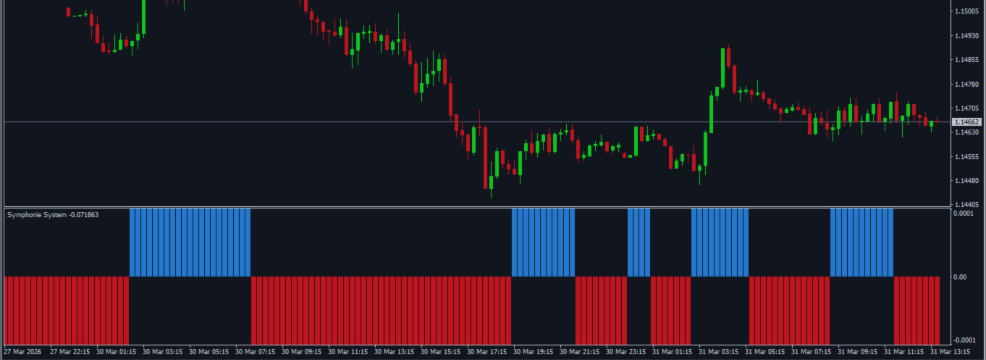

MT4 Version: Symphonie System MT4
MT5 Version: Symphonie System MT5
Complete User Documentation — MT4 & MT5
1. OVERVIEW
The Symphonie System is an advanced indicator for MetaTrader that synthesizes various market sentiment indicators to provide traders with clear signals. By analyzing trends, emotions, and market extremes across multiple timeframes, it helps traders make informed decisions. This tool addresses the challenge of identifying market direction effectively.
Who Should Use It: Retail forex traders seeking to enhance their market analysis and improve trade accuracy.
Main Benefit: The Symphonie System empowers traders with precise signals, enabling them to align their trades with prevailing market trends.
2. INPUT PARAMETERS & SETTINGS
This product shares a common set of general input settings with all Indicator products in this series. The following sections are covered in the common guide: Alert Settings (popup alert, push notification, email alert) and Display Settings (arrow size, colors). For full details refer to the Common General Input Settings Guide. The sections below cover only the product-specific inputs unique to this product.
Indicator Settings
This section outlines the specific settings available for the Symphonie System indicator, allowing customization of its appearance and functionality.
| Setting Name | Type | Default Value | Description | Example |
|---|---|---|---|---|
| Symphonie Period | int | 12 | Defines the period used for calculating the indicator, influencing the sensitivity of signals. Adjusting this can help capture different market dynamics. | 10 - Use a shorter period for more frequent signals in a volatile market. |
| Line Color | color | clrBlack | Sets the color of the main indicator line, allowing for better visibility against different chart backgrounds. A distinct color helps in quick signal recognition. | clrGreen - Choose this for enhanced visibility on dark backgrounds. |
| Up Color | color | clrDodgerBlue | Determines the color of the histogram bars indicating upward trends, facilitating quick visual analysis of bullish momentum. | clrLime - Use this for a more vibrant representation of upward movement. |
| Down Color | color | clrRed | Sets the color for histogram bars representing downward trends, aiding in the swift identification of bearish conditions. | clrOrange - Opt for this color to differentiate from other indicators. |
| Line Width | int | 4 | Adjusts the thickness of the indicator lines, which can enhance visibility on various chart types and personal preferences. | 2 - Use a thinner line for a cleaner look on crowded charts. |
| Show Copyright Info | bool | true | Enables or disables the display of copyright information on the chart, which can be useful for branding and recognition. | false - Turn this off for a cleaner chart without distractions. |
3. HOW IT WORKS
Core Calculation & Logic
The Symphonie System indicator combines multiple market analysis tools to assess sentiment, trends, and emotional extremes across various timeframes. It utilizes mathematical calculations to generate signals that help traders identify potential market movements.
This indicator evaluates market conditions by analyzing price action and volume, allowing traders to make informed decisions based on prevailing trends and sentiment shifts.
BUY and SELL Signal Conditions
BUY Signal — When does it appear? A BUY signal occurs when the indicator crosses above a specified threshold, indicating bullish market sentiment and potential upward movement.
SELL Signal — When does it appear? A SELL signal is generated when the indicator crosses below a certain threshold, suggesting bearish sentiment and potential downward movement.
Signal Confirmation: Traders will see a color change in the indicator lines, receive alerts, and can confirm signals through dashboard values for better decision-making.
Recommended Action: It is advisable to seek confirmation from higher timeframes and place stop-loss orders to manage risk effectively.
Step-by-Step Workflow
Step 1: Set Up the Indicator Install the Symphonie System indicator on your MetaTrader platform and add it to your chart.
Step 2: Adjust Settings Customize the indicator settings according to your trading strategy and preferences.
Step 3: Monitor Signals Observe the indicator for BUY and SELL signals based on the defined conditions.
Step 4: Confirm with Price Action Look for additional confirmation through price action and other technical indicators.
Step 5: Execute Trades Enter trades based on confirmed signals and manage them according to your risk management strategy.
4. USAGE TIPS & BEST PRACTICES
Utilizing the Symphonie System effectively requires understanding its settings and how they influence trading signals.
| Feature | Description |
|---|---|
| Symphonie Period | Defines the number of periods used for calculations, affecting signal sensitivity. Adjust for different trading styles. |
| Line Color | Sets the color of the main indicator line, allowing for customization to suit personal preferences. |
| Up Color | Color for bullish signals, helping traders quickly identify upward momentum in the market. |
| Down Color | Color for bearish signals, allowing traders to recognize downward trends efficiently. |
| Allow Alert | Enables alerts for signal generation, ensuring traders are notified of potential trading opportunities. |
Quick Start Guide
Follow these steps to get started in under 5 minutes:
- Download the Indicator: Obtain the Symphonie System from the MQL5 marketplace.
- Install the Indicator: Add the indicator to your MetaTrader platform.
- Open a Chart: Select a currency pair and timeframe for analysis.
- Apply the Indicator: Drag and drop the Symphonie System onto your chart.
- Adjust Settings: Modify the settings to fit your trading strategy.
- Monitor for Signals: Watch for BUY and SELL signals as indicated.
- Execute Trades: Enter trades based on confirmed signals and manage risk.
You may also be interested in these related products:
Installation Guide for MQL Products | Updating Purchased MQL Products on MT4/MT5 | General Troubleshooting Guide
Check all my products: https://www.mql5.com/en/users/biswait50/seller
Contact me for support: https://www.mql5.com/en/users/biswait50




