

How to Detect and Normalize Chart Objects in MQL5 (Part 4): Fully Automated Analytical Objects System
 2 050
2 050
 0
0

Contents
- The Need for Automatic Object Placement
- Adding an Automatic Placement Layer
- Step 1 – Swing Detection Utility (SwingDetector.mqh)
- Step 2 – Object Placer Utility (ObjectPlacer.mqh)
- Step 3 – Topology Manager (TopologyManager.mqh)
- Step 4 – Adaptive Trade Execution (AdaptiveTrade.mqh)
- Step 5 – Creating the Main Expert Advisor (AutoObjectTradingSystem.mq5)
- Testing and Validation
- Conclusion
- Attachments and Installation Summary
The Need for Automatic Object Placement
In the previous parts of this series, we built a robust pipeline to detect, normalize, and interact with manually drawn chart objects. Part 1 provided a base detector that enumerates all analytical objects on a chart. Part 2 extended it with complex data extraction for Fibonacci levels, channels, and pitchforks. Part 3 added an interaction layer, an alert manager, and a trade executor, turning static drawings into dynamic signals. However, the entire system still depends on the trader to manually draw every object. The EA can react to a pitchfork, but it cannot draw one itself when it identifies a suitable swing pattern.
Manual drawing is time‑consuming and inconsistent. A trader may spot a swing pattern and draw a pitchfork, but if they are away from the screen, the opportunity is missed. Moreover, the same trader might draw slightly different pitchforks at different times, leading to inconsistent signals. To overcome these limitations, we need the ability to programmatically create analytical objects based on market structure. This part of the series introduces automatic object placement: the EA will scan the chart for swing points and automatically draw pitchforks, trendlines, and support/resistance lines. These objects are then immediately monitored by the same interaction pipeline, generating alerts and trades without any human intervention.
We will also address the latency introduced by timer‑based polling. In Part 3, interactions are evaluated every two seconds. If an object is created or modified by the EA, it would not be detected until the next polling cycle. To solve this, the modular system uses a topology manager to refresh objects on demand. This ensures immediate responsiveness when an object is created, deleted, or modified. The combination of automatic placement and event‑driven updates makes the system fully autonomous and responsive.
Adding an Automatic Placement Layer
As the system grows, maintaining a single monolithic codebase becomes increasingly difficult. To address this, we transition to a modular architecture that separates concerns into distinct, reusable components. This approach not only improves code organization but also makes future enhancements significantly easier to implement.
The updated pipeline now consists of six core modules, organized into a clean modular architecture:
- Swing detection – CSwingDetector scans the chart and identifies swing highs and lows.
- Object placement – CObjectPlacer uses the swing list to draw pitchforks, trendlines, support/resistance, Fibonacci, and channels.
- Market data caching – CMarketDataCache efficiently stores price data to avoid redundant API calls.
- Signal evaluation – CSignalEvaluator analyzes price interactions with each analytical object.
- Topology management – CTopologyManager orchestrates object scanning, placement, and signal processing.
- Adaptive trade execution – ExecuteAdaptiveTrade() places orders with dynamic stop levels that work for any instrument.
This modular design means every object drawn by the EA is treated exactly like a manually drawn object. The trader can step away and let the EA find structures, draw them, and trade their interactions automatically. Each module is self-contained and can be replaced or extended independently.
The architecture separates concerns into clear layers:
- Common/ – Shared structures and global variables
- Helpers/ – Utility functions for math and object creation
- Core/ – Fundamental detection, placement, and evaluation logic
- Engine/ – Orchestration and management layer
- Execution/ – Trade execution with adaptive stops
Step 1 – Swing Detection Utility (SwingDetector.mqh)
Create a new file SwingDetector.mqh inside MQL5/Include/ChartObjectsAlgorithms-Part4/Core/. This file provides a static class CSwingDetector with two public methods that check whether a given bar forms a swing point. The SSwingPoint structure is defined in Common/Structures.mqh for reuse across modules.
The swing detection algorithm is simple: a bar is considered a swing high if its high is strictly higher than the highs of the surrounding MinSwingBars bars on both sides. The same logic applies for swing lows. This approach works well on clean charts and can be extended with more sophisticated methods in the future.
//+------------------------------------------------------------------+
//|                                                 SwingDetector.mqh |
//|                               Copyright 2026, Clemence Benjamin |
//|                                            https://www.mql5.com |
//+------------------------------------------------------------------+
#property copyright "Copyright 2026, Clemence Benjamin"
#property link      "https://www.mql5.com"

#include "../Common/Structures.mqh"
#include "../Helpers/MathHelpers.mqh"

//+------------------------------------------------------------------+
//| Class: CSwingDetector                                           |
//| Purpose: Detects swing highs and lows on the chart              |
//+------------------------------------------------------------------+
class CSwingDetector
  {
public:
//--- Checks if a bar forms a swing high
   static bool IsSwingHigh(int bar, int minBars = 3);

//--- Checks if a bar forms a swing low
   static bool IsSwingLow(int bar, int minBars = 3);

//--- Finds all swing points within a lookback range
   static void FindSwings(SSwingPoint &swings[], int lookback, int minBars);
  };
Understanding the Swing Detection Logic
The CSwingDetector class uses a simple but effective algorithm to identify swing points. The IsSwingHigh method checks if a bar's high price is greater than the highs of minBars bars on both sides. For example, with minBars = 3, a swing high must be higher than the previous 3 bars and the next 3 bars. Similarly, IsSwingLow checks if a bar's low is lower than surrounding bars.
The implementation uses cached price data from MathHelpers.mqh for optimal performance. Instead of calling iHigh() and iLow() for every bar in the lookback window (which would be very slow), the system preloads price data into memory arrays and reuses them for all swing detection checks.
The FindSwings method scans bars from (lookback - 1) down to minBars and stores swing points in an array. Each swing point stores its bar index, time, price, and type (high or low). This array serves as the foundation for all pattern recognition in the system.
//+------------------------------------------------------------------+
//| Checks if bar forms a swing high                                 |
//+------------------------------------------------------------------+
bool CSwingDetector::IsSwingHigh(int bar, int minBars)
  {
//--- Refresh price cache for speed
   RefreshPriceCache();
   if(bar >= ArraySize(g_highCache))
      return(false);

   for(int j = 1; j <= minBars; j++)
     {
      if(bar + j >= ArraySize(g_highCache) || bar - j < 0)
         return(false);
      if(g_highCache[bar] <= g_highCache[bar + j])
         return(false);
      if(g_highCache[bar] <= g_highCache[bar - j])
         return(false);
     }
   return(true);
  }
Implementation Details of IsSwingHigh
The IsSwingHigh method first refreshes the price cache to ensure it has the latest data. It then checks whether the bar index is within the cached array bounds. The method loops through j = 1 to minBars, comparing the high of the current bar with the highs of bars at bar+j (future) and bar-j (past). If any surrounding bar has a higher or equal high, the current bar is not a swing high. The method returns true only if all surrounding bars are lower.
The IsSwingLow method follows the same logic but uses low prices instead of highs. Both methods rely on the cached price arrays g_highCache and g_lowCache, which are loaded once per bar and reused for all swing detection checks. This approach is significantly faster than calling iHigh() and iLow() for each comparison.
Step 2 – Object Placer Utility (ObjectPlacer.mqh)
The CObjectPlacer class uses the swing detection to automatically draw analytical objects. It provides methods to place trendlines, support/resistance, Fibonacci, channels, and pitchforks. All drawings are created through helper functions in ObjectHelpers.mqh, ensuring consistency and reuse.
The file ObjectPlacer.mqh is placed in MQL5/Include/ChartObjectsAlgorithms-Part4/Core/.
//+------------------------------------------------------------------+
//|                                                ObjectPlacer.mqh |
//|                               Copyright 2026, Clemence Benjamin |
//|                                            https://www.mql5.com |
//+------------------------------------------------------------------+
#property copyright "Copyright 2026, Clemence Benjamin"
#property link      "https://www.mql5.com"

#include "../Common/Structures.mqh"
#include "../Helpers/ObjectHelpers.mqh"
#include "SwingDetector.mqh"

//+------------------------------------------------------------------+
//| Class: CObjectPlacer                                            |
//| Purpose: Automatically places analytical objects on the chart    |
//+------------------------------------------------------------------+
class CObjectPlacer
  {
private:
   long              m_chartId;      // chart identifier
   string            m_prefix;       // object name prefix
   int               m_maxObjects;   // maximum objects per type
   bool              m_debug;        // debug mode flag
   int               m_maxTotal;     // maximum total objects

public:
//--- Constructor
                    CObjectPlacer(long chartId, string prefix, int maxObjects,
                                  int maxTotal, bool debug);

//--- Places all enabled object types
   void              PlaceAll(int lookback, int minBars,
                              bool placeTrendlines, bool placeSR,
                              bool placeFibonacci, bool placeChannels,
                              bool placePitchforks);

//--- Cleans up old objects
   void              Cleanup();

private:
//--- Places trendlines connecting swing points
   void              PlaceTrendlines(int lookback, int minBars);

//--- Places support/resistance horizontal lines
   void              PlaceSupportResistance(int lookback, int minBars);

//--- Places Fibonacci retracements between swing points
   void              PlaceFibonacci(int lookback, int minBars);

//--- Places channels using three swing points
   void              PlaceChannels(int lookback, int minBars);

//--- Places pitchforks using three swing points
   void              PlacePitchforks(int lookback, int minBars);
  };
Understanding the Object Placer Architecture
The CObjectPlacer class is responsible for all automatic object placement. It maintains the chart ID, a naming prefix (so objects can be identified as auto-generated), and limits on the number of objects. The constructor initializes these values when the class is created.
The PlaceAll method is the main entry point. It checks whether the total object count is below the maximum, then calls each individual placement method based on the user's settings. This allows the trader to enable or disable specific object types. The Cleanup method removes old objects to prevent chart clutter.
Each placement method uses CSwingDetector::FindSwings to get swing points and then calls the appropriate creation function from ObjectHelpers.mqh. The methods are designed to place only the most significant objects by limiting the count to m_maxObjects.
//+------------------------------------------------------------------+
//| Places support/resistance horizontal lines                       |
//+------------------------------------------------------------------+
void CObjectPlacer::PlaceSupportResistance(int lookback, int minBars)
  {
//--- Get swing points
   SSwingPoint swings[];
   CSwingDetector::FindSwings(swings, lookback, minBars);

   if(ArraySize(swings) < 1)
      return;

   int count = 0;
   for(int i = 0; i < ArraySize(swings) && count < m_maxObjects; i++)
     {
      if(swings[i].isHigh)
        {
         string name = m_prefix + "Res_" + IntegerToString(TimeCurrent()) + "_" + IntegerToString(count);
         if(CreateHorizontalLineObject(m_chartId, name, swings[i].price, clrRed))
            count++;
        }
      else
        {
         string name = m_prefix + "Sup_" + IntegerToString(TimeCurrent()) + "_" + IntegerToString(count);
         if(CreateHorizontalLineObject(m_chartId, name, swings[i].price, clrGreen))
            count++;
        }
     }
  }
Implementation Details of Support/Resistance Placement
The PlaceSupportResistance method creates horizontal support and resistance levels at each swing point. It first obtains the list of swing points using CSwingDetector::FindSwings. If no swing points are found, the method returns early.
The method then iterates through the swing points, creating a resistance level (red line) at each swing high and a support level (green line) at each swing low. Each object receives a unique name containing a timestamp to prevent conflicts. The count variable ensures we don't exceed the maximum number of SR levels per type.
The horizontal lines are created using CreateHorizontalLineObject from ObjectHelpers.mqh, which handles the actual object creation with consistent styling. This separation ensures that styling changes only need to be made in one place.
Step 3 – Topology Manager (TopologyManager.mqh)
The CTopologyManager is the central orchestrator that binds all modules together. It manages the object placer, market data cache, and signal evaluators. This class handles the complete workflow:
- Place objects using CObjectPlacer
- Refresh the object list and create evaluators
- Process price interactions and generate signals
The file TopologyManager.mqh is placed in MQL5/Include/ChartObjectsAlgorithms-Part4/Engine/.
//+------------------------------------------------------------------+
//|                                             TopologyManager.mqh |
//|                               Copyright 2026, Clemence Benjamin |
//|                                            https://www.mql5.com |
//+------------------------------------------------------------------+
#property copyright "Copyright 2026, Clemence Benjamin"
#property link      "https://www.mql5.com"

#include "../Common/Structures.mqh"
#include "../Core/MarketCache.mqh"
#include "../Core/ObjectPlacer.mqh"
#include "../Core/SignalEvaluator.mqh"

//+------------------------------------------------------------------+
//| Class: CTopologyManager                                          |
//| Purpose: Orchestrates object placement, scanning, and signals    |
//+------------------------------------------------------------------+
class CTopologyManager
  {
private:
   long                     m_chartId;          // chart identifier
   CSignalEvaluator*       m_evaluators[];     // signal evaluators
   CMarketDataCache*        m_marketCache;      // market data cache
   CObjectPlacer*           m_objectPlacer;     // object placer
   datetime                 m_lastScan;         // last scan timestamp
   datetime                 m_lastPlacement;    // last placement timestamp
   int                      m_scanInterval;     // scan interval in seconds
   int                      m_placementInterval; // placement interval in seconds
   double                   m_touchThreshold;   // touch threshold in pips
   double                   m_slMultiplier;     // stop loss multiplier
   double                   m_tpMultiplier;     // take profit multiplier
   int                      m_evaluatorCount;   // number of active evaluators

public:
//--- Constructor
                    CTopologyManager(long chartId, int scanInterval, int placementInterval,
                                     double threshold, double slMult, double tpMult,
                                     int maxObjects, int maxTotal, bool debug);

//--- Destructor
                   ~CTopologyManager();

//--- Refreshes object list and creates evaluators
   void              RefreshObjects();

//--- Places objects based on swing detection
   void              PlaceObjects(int lookback, int minBars,
                                  bool placeTrendlines, bool placeSR,
                                  bool placeFibonacci, bool placeChannels,
                                  bool placePitchforks);

//--- Processes signals from all evaluators
   int               ProcessSignals(TradeSignal &signals[], int maxSignals);

//--- Prints topology statistics
   void              PrintStatistics();

private:
//--- Checks if object type is analytical
   bool              IsAnalyticalObject(ENUM_OBJECT type);

//--- Clears all evaluators
   void              ClearEvaluators();
  };
Understanding the Topology Manager
The CTopologyManager is the brain of the system. It orchestrates all other modules, coordinating their activities in the correct sequence. It maintains arrays of evaluators for all detected objects, and manages the lifecycle of objects and evaluators.
The constructor creates the market data cache and object placer. The destructor ensures all evaluators are properly deleted to prevent memory leaks. The RefreshObjects method scans the chart and creates evaluators for all analytical objects. It first checks whether enough time has elapsed since the last scan (throttled by m_scanInterval) to prevent excessive processing.
For each object on the chart, it checks if the object is analytical (trendline, horizontal line, Fibonacci, channel, or pitchfork). If so, it creates a CSignalEvaluator instance for that object and stores it in the evaluators array. The evaluator will later be used to detect price interactions with that specific object.
The PlaceObjects method throttles object placement to avoid excessive updates. It calls the object placer's Cleanup method to remove old objects, then PlaceAll to create new ones. The placement interval prevents the EA from redrawing objects too frequently, which would cause flickering.
The ProcessSignals method processes all evaluators and generates trading signals. It first refreshes the market data cache, then iterates through all evaluators. Each evaluator's AnalyzeSignal method is called with the current market snapshot. If a signal is generated and its confidence is above the minimum threshold (0.50), it's added to the output array.
Step 4 – Adaptive Trade Execution (AdaptiveTrade.mqh)
The ExecuteAdaptiveTrade function provides intelligent order placement that adapts to any instrument. It automatically calculates minimum stop distances based on the instrument's point value, spread, and user-defined multipliers. This ensures that the "Invalid stops" error is prevented on instruments like Boom 500 Index, Gold, Crypto, and Forex.
The file AdaptiveTrade.mqh is placed in MQL5/Include/ChartObjectsAlgorithms-Part4/Execution/.
//+------------------------------------------------------------------+
//|                                               AdaptiveTrade.mqh |
//|                               Copyright 2026, Clemence Benjamin |
//|                                            https://www.mql5.com |
//+------------------------------------------------------------------+
#property copyright "Copyright 2026, Clemence Benjamin"
#property link      "https://www.mql5.com"

#include "../Common/Structures.mqh"
#include "../Common/Globals.mqh"
#include <Trade/Trade.mqh>

//+------------------------------------------------------------------+
//| Executes adaptive trade - works for any instrument               |
//+------------------------------------------------------------------+
bool ExecuteAdaptiveTrade(TradeSignal &signal, double lotSize, int minStopPoints,
                         double slMultiplier, double tpMultiplier,
                         CTrade &trade, datetime &lastTradeTime, int tradeCooldown,
                         bool debug)
  {
//--- Get instrument properties
   double point = SymbolInfoDouble(_Symbol, SYMBOL_POINT);
   double spread = (SymbolInfoDouble(_Symbol, SYMBOL_ASK) - SymbolInfoDouble(_Symbol, SYMBOL_BID)) / point;

//--- Get current market prices
   double bid = SymbolInfoDouble(_Symbol, SYMBOL_BID);
   double ask = SymbolInfoDouble(_Symbol, SYMBOL_ASK);

//--- Calculate minimum stop distance
   int stopPoints = MathMax(minStopPoints, 50);

//--- Increase for Boom/Crash indices
   if(StringFind(_Symbol, "Boom") >= 0 || StringFind(_Symbol, "Crash") >= 0)
     {
      stopPoints = MathMax(stopPoints, 150);
     }

   double minStopDistance = stopPoints * point;
   minStopDistance += spread * point * 2;

//--- Determine entry price
   bool isBuy = (signal.orderType == ORDER_TYPE_BUY);
   double entry = isBuy ? ask : bid;

//--- Calculate SL and TP
   double sl = 0;
   double tp = 0;

   if(isBuy)
     {
      sl = entry - minStopDistance * slMultiplier;
      tp = entry + minStopDistance * tpMultiplier;

      if(sl >= entry)
         sl = entry - minStopDistance * 2;
      if(tp <= entry)
         tp = entry + minStopDistance * 3;
     }
   else
     {
      sl = entry + minStopDistance * slMultiplier;
      tp = entry - minStopDistance * tpMultiplier;

      if(sl <= entry)
         sl = entry + minStopDistance * 2;
      if(tp >= entry)
         tp = entry - minStopDistance * 3;
     }

//--- Ensure valid prices
   if(sl <= 0)
      sl = entry * 0.95;
   if(tp <= 0)
      tp = entry * 1.05;

//--- Debug logging
   if(debug)
     {
      Print("=== ADAPTIVE STOPS ===");
      PrintFormat("Symbol: %s, Point: %.5f", _Symbol, point);
      PrintFormat("Min Stop Points: %d, Min Distance: %.5f", stopPoints, minStopDistance);
      PrintFormat("Entry: %.5f, SL: %.5f, TP: %.5f", entry, sl, tp);
      PrintFormat("SL Dist: %.0f pts, TP Dist: %.0f pts",
                  MathAbs(entry - sl) / point, MathAbs(entry - tp) / point);
      Print("=======================");
     }

//--- Place order
   bool result = false;
   string comment = signal.reason;

   if(isBuy)
     {
      result = trade.Buy(lotSize, _Symbol, entry, sl, tp, comment);
     }
   else
     {
      result = trade.Sell(lotSize, _Symbol, entry, sl, tp, comment);
     }

   if(result)
     {
      lastTradeTime = TimeCurrent();
      if(debug)
         Print("Trade executed. Ticket: ", trade.ResultOrder());
     }
   else
     {
      if(debug)
        {
         Print("Trade failed: ", trade.ResultRetcodeDescription());
         Print("Error code: ", trade.ResultRetcode());
        }
     }

   return(result);
  }
Understanding Adaptive Trade Execution
The ExecuteAdaptiveTrade function is the key to making the system work on any instrument. It handles the critical task of placing orders with valid stop loss and take profit levels, adapting to each instrument's unique properties.
The function first retrieves the instrument's point value and calculates the current spread. The point value is the smallest price movement for the instrument (e.g., 0.00001 for EURUSD, 0.001 for USDJPY). The spread is measured in points. These values are essential for calculating valid stop and take profit levels.
The minimum stop distance is calculated based on minStopPoints and the point value. For Boom and Crash indices, it forces a larger minimum distance (150 points) because these instruments require wider stops due to their volatility. The spread is also added to ensure the stop is outside the spread.
For BUY orders, the stop loss is placed below the entry price, and the take profit is placed above. For SELL orders, the opposite applies. The multipliers (slMultiplier and tpMultiplier) control how far the stop and take profit are placed from entry.
The function includes safety checks to ensure the stop loss is always on the correct side of the entry and far enough away. If the calculated stop loss is too close or on the wrong side, it's automatically adjusted. Finally, the function places the order using the CTrade object. If successful, it updates the last trade timestamp. If it fails, it logs the error for debugging.
Step 5 – Creating the Main Expert Advisor (AutoObjectTradingSystem.mq5)
The main Expert Advisor combines all modules and demonstrates the complete workflow. To keep the EA organized and separate from standard MQL5 files, we place it in a dedicated subfolder: MQL5/Experts/ChartObjectsAlgorithms-Part4/.
The EA is broken down into several logical sections, each handling a specific responsibility.
Section 1 – Property Directives and Include Statements
The EA begins with standard property directives that define copyright, version, and compilation behavior. The include statements reference all modular files from the ChartObjectsAlgorithms-Part4 library using relative paths. This ensures the EA has access to all the core modules we built in the previous steps.
//+------------------------------------------------------------------+
//|                                     AutoObjectTradingSystem.mq5 |
//|                               Copyright 2026, Clemence Benjamin |
//|                                            https://www.mql5.com |
//+------------------------------------------------------------------+
#property copyright "Copyright 2026, Clemence Benjamin"
#property link      "https://www.mql5.com"
#property version   "5.00"
#property strict

//--- Include all modular files from the ChartObjectsAlgorithms-Part4 library
#include <Trade/Trade.mqh>
#include "../Include/ChartObjectsAlgorithms-Part4/Common/Structures.mqh"
#include "../Include/ChartObjectsAlgorithms-Part4/Common/Globals.mqh"
#include "../Include/ChartObjectsAlgorithms-Part4/Helpers/MathHelpers.mqh"
#include "../Include/ChartObjectsAlgorithms-Part4/Helpers/ObjectHelpers.mqh"
#include "../Include/ChartObjectsAlgorithms-Part4/Core/SwingDetector.mqh"
#include "../Include/ChartObjectsAlgorithms-Part4/Core/ObjectPlacer.mqh"
#include "../Include/ChartObjectsAlgorithms-Part4/Core/MarketCache.mqh"
#include "../Include/ChartObjectsAlgorithms-Part4/Core/SignalEvaluator.mqh"
#include "../Include/ChartObjectsAlgorithms-Part4/Engine/TopologyManager.mqh"
#include "../Include/ChartObjectsAlgorithms-Part4/Execution/AdaptiveTrade.mqh"
Section 2 – Input Parameters
Input parameters are organized into logical groups: risk management, object placement, trading settings, adaptive stops, and performance. Each input includes a descriptive comment that explains its purpose, making configuration intuitive without requiring source code analysis. The groups help users quickly find and adjust relevant settings.
//--- Input parameters
input group "--- Risk Management ---"
input double   InpLotSize           = 0.1;      // Lot size
input ulong    InpMagicNumber       = 888888;   // Magic number
input int      InpSlippage          = 10;       // Slippage in points

input group "--- Object Placement ---"
input int      InpScanInterval      = 10;       // Scan interval in seconds
input int      InpSwingLookback     = 50;       // Bars to scan for swings
input int      InpMinSwingBars      = 3;        // Bars on each side of swing
input bool     InpPlaceTrendlines   = true;     // Auto-place trendlines
input bool     InpPlaceSR           = true;     // Auto-place support/resistance
input bool     InpPlaceFibonacci    = true;     // Auto-place Fibonacci
input bool     InpPlaceChannels     = true;     // Auto-place channels
input bool     InpPlacePitchforks   = true;     // Auto-place pitchforks
input int      InpMaxObjectsPerType = 2;        // Max objects per type
input int      InpMaxObjectsTotal   = 15;       // Maximum total objects on chart

input group "--- Trading Settings ---"
input bool     InpEnableTrading     = true;     // Enable auto trading
input double   InpTouchThreshold    = 15.0;     // Touch threshold in pips
input int      InpMinConfidence     = 50;       // Minimum confidence (0-100)

input group "--- Adaptive Stops ---"
input double   InpSLMultiplier      = 3.0;      // SL distance multiplier
input double   InpTPMultiplier      = 5.0;      // TP distance multiplier
input int      InpMinStopPoints     = 100;      // Minimum stop distance in points

input group "--- Performance Settings ---"
input bool     InpEnableDebug       = false;    // Enable debug logging
input int      InpPlacementInterval = 30;       // Place objects every N seconds
input int      InpTradeCooldown     = 5;        // Seconds between trades
Section 3 – Global Objects and Variables
Global objects are declared to persist throughout the EA's lifetime. The CTrade object handles order execution, the CTopologyManager orchestrates the entire system, and the m_signals array stores detected trade signals. The m_lastTradeTime variable enforces a cooldown period between trades to prevent over-trading, which is essential for risk management.
//--- Global objects
CTrade                     m_trade;
CTopologyManager*          m_topologyManager = NULL;
TradeSignal                m_signals[];
datetime                   m_lastTradeTime = 0;
Section 4 – OnInit() – System Initialization
The OnInit function sets up the entire trading system. It first initializes cached values like the point value and digits, then caches the EMA values for trend detection. The trade object is configured with the magic number and slippage. The topology manager is created and configured with all parameters. Finally, initial objects are placed, a scan is performed, and a statistics summary is printed to the Experts log.
//+------------------------------------------------------------------+
//| Expert initialization function                                   |
//+------------------------------------------------------------------+
int OnInit()
  {
//--- Initialize cached values
   g_point = SymbolInfoDouble(_Symbol, SYMBOL_POINT);
   g_digits = (int)SymbolInfoInteger(_Symbol, SYMBOL_DIGITS);

//--- Initialize EMA cache
   GetEMA(20);
   GetEMA(50);

   m_trade.SetExpertMagicNumber(InpMagicNumber);
   m_trade.SetDeviationInPoints(InpSlippage);

   m_topologyManager = new CTopologyManager(
      ChartID(),
      InpScanInterval,
      InpPlacementInterval,
      InpTouchThreshold,
      InpSLMultiplier,
      InpTPMultiplier,
      InpMaxObjectsPerType,
      InpMaxObjectsTotal,
      InpEnableDebug
   );

   if(CheckPointer(m_topologyManager) == POINTER_INVALID)
     {
      Print("Failed to initialize topology manager");
      return(INIT_FAILED);
     }

//--- Initial placement
   m_topologyManager.PlaceObjects(InpSwingLookback, InpMinSwingBars,
                              InpPlaceTrendlines, InpPlaceSR,
                              InpPlaceFibonacci, InpPlaceChannels,
                              InpPlacePitchforks);
   m_topologyManager.RefreshObjects();
   m_topologyManager.PrintStatistics();

   Print("=== Auto Object Trading System v5.00 (MODULAR) ===");
   PrintFormat("Symbol: %s", _Symbol);
   PrintFormat("Point: %.5f, Digits: %d", g_point, g_digits);
   PrintFormat("Lot size: %.2f", InpLotSize);
   PrintFormat("Touch threshold: %.1f pips", InpTouchThreshold);
   PrintFormat("Min stop points: %d", InpMinStopPoints);
   PrintFormat("Scan interval: %d seconds", InpScanInterval);
   PrintFormat("Placement interval: %d seconds", InpPlacementInterval);
   PrintFormat("Max total objects: %d", InpMaxObjectsTotal);
   Print("===================================================");

   return(INIT_SUCCEEDED);
  }
Section 5 – OnDeinit() – Cleanup
When the EA is removed from the chart, OnDeinit releases all resources. It prints final statistics and deletes the topology manager to prevent memory leaks. Proper cleanup is essential in MQL5 to avoid memory issues, especially during extended testing sessions.
//+------------------------------------------------------------------+
//| Expert deinitialization function                                 |
//+------------------------------------------------------------------+
void OnDeinit(const int reason)
  {
   if(CheckPointer(m_topologyManager) == POINTER_DYNAMIC)
     {
      m_topologyManager.PrintStatistics();
      delete m_topologyManager;
     }

   Print("Auto Object Trading System deinitialized");
  }
Section 6 – OnChartEvent() – Real-time Object Updates
The OnChartEvent function monitors chart events for object changes. When a user creates, deletes, or modifies an analytical object, the topology manager refreshes its object list. This ensures the system always works with the latest chart state without requiring a full scan on every tick. This event-driven approach eliminates the latency problem identified in Part 3.
//+------------------------------------------------------------------+
//| Chart event handler                                              |
//+------------------------------------------------------------------+
void OnChartEvent(const int id, const long &lparam, const double &dparam, const string &sparam)
  {
   if(id == CHARTEVENT_OBJECT_CREATE ||
      id == CHARTEVENT_OBJECT_DELETE ||
      id == CHARTEVENT_OBJECT_CHANGE)
     {
      if(CheckPointer(m_topologyManager) != POINTER_INVALID)
         m_topologyManager.RefreshObjects();
     }
  }
Section 7 – OnTick() – Main Execution Loop
The OnTick function is the heart of the EA. It follows a clear sequence of steps: placing objects based on swing detection, refreshing the object list, checking for existing positions, enforcing trade cooldown, and processing signals. When valid signals are found, they are sorted by confidence and the best one is executed using the adaptive trade function. This throttled approach balances performance with responsiveness.
//+------------------------------------------------------------------+
//| Expert tick function                                             |
//+------------------------------------------------------------------+
void OnTick()
  {
   if(CheckPointer(m_topologyManager) == POINTER_INVALID)
      return;

//--- Place objects
   m_topologyManager.PlaceObjects(InpSwingLookback, InpMinSwingBars,
                              InpPlaceTrendlines, InpPlaceSR,
                              InpPlaceFibonacci, InpPlaceChannels,
                              InpPlacePitchforks);

//--- Refresh object list
   m_topologyManager.RefreshObjects();

//--- Check for existing positions
   if(PositionsTotal() > 0)
      return;

//--- Cooldown between trades
   if(TimeCurrent() - m_lastTradeTime < InpTradeCooldown)
      return;

//--- Process signals
   TradeSignal signals[];
   int signalCount = m_topologyManager.ProcessSignals(signals, 5);

   if(signalCount > 0 && InpEnableTrading)
     {
      //--- Sort by confidence
      int sortCount = MathMin(signalCount, 3);
      for(int i = 0; i < sortCount - 1; i++)
        {
         for(int j = i + 1; j < sortCount; j++)
           {
            if(signals[i].confidence < signals[j].confidence)
              {
               TradeSignal temp = signals[i];
               signals[i] = signals[j];
               signals[j] = temp;
              }
           }
        }

      TradeSignal signal = signals[0];
      if(signal.isValid && signal.confidence >= (double)InpMinConfidence / 100.0)
        {
         if(InpEnableDebug)
           {
            Print("=== SIGNAL GENERATED ===");
            PrintFormat("Object: %s | Type: %s", signal.objectName, ObjectTypeToString(signal.objectType));
            PrintFormat("Order: %s | Conf: %.0f%%",
                        (signal.orderType == ORDER_TYPE_BUY) ? "BUY" : "SELL",
                        signal.confidence * 100);
            PrintFormat("Entry: %.5f, SL: %.5f, TP: %.5f",
                        signal.entryPrice, signal.stopLoss, signal.takeProfit);
            Print("=========================");
           }

         //--- Execute with adaptive stops
         ExecuteAdaptiveTrade(signal, InpLotSize, InpMinStopPoints,
                              InpSLMultiplier, InpTPMultiplier,
                              m_trade, m_lastTradeTime, InpTradeCooldown,
                              InpEnableDebug);
        }
     }
  }
Detailed Walkthrough of the OnTick Execution Flow
When the OnTick function runs, it first checks whether the topology manager is valid. If not, it exits immediately to prevent errors. The EA then calls PlaceObjects, which analyzes the current swing structure and updates the chart with fresh analytical objects. This step ensures that the chart always reflects the most recent market structure, even as new swings form.
After placing objects, the EA refreshes the object list through RefreshObjects. This step scans the chart for analytical objects (manual and auto-generated) and creates a signal evaluator for each one. The evaluators are stored in memory and reused until the next scan, providing a balance between responsiveness and performance.
The EA then checks whether any positions are already open. If a position exists, the EA exits immediately to avoid placing multiple concurrent trades. This simple check prevents over-trading and ensures that only one trade is active at any time. The trade cooldown check adds another layer of protection by enforcing a minimum time interval between orders.
Finally, the EA processes signals from all evaluators. It collects up to five signals, sorts them by confidence, and selects the highest-confidence signal for execution. The ExecuteAdaptiveTrade function handles the actual order placement, calculating appropriate stop loss and take profit levels based on the instrument's properties. This entire sequence runs on every tick but is throttled by the scan and placement intervals to conserve CPU resources.
Testing and Validation
Compile all files and attach AutoObjectTradingSystem to a chart. The EA will automatically draw objects based on swing patterns detected on the chart.
With trading enabled, the EA will:
- Scan for swing points using CSwingDetector
- Place objects using CObjectPlacer
- Monitor interactions using CSignalEvaluator
- Execute trades using ExecuteAdaptiveTrade
The adaptive trade execution ensures that the system works on any instrument – Forex, Gold, Indices, Crypto, or Boom/Crash indices.
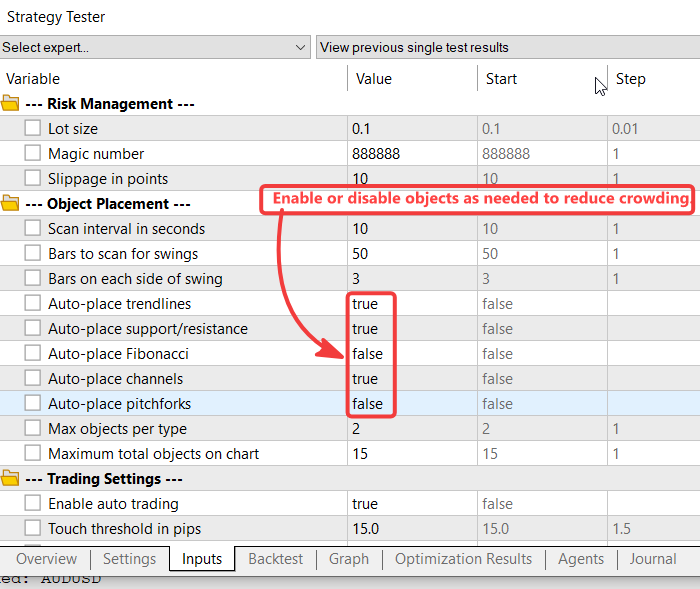
Fig. 1. Strategy Tester settings.
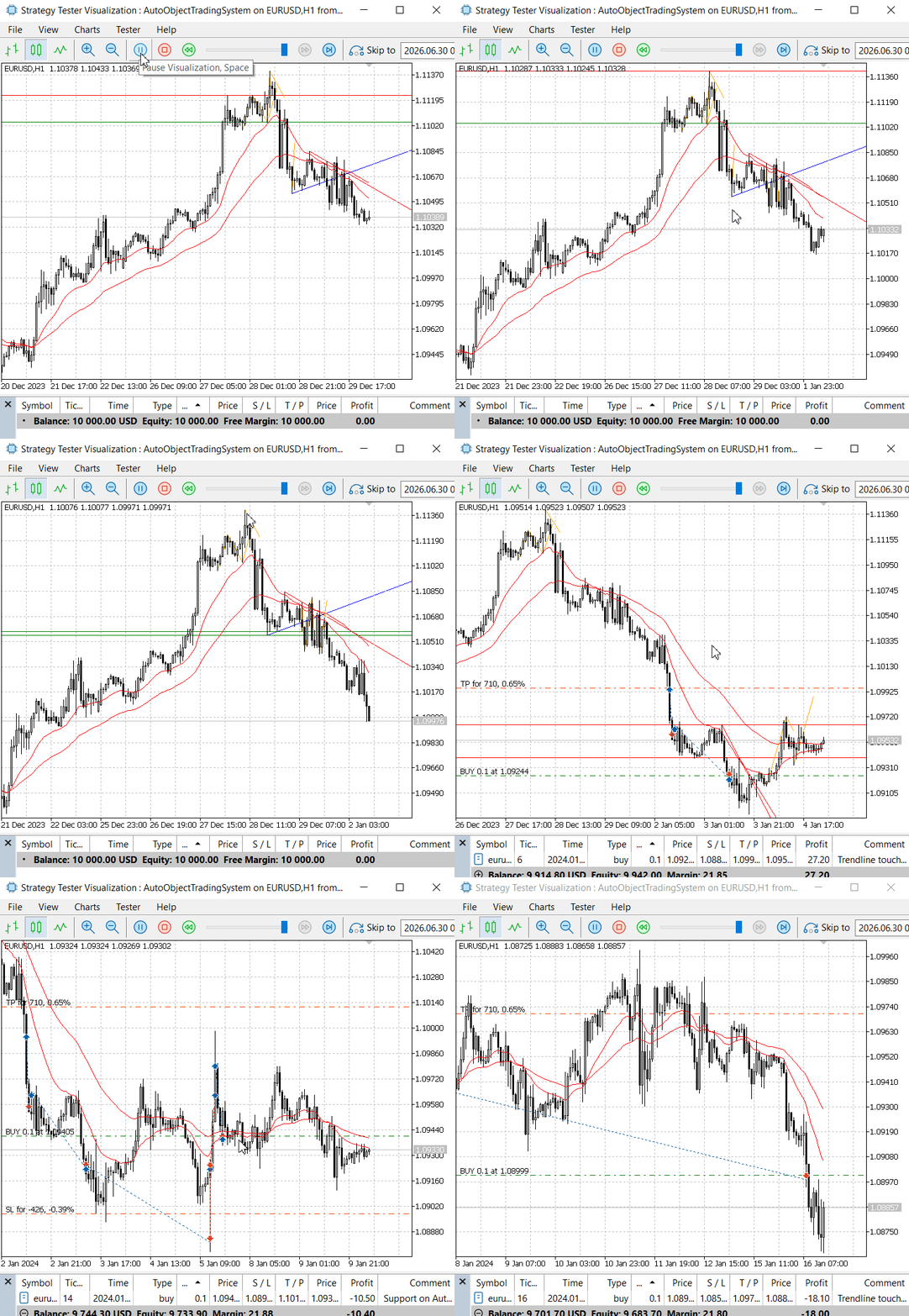
Fig. 2. Trendlines and AutoSR levels drawn by the EA on EURUSD H1.
Conclusion
We have closed the loop between manual and automated chart analysis with a clean, modular architecture. The EA can now discover market structure on its own, draw the appropriate analytical objects, and then use the same interaction pipeline to generate alerts and trades.
The modular design offers several key benefits:
- Separation of concerns – Each module has a single, well-defined responsibility
- Code reuse – Modules can be used in other projects
- Easier maintenance – Changes are isolated to specific modules
- Better testing – Each module can be tested independently
- Adaptability – The system works on any instrument
- Organized structure – Files are placed in logical folders for easy navigation
The topology manager ensures immediate responsiveness, while the auto‑placer leverages the existing normalization and trading infrastructure without any modification. This allows traders to mix manual and automatic drawings seamlessly, turning the entire chart into a dynamic, algorithmically monitored workspace.
Find the attached source code below. Happy trading, until our next article.
Attachments and Installation Summary
The following files are provided with this article. All files are organized in the modular structure described earlier under MQL5/Include/ChartObjectsAlgorithms-Part4/ and MQL5/Experts/ChartObjectsAlgorithms-Part4/.
Important: This modular system represents an advanced, well-organized approach to MQL5 development. It is completely self-contained and improves upon the earlier architecture by separating concerns into logical, reusable components.
| File Name | Type | Description |
|---|---|---|
| Structures.mqh | Include | Core data structures: SSwingPoint, MarketSnapshot, and TradeSignal. |
| Globals.mqh | Include | Cached global values for performance optimization (point, digits, EMAs, price cache). |
| MathHelpers.mqh | Include | Utility functions: GetEMA, GetLineValueAtTime, RefreshPriceCache, and ObjectTypeToString. |
| ObjectHelpers.mqh | Include | Object creation functions and CleanupObjectsWithPrefix for managing chart objects. |
| SwingDetector.mqh | Include | CSwingDetector class for identifying swing highs and lows on the chart. |
| ObjectPlacer.mqh | Include | CObjectPlacer class for automatic placement of trendlines, SR, Fibonacci, channels, and pitchforks. |
| MarketCache.mqh | Include | CMarketDataCache class for efficient price data caching. |
| SignalEvaluator.mqh | Include | CSignalEvaluator class for analyzing price interactions with analytical objects. |
| TopologyManager.mqh | Include | CTopologyManager class – orchestrates object placement, scanning, and signal processing. |
| AdaptiveTrade.mqh | Include | ExecuteAdaptiveTrade function for order placement that works on any instrument. |
| AutoObjectTradingSystem.mq5 | Expert Advisor | Main EA that integrates all modules into a complete trading system. |
| MQL5.zip | Archive | Complete archive with all files in their correct folder structure. Extract directly into your MQL5 folder. |
Installation steps:
- Download the MQL5.zip archive and extract it directly into your MetaTrader 5 installation folder (where the MQL5 folder is located). The archive already contains the correct folder structure, so you can simply merge it with your existing MQL5 folder.
- If you prefer to manually place the files, follow these sub‑steps:
- Place all .mqh files inside MQL5/Include/ChartObjectsAlgorithms-Part4/ maintaining the folder structure as shown below:
ChartObjectsAlgorithms-Part4/
├── Common/
│   ├── Structures.mqh      // SSwingPoint, MarketSnapshot, TradeSignal
│   └── Globals.mqh         // Global cached values
├── Helpers/
│   ├── MathHelpers.mqh    // GetEMA, GetLineValueAtTime, RefreshPriceCache
│   └── ObjectHelpers.mqh  // CreateObject functions, CleanupObjectsWithPrefix
├── Core/
│   ├── SwingDetector.mqh  // CSwingDetector class
│   ├── ObjectPlacer.mqh    // CObjectPlacer class
│   ├── MarketCache.mqh    // CMarketDataCache class
│   └── SignalEvaluator.mqh // CSignalEvaluator class
├── Engine/
│   └── TopologyManager.mqh // CTopologyManager class
└── Execution/
    └── AdaptiveTrade.mqh  // ExecuteAdaptiveTrade function
- Place AutoObjectTradingSystem.mq5 inside MQL5/Experts/ChartObjectsAlgorithms-Part4/.
- Compile all files (F7 in MetaEditor).
- Attach the EA to any chart. It will automatically draw objects and begin monitoring them.
- Observe the Experts tab for interaction logs and trade executions.
Warning: All rights to these materials are reserved by MetaQuotes Ltd. Copying or reprinting of these materials in whole or in part is prohibited.
This article was written by a user of the site and reflects their personal views. MetaQuotes Ltd is not responsible for the accuracy of the information presented, nor for any consequences resulting from the use of the solutions, strategies or recommendations described.


