

Building a Traditional Point and Figure Indicator in MQL5
 1 277
1 277
 3
3

Introduction
MetaTrader 5 does not provide a built-in Point and Figure chart, and traditional indicators are primarily designed around time-based price bars. This makes it difficult to study pure price movement without time distortion. To overcome this limitation, we will develop a custom Point and Figure indicator in MQL5 that uses a fixed box size and reversal logic to represent market structure more clearly, without relying on time-based candle formation.
The indicator will convert raw price data into structured X and O columns, making it useful for identifying trends, breakouts, support, resistance, and classic chart patterns. To achieve this, we will:
- determine a base price,
- build the Point and Figure structure,
- detect trend and reversals,
- set the indicator scale,
- render the chart in a separate window using MQL5 objects.
Project Overview and Implementation Plan
Before implementing the indicator programmatically in MQL5, it is helpful to define what we intend to build and how we plan to build it. Point and Figure charting's basic rationale is very different from traditional charting approaches because it is based on price movement rather than time progression. The implementation plan provides a roadmap that clarifies the steps and helps follow the development process. We will describe the indicator's general structure and divide the project into doable phases in this part.
What We Are Building
In contrast to traditional charting methods, Point and Figure charting treats price movement as the only relevant aspect. Instead of creating a new bar every minute, hour, or day, the chart doesn't change unless the price shifts by a predetermined box size. The resulting chart helps traders concentrate on the most significant price changes and provides a clearer picture of market direction by excluding periods of negligible movement.
A Point and Figure chart is made up of columns containing X's and O's. An X column represents rising prices, while an O column represents falling prices. As the market continues moving in the same direction, additional X's or O's are added to the current column. When the price reverses by a specified amount, known as the reversal amount, a new column is started in the opposite direction.
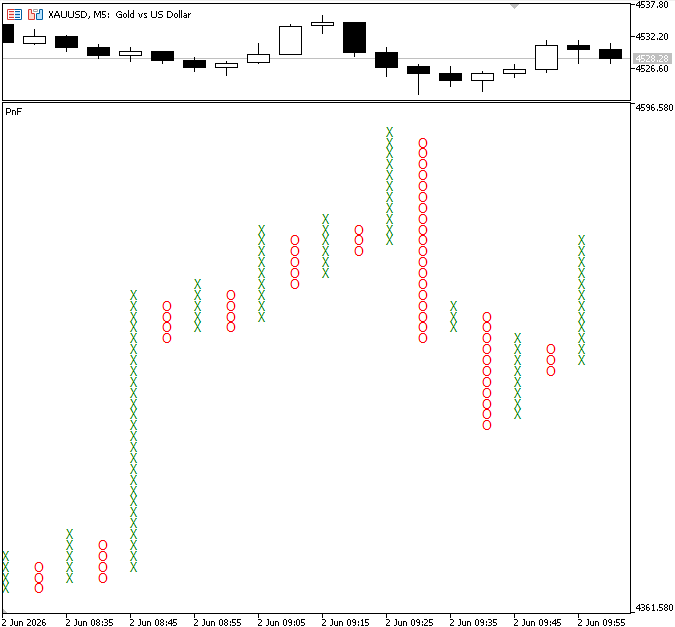
Take a basic example where the box size is 1.00 and the base price is set at 100.00. The difference between the closing price and the base price is 5.00 if a candle subsequently closes at 105.00. Five Xs are plotted on the chart because this price change equates to five completed boxes, each of which represents a movement of 1.00.
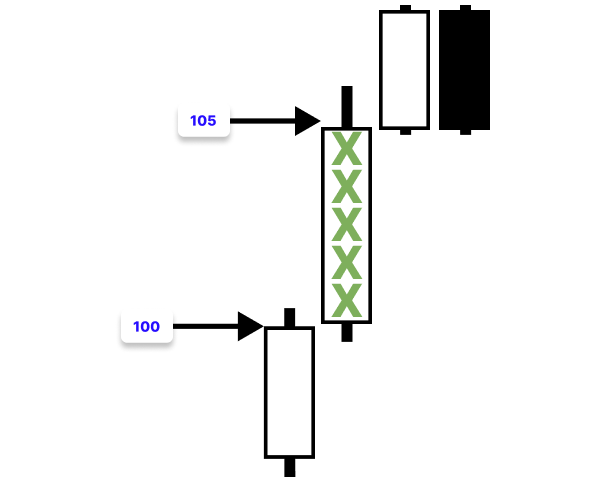
If the price later rises to 108.00, three additional X's are added because the price has moved through three more box intervals.
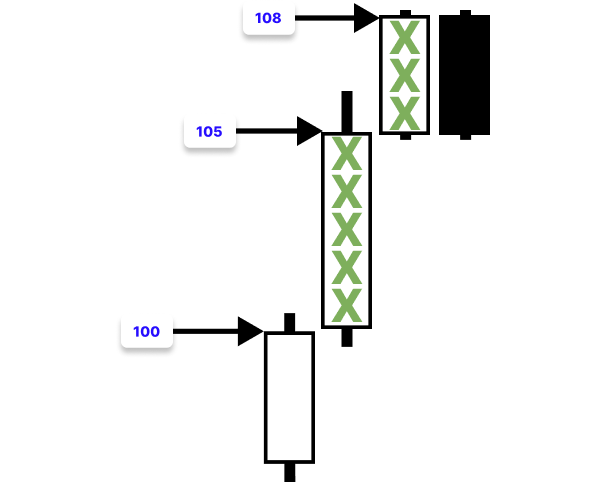
However, if the price begins to decline, we do not immediately switch to an O column. Instead, the price must reverse by a predefined number of boxes, such as three boxes, before a new O column is created.
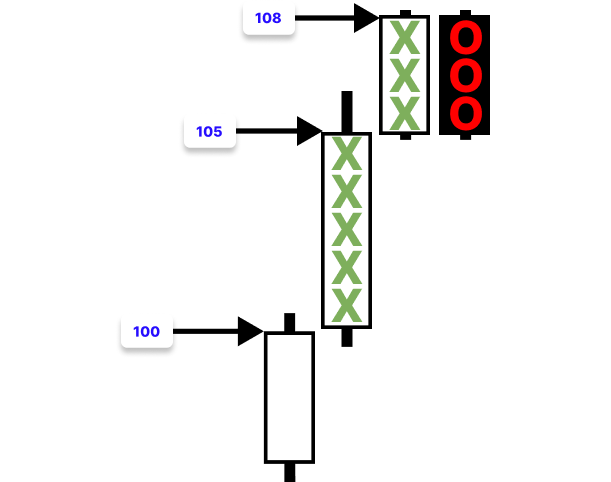
This method helps highlight large market changes by preventing minor price fluctuations from continuously altering the chart's layout.
By removing the impact of time and small market swings, Point and Figure charts provide a more straightforward depiction of price action. The resulting structure makes it simpler to examine trends, breakouts, and important market levels by highlighting the biggest swings. To do this, we will create a MetaTrader 5 indicator that converts prices into X/O columns and displays them in a separate indicator window.
Implementation Plan
A clear development process roadmap should be established before execution. This part will go over the process we'll take to create the Point and Figure indicator, from handling the raw price data to creating the finished chart.
Determining the Base Price:
In this step, we define the base price as the first available close. All subsequent movements are measured from it using the fixed box size.
Building the Point and Figure Data Structure:
We'll start by converting raw market prices into structured Point and Figure units that will form the foundation of our chart. We iterate through closes, compare each value with the latest PF level, and convert the difference into whole boxes using the fixed box size. Movements smaller than one box are ignored.
Determining Trend Direction and Reversals:
In this step, we define the trend logic and reversal rules that control how the structure reacts to price movement. First, we identify the direction of the latest price movement by comparing the current price change with the previous Point and Figure value. This allows us to classify the movement as either upward or downward. If this is our first time creating a trend, we start building the Point and Figure structure right away by adding the necessary amount of box movements in that direction after setting the initial trend based on the detected direction.
Once a trend is established, we add new Point and Figure values for each completed box period and continue to expand it whenever the price moves in the same way. We do not, however, quickly revert when the price moves against the existing trend. Rather, we use the conventional Point and Figure reversal criterion, which states that a reversal is only verified when the price moves at least three boxes in the opposite direction. We reverse the trend direction and start creating a new column in the other direction when this condition is satisfied.
Setting the Indicator Window Range:
In this step, we adjust the visible range of the indicator window so that the entire Point and Figure structure is properly displayed on the chart. To achieve this, we scan through all the Point and Figure values stored in our dataset and identify the highest and lowest price levels reached. These values define the natural boundaries of the PF structure.
After determining these extremes, we add a small buffer using the box size to slightly expand both the upper and lower limits. This prevents the chart from appearing too tight at the edges and ensures better visual clarity when displaying X and O formations. To enable MetaTrader 5 to automatically resize the indicator window, we finally apply these modified values to the indicator's scaling settings. Regardless of changes in the market, this guarantees that the entire Point and Figure structure is always visible and appropriately scaled.
Rendering the Point and Figure Chart on the Indicator Window:
In this final step, we convert all the processed Point and Figure data into a visible chart by drawing it directly on the indicator window using graphical objects. At this stage, we already have a complete series of Point and Figure values that represent market movement in structured form. Now, we loop through these values and determine how each point should be displayed as either an X for upward movement or an O for downward movement based on the direction of the trend.
We create or update a chart object and use time and price coordinates to properly place it for each Point and Figure value. For the X and O columns to visually align in a clear and readable structure, we also make sure that the symbols are spaced correctly. To keep column alignment, we adjust spacing before drawing to ensure uniform placement. Then we refresh the chart to display the newly created objects.
Implementation in MQL5
In this chapter, we will implement everything discussed in the previous sections in MQL5.
Determining the Base Price
As discussed in the implementation plan, the first step is to determine the base price.
Example:#property indicator_separate_window #property indicator_buffers 0 #property indicator_plots 0 //--- User input parameters input double InpPFSize = 1; // Box size (price movement per brick) input int InpNumPF = 100; // Maximum number of PF (Point and Figure) displayed input color InpUpColor = clrGreen; // Color for upward movement (X) input color InpDnColor = clrRed; // Color for downward movement (O) //--- Array storing Point & Figure prices double pfclose[]; //--- Current number of stored pf int pfSize = 0; //+------------------------------------------------------------------+ //| Custom indicator initialization function | //+------------------------------------------------------------------+ int OnInit() { //--- indicator buffers mapping //--- return(INIT_SUCCEEDED); } //+------------------------------------------------------------------+ //| Custom indicator iteration function | //+------------------------------------------------------------------+ int OnCalculate(const int32_t rates_total, const int32_t prev_calculated, const datetime &time[], const double &open[], const double &high[], const double &low[], const double &close[], const long &tick_volume[], const long &volume[], const int32_t &spread[]) { //--- Ensure enough data if(rates_total < InpNumPF + 2) return 0; //--- First run initialization if(prev_calculated == 0) { ArrayResize(pfclose, 1); pfclose[0] = close[0]; // base price pfSize = 1; } //--- return value of prev_calculated for next call return(rates_total); } //+------------------------------------------------------------------+
Explanation:
First, we indicate that the indicator will be shown beneath the main chart in a separate window. It is better to break or replace the connection: This is crucial because Point and Figure charts require a separate display area; they don't use the conventional candlestick format. Since we are not using traditional line or histogram indicators, we also deactivate the use of normal indicator buffers and plots. Rather, we will create and illustrate the Point and Figure structure by hand.
Next, we define the user input parameters. Box size is a key parameter: it defines the minimum move required to add one X or O. In this implementation, the box size is treated as a fixed price interval, not a percentage or indicator-based value. This means it directly represents how much the price must move before we register a new Point and Figure step. Every calculation in the system is based on this value through simple addition and subtraction as the price moves up or down.
Note:
The box size depends on the trading symbol because each market has different price scales and volatility levels, so a single fixed value cannot be applied universally across all instruments. For example, in EURUSD, a box size of 0.0010 represents 10 pips, meaning price must move at least 0.0010 before forming a new X or O. However, timeframe also plays an important role in how this box size behaves.
For example, 0.0010 may work on M5, but on W1 it can be too small and produce an overly dense Point and Figure chart. Because of this, it is generally better to adjust the box size to suit the timeframe being used for a more balanced and readable Point and Figure structure.
| Symbol | Suggested Box Size |
|---|---|
| EURUSD | 0.0010 (10 pips) |
| GBPUSD | 0.0010 (10 pips) |
| USDJPY | 0.10 (10 pips) |
| AUDUSD | 0.0010 (10 pips) |
| USDCAD | 0.0010 (10 pips) |
| XAUUSD | 5.0 |
The second parameter limits how many Point and Figure values will be stored and displayed, helping us control memory usage and chart clarity. We also define two colors, one for upward movement and one for downward movement, which will later be used to visually distinguish X and O formations. We then create an array that will store the processed Point and Figure values. This array is the core data structure that will hold the transformed price movements. Alongside it, we maintain a counter that tracks how many PF values have been generated so far. The main calculation function is where all processing begins whenever new market data is available. Before doing anything, we first check if there is enough historical data to work with.
This ensures the indicator does not attempt calculations on insufficient price history. On the first run of the indicator, we initialize the Point and Figure structure by resizing the storage array and assigning the very first closing price as the base price. This base price acts as the foundation for all future Point and Figure calculations. From this point onward, every price movement will be measured relative to it.
Building the Point and Figure Data Structure
This is the second stage in the implementation plan, where we focus on building the Point and Figure data.
Note:
We will highlight the specific code sections related to each implementation stage as we progress, ensuring each part is clearly understood on its own without mixing it with previously explained sections.
Example:
//+------------------------------------------------------------------+
//| Custom indicator iteration function                              |
//+------------------------------------------------------------------+
int OnCalculate(const int32_t rates_total,
                const int32_t prev_calculated,
                const datetime &time[],
                const double &open[],
                const double &high[],
                const double &low[],
                const double &close[],
                const long &tick_volume[],
                const long &volume[],
                const int32_t &spread[])
  {
//--- Ensure enough data
   if(rates_total < InpNumPF + 2)
      return 0;

//--- First run initialization
   if(prev_calculated == 0)
     {
      ArrayResize(pfclose, 1);
      pfclose[0] = close[0]; // base price
      pfSize = 1;
     }

//--- Set loop start index
   int start = (prev_calculated == 0) ? 1 : prev_calculated;

//--- Build Point & Figure data
   for(int i = start; i < rates_total; i++)
     {
      double price = close[i];
      double pf_size   = InpPFSize;

      double last = pfclose[0];
      double diff = price - last;

      int pf_no = (int)MathFloor(MathAbs(diff) / pf_size);

      if(pf_no <= 0)
         continue;
     }

//--- return value of prev_calculated for next call
   return(rates_total);
  }
Explanation:
We must determine the loop's proper starting point before creating the Point and Figure data. Since there are currently no history computations, we start from index 1 if the indicator is running for the first time. If not, we use prev_calculated to proceed from the last processed position. This improves speed because the indicator just updates the most recent data instead of reconstructing the full structure on each calculation cycle.
After establishing the correct starting point, we enter a loop that goes through all price data from the starting index up to the most recent bar. Inside this loop, we process each price step by step to build and update the Point and Figure structure based on new market movements. We take the current closing price from the chart data, which represents the latest market value at each step of the loop. This is the price we will use as the starting point for all comparisons at that moment. Next, we define the box size, which is the fixed price interval that determines how much movement is required to form a new Point and Figure unit. This value remains constant and is used throughout the calculations to convert raw price movement into structured X and O steps.
The program retrieves the last stored Point and Figure value from our data array. This represents the most recent confirmed level in our Point and Figure structure and acts as the reference point for measuring new price movement. We calculate the difference between the current market price and the last Point and Figure value. This difference tells us how far the price has moved away from the last confirmed PF level, and it becomes the basis for deciding how many box units should be added or whether no significant movement has occurred.
Next, the program takes the absolute value of the price difference so that we can measure movement regardless of direction, whether the price moves up or down. We then divide this movement by the box size, which tells us how many full price intervals have been completed. Since Point and Figure only counts complete boxes, we apply a floor operation to remove any fractional movement that does not reach a full box. The result is then converted into an integer, giving us the exact number of valid Point and Figure boxes formed by the current price movement.
Determining Trend Direction and Reversals
This is the third stage in the implementation plan, where we convert price movement into PF boxes and decide whether to continue the trend or reverse direction.
Example:
//--- Current trend direction (1 = up, -1 = down, 0 = none)
int trend  = 0;

//+------------------------------------------------------------------+
//| Add new PF value at beginning of array                           |
//+------------------------------------------------------------------+
void PF_Unshift(double value)
  {
   ArrayResize(pfclose, pfSize + 1);

//--- Shift existing values to the right
   for(int i = pfSize; i > 0; i--)
      pfclose[i] = pfclose[i - 1];

//--- Insert newest value at index 0
   pfclose[0] = value;

   pfSize++;
  }

//+------------------------------------------------------------------+
//| Remove oldest PF value from array                                |
//+------------------------------------------------------------------+
void pf_Pop()
  {
   if(pfSize > 0)
      pfSize--;
  }
Example:
//--- Build Point & Figure data
for(int i = start; i < rates_total; i++)
  {
   double price = close[i];
   double pf_size   = InpPFSize;

   double last = pfclose[0];
   double diff = price - last;

   int pf_no = (int)MathFloor(MathAbs(diff) / pf_size);

   if(pf_no <= 0)
      continue;
//--- Determine direction
   int direction = (diff > 0) ? 1 : -1;

//--- Initialize trend
   if(trend == 0)
     {
      trend = direction;

      for(int b = 0; b < pf_no; b++)
        {
         last += trend * pf_size;
         PF_Unshift(last);
        }
      continue;
     }

//--- Continue trend
   if(direction == trend)
     {
      for(int b = 0; b < pf_no; b++)
        {
         last += trend * pf_size;
         PF_Unshift(last);
        }
     }
//--- Reversal condition
   else
      if(pf_no >= 3)
        {
         trend = direction;

         for(int b = 0; b < pf_no; b++)
           {
            last += trend * pf_size;
            PF_Unshift(last);
           }
        }

//--- Limit PF size
   while(pfSize > InpNumPF)
      pf_Pop();
  }
Explanation:
Maintaining a time-ordered Point and Figure structure where the newest data is shown first is the goal of PF_Unshift(). The array size is first increased to accommodate a new element. To ensure that nothing is lost, all current values are then shifted one step to the right. The most recent market state is then updated by inserting the new PF value at index zero at the start of the array. To maintain consistency in the structure, the total PF count is then raised.
The pf_Pop() function limits memory usage by decreasing pfSize, effectively ignoring the oldest entries without shifting the array. After that, we determine the direction of the current price movement. This is done by checking whether the difference between the current price and the last Point and Figure value is positive or negative. If the price has increased, we assign an upward direction, and if it has decreased, we assign a downward direction. We then determine whether the trend has already been formed.
We start the trend using the current direction if this is the system's first run and there isn't a trend yet. After the trend is established, we iterate through the number of completed box units to begin creating the first Point and Figure structure. Depending on the direction of the trend, we add or remove the box size for each box to update the previous PF value. The updated value is then included in the structure. When the trend has already been formed, we evaluate if the current price movement is continuing in the same direction as the existing trend. If the direction reflects the existing trend, it suggests the market is still moving in the same trend phase without any reversal. In this case, after each box movement is finished, we add new Point and Figure values to continue building the structure.
Depending on the current trend state, we update the latest Point and Figure value for each box by moving it one step in the trend's direction, either upward or downward. The current column is then extended by inserting each new value into the structure. When the current price action contradicts the active trend, the system checks for a valid reversal setup. In Point and Figure methodology, a trend change is only confirmed if price moves at least three boxes in the opposite direction. Once this requirement is met, it indicates a meaningful shift in market pressure, and the trend state is updated to the new direction, replacing the previous one.
After the reversal is confirmed, we begin creating a new column in the opposite direction. For each completed box movement, we update the last Point and Figure value by moving it in the new trend direction and insert it into the structure. To manage memory and keep the structure within a controlled size, we enforce a limit on how many values are stored at any given time. After new values are added, we check whether the total number of stored PF entries has exceeded the user-defined maximum limit. If it has, we repeatedly remove the oldest values from the structure until the size is reduced to the allowed threshold.
Setting the Indicator Window Range
In this stage, we’ll dynamically adjust the indicator scale to ensure the entire Point and Figure structure is displayed clearly within the indicator window.
Example://--- Set indicator window range based on PF data if(prev_calculated == 0) { double maxPrice = 0; double minPrice = pfclose[0]; for(int i = 0; i < pfSize && i < InpNumPF; i++) { //--- Track maximum price if(pfclose[i] > maxPrice) maxPrice = pfclose[i]; //--- Track minimum price if(pfclose[i] < minPrice) minPrice = pfclose[i]; //--- Adjust indicator scale IndicatorSetDouble(INDICATOR_MAXIMUM, maxPrice + (InpPFSize * 2)); IndicatorSetDouble(INDICATOR_MINIMUM, minPrice - (InpPFSize * 2)); } }
Explanation:
This part is responsible for using the previously generated Point and Figure data to determine the indicator window's viewable range. To properly scale the chart, MetaTrader 5 must know the highest and lowest values that should be seen because the indicator is shown in a different window. The initial step in the process is to see if the indicator is operating for the first time. Since the structure has already been created and contains the numbers we wish to display, we only need to set the initial window range once.
We create two variables to store the highest and lowest Point and Figure values in the dataset to determine the proper range. Next, we compare each stored value to the current maximum and minimum values by iterating over them all. It becomes the new minimum whenever a lower value is discovered and the new maximum once a higher value is encountered. We have located the entire vertical range that the Point and Figure structure occupies by the end of the scan.
However, we add a tiny buffer above the highest value and below the lowest value to slightly increase the range rather than using these values directly. To ensure that the spacing naturally adjusts to the chart's scale, the buffer is computed using the box size. The indicator window is updated with these modified maximum and minimum values. This keeps the chart from appearing crushed against the top or bottom window bounds by enabling MetaTrader 5 to automatically scale the display so that all X and O forms fit comfortably inside the visible region.
Rendering the Point and Figure Chart on the Indicator Window
As discussed in the implementation plan, the final stage is where we visualize the processed Point and Figure data as X and O formations on a separate indicator chart.
Example:
//--- Prefix for all chart objects
string PREFIX;
//--- Indicator subwindow index
int indicator_window;

//+------------------------------------------------------------------+
//| Draw or update a Point & Figure                                  |
//+------------------------------------------------------------------+
void DrawBrick(int index, datetime time, double price, bool up)
  {
   string name = PREFIX + IntegerToString(index);

//--- Create object if it does not already exist
   if(ObjectFind(0, name) < 0)
      ObjectCreate(0, name, OBJ_TEXT, indicator_window, time, price);

//--- Set color based on direction
   ObjectSetInteger(0, name, OBJPROP_COLOR, up ? InpUpColor : InpDnColor);

//--- Set symbol (X or O)
   ObjectSetString(0, name, OBJPROP_TEXT, up ? "X" : "O");

//--- Move object to correct position
   ObjectMove(0, name, 0, time, price);
  }

//+------------------------------------------------------------------+
//| Custom indicator initialization function                         |
//+------------------------------------------------------------------+
int OnInit()
  {
//--- Set indicator name
   IndicatorSetString(INDICATOR_SHORTNAME, "PnF");

//--- Get indicator subwindow index
   indicator_window = ChartWindowFind(ChartID(), "PnF");

//--- Create unique prefix for objects
   PREFIX = "PF_" + EnumToString(_Period) + "_";

//---
   return(INIT_SUCCEEDED);
  }
Example:
//+------------------------------------------------------------------+
//| Custom indicator iteration function                              |
//+------------------------------------------------------------------+
int OnCalculate(const int32_t rates_total,
                const int32_t prev_calculated,
                const datetime &time[],
                const double &open[],
                const double &high[],
                const double &low[],
                const double &close[],
                const long &tick_volume[],
                const long &volume[],
                const int32_t &spread[])
  {
//--- Ensure enough data
   if(rates_total < InpNumPF + 2)
      return 0;
   bool need_redraw = false;
//--- First run initialization
   if(prev_calculated == 0)
     {
      ArrayResize(pfclose, 1);
      pfclose[0] = close[0]; // base price
      pfSize = 1;
     }

//--- Set loop start index
   int start = (prev_calculated == 0) ? 1 : prev_calculated;

//--- Build Point & Figure data
   for(int i = start; i < rates_total; i++)
     {
      double price = close[i];
      double pf_size   = InpPFSize;

      double last = pfclose[0];
      double diff = price - last;

      int pf_no = (int)MathFloor(MathAbs(diff) / pf_size);

      if(pf_no <= 0)
         continue;
      //--- Determine direction
      int direction = (diff > 0) ? 1 : -1;

      //--- Initialize trend
      if(trend == 0)
        {
         trend = direction;

         for(int b = 0; b < pf_no; b++)
           {
            last += trend * pf_size;
            PF_Unshift(last);
            need_redraw = true;
           }
         continue;
        }

      //--- Continue trend
      if(direction == trend)
        {
         for(int b = 0; b < pf_no; b++)
           {
            last += trend * pf_size;
            PF_Unshift(last);
            need_redraw = true;
           }
        }
      //--- Reversal condition
      else
         if(pf_no >= 3)
           {
            trend = direction;

            for(int b = 0; b < pf_no; b++)
              {
               last += trend * pf_size;
               PF_Unshift(last);
               need_redraw = true;
              }
           }

      //--- Limit PF size
      while(pfSize > InpNumPF)
         pf_Pop();
     }

//--- Drawing section
   int shift = 1;
   datetime t2 = iTime(_Symbol, PERIOD_CURRENT, shift);

//--- Set indicator window range based on PF data
   if(need_redraw || prev_calculated == 0)
     {
      double maxPrice = 0;
      double minPrice = pfclose[0];

      for(int i = 0; i < pfSize && i < InpNumPF; i++)
        {
         //--- Track maximum price
         if(pfclose[i] > maxPrice)
            maxPrice = pfclose[i];

         //--- Track minimum price
         if(pfclose[i] < minPrice)
            minPrice = pfclose[i];

         //--- Adjust indicator scale
         IndicatorSetDouble(INDICATOR_MAXIMUM, maxPrice + (InpPFSize * 2));
         IndicatorSetDouble(INDICATOR_MINIMUM, minPrice - (InpPFSize * 2));

         //--- Adjust spacing alignment
         if(i - 1 >= 1 && i + 1 < pfSize && i + 1 < InpNumPF
            && pfclose[i + 1] == pfclose[i - 1])
           {
            shift++;
           }

         t2 = iTime(_Symbol, _Period, shift);

         //--- Determine upward movement
         bool up = (i + 1 < pfSize && i + 1 < InpNumPF
                    && pfclose[i] > pfclose[i + 1]);

         DrawBrick(i, t2, pfclose[i], up);
        }

      //--- Refresh chart
      ChartRedraw(0);
     }
//--- return value of prev_calculated for next call
   return(rates_total);
  }
Output:
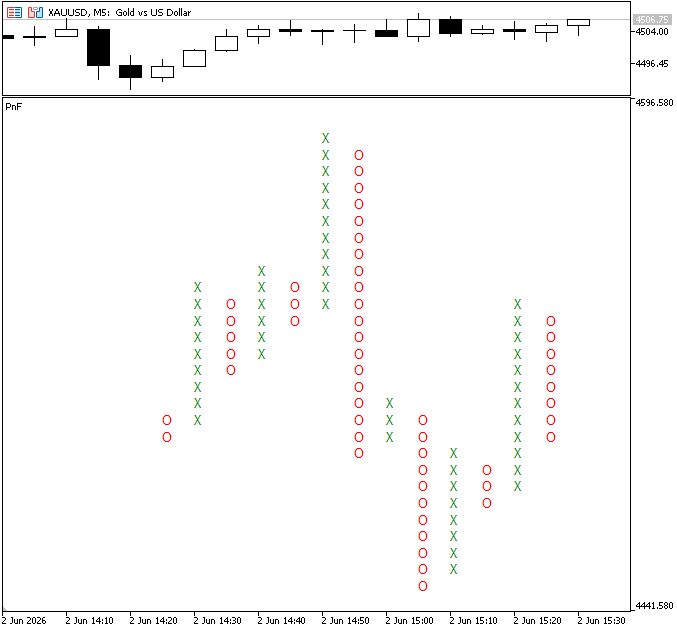
Explanation:
We started by creating the DrawBrick() function. This function is responsible for either building a new graphical object or updating an existing one to graphically represent each Point and Figure unit on the chart. It starts by using the given index to create a distinct name for every Point and Figure element. This guarantees the individual identification and conflict-free management of each X or O on the chart. The function determines if the chart already has an object with that name. A new text object is created and positioned in the indicator subwindow at the given time and price coordinates if it doesn't already exist.
The object's appearance is modified in accordance with the direction of market movement once it has been created or verified to exist. The specified bullish color is used to style and show an "X" if the movement is upward. If the movement is downward, it is shown as an "O." The object's time and price values are used to precisely locate it on the chart. To create a structured and readable Point and Figure chart, this guarantees that every element is precisely aligned in both horizontal and vertical space.
The OnInit() function prepares the Point and Figure indicator before any calculations begin. It sets up the basic environment needed for proper identification and management of all graphical objects that will be created later. The first step is assigning a custom name to the indicator. This name is what will be displayed in the MetaTrader 5 indicator list, helping the user easily identify the Point and Figure tool on the chart. Next, the function determines the subwindow where the indicator will be displayed. Since Point and Figure is drawn in a separate window, we need to correctly identify and store that window index so that all objects are placed in the right location. After that, a unique prefix is created for all chart objects generated by this indicator. To prevent conflicts between objects from different times, this prefix incorporates the current timeframe. Additionally, it facilitates the management, updating, or deletion of only the items associated with this particular instance of the indicator.
The need_redraw variable acts as a visual update trigger for the chart. At the beginning of each calculation cycle, it is set to false, meaning no chart update is required yet. As the code processes price data and builds or updates the structure, need_redraw is only set to true when there is an actual change in the data. This happens in three cases: initial trend setup, trend continuation with new PF values, and a confirmed reversal. Since new Point and Figure points are added to the structure in each of these situations, the chart's visual representation is now out of date and needs to be updated. The indicator prevents needless chart redraws by utilizing this flag. It only initiates a redraw when significant structural changes take place in the PF data, as opposed to continuously updating the chart with each tick or bar update.
The variable shift is set to 1, meaning we start from the most recently completed bar on the chart rather than the current forming bar. This is important because Point and Figure values should align with completed price data to avoid unstable or shifting placements. Next, we use this shift value to retrieve the corresponding time from the chart. The iTime function returns the opening time of the bar at the specified shift position. In this case, it gives us the time of the previous candle, which becomes the initial reference point for placing the first Point and Figure symbol. Together, these two lines establish the starting point for mapping values onto real chart time, ensuring that the drawing process begins from a stable and valid time reference.
Next, the condition checks the relationship between neighboring values. When pfclose[i + 1] matches pfclose[i - 1], it often means the current point is sitting at a structural pivot where the movement is no longer extending cleanly in one direction. In practical terms, this is the kind of arrangement that appears when price action is preparing to shift from an advancing column (X) into a declining column (O), or the other way around. Instead of immediately treating this as a reversal, the code uses it as a spacing signal. When this pattern appears, the shift is increased. This pushes the next plotted element slightly further back in time, creating a visual gap between the outgoing column and the incoming one.
Then we recompute the time coordinate using the updated shift so the new column starts at a separate position. This logic inserts a visual gap at pivots by increasing the time shift when neighboring PF values match. As a result, new columns start separately and do not overlap. Next, the program determines the direction of each Point and Figure element so it can be correctly rendered as either an X or an O on the chart. The logic compares the current PF value with the next one in the sequence. If the current value is greater than the next value, it means the market is in an upward extension phase, so the element is marked as bullish movement. Otherwise, it is treated as downward movement, which corresponds to a bearish or declining column.
This comparison is what allows the system to distinguish between the two core structures of a Point and Figure chart: the advancing X columns and the declining O columns. Once the direction is determined, the element is drawn on the chart using its calculated time position and PF price level. The drawing function places either an "X" or an "O" at that exact coordinate, using the direction flag to decide which symbol and color should be used.
Note:
To ensure that the PF objects are appropriately spaced and entirely visible, the indicator window range must be adjusted based on the box size used in the Point and Figure calculation. If this is not done, the X and O forms may get compressed or overly packed together, making the chart difficult to read and visually deformed, particularly if the box size is large or small in relation to price movement. We make sure that every box is distinct and that the overall Point and Figure structure is clear, balanced, and simple to understand by scaling the indicator window in accordance with the PF range. It is also important to note that the zoom ratio of the main chart affects the indicator window; the maximum zoom in will give you the best view.
To avoid outdated symbols and visual clutter during recalculation, we delete Point and Figure objects that are no longer needed.
Example:
//+------------------------------------------------------------------+
//| Delete all indicator objects                                     |
//+------------------------------------------------------------------+
void DeleteAll()
  {
   for(int i = ObjectsTotal(0) - 1; i >= 0; i--)
     {
      string name = ObjectName(0, i);

      //--- Delete only objects created by this indicator
      if(StringFind(name, PREFIX) == 0)
         ObjectDelete(0, name);
     }
  }
Example:
//+------------------------------------------------------------------+
//| Custom indicator initialization function                         |
//+------------------------------------------------------------------+
int OnInit()
  {

//--- Set indicator name
   IndicatorSetString(INDICATOR_SHORTNAME, "PnF");

//--- Get indicator subwindow index
   indicator_window = ChartWindowFind(ChartID(), "PnF");

//--- Create unique prefix for objects
   PREFIX = "PF_" + EnumToString(_Period) + "_";

//--- Clean old objects on start
   DeleteAll();
//---
   return(INIT_SUCCEEDED);
  }
//+------------------------------------------------------------------+
//| Deinitialization                                                 |
//+------------------------------------------------------------------+
void OnDeinit(const int reason)
  {
// Remove all objects when indicator is removed
   DeleteAll();
  }
Explanation:
Cleaning up all graphical objects produced by the Point and Figure indicator is the responsibility of the DeleteAll() function. It operates by going through each object that is now on the chart and looking up its name. The function uses the unique prefix that each object formed by this indicator is given as a filter to identify only the objects that are part of it. The item is removed from the chart after a match is discovered. This guarantees that no other indicators or manual drawings on the chart are impacted and that just Point and Figure elements are eliminated.
This function is crucial for resetting the chart before the indicator begins to function during the initialization phase (OnInit). DeleteAll() is used to eliminate any remaining objects from earlier runs when the indicator name has been established, the appropriate subwindow has been identified, and a unique object prefix based on the period has been created. This prevents overlapping or duplicate Point and Figure structures from previous sessions and ensures that the indicator begins with a clean graphic. When the indicator is removed from the chart during the deinitialization phase (OnDeinit), all produced objects are cleaned up using the same function. This keeps the chart clean and returns it to its initial condition by guaranteeing that there are no remaining X or O symbols when the indicator is closed.
Conclusion
In this article, we built a complete Traditional Point and Figure indicator in MQL5 and turned raw price movement into a clear, structured X and O chart. Instead of relying on time-based candles, the indicator focuses only on meaningful price changes, using a fixed box size to filter out market noise and highlight the underlying price structure.
Step by step, we created an indicator that:
- converts price movement into fixed box intervals based on a user-defined box size;
- builds a Point and Figure data series that records only significant price changes;
- identifies trend direction and processes valid reversals according to classic box movement rules;
- filters out minor fluctuations so that only complete Point and Figure boxes are displayed;
- controls the size of stored Point and Figure data to keep the indicator efficient;
- scales the indicator window to fit the full chart structure properly;
- draws X and O symbols in a separate indicator window using graphical objects;
- adjusts spacing to keep columns clean and aligned;
- removes outdated objects to keep the chart accurate and visually up to date.
As a result, we now have a clean and practical Point and Figure chart that removes the distraction of time-based market noise and helps focus on what truly matters: price direction, structure, and reversals.
This indicator can also serve as a strong foundation for more advanced tools. From here, it can be extended with breakout detection, pattern recognition, signal generation, or even automated trading logic based on Point and Figure market structure.
Warning: All rights to these materials are reserved by MetaQuotes Ltd. Copying or reprinting of these materials in whole or in part is prohibited.
This article was written by a user of the site and reflects their personal views. MetaQuotes Ltd is not responsible for the accuracy of the information presented, nor for any consequences resulting from the use of the solutions, strategies or recommendations described.

 Price Action Analysis Toolkit Development (Part 74): Building an MQL5 Expert Advisor from Indicator Buffers
 Rolling Sharpe Ratio with Statistical Significance Bands in MQL5
 Beyond GARCH (Part VI): Fractional Brownian Motion And The Multiplicative Cascade in MQL5
 A Practical Kalman Filter Price Smoother in MQL5: Adaptive Noise Estimation Without External Libraries

- Free trading apps
- Over 8,000 signals for copying
- Economic news for exploring financial markets
You agree to website policy and terms of use
I wonder if using the technique in this article would have made the P&F chart resemble the standard more closely.: MetaTrader 5: Build a Market to Suit Your Strategy — Renko/Range/Volume, Synthetics, and Stress Tests on Custom Symbols - MQL5 Articles
Thanks for posting that. As a long time Renko trader, I have no idea how I missed it in May. I might add that to my Renko arsenal.
I'm not sure exactly what you mean. It's a bit of an apples-to-oranges comparison. The present P&F indicator is, well, an indicator and a sub-window indicator at that. To the best of my knowledge, P&F is really intended to be used as a standalone tool. In contrast thereto, scripts, indicators, and EA's can be attached to custom Renko, range, and equal volume charts. Obviously, these are custom charts and not indicators.
Thanks for posting that. As a long time Renko trader, I have no idea how I missed it in May. I might add that to my Renko arsenal.
I'm not sure exactly what you mean. It's a bit of an apples-to-oranges comparison. The present P&F indicator is, well, an indicator and a sub-window indicator at that. To the best of my knowledge, P&F is really intended to be used as a standalone tool. In contrast thereto, scripts, indicators, and EA's can be attached to custom Renko, range, and equal volume charts. Obviously, these are custom charts and not indicators.