

Building an EquiVolume Indicator in MQL5
 3 660
3 660
 3
3

Introduction
MetaTrader 5 displays market data using fixed candlestick intervals, which can hide the true relationship between price movement and trading volume. A candle formed during high activity may look identical to one formed during low activity, even though the underlying market participation is entirely different. This limitation makes it difficult to visually assess volume pressure directly from standard charts.
This article shows how to build an EquiVolume indicator in MQL5. It transforms traditional candles into volume‑weighted boxes whose width depends on relative trading activity within a lookback period. We will implement a step-by-step process that identifies maximum volume, normalizes all other volumes against it, and converts them into proportional visual widths for each candle. The result can be used to analyze market strength, highlight high-participation zones, and improve price action interpretation for both manual trading and algorithmic strategy development.
Project Overview and Implementation Plan
It is crucial to understand the precise behavior and structure of the EquiVolume indicator we plan to create before beginning the implementation process. We can avoid confusion during development and understand the purpose of each portion of the code when we have a clear picture of the project. This chapter will look at the indicator's general design and describe the methodical approach we will take.
What We Are Building
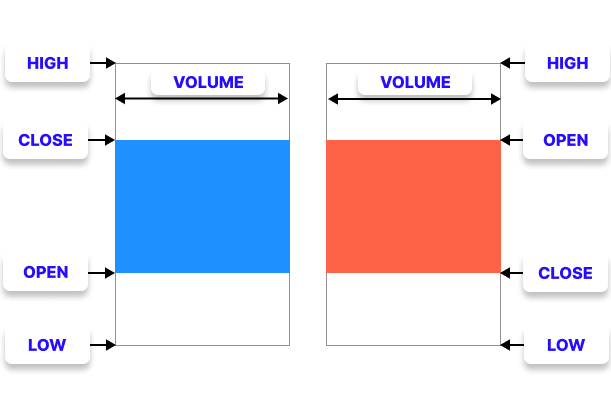
EquiVolume is a charting method that represents both price movement and trading volume in a single visual structure. In this approach, each candle carries two types of information: the height represents price movement between high and low, while the width represents trading volume. This allows traders to instantly see not just how price moved, but how much participation supported that movement, similar to how a crowded market stall is physically larger because more people are gathered around it.
Unlike a normal candlestick chart, where every candle has the same width regardless of volume, EquiVolume changes the horizontal size of each candle based on trading activity. In a standard chart, a candle with very high volume and another with very low volume can look identical in width, even though their significance in the market is entirely different. EquiVolume solves this by visually scaling candles so that volume becomes part of the structure of the chart itself.
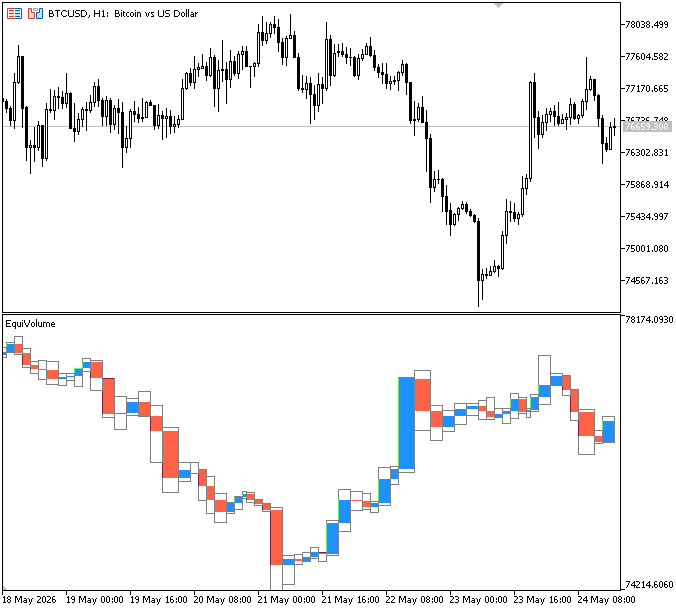
In this project, we will build a custom MQL5 indicator that displays EquiVolume in a separate indicator window using rectangle objects. First, within a defined lookback period, we will identify the candle with the highest volume. This candle becomes our reference point for scaling. Next, we will normalize all other candle volumes against this maximum value. We will also define a fixed maximum width for the highest-volume candle. Every other candle’s width will then be calculated relative to this reference, meaning that if a candle has half the volume of the maximum, its EquiVolume box will automatically be drawn at half the maximum width, creating a proportional visual representation of market activity.
Implementation Plan
In this section, we will outline the step-by-step process used to implement the EquiVolume indicator in MQL5. This provides a clear roadmap from raw price and volume data to identifying the highest-volume candle within a defined lookback period. This section provides a roadmap of how we will normalize all candle volumes against the highest volume and scale them into proportional widths based on a fixed maximum size, then use these values to draw EquiVolume rectangles that visually combine price movement and trading activity.
Choosing the Volume Type:
In this step, we are deciding which type of volume data the indicator will use for all calculations. Since MetaTrader 5 provides two possible sources of volume, real volume (from the exchange) and tick volume (number of price changes), we first check which one is available from the broker. If real volume is available, we use it; otherwise, we fall back to tick volume.
Identifying the Maximum Volume:
We will scan through all candles within the selected lookback range to identify the highest trading volume. This value becomes the reference point for the entire EquiVolume calculation because all other candle volumes will be compared against it. While iterating through the data, we continuously track and update the maximum volume whenever a higher value is found.
Setting Dynamic Price Scale in the Indicator Window:
In this step, we are determining the price boundaries of the EquiVolume display inside the indicator window. This step focuses on price for vertical positioning. We scan through all candles in the selected lookback period to find the highest high and the lowest low, which represent the full price range of the market during that period. These values are continuously updated whenever a new extreme is found.
After determining the entire range, we use dynamic scaling to apply it to the indicator window, ensuring that the EquiVolume boxes are appropriately positioned within the viewable chart area. This step prevents the boxes from being stretched, compressed, or cut off. It also ensures the full price range remains visible and proportionally scaled.
Normalizing Candle Volume:
We are normalizing each candle’s volume relative to the maximum volume so it can be converted into a usable width for the EquiVolume boxes. The loop processes candles in reverse order within the selected lookback range and skips any candle with zero volume to avoid invalid calculations. Each candle’s volume is then compared against the previously identified maximum volume and transformed into a proportional value.
A user-defined input that specifies the maximum number of candle bars permitted for width is used to scale this proportional value. This implies that all other candles will be scaled proportionately according to their volume in relation to this maximum, while the candle with the largest volume will occupy the entire permitted width.
Drawing the EquiVolume Boxes:
This step is where we convert all the previously calculated values into actual visual EquiVolume candles on the chart using rectangle objects. Each candle is drawn as a box whose horizontal size comes from the normalized volume calculation, while the vertical size represents the price range between high, low, open, and close.
The normalized volume width, which determines how far the EquiVolume box extends over time, is first used to establish the horizontal boundary for each candle. The candle body from open to close is represented by the second rectangle, which is colored differently depending on whether the candle is bullish or bearish. The first rectangle depicts the full candle range from high to low.
Instead of creating objects each time, we check to see whether the rectangle already exists and then update its coordinates to optimize speed. To create a continuous EquiVolume flow, we move the starting point forward after drawing so that the subsequent candle joins correctly in order. To maintain the chart's efficiency and cleanliness and to guarantee that the indication stays smooth even when new data is processed, we finally exclude any objects that are outside the visible range.
Implementation in MQL5
This section outlines the implementation steps in MQL5. We identify the highest-volume candle in the lookback period, normalize all volumes to that maximum, convert them into proportional widths, and draw the EquiVolume rectangles.
Choosing the Volume Type
As discussed in the implementation plan, we will now implement the volume selection logic programmatically in MQL5 by determining whether to use real volume or tick volume for the EquiVolume calculations.
Example:#property indicator_separate_window #property indicator_plots 0 //--- Input parameters input int InpLookback = 100; // number of bars for EquiVolume input color InpBullColor = clrDodgerBlue; // bullish bar color (close >= open) input color InpBearColor = clrTomato; // bearish bar color (close < open) input color InpOutlineColor = clrGray; // rectangle outline color input double InpMaxWidthPct = 10; // maximum box width scaling factor //--- Global variables int indicator_window; // indicator subwindow index datetime lastTradeBarTime = 0; // ensures logic runs once per new candle //+------------------------------------------------------------------+ //| Custom indicator initialization function | //+------------------------------------------------------------------+ int OnInit() { //--- set indicator short name IndicatorSetString(INDICATOR_SHORTNAME, "EquiVolume"); //--- locate indicator subwindow indicator_window = ChartWindowFind(ChartID(), "EquiVolume"); //--- return(INIT_SUCCEEDED); } //+------------------------------------------------------------------+ //| Custom indicator iteration function | //+------------------------------------------------------------------+ int OnCalculate(const int32_t rates_total, const int32_t prev_calculated, const datetime &time[], const double &open[], const double &high[], const double &low[], const double &close[], const long &tick_volume[], const long &volume[], const int32_t &spread[]) { //--- limit processing to selected lookback range int bars = MathMin(rates_total, InpLookback); //--- ensure enough bars are available if(bars < 2) return rates_total; datetime currentBarTime = iTime(_Symbol, PERIOD_CURRENT, 0); //--- execute logic only once per new candle if(currentBarTime != lastTradeBarTime) { //--- check whether broker provides real volume bool useRealVol = (volume[rates_total - 1] > 0); int startIdx = rates_total - bars; //--- scan candles to determine volume and price boundaries for(int i = startIdx; i < rates_total; i++) { long vol = useRealVol ? volume[i] : tick_volume[i]; } //--- update last processed candle time lastTradeBarTime = currentBarTime; } //--- return value of prev_calculated for next call return(rates_total); } //+------------------------------------------------------------------+
Output:
Explanation:
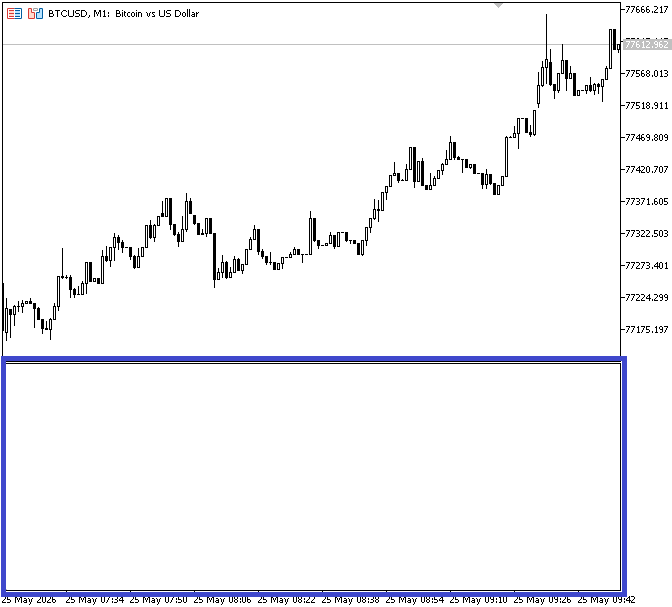
Instead of rendering the EquiVolume indicator immediately on the main chart, MetaTrader 5 is instructed by the program to render it in its own separate subwindow. Separating the indicator from the main candlestick chart enhances clarity and avoids visual clutter because the indicator uses dynamically scaled rectangle objects to depict both price motion and volume intensity. The program also specifies that the indicator will not use traditional MQL5 plotting buffers such as lines, histograms, or arrows. Instead, all visuals are rendered as chart objects (rectangles). This provides full control over each box's size, position, and appearance.
The input parameters provide flexibility for customizing the behavior and appearance of the indicator. The InpLookback parameter defines how many historical candles should be processed when building the EquiVolume structure. A larger value allows more historical data to be displayed, while a smaller value focuses only on recent market activity and improves performance. The InpBullColor and InpBearColor parameters define the colors used for bullish and bearish EquiVolume candles. Bullish candles, where the close price is greater than or equal to the open price, use the bullish color, while bearish candles use the bearish color. The InpOutlineColor parameter controls the border color of the rectangles, helping visually separate neighboring EquiVolume boxes.
Because it regulates the maximum horizontal size of the EquiVolume boxes, InpMaxWidthPct is one of the most crucial parameters. The maximum width of the highest-volume candle in relation to the chart is determined by this setting. The candle with the largest volume inside the chosen lookback range, for instance, will occupy a width equal to ten candlestick bars on the chart if the value is set to 10. Every other candle will then be scaled proportionally relative to this maximum width. This means that a candle with half the maximum volume will be drawn at approximately half the width of the largest EquiVolume box. This proportional scaling mechanism is what gives the indicator its dynamic volume-based structure.
The global variable indicator_window stores the indicator subwindow index. It is required to draw all EquiVolume rectangles in the correct subwindow instead of the main price chart. By keeping track of the most recent candle time, the lastTradeBarTime variable ensures that the indicator does its computations just once when a new candle forms rather than on each incoming tick, increasing efficiency and minimizing needless redraws.In the OnInit() function, the indicator is initialized by setting its display name to "EquiVolume" for proper identification on the chart. It then locates the indicator’s subwindow using ChartWindowFind() and stores the result in indicator_window. This step is important because it ensures that all graphical objects created by the indicator are rendered in the correct window, allowing the EquiVolume structure to display properly and separately from the main price chart.
In the OnCalculate event handler, the process begins by limiting computation to only the number of bars defined by the user through the lookback input. This is done by taking the minimum between the total available bars and the selected lookback value, ensuring the indicator only works within the intended data range. A safety check follows to confirm that at least two candles are available before continuing, since volume comparison and EquiVolume construction require more than one data point.
Still inside the OnCalculate flow, the logic is structured to execute only once per new candle. This is achieved by comparing the current candle time with the previously stored lastTradeBarTime. When a new candle is detected, the indicator determines which volume type to use by inspecting the broker’s data: if the most recent volume value exceeds zero, it assumes real volume is available and selects it; otherwise, it defaults to tick volume. This automatic detection ensures the indicator remains compatible across different brokers regardless of the volume data they provide.
Once the right volume source has been chosen, the indicator determines the lookback range's initial index and starts iterating through every candle in that range. The volume of each candle is then obtained using the chosen volume type and made ready for additional processing, including determining the maximum volume and carrying out normalization. To prevent the logic from running again until a new candle is generated, the current candle time is saved once all necessary computations for the new candle are finished.
Identifying the Maximum Volume
As discussed in the implementation plan, we’ll identify the maximum volume within the selected lookback range, which serves as the reference value for scaling all other candle volumes in the EquiVolume calculation.
Note: We will highlight the specific code sections related to each implementation stage as we progress, ensuring each part is clearly understood on its own without mixing it with previously explained sections.
//--- execute logic only once per new candle
if(currentBarTime != lastTradeBarTime)
  {
//--- check whether broker provides real volume
   bool useRealVol = (volume[rates_total - 1] > 0);
   int startIdx = rates_total - bars;

   long maxVol  = 0;                         // highest volume in range

//--- scan candles to determine volume and price boundaries
   for(int i = startIdx; i < rates_total; i++)
     {
      long vol = useRealVol ? volume[i] : tick_volume[i];

      //--- track maximum volume
      if(vol > maxVol)
         maxVol = vol;

     }

//--- update last processed candle time
   lastTradeBarTime = currentBarTime;
  }
Explanation:
The maximum volume is obtained by scanning through all candles within the selected lookback range and continuously comparing each candle’s volume with the current highest value stored in maxVol. At the start, maxVol is initialized to zero, meaning no reference value exists yet. As the loop iterates through each candle, the indicator retrieves the correct volume type (either real volume or tick volume) and assigns it to vol.
The value of vol is compared to maxVol for each candle. MaxVol is updated to the new value if the volume of the current candle exceeds the recorded maximum. To guarantee that, at the end of the loop, maxVol has the largest trade volume discovered during the whole lookback time, this procedure is repeated for every candle in the range. The EquiVolume computation then uses this value as the reference point to normalize all other candle volumes.
Setting Dynamic Price Scale in the Indicator Window
This step involves setting the dynamic price scale within the indicator window by determining the highest and lowest price levels within the selected lookback range.
Example:
//--- execute logic only once per new candle
if(currentBarTime != lastTradeBarTime)
  {
//--- check whether broker provides real volume
   bool useRealVol = (volume[rates_total - 1] > 0);
   int startIdx = rates_total - bars;

   long maxVol  = 0;                         // highest volume in range
   double maxHigh = 0;                       // highest price in range
   double minLow = low[startIdx];            // lowest price in range

//--- scan candles to determine volume and price boundaries
   for(int i = startIdx; i < rates_total; i++)
     {

      long vol = useRealVol ? volume[i] : tick_volume[i];

      //--- track maximum volume
      if(vol > maxVol)
         maxVol = vol;

      //--- track highest price
      double h = high[i];
      if(h > maxHigh)
         maxHigh = high[i];

      //--- track lowest price
      double l = low[i];
      if(l < minLow)
         minLow = low[i];
     }

//--- adjust indicator scale dynamically
   IndicatorSetDouble(INDICATOR_MAXIMUM, maxHigh);
   IndicatorSetDouble(INDICATOR_MINIMUM, minLow);

//--- prevent division by zero
   if(maxVol == 0)
      return rates_total;

//--- update last processed candle time
   lastTradeBarTime = currentBarTime;
  }
Output:

Explanation:
We begin by defining two reference variables that will store the price extremes within the selected lookback range. maxHigh is initialized to zero so that it can be updated whenever a higher price is found, while minLow is initialized to the low of the first candle in the range to provide a valid starting point for comparison. We continuously compare the current candle's high and low values to these stored references as we loop through each candle. We update a candle to reflect the new highest price in the range if its high exceeds the current maxHigh. In a similar vein, we update a candle if its low falls below the current minLow. By the time this operation is finished, we will have precisely recorded the market's whole price boundary for the lookback period.
After determining these values, we use IndicatorSetDouble to apply them to the indicator window, which dynamically modifies the EquiVolume display's vertical scale. This guarantees that every EquiVolume box fits correctly inside the indicator window without being deformed or severed. Lastly, we make sure that the maximum volume is not zero before continuing with any computations as a safety measure to avoid division problems later in the logic.
Normalizing Candle Volume
In this step, we normalize each candle’s volume relative to the maximum volume in the lookback range to obtain proportional values that will be used for calculating the EquiVolume box widths.
Example:
//--- execute logic only once per new candle
if(currentBarTime != lastTradeBarTime)
  {
//--- check whether broker provides real volume
   bool useRealVol = (volume[rates_total - 1] > 0);
   int startIdx = rates_total - bars;

   long maxVol  = 0;                         // highest volume in range
   double maxHigh = 0;                       // highest price in range
   double minLow = low[startIdx];            // lowest price in range

//--- scan candles to determine volume and price boundaries
   for(int i = startIdx; i < rates_total; i++)
     {

      long vol = useRealVol ? volume[i] : tick_volume[i];

      //--- track maximum volume
      if(vol > maxVol)
         maxVol = vol;

      //--- track highest price
      double h = high[i];
      if(h > maxHigh)
         maxHigh = high[i];

      //--- track lowest price
      double l = low[i];
      if(l < minLow)
         minLow = low[i];
     }

//--- adjust indicator scale dynamically
   IndicatorSetDouble(INDICATOR_MAXIMUM, maxHigh);
   IndicatorSetDouble(INDICATOR_MINIMUM, minLow);

//--- prevent division by zero
   if(maxVol == 0)
      return rates_total;

//--- process candles backward
   for(int i = rates_total - 2; i >= startIdx; i--)
     {
      long vol = useRealVol ? volume[i] : tick_volume[i];

      //--- skip candles with zero volume
      if(vol == 0)
         continue;

      //--- normalize width relative to highest volume
      int val = (int)((double)vol / maxVol * InpMaxWidthPct);
     }

//--- update last processed candle time
   lastTradeBarTime = currentBarTime;
  }
Explanation:
We process the candles in reverse order, starting from rates_total - 2 and moving backward to the oldest candle within the selected lookback range. The reason we start from rates_total - 2 is because it points to the last fully closed candle on the chart, allowing us to ignore the current forming (ticking) candle, which may still change and would otherwise distort the EquiVolume calculations. This ensures that all computations are based only on confirmed price and volume data.
For each candle, we retrieve its volume using the selected volume source, either real volume or tick volume. Any candle with zero volume is skipped to avoid invalid scaling, since it cannot contribute meaningfully to the EquiVolume structure. After that, we normalize each candle’s volume by comparing it to the maximum volume found within the lookback range. This is done by dividing the candle’s volume by the maximum volume and then scaling it using the user-defined maximum width input. The resulting value represents the proportional width each EquiVolume box will occupy relative to the highest-volume candle.
Drawing the EquiVolume Boxes
In this step, we convert the normalized volume and price values into visual EquiVolume boxes by drawing and updating rectangle objects on the indicator window to represent each candle’s structure. First, we will create a dedicated function that handles the drawing of EquiVolume boxes, allowing us to create and update rectangle objects in a structured and reusable way before rendering them on the indicator window.
Example://+------------------------------------------------------------------+ //| Returns unique empty box object name | //+------------------------------------------------------------------+ string BoxEmptyName(datetime t) { return StringFormat("Box%d", (int)t); } //+------------------------------------------------------------------+ //| Returns unique filled box object name | //+------------------------------------------------------------------+ string BoxFillName(datetime t) { return StringFormat("Box Fill%d", (int)t); } //+------------------------------------------------------------------+ //| Create or update volume box | //+------------------------------------------------------------------+ bool DrawBox(const string name, datetime x1, double yTop, datetime x2, double yBot, bool is_fill, color Col, int in_window) { bool created = false; //--- create rectangle object only if it does not exist if(ObjectFind(0, name) < 0) { ObjectCreate(0, name, OBJ_RECTANGLE, in_window, x1, yTop, x2, yBot); //--- configure rectangle properties ObjectSetInteger(0, name, OBJPROP_FILL, is_fill); ObjectSetInteger(0, name, OBJPROP_COLOR, Col); created = true; } //--- continuously update rectangle coordinates ObjectMove(0, name, 0, x1, yTop); ObjectMove(0, name, 1, x2, yBot); return created; } //+------------------------------------------------------------------+ //| Custom indicator initialization function | //+------------------------------------------------------------------+ int OnInit() { //--- set indicator short name IndicatorSetString(INDICATOR_SHORTNAME, "EquiVolume"); //--- locate indicator subwindow indicator_window = ChartWindowFind(ChartID(), "EquiVolume"); //--- remove old box objects during initialization ObjectsDeleteAll(0, "Box", indicator_window); //--- return(INIT_SUCCEEDED); } //+------------------------------------------------------------------+ //| Runs when indicator is removed | //+------------------------------------------------------------------+ void OnDeinit(const int reason) { //--- delete all indicator objects during cleanup ObjectsDeleteAll(0, "Box", indicator_window); }
Explanation:
First, we create two functions that create distinct names for each EquiVolume box. To prevent any rectangle object from overwriting another, the BoxEmptyName function uses the date of the candle to provide a unique identity for the entire candle outline. The outline and body of each EquiVolume candle can be controlled separately thanks to the BoxFillName method, which also creates a distinct name for the filled candle body. We design a DrawBox function that manages the creation and updating of rectangle objects to create the EquiVolume visualization. When a box doesn't already exist, it is made using ObjectCreate and attached with its designated time and price coordinates to the appropriate indicator subwindow. Additionally, the method uses visual parameters like color and fill style to differentiate between candle bodies and outlines.
The function uses ObjectMove to continually update the box coordinates once the object is created, or if it already exists. This guarantees that every EquiVolume box adapts dynamically as fresh computations are carried out, enabling the indicator to stay responsive and appropriately display updated volume and price data on the chart. We control chart objects during setup and cleanup to guarantee that the indicator begins with a blank slate and does not retain out-of-date drawings. The goal is to avoid cluttering the chart or interfering with fresh data with outdated EquiVolume boxes from earlier runs or recalculations. The first call is intended to remove any existing objects whose names start with the prefix "Box." This is useful during initialization because it clears any previously drawn EquiVolume rectangles before the indicator begins creating new ones.
The second call performs a similar cleanup during indicator shutdown. ObjectsDeleteAll(0, "Box", indicator_window) removes all leftover EquiVolume objects in the indicator window when the indicator is removed from the chart. This keeps the workspace tidy and avoids visual artifacts when the indicator is reloaded by guaranteeing that no rectangles are left on the chart after the indication is removed. Next, we need to draw the EquiVolume objects and determine their anchor points, which define where each rectangle starts and ends on the chart. These anchor points are made up of time coordinates for the horizontal positioning and price coordinates for the vertical positioning. By correctly setting these points, each box is accurately placed in relation to both time progression and price movement, ensuring the EquiVolume structure is properly aligned and visually consistent across the indicator window.
Example:
//+------------------------------------------------------------------+
//| Custom indicator iteration function                              |
//+------------------------------------------------------------------+
int OnCalculate(const int32_t rates_total,
                const int32_t prev_calculated,
                const datetime &time[],
                const double &open[],
                const double &high[],
                const double &low[],
                const double &close[],
                const long &tick_volume[],
                const long &volume[],
                const int32_t &spread[])
  {
//--- limit processing to selected lookback range
   int bars = MathMin(rates_total, InpLookback);

//--- ensure enough bars are available
   if(bars < 2)
      return rates_total;

   bool need_redraw = false;

   datetime currentBarTime = iTime(_Symbol, PERIOD_CURRENT, 0);

//--- execute logic only once per new candle
   if(currentBarTime != lastTradeBarTime)
     {
      //--- check whether broker provides real volume
      bool useRealVol = (volume[rates_total - 1] > 0);
      int startIdx = rates_total - bars;

      long maxVol  = 0;                         // highest volume in range
      double maxHigh = 0;                       // highest price in range
      double minLow = low[startIdx];            // lowest price in range

      //--- scan candles to determine volume and price boundaries
      for(int i = startIdx; i < rates_total; i++)
        {

         long vol = useRealVol ? volume[i] : tick_volume[i];

         //--- track maximum volume
         if(vol > maxVol)
            maxVol = vol;

         //--- track highest price
         double h = high[i];
         if(h > maxHigh)
            maxHigh = high[i];

         //--- track lowest price
         double l = low[i];
         if(l < minLow)
            minLow = low[i];
        }

      //--- adjust indicator scale dynamically
      IndicatorSetDouble(INDICATOR_MAXIMUM, maxHigh);
      IndicatorSetDouble(INDICATOR_MINIMUM, minLow);

      //--- prevent division by zero
      if(maxVol == 0)
         return rates_total;

      //--- retrieve timeframe duration in seconds
      datetime periodSec = (datetime)PeriodSeconds();

      datetime start_time = time[rates_total - 1]; // starting point of current box
      datetime end_time = 0;

      //--- process candles backward
      for(int i = rates_total - 2; i >= startIdx; i--)
        {
         long vol = useRealVol ? volume[i] : tick_volume[i];

         //--- skip candles with zero volume
         if(vol == 0)
            continue;

         //--- normalize width relative to highest volume
         int val = (int)((double)vol / maxVol * InpMaxWidthPct);

         //--- calculate horizontal width endpoint
         end_time = start_time - (periodSec * val);

         //--- draw candle outline rectangle
         if(DrawBox(BoxEmptyName(time[i]), start_time, high[i], end_time, low[i], false, InpOutlineColor, indicator_window))
           {
            need_redraw = true;
           }

         //--- determine candle direction
         bool bullish = (close[i] >= open[i]);

         //--- select fill color based on candle direction
         color fillCol = bullish ? InpBullColor : InpBearColor;

         //--- draw candle body rectangle
         if(DrawBox(BoxFillName(time[i]), start_time, open[i], end_time, close[i], true, fillCol, indicator_window))
           {
            need_redraw = true;
           }

         //--- shift next rectangle starting point
         start_time = end_time;

        }

      //--- update last processed candle time
      lastTradeBarTime = currentBarTime;
     }
//--- redraw chart only when changes occur
   if(need_redraw)
      ChartRedraw(0);

//--- return value of prev_calculated for next call
   return(rates_total);
  }
Output:
Explanation:
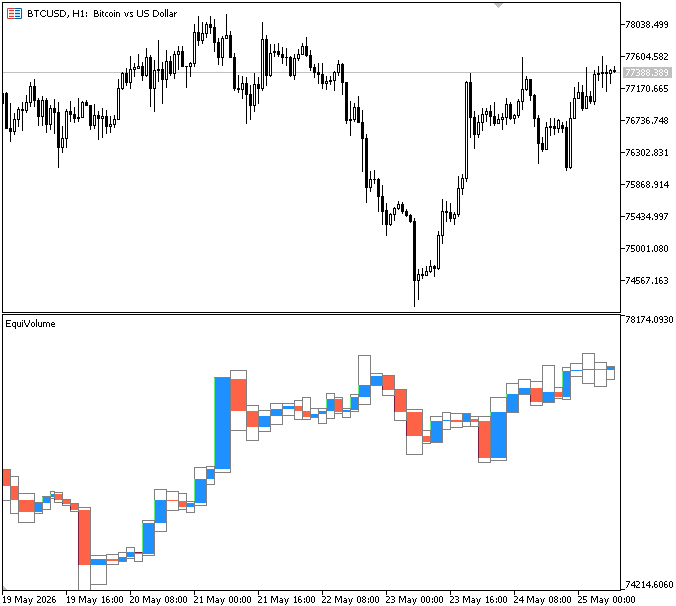
First, we determine the duration of a single complete candle in seconds using PeriodSeconds(). This statistic, which indicates how long each bar lasts in the current period, is essential for converting volume-based width calculations into time-based chart placement. Working in a matter of seconds, we can precisely control each EquiVolume box's horizontal extension. The initial anchor point for drawing the EquiVolume structure is then determined by timing the oldest candle within the selected lookback range. This ensures that the chart's initial box begins at a set, constant reference point.
We also initialize end_time as zero, which will later be calculated dynamically for each candle based on its normalized volume. This variable represents the right boundary of each EquiVolume box and will be updated during the drawing process to control how wide each candle appears on the chart. We convert the normalized width val into a time distance using periodSec * val. This defines how far the box extends horizontally from start_time. We can effectively manage the width of the EquiVolume box on the chart by subtracting this number from start_time to find the rectangle's right boundary (end_time).
Once the horizontal boundaries are defined, we draw the outline of the EquiVolume candle using a rectangle object. The function DrawBox is called with a unique name, the starting time, high price, ending time, and low price, which defines the full vertical range of the candle. The false parameter indicates that this is an outline box, and the specified color is used for visibility. If the box is successfully created or updated, a flag is set to indicate that the chart needs to be refreshed so the new or modified EquiVolume structure is properly displayed. We then determine the direction of each candle by comparing the closing price with the opening price. If the close is greater than or equal to the open, the candle is classified as bullish; otherwise, it is bearish. This direction is important because it allows us to apply different colors to the EquiVolume body, making it easier to visually distinguish buying pressure from selling pressure.
We choose the proper fill color based on this orientation. Bearish candles utilize the bearish color, and bullish candles use the predetermined bullish color. The candle body is then drawn using a rectangle that extends from the opening price to the closing price. To make sure the box is properly aligned with the EquiVolume structure, we additionally use the previously determined horizontal bounds (start_time and end_time). We indicate that a redraw is required once the box is created or edited so that the chart reflects the most recent modifications.
After every candle is drawn, we alter start_time = end_time to change the reference point for the subsequent EquiVolume box. Instead of restarting at the same starting point, this guarantees that every new box starts precisely where the previous one finished, resulting in a continuous succession. To maintain a smooth horizontal flow depending on volume and to keep all EquiVolume boxes connected without gaps or overlaps, end_time essentially becomes the new start_time.
Now we need to ensure that the number of EquiVolume boxes does not exceed the defined lookback range. Since the indicator continuously creates new rectangles as new candles are processed, older objects will accumulate on the chart if they are not removed. To prevent this, we implement a cleanup mechanism that deletes outdated boxes once they fall outside the visible or allowed processing range.
Example:
//--- process candles backward
for(int i = rates_total - 2; i >= startIdx; i--)
  {
   long vol = useRealVol ? volume[i] : tick_volume[i];

//--- skip candles with zero volume
   if(vol == 0)
      continue;

//--- normalize width relative to highest volume
   int val = (int)((double)vol / maxVol * InpMaxWidthPct);

//--- calculate horizontal width endpoint
   end_time = start_time - (periodSec * val);

//--- draw candle outline rectangle
   if(DrawBox(BoxEmptyName(time[i]), start_time, high[i], end_time, low[i], false, InpOutlineColor, indicator_window))
     {
      need_redraw = true;
     }

//--- determine candle direction
   bool bullish = (close[i] >= open[i]);

//--- select fill color based on candle direction
   color fillCol = bullish ? InpBullColor : InpBearColor;

//--- draw candle body rectangle
   if(DrawBox(BoxFillName(time[i]), start_time, open[i], end_time, close[i], true, fillCol, indicator_window))
     {
      need_redraw = true;
     }

//--- shift next rectangle starting point
   start_time = end_time;

//--- remove outdated objects outside visible range
   for(int i = ObjectsTotal(0, indicator_window)-1; i >= 0; i--)
     {
      string obj_name = ObjectName(0, i);

      if((datetime)ObjectGetInteger(0, obj_name, OBJPROP_TIME, 0) < end_time)
        {
         ObjectDelete(0, obj_name);

         need_redraw = true;
        }
     }
  }
Explanation:
To express the lowest time boundary that should still be shown on the chart, we first define a reference point using end_time . Any EquiVolume box that is older than this is considered obsolete and is removed from the chart. We use end_time as the evolving boundary during the drawing process, ensuring it represents the most recent valid limit reached as each candle is processed. As the loop progresses, this boundary is updated continuously, meaning objects are evaluated and removed progressively based on the current end_time value until the final structure is completed.
To securely handle deletions, we go over every item in the indicator subwindow in reverse order after establishing the boundary. We take the time value for each item and compare it to end_time . The object is eliminated from the chart since it is no longer part of the current EquiVolume structure if its timestamp is older than the permitted range. This behavior means that deletions occur at each stage as end_time evolves, gradually cleaning up outdated objects while the structure is being built.
Conclusion
By following the steps in this article, we have successfully built a complete EquiVolume indicator in MQL5 that transforms traditional candlestick data into a volume-weighted visual structure. The indicator delivered:
- automatic selection between real volume and tick volume depending on broker data availability;
- detection of the maximum volume within a defined lookback range as the reference for scaling;
- normalization of all candle volumes relative to the maximum volume;
- conversion of normalized volume values into proportional box widths using a user-defined maximum width setting;
- dynamic adjustment of the indicator window price scale to properly fit all EquiVolume structures;
- rendering of candles as connected rectangle objects representing both price movement and volume intensity;
- continuous cleanup of outdated objects to ensure performance and keep the chart within the selected lookback range;
-
clear visual separation of bullish and bearish candles using customizable colors.
The result is a separate indicator chart that goes beyond standard candlestick representation by visually encoding market participation into structure width. From here, the indicator can be further extended with features such as multi-timeframe EquiVolume analysis, alerts based on abnormal volume expansion, or integration into automated trading systems that react to volume-driven market behavior.
The project is supported in the Algo Forge Repository.
Warning: All rights to these materials are reserved by MetaQuotes Ltd. Copying or reprinting of these materials in whole or in part is prohibited.
This article was written by a user of the site and reflects their personal views. MetaQuotes Ltd is not responsible for the accuracy of the information presented, nor for any consequences resulting from the use of the solutions, strategies or recommendations described.

 From Basic to Intermediate: Indicator (V)
 Formulating Dynamic Multi-Pair EA (Part 9): Market Microstructure Execution Noise Filtering
 Market Simulation (Part 21): First Steps with SQL (IV)
 Custom Debugging and Profiling Tools for MQL5 Development (Part II): Profiling EAs and Testing Trading Logic

- Free trading apps
- Over 8,000 signals for copying
- Economic news for exploring financial markets
You agree to website policy and terms of use
Obrigado pela aula.
Obrigado pela aula.