

Mastering Kagi Charts in MQL5 (Part 2): Implementing Automated Kagi-Based Trading
 5 256
5 256
 0
0

Introduction
In the first part of this series, we created a complete Kagi chart engine in MQL5. We learned how to collect price data, build the Kagi structure, and draw each line segment on the chart. By the end of Part One, we had a fully functional Kagi chart that updates on every new bar.
In this second part, we move from chart construction to actual trading. Our goal is to turn the Kagi chart into a working Expert Advisor that can react to changes in market structure. We will introduce new features that allow the EA to detect reversal signals, place trades, manage risk, and handle open positions. We will also add visual markers to help the trader see exactly when signals occur.
This part builds directly on top of the Kagi engine. Each new feature will be added in a clear and simple manner so that readers can follow the logic without difficulty. By the end of this article, you will have a complete Kagi-based trading system that can be used on any instrument in MetaTrader 5.
New Features for the Trading Module
In this part of the series, we extend the Kagi Chart into a complete trading system. Before we begin coding, it is important that the reader opens MetaEditor 5 and loads the source file from Part One. The file name is KagiTraderPart1.mq5 and it is attached. All the new logic will be added on top of that foundation.
In this section, we introduce each new feature at a high level. We also add the small preparatory code that we will need later. The goal is to help the reader understand what will be added and why it is important for the trading engine.
Visual Markers for Buy and Sell Signals
The first feature is the introduction of visual markers. These markers will show the exact moments when buy or sell signals occur. They help the trader understand how the EA reacts to Kagi reversals. The EA will display a small arrow above or below the price bar to clearly mark long and short signals.
Ability to Enable or Disable Trading
Some users may want the EA to act only as a visual indicator. Other users may want the EA to place trades automatically. For this reason, we introduce an input parameter that controls whether trading is active or not. The parameter is placed below the existing inputs.
input group "Trading"
input bool                     enableTrading  = true;
When enableTrading is true, the EA will open new positions. When it is false, the EA will not place trades but the Kagi chart will still update normally.
Control Over Trade Direction
Different traders have different preferences. Some prefer long positions only. Others prefer short positions only. Many want to trade both directions. To support this flexibility, we create a small enumeration. It is placed below the existing enumeration.
enum ENUM_TRADE_DIRECTION
{
   ONLY_LONG,
   ONLY_SHORT,
   TRADE_BOTH
};
After defining it, we introduce a new input parameter.
input ENUM_TRADE_DIRECTION direction = TRADE_BOTH;
This creates a simple switch. The user can choose one of the three modes. The EA will check this value before opening any new trades. If the user selects ONLY_LONG, the EA will ignore short signals. If the user selects ONLY_SHORT, the EA will ignore long signals. If TRADE_BOTH is selected, the EA trades in both directions.
Opening Long Positions on Yin to Yang Reversal

A major strength of the Kagi chart is its ability to show clear reversals based on changes in market strength. A shift from a Yin line to a Yang line shows that buyers have taken control. For this reason, the EA will open a buy position when the Kagi structure changes from Yin to Yang. This captures the beginning of a possible upward move. Later in the article, we will code the logic that detects this reversal in real time.
Opening Short Positions on Yang to Yin Reversal

A reversal from Yang to Yin shows that sellers have taken control. This often marks the start of a downward move. The EA will open a short position when the Kagi line shifts from Yang to Yin. This complements the buy logic. Together, these two features form the core of the trading strategy. In the implementation section, we will show how to capture this transition in a reliable way.
Choosing Between Manual and Automatic Lot Size
Traders manage risk differently. Some prefer to set a fixed lot size. Others want lot size to be calculated based on account balance. To support these two styles, we introduce a simple enumeration.
enum ENUM_LOT_SIZE_INPUT_MODE
{
   MODE_MANUAL,
   MODE_AUTO
};
This enumeration defines how the lot size will be generated. After defining it, we add the following input parameter.
input ENUM_LOT_SIZE_INPUT_MODE lotSizeMode = MODE_AUTO;
When the user selects MODE_AUTO, lot size is calculated based on a chosen risk percentage. For this reason, we introduce an input that defines the percentage of the account to risk.
input double riskPerTradePercent = 1.0;
If the user has a $10000 account and sets riskPerTradePercent to 1.0, the EA will size the position in such a way that a loss will only cost $100. This makes risk predictable and stable.
When the user selects MODE_MANUAL, the EA ignores the risk percentage. It uses a fixed lot size instead. For this reason, we add the manual lot size parameter.
input double lotSize = 0.1;
This gives the user complete control over the volume of each trade. Both methods are common among traders. The EA will supports both.
Setting Stop Loss at the Previous Local Extreme
A Kagi chart highlights swings in price. Each reversal creates a local minimum or maximum. These points are important because a break beyond them suggests a possible trend change. For this reason, the Stop Loss for a long position will be placed at the previous local minimum. For a short position, the Stop Loss will be placed at the previous local maximum. This method keeps risk controlled and aligns the trade with the underlying Kagi structure.
Take Profit Based on a Risk to Reward Ratio
The next feature is a risk to reward system. Traders often choose a fixed relationship between risk and reward. To support this, we introduce another enumeration.
enum ENUM_RISK_REWARD_RATIO
{
   ONE_TO_ONE,
   ONE_TO_ONEandHALF,
   ONE_TO_TWO,
   ONE_TO_THREE,
   ONE_TO_FOUR,
   ONE_TO_FIVE,
   ONE_TO_SIX
};
Each value defines how large the Take Profit will be relative to the Stop Loss. For example, ONE_TO_THREE means that the reward will be three times larger than the risk. This style of risk management is common among trend following systems. After defining the enumeration, we add the input parameter.
input ENUM_RISK_REWARD_RATIO riskRewardRatio = ONE_TO_THREE;
This allows the user to choose the ratio that matches their trading style.
Optional Trailing Stop
The last feature is a trailing stop. When enabled, the Stop Loss will follow the price as it moves in the trade direction. This protects profits in strong moves. For now, we only add the main control parameter.
input bool enableTrailingStop = false;
Additional parameters may be added later, but this is enough for us to continue with development.
Detecting Yin to Yang and Yang to Yin Transitions
Before we can place any trades, we need to determine when the Kagi line actually changes direction. In Kagi charts, this directional shift is expressed as a change in thickness or color:
- Yin to Yang (Buy Signal)
- Yang to Yin (Sell Signal)
These flips occur inside our ConstructKagiInRealTime function, and they are already neatly grouped under three sets of conditions. Each set updates kagiData.isYin and kagiData.isYang, making them perfect places to attach our trading logic
1. Complex Reversal
These are the classic Kagi reversals. When price pushes far enough in the opposite direction, the trend shifts completely, and the line switches thickness.
Yang to Yin
You find it in:
void ConstructKagiInRealTime(double bidPr, double askPr){

           ...

      //--- Handle a complex reversal
      if(kagiData.isUptrend && kagiData.isYang && currentClosePrice <= (kagiData.referencePrice - reversalAmount) && (currentClosePrice < kagiData.localMinimum)){
         if(overlayKagi){
            DrawBendTop (GenerateUniqueName(TRENDLINE), kagiData.referenceTime, kagiData.referencePrice, currentOpenTime, kagiData.referencePrice, yangLineColor);
            DrawYangLine(GenerateUniqueName(TRENDLINE), currentOpenTime, kagiData.referencePrice, currentOpenTime, kagiData.localMinimum, yangLineColor);
            DrawYinLine (GenerateUniqueName(TRENDLINE), currentOpenTime, kagiData.localMinimum, currentOpenTime, currentClosePrice, yinLineColor);
         }
         kagiData.localMaximum   = kagiData.referencePrice;
         kagiData.referencePrice = currentClosePrice;
         kagiData.referenceTime  = currentOpenTime;
         kagiData.localMinimum   = currentClosePrice;
         kagiData.isDowntrend    = true;
         kagiData.isUptrend      = false;
         kagiData.isYang         = false;
         kagiData.isYin          = true;
      }
}
Yin to Yang
void ConstructKagiInRealTime(double bidPr, double askPr){

           ...

      //--- Handle a complex reversal
      if(kagiData.isDowntrend && kagiData.isYin && currentClosePrice >= (kagiData.referencePrice + reversalAmount) && (currentClosePrice > kagiData.localMaximum)){
         if(overlayKagi){
            DrawBendBottom(GenerateUniqueName(TRENDLINE), kagiData.referenceTime, kagiData.referencePrice, currentOpenTime, kagiData.referencePrice, yinLineColor);
            DrawYinLine   (GenerateUniqueName(TRENDLINE), currentOpenTime, kagiData.referencePrice, currentOpenTime, kagiData.localMaximum, yinLineColor);
            DrawYangLine  (GenerateUniqueName(TRENDLINE), currentOpenTime, kagiData.localMaximum, currentOpenTime, currentClosePrice, yangLineColor);
         }
         kagiData.localMinimum   = kagiData.referencePrice;
         kagiData.referencePrice = currentClosePrice;
         kagiData.referenceTime  = currentOpenTime;
         kagiData.localMaximum   = currentClosePrice;
         kagiData.isDowntrend    = false;
         kagiData.isUptrend      = true;
         kagiData.isYang         = true;
         kagiData.isYin          = false;
      }
}
These are the strongest Kagi signal types.
2. Complex Continuation After Reversal
These happen when price extends beyond the previous local extreme after a reversal has already occurred. The Kagi thickness flips again, and the trend continues with renewed strength.
Yang to Yin
void ConstructKagiInRealTime(double bidPr, double askPr){

           ...

      //--- Handle a complex continuation after reversal
      if(kagiData.isDowntrend && kagiData.isYang && (currentClosePrice <= (kagiData.referencePrice - reversalAmount) && (currentClosePrice < kagiData.localMinimum))){
         if(overlayKagi){
            DrawYangLine(GenerateUniqueName(TRENDLINE), kagiData.referenceTime, kagiData.referencePrice, kagiData.referenceTime, kagiData.localMinimum, yangLineColor);
            DrawYinLine (GenerateUniqueName(TRENDLINE), kagiData.referenceTime, kagiData.localMinimum, kagiData.referenceTime, currentClosePrice, yinLineColor);
         }
         kagiData.localMinimum   = currentClosePrice;
         kagiData.referencePrice = currentClosePrice;
         kagiData.isYang         = false;
         kagiData.isYin          = true;
      }

}
Yin to Yang
void ConstructKagiInRealTime(double bidPr, double askPr){

           ...

      //--- Handle a complex continuation after reversal
      if(kagiData.isUptrend && kagiData.isYin && (currentClosePrice >= (kagiData.referencePrice + reversalAmount) && (currentClosePrice > kagiData.localMaximum))){
         if(overlayKagi){
            DrawYinLine  (GenerateUniqueName(TRENDLINE), kagiData.referenceTime, kagiData.referencePrice, kagiData.referenceTime, kagiData.localMaximum, yinLineColor);
            DrawYangLine (GenerateUniqueName(TRENDLINE), kagiData.referenceTime, kagiData.localMaximum, kagiData.referenceTime, currentClosePrice, yangLineColor);
         }
         kagiData.localMaximum   = currentClosePrice;
         kagiData.referencePrice = currentClosePrice;
         kagiData.isYang         = true;
         kagiData.isYin          = false;
      }
}
These transitions still represent meaningful shifts in sentiment
3. Rare (Weird) Scenario
This category captures unusual price behavior that still results in a valid polarity change. Although rare, it is essential to account for it so that no valid transition is missed.
Yin to Yang
void ConstructKagiInRealTime(double bidPr, double askPr){

           ...

      //--- Handle a weird scenario
      if(kagiData.isUptrend && kagiData.isYin && currentClosePrice >= (kagiData.referencePrice + reversalAmount) && currentClosePrice > kagiData.localMaximum){
         if(overlayKagi){
            DrawYinLine(GenerateUniqueName(TRENDLINE), kagiData.referenceTime, kagiData.referencePrice, kagiData.referenceTime, kagiData.localMaximum, yinLineColor);
            DrawYangLine(GenerateUniqueName(TRENDLINE), kagiData.referenceTime, kagiData.localMaximum, kagiData.referenceTime, currentClosePrice, yangLineColor);
         }
         kagiData.isYin  = false;
         kagiData.isYang = true;
         kagiData.localMaximum   = currentClosePrice;
         kagiData.referencePrice = currentClosePrice;
      }
}
Yang to Yin
void ConstructKagiInRealTime(double bidPr, double askPr){

           ...

      //--- Handle a weird scenario
      if(kagiData.isDowntrend && kagiData.isYang && currentClosePrice <= (kagiData.referencePrice - reversalAmount) && currentClosePrice < kagiData.localMinimum){
         if(overlayKagi){
            DrawYangLine(GenerateUniqueName(TRENDLINE), kagiData.referenceTime, kagiData.referencePrice, kagiData.referenceTime, kagiData.localMinimum, yangLineColor);
            DrawYinLine(GenerateUniqueName(TRENDLINE), kagiData.referenceTime, kagiData.localMinimum, kagiData.referenceTime, currentClosePrice, yinLineColor);
         }
         kagiData.isYang = false;
         kagiData.isYin  = true;
         kagiData.localMinimum   = currentClosePrice;
         kagiData.referencePrice = currentClosePrice;
      }
}
In each of these conditions, the Kagi line explicitly changes from one thickness to another. For our strategy, this is all we need. In the next section, we will attach our trading logic directly inside these transition points. That’s where we’ll also respect the user’s trading mode (long only, short only, or both), apply the chosen lot-sizing method, and prepare stop losses and take profits.
Integrating Trading Logic into Kagi Transitions
With our Kagi structure already in place, it is now time to connect the chart transitions (Yin to Yang and Yang to Yin) to actual trading actions. In this section, we will prepare the trading environment, introduce a small data structure for storing trade details, and then walk through the functions used to open buy and sell positions. Each step is presented in a way that you can follow and implement directly.
The first step is to make sure the EA can send orders. We do this by including the standard trading library. Place this line immediately below your #property directives:
//+------------------------------------------------------------------+
//| Standard Libraries                                               |
//+------------------------------------------------------------------+
#include <Trade\Trade.mqh>
This gives us access to the CTrade class, which handles all order-sending operations.
Next, we need a simple structure that will help us keep track of the most recent trade. It will hold the ticket number, entry price, stop loss, take profit, and other useful details. Place the following structure just below your existing structure definitions:
struct MqlTradeInfo
{
   ulong orderTicket;
   ENUM_ORDER_TYPE type;
   ENUM_POSITION_TYPE posType;
   double entryPrice;
   double takeProfitLevel;
   double stopLossLevel;
   datetime openTime;
   double lotSize;
};
This structure will be filled each time a new position is opened, allowing your EA to know exactly what it just executed.
Right after the structure, add the following two global instances:
//--- Instantiate the trade information data structure
MqlTradeInfo tradeInfo;

//--- Create a CTrade object to handle trading operations
CTrade Trade;
The Trade object sends orders, while tradeInfo acts as a container to store the results of the most recent trade.
Our trading function will rely on accurate bid and ask values so we declare two global variables:
//--- Bid and Ask
double   askPrice;
double   bidPrice;
We then update these values inside the OnTick MQL5 function, ensuring they always reflect the most recent market state.
//+------------------------------------------------------------------+
//| Expert tick function                                             |
//+------------------------------------------------------------------+
void OnTick(){

   //--- Scope variables
   askPrice      = SymbolInfoDouble (_Symbol, SYMBOL_ASK);
   bidPrice      = SymbolInfoDouble (_Symbol, SYMBOL_BID);
}
These prices will later be passed into our buy and sell functions.
To keep the EA clean and modular, we will place the trading logic inside two helper functions: OpenBuy and OpenSel. Both functions perform almost the same steps, but in opposite directions. To avoid repeating similar explanations, let us break down the logic of one function. The same logic applies to the other, only reversed. Below is the OpenBuy function. Place it inside your code where you keep your utility functions:
//+------------------------------------------------------------------+
//| Function used to open a market buy order.                        |
//+------------------------------------------------------------------+
bool OpenBuy(const double askPr){

   ENUM_ORDER_TYPE action          = ORDER_TYPE_BUY;
   ENUM_POSITION_TYPE positionType = POSITION_TYPE_BUY;
   datetime currentTime            = TimeCurrent();
   double contractSize             = SymbolInfoDouble(_Symbol, SYMBOL_TRADE_CONTRACT_SIZE);
   double accountBalance           = AccountInfoDouble(ACCOUNT_BALANCE);
   double rewardValue              = 1.0;

   switch(riskRewardRatio){
      case ONE_TO_ONE:
         rewardValue = 1.0;
         break;
      case ONE_TO_ONEandHALF:
         rewardValue = 1.5;
         break;
      case ONE_TO_TWO:
         rewardValue = 2.0;
         break;
      case ONE_TO_THREE:
         rewardValue = 3.0;
         break;
      case ONE_TO_FOUR:
         rewardValue = 4.0;
         break;
      case ONE_TO_FIVE:
         rewardValue = 5.0;
         break;
      case ONE_TO_SIX:
         rewardValue = 6.0;
         break;
      default:
         rewardValue = 1.0;
         break;
   }

   double stopLevel    = NormalizeDouble(kagiData.localMinimum, Digits());
   double stopDistance = NormalizeDouble(askPr - stopLevel, Digits());
   double targetLevel  = NormalizeDouble(askPr + (rewardValue * stopDistance), Digits());
   double volume       = NormalizeDouble(lotSize, 2);
   if(lotSizeMode == MODE_AUTO){
      double amountAtRisk = (riskPerTradePercent / 100.0) *  accountBalance;
      volume              = amountAtRisk / (contractSize * stopDistance);
      volume              = NormalizeDouble(volume, 2);
   }

   if(!Trade.Buy(volume, _Symbol, askPr, stopLevel, targetLevel)){
      Print("Error while opening a long position, ", GetLastError());
      Print(Trade.ResultRetcode());
      Print(Trade.ResultComment());
      return false;
   }else{
      MqlTradeResult result = {};
      Trade.Result(result);
      tradeInfo.orderTicket                 = result.order;
      tradeInfo.type                        = action;
      tradeInfo.posType                     = positionType;
      tradeInfo.entryPrice                  = result.price;
      tradeInfo.takeProfitLevel             = targetLevel;
      tradeInfo.stopLossLevel               = stopLevel;
      tradeInfo.openTime                    = currentTime;
      tradeInfo.lotSize                     = result.volume;

      return true;
   }

   return false;
}
To help you understand what this function does, here is a breakdown of the main steps:
To start with, we tell the function that we are opening a buy position and record the current time.
//+------------------------------------------------------------------+
//| Function used to open a market buy order.                        |
//+------------------------------------------------------------------+
bool OpenBuy(const double askPr){

   ENUM_ORDER_TYPE action          = ORDER_TYPE_BUY;
   ENUM_POSITION_TYPE positionType = POSITION_TYPE_BUY;
   datetime currentTime            = TimeCurrent();

   ...

}
Then, we get the contract size and account balance. These values help us calculate automatic lot sizes when the lotSizeMode input parameter is set to MODE_AUTO.
//+------------------------------------------------------------------+
//| Function used to open a market buy order.                        |
//+------------------------------------------------------------------+
bool OpenBuy(const double askPr){

   ...

   double contractSize             = SymbolInfoDouble(_Symbol, SYMBOL_TRADE_CONTRACT_SIZE);
   double accountBalance           = AccountInfoDouble(ACCOUNT_BALANCE);

   ...

}
The next step is to determine the risk-to-reward multiplier.
//+------------------------------------------------------------------+
//| Function used to open a market buy order.                        |
//+------------------------------------------------------------------+
bool OpenBuy(const double askPr){

   ...

   double rewardValue              = 1.0;

   switch(riskRewardRatio){
      case ONE_TO_ONE:
         rewardValue = 1.0;
         break;
      case ONE_TO_ONEandHALF:
         rewardValue = 1.5;
         break;
      case ONE_TO_TWO:
         rewardValue = 2.0;
         break;
      case ONE_TO_THREE:
         rewardValue = 3.0;
         break;
      case ONE_TO_FOUR:
         rewardValue = 4.0;
         break;
      case ONE_TO_FIVE:
         rewardValue = 5.0;
         break;
      case ONE_TO_SIX:
         rewardValue = 6.0;
         break;
      default:
         rewardValue = 1.0;
         break;
   }

   ...

}
The switch statement converts the user-selected riskToRewardRatio into a numeric value.
We then calculate the stop-loss and take-profit levels.
//+------------------------------------------------------------------+
//| Function used to open a market buy order.                        |
//+------------------------------------------------------------------+
bool OpenBuy(const double askPr){

   ...

   double stopLevel    = NormalizeDouble(kagiData.localMinimum, Digits());
   double stopDistance = NormalizeDouble(askPr - stopLevel, Digits());
   double targetLevel  = NormalizeDouble(askPr + (rewardValue * stopDistance), Digits());

   ...

}
The stop-loss level is placed at the most recent local minimum from the Kagi structure. We then measure the distance from entry to the stop-loss level and assign this value to the variable stopDistance. The take-profit level is determined using the risk-to-reward multiplier.
Next, we compute the trade volume.
//+------------------------------------------------------------------+
//| Function used to open a market buy order.                        |
//+------------------------------------------------------------------+
bool OpenBuy(const double askPr){

   ...

   double volume       = NormalizeDouble(lotSize, 2);
   if(lotSizeMode == MODE_AUTO){
      double amountAtRisk = (riskPerTradePercent / 100.0) *  accountBalance;
      volume              = amountAtRisk / (contractSize * stopDistance);
      volume              = NormalizeDouble(volume, 2);
   }

   ...

}
If the user selected a MODE_MANUAL for the lotSizeMode user input parameter, we use the value specified for the lotSize input parameter. If they selected AUTO_MODE, we calculate the lot size based on the specified percentage risk.
The next step involves sending an order to open a long position instantly at market price.
//+------------------------------------------------------------------+
//| Function used to open a market buy order.                        |
//+------------------------------------------------------------------+
bool OpenBuy(const double askPr){

   ...

   if(!Trade.Buy(volume, _Symbol, askPr, stopLevel, targetLevel)){
      Print("Error while opening a long position, ", GetLastError());
      Print(Trade.ResultRetcode());
      Print(Trade.ResultComment());
      return false;
   }

   ...

}
The Trade.Buy() command submits the order. If it fails, the function prints the error for debugging. When the trade succeeds, we save the ticket, entry price, stop-loss, take-profit, and lot size inside the tradeInfo structure.
//+------------------------------------------------------------------+
//| Function used to open a market buy order.                        |
//+------------------------------------------------------------------+
bool OpenBuy(const double askPr){

   ...

   if(!Trade.Buy(volume, _Symbol, askPr, stopLevel, targetLevel)){

      ...

   }else{
      MqlTradeResult result = {};
      Trade.Result(result);
      tradeInfo.orderTicket                 = result.order;
      tradeInfo.type                        = action;
      tradeInfo.posType                     = positionType;
      tradeInfo.entryPrice                  = result.price;
      tradeInfo.takeProfitLevel             = targetLevel;
      tradeInfo.stopLossLevel               = stopLevel;
      tradeInfo.openTime                    = currentTime;
      tradeInfo.lotSize                     = result.volume;

      return true;
   }

   ...

}
The OpenSel function follows the exact same flow, but in the opposite direction. It uses local maximum from the Kagi structure and calculates the stop and target levels in reverse.
//+------------------------------------------------------------------+
//| Function used to open a market buy order.                        |
//+------------------------------------------------------------------+
bool OpenSel( const double bidPr){

   ENUM_ORDER_TYPE action          = ORDER_TYPE_SELL;
   ENUM_POSITION_TYPE positionType = POSITION_TYPE_SELL;
   datetime currentTime            = TimeCurrent();
   double contractSize             = SymbolInfoDouble(_Symbol, SYMBOL_TRADE_CONTRACT_SIZE);
   double accountBalance           = AccountInfoDouble(ACCOUNT_BALANCE);
   double rewardValue              = 1.0;

   switch(riskRewardRatio){
      case ONE_TO_ONE:
         rewardValue = 1.0;
         break;
      case ONE_TO_ONEandHALF:
         rewardValue = 1.5;
         break;
      case ONE_TO_TWO:
         rewardValue = 2.0;
         break;
      case ONE_TO_THREE:
         rewardValue = 3.0;
         break;
      case ONE_TO_FOUR:
         rewardValue = 4.0;
         break;
      case ONE_TO_FIVE:
         rewardValue = 5.0;
         break;
      case ONE_TO_SIX:
         rewardValue = 6.0;
         break;
      default:
         rewardValue = 1.0;
         break;
   }

   double stopLevel    = NormalizeDouble(kagiData.localMaximum, Digits());
   double stopDistance = NormalizeDouble(stopLevel - bidPr, Digits());
   double targetLevel  = NormalizeDouble(bidPr - (rewardValue * stopDistance), Digits());
   double volume       = NormalizeDouble(lotSize, 2);
   if(lotSizeMode == MODE_AUTO){
      double amountAtRisk = (riskPerTradePercent / 100.0) *  accountBalance;
      volume              = amountAtRisk / (contractSize * stopDistance);
      volume              = NormalizeDouble(volume, 2);
   }

   if(!Trade.Sell(volume, _Symbol, bidPr, stopLevel, targetLevel)){
      Print("Error while opening a short position, ", GetLastError());
      Print(Trade.ResultRetcode());
      Print(Trade.ResultComment());
      return false;
   }else{
      MqlTradeResult result = {};
      Trade.Result(result);
      tradeInfo.orderTicket                 = result.order;
      tradeInfo.type                        = action;
      tradeInfo.posType                     = positionType;
      tradeInfo.entryPrice                  = result.price;
      tradeInfo.takeProfitLevel             = targetLevel;
      tradeInfo.stopLossLevel               = stopLevel;
      tradeInfo.openTime                    = currentTime;
      tradeInfo.lotSize                     = result.volume;
      return true;
   }

   return false;
}
Before we integrate the trading logic into the Kagi transitions, we first need to prepare a few helper functions. These functions will allow our EA to check whether a buy or sell position already exists, and they will also give us a simple way to close any open trades belonging to this EA. They help us enforce a very important rule: the EA should only open one position at a time. If a trade is already running, the EA should not open another one until the current one is closed.
You will place these functions just below the existing utility functions in your project. Add them one by one, and take a moment to understand what each one does because they will play an important role later.
To check for an active long position we define the following function:
//+------------------------------------------------------------------+
//| To verify whether this EA currently has an active buy position.  |                                 |
//+------------------------------------------------------------------+
bool IsThereAnActiveBuyPosition(ulong magic){

   for(int i = PositionsTotal() - 1; i >= 0; i--){
      ulong ticket = PositionGetTicket(i);
      if(ticket == 0){
         Print("Error while fetching position ticket ", _LastError);
         continue;
      }else{
         if(PositionGetInteger(POSITION_MAGIC) == magic && PositionGetInteger(POSITION_TYPE) == POSITION_TYPE_BUY){
            return true;
         }
      }
   }

   return false;
}
This function scans all currently open positions and checks whether there is an active buy trade that belongs to this EA. It does so by comparing the magic number of each position with the magic number assigned to the EA. If it finds a buy position with the matching magic number, it returns true. If no such position is found, it returns false. We will later use this function to prevent the EA from opening two buy positions at the same time.
To check for an active short position we define the following function:
//+------------------------------------------------------------------+
//| To verify whether this EA currently has an active sell position. |                                 |
//+------------------------------------------------------------------+
bool IsThereAnActiveSellPosition(ulong magic){

   for(int i = PositionsTotal() - 1; i >= 0; i--){
      ulong ticket = PositionGetTicket(i);
      if(ticket == 0){
         Print("Error while fetching position ticket ", _LastError);
         continue;
      }else{
         if(PositionGetInteger(POSITION_MAGIC) == magic && PositionGetInteger(POSITION_TYPE) == POSITION_TYPE_SELL){
            return true;
         }
      }
   }

   return false;
}
This function works in the same way as the previous one, but it checks for a sell position. It loops through all open trades, retrieves the magic number and position type, and returns true only if it finds a sell position that belongs to this EA. By using this function during trade decisions, the EA will avoid opening another sell trade if one is already running.
We also need a way to close all active positions opened by our EA. For that reason, we define the following utility function:
//+------------------------------------------------------------------+
//| To close all position with a specified magic number              |
//+------------------------------------------------------------------+
void ClosePositionsByMagic(ulong magic) {

    for (int i = PositionsTotal() - 1; i >= 0; i--) {
        ulong ticket = PositionGetTicket(i);
        if (PositionSelectByTicket(ticket)) {
            if (PositionGetInteger(POSITION_MAGIC) == magic) {
                ulong positionType = PositionGetInteger(POSITION_TYPE);
                double volume = PositionGetDouble(POSITION_VOLUME);
                if (positionType == POSITION_TYPE_BUY) {
                    Trade.PositionClose(ticket);
                } else if (positionType == POSITION_TYPE_SELL) {
                    Trade.PositionClose(ticket);
                }
            }
        }
    }
}
This function provides a simple and reliable way to close every position opened by this EA. It looks through all active trades and selects each one using its ticket number. If it finds a position whose magic number matches the one used by our EA, it closes that position regardless of whether it is a buy or sell trade. This function is very useful when you want full control over position management, especially when resetting the EA or when implementing trading modes that only allow long trades, only allow short trades, or allow both.
Even though the user may choose to disable automated trading, the EA should still be able to show Kagi signals directly on the chart. This feature helps the trader visually follow the behavior of the Kagi line and understand where a potential entry would have occurred. To achieve this, we will create two simple utility functions. One will draw a buy marker and the other will draw a sell marker. Each marker is placed at the exact time and price level where the signal happened.
To draw a buy signal marker, add the following function just after the position-management utility functions:
//+------------------------------------------------------------------+
//| Draw a Buy Signal Marker                                         |
//+------------------------------------------------------------------+
void DrawBuySignalMarker(const datetime time, const double price){

   //--- Create a unique name for the object
   string name = "BuySignal_" + IntegerToString(TimeCurrent()) + "_" + IntegerToString(MathRand());

   //--- Create the buy arrow
   if(!ObjectCreate(0, name, OBJ_ARROW_UP, 0, time, price)){
      Print("Failed to create Buy Signal marker. Error: ", GetLastError());
      return;
   }

   //--- Styling (optional)
   ObjectSetInteger(0, name, OBJPROP_COLOR, yangLineColor);
   ObjectSetInteger(0, name, OBJPROP_WIDTH, 3);
}
This function draws a buy signal marker on the chart. It begins by generating a unique name for the object. This is important because every graphical object in MetaTrader 5 must have its own name. The function then creates an upward arrow at the selected time and price. If the object is successfully created, the function applies a color and width so that the marker is visible and consistent with your Kagi theme. This marker does not affect trading. Its only purpose is to show the trader where a buy signal occurred.
To draw a sell signal marker, we define the following function:
//+------------------------------------------------------------------+
//| Draw a Sell Signal Marker                                        |
//+------------------------------------------------------------------+
void DrawSellSignalMarker(const datetime time, const double price){

   //--- Create a unique name for the object
   string name = "SellSignal_" + IntegerToString(TimeCurrent()) + "_" + IntegerToString(MathRand());

   //--- Create the sell arrow
   if(!ObjectCreate(0, name, OBJ_ARROW_DOWN, 0, time, price)){
      Print("Failed to create Sell Signal marker. Error: ", GetLastError());
      return;
   }

   //--- Styling (optional)
   ObjectSetInteger(0, name, OBJPROP_COLOR, yinLineColor);
   ObjectSetInteger(0, name, OBJPROP_WIDTH, 3);
}
This function works the same way as the buy marker function, but it places a downward arrow instead. The object name is also generated dynamically so that each signal is stored separately. Once the arrow is created at the correct time and price, the function sets its color and width so that it matches the style of your Yin line. These visual tags allow the trader to follow bearish Kagi signals even when actual trading is disabled.
With our signal-drawing utilities in place, the next step is to connect the Kagi signals to actual trading operations. The goal here is simple: whenever the EA detects a confirmed Kagi reversal or continuation that qualifies as a buy or sell signal, we execute the corresponding trading block and then place a marker on the chart. This approach keeps the entire trading workflow centralized inside the ConstructKagiInRealTime function, making it easy for readers to follow how signals translate into actions.
To make the integration smoother, it is important to understand that the Kagi engine generates signals at different points depending on market structure. Some signals come from clear reversals, while others come from continuation moves after a reversal has occurred. Regardless of where the signal originates, the EA always needs to perform the same three steps:
- Close any active position in the opposite direction.
- Open a new trade in the direction of the signal (if trading is enabled).
- Place a visual marker on the chart to show the signal.
Because these steps appear multiple times, the code blocks used for buy signals all look similar, and the same consistency applies to sell signals. Below, we guide the reader through how this logic fits into the function, using examples from the actual Kagi blocks.
Handling Buy Signals
Whenever the Kagi structure detects a transition into an upward phase—whether it is a full reversal or a continuation move—we trigger the buy logic. Each buy block follows the same pattern.
- Close any active sell positions - Before opening a long position, we ensure that no sell order is still running. If one exists, it is closed immediately.
- Open a new long position if trading is allowed - If automated trading is enabled and the user has permitted long entries, the EA checks whether there is already a buy trade open. If not, it opens one using the current ask price.
- Place a buy signal marker on the chart - Regardless of whether trading is enabled or disabled, the EA always places a visual Kagi buy marker to help the trader follow the signal directly on the chart.
Here is what a buy signal block looks like inside the function:
// Close a short position if it exists
if(IsThereAnActiveSellPosition(magicNumber)){
   ClosePositionsByMagic(magicNumber);
   Sleep(50);
}

//--- Open a long position if allowed
if(enableTrading){
   if(direction == TRADE_BOTH || direction == ONLY_LONG){
      if(!IsThereAnActiveBuyPosition(magicNumber)){
         OpenBuy(askPrice);
      }
   }
}

//--- Render a buy signal (up) arrow
datetime lastBarOpenTime = iTime(_Symbol, kagiTimeframe, 1);
double   lastBarClosePrice = iClose(_Symbol, kagiTimeframe, 1);
DrawBuySignalMarker(lastBarOpenTime, lastBarClosePrice);
You will see this same block repeated in all the situations where Kagi logic produces a valid upward breakout or reversal.
Handling Sell Signals
Sell signals mirror the buy signals but operate in the opposite direction. Whenever price structure confirms a downward reversal or continuation, we follow these steps:
- Close any active long position - The EA first checks whether a buy position is open. If it finds one, it closes it to avoid conflicting exposure.
- Open a new short position if conditions allow - If trading is enabled and the user has allowed short trades, the EA opens a sell order using the current bid price—provided that no active sell position already exists.
- Add a sell marker on the chart - The marker is drawn on the last completed bar to show precisely where the Kagi turn or continuation happened.
Below is a sample sell-signal block:
// Close a long position if it exists
if(IsThereAnActiveBuyPosition(magicNumber)){
   ClosePositionsByMagic(magicNumber);
   Sleep(50);
}

//--- Open a short position if allowed
if(enableTrading){
   if(direction == TRADE_BOTH || direction == ONLY_SHORT){
      if(!IsThereAnActiveSellPosition(magicNumber)){
         OpenSel(bidPrice);
      }
   }
}

//--- Render a sell signal (down) arrow
datetime lastBarOpenTime = iTime(_Symbol, kagiTimeframe, 1);
double   lastBarClosePrice = iClose(_Symbol, kagiTimeframe, 1);
DrawSellSignalMarker(lastBarOpenTime, lastBarClosePrice);
Just like the buy block, this sell template appears in every part of the Kagi engine where a downward structural break is detected.
Inside the ConstructKagiInRealTime function, the Kagi algorithm updates its state every time a new bar forms. During that update, several conditions check whether the price has moved far enough to break the current Kagi line or reverse the trend. Each one of these conditions represents a possible buy or sell signal.
For instance:
- When the price breaks below a Yang line in an uptrend, it triggers a sell.
- When the price breaks above a Yin line in a downtrend, it triggers a buy.
- When price continues strongly after a reversal, it may produce a continuation signal, which is treated the same way as a regular reversal.
At every one of these points, we simply insert the corresponding trading block (buy or sell).
//+------------------------------------------------------------------+
//| This function is used to construct Kagi in real time             |
//+------------------------------------------------------------------+
void ConstructKagiInRealTime(double bidPr, double askPr){
   if(IsNewBar(_Symbol, kagiTimeframe, kagiData.lastBarOpenTime)){

      ...

      //--- Handle a complex reversal
      if(kagiData.isUptrend && kagiData.isYang && currentClosePrice <= (kagiData.referencePrice - reversalAmount) && (currentClosePrice < kagiData.localMinimum)){

         // Close a long position if it exists
         if(IsThereAnActiveBuyPosition(magicNumber)){
            ClosePositionsByMagic(magicNumber);
            Sleep(50);
         }

         //--- Open a short position if allowed
         if(enableTrading){
            if(direction == TRADE_BOTH || direction == ONLY_SHORT){
               if(!IsThereAnActiveSellPosition(magicNumber)){
                  OpenSel(bidPrice);
               }
            }
         }

         //--- Render a sell signal(down) arrow
         datetime lastBarOpenTime = iTime(_Symbol, kagiTimeframe, 1);
         double lastBarClosePrice = iClose(_Symbol, kagiTimeframe, 1);
         DrawSellSignalMarker(lastBarOpenTime, lastBarClosePrice);

         if(overlayKagi){
            DrawBendTop (GenerateUniqueName(TRENDLINE), kagiData.referenceTime, kagiData.referencePrice, currentOpenTime, kagiData.referencePrice, yangLineColor);
            DrawYangLine(GenerateUniqueName(TRENDLINE), currentOpenTime, kagiData.referencePrice, currentOpenTime, kagiData.localMinimum, yangLineColor);
            DrawYinLine (GenerateUniqueName(TRENDLINE), currentOpenTime, kagiData.localMinimum, currentOpenTime, currentClosePrice, yinLineColor);
         }
         kagiData.localMaximum   = kagiData.referencePrice;
         kagiData.referencePrice = currentClosePrice;
         kagiData.referenceTime  = currentOpenTime;
         kagiData.localMinimum   = currentClosePrice;
         kagiData.isDowntrend    = true;
         kagiData.isUptrend      = false;
         kagiData.isYang         = false;
         kagiData.isYin          = true;
      }

      if(kagiData.isDowntrend && kagiData.isYin && currentClosePrice >= (kagiData.referencePrice + reversalAmount) && (currentClosePrice > kagiData.localMaximum)){

         // Close a short position if it exists
         if(IsThereAnActiveSellPosition(magicNumber)){
            ClosePositionsByMagic(magicNumber);
            Sleep(50);
         }

         //--- Open a long position if allowed
         if(enableTrading){
            if(direction == TRADE_BOTH || direction == ONLY_LONG){
               if(!IsThereAnActiveBuyPosition(magicNumber)){
                  OpenBuy(askPrice);
               }
            }
         }

         //--- Render a sell signal(down) arrow
         datetime lastBarOpenTime = iTime(_Symbol, kagiTimeframe, 1);
         double lastBarClosePrice = iClose(_Symbol, kagiTimeframe, 1);
         DrawBuySignalMarker(lastBarOpenTime, lastBarClosePrice);

         if(overlayKagi){
            DrawBendBottom(GenerateUniqueName(TRENDLINE), kagiData.referenceTime, kagiData.referencePrice, currentOpenTime, kagiData.referencePrice, yinLineColor);
            DrawYinLine   (GenerateUniqueName(TRENDLINE), currentOpenTime, kagiData.referencePrice, currentOpenTime, kagiData.localMaximum, yinLineColor);
            DrawYangLine  (GenerateUniqueName(TRENDLINE), currentOpenTime, kagiData.localMaximum, currentOpenTime, currentClosePrice, yangLineColor);
         }
         kagiData.localMinimum   = kagiData.referencePrice;
         kagiData.referencePrice = currentClosePrice;
         kagiData.referenceTime  = currentOpenTime;
         kagiData.localMaximum   = currentClosePrice;
         kagiData.isDowntrend    = false;
         kagiData.isUptrend      = true;
         kagiData.isYang         = true;
         kagiData.isYin          = false;
      }

      ...

      //--- Handle a complex continuation after reversal
      if(kagiData.isDowntrend && kagiData.isYang && (currentClosePrice <= (kagiData.referencePrice - reversalAmount) && (currentClosePrice < kagiData.localMinimum))){

         // Close a long position if it exists
         if(IsThereAnActiveBuyPosition(magicNumber)){
            ClosePositionsByMagic(magicNumber);
            Sleep(50);
         }

         //--- Open a short position if allowed
         if(enableTrading){
            if(direction == TRADE_BOTH || direction == ONLY_SHORT){
               if(!IsThereAnActiveSellPosition(magicNumber)){
                  OpenSel(bidPrice);
               }
            }
         }

         //--- Render a sell signal(down) arrow
         datetime lastBarOpenTime = iTime(_Symbol, kagiTimeframe, 1);
         double lastBarClosePrice = iClose(_Symbol, kagiTimeframe, 1);
         DrawSellSignalMarker(lastBarOpenTime, lastBarClosePrice);

         if(overlayKagi){
            DrawYangLine(GenerateUniqueName(TRENDLINE), kagiData.referenceTime, kagiData.referencePrice, kagiData.referenceTime, kagiData.localMinimum, yangLineColor);
            DrawYinLine (GenerateUniqueName(TRENDLINE), kagiData.referenceTime, kagiData.localMinimum, kagiData.referenceTime, currentClosePrice, yinLineColor);
         }
         kagiData.localMinimum   = currentClosePrice;
         kagiData.referencePrice = currentClosePrice;
         kagiData.isYang         = false;
         kagiData.isYin          = true;
      }

      if(kagiData.isUptrend && kagiData.isYin && (currentClosePrice >= (kagiData.referencePrice + reversalAmount) && (currentClosePrice > kagiData.localMaximum))){

         // Close a short position if it exists
         if(IsThereAnActiveSellPosition(magicNumber)){
            ClosePositionsByMagic(magicNumber);
            Sleep(50);
         }

         //--- Open a long position if allowed
         if(enableTrading){
            if(direction == TRADE_BOTH || direction == ONLY_LONG){
               if(!IsThereAnActiveBuyPosition(magicNumber)){
                  OpenBuy(askPrice);
               }
            }
         }

         //--- Render a sell signal(down) arrow
         datetime lastBarOpenTime = iTime(_Symbol, kagiTimeframe, 1);
         double lastBarClosePrice = iClose(_Symbol, kagiTimeframe, 1);
         DrawBuySignalMarker(lastBarOpenTime, lastBarClosePrice);

         if(overlayKagi){
            DrawYinLine  (GenerateUniqueName(TRENDLINE), kagiData.referenceTime, kagiData.referencePrice, kagiData.referenceTime, kagiData.localMaximum, yinLineColor);
            DrawYangLine (GenerateUniqueName(TRENDLINE), kagiData.referenceTime, kagiData.localMaximum, kagiData.referenceTime, currentClosePrice, yangLineColor);
         }
         kagiData.localMaximum   = currentClosePrice;
         kagiData.referencePrice = currentClosePrice;
         kagiData.isYang         = true;
         kagiData.isYin          = false;
      }

      ...

      //--- Handle a weird scenario
      if(kagiData.isUptrend && kagiData.isYin && currentClosePrice >= (kagiData.referencePrice + reversalAmount) && currentClosePrice > kagiData.localMaximum){

         // Close a short position if it exists
         if(IsThereAnActiveSellPosition(magicNumber)){
            ClosePositionsByMagic(magicNumber);
            Sleep(50);
         }

         //--- Open a long position if allowed
         if(enableTrading){
            if(direction == TRADE_BOTH || direction == ONLY_LONG){
               if(!IsThereAnActiveBuyPosition(magicNumber)){
                  OpenBuy(askPrice);
               }
            }
         }

         //--- Render a sell signal(down) arrow
         datetime lastBarOpenTime = iTime(_Symbol, kagiTimeframe, 1);
         double lastBarClosePrice = iClose(_Symbol, kagiTimeframe, 1);
         DrawBuySignalMarker(lastBarOpenTime, lastBarClosePrice);

         if(overlayKagi){
            DrawYinLine(GenerateUniqueName(TRENDLINE), kagiData.referenceTime, kagiData.referencePrice, kagiData.referenceTime, kagiData.localMaximum, yinLineColor);
            DrawYangLine(GenerateUniqueName(TRENDLINE), kagiData.referenceTime, kagiData.localMaximum, kagiData.referenceTime, currentClosePrice, yangLineColor);
         }
         kagiData.isYin  = false;
         kagiData.isYang = true;
         kagiData.localMaximum   = currentClosePrice;
         kagiData.referencePrice = currentClosePrice;
      }

      if(kagiData.isDowntrend && kagiData.isYang && currentClosePrice <= (kagiData.referencePrice - reversalAmount) && currentClosePrice < kagiData.localMinimum){

         // Close a long position if it exists
         if(IsThereAnActiveBuyPosition(magicNumber)){
            ClosePositionsByMagic(magicNumber);
            Sleep(50);
         }

         //--- Open a short position if allowed
         if(enableTrading){
            if(direction == TRADE_BOTH || direction == ONLY_SHORT){
               if(!IsThereAnActiveSellPosition(magicNumber)){
                  OpenSel(bidPrice);
               }
            }
         }

         //--- Render a sell signal(down) arrow
         datetime lastBarOpenTime = iTime(_Symbol, kagiTimeframe, 1);
         double lastBarClosePrice = iClose(_Symbol, kagiTimeframe, 1);
         DrawSellSignalMarker(lastBarOpenTime, lastBarClosePrice);

         if(overlayKagi){
            DrawYangLine(GenerateUniqueName(TRENDLINE), kagiData.referenceTime, kagiData.referencePrice, kagiData.referenceTime, kagiData.localMinimum, yangLineColor);
            DrawYinLine(GenerateUniqueName(TRENDLINE), kagiData.referenceTime, kagiData.localMinimum, kagiData.referenceTime, currentClosePrice, yinLineColor);
         }
         kagiData.isYang = false;
         kagiData.isYin  = true;
         kagiData.localMinimum   = currentClosePrice;
         kagiData.referencePrice = currentClosePrice;
      }

   }
}
Trailing Stop Design and Implementation
A trailing stop helps protect profits as a trade moves in your favor. In this EA, the trailing stop is optional. The user can enable or disable it with the input parameter enableTrailingStop. When enabled, the EA adjusts the stop loss in three progressive steps as price reaches predefined thresholds between entry and take profit. The aim is to lock incremental profit while still giving the trade room to run.
The trailing logic uses the distance between entry and take profit as the baseline. We divide that distance by four to get the trailing step. The threshold levels are then computed from the entry price. For a long trade the thresholds are:
- Entry plus one trailing step.
- Entry plus two trailing steps.
- Entry plus three trailing steps.
When price crosses the first threshold the stop moves up by one trailing step. If price crosses the second threshold the stop moves again, and the same for the third threshold. For short trades the same idea applies but in the opposite direction.
To keep trailing state clean we use a small structure to hold the three levels and the corresponding stop levels. We also store three boolean flags that indicate whether an adjustment at that level was already made. This prevents repeated modifications when price crosses back and forth.
Place this structure near your other data structures:
struct MqlTrailingStop
{
   double level1;
   double level2;
   double level3;
   double stopLevel1;
   double stopLevel2;
   double stopLevel3;
   bool isLevel1Active;
   bool isLevel2Active;
   bool isLevel3Active;
};
Instantiate it as a global variable:
//--- Instantiate the trailing stop structure
MqlTrailingStop trailingStop;
We will also need an array to hold recent one minute close prices. This is useful to detect level crossovers reliably.
//--- To store minutes data
double closePriceMinutesData [];
Set the minutes array as series inside OnInit.
//+------------------------------------------------------------------+
//| Expert initialization function                                   |
//+------------------------------------------------------------------+
int OnInit(){

   ...

   //--- Array Set As Series

   ...

   ArraySetAsSeries(closePriceMinutesData, true);

   ...

   return INIT_SUCCEEDED;
}
Then refill it on each tick. Add the copy call after you update bid and ask prices in OnTick.
//+------------------------------------------------------------------+
//| Expert tick function                                             |
//+------------------------------------------------------------------+
void OnTick(){

   ...

   //--- Get some minutes data
   if(CopyClose(_Symbol, PERIOD_M1, 0, 7, closePriceMinutesData) == -1){
      Print("Error while copying minutes datas ", GetLastError());
      return;
   }

   ...

}
Using a few recent bars helps avoid false triggers caused by single tick noise.
To detect whether the price crossed a threshold we add two small helpers. They compare the last two closes in the minutes array and return true when a cross occurs.
//+------------------------------------------------------------------+
//| To detect a crossover at a given price level                     |
//+------------------------------------------------------------------+
bool IsCrossOver(const double price, const double &closePriceMinsData[]){
   if(closePriceMinsData[1] <= price && closePriceMinsData[0] > price){
      return true;
   }
   return false;
}

//+------------------------------------------------------------------+
//| To detect a crossunder at a given price level                    |
//+------------------------------------------------------------------+
bool IsCrossUnder(const double price, const double &closePriceMinsData[]){
   if(closePriceMinsData[1] >= price && closePriceMinsData[0] < price){
      return true;
   }
   return false;
}
These functions are simple and reliable. They tell us that the market has moved from one side of the level to the other using minute closes.
When the EA opens a trade we compute the trailing thresholds and the stop targets and store them in trailingStop structure. Do this immediately after the order succeeds.
For a long position we compute:
- targetDistance equals takeProfit minus entry.
- trailingStep equals targetDistance divided by four
- level1 equals entry plus trailingStep
- level2 equals level1 plus trailingStep
- level3 equals level2 plus trailingStep
- stopLevel1 equals original stop plus trailingStep
- stopLevel2 equals stopLevel1 plus trailingStep
- stopLevel3 equals stopLevel2 plus trailingStep
Set the three boolean flags to false so the levels are available to act upon.
//+------------------------------------------------------------------+
//| Function used to open a market buy order.                        |
//+------------------------------------------------------------------+
bool OpenBuy(const double askPr){

   ...

   if(!Trade.Buy(volume, _Symbol, askPr, stopLevel, targetLevel)){
      Print("Error while opening a long position, ", GetLastError());
      Print(Trade.ResultRetcode());
      Print(Trade.ResultComment());
      return false;
   }else{

      ...

      //--- Refill the trailing Stop struct
      double targetDistance       = targetLevel - askPr;
      double trailingStep         = NormalizeDouble(targetDistance / 4,   Digits());
      trailingStop.level1         = NormalizeDouble(askPr + trailingStep, Digits());
      trailingStop.level2         = NormalizeDouble(trailingStop.level1 + trailingStep, Digits());
      trailingStop.level3         = NormalizeDouble(trailingStop.level2 + trailingStep, Digits());
      trailingStop.stopLevel1     = NormalizeDouble(stopLevel + trailingStep, Digits());
      trailingStop.stopLevel2     = NormalizeDouble(trailingStop.stopLevel1 + trailingStep, Digits());
      trailingStop.stopLevel3     = NormalizeDouble(trailingStop.stopLevel2 + trailingStep, Digits());
      trailingStop.isLevel1Active = false;
      trailingStop.isLevel2Active = false;
      trailingStop.isLevel3Active = false;
      return true;
   }

   return false;
}
For a short trade mirror the same logic but subtract the steps from the entry and stop levels.
//+------------------------------------------------------------------+
//| Function used to open a market buy order.                        |
//+------------------------------------------------------------------+
bool OpenSel( const double bidPr){

   ...

   if(!Trade.Sell(volume, _Symbol, bidPr, stopLevel, targetLevel)){
      Print("Error while opening a short position, ", GetLastError());
      Print(Trade.ResultRetcode());
      Print(Trade.ResultComment());
      return false;
   }else{

      ...

      //--- Refill the trailing Stop struct
      double targetDistance       = bidPr - targetLevel;
      double trailingStep         = NormalizeDouble(targetDistance / 4,   Digits());
      trailingStop.level1         = NormalizeDouble(bidPr - trailingStep, Digits());
      trailingStop.level2         = NormalizeDouble(trailingStop.level1 - trailingStep, Digits());
      trailingStop.level3         = NormalizeDouble(trailingStop.level2 - trailingStep, Digits());
      trailingStop.stopLevel1     = NormalizeDouble(stopLevel - trailingStep, Digits());
      trailingStop.stopLevel2     = NormalizeDouble(trailingStop.stopLevel1 - trailingStep, Digits());
      trailingStop.stopLevel3     = NormalizeDouble(trailingStop.stopLevel2 - trailingStep, Digits());
      trailingStop.isLevel1Active = false;
      trailingStop.isLevel2Active = false;
      trailingStop.isLevel3Active = false;
      return true;
   }

   return false;
}
This initialization ensures the EA knows exactly when and where to move the stop as price advances.
Now that the trailing levels and helper functions are ready, the next step is to add the ManageTrailingStop function itself. This function should be placed in the main body of your EA, just below the trailing helpers.
//+------------------------------------------------------------------+
//| To track price action and updates the trailing stop              |
//+------------------------------------------------------------------+
void ManageTrailingStop(){

   int totalPositions = PositionsTotal();
   //--- Loop through all open positions
   for(int i = totalPositions - 1; i >= 0; i--){
      ulong ticket = PositionGetTicket(i);
      if(ticket != 0){
         // Get some useful position properties
         ENUM_POSITION_TYPE positionType = (ENUM_POSITION_TYPE)PositionGetInteger(POSITION_TYPE);
         string symbol                   = PositionGetString (POSITION_SYMBOL);
         ulong magic                     = PositionGetInteger(POSITION_MAGIC);
         double targetLevel              = PositionGetDouble(POSITION_TP);
         if(positionType == POSITION_TYPE_BUY ){
            if(symbol == _Symbol && magic == magicNumber){

               if(IsCrossOver(trailingStop.level1, closePriceMinutesData) && !trailingStop.isLevel1Active){
                  if(!Trade.PositionModify(ticket, trailingStop.stopLevel1, targetLevel)){
                     Print("Error while trailing SL at level 1: ", GetLastError());
                     Print(Trade.ResultRetcodeDescription());
                     Print(Trade.ResultRetcode());
                  }else{
                     trailingStop.isLevel1Active = true;
                  }
               }

               if(IsCrossOver(trailingStop.level2, closePriceMinutesData) && !trailingStop.isLevel2Active){
                  if(!Trade.PositionModify(ticket, trailingStop.stopLevel2, targetLevel)){
                     Print("Error while trailing SL at level 2: ", GetLastError());
                     Print(Trade.ResultRetcodeDescription());
                     Print(Trade.ResultRetcode());
                  }else{
                     trailingStop.isLevel2Active = true;
                  }
               }

               if(IsCrossOver(trailingStop.level3, closePriceMinutesData) && !trailingStop.isLevel3Active){
                  if(!Trade.PositionModify(ticket, trailingStop.stopLevel3, targetLevel)){
                     Print("Error while trailing SL at level 3: ", GetLastError());
                     Print(Trade.ResultRetcodeDescription());
                     Print(Trade.ResultRetcode());
                  }else{
                     trailingStop.isLevel3Active = true;
                  }
               }

            }
         }
         if(positionType == POSITION_TYPE_SELL){
            if(symbol == _Symbol && magic == magicNumber){

               if(IsCrossUnder(trailingStop.level1, closePriceMinutesData) && !trailingStop.isLevel1Active){
                  if(!Trade.PositionModify(ticket, trailingStop.stopLevel1, targetLevel)){
                     Print("Error while trailing SL at level 1: ", GetLastError());
                     Print(Trade.ResultRetcodeDescription());
                     Print(Trade.ResultRetcode());
                  }else{
                     trailingStop.isLevel1Active = true;
                  }
               }

               if(IsCrossUnder(trailingStop.level2, closePriceMinutesData) && !trailingStop.isLevel2Active){
                  if(!Trade.PositionModify(ticket, trailingStop.stopLevel2, targetLevel)){
                     Print("Error while trailing SL at level 2: ", GetLastError());
                     Print(Trade.ResultRetcodeDescription());
                     Print(Trade.ResultRetcode());
                  }else{
                     trailingStop.isLevel2Active = true;
                  }
               }

               if(IsCrossUnder(trailingStop.level3, closePriceMinutesData) && !trailingStop.isLevel3Active){
                  if(!Trade.PositionModify(ticket, trailingStop.stopLevel3, targetLevel)){
                     Print("Error while trailing SL at level 3: ", GetLastError());
                     Print(Trade.ResultRetcodeDescription());
                     Print(Trade.ResultRetcode());
                  }else{
                     trailingStop.isLevel3Active = true;
                  }
               }
            }
         }
      }
   }
}
Its role is straightforward: every time a new tick arrives, it checks whether any open position has crossed one of the trailing thresholds and then adjusts the stop loss accordingly.
Inside this function, the EA begins by looping through all currently open positions. For each one it retrieves the important details, such as the ticket number, symbol, magic number, and whether the trade is a buy or a sell. The EA will only manage positions that belong to the same symbol as the chart and that were opened using the EA’s magic number. This prevents accidental modification of trades opened manually or by other experts.
For long positions, the EA uses the crossover helper to check whether price has moved above level one, two, or three. If price crosses level one and that adjustment has not yet been used, the EA calls Trade.PositionModify to move the stop loss to stopLevel1, and immediately marks level one as active. The same logic applies to level two and level three. Each level can only trigger once, ensuring a clean and predictable trailing path.
For short positions, the process is identical but uses the crossunder helper. When price moves below level one, two, or three, the EA updates the stop loss step-by-step and marks each level as completed. This symmetrical handling keeps the trailing logic consistent regardless of trade direction.
Every call to PositionModify is checked for success. If the broker rejects the modification, the EA prints a message to the Experts tab, helping the user identify issues such as minimum stop distance or low margin.
Designing the trailing logic in this structured way ensures that each adjustment happens exactly once and only when price genuinely moves beyond the threshold. By relying on minute-close data, the function avoids reacting to noise and protects the trade in a controlled manner.
Once the trailing function is in place you only need to enable it inside OnTick. After updating quotes and running the Kagi real time construction, call the trailing manager when the user has enabled the feature:
//+------------------------------------------------------------------+
//| Expert tick function                                             |
//+------------------------------------------------------------------+
void OnTick(){

   ...

   //--- Trigger the trailing stop functionality
   if(enableTrailingStop){
      ManageTrailingStop();
   }
}
With all the main components now in place, we have finished building the complete version of our trading Expert Advisor. In the following section, we will focus on testing the system and once completed, we will be ready to prepare the EA for real-world use.
Testing the Expert Advisor
With all components of the KagiTrader EA now implemented, the next step is to verify how the system behaves under real market conditions. To do this, I conducted a full backtest on the Nikkei (JPN225) index, covering the period January 2024 to December 2024. This test allows us to observe how the EA handles live price flow, direction changes in the Kagi structure, and trailing-stop adjustments throughout different market phases. For this test, all features of the EA were enabled, including the dynamic Kagi construction, position-management rules, and the optional trailing stop-loss. The backtest was run using the MetaTrader 5 Strategy Tester under standard settings.
The resulting equity curve showed modest but steady profitability, which is a good sign for a system that primarily relies on structure shifts and disciplined SL/TP logic. The EA demonstrated stable behavior, properly opening and closing trades, respecting trailing thresholds, and maintaining consistency across different volatility periods.
Below is the equity curve generated from the full-year test:

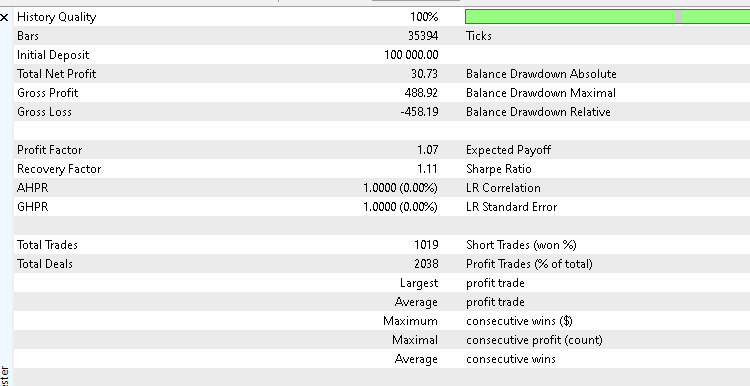
This result confirms that the KagiTrader EA is functioning correctly and can navigate trend and retracement cycles without erratic behavior. While the performance here reflects only one symbol and one timeframe, it provides a solid baseline from which traders can extend testing to more markets or optimize parameters further.
To make it easy for you to reproduce this test, I have included the .set file used during the backtest. You can load it directly in your Strategy Tester to match the exact conditions and parameters used in this evaluation.
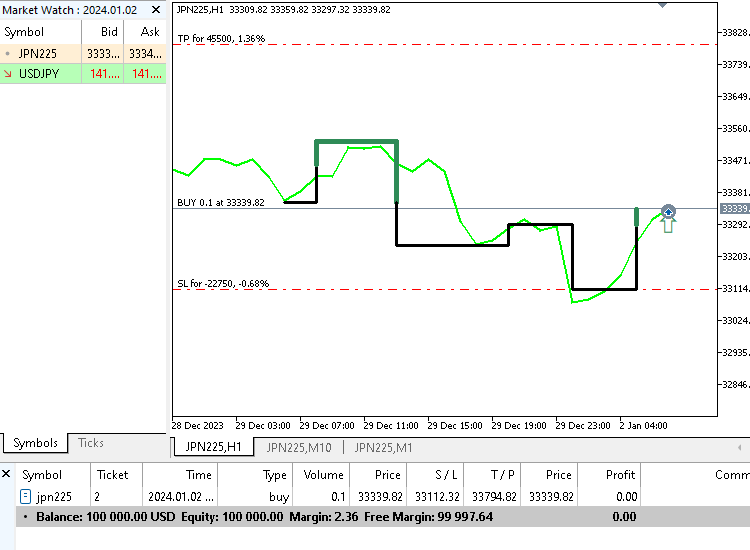
In addition to the backtest results, I also visually verified signal execution directly on the chart. To demonstrate this, I have included two screenshots. In the first image, you’ll see the EA opening a long position immediately when the Kagi structure transitions from Yin to Yang, confirming that bullish reversals are correctly detected.
The second screenshot shows the opposite scenario — a short position triggered when the Kagi reverses from Yang back to Yin, as expected under our rule set.
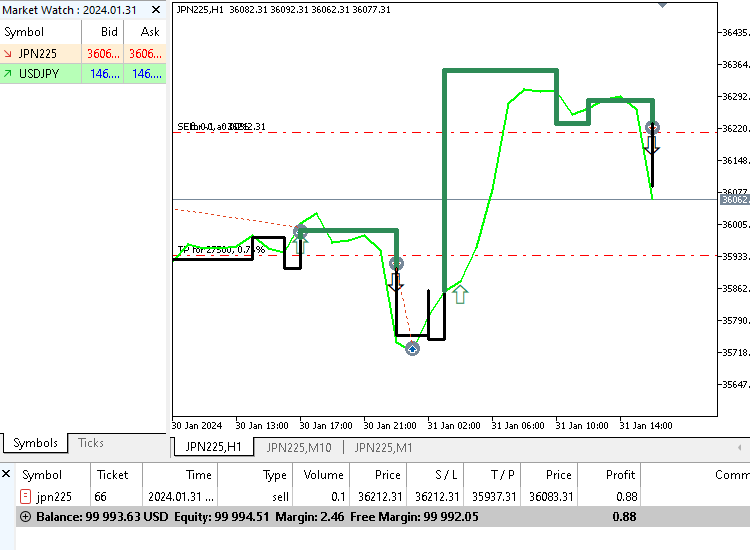
These chart samples give us confidence that the EA is responding to trend shifts as designed and that the trading logic is functioning properly in real-time conditions.
Conclusion
In this part of the series, we transformed our KagiTrader from a simple signal interpreter into a fully capable Expert Advisor. We added visual signal markers, flexible trading modes, smarter position sizing, dynamic stop-loss placement, and a structured three-stage trailing system. Each feature was introduced step-by-step so you could follow the logic and understand how it fits into the bigger picture.
By the time we integrated everything, the EA was able to read Kagi reversals in real time, open and manage trades responsibly, and adapt its stops as the market evolved. Our backtest on the Nikkei index confirmed that the system behaves consistently and executes the logic exactly as designed.
With the EA now complete and successfully tested, you have a strong foundation you can refine, extend, or experiment with—whether that means adding filters, improving money management, or even exploring alternative charting styles. The goal of this series has been to teach practical, real-world automation skills, and by reaching this point, you’ve built a working trading tool from the ground up.
All source code used in this article is provided below. The table that follows explains each file and its purpose.
| File Name | Description |
|---|---|
| KagiTraderPart1.mq5 | The original code from Part 1, which we extended and improved throughout Part 2. |
| KagiTrader.mq5 | The source code for this Part. |
| KagiTrader.set | The .set file used to run the backtest for Part 2. |
Warning: All rights to these materials are reserved by MetaQuotes Ltd. Copying or reprinting of these materials in whole or in part is prohibited.
This article was written by a user of the site and reflects their personal views. MetaQuotes Ltd is not responsible for the accuracy of the information presented, nor for any consequences resulting from the use of the solutions, strategies or recommendations described.

 Developing a multi-currency Expert Advisor (Part 24): Adding a new strategy (I)
 Fortified Profit Architecture: Multi-Layered Account Protection
 Overcoming The Limitation of Machine Learning (Part 9): Correlation-Based Feature Learning in Self-Supervised Finance
 The View and Controller components for tables in the MQL5 MVC paradigm: Containers

- Free trading apps
- Over 8,000 signals for copying
- Economic news for exploring financial markets
You agree to website policy and terms of use