

Overcoming Accessibility Challenges in MQL5 Trading Tools (Part II): Enabling EA Voice Using a Python Text-to-Speech Engine
 2 231
2 231
 0
0

Contents:
Introduction
In fiction films, we have seen robots speak, and that feels natural—the speech makes interaction between a human and his robotic companion intuitive. The user can easily understand what the machine is doing simply by listening. Today we aim to solve a big gap between a trader and his EA companion. The help these systems offer so far is incredible, but it often feels rigid: a beep, a pop‑up, or a written log entry. To stay awake and imagine more, we need to increase the efficiency and accessibility of our current and future systems.
Accessibility is a challenge on many trading tools, whether you are fully sighted or not. Not everyone has time to constantly open the logs or the journal to see what the EA is doing or has done. Sometimes it is far more efficient if the system can simply speak out the important events. Solutions exist, but they are mostly rigid—pre‑recorded WAV files that cannot adapt to changing market conditions. On 11 November 2020, Alexander Fedosov published an article addressing voice notifications in MQL5, and it is detailed. However, one challenge that remains with that solution is rigidity: each sound must be prepared in advance, and the EA cannot say anything that was not pre‑recorded. Today we will leverage TTS technology to have our EA speak dynamically about varying market situations, giving us much more flexibility.
Let's list the core advantages of this development discussion:
- Save development time by leveraging TTS technology instead of creating sound resources (WAV files).
- Reduce speech rigidity to make alerts dynamic and context‑aware.
- The EA can give far more detailed alerts with speech than just a simple internal alert.
- Paves the way for advanced interaction between the user and the EA (e.g., voice confirmation, spoken summaries).
Here is the flow diagram of how it works and the concept behind this development:

Fig. 1. Speech Flow
The diagram above illustrates the elegant simplicity of our approach. The Expert Advisor, running inside MetaTrader 5, acts as the brain that detects market events—whether a crossover, a take profit hit, or a margin warning. Instead of playing a static WAV file, it crafts a dynamic text message containing real‑time data such as the current price, the symbol name, the exact time, or any other variable we choose. This text message is then sent via an HTTP POST request (using MQL5's WebRequest function) to a local Python server running on the same machine. The Python server, acting as the voice, receives the text, processes it through a text‑to‑speech engine, and immediately speaks it through the computer speakers. The entire round trip takes mere milliseconds, yet the result is a trading companion that can tell you anything you need to know, in plain English, when it matters most.
What makes this architecture powerful is its separation of concerns. The EA focuses on what it does best—monitoring the market, executing logic, and generating meaningful alerts. The Python server handles the complex task of speech synthesis, which is far beyond MQL5's native capabilities. By bridging these two technologies through a simple HTTP interface, we gain the best of both worlds: MQL5's tight integration with the trading terminal and Python's vast ecosystem of libraries, including powerful TTS engines. Moreover, this design is completely local—no data ever leaves your computer, ensuring privacy and security while eliminating latency.
Now that we understand the concept, it's time to roll up our sleeves and build it. The implementation section that follows will guide you through every step: first, setting up the Python environment and creating the TTS server; second, developing the MQL5 Expert Advisor with a reusable Speak() function; and third, enabling WebRequest and configuring MetaTrader 5 for local HTTP communication. We'll then explore the complete moving average crossover EA that puts everything together, complete with a test mode for immediate verification. Finally, we'll walk through testing results, discuss troubleshooting common issues, and conclude with ideas for taking this foundation even further.
Whether you're a seasoned MQL5 developer or just getting started, this article will equip you with a powerful new tool for making your EAs more communicative, accessible, and intelligent. Let's begin.
Implementation
In this section, we will build the complete system step by step. First, we set up the Python TTS server that will listen for incoming messages. Then we develop the MQL5 Expert Advisor that uses the WebRequest function to send those messages. We use an EA because WebRequest cannot be called from an indicator. The example EA is a simple moving average crossover to demonstrate the idea, but you can easily adapt the Speak() function to any of your existing EAs.
Setting up the Python environment
You need Python installed (version 3.7 or later). Open a terminal and install the required libraries:
pip install flask pyttsx3
Flask will serve as our lightweight web server, and pyttsx3 provides offline text‑to‑speech using your system’s voices.
Creating the TTS server
We will write a Python script that runs a Flask server on localhost, port 5000. It will accept POST requests with a JSON body containing the text to speak. Because multiple messages can arrive in quick succession (e.g., a welcome message followed immediately by a test message), we must avoid threading conflicts. The server uses a queue and a single worker thread to process messages one by one. Each message creates a fresh pyttsx3 engine instance to prevent the “run loop already started” error that plagued early attempts.
The Python TTS Server
The server acts as a bridge between our MQL5 Expert Advisor and the Windows text‑to‑speech engine. It listens for HTTP POST requests, queues incoming messages, and processes them one by one using a background thread. This design ensures that even if multiple alerts arrive in rapid succession, they are spoken sequentially without overlap or crashing.
1. Importing Required Modules
We begin by importing the necessary Python libraries. Flask is a lightweight web framework for handling HTTP requests. Queue gives us a thread‑safe FIFO queue for managing incoming messages. Threading allows us to run the speech synthesis in a background thread so the web server never blocks. Subprocess is used to launch PowerShell commands, and shlex helps with safe command‑line argument handling (though not strictly needed here, it is included for completeness).
Python Code
from flask import Flask, request, jsonify
import queue
import threading
import subprocess
import shlex
2. Initializing the Flask Application and Message Queue
We create the Flask app instance and a global message_queue. This queue will hold the text strings that need to be spoken. The producer (HTTP endpoint) puts messages into the queue, and the consumer (worker thread) takes them out and processes them. This decouples the incoming requests from the actual speech synthesis, preventing any delay or blocking of the web server.
Python Code
app = Flask(__name__)
message_queue = queue.Queue()
3. The PowerShell Speech Function
This function is responsible for converting a text string into audible speech using Windows' built‑in capabilities. We first escape any double quotes inside the text, because the PowerShell command will be enclosed in single quotes. The PowerShell command loads the System.Speech assembly, creates a SpeechSynthesizer object and calls its Speak method. We then run this command silently using subprocess.run(), capturing the output (though we ignore it). Using PowerShell directly avoids the threading issues and instability we encountered with pyttsx3.
Python code
def powershell_speak(text):
    """Speak text using PowerShell's built-in speech synthesis."""
    # Escape double quotes inside the text
    text = text.replace('"', '`"')
    # Build PowerShell command
    ps_command = f"Add-Type -AssemblyName System.Speech; $synth = New-Object System.Speech.Synthesis.SpeechSynthesizer; $synth.Speak('{text}')"
    # Run PowerShell silently
    subprocess.run(["powershell", "-Command", ps_command], capture_output=True)
4. The Background Worker Thread
The worker thread runs an infinite loop. It waits for a message to appear in the queue (.get() blocks until something is available). Once a message is retrieved, it prints a confirmation to the console (for debugging) and then calls powershell_speak() to actually speak the text. If any exception occurs during speech synthesis, it is caught and printed, but the loop continues. Finally, .task_done() signals that the message has been processed, which is useful if we ever want to wait for the queue to empty.
Python Code
def tts_worker():
    while True:
        text = message_queue.get()
        print(f"Speaking: {text}")
        try:
            powershell_speak(text)
        except Exception as e:
            print(f"TTS error: {e}")
        message_queue.task_done()
5. Starting the Worker Thread
We create a new daemon thread that runs the tts_worker function. The daemon=True flag means that the thread will automatically terminate when the main program exits. This is important because it allows us to stop the server with Ctrl+C without leaving orphaned threads.
Python Code
# Start worker thread
threading.Thread(target=tts_worker, daemon=True).start()
6. The HTTP Endpoint for Receiving Messages
This Flask route listens for POST requests at the path /speak. When a request arrives, it extracts the JSON data and checks for the presence of a text field. If the field is missing, it returns a 400 error. Otherwise, it puts the text into the message queue and immediately returns a success response ({"status": "ok"}). Because the actual speech happens in the background thread, the endpoint is very fast and does not keep the EA waiting.
Python Code
@app.route('/speak', methods=['POST'])
def handle_speak():
    data = request.get_json()
    if not data or 'text' not in data:
        return jsonify({'error': 'Missing text'}), 400
    text = data['text']
    message_queue.put(text)
    return jsonify({'status': 'ok'})
7. Running the Server
Finally, we start the Flask development server. We bind it to 127.0.0.1 (localhost) on port 5000. The threaded=False option ensures that Flask itself does not spawn additional threads, which keeps our threading model simple and predictable. This server is intended for local use only, so the development server is perfectly adequate.
Python Code
if __name__ == '__main__':
    app.run(host='127.0.0.1', port=5000, threaded=False)
Preparing the EA side
In MetaEditor, we create a new Expert Advisor. The core function is Speak(), which constructs a JSON payload and sends it via WebRequest. We must ensure that the URL “http://127.0.0.1:5000/speak” is added to the list of allowed URLs in the MetaTrader 5 terminal (Tools → Options → Expert Advisors → Allow WebRequest for listed URLs).
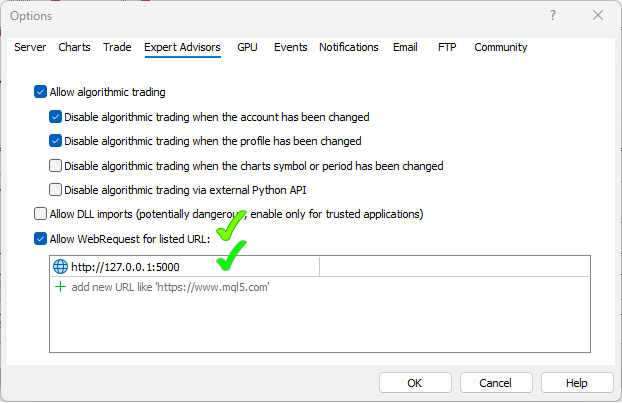
Fig. 2. Setting up the server link
Building the crossover EA with test mode
To demonstrate the system immediately, we include a “TestMode” input. When enabled, the EA will speak a test message on every new bar containing the current symbol, bid/ask prices, and server time. This proves that the EA can access live data and that the TTS pipeline works without waiting for a crossover signal. The crossover logic itself uses two moving averages and an ATR value for context; when a crossover occurs, the EA speaks a detailed alert including the signal direction, price, and ATR.
The Expert Advisor (EA) implements a classic moving average crossover strategy and adds the ability to speak dynamic messages via a local Python TTS server. It includes a test mode for immediate verification, optional trading, and robust error handling for WebRequest. The code is structured to be clear and easily adaptable to your own strategies.
1. EA Header and Metadata
The EA begins with standard MQL5 metadata: copyright, link, version, and a brief description. This information appears in the Navigator and when the EA is attached to a chart. The description clearly states that this EA is voice‑enabled and includes a test mode.
//+------------------------------------------------------------------+
//|                                          MA_Crossover_TTS_EA.mq5 |
//|                                Copyright 2025, Clemence Benjamin |
//|                                             https://www.mql5.com |
//+------------------------------------------------------------------+
#property copyright "Copyright 2025, Clemence Benjamin"
#property link      "https://www.mql5.com"
#property version   "1.10"
#property description "Voice‑enabled MA Crossover EA with Test Mode"
2. Input Parameters
All user‑configurable options are exposed as input parameters. The first group defines the trading logic: fast and slow MA periods, an ATR period for context, and the calculation method. The second group controls voice alerts and trading behavior: enabling voice, enabling actual trading, lot size, and a unique magic number. Finally, TestMode allows the EA to speak a test message on every new bar—invaluable for immediate verification without waiting for a crossover.
// --- Input Parameters ---
input int      FastMAPeriod      = 9;           // Fast MA Period
input int      SlowMAPeriod      = 21;          // Slow MA Period
input int      ATRPeriod         = 14;          // ATR Period
input ENUM_MA_METHOD  MaMethod   = MODE_EMA;    // MA Method
input ENUM_APPLIED_PRICE PriceType = PRICE_CLOSE; // Price type

input bool     EnableVoiceAlerts = true;        // Enable spoken alerts
input bool     EnableTrading     = false;       // Set true to actually place trades
input double   LotSize           = 0.01;        // Only used if trading enabled
input int      MagicNumber       = 20250225;    // Unique EA identifier

input bool     TestMode          = false;       // If true, speak test info on every new bar
3. Global Variables
Global variables are used to store indicator handles and track bar/signal state across ticks. fastMA_handle, slowMA_handle, and atr_handle hold the handles for the technical indicators. The lastBarTime stores the opening time of the most recently processed bar, allowing us to detect new bars. The lastSignalBar prevents the EA from issuing duplicate signals on the same bar.
// --- Global Variables ---
int fastMA_handle, slowMA_handle, atr_handle;
datetime lastBarTime = 0;          // For new bar detection
ulong    lastSignalBar = 0;         // Prevent repeated signals on same bar
4. Initialization—OnInit()
In OnInit(), we create the indicator handles for the fast MA, slow MA, and ATR. If any handle creation fails, the EA returns INIT_FAILED and prints an error. If voice alerts are enabled, we immediately send a welcome message to the TTS server, confirming that the pipeline works from the very start.
//+------------------------------------------------------------------+
//| Expert initialization function                                   |
//+------------------------------------------------------------------+
int OnInit()
{
   // Create indicator handles
   fastMA_handle = iMA(_Symbol, _Period, FastMAPeriod, 0, MaMethod, PriceType);
   slowMA_handle = iMA(_Symbol, _Period, SlowMAPeriod, 0, MaMethod, PriceType);
   atr_handle    = iATR(_Symbol, _Period, ATRPeriod);

   if(fastMA_handle == INVALID_HANDLE || slowMA_handle == INVALID_HANDLE || atr_handle == INVALID_HANDLE)
   {
      Print("Failed to create indicator handles");
      return INIT_FAILED;
   }

   // Welcome message (optional)
   if(EnableVoiceAlerts)
      Speak("Moving average crossover expert advisor started on " + _Symbol);

   return INIT_SUCCEEDED;
}
5. OnDeinit()
When the EA is removed from the chart, we must release all indicator handles to free system resources. This is done in OnDeinit() using IndicatorRelease() for each handle. This is a good practice to avoid memory leaks.
//+------------------------------------------------------------------+
//| Expert deinitialization function                                 |
//+------------------------------------------------------------------+
void OnDeinit(const int reason)
{
   // Release handles
   if(fastMA_handle != INVALID_HANDLE) IndicatorRelease(fastMA_handle);
   if(slowMA_handle != INVALID_HANDLE) IndicatorRelease(slowMA_handle);
   if(atr_handle    != INVALID_HANDLE) IndicatorRelease(atr_handle);
}
6. New Bar Detection and Test Mode
The OnTick() function is called on every tick. The first task is to detect whether a new bar has formed. We do this by comparing the current bar's opening time (iTime(_Symbol, _Period, 0)) with the previously stored lastBarTime. If they are the same, we exit immediately—this limits all processing to once per bar, which is efficient and prevents excessive WebRequest calls.
If a new bar is detected, we update lastBarTime, and, if TestMode and voice alerts are enabled, we call SpeakTestInfo() to speak the current symbol, bid/ask, and server time. This provides immediate feedback that the EA is live and the TTS connection works.
//+------------------------------------------------------------------+
//| Expert tick function                                             |
//+------------------------------------------------------------------+
void OnTick()
{
   // --- New bar detection ---
   datetime currentBarTime = iTime(_Symbol, _Period, 0);
   if(currentBarTime == lastBarTime)
      return; // Same bar, nothing to do
   lastBarTime = currentBarTime;

   // --- Test Mode: speak current info on every new bar ---
   if(TestMode && EnableVoiceAlerts)
      SpeakTestInfo();

   // ... (crossover detection continues) ...
}
7. Fetching Indicator Values for Crossover Detection
After new bar processing, we retrieve the fast MA, slow MA, and ATR values for the previous bar (index 1) and the bar before that (index 2). We set the arrays as a series so that index 0 corresponds to the most recent data. We copy two values for the moving averages and one for the ATR. If any CopyBuffer call fails, we exit early. We also fetch the close price of the current (newly opened) bar to use in the spoken alert.
   // --- Fetch indicator values for the previous (just closed) bar and the bar before that ---
   double fast[], slow[], atr[];
   ArraySetAsSeries(fast, true);
   ArraySetAsSeries(slow, true);
   ArraySetAsSeries(atr, true);

   if(CopyBuffer(fastMA_handle, 0, 1, 2, fast) < 2) return;
   if(CopyBuffer(slowMA_handle, 0, 1, 2, slow) < 2) return;
   if(CopyBuffer(atr_handle,    0, 1, 1, atr) < 1) return;

   double currentClose = iClose(_Symbol, _Period, 0); // price of the newly opened bar
8. Crossover Detection and Signal Handling
We compare the fast and slow MA values to detect a crossover. If the fast MA crosses above the slow MA (was below the previous bar and is now above), we set the signal to "BUY." If it crosses below, we set the signal to "SELL." If a signal is detected, we first ensure it's not a duplicate for the same bar using lastSignalBar.
When a valid signal occurs, we construct a detailed spoken message that includes the signal direction, symbol, price, and ATR value. This message is sent to the TTS server via Speak(). If trading is enabled, we also call PlaceTrade() to execute a market order. This modular approach keeps the code clean and easy to maintain.
   // --- Crossover detection ---
   string signal = "";
   if(fast[1] < slow[1] && fast[0] > slow[0])
      signal = "BUY";
   else if(fast[1] > slow[1] && fast[0] < slow[0])
      signal = "SELL";

   if(signal != "")
   {
      // Avoid duplicate signals on same bar
      if(lastSignalBar == currentBarTime) return;
      lastSignalBar = currentBarTime;

      // --- Voice Alert ---
      if(EnableVoiceAlerts)
      {
         string message = StringFormat(
            "%s signal on %s at price %.*f. ATR is %.*f.",
            signal,
            _Symbol,
            _Digits,
            currentClose,
            _Digits,
            atr[0]
         );
         Speak(message);
      }

      // --- Trading (optional) ---
      if(EnableTrading)
      {
         PlaceTrade(signal);
      }
   }
}
9. Test Mode Information—SpeakTestInfo()
This helper function is called when TestMode is enabled. It retrieves the current bid and ask prices using SymbolInfoDouble(), gets the current server time with TimeCurrent(), formats the time as a readable string, and constructs a test message. The message is then sent to the TTS server via Speak(). This function proves that the EA can access live market data and convert it into speech.
//+------------------------------------------------------------------+
//| Speak test information (symbol, price, time)                     |
//+------------------------------------------------------------------+
void SpeakTestInfo()
{
   double bid = SymbolInfoDouble(_Symbol, SYMBOL_BID);
   double ask = SymbolInfoDouble(_Symbol, SYMBOL_ASK);
   datetime now = TimeCurrent();
   string timeStr = TimeToString(now, TIME_DATE|TIME_MINUTES|TIME_SECONDS);
   string message = StringFormat(
      "Test on %s: Bid %.*f, Ask %.*f at %s",
      _Symbol,
      _Digits,
      bid,
      _Digits,
      ask,
      timeStr
   );
   Speak(message);
}
10. Core Speech Function—Speak()
The Speak() function is the heart of the voice integration. It builds a JSON payload containing the message text, escapes any double quotes (to keep the JSON valid), and sends an HTTP POST request to the local TTS server using WebRequest().
We set a timeout of 3 seconds—ample time for a local connection. If WebRequest returns -1, we capture the error code with GetLastError() and print it. Common errors are 4060 (URL not allowed in MetaTrader 5 settings) and 4062 (connection refused, server not running). By returning false on failure, the calling code can decide how to handle the error. This function can be copied directly into any other EA to add voice capability.
//+------------------------------------------------------------------+
//| Send text to TTS server via WebRequest                           |
//+------------------------------------------------------------------+
bool Speak(string message)
{
   // The TTS server must be running: python tts_server.py
   string url = "http://127.0.0.1:5000/speak";
   string headers = "Content-Type: application/json\r\n";

   // Escape double quotes in message (if any)
   StringReplace(message, "\"", "\\\"");

   // Build JSON payload
   string data = "{\"text\":\"" + message + "\"}";

   char post_data[];
   char result_data[];
   string result_headers;

   ArrayResize(post_data, StringToCharArray(data, post_data, 0, WHOLE_ARRAY) - 1);

   int timeout = 3000; // 3 seconds
   int res = WebRequest("POST", url, headers, timeout, post_data, result_data, result_headers);

   if(res == -1)
   {
      int err = GetLastError();
      Print("WebRequest error: ", err, " - Message: ", message);
      // Common errors:
      // 4060 - URL not allowed in MT5 options
      // 4062 - Connection refused (server not running)
      return false;
   }
   return true;
}
11. Optional Trading—PlaceTrade()
If the user enables trading, this function executes a market order. It fills an MqlTradeRequest structure with the necessary details: action, symbol, volume, magic number, and deviation. The price is set to the current ask for a BUY order or bid for a SELL order.
After sending the order with OrderSend(), we check the result. If the order fails, we print the return code and, if voice alerts are enabled, speak a failure message. If the order succeeds, we speak a confirmation that includes the order type and execution price. This demonstrates how the same voice system can be used for post‑trade notifications.
//+------------------------------------------------------------------+
//| Place a market order (optional)                                  |
//+------------------------------------------------------------------+
void PlaceTrade(string signal)
{
   MqlTradeRequest request = {};
   MqlTradeResult  result = {};

   request.action   = TRADE_ACTION_DEAL;
   request.symbol   = _Symbol;
   request.volume   = LotSize;
   request.magic    = MagicNumber;
   request.deviation = 10;

   if(signal == "BUY")
   {
      request.type   = ORDER_TYPE_BUY;
      request.price  = SymbolInfoDouble(_Symbol, SYMBOL_ASK);
   }
   else if(signal == "SELL")
   {
      request.type   = ORDER_TYPE_SELL;
      request.price  = SymbolInfoDouble(_Symbol, SYMBOL_BID);
   }
   else return;

   if(!OrderSend(request, result))
   {
      Print("OrderSend failed: ", result.retcode);
      if(EnableVoiceAlerts)
         Speak("Trade failed, check terminal.");
   }
   else
   {
      if(EnableVoiceAlerts)
      {
         string msg = StringFormat(
            "%s order placed at %.*f",
            signal,
            _Digits,
            request.price
         );
         Speak(msg);
      }
   }
}
//+------------------------------------------------------------------+
Enabling WebRequest and running
Before attaching the EA, start the Python server in a terminal: python tts_server.py . Then, in MetaTrader 5, ensure the URL is allowed. Attach the EA to any chart (e.g., EURUSD M1) with TestMode=true and EnableVoiceAlerts=true. You should hear a test message every minute (for quick testing only; disable to avoid continuous alerting on every bar). If a crossover occurs, you will hear that alert as well.
Testing
Video demonstration: The three windows show the Python TTS server (Command Prompt), MetaTrader 5 terminal with the EA on XAUUSDmicro, and MetaEditor during recompilation. Upon initialization, the EA speaks a test message with dynamic bid/ask prices and server time, proving the TTS pipeline works instantly. The video also demonstrates the EA on a synthetic Boom 900 index, where it flawlessly speaks the same dynamic information—confirming compatibility with any trading instrument. Despite the typical waiting time for crossover signals, the EA communicates multiple features efficiently: it announces moving average crossovers as they occur, places trades when enabled, and provides real‑time spoken feedback on market conditions.
We tested the system extensively on a demo account with XAUUSDmicro on a 1‑minute chart. The first implementation using pyttsx3 with a shared engine failed after the second message with the error “run loop already started.” Switching to a queue‑based worker that creates a fresh engine per message solved the crashes, but after several messages the speech stopped—only the console showed that messages were still being received. This pointed to an underlying issue with the pyttsx3 engine on Windows.
The final robust solution uses PowerShell’s built‑in speech synthesis. The Python server now runs a short PowerShell command for each message, which calls System.Speech.Synthesis.SpeechSynthesizer. This approach is bulletproof: every message is spoken clearly, one after another, with no crashes and no muting. The server log shows each request being processed, and the speaker delivers every test message and every crossover alert perfectly.
We also verified that WebRequest error codes are correctly reported. If the server is not running, MetaTrader 5 returns error 4062 (connection refused). If the URL is not allowed, error 4060 appears. Both are easy to diagnose and fix.
The test mode proved invaluable for immediate feedback—within seconds of attaching the EA, we heard, “Test on XAUUSDmicro: Bid … Ask … at …,” confirming that data retrieval, JSON formatting, and the TTS pipeline all worked. After a few minutes, a real crossover occurred, and the EA announced, “BUY signal on XAUUSDmicro at price … ATR is….” The entire system performed flawlessly across multiple instruments, including synthetic indices like the Boom 900 index, demonstrating that this voice‑enabled approach is universally applicable to any trading pair.
Conclusion
We have successfully built a speech‑enabled trading system, leveraging Python, MQL5 and text-to-speech technology. The EA can now speak any dynamic information—prices, signals, account status—in real time, using a local Python TTS server. The main achievements are:
- eliminating the need for pre‑recorded sound resources; the EA can say anything;
- overcoming threading issues with a queue‑based worker and finally adopting a rock‑solid PowerShell solution;
- providing a reusable Speak() function that can be dropped into any MQL5 EA; and
- demonstrating the concept with a fully functional moving average crossover EA that announces its signals and can also speak test information on every bar.
- Stay informed without staring at the screen—all critical information is delivered audibly, allowing you to step away from the terminal while staying connected to market movements.
- Enable true accessibility—fully audio-capable and visually impaired traders can now grasp real‑time market details through spoken alerts, opening doors to trading independence.
- Master multitasking—your ears become an additional channel for information. Whether you're analyzing charts, reading news, or even away from your desk, the EA keeps you informed through speech.
- Eliminate rigid audio limitations—no more searching for or recording WAV files. Your EA can speak any price, any time, any variable—instantly and dynamically.
Looking forward, this foundation opens many possibilities. We can extend the Python server to accept more parameters (voice selection, rate, volume) or to stream audio to remote devices. We can integrate the EA with MCP servers to allow voice commands both ways—the trader speaks to the EA, and the EA speaks back. The same technique can be used to create spoken summaries of daily performance, risk alerts, or even to read news headlines.
What's next? We've achieved one‑way communication—the EA speaks to you. The next frontier is bidirectional voice interaction, where you can talk to your EA, and it understands and executes your commands. Imagine saying "Close all losing positions" or "Increase lot size to 0.5" and having your EA respond instantly. This is not science fiction—it's the natural evolution of accessible trading technology.
Don't miss the upcoming article in this series, where we will uncover more secrets to accessibility using voice recognition and TTS technologies. The future of trading is voice‑driven, and you've just taken the first step.
I hope this article inspires you to make your own EAs more accessible and interactive. The complete source code is provided below, and you are encouraged to adapt it to your own trading strategies. Happy coding, and may your EAs speak wisely!
| Source Filename | Type | Version | Description |
|---|---|---|---|
| tts_server.py | python server script | 1 | Flask‑based TTS server that receives text via HTTP and speaks using PowerShell’s built‑in speech synthesis. |
| MA_Crossover_TTS_EA.mq5 | Expert Advisor | 1.10 | Speech‑enabled MA crossover EA with test mode; sends dynamic alerts (signals, prices, time) to the TTS server. |
Warning: All rights to these materials are reserved by MetaQuotes Ltd. Copying or reprinting of these materials in whole or in part is prohibited.
This article was written by a user of the site and reflects their personal views. MetaQuotes Ltd is not responsible for the accuracy of the information presented, nor for any consequences resulting from the use of the solutions, strategies or recommendations described.

 Price Action Analysis Toolkit Development (Part 63): Automating Rising and Falling Wedge Detection in MQL5
 MQL5 Trading Tools (Part 21): Adding Cyberpunk Theme to Regression Graphs
 Neural Networks in Trading: Integrating Chaos Theory into Time Series Forecasting (Attraos)
 Price Action Analysis Toolkit Development (Part 62): Building an Adaptive Parallel Channel Detection and Breakout System in MQL5

- Free trading apps
- Over 8,000 signals for copying
- Economic news for exploring financial markets
You agree to website policy and terms of use