

Custom Indicator Workshop (Part 2) : Building a Practical Supertrend Expert Advisor in MQL5
 9 102
9 102
 0
0

Introduction
Manual trend trading using the Supertrend indicator is simple in theory but demanding in practice. A Supertrend line flips, price confirms the direction, and the decision to buy or sell is clear. However, in live markets, that clarity often comes at the wrong moment. Execution is delayed, emotions interfere, and what should have been a clean entry turns into hesitation or overthinking.
This gap between seeing a signal and acting on it is where automation becomes valuable. Not to replace analysis, but to handle execution with speed and consistency. The Supertrend indicator is well-suited for this role. It offers a clear definition of trend state and a precise moment when that state changes. What is often missing is a clean and flexible way to translate those signals into actual trades.
In this article, we focus on building exactly that. We design an Expert Advisor in MQL5 that listens to signals from a Supertrend indicator and executes trades immediately when a confirmed trend change occurs. The logic is kept explicit and transparent. Every decision the EA makes is traceable to a clear market condition.
Beyond the trading logic itself, this article documents the whole development process. We move from signal detection to position management, risk control, and historical testing, explaining each step in practical terms. By the end, we will have a complete and functional Supertrend Expert Advisor, and more importantly, a reusable framework that readers can adapt and extend as they continue their research toward a sustainable trading edge.
Understanding the Supertrend Signal Logic
The Supertrend indicator always exists in one of two states: bullish or bearish. In a bullish state, the Supertrend line is plotted below the price and acts as a trailing support. In a bearish state, the line is plotted above the price and acts as a trailing resistance. A signal is generated only when the indicator transitions from one state to the other.
A bullish signal occurs when the most recently completed candle closes above the Supertrend upper band.
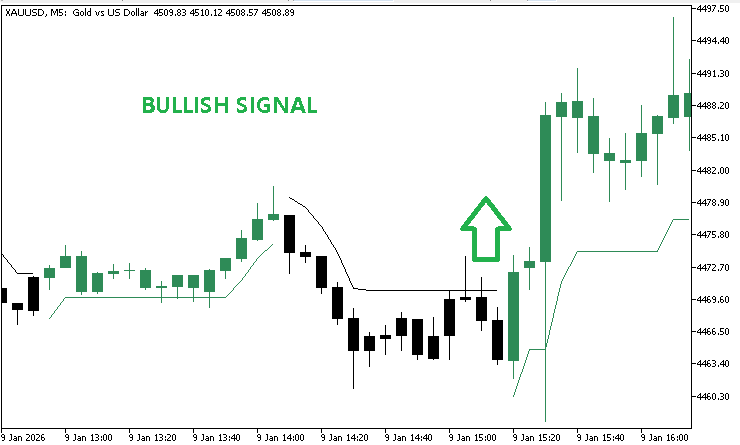
This close confirms that the bearish state has ended and that the indicator has flipped to bullish. At this point, the upper band becomes inactive, and the lower band is established below the price. This single transition represents one confirmed buy signal.
A bearish signal follows the same logic in reverse.
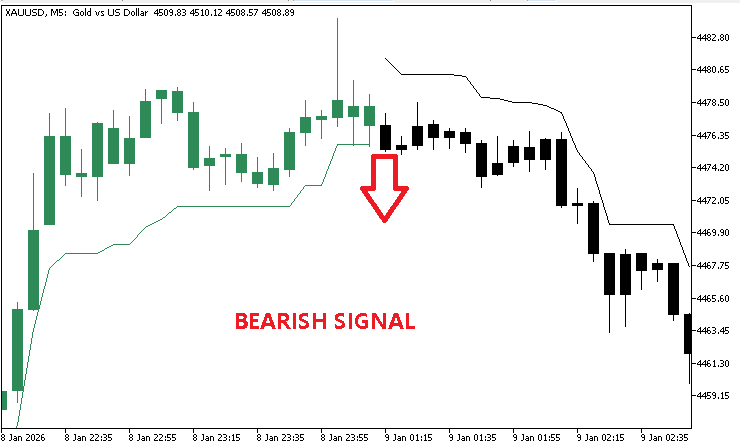
When the most recent candle closes below the Supertrend lower band, the bullish state ends, and the indicator flips to bearish. The lower band becomes inactive, and the upper band appears above the price. This transition represents one confirmed sell signal.
Just to let you know, signals are evaluated only on completed candles. The EA never attempts to interpret a partially formed bar. By waiting for a candle to close, we ensure the Supertrend state is final and that no repainting or signal instability occurs in live market conditions.
With this approach, each Supertrend signal is clear, deterministic, and occurs only once per trend change. There are no repeated signals during an ongoing trend, and there is no ambiguity about the market state. This clean signal definition serves as the foundation for the Expert Advisor's remaining logic.
Trading Rules and Design Decisions
With the Supertrend signal logic clearly defined, the next step is deciding how the Expert Advisor should react to those signals in real market conditions. The goal of this design is not complexity, but control. Every trading decision is structured to allow flexibility without compromising clarity or safety.
When a bullish Supertrend signal appears, the EA treats it as a confirmed transition from a bearish to a bullish market state. The first responsibility at this moment is alignment. If a short position opened by this EA instance exists, it is closed immediately. Holding positions in opposing directions would contradict the indicator state and distort results. Once alignment is restored, the EA checks whether long trading is allowed. If it is, a market buy order is executed without delay.
The same logic applies in reverse for bearish signals. A confirmed close below the Supertrend lower band marks a transition into a bearish state. Any active long position opened by the EA is closed first. If short trading is enabled, a market sell order is then placed. This sequence ensures that the EA always operates in harmony with the current Supertrend state and never carries conflicting exposure.
Risk management is treated as a configurable component rather than a fixed rule. The EA allows stop loss usage to be turned on or off entirely. This choice supports both traders who prefer pure signal-based exits and those who require predefined risk boundaries.
When stop losses are enabled, their placement can follow one of two logical models. The first is structure-based. For long positions, the stop loss is placed at the low of the most recently completed candle. For short positions, it is placed at the candle's high. This approach ties risk directly to recent price behavior. The second model is volatility-based. In this case, the stop loss is placed at the Supertrend band value from the last completed candle, using the indicator itself as a dynamic protective level.
Directional control is another key part of the design. The EA can be launched in long-only, short-only, or fully bidirectional mode. This allows discretionary bias to coexist with automation. When broader market analysis favors one direction, the EA can be restricted to trade only in that direction while still handling execution and risk consistently.
Position sizing is handled with the same level of flexibility. A fixed lot-size mode allows all trades to use a constant volume regardless of market conditions. Alternatively, an automatic mode calculates the lot size based on a predefined percentage of the account balance. This ensures that risk scales naturally as the account grows or contracts, without manual adjustment.
Together, these design choices form a structured yet adaptable trading system. Signals remain clean and objective, while execution, risk, and exposure are controlled through transparent configuration layers. This separation of logic and design makes the EA both practical for live use and easy to extend for further research and experimentation.
Setting Up the Expert Advisor Foundation
This section focuses on setting up the Expert Advisor boilerplate and understanding its structure. Everything that follows will build on this base, so this stage must be done correctly.
Prerequisites and Environment Setup
At this stage, we assume familiarity with the basics of the MQL5 programming language. We also take comfort with the MetaTrader 5 platform, including attaching programs to charts, configuring input parameters, and navigating core modules such as the Strategy Tester and the Navigator.
Basic experience with MetaEditor 5 is equally important. This includes creating new source files, compiling code, and inspecting compiler messages. These skills are essential for a smooth development process.
This Expert Advisor relies on the Supertrend indicator developed in the previous article. To keep the learning process consistent, the entire indicator source code has been attached to this article again under the file name supertrend.mq5. It is important to download this file and compile it locally before proceeding.
The indicator source file should be placed in the default directory for (.../MQL5/Indicators). Using the default directory structure is strongly recommended. It avoids file path issues and ensures that the Expert Advisor can locate and load the indicator correctly during execution.
Once the indicator source file is in place, it should be opened in MetaEditor, compiled, and verified for errors. This step is crucial because the Expert Advisor will read signals directly from this indicator. If the indicator is missing or not compiled, the EA will fail silently or behave unpredictably.
We have also attached the complete source file for the Expert Advisor, named supertrendExpert.mq5. It is recommended that you download this file and keep it open for your reference. Comparing an evolving implementation with a complete working version is one of the most effective ways to learn program structure and decision flow.
Creating the EA Boilerplate
With the environment ready, we can now create the Expert Advisor scaffold. A new empty Expert Advisor source file should be created in MetaEditor and given a name of your choice. Into this file, we paste the following boilerplate code, which will serve as the foundation for all further development.
//+------------------------------------------------------------------+
//|                                             supertrendExpert.mq5 |
//|          Copyright 2026, MetaQuotes Ltd. Developer is Chacha Ian |
//|                          https://www.mql5.com/en/users/chachaian |
//+------------------------------------------------------------------+

#property copyright "Copyright 2026, MetaQuotes Ltd. Developer is Chacha Ian"
#property link      "https://www.mql5.com/en/users/chachaian"
#property version   "1.00"

//+------------------------------------------------------------------+
//| Standard Libraries                                               |
//+------------------------------------------------------------------+
#include <Trade\Trade.mqh>

//+------------------------------------------------------------------+
//| Custom Enumerations                                              |
//+------------------------------------------------------------------+
enum ENUM_TRADE_DIRECTION
{
   ONLY_LONG,
   ONLY_SHORT,
   TRADE_BOTH
};

enum ENUM_LOT_SIZE_INPUT_MODE
{
   MODE_MANUAL,
   MODE_AUTO
};

enum ENUM_STOP_LOSS_MODE
{
   SL_MODE_NONE,
   SL_MODE_SWING_EXTREME,
   SL_MODE_SUPERTREND_VOLATILITY
};

//+------------------------------------------------------------------+
//| User input variables                                             |
//+------------------------------------------------------------------+
input group "Information"
input ulong magicNumber         = 254700680002;
input ENUM_TIMEFRAMES timeframe = PERIOD_CURRENT;

input group "Supertrend configuration parameters"
input int32_t atrPeriod         = 10;
input double  atrMultiplier     = 1.5;

input group "Trade and Risk Management"
input ENUM_TRADE_DIRECTION direction        = ONLY_LONG;
input ENUM_STOP_LOSS_MODE stopLossMode      = SL_MODE_SWING_EXTREME;
input ENUM_LOT_SIZE_INPUT_MODE lotSizeMode  = MODE_AUTO;
input double riskPerTradePercent            = 1.0;
input double positionSize                   = 0.1;

//+------------------------------------------------------------------+
//| Global Variables                                                 |
//+------------------------------------------------------------------+
//--- Create a CTrade object to handle trading operations
CTrade Trade;

//--- Bid and Ask
double   askPrice;
double   bidPrice;

//+------------------------------------------------------------------+
//| Expert initialization function                                   |
//+------------------------------------------------------------------+
int OnInit(){

   //---  Assign a unique magic number to identify trades opened by this EA
   Trade.SetExpertMagicNumber(magicNumber);

   return(INIT_SUCCEEDED);
}

//+------------------------------------------------------------------+
//| Expert deinitialization function                                 |
//+------------------------------------------------------------------+
void OnDeinit(const int reason){

   //--- Notify why the program stopped running
   Print("Program terminated! Reason code: ", reason);
}

//+------------------------------------------------------------------+
//| Expert tick function                                             |
//+------------------------------------------------------------------+
void OnTick(){

   //--- Retrieve current market prices for trade execution
   askPrice      = SymbolInfoDouble (_Symbol, SYMBOL_ASK);
   bidPrice      = SymbolInfoDouble (_Symbol, SYMBOL_BID);
}

//--- UTILITY FUNCTIONS

//+------------------------------------------------------------------+
This initial structure does not place trades or read indicator data yet. Its purpose is to define configuration options, establish program lifecycle functions, and lay the groundwork for future logic.
File Header and Properties
//+------------------------------------------------------------------+
//|                                             supertrendExpert.mq5 |
//|          Copyright 2026, MetaQuotes Ltd. Developer is Chacha Ian |
//|                          https://www.mql5.com/en/users/chachaian |
//+------------------------------------------------------------------+

#property copyright "Copyright 2026, MetaQuotes Ltd. Developer is Chacha Ian"
#property link      "https://www.mql5.com/en/users/chachaian"
#property version   "1.00"
The file header and property declarations define ownership, versioning, and identity. These properties are displayed inside MetaTrader and help distinguish this EA from others, especially when running multiple systems at once. They do not directly affect trading behavior, but they are essential for clarity, maintenance, and distribution.
Standard Library Inclusion
//+------------------------------------------------------------------+
//| Standard Libraries                                               |
//+------------------------------------------------------------------+
#include <Trade\Trade.mqh>
Including the Trade library provides access to the CTrade class. This class simplifies trade execution and management by wrapping low-level trade requests into clear and safe methods. The CTrade class will be used later to handle trade execution and position management using its built-in trading functions.
Custom Enumerations
The custom enumerations define controlled choices for key configuration areas.
//+------------------------------------------------------------------+
//| Custom Enumerations                                              |
//+------------------------------------------------------------------+
enum ENUM_TRADE_DIRECTION
{
   ONLY_LONG,
   ONLY_SHORT,
   TRADE_BOTH
};

enum ENUM_LOT_SIZE_INPUT_MODE
{
   MODE_MANUAL,
   MODE_AUTO
};

enum ENUM_STOP_LOSS_MODE
{
   SL_MODE_NONE,
   SL_MODE_SWING_EXTREME,
   SL_MODE_SUPERTREND_VOLATILITY
};
Trade direction enumeration determines whether the EA trades long, short, or both. This allows discretionary trade filtering without changing logic. The lot size input mode determines whether the position size is fixed or calculated automatically based on risk. Stop loss mode defines how protective stops are handled, including disabling them entirely or placing them based on price structure or Supertrend values. Using enumerations makes the input parameters clearer and prevents invalid configurations.
User Input Variables
The input variables expose all configurable behavior to the user through the EA settings panel.
//+------------------------------------------------------------------+
//| User input variables                                             |
//+------------------------------------------------------------------+
input group "Information"
input ulong magicNumber         = 254700680002;
input ENUM_TIMEFRAMES timeframe = PERIOD_CURRENT;

input group "Supertrend configuration parameters"
input int32_t atrPeriod         = 10;
input double  atrMultiplier     = 1.5;

input group "Trade and Risk Management"
input ENUM_TRADE_DIRECTION direction        = ONLY_LONG;
input ENUM_STOP_LOSS_MODE stopLossMode      = SL_MODE_SWING_EXTREME;
input ENUM_LOT_SIZE_INPUT_MODE lotSizeMode  = MODE_AUTO;
input double riskPerTradePercent            = 1.0;
input double positionSize                   = 0.1;
Information Group
magicNumber
This value uniquely identifies all positions opened by this EA instance. It allows the EA to distinguish its own trades from manual trades or trades opened by other EAs running on the same account.
timeframe
This determines which chart timeframe the EA uses to read Supertrend signals. Even if the EA is attached to a lower-timeframe chart, it can still trade based on signals from a higher-timeframe chart. This makes multi-timeframe strategies possible without changing code.
Supertrend Configuration Parameters
atrPeriod
This defines the ATR lookback period used by the Supertrend indicator. A smaller value makes the indicator more reactive to price changes, while a larger value smooths signals and reduces noise. Since the EA reads signals directly from the indicator, this value must match the indicator configuration to avoid mismatched signals.
atrMultiplier
This controls the distance of the Supertrend bands from the price. A higher multiplier produces wider bands, fewer signals, and longer trends. A lower multiplier produces tighter bands and more frequent signals. This directly affects how often the EA enters and exits trades.
Trade and Risk Management
direction
This input controls which trade directions the EA can execute. ONLY_LONG allows long positions only, ONLY_SHORT allows short positions only, and TRADE_BOTH allows full bidirectional trading. This is useful when user discretion suggests a strong directional bias, allowing the EA to align with the broader market context.
stopLossMode
This defines whether and how stop losses are placed. SL_MODE_NONE turns off stop-loss placement entirely. Positions are closed only when an opposing Supertrend signal occurs. SL_MODE_SWING_EXTREME places the stop loss at the high or low of the most recent completed candle, based on recent market structure. SL_MODE_SUPERTREND_VOLATILITY places the stop loss at the Supertrend band level, dynamically adapting to volatility.
lotSizeMode
This input determines how position size is calculated. MANUAL_MODE uses a fixed lot size for all trades. AUTO_MODE calculates the lot size based on the account balance and the risk percentage. This allows the EA to scale position size automatically as the account grows or shrinks.
riskPerTradePercent
This value is only used when automatic lot sizing is enabled. It defines how much of the account balance is risked on each trade. The EA uses this value, along with the stop-loss distance, to calculate position size. This ensures consistent risk exposure across different market conditions.
positionSize
This value is only used when manual lot sizing is selected. The EA will open all positions with this fixed lot size, regardless of volatility or stop-loss distance.
Global Variables
Global variables store values that need to be accessed across different functions.
//+------------------------------------------------------------------+
//| Global Variables                                                 |
//+------------------------------------------------------------------+
//--- Create a CTrade object to handle trading operations
CTrade Trade;

//--- Bid and Ask
double   askPrice;
double   bidPrice;
The CTrade object is created once and reused for all trading operations. Bid and ask prices are stored to avoid repeated symbol queries and to keep execution logic clean. At this stage, no indicator handles or signal buffers are declared yet. Those will be introduced later.
Program Lifecycle Functions
The OnInit function is called once when the EA is loaded.
//+------------------------------------------------------------------+
//| Expert initialization function                                   |
//+------------------------------------------------------------------+
int OnInit(){

   //---  Assign a unique magic number to identify trades opened by this EA
   Trade.SetExpertMagicNumber(magicNumber);

   return(INIT_SUCCEEDED);
}
Here, we assign the magic number to the trade object. This single line ensures proper trade ownership throughout the EA's lifetime.
The OnDeinit function is triggered when the EA is detached or the terminal shuts down.
//+------------------------------------------------------------------+
//| Expert deinitialization function                                 |
//+------------------------------------------------------------------+
void OnDeinit(const int reason){

   //--- Notify why the program stopped running
   Print("Program terminated! Reason code: ", reason);

}
For now, it simply reports the shutdown reason. Later, it will also handle resource cleanup.
The OnTick function is executed when new price information arrives.
//+------------------------------------------------------------------+
//| Expert tick function                                             |
//+------------------------------------------------------------------+
void OnTick(){

   //--- Retrieve current market prices for trade execution
   askPrice      = SymbolInfoDouble (_Symbol, SYMBOL_ASK);
   bidPrice      = SymbolInfoDouble (_Symbol, SYMBOL_BID);

}
At this stage, it only updates bid and ask prices. This is intentional. Trading logic will be added gradually to keep behavior predictable and easy to debug.
With the foundation in place, we are now ready to introduce the Supertrend indicator handle and begin wiring real signal-driven execution logic in the next section.
Implementing Supertrend Signal Detection Logic
At this stage of development, our focus shifts from configuration and structure to signal detection. Since this Expert Advisor is designed to execute trades directly from the Supertrend indicator, the indicator itself must become a core part of the algorithm. The EA does not attempt to recreate Supertrend internally. Instead, it reads signals directly from the original indicator and reacts to them automatically. This approach keeps the logic aligned with what traders visually see on the chart and removes the need for manual execution.
Making the Supertrend Indicator Available to the EA
The first step is to embed the Supertrend indicator into the EA executable using a resource directive.
#resource "\\Indicators\\supertrend.ex5"
This line instructs the compiler to package the Supertrend indicator inside the final EA file. As a result, the EA does not depend on an external indicator file at runtime. This dramatically simplifies distribution, testing, and deployment because only one executable file is required. When the EA is loaded, the indicator is already available internally and can be initialized without additional setup.
Declaring Global Storage for Indicator Data
To work with the Supertrend indicator programmatically, we must define variables to reference the indicator and store its output.
//--- Supertrend values
int    supertrendIndicatorHandle;
double upperBandValues[];
double lowerBandValues[];
The indicator handle acts as a unique reference to the Supertrend instance running in the background. Without this handle, the EA cannot communicate with the indicator or request its data. The upper and lower band arrays are dynamic containers that will hold recent values from the indicator buffers. These bands represent the active Supertrend levels and are critical for determining the current trend state. By storing recent values, the EA can compare past and present conditions to detect when a trend flips.
Initializing the Supertrend Indicator
Inside the initialization function, the Supertrend indicator is created using the iCustom function.
//+------------------------------------------------------------------+
//| Expert initialization function                                   |
//+------------------------------------------------------------------+
int OnInit(){

   ...

   // Initialize the Supertrend Indicator
   supertrendIndicatorHandle = iCustom(_Symbol, timeframe, "::Indicators\\supertrend.ex5", atrPeriod, atrMultiplier);
   if(supertrendIndicatorHandle == INVALID_HANDLE){
      Print("Error while initializing the Supertrend indicator", GetLastError());
      return(INIT_FAILED);
   }

   return(INIT_SUCCEEDED);
}
This call loads the embedded indicator, applies it to the selected symbol and timeframe, and passes the same parameters used by the visual indicator. This guarantees that the EA reads signals from an identical configuration. The handle returned by iCustom confirms whether the indicator was initialized successfully. If the handle is invalid, the EA cannot proceed because signal detection would be impossible. For this reason, initialization failure results in a clean termination of the EA. This protects the system from running in an undefined state.
Using Time Series Ordering for Indicator Arrays
By default, MQL5 arrays store data in ascending order, where older values come first. For trading logic, this is inconvenient because recent values are accessed frequently.
//+------------------------------------------------------------------+
//| Expert initialization function                                   |
//+------------------------------------------------------------------+
int OnInit(){

   ...

   //--- Treat the following arrays as timeseries (index 0 becomes the most recent bar)
   ArraySetAsSeries(upperBandValues, true);
   ArraySetAsSeries(lowerBandValues, true);

   return(INIT_SUCCEEDED);
}
By treating these arrays as time series, index zero always corresponds to the most recent completed bar. Index one refers to the previous bar, and so on. This ordering matches how market data is accessed elsewhere in MQL5, making signal logic more straightforward and less error-prone.
Reading Indicator Buffer Values
With the indicator initialized and storage arrays prepared, the next task is to fetch recent Supertrend values. The UpdateSupertrendBandValues function copies data from the indicator buffers into the EA arrays.
//--- UTILITY FUNCTIONS

//+------------------------------------------------------------------+
//| Fetches recent Supertrend upper and lower band values            |
//+------------------------------------------------------------------+
void UpdateSupertrendBandValues(){

   //--- Get a few Supertrend upper band values
   int copiedUpper = CopyBuffer(supertrendIndicatorHandle, 5, 0, 5, upperBandValues);
   if(copiedUpper == -1)
   {
      Print("Error while copying Supertrend upper band values: ", GetLastError());
      return;
   }

   //--- Get a few Supertrend lower band values
   int copiedLower = CopyBuffer(supertrendIndicatorHandle, 6, 0, 5, lowerBandValues);
   if(copiedLower == -1)
   {
      Print("Error while copying Supertrend lower band values: ", GetLastError());
      return;
   }

   if(copiedUpper < 5 || copiedLower < 5){
      Print("Insufficient Supertrend indicator data!");
      return;
   }
}
Internally, CopyBuffer requests a specific buffer from the indicator using its handle. The buffer index identifies which internal data stream is being accessed. A fixed number of recent values are copied, ensuring the EA always has enough historical context to detect trend transitions. Error checks are performed after each copy operation. If the indicator fails to return data or returns fewer values than expected, the function exits early. This prevents the EA from making decisions based on incomplete or invalid data. Once this function completes successfully, the EA holds synchronized upper and lower band values that reflect the current Supertrend state.
Detecting New Bar Events
Trading decisions are evaluated only when a new candle opens. To support this logic, let us define the following custom function:
//+------------------------------------------------------------------+
//| Function to check if there's a new bar on a given chart timeframe|
//+------------------------------------------------------------------+
bool IsNewBar(string symbol, ENUM_TIMEFRAMES tf, datetime &lastTm){

   datetime currentTm = iTime(symbol, tf, 0);
   if(currentTm != lastTm){
      lastTm       = currentTm;
      return true;
   }
   return false;
}
This avoids repeated execution on every tick and ensures that signals are based on confirmed bar data. The IsNewBar function compares the current bar's opening time with a stored timestamp whose variable is defined in the global scope.
//--- To help track new bar open
datetime lastBarOpenTime;
This variable tracks the last processed bar. It is initialized to zero during startup so that the first detected bar is always treated as new.
//+------------------------------------------------------------------+
//| Expert initialization function                                   |
//+------------------------------------------------------------------+
int OnInit(){

   ...

   //--- Initialize global variables
   lastBarOpenTime = 0;

   return(INIT_SUCCEEDED);
}
Initializing it to zero ensures a clean starting point and avoids missing the first evaluation cycle. When the bar time changes, the function updates the stored value and signals that a new bar has formed. This mechanism guarantees that signal detection runs once per candle and remains consistent across backtesting and live trading.
Identifying Bullish and Bearish Supertrend Signals
Signal detection is based on how Supertrend bands switch from one bar to the next. A bullish signal occurs when the lower band becomes active on the most recently completed bar while the upper band was active on the bar before it. This transition confirms that the price has shifted from a bearish state into a bullish trend.
The bullish detection function checks for this exact condition by examining recent band values and ensuring that valid data exists where expected.
//+--------------------------------------------------------------------------------+
//| Detects a bullish Supertrend signal when price confirms an upward trend change |
//+--------------------------------------------------------------------------------+
bool IsSupertrendBullishSignal(){

   if(lowerBandValues[1] != EMPTY_VALUE && upperBandValues[2] != EMPTY_VALUE){
      return true;
   }

   return false;
}
The bearish detection logic follows the same structure but in reverse. A bearish signal is identified when the upper band becomes active after the lower band was active previously. This confirms a downward trend shift.
//+---------------------------------------------------------------------------------+
//| Detects a bearish Supertrend signal when price confirms a downward trend change |
//+---------------------------------------------------------------------------------+
bool IsSupertrendBearishSignal(){

   if(upperBandValues[1] != EMPTY_VALUE && lowerBandValues[2] != EMPTY_VALUE){
      return true;
   }

   return false;
}
By separating bullish and bearish detection into dedicated functions, the logic remains clean, readable, and easy to validate.
Verifying the Logic Using a Test Case
Before moving into trade execution, the signal logic must be validated. This is done by logging detected signals inside the tick function when a new bar forms.
//+------------------------------------------------------------------+
//| Expert tick function                                             |
//+------------------------------------------------------------------+
void OnTick(){

   ...

   //--- Run this block only when a new bar is detected on the selected timeframe
   if(IsNewBar(_Symbol, timeframe, lastBarOpenTime)){

      UpdateSupertrendBandValues();

      if(IsSupertrendBullishSignal()){
         Print("Bullish Signal");
      }

      if(IsSupertrendBearishSignal()){
         Print("Bearish Signal");
      }
   }
}
On each new bar, the EA updates Supertrend values and evaluates both bullish and bearish conditions. When a trend flip occurs, a message is printed to the journal. During testing, these messages appear in alternating order as trends change.
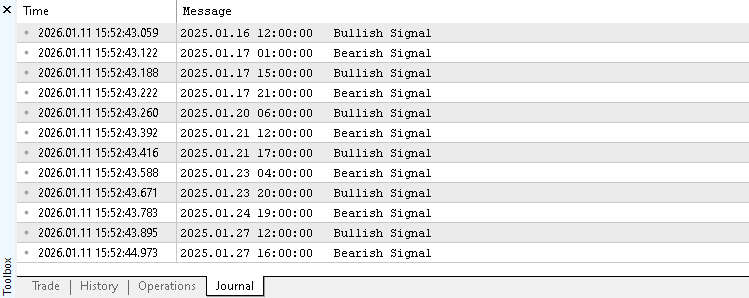
Seeing this behavior confirms that the EA correctly interprets Supertrend transitions and that the detection logic is functioning as intended.
Reaching this point is an important milestone. The EA can now read indicator data, track market structure changes, and reliably identify trend shifts.
Building the Trading and Position Management Logic
With signal detection complete, we now move into the trading phase. This stage focuses on transforming Supertrend signals into controlled market actions. The goal is simple and intentional. At any given time, the EA must hold only positions that align with the current trend direction. When the trend changes, positions in the opposite direction must be closed immediately before any new trade is considered.
To achieve this behavior, we first need reliable ways to inspect existing positions, manage exits, compute position sizes, calculate adaptive stop loss levels, and finally execute trades. Each of these components is introduced step by step and later combined inside the main trading loop.
Checking for Existing Buy Positions
The first utility function we introduce answers a simple but critical question. Does this EA already have an active buy position?
//+------------------------------------------------------------------+
//| To verify whether this EA currently has an active buy position.  |                                 |
//+------------------------------------------------------------------+
bool IsThereAnActiveBuyPosition(ulong magic){

   for(int i = PositionsTotal() - 1; i >= 0; i--){
      ulong ticket = PositionGetTicket(i);
      if(ticket == 0){
         Print("Error while fetching position ticket ", GetLastError());
         continue;
      }else{
         if(PositionGetInteger(POSITION_MAGIC) == magic && PositionGetInteger(POSITION_TYPE) == POSITION_TYPE_BUY){
            return true;
         }
      }
   }

   return false;
}
The logic works by scanning through all currently open positions in the trading account. For each position, the EA retrieves its ticket and verifies two things. First, the position must belong to this EA instance, as confirmed by the magic number. Second, the position type must be a buy position. The moment such a position is found, the function returns true. If the loop completes without finding a matching position, false is returned. This function exists to enforce a key design rule. The EA must never stack multiple positions in the same direction.
Checking for Existing Sell Positions
Next, we define a second function to detect active sell positions.
//+------------------------------------------------------------------+
//| To verify whether this EA currently has an active sell position. |                                 |
//+------------------------------------------------------------------+
bool IsThereAnActiveSellPosition(ulong magic){

   for(int i = PositionsTotal() - 1; i >= 0; i--){
      ulong ticket = PositionGetTicket(i);
      if(ticket == 0){
         Print("Error while fetching position ticket ", GetLastError());
         continue;
      }else{
         if(PositionGetInteger(POSITION_MAGIC) == magic && PositionGetInteger(POSITION_TYPE) == POSITION_TYPE_SELL){
            return true;
         }
      }
   }

   return false;
}
Its internal logic mirrors the previous function entirely. The only difference is the checked position type. Instead of searching for buy positions, it searches for sell positions opened by this EA. Because the structure and intent are identical, this function does not introduce new concepts. It simply completes the position awareness logic by covering the opposite trade direction. Together, these two functions provide the EA with complete visibility into its active exposure.
Closing Positions When the Trend Changes
Once we can detect existing positions, we need a clean way to exit them. Since this EA does not use take-profit logic at this stage, positions must be closed manually whenever the market reverses. To support this logic, we define the following custom function:
//+------------------------------------------------------------------+
//| To close all position with a specified magic number              |
//+------------------------------------------------------------------+
void ClosePositionsByMagic(ulong magic) {

    for (int i = PositionsTotal() - 1; i >= 0; i--) {
        ulong ticket = PositionGetTicket(i);
        if (PositionSelectByTicket(ticket)) {
            if (PositionGetInteger(POSITION_MAGIC) == magic) {
                ulong positionType = PositionGetInteger(POSITION_TYPE);
                double volume = PositionGetDouble(POSITION_VOLUME);
                if (positionType == POSITION_TYPE_BUY) {
                    Trade.PositionClose(ticket);
                } else if (positionType == POSITION_TYPE_SELL) {
                    Trade.PositionClose(ticket);
                }
            }
        }
    }
}
The function loops through all open positions and selects only those that match the EA magic number. This ensures that no manual trades or trades from other EAs are affected. For each matching position, the EA checks whether it is a buy or sell position and issues a close request using the CTrade object. This function acts as a reset mechanism. Whenever the trend changes, the EA clears all outdated exposure before considering a new entry.
Calculating Position Size Using Risk Percentage
To support automatic position sizing, we introduce a function that calculates lot size based on account risk.
//+------------------------------------------------------------------+
//| Calculates position size based on a fixed percentage risk of the account balance |
//+------------------------------------------------------------------+
double CalculatePositionSizeByRisk(double stopDistance){
   double amountAtRisk = (riskPerTradePercent / 100.0) * AccountInfoDouble(ACCOUNT_BALANCE);
   double contractSize = SymbolInfoDouble(_Symbol, SYMBOL_TRADE_CONTRACT_SIZE);
   double volume       = amountAtRisk / (contractSize * stopDistance);
   return NormalizeDouble(volume, 2);
}
The calculation begins by determining how much money can be risked on a single trade. This amount is derived from the account balance and the user-defined risk percentage. Next, the function factors in the contract size of the traded symbol and the stop loss distance. This ensures that the calculated volume reflects real market exposure rather than fixed assumptions. Finally, the volume is normalized to a valid trading precision. The returned value represents a position size that aligns risk with market volatility. This function allows the EA to automatically adapt to different symbols, account sizes, and stop-loss distances without manual recalibration.
Calculating Adaptive Stop Loss Levels
Before opening any trade, the EA must know where the stop loss would logically sit. Even when the user chooses not to place a stop loss, the price level is still required for risk calculations. This function should be added immediately after the position sizing function.
//+-----------------------------------------------------------------------------------------------+
//| Calculates the appropriate stop loss price based on position type and selected stop loss mode |
//+-----------------------------------------------------------------------------------------------+
double CalculateAdaptiveStopLossPrice(ENUM_POSITION_TYPE positionType){

   double stopLossPrice = 0.000000;

   if(positionType == POSITION_TYPE_BUY){

      if(stopLossMode == SL_MODE_SWING_EXTREME){
         stopLossPrice = NormalizeDouble(iLow(_Symbol, timeframe, 1), Digits());
      }

      if(stopLossMode == SL_MODE_SUPERTREND_VOLATILITY){
         stopLossPrice = NormalizeDouble(lowerBandValues[1], Digits());
      }

      if(stopLossMode == SL_MODE_NONE){
         stopLossPrice = NormalizeDouble(lowerBandValues[1], Digits());
      }
   }

   if(positionType == POSITION_TYPE_SELL){

      if(stopLossMode == SL_MODE_SWING_EXTREME){
         stopLossPrice = NormalizeDouble(iHigh(_Symbol, timeframe, 1), Digits());
      }

      if(stopLossMode == SL_MODE_SUPERTREND_VOLATILITY){
         stopLossPrice = NormalizeDouble(upperBandValues[1], Digits());
      }

      if(stopLossMode == SL_MODE_NONE){
         stopLossPrice = NormalizeDouble(upperBandValues[1], Digits());
      }
   }
   return stopLossPrice;
}
The function receives the intended position type and selects a stop-loss price based on the selected stop-loss mode. For buy positions, swing extremes use the previous candle's low, while volatility-based logic uses the previous Supertrend lower band. For sell positions, the logic is mirrored using the previous candle high or the upper Supertrend band. When no stop loss is selected, the function still returns a Supertrend-based level. This is intentional. Automatic position sizing relies on a risk distance, and volatility provides the most stable reference.
Opening Buy Positions
With all supporting utilities in place, we now define the function responsible for opening buy trades.
//+------------------------------------------------------------------+
//| Function to open a market buy position                           |
//+------------------------------------------------------------------+
bool OpenBuy(double entryPrice, double stopLoss, double lotSize){

   if(lotSizeMode == MODE_AUTO){
      lotSize = CalculatePositionSizeByRisk(entryPrice - stopLoss);
   }

   if(stopLossMode == SL_MODE_NONE){
      if(!Trade.Buy(lotSize, _Symbol, entryPrice, 0.000000, 0.000000)){
         Print("Error while executing a market buy order: ", GetLastError());
         Print(Trade.ResultRetcode());
         Print(Trade.ResultComment());
         return false;
      }
   }else{
      if(!Trade.Buy(lotSize, _Symbol, entryPrice, stopLoss, 0.000000)){
         Print("Error while executing a market buy order: ", GetLastError());
         Print(Trade.ResultRetcode());
         Print(Trade.ResultComment());
         return false;
      }
   }
   return true;
}
The function begins by checking whether automatic lot sizing is enabled. If so, it calculates the lot size based on the difference between the entry price and the stop loss. Next, the function determines whether to send a stop loss to the broker. If stop loss mode is disabled, the trade is opened without a stop loss. Otherwise, the calculated stop loss price is included in the trade request. All trade execution is handled by the CTrade object. If the order fails, detailed error information is logged to help diagnose execution issues. A successful execution returns true, confirming that the trade has been placed correctly.
Opening Sell Positions
The sell execution function is added directly below the buy execution function.
//+------------------------------------------------------------------+
//| Function to open a market sell position                          |
//+------------------------------------------------------------------+
bool OpenSel(double entryPrice, double stopLoss , double lotSize){

   if(lotSizeMode == MODE_AUTO){
      lotSize = CalculatePositionSizeByRisk(stopLoss - entryPrice);
   }

   if(stopLossMode == SL_MODE_NONE){
      if(!Trade.Sell(lotSize, _Symbol, entryPrice, 0.000000, 0.000000)){
         Print("Error while executing a market sell order: ", GetLastError());
         Print(Trade.ResultRetcode());
         Print(Trade.ResultComment());
         return false;
      }
   }else{
      if(!Trade.Sell(lotSize, _Symbol, entryPrice, stopLoss, 0.000000)){
         Print("Error while executing a market sell order: ", GetLastError());
         Print(Trade.ResultRetcode());
         Print(Trade.ResultComment());
         return false;
      }
   }

   return true;
}
Its logic mirrors the buy function completely. The only differences are the direction of the trade and the way stop loss distance is calculated. This symmetry keeps the trading logic consistent and easy to maintain. Any improvements made to one function can be applied to the other with minimal effort.
Bringing Everything Together in OnTick
Now that all trading utilities are ready, we update the OnTick function. This is where signal detection and trade execution finally connect. Remove the earlier print-based testing logic and replace the OnTick function with the updated version.
//+------------------------------------------------------------------+
//| Expert tick function                                             |
//+------------------------------------------------------------------+
void OnTick(){

   //--- Retrieve current market prices for trade execution
   askPrice      = SymbolInfoDouble (_Symbol, SYMBOL_ASK);
   bidPrice      = SymbolInfoDouble (_Symbol, SYMBOL_BID);

   //--- Run this block only when a new bar is detected on the selected timeframe
   if(IsNewBar(_Symbol, timeframe, lastBarOpenTime)){

      UpdateSupertrendBandValues();

      if(IsSupertrendBullishSignal()){
         if(IsThereAnActiveSellPosition(magicNumber)){
            ClosePositionsByMagic(magicNumber);
            Sleep(50);
         }
         if(direction == TRADE_BOTH || direction == ONLY_LONG){
            OpenBuy(askPrice, CalculateAdaptiveStopLossPrice(POSITION_TYPE_BUY), positionSize);
         }
      }

      if(IsSupertrendBearishSignal()){
         if(IsThereAnActiveBuyPosition(magicNumber)){
            ClosePositionsByMagic(magicNumber);
            Sleep(50);
         }
         if(direction == TRADE_BOTH || direction == ONLY_SHORT){
            OpenSel(bidPrice, CalculateAdaptiveStopLossPrice(POSITION_TYPE_SELL), positionSize);
         }
      }
   }
}
On every new bar, the EA updates Supertrend values and evaluates trend direction. When a bullish signal is detected, any active sell positions are closed first. Only then does the EA consider opening a buy trade, provided the selected trade direction allows it. The same process applies in reverse for bearish signals. This structure guarantees directional discipline. The EA never holds conflicting positions and never trades against the detected trend.
Configuring the Chart Appearance
Before moving into testing, we add a final quality-of-life feature. Automatic chart styling helps visually confirm that the EA is running correctly. The chart configuration function should be placed near the bottom of the source file.
//+------------------------------------------------------------------+
//| This function configures the chart's appearance.                 |
//+------------------------------------------------------------------+
bool ConfigureChartAppearance()
{
   if(!ChartSetInteger(0, CHART_COLOR_BACKGROUND, clrWhite)){
      Print("Error while setting chart background, ", GetLastError());
      return false;
   }

   if(!ChartSetInteger(0, CHART_SHOW_GRID, false)){
      Print("Error while setting chart grid, ", GetLastError());
      return false;
   }

   if(!ChartSetInteger(0, CHART_MODE, CHART_CANDLES)){
      Print("Error while setting chart mode, ", GetLastError());
      return false;
   }

   if(!ChartSetInteger(0, CHART_COLOR_FOREGROUND, clrBlack)){
      Print("Error while setting chart foreground, ", GetLastError());
      return false;
   }

   if(!ChartSetInteger(0, CHART_COLOR_CANDLE_BULL, clrSeaGreen)){
      Print("Error while setting bullish candles color, ", GetLastError());
      return false;
   }

   if(!ChartSetInteger(0, CHART_COLOR_CANDLE_BEAR, clrBlack)){
      Print("Error while setting bearish candles color, ", GetLastError());
      return false;
   }

   if(!ChartSetInteger(0, CHART_COLOR_CHART_UP, clrSeaGreen)){
      Print("Error while setting bearish candles color, ", GetLastError());
      return false;
   }

   if(!ChartSetInteger(0, CHART_COLOR_CHART_DOWN, clrBlack)){
      Print("Error while setting bearish candles color, ", GetLastError());
      return false;
   }

   return true;
}
The function adjusts background color, candle colors, grid visibility, and chart mode. Each setting improves clarity and contrast, making trade behavior easier to observe. If any chart setting fails, an error is logged and initialization stops. This prevents silent failures and keeps behavior predictable.
Finally, we activate the chart configuration logic inside the OnInit function.
//+------------------------------------------------------------------+
//| Expert initialization function                                   |
//+------------------------------------------------------------------+
int OnInit(){

   ...

   //--- To configure the chart's appearance
   if(!ConfigureChartAppearance()){
      Print("Error while configuring chart appearance", GetLastError());
      return INIT_FAILED;
   }

   return(INIT_SUCCEEDED);
}
This ensures that, the moment the EA is attached to a chart, the visual environment is automatically prepared. At this point, the EA development phase is complete. The system can detect trends, manage positions, calculate risk, execute trades, and present a clean trading interface.
Testing and Performance Evaluation
With the complete trading logic in place, the next step is to verify how the Expert Advisor behaves under historical market conditions. A structured backtest was conducted to evaluate performance, stability, and risk behavior in a real-market scenario.
The test was performed on Gold using the XAUUSD symbol. The chart timeframe was set to hourly (H1), and the testing period covered one full year, from the first day of January 2025 to the last day of December 2025. This duration provides a balanced sample of different market conditions, including trending and consolidating phases.
For this test, the trading direction was restricted to long positions only. This means the EA was allowed to participate exclusively in bullish market phases while completely ignoring bearish signals. Position sizing was handled automatically, with each trade risking one percent of the current account balance. Stop-loss placement was enabled and set to use the previous completed candle's extreme, ensuring consistent and objective risk control across all trades.
To make this test fully reproducible, two supporting files have been attached. The first file, configurations.ini contains the strategy tester environment configuration, and the second file, parameters.set holds the exact input parameters used during the test. Together, these files allow the same conditions to be recreated without manual guesswork.
The performance results are notable.
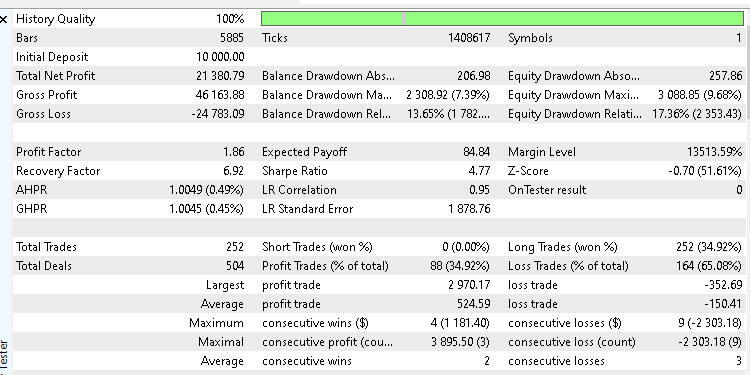
Starting with an initial balance of USD 10,000, the system achieved a net profit of USD 21380.79. This represents a return of more than 200% over the one-year testing period. Despite a relatively low win rate of 34.92%, the equity curve remained smooth and stable throughout the test.
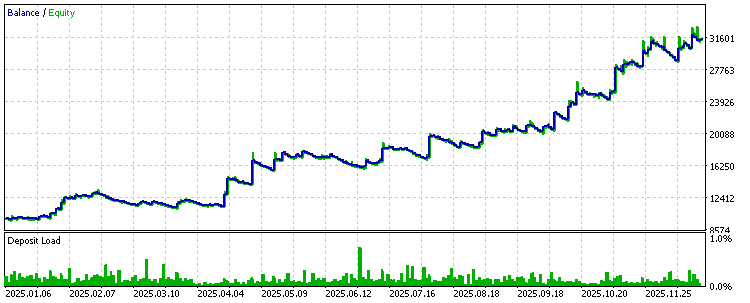
There were no sharp equity drops or erratic swings, which indicates controlled drawdowns and disciplined risk management. The attached equity curve screenshot visually confirms this behavior. Growth is steady, drawdowns are contained, and the overall progression reflects a system that relies on asymmetric risk-to-reward rather than frequent wins.
At this stage, testing should not stop here. The Expert Advisor was intentionally designed with flexible input parameters to support further experimentation. Different symbols, timeframes, risk levels, stop-loss modes, and trade-direction filters can all be explored. By adjusting these variables, it is possible to study how the strategy behaves under different assumptions and market conditions.
Readers are encouraged to run their own tests, challenge the defaults, and explore variations that align with their own market views. Any observations, improvements, or unexpected results are worth sharing. Leaving findings in the article comment section helps expand collective understanding and may uncover new ideas or refinements worth exploring further.
Conclusion
This article walked through the complete process of building a practical, flexible Expert Advisor based on the Supertrend indicator. By the end of this journey, we arrive at more than just working code. We arrive at a usable research tool that eliminates manual execution, enforces clear trading rules, and enables the study of market behavior in a disciplined, repeatable way.
A fully automated Supertrend-based trading system was developed in a step-by-step manner, from signal interpretation through execution, risk management, and testing. The final result is a free, configurable Expert Advisor that can be used as is or extended to explore new ideas. Its flexibility allows for different stop-loss models, position-sizing approaches, and trade-direction filters without changing the source code. This makes it suitable not only for trading experiments but also for structured strategy research.
Beyond the tool itself, an equally important outcome is the documented development process. The article demonstrates how to connect an Expert Advisor to a custom indicator, read indicator buffers safely, respond to new market data, and translate signals into controlled trade actions. These are core skills in MQL5 development, and they apply well beyond the Supertrend indicator.
For readers new to building indicator-dependent trading systems, this serves as a clear and practical reference. For more experienced developers, it provides a clean foundation that can be optimized, extended, or combined with additional logic. In both cases, the result is a solid starting point for further research in the ongoing search for a consistent trading edge.
The table below lists all files attached to this article, together with a short explanation of their purpose and how each file is used within the project.
| File Name | Description | |
|---|---|---|
| 1 | supertrend.mq5 | The Supertrend indicator source file is used to calculate trend direction and volatility-based price bands. The Expert Advisor reads its values directly to generate trading signals. |
| 2 | supertrendExpert.mq5 | Expert Advisor source file that automates trade execution based on Supertrend signals, risk management rules, and user-defined input parameters. |
| 3 | configurations.ini | The Strategy Tester configuration file defines the testing environment. It allows for the exact backtest conditions used in this article to be replicated. |
| 4 | parameters.set | Input parameter set file containing all Expert Advisor settings applied during the backtest, including risk, trade direction, and stop loss behavior. |
Warning: All rights to these materials are reserved by MetaQuotes Ltd. Copying or reprinting of these materials in whole or in part is prohibited.
This article was written by a user of the site and reflects their personal views. MetaQuotes Ltd is not responsible for the accuracy of the information presented, nor for any consequences resulting from the use of the solutions, strategies or recommendations described.

 Python-MetaTrader 5 Strategy Tester (Part 05): Multi-Symbols and Timeframes Strategy Tester
 From Basic to Intermediate: Indicator (II)
 Overcoming Accessibility Problems in MQL5 Trading Tools (Part I): How to Add Contextual Voice Alerts in MQL5 Indicators
 Analyzing Overbought and Oversold Trends Via Chaos Theory Approaches

- Free trading apps
- Over 8,000 signals for copying
- Economic news for exploring financial markets
You agree to website policy and terms of use