WhteBearX2B
- Experts
- Version: 1.0
- Activations: 10

1. About WhiteBearX2B-mt5
WhiteBearX2B-mt5 is an advanced multi-currency Expert Advisor (EA) for MetaTrader 5 (MT5). Engineered to trade 12 currency pairs simultaneously from a single chart, it executes multi-layered entries using three independent magic numbers (Magic 1–3). Packed with robust, production-grade features—including a two-stage position-count guard and an SL/TP failure alert system—it operates with zero martingale and zero grid.The price increases by $50 for every 10 items purchased. The final price is $749.
⚠ IMPORTANT – Time Window for New Entry Evaluation
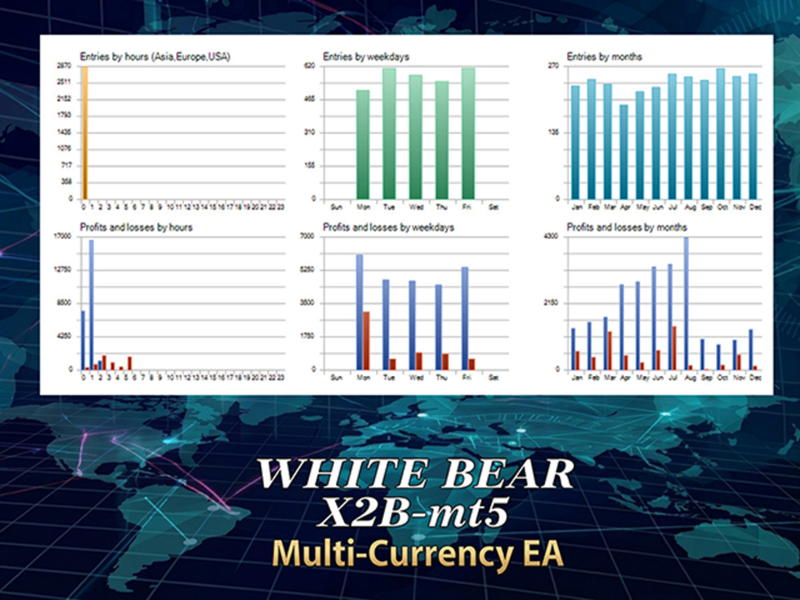
This EA is designed to evaluate new entries only between 0:01 and 0:50 trading server time each day (it is normal for the EA to remain waiting outside this window). Exit evaluation for existing positions is performed continuously, regardless of this time window. In addition, at 5:00 trading server time, all open positions are automatically force-closed. Please note that trading server time varies by broker.
Features
- Monitors and trades 12 currency pairs simultaneously from a single chart
- Layered structure: three independent internal logics (Magic1–3) each decide on entries separately
- A chart panel lets you check operating status and position counts in real time
Supported currency pairs (default: all 12)
AUDCAD, AUDJPY, AUDUSD, CADJPY, EURAUD, EURCAD, EURGBP, EURJPY, EURUSD, GBPAUD, GBPCAD, GBPUSD
Recommended Setup
- Account: Hedging, ECN/Raw spread
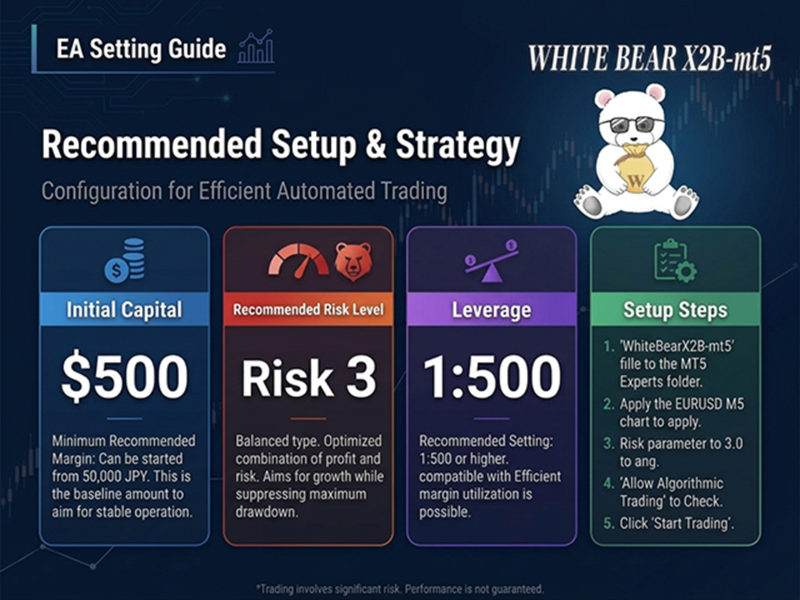
- Minimum deposit: $500
- VPS recommended for 24h operation
⚠ IMPORTANT – Before You Start
You must add ALL trading pairs to Market Watch before attaching the EA. Pairs missing from Market Watch will not be traded, and the EA may not work correctly.
2. Setup
- Add all trading pairs to Market Watch (required). Right-click Market Watch → Symbols → select every pair → Show.
- Attach to a EURUSD chart (any timeframe; the EA always trades on M5 internally).
- Enable Algo Trading.
- Check that the chart panel shows all pairs as active.
3. Basic Settings
The main items on the settings screen (Inputs) are listed below. Unless you have a specific reason, we recommend using the default values.
-
Trade Symbols: Currency pairs to trade (comma-separated)
-
Symbol Suffix: Your broker's symbol suffix (e.g., ".pro", "m"; leave blank if none)
-
Magic1 / Magic2 / Magic3: Numbers that identify the EA's three internal logics. They normally do not need to be changed.
-
MM: Money management method (true = automatic calculation from balance, etc. / false = fixed lot)
-
Calc: Calculation basis when MM = true (Balance = account balance / Free Margin = free margin)
-
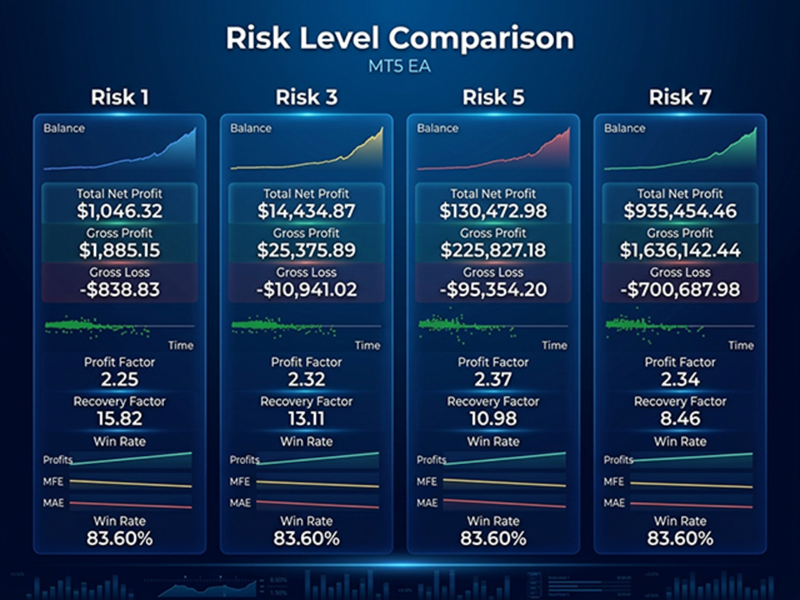
Risk: Risk rate (%) when MM = true
The lot size is calculated automatically so that the loss, based on the calculation basis amount and the stop-loss value, equals roughly this percentage of your funds. This applies to each individual position. -
Lot: Fixed lot size used when MM = false
-
TakeProfit: Take-profit distance (pips)
-
StopLoss: Stop-loss distance (pips)
-
MaximumSpread: If the spread exceeds this value, new entries are skipped (pips)
-
Slippage: Allowed slippage (pips)
-
MaxTotalPositions: Maximum number of positions that can be held at the same time across all currency pairs.
Set MaxTotalPositions within the range of 1 to 36 (3 logics × 12 currency pairs). If you specify a value below 1, the EA will not start.
4. Important Notes on Backtesting
Because this EA is designed to monitor 12 currency pairs simultaneously, if you run the Strategy Tester right after changing parameters, only the single symbol specified on the settings screen may be traded. This is a specification of MT5 itself and not a defect in the EA.
Workaround
- Change the parameters on the Strategy Tester settings screen.
- Close MT5 completely.
- Restart MT5.
- Run the backtest again.
In addition, for an accurate backtest, you need to prepare historical data up to the same date for all 12 symbols.
Guide to downloading historical data and setting the test period
- Prepare the charts: Open "Market Watch" (Ctrl + M), right-click, and select "Show All". Open a chart window for each of the 12 target currency pairs and set the timeframe to 1 minute (M1).
- Download historical data: Switch to each chart tab and press the HOME key repeatedly to download past data from your broker's server. To raise the limit, adjust "Max bars in chart" under "Tools" → "Options" → "Charts".
- Align the historical data: Check the earliest available date on each of the 12 charts. If even one pair has a shorter history, that symbol will be unable to trade in the earlier part of the period, so align the start date across all pairs.
- Configure the Strategy Tester: Set the backtest start date to the latest available start date among the 12 pairs, or later. For the model, select "Every tick based on real ticks", and make sure the final test quality is 90% or higher.
5. Frequently Asked Questions (FAQ)
- Edit the Trade symbols parameter as a comma-separated list (e.g., specify only the symbols you need, such as “AUDJPY,EURUSD”).
- This EA is designed to evaluate new entries only between 00:01 and 00:50 server time each day. It is normal for no new entries to occur outside this window (see Important Information at the Beginning).
- It is not mandatory, but if you cannot keep your PC powered on and connected to the internet 24 hours a day, using a VPS is recommended for stable operation.
- This is a known MT5 specification. Please see the Chapter 4.
6.Risk Disclaimer
This Expert Advisor is an automated trading tool and does not guarantee profits. Forex trading involves substantial risk,and you may lose some or all of your invested capital. Past performance, including backtest and demo results, is not indicative of future results. Actual results may differ due to slippage, spreads, execution speed, and market conditions. Please test thoroughly on a demo account before live trading, and only trade with money you can afford to lose. All trading decisions are made at your own risk, and the developer accepts no liability for any loss arising from the use of this product.