OrderCanvas Trade Panel
- Utilities
- Version: 1.10
- Updated: 19 October 2026
- Activations: 10

OrderCanvas is a trade panel for MetaTrader 5 that moves manual trading onto the chart. You choose a side, the entry, take profit and stop loss appear as lines, you adjust them on the chart, and only then send the order.
What it changes in daily trading
Lot size from the stop: enter the risk in money or percent of the balance and the lot size follows the stop distance, so no calculator is needed.
No order dialog for every trade: prices are changed by dragging the line (applied on release) or by typing into the price box on the line.
Break-even, partial close, reverse and close are buttons on the position line; drag the partial-close button out of the line to set staged take profit or stop loss levels.
Every action is bound to its exact ticket, so a click never acts on a different order.
Trade statistics without exporting a report: the order panel shows them for today, 7 days, 30 days or the whole history.
Order ticket
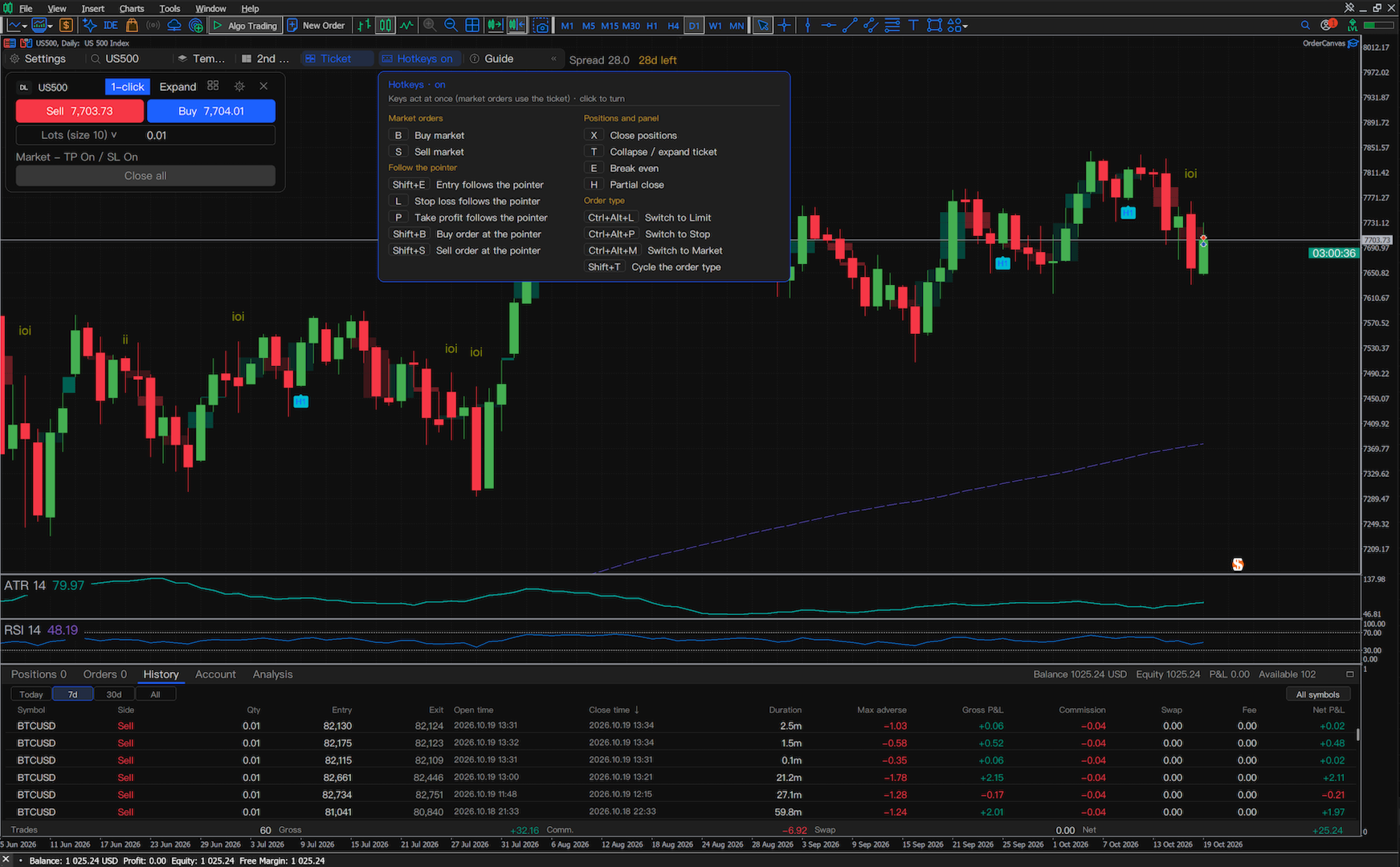
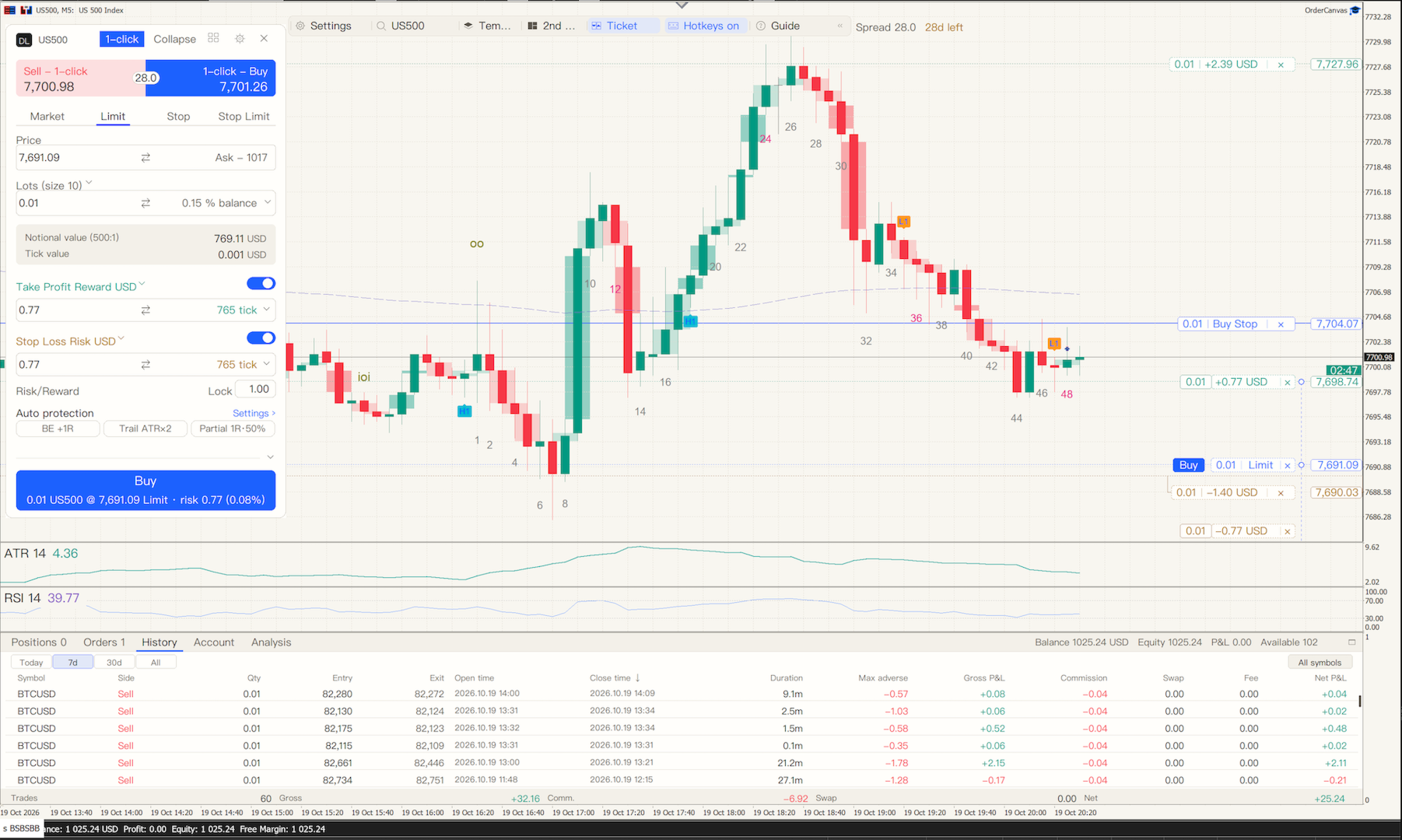
Market, Limit, Stop and Stop Limit orders; one-click trading places the selected order type. Size by lots, margin, percent of balance or risk amount. Take profit and stop loss default to profit/loss in the account currency and can also be set in ticks, price or percent, each with its own switch. Reward:risk is always shown and can be locked. A take profit or stop loss on the wrong side shows the reason above the field and a red "!" on its chart line. Nothing is sent until you press the order button.
On the chart
Drag an order or position line to change its price. Pull a new take profit or stop loss out of any order line. With several orders, the L / P hotkeys act on the order nearest the pointer. With hotkeys switched on, Shift+B or Shift+S lets a buy or sell order follow the mouse: a left click places it, a right click cancels. Fibonacci and channel tools; the chart pans inside them.
Order panel
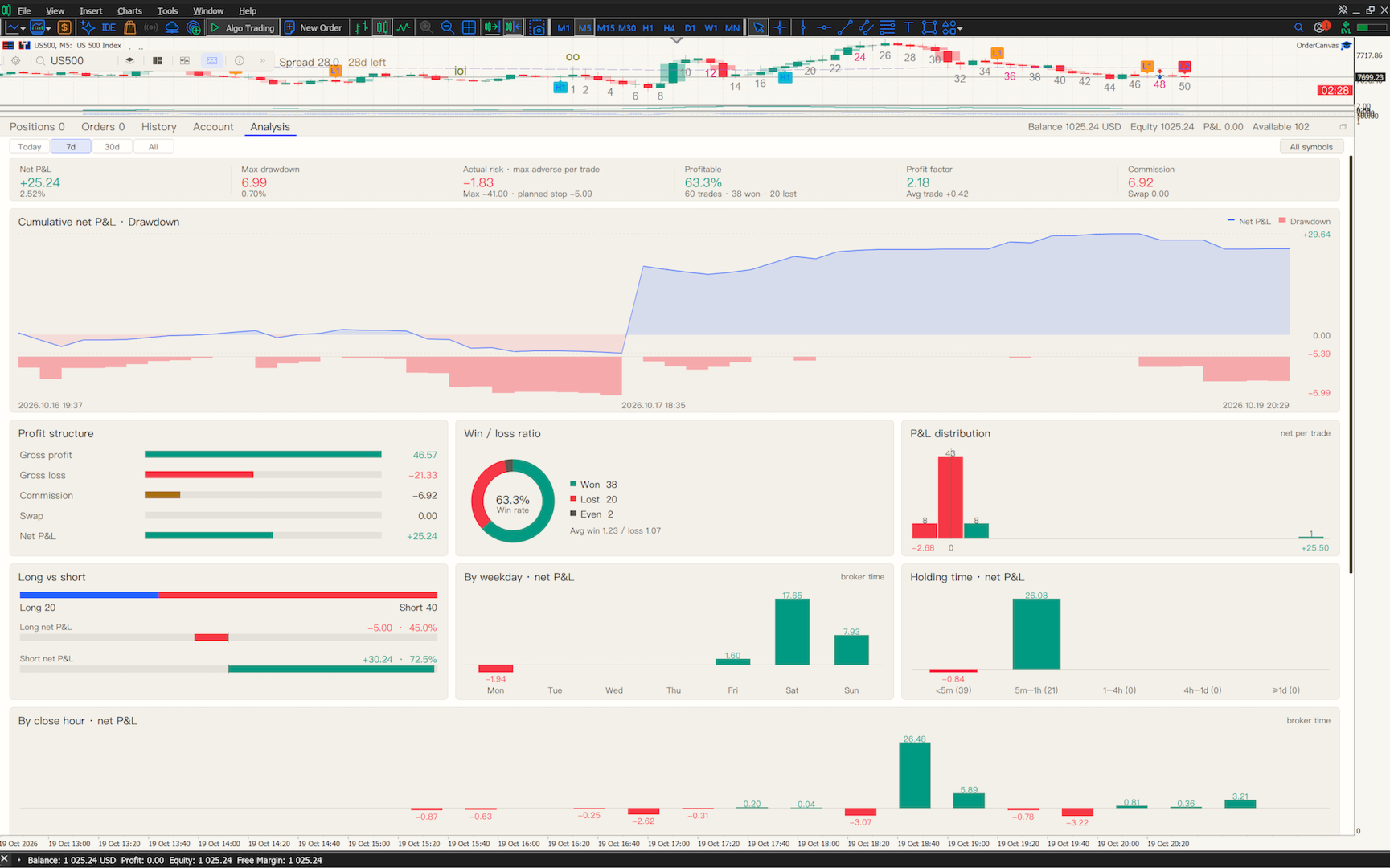
In its own pane below the chart: positions and orders with profit, exits, risk and distance to price. History shows the largest floating loss of each trade, commission and swap. The analysis page shows equity and drawdown, profit distribution, long versus short, and statistics by weekday, hour and holding time.
Protection (off by default)
Maximum spread and maximum risk per trade: new positions above them are refused; the toolbar spread turns red when it is well above the symbol's usual spread. Optional break-even, trailing stop (ATR, the high / low of the last N bars, or a fixed multiple of R) and a one-time automatic partial close. Hotkeys and one-click trading stay off until you switch them on. Real accounts ask for a one-time acknowledgement before the first order.
Workspace
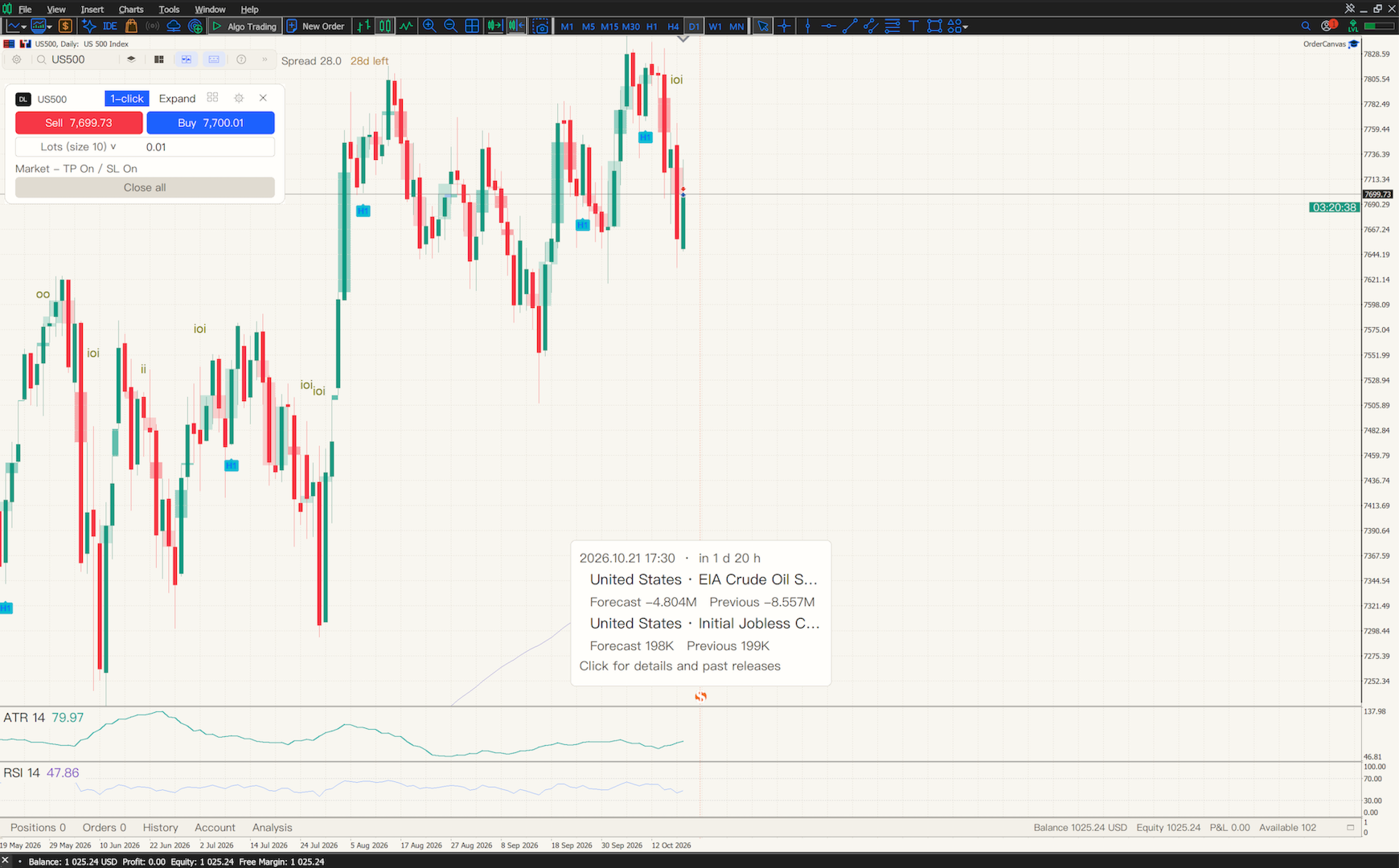
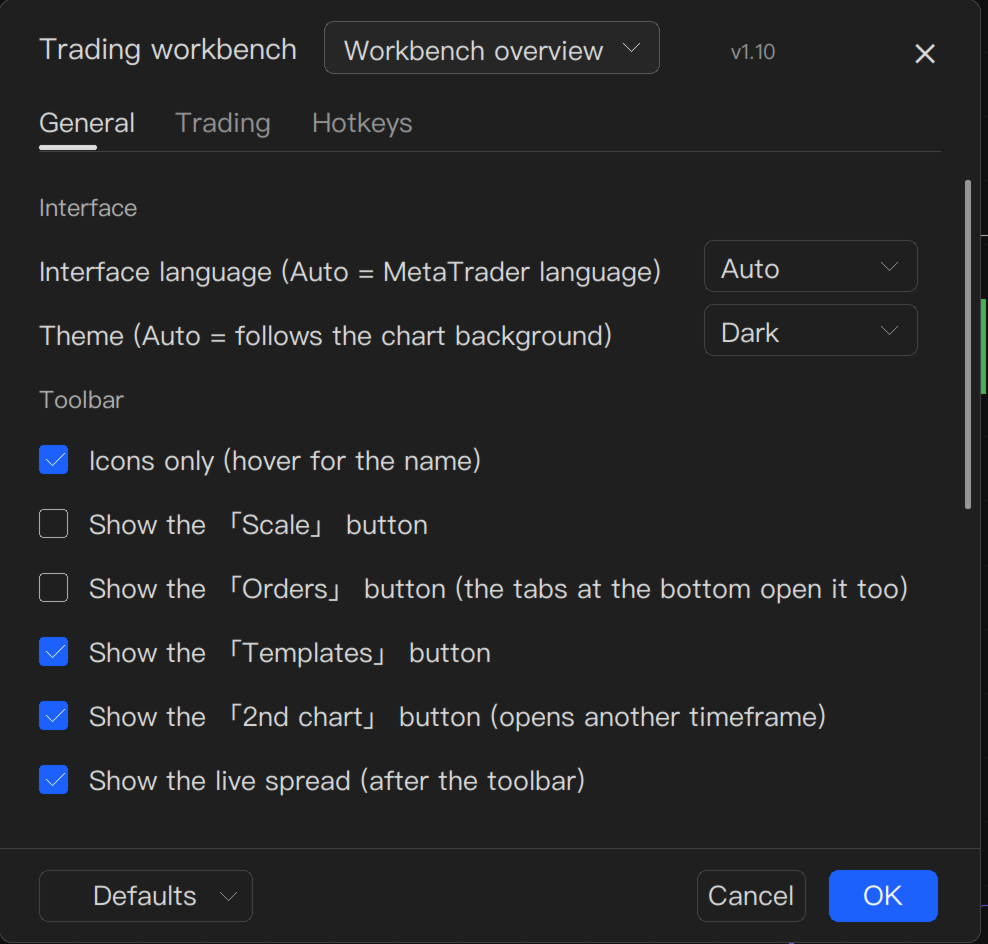
A new installation adds only the ticket and order lines and leaves your chart as it is; the OrderCanvas look and studies are one click away in the toolbar's Templates menu (price action, clean chart, EMA trend, Bollinger + RSI, MACD, volume). Settings dialog, symbol search, second charts and multi-chart layouts, live spread, light and dark themes, English and Chinese interface. A built-in price-action workbench draws previous-day levels, gaps, inside and outside bars, a bar count (per timeframe) and H1/H2/L1/L2 signals. The price-action studies are open source (MPL-2.0); the source is available from the author on request.
Inputs
Default lots, Size by risk %, Risk % per trade: the starting size of the ticket.
Default stop loss and take profit (ticks), Default reward:risk: the starting exits.
Pending order offset (points), Max slippage (points).
Magic number, Manage only this magic: which orders the panel shows and manages.
Demo accounts only: blocks trading on real accounts when switched on.
Show EMA 20, Show ATR 14, Dark chart style, Keep chart space for the panel, Wheel zoom and drag pan, UI font, Text size %, Interface language.
Everything else is set in the panel's settings dialog and kept per chart.
Notes
Works on hedging and netting accounts and on any symbol the broker offers. The panel trades only when you click or press a hotkey you switched on; it does not open positions by itself. You can try every function in the Strategy Tester in visual mode before buying. Questions and bug reports: please use the comments or private messages on this site.