
GTM Panel Pro 2.53 - Manual Trading and Group Management: Full User Guide

This is the user guide for GTM Panel Pro version 2.53, a manual trade manager for MetaTrader 5. It explains how to run four trade groups and four limit slots on one chart, and walks through the parts added in this version: the AI guide, the robot, the HELP box, the entry checklist, price alerts and Telegram voice notes. The full 24-page guide is attached to this post as a PDF (inside a zip file).
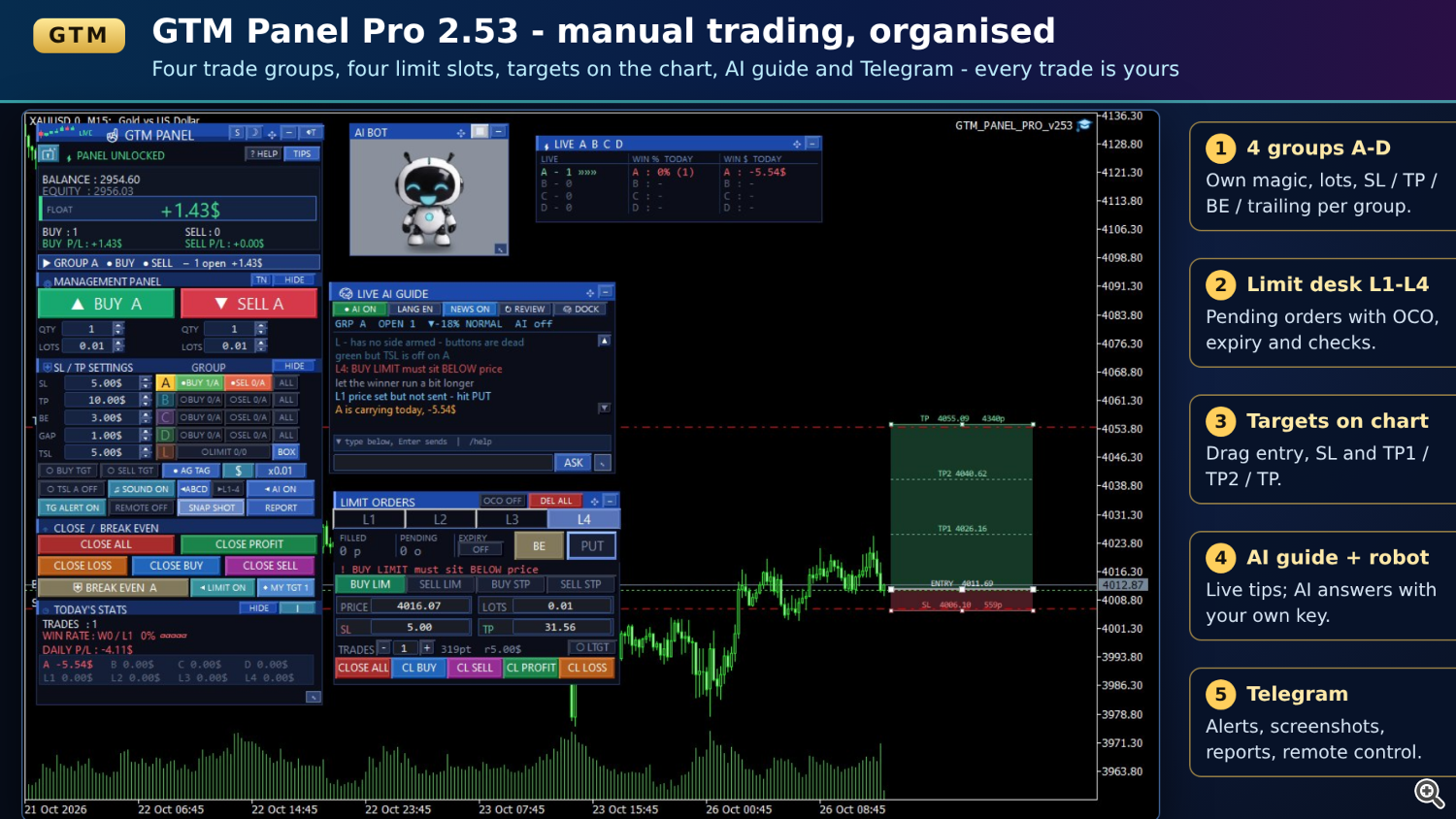
The user guide (PDF)
The guide is attached at the bottom of this post (GTM_PANEL_PRO_Guide_v2.53.zip - open the zip to get the PDF). It explains every button, every box and every input, one page at a time, with pictures. It also has a troubleshooting page, the full Telegram command list, a glossary and a one-page quick reference.
1. An optional AI assistant - with your own key
The LIVE AI GUIDE box has always watched your trades and warned you about a missing stop, a deep drawdown or falling margin. In 2.53 you can also ask it questions. Type in the box at the bottom of the guide, or send a message to your Telegram bot.
- It works with Google Gemini (free key from aistudio.google.com), any OpenAI-compatible service (OpenAI, Groq, OpenRouter, DeepSeek, Mistral ...) or Anthropic.
- Every user uses their own key, so free limits are never shared. Per-minute and per-day limits keep you inside your quota, and AI OFF means not one call is made.
- It reads the MT5 economic calendar and can warn you before high-impact news.
- It never trades by itself. When it suggests an action, an APPLY button appears. Nothing happens until you press it - or reply YES on Telegram.
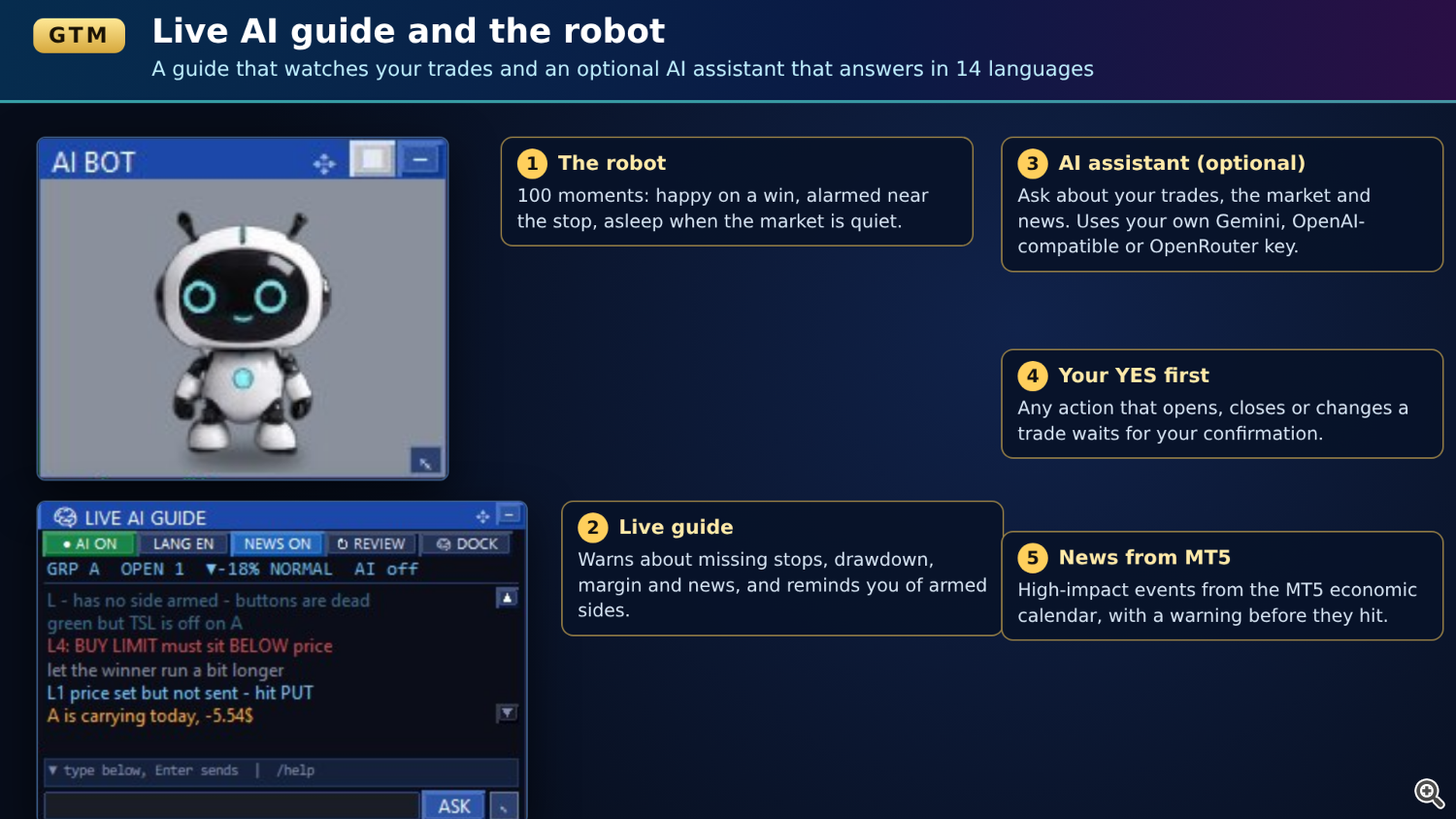
2. Meet the robot
An animated helper now lives in its own box beside the guide. It has 100 moments and reacts to what your trades are doing: happy in profit, celebrating when a winner closes, worried in a loss, alarmed by a missing stop or low margin, thinking while the AI answers, asleep when the market is quiet. It blinks and its eyes follow your mouse. You can leave it in its box, put it loose on the chart, or let it walk about.
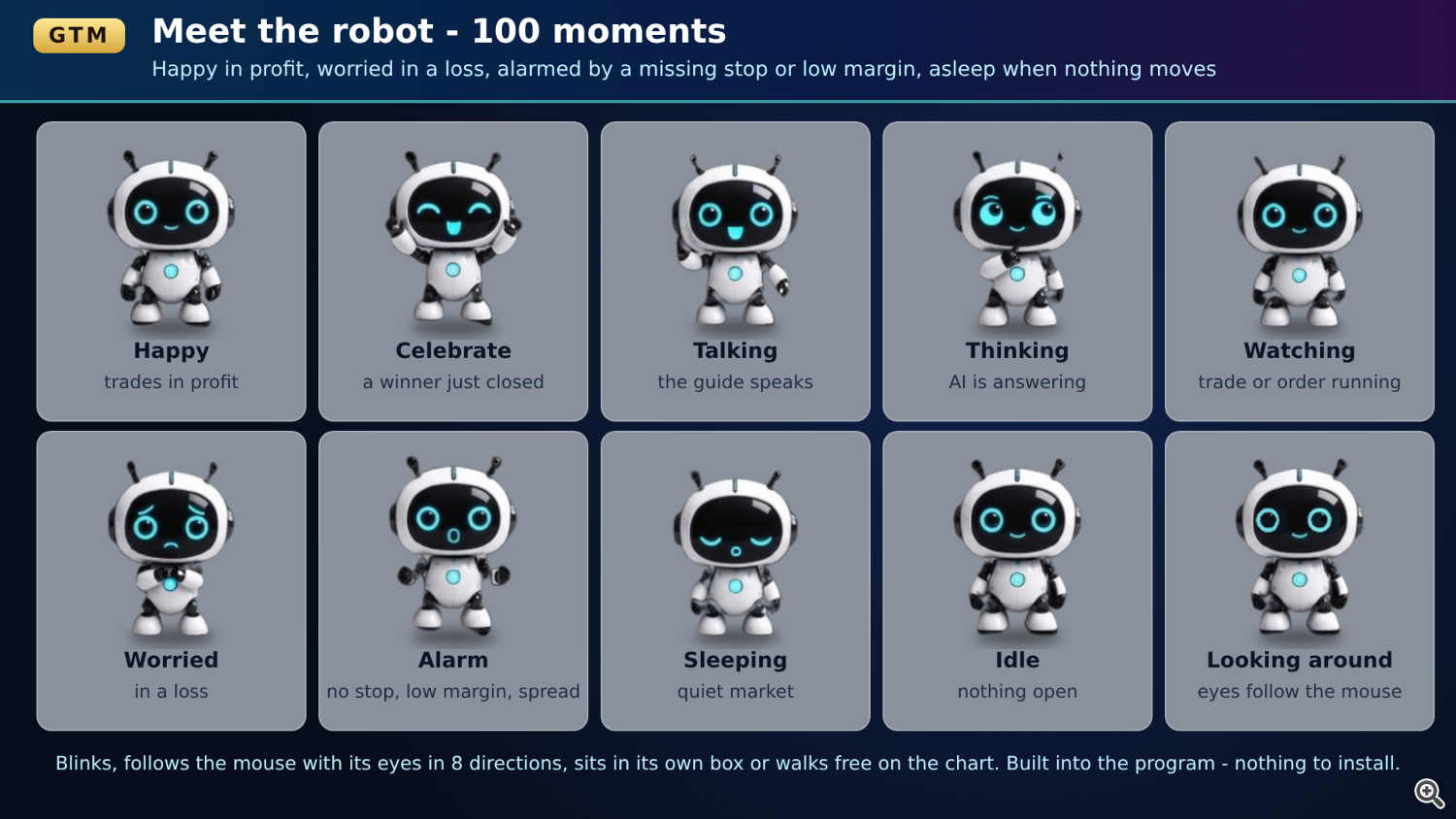
3. HELP, tips and 14 languages
Every button is now explained inside the panel. The HELP box has 10 topics, and resting the mouse on any button shows a short note. English and Singlish are built in; Sinhala, Tamil, Spanish, Portuguese, French, German, Turkish, Indonesian, Vietnamese, Thai, Japanese and Chinese are translated once by your AI key and saved on your computer.
4. An entry checklist
The TN button opens a checklist. Write your own rules - "line cross OK", "candle close OK", "risk OK" - and tick them. When enough are OK the box turns green and says ENTRY OK. It is a simple way to stop taking trades your plan does not allow.
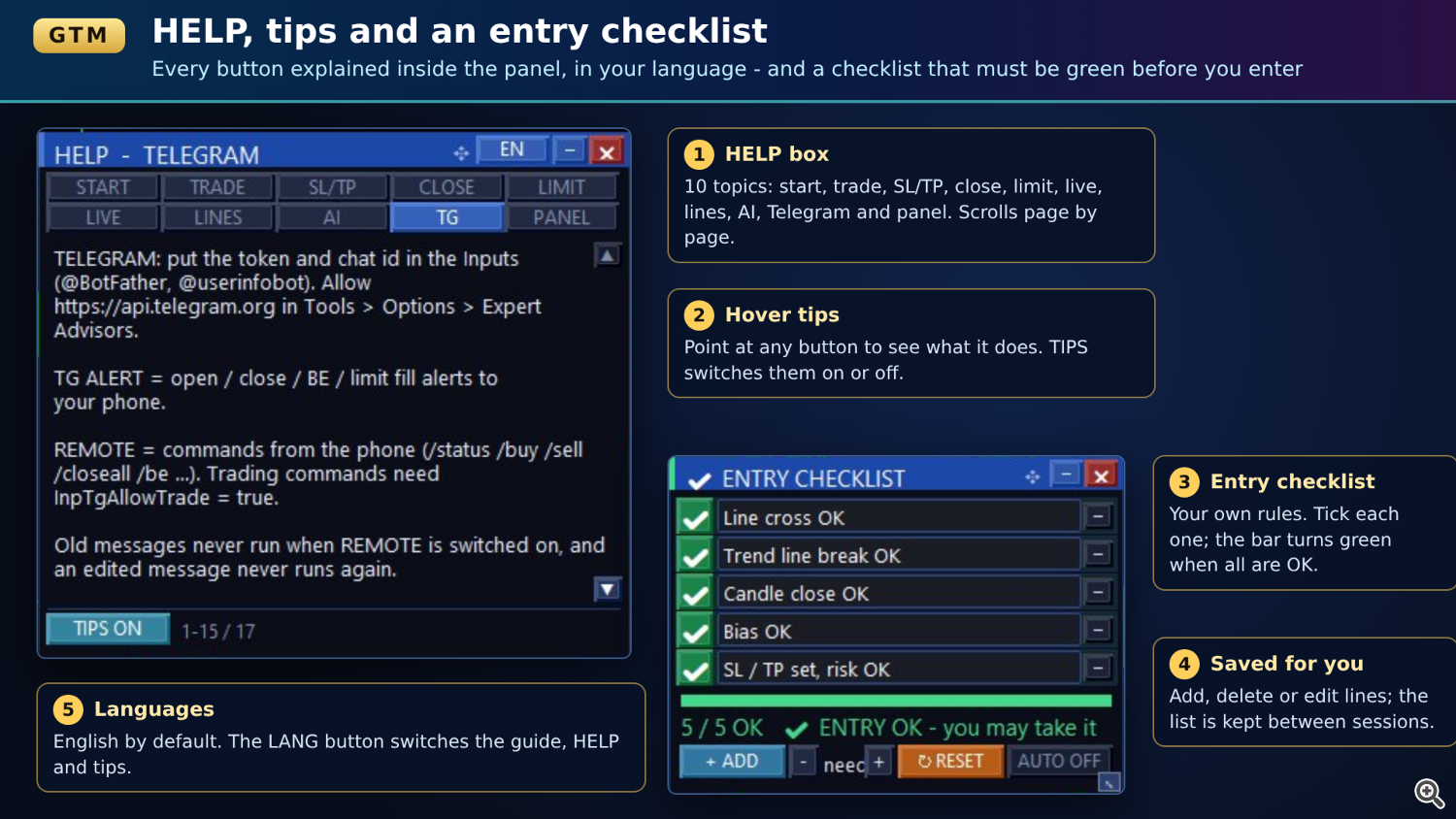
5. Telegram voice notes and price alerts
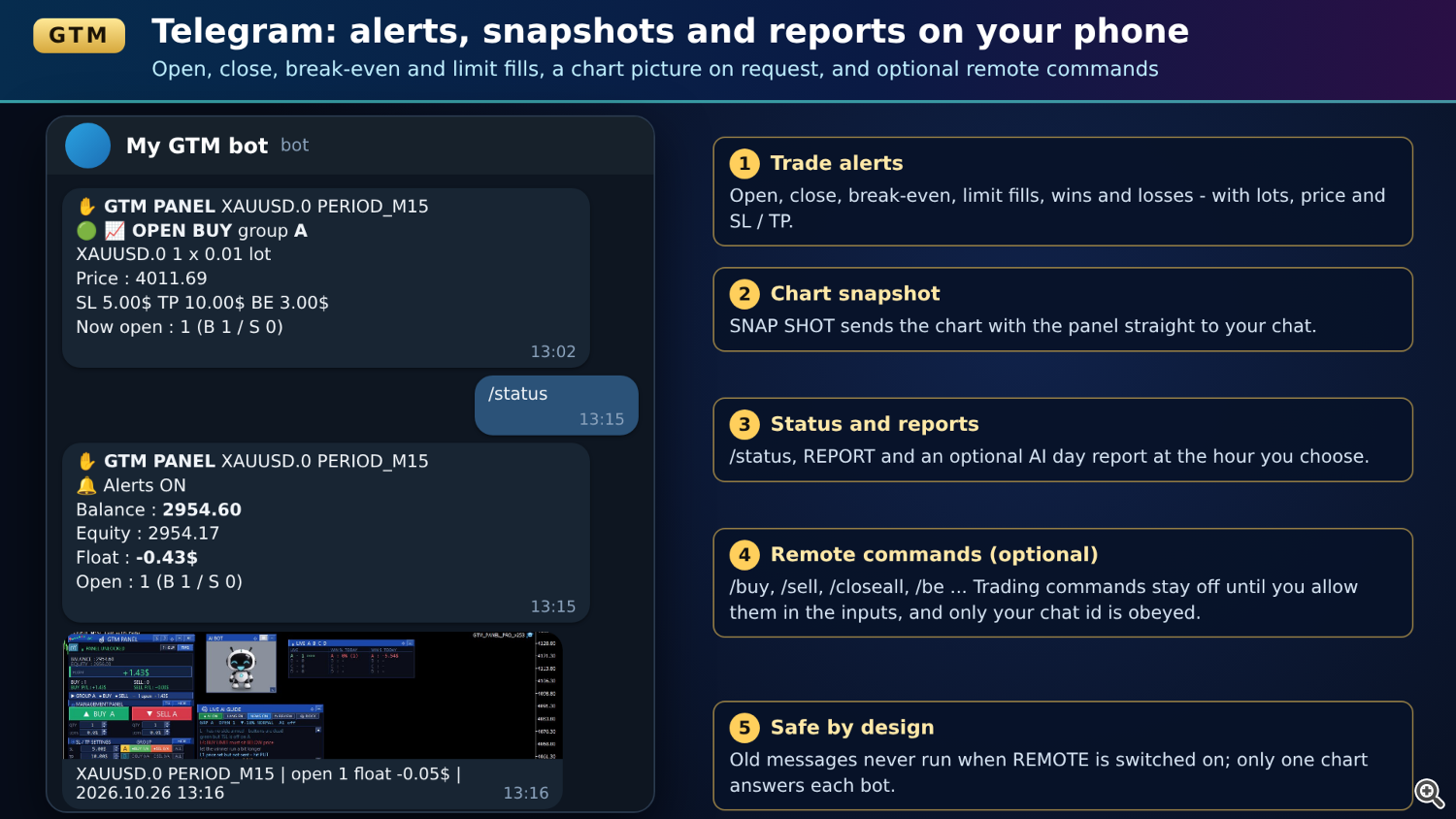
- With an AI key, hold the microphone in Telegram and speak. The panel writes down what you said and answers it. A voice order to buy, sell or close still waits for your YES.
- /alert above 2350, /alert below 2300, /alert line NAME or /alert trend - up to 10 price alerts, drawn on the chart.
6. Plan on the chart with MY TGT
MY TGT drops a free target box on the chart. Drag its entry, stop and target to plan a trade without opening it. You can have several, and they stay in place when you change the timeframe.
7. Easier to move and resize
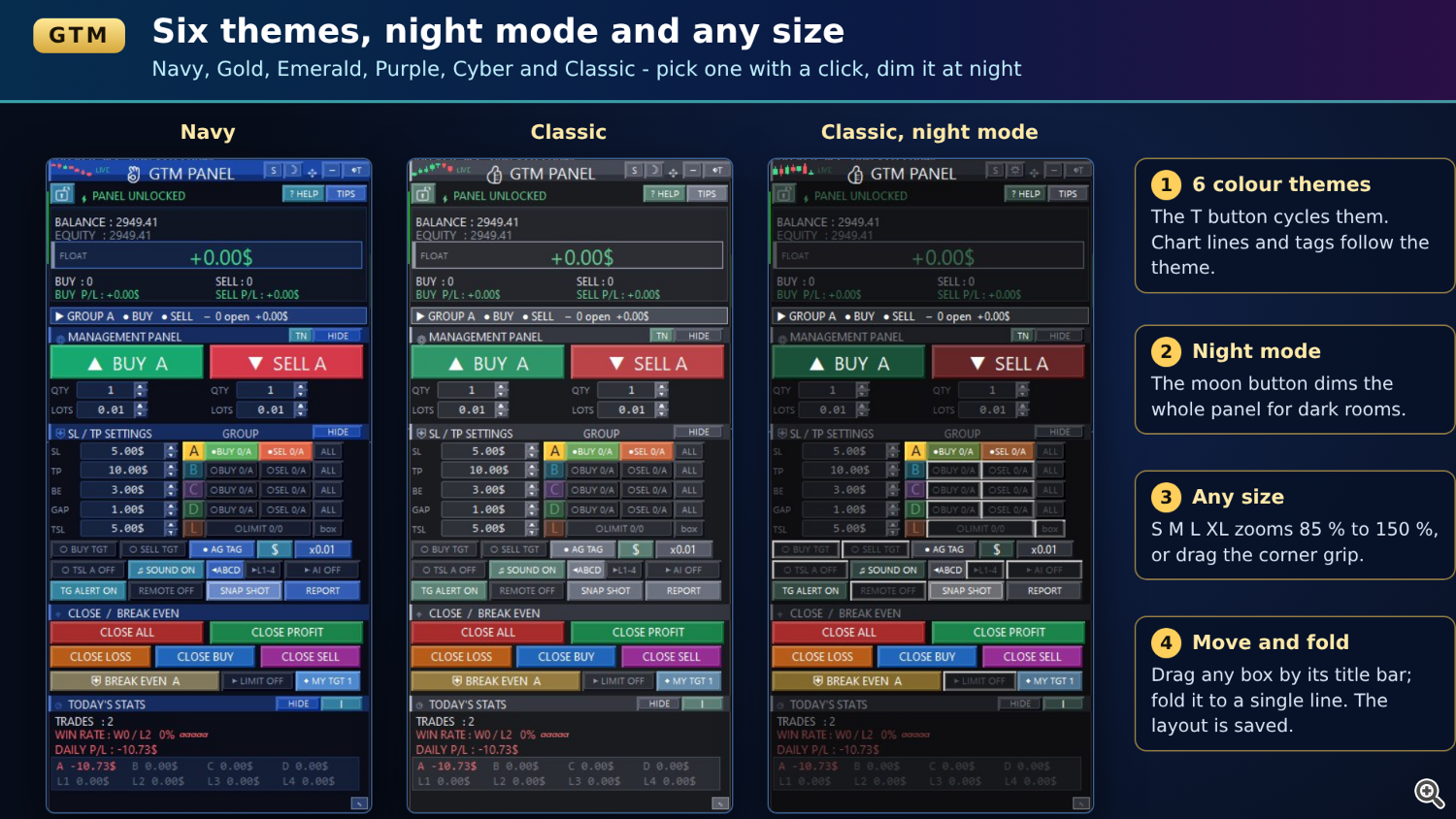
There is no MOVE button to aim at any more. Every box moves by its title bar or by any empty spot, and folds to a single line. The panel zooms from 85 % to 150 % with the size button or the corner grip. Six themes and night mode are still one click away.
Safer trading engine
- Free margin and the symbol volume limit are checked before a trade is sent. If only part of the quantity fits, fewer orders are sent and the panel says why.
- Lot sizes follow the symbol's real lot step (0.001, 0.25 and so on) everywhere.
- A locked panel no longer lets a dragged chart line move a live order, and the panel starts locked after a terminal restart.
- A double click on BUY, SELL, CLOSE or BE no longer runs twice.
- Stops on netting accounts are set for the real position direction.
- Pending expiry keeps working after a restart, dragging a partly filled limit set moves only the remaining orders, and a refused OCO cancel is retried.
- Telegram: a wrong token or chat id is reported in the Experts log, a slow line no longer freezes the panel, only one chart answers each bot, and remote lot commands respect your lot limits.
How to update
If you already own the panel, MetaTrader offers the update in the Market tab. Your saved positions, theme and values are kept. The AI assistant and Telegram are optional - the panel works fully without them.
GTM Panel Pro on the MQL5 Market: https://www.mql5.com/en/market/product/189009
Questions or ideas are welcome in the comments below.




