
Overview | Castlist | Spotlight | Backstage
Spotlight VS, Portfolio Impact and Settings Manual
Use VS to keep individual strategies separate. Use Portfolio Impact for a temporary addition, removal or swap in the selected portfolio. Neither changes EAs, positions, files, Live markers or Primary.
Result of this guide
You will create one VS comparison and one temporary Portfolio Impact scenario, interpret the lower-summary change and return safely to the unchanged baseline.
Before you begin
Complete the first-comparison and metrics guides. Keep a validated Primary selection visible and record its source, period, metric, Magic# values, costs and trade count. Align must be off unless a deliberate anchor is already documented.
VS versus Impact
| Question | Function |
|---|---|
| Which Magic# develops differently? | VS |
| Do variants share a loss/recovery phase? | VS |
| What changes if one strategy is added? | Impact + |
| What remains if one is removed? | Impact - |
| What if A is replaced by B? | Impact - and + |
Up to five VS lines can be retained in the saved workspace. Impact remains a temporary session scenario.
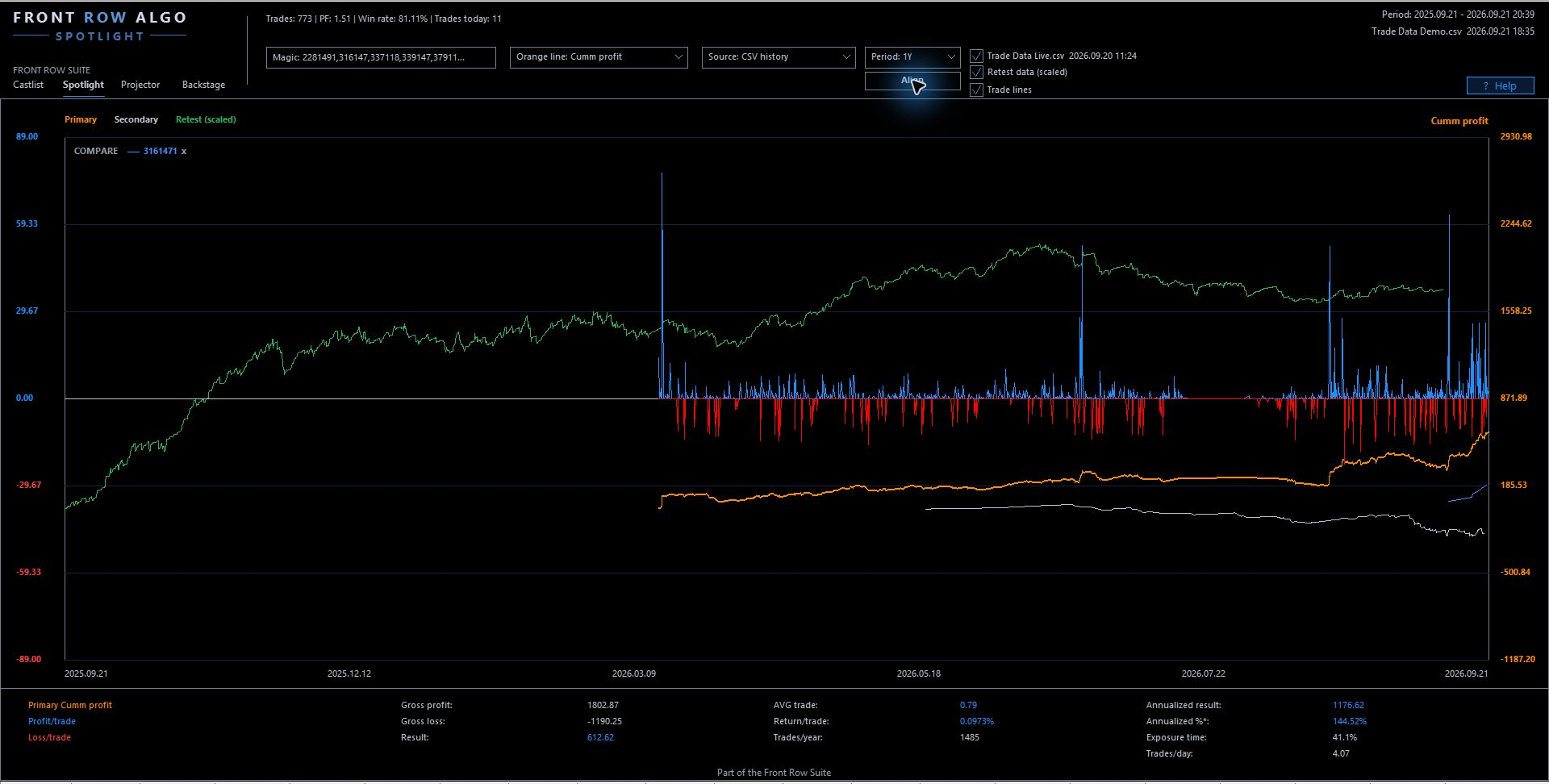
VS keeps the selected Magic# separate, so divergence remains visible instead of being hidden inside a portfolio total.
VS keeps the selected Magic# visible as a separate reference. This helps the trader see whether one strategy diverges while the portfolio or another source follows a different path.
Portfolio Impact
Portfolio Impact answers a different question: what happens to the selected portfolio if a strategy is temporarily added, removed or exchanged? It is a read-only scenario, not a portfolio command.
Read Result together with Gross profit/loss, AVG trade, Return/trade, Trades/day/year and Exposure. More result can also mean more loss flow, activity or exposure.
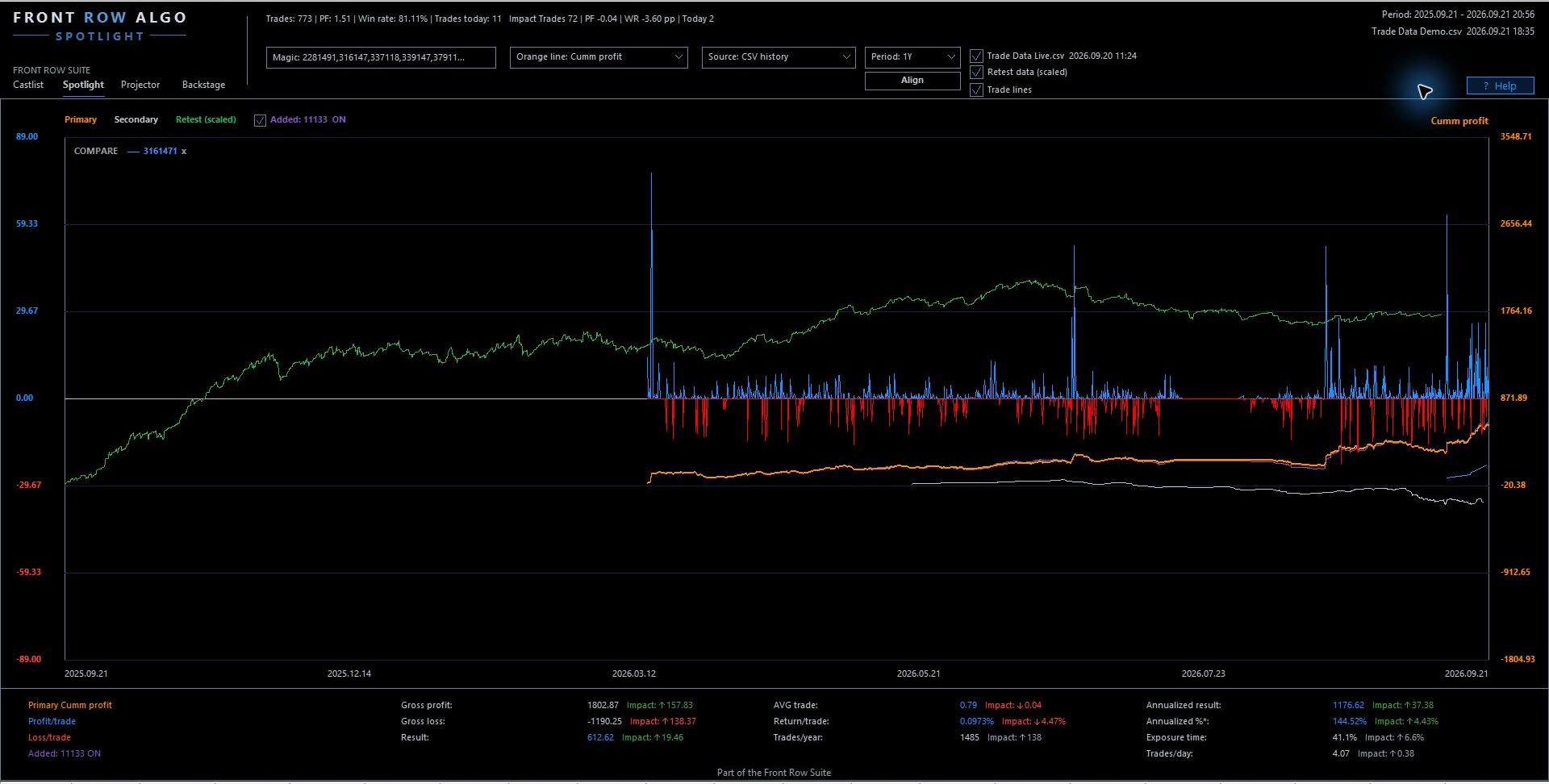
Portfolio Impact shows the temporary scenario together with changes in the lower decision metrics.
Complete 27-input inventory
| Inputs | Defaults / purpose | Trader effect |
|---|---|---|
| MagicNumbers , DateFrom , DateTo | Initial selection and Custom period | Defines which strategies and dates enter the first view |
| IncludeSwapComm | true ; net outcomes and derived metrics | Keeps costs consistent in the comparison |
| CsvHistoryFile | Demo Primary CSV | Defines the persistent baseline |
| ShowSecondaryLine , SecondaryCsvHistoryFile | true ; Live Secondary CSV | Adds the second persistent source |
| ShowRetestData , RetestFolder | false ; \FrontRow\Export\SQX | Adds the standard SQX Retest profile |
| ShowTradeLines , profit/loss colours | true ; blue/red individual evidence | Reveals outliers and sequences behind cumulative movement |
| CastListLiveCsvFile | Shared LIVE preset | Reuses Castlist portfolio intent |
| NotesCsvFile , ReviewCsvFile , StatusCsvFile | Shared Castlist management context | Keeps observations and review timing connected |
| TradeMatchToleranceMinutes | 10 ; trade-slot synchronisation | Controls when close timestamps share a visual slot |
| DashboardTheme , FontSize , UIFont | Daylight, 16, Segoe UI | Changes presentation only |
| RefreshSeconds | 20 | Controls refresh frequency |
| AutoScalePF | false | Controls PF scaling behaviour |
| MaxPayoutRatioScale | 2.0 | Sets the payout-ratio display ceiling |
| AccountCapitalOverride | 0.0 ; terminal context when zero | Defines reference capital for Capital-related analysis |
| MarginLeverageOverride | 2.0 ; analytical leverage | Makes Margin comparison reproducible |
| OkColor , NegativeColor | Green, Red | Changes visual accents only |
DateFrom and DateTo are separate inputs, giving 27 total.
Saved analysis workspace
Spotlight restores source, All/Live, metric, period, Magic# choices, line visibility, CSV paths, theme/font and up to five VS selections. Inputs such as costs, tolerance, data paths, scales, capital, leverage, colours, dates and refresh remain governed by the effective MT5 configuration.
A restart, update or reattachment is not a factory reset. In a new terminal or PC, restore shared data and settings deliberately, then verify every source and assumption.
Safe advanced workflow
- Validate Primary and describe it first.
- Choose either VS or Impact for one question.
- Check dates, counts, costs and scale.
- Read chart and lower summary together.
- Use Align only after absolute lines are clear.
- Record what changed and what the scenario cannot prove.
- Save note/review and return to Castlist for the management decision.
Create and clear a VS comparison
- Validate the Primary line and current period.
- Open the Magic selector and choose VS beside one known comparison Magic#.
- Confirm that a separate line appears and check its first/latest trade and count.
- Compare the path and lower metrics without assuming synchronised slots are economically identical trades.
- Remove the VS line and verify that the baseline returns unchanged.
Create and clear an Impact scenario
- Start from the validated portfolio baseline.
- Open Portfolio Impact. Choose + beside a Magic# outside Primary to test an addition, - beside a selected Magic# for removal, or one of each for a swap.
- Read Result together with Gross profit/loss, AVG trade, Return/trade, evidence speed and Exposure.
- Write down both the apparent benefit and its cost or uncertainty.
- Clear Impact and verify that no EA, position, CSV file, Live marker or Primary selection changed.
Expected result and verification
VS produces a separately coloured strategy line while Primary remains unchanged. Impact produces a temporary scenario line and lower-summary deltas. After removing VS or clearing Impact, the original Primary line, Magic# selection and lower metrics must match the recorded baseline. Reopen Spotlight to confirm that VS may be restored but Impact is not treated as a saved portfolio change.
Settings that influence VS and Impact
Source paths, IncludeSwapComm, period, TradeMatchToleranceMinutes, Capital and Margin overrides affect the comparison. Scale inputs can change appearance without changing economics. Spotlight saves up to five VS selections with the workspace; Portfolio Impact is deliberately session analysis. Notes, Reviews and Status use the shared Castlist paths.
If VS or Impact does not match expectations
Check selected Magic# values, period, source freshness, costs and counts. Confirm whether Align is active and whether settings restored an earlier VS workspace. Impact is deliberately temporary; saved VS selections may return after restart. Change one setting at a time and retest against the absolute baseline.
Continue through the manual
Next: Backstage Quick Start Manual — add persistent data continuity to the comparison workflow.
Other useful follow-ups:
- Castlist Management Manual — record the conclusion as Status, Note and Review.
- Front Row User Guide 1.0 — return to the complete product route.
- Spotlight Quick Start Manual — rebuild the comparison from one validated baseline.



