Spotlight Quick Start Manual — Build Your First Comparison on the Trade Axis

Overview | Castlist | Spotlight | Backstage
Spotlight Quick Start Manual — Build Your First Comparison on the Trade Axis
Spotlight is a visual comparison workspace, not an automatic strategy judge. Start with one Magic#, source, period and metric. Validate that baseline, then add one second source or strategy variant.
Result of this guide
You will install Spotlight, build one validated baseline, add one comparison and save an observation or Review on a real trade point.
Before you begin
About the automatic MQL5 demo
The automatic MQL5 demo is restricted to the isolated Strategy Tester. This product is designed for use in a normally running MT5 terminal, so the tester demo is not a functional trial and should not be used to assess normal operation. Please use the product video and documentation for a representative overview.
Questions are always welcome. If the Comments section is available to you, please ask your question there. Otherwise, hover over the seller name and choose Send message. I am happy to help with any questions.
Know the EA name and Magic# you want to analyse and make sure its source contains trades. Use a docked MT5 chart; the suite selector does not operate correctly on detached charts. Backstage is optional for MT5 History, but is required to create and maintain persistent Primary/Secondary CSV sources.
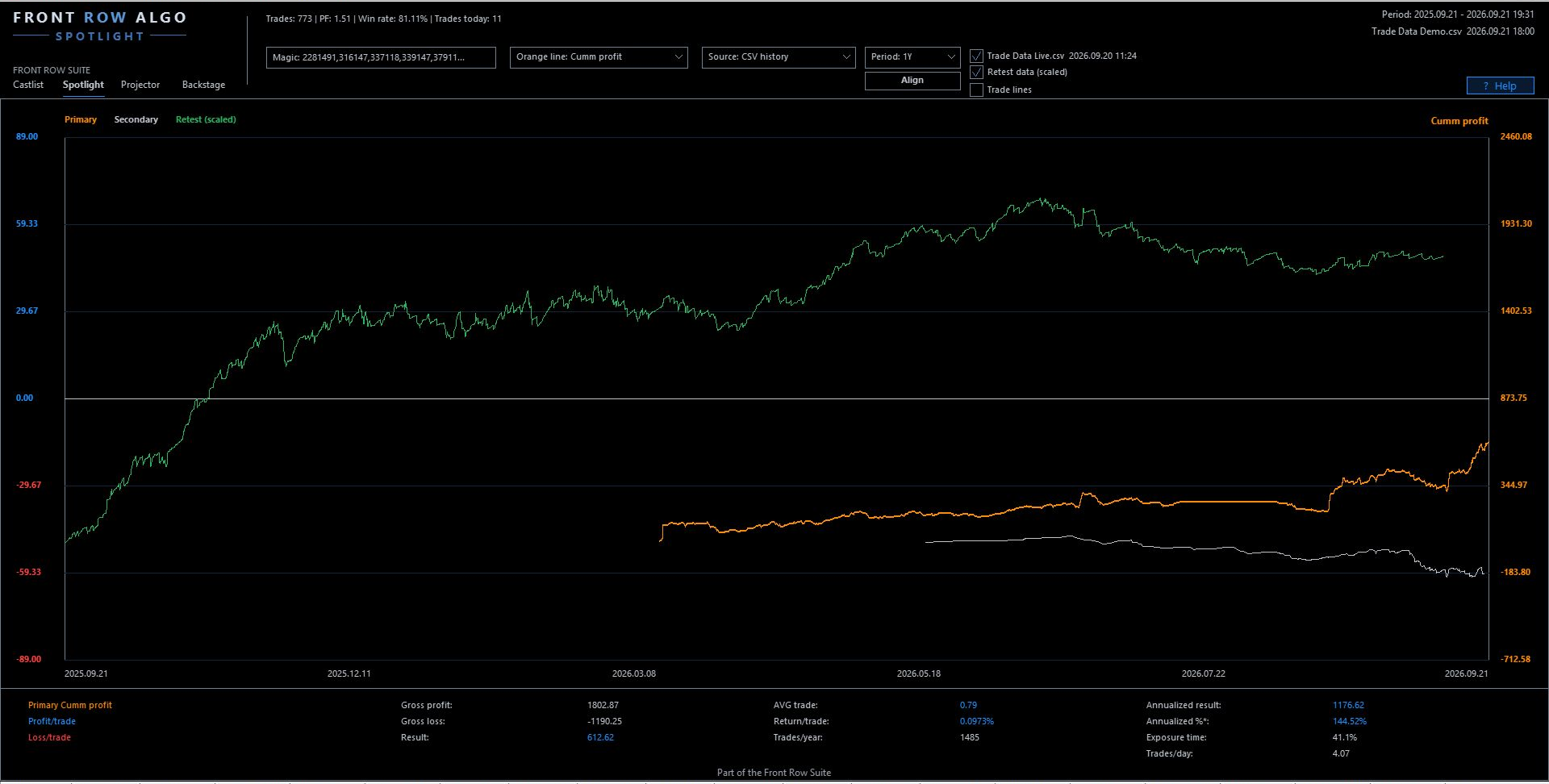
The complete Spotlight workspace: sources, comparison chart and lower metrics.
Choose a baseline source
| Source | Typical role | Main limitation |
|---|---|---|
| MT5 History | Fast start in the current terminal | Depends on history still available |
| Primary CSV | Persistent Demo history from Backstage | Current only through last successful export |
| Secondary CSV | Persistent Live history | May use a later start or different execution conditions |
| SQX Retest | Standard StrategyQuant X tested profile | No equivalent historical Capital/Margin reconstruction |
SQX Magic# comes from all digits in the complete filename:
Strategy 3.16.147.csv → Magic# 316147
Avoid unrelated digits such as (1) . Other backtest formats are not automatically supported as Retest.
First comparison
- Attach Spotlight to a docked MT5 chart.
- Verify restored source, period, metric and Magic# choices.
- Select one known Magic#.
- Choose MT5 History or SQX Retest.
- Select a period with enough trades.
- Choose one understandable metric.
- Describe the baseline in plain language.
- Add one Secondary, Retest or VS comparison.

Choose the metric, source and period before adding comparison datasets.
Leave Align and Portfolio Impact off until both absolute lines are understood.
Settings that influence the first comparison
IncludeSwapComm changes net outcomes. CSV paths and RetestFolder determine sources. TradeMatchToleranceMinutes controls shared trade slots. DateFrom and DateTo affect Custom, while restored source, period, Magic# and line visibility can affect a reopened workspace.
The x-axis is trade order, not linear time
Spotlight orders trades by real closing time but assigns horizontal positions to consecutive trade slots. Long quiet periods do not consume large empty spaces. Each point keeps its timestamp; only spacing is trade-based.
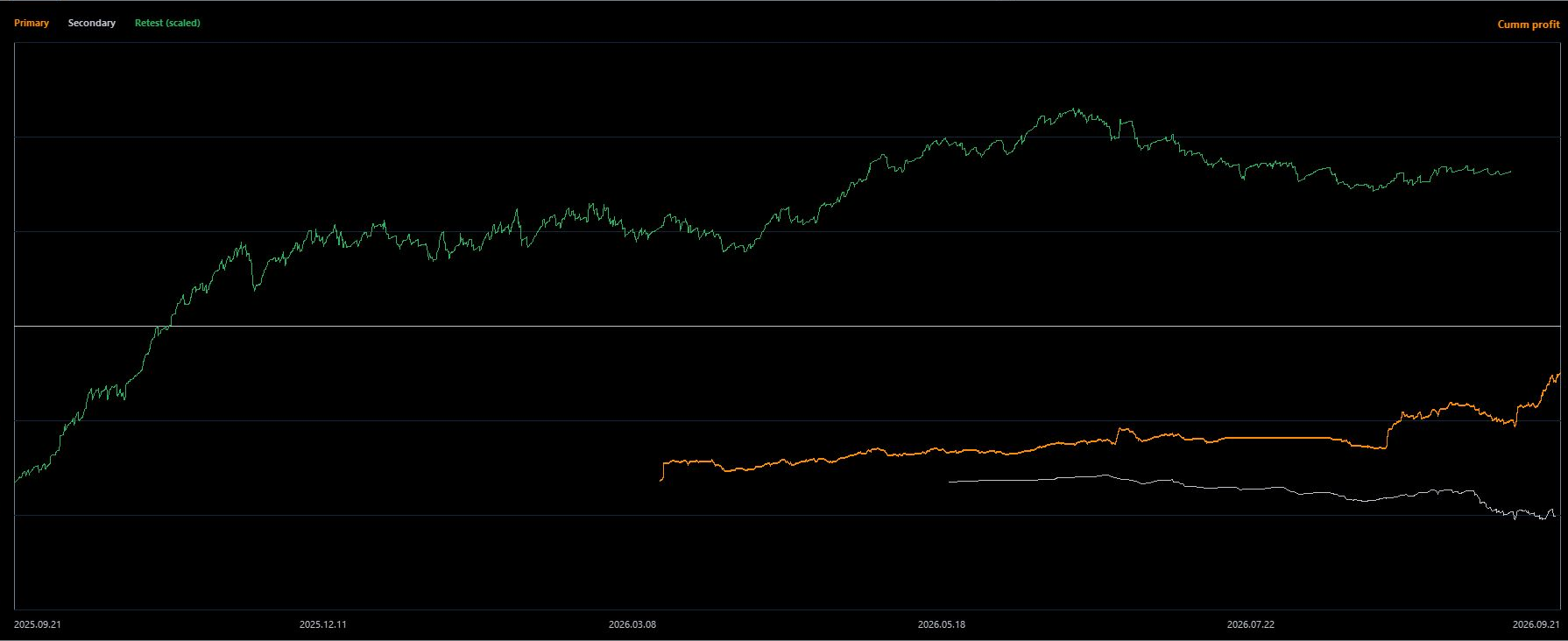
Primary, Secondary and Retest are synchronised by trade sequence, while every trade retains its timestamp.
Trades closing within TradeMatchToleranceMinutes may share one slot; default is 10 minutes. A shared slot is visual synchronisation, not proof of equal direction, volume, entry or economic identity.
Why this matters to the trader
The shared trade sequence makes development easier to compare without quiet calendar periods stretching the chart. You can see where two sources still move together, where divergence starts and how much trade evidence follows that change.
Record the observation
Describe where the lines agree, where they begin to diverge, how many trades support the observation and what remains unknown. Click a real trade point to edit the shared note or schedule a review. Manage any status change in Castlist.
Using Spotlight with a VPS
Local MT5 while trading EAs run on MetaQuotes VPS. Spotlight works normally in your local terminal while the trading EAs continue running on MetaQuotes VPS. Connect local MT5 to the same trading account and allow account history to synchronise. The trading EAs do not also need to run locally.
MetaQuotes VPS. Use Spotlight locally with MT5 History, local Backstage CSV files and local SQX Retest files. MetaQuotes VPS has a separate file environment, does not synchronise files back to local MT5 and is not the normal interactive Spotlight workspace.
Windows VPS. A Windows VPS supports the complete Spotlight workflow through Remote Desktop. Keep Spotlight, Backstage and any required Retest files in the same Windows/MT5 environment when they need to share data, and include those files in the VPS backup policy.
Ready checklist
- correct Magic#, source and period;
- enough trades;
- baseline explained in one or two sentences;
- one comparison added under known assumptions;
- next observation or review recorded.
If the chart is empty or unexpected
Confirm Magic#, source, period and available trade count first. For CSV, check Backstage’s latest successful export. For SQX Retest, use the standard SQX CSV format and ensure the intended Magic# is represented by all digits in the complete filename. Remove unrelated filename digits such as duplicate suffixes. If product switching fails, dock the Spotlight chart inside MT5.
Continue through the manual
Next: Spotlight Metrics Manual — interpret the chart and lower decision metrics reliably.
Other useful follow-ups:
- Spotlight VS, Portfolio Impact and Settings Manual — compare variants and test temporary portfolio scenarios.
- Backstage Quick Start Manual — add persistent Demo and Live CSV history.
- Castlist Management Manual — connect the analytical observation to Status, Note and Review.
Overview | Castlist | Spotlight | Backstage



