Castlist Quick Start Manual — From Installation to Your First Saved Management Action

Overview | Castlist | Spotlight | Backstage
Castlist Quick Start Manual — From Installation to Your First Saved Management Action
Castlist is available free on the MQL5 Market and can be used as a complete standalone management tool.
This guide takes you from installation to one verified strategy and one saved management action. You can complete it with MT5 History; Backstage is recommended later but is not required for the first result.
Result of this guide
At the end you will have Castlist running on one docked MT5 chart, one known strategy found and checked by Magic#, and one Status, Note, Review, Live or Archive action saved.
Allow the first overview to build. A large account history or first installation can take longer than a normal refresh.
Before you begin
- Use the intended MT5 Demo or Live terminal.
- Have access to the MQL5 account that obtained Castlist.
- Use at least one strategy with a unique, non-zero Magic#.
- Preferably note one recent closed trade you recognise in MT5 History.
- Prefer a hedging account when several EAs trade the same symbol.
On a netting account, activity from several Magic# values can be combined into one symbol position. Historical deals may still carry Magic#, but attribution can be less transparent. Validate several trades manually before relying on portfolio conclusions.
Understand the strategy identity first
Magic# connects the EA, its trades and Front Row management information. For active-EA recognition, Castlist reads the EA program name reported by MT5—normally the name shown in Navigator—not an order comment or chart comment.
Strategy 3.16.147 - BTCUSD, M30 → Magic# 316147
Castlist combines the digits before the first hyphen. The EA must also open its trades with Magic# 316147 . If the number is absent from the EA name, historical performance can still appear from deals, but Castlist may not recognise the EA as active or obtain its current market/timeframe.
1. Install Castlist from the MQL5 Market
- Open the exact MT5 terminal you want to manage.
- Sign in inside MT5 with the MQL5 account that obtained Castlist.
- Open Market , Purchased or My Purchases .
- Select Castlist and install it free of charge.
- Open Navigator with Ctrl+N .
- Look under Expert Advisors → Market .
- If Castlist is missing, refresh Expert Advisors or restart MT5.
Do not manually copy a protected Market installation between computers or terminals. Install it through the Market in each intended environment.
2. Place Castlist on one management chart
- Open one chart in the intended terminal.
- Drag Castlist from Navigator onto that chart.
- Review the MT5 inputs and confirm.
- Keep the chart docked inside the main MT5 window.
- Wait until the interface and strategy rows are built.
Castlist needs one management chart, not one chart per EA. Its chart symbol/timeframe does not define the scope of historical account data. Docking matters because detached product charts can interfere with the Suite Selector and direct Spotlight selection.
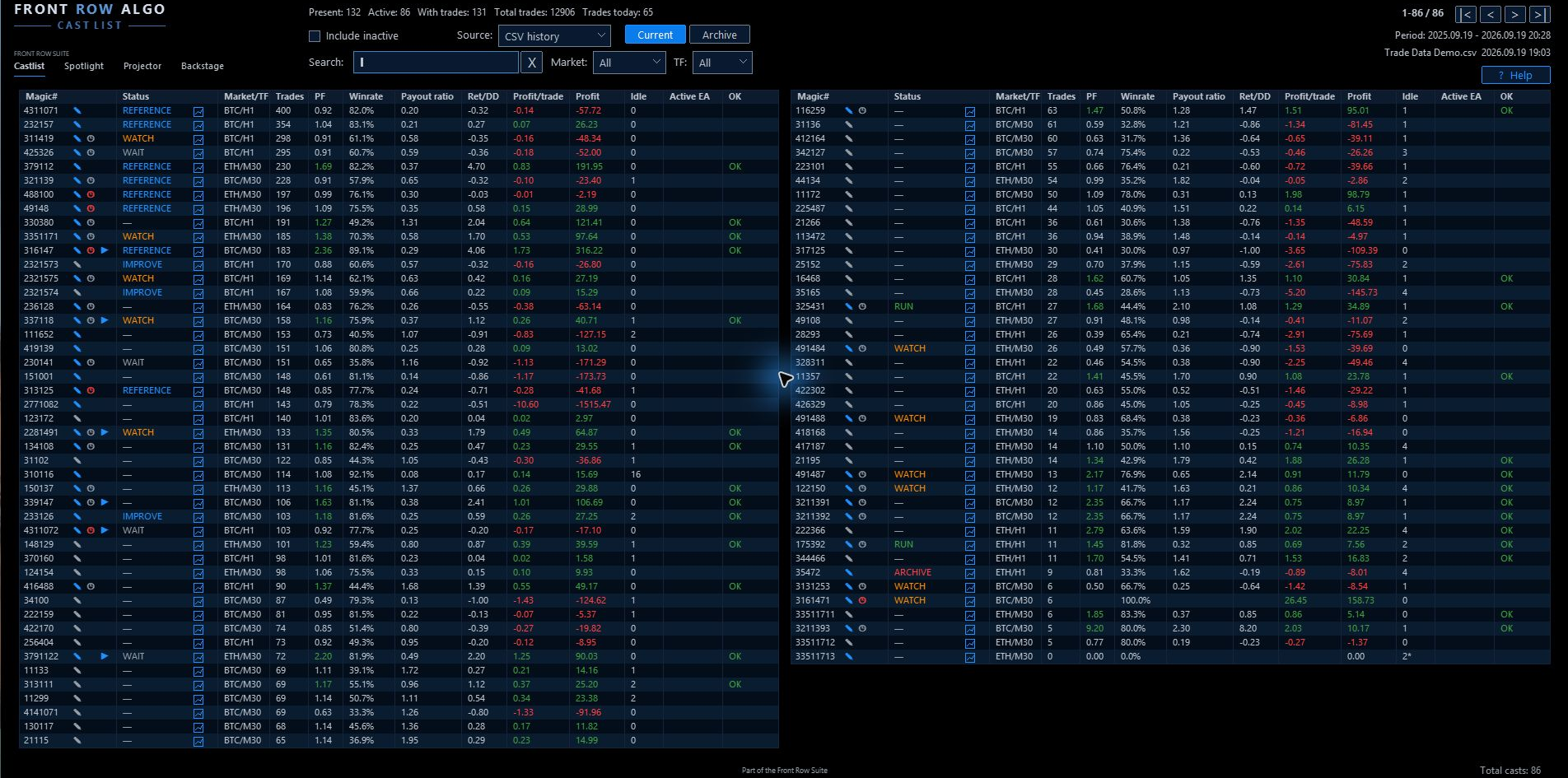
The complete Castlist workspace after the first overview has loaded.
3. Start with the broadest MT5 History view
- Choose MT5 History at Source.
- Keep Current active.
- Clear Search.
- Set Market and TF to All .
- Enable Include inactive.
- Wait for the next refresh if the rows do not change immediately.

Begin with MT5 History and the broadest Current view.
Castlist remembers Source, Include inactive, Current/Archive, Search, Market, TF and page position. A restored choice can therefore explain a short or empty list. This continuity is intentional after restart, update or reattachment.
Settings that affect this step
| Setting | What to check |
|---|---|
| LookbackDays | Is the expected trade inside the selected period? |
| MinTradesToShow | Does the strategy have enough trades to be shown? |
| ExcludedMagicNumbers | Is the Magic# unintentionally excluded? |
| IncludeSwapCommission | Use the same cost choice when comparing figures. |
| RefreshSeconds | Controls normal automatic refresh timing. |
4. Find and verify one known strategy
Enter the complete Magic# in Search. In the resulting row, check:
- Magic# — matches the EA input and trade history.
- Market and TF — fits the active EA chart or saved context.
- Trades — is plausible for the source and lookback.
- Profit — agrees with a known period or recent trade.
- Active EA — is recognised when the matching EA runs on an open chart.

Verify identity before interpreting performance.
MT5 trade history does not contain the EA chart timeframe. On a clean PC it can remain unknown until the EA is active on a chart or saved context exists.
5. Read the row as one profile
| Value | Practical interpretation |
|---|---|
| Trades | Evidence behind the other values |
| PF | Gross profit relative to absolute gross loss |
| Winrate | Share of winning trades |
| Payout ratio | Average win relative to average loss |
| Ret/DD | Net result relative to maximum drawdown |
| Profit/trade | Average financial contribution per trade |
| Profit | Total result for the active source and period |
| Idle | Days since the latest found trade |
OK only means PF reached OkPFThreshold ; it is not a Live recommendation. Active EA = N means no matching open EA chart was recognised; it does not mean there are no historical trades.
6. Save one meaningful management action
Right-click the Magic#.
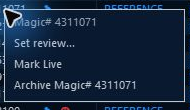
Choose one action that matches the current situation.
- Status records the management phase.
- Note records why attention is needed.
- Review schedules reassessment by trades and/or days.
- Live records portfolio intent; it does not start an EA.
- Archive removes the row from Current without closing positions or deleting history.
Review after 100 new trades: check whether average loss is still increasing.
Do not fill every field merely because it exists. The first goal is one meaningful next action.
7. Prove that the action was saved
- Wait for a normal refresh or change the search and return.
- Find the same Magic# again.
- Confirm that the selected status or icon remains visible.
- After a Note or Review, reopen it and verify the saved content.
Notes, Reviews, Status, Live and Archive are shared management data. Include them and the relevant settings files in your backup policy.
8. Optional: compare MT5 History with Backstage CSV History
- Select MT5 History and note Trades today .
- Switch to CSV History .
- Compare the value under the same period, costs and filters.
- Also compare total trades, dates and one recent known Magic#.
Equal daily totals alone do not prove that the complete histories are identical. A difference can be caused by account, period, costs, filters, a stale export or genuinely different history.
If the expected strategy is missing
- Confirm the correct terminal, account and Demo/Live environment.
- Confirm the intended Source.
- Check Current and Archive.
- Clear Search and set Market/TF to All.
- Enable Include inactive.
- Check LookbackDays .
- Check MinTradesToShow .
- Check ExcludedMagicNumbers .
- Compare the EA Navigator name with the EA Magic Number.
- Confirm MT5 History contains the expected closed trade.
Change one item at a time so the original cause remains visible.
Using Castlist with a VPS
Local MT5 while trading EAs run on MetaQuotes VPS. Castlist works normally in your local terminal while the trading EAs continue running on MetaQuotes VPS. Connect local MT5 to the same trading account and allow account history to synchronise. The trading EAs do not also need to run locally.
An EA that runs only on MetaQuotes VPS is not visible to Castlist as a locally active EA. Historical performance can still be analysed, but current chart context such as market and timeframe may require saved context or a corresponding local chart.
MetaQuotes VPS. The virtual terminal has a separate file environment. Files created there are not synchronised back to local MT5, so local Notes, Status, Live, Archive and Review data remain a separate dataset.
Windows VPS. A Windows VPS supports the complete interactive Castlist workflow through Remote Desktop. Its settings and management files remain on that VPS and should be included in the backup policy.
First-session completion check
- Castlist runs on one docked chart.
- The intended strategy is found by Magic#.
- Market, timeframe and evidence are explainable.
- One management action survives a refresh.
- You can identify the active source and period.
- You know which checklist to use when a strategy is missing.
You can continue using Castlist on its own at no cost. Continue with Castlist Management Workflow for the daily management cycle. Add Backstage early for persistent history and Spotlight for deeper trade-by-trade comparison.
Continue through the manual
Next: Castlist Management Manual — turn the first overview into a repeatable Status, Note and Review cycle.
Other useful follow-ups:
- Castlist Settings Manual — understand inputs, saved workspace and missing-strategy checks.
- Spotlight Quick Start Manual — investigate one strategy trade by trade.
- Backstage Quick Start Manual — preserve the history used by the management workflow.
Overview | Castlist | Spotlight | Backstage



