Backstage Quick Start Manual — Install and Verify Your First Persistent Export

Overview | Castlist | Spotlight | Backstage
Backstage Quick Start Manual — Install and Verify Your First Persistent Export
Backstage preserves the closed-trade history that MT5 and the broker still provide. It is the only Front Row product that writes the active historical CSV/state pair; Castlist and Spotlight deliberately read it.
Allow extra time for the first installation. Backstage scans all available history from ExportFrom , reconstructs closed positions, creates the CSV and initialises progress state. Keep MT5 and its chart open until a completed export is shown. Algo Trading may remain off because Backstage does not trade.
Result of this guide
- Backstage installed on one docked chart;
- exactly one active instance in the terminal;
- a successful first Demo or Live CSV/state export;
- one known Magic# and trade verified;
- the next incremental update checked.
Before you begin
About the automatic MQL5 demo
The automatic MQL5 demo is restricted to the isolated Strategy Tester. This product is designed for use in a normally running MT5 terminal, so the tester demo is not a functional trial and should not be used to assess normal operation. Please use the product video and documentation for a representative overview.
Questions are always welcome. If the Comments section is available to you, please ask your question there. Otherwise, hover over the seller name and choose Send message. I am happy to help with any questions.
- Open the intended Demo or Live terminal and confirm the account.
- Confirm MT5 History contains a known closed trade.
- Prefer a hedging account for clearer multi-EA attribution.
- Confirm no other Backstage is already attached in this terminal.
- Plan an independent disaster backup; Backstage daily backups are not the final backup policy.
1. Install Backstage
- Sign in inside MT5 with the MQL5 account that obtained Backstage.
- Open Market , Purchased or My Purchases .
- Select Backstage and click Install .
- Open Navigator with Ctrl+N .
- Look under Expert Advisors → Market .
- Refresh Expert Advisors or restart MT5 if it is not visible.
2. Attach Backstage to one docked chart
- Open one chart in the intended terminal.
- Drag Backstage from Navigator onto it.
- Keep the chart docked and MT5 running.
- Do not add another instance for other symbols, timeframes or Magic# values.
The chart is only a control location. Backstage reads terminal account history; its chart symbol and timeframe do not limit the export.
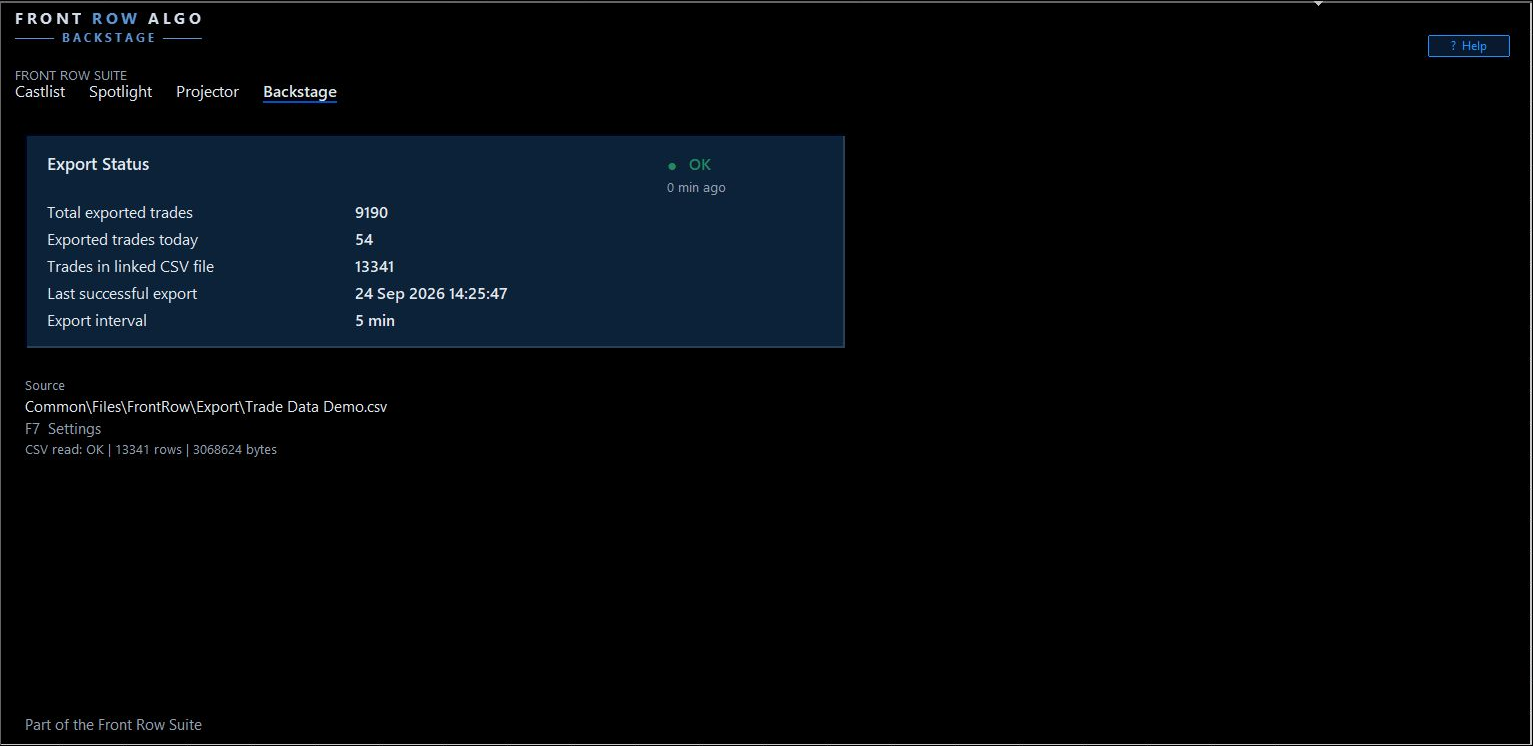
Use status, export time, totals and Source to verify the first build.
3. Check the first-start inputs
Press F7 or open the EA properties and verify:
| Input | First-start choice | Reason |
|---|---|---|
| FileName | AUTO | Creates and remembers the appropriate Demo- or Live-specific identity |
| ForceFullRebuild | false | Avoids deleting an existing CSV/state pair |
| ExportFrom | Before the earliest relevant available trade | Defines the first/full scan boundary |
| ExportIntervalMinutes | Default initially | Keeps first verification predictable |
Saved settings are leading on restart, update or reattachment in the same terminal. Always recheck account, filename and source after moving to another terminal or restoring settings.
4. Wait for and read the first export
Do not restart merely because totals are not immediate. Wait for:
- status OK ;
- a current Last successful export time;
- plausible exported totals;
- the expected Source path;
- the active CSV and matching .state file.
OK proves a recent export cycle succeeded. It does not prove the broker supplied every historical trade.
5. Verify one known strategy
- Find the known Magic# in the CSV or via Castlist CSV History.
- Compare market, trade count and latest closed trade.
- In Castlist, compare MT5 History and CSV History under equal period, costs and filters.
- Compare Trades today , total trades, first/latest dates and one recent Magic#.
6. Verify the next incremental update
- Leave Backstage running.
- After a later trade closes, wait for the next export interval.
- Confirm the trade appears once.
- Confirm older rows remain and no full rebuild occurred.
Why only one Backstage per terminal?
One terminal needs one writer, one progress state and one managed CSV/state pair. A second instance is blocked to prevent competing writers and ambiguous export ownership.
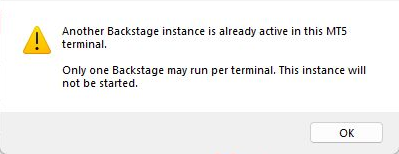
A second writer is blocked to protect export ownership and state.
Settings that influence the first export
FileName identifies the CSV/state chain. ExportFrom determines the requested history range. ExportIntervalMinutes controls update checks. ForceFullRebuild must remain false during normal incremental use.
If the first export does not complete
- Wait longer than one normal interval on a first build.
- Confirm MT5 History is available for the logged-in account.
- Check the Experts log for a clear error.
- Confirm another Backstage is not already active.
- Confirm the destination is writable and no application holds the active CSV for writing.
- Do not set ForceFullRebuild merely because a file is temporarily locked.
Using Backstage with a VPS
Local MT5 while trading EAs run on MetaQuotes VPS. Backstage works normally in your local terminal while the trading EAs continue running on MetaQuotes VPS. Connect local MT5 to the same trading account and allow account history to synchronise. The trading EAs do not also need to run locally. While local MT5 is running, the local Backstage instance updates its own CSV/state pair from the closed-trade history still supplied by the broker.
MetaQuotes VPS. Backstage can run in the virtual terminal, but that environment has its own files. Its CSV and state files are not synchronised back to local MT5. When you reopen local MT5, local Backstage catches up from available broker history; it does not download the VPS files. This works well for normal continuity, but history no longer supplied by the broker cannot be recovered this way.
Windows VPS. Backstage continuously updates its CSV/state pair on the Windows VPS while MT5 is running. The files remain accessible through Windows and can be backed up externally. Run Castlist and Spotlight in the same Windows/MT5 environment when they must read those files.
Completion check
- correct Demo or Live CSV/state pair exists;
- dashboard source and export time are current;
- known Magic# and trade are present;
- the next trade updates incrementally;
- exactly one Backstage runs;
- external disaster backup is planned.
Continue through the manual
Next: Backstage Settings, Files and Safe Recovery Manual — understand the files, settings, backups and recovery path.
Other useful follow-ups:
- Castlist Quick Start Manual — use the persistent source for daily strategy management.
- Spotlight Quick Start Manual — use the persistent source in a trade-by-trade comparison.
- Castlist Management Manual — connect persistent history to the review cycle.
Overview | Castlist | Spotlight | Backstage



