Atropos Manager Guide — Control Multiple Trades Faster from One MT5 Panel
27 May 2026, 05:35

1
202
# Atropos Manager Guide — Control Multiple Trades Faster from One MT5 Panel
If you trade more than one position at a time, the hard part is usually not the entry — it is what happens after the entry.
Which trade should be protected?
Which trade should trail?
Which trades should be grouped?
When should the basket close?
Which position should be partially closed?
How fast can you react when the market moves?
Atropos Manager was built for that exact moment.
It is a MetaTrader 5 trade management utility designed to help you control open positions directly from the chart using one practical panel. You can select a trade, enable or disable management features, apply TP or SL, trail positions, group trades, use controlled grid logic, partially close positions, move to BE+, close profitable trades, or use emergency close when needed.
The goal is simple:
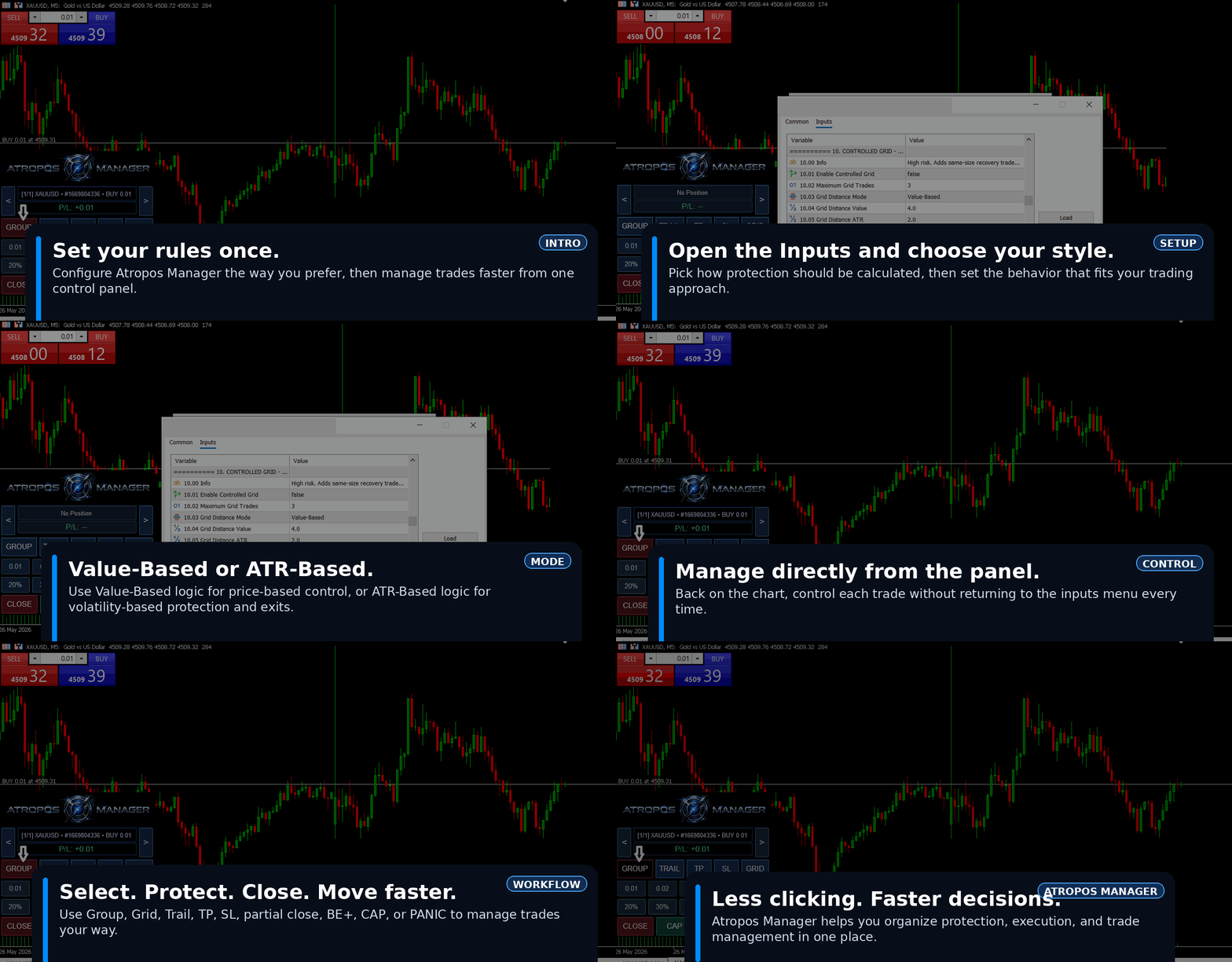
**Set your rules once. Then manage each trade faster from the panel.**
Atropos Manager does not predict the market and does not replace your trading strategy. It focuses on the management side after a trade is already open.
---
## Why this guide matters
Many traders open trades from different places: desktop, mobile, signals, manual entries, pending orders, or another Expert Advisor.
The problem starts after the trade is active.
Managing every TP, SL, trail, partial close, basket exit, and emergency close manually can become slow and messy — especially if you are running several positions at the same time.
Atropos Manager is designed to make that process cleaner.
You can set your preferred management rules once in the inputs, save them as your default setup, and then control each trade directly from the chart panel.
---
## The simple workflow
1. Attach Atropos Manager to your MT5 chart.
2. Open the EA Inputs.
3. Choose your preferred management method.
4. Set your TP, SL, trailing, group, grid, and account protection behavior.
5. Save your preferred setup.
6. Use the chart panel to control each trade individually.
The inputs define your default behavior.
The panel lets you control each trade without opening the inputs menu every time.
---
## Trade from mobile while the manager works on VPS
One practical use case is running Atropos Manager on a VPS.
If your MT5 terminal is running on a VPS and Atropos Manager is attached and active, you can open trades from another device, such as your phone or tablet, using the same trading account.
The manager can then monitor and manage the open positions from the VPS terminal according to your saved settings.
This means you can:
- Open or monitor trades from mobile
- Keep the manager running on VPS
- Let your saved rules handle TP, SL, trailing, group, grid, and protection logic
- Avoid needing your home computer open all the time
Important: the EA must remain running inside MT5 on the VPS for automated management to continue.
---
## Choose your protection style
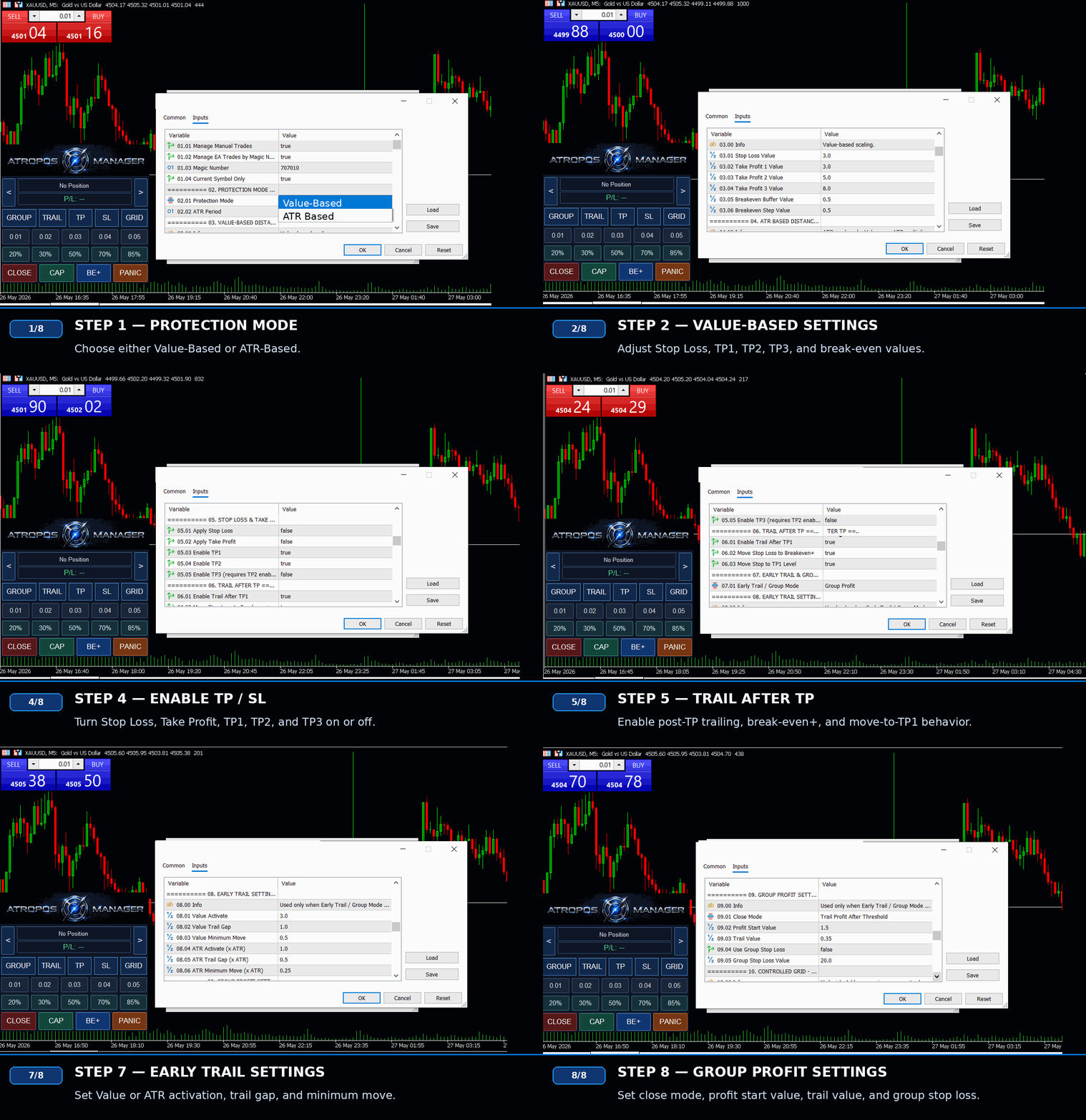
Atropos Manager supports two main calculation styles.
### Value-Based
Value-Based mode uses a price-normalized value system.
It is designed to keep management distances more logical when market prices change or when trading different instruments such as gold, forex, indices, oil, or crypto.
In simple terms, it is not just a fixed dollar amount. The manager converts the value into a practical price distance and then uses the symbol, volume, and broker conditions to manage the trade.
### ATR-Based
ATR-Based mode uses market volatility.
If volatility increases, ATR-based distances can become wider.
If volatility decreases, ATR-based distances can become tighter.
This mode is useful for traders who want TP, SL, trailing, and protection behavior to react to market movement.
---
## Set your default trade rules
Inside the inputs, you can configure the default management behavior.
Main areas include:
- Stop Loss
- TP1, TP2, TP3
- Break-even plus
- Trail after TP
- Early trail
- Group profit
- Controlled grid
- Account / prop firm protection
- Partial close button values
- Percentage close button values
Once you are comfortable with your setup, save it as your preferred configuration.
That way, you do not need to rebuild the same settings every time.
---
## Control each trade from the panel
After your default settings are ready, the main work happens from the panel.
You can browse through open positions and decide what should apply to each trade.
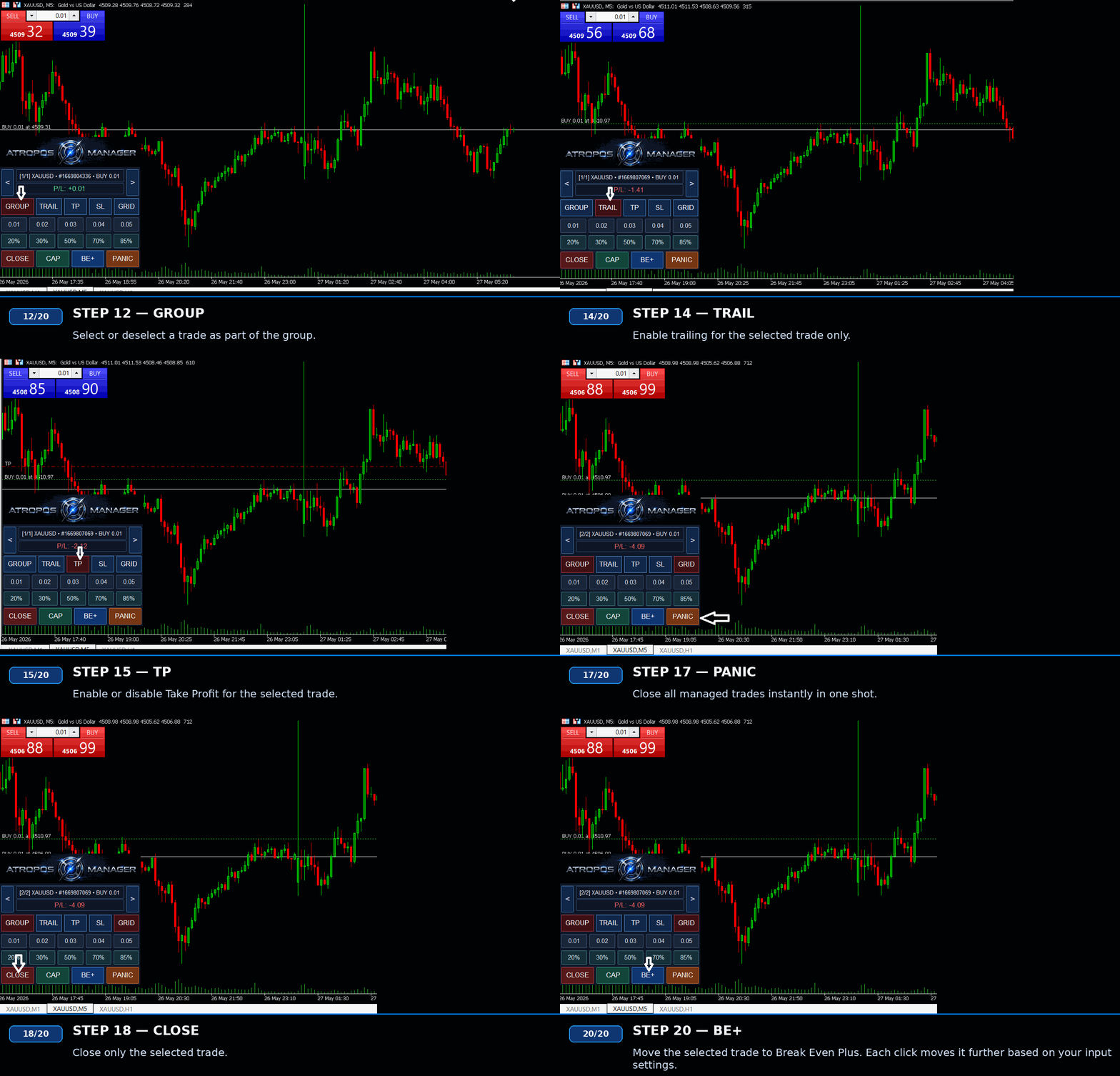
The panel can control:
- GROUP
- GRID
- TRAIL
- TP
- SL
- Fixed lot partial close
- Percentage partial close
- CLOSE
- CAP
- BE+
- PANIC
When a button is active, it is visually highlighted, so you can quickly understand how the selected trade is being managed.
---
## Group management
Group mode is useful when you are managing several trades together.
Sometimes one trade is in profit, another is negative, and another is close to break-even. The important question becomes:
**What is the total basket result?**
Group management helps you focus on the combined result instead of managing each trade separately.
You can select or deselect trades from the group directly from the panel.
This can be useful when you want to:
- Manage a basket of trades
- Trail the combined group profit
- Close the group when total P/L reaches an acceptable result
- Handle multiple positions without every single trade needing to close separately in profit
---
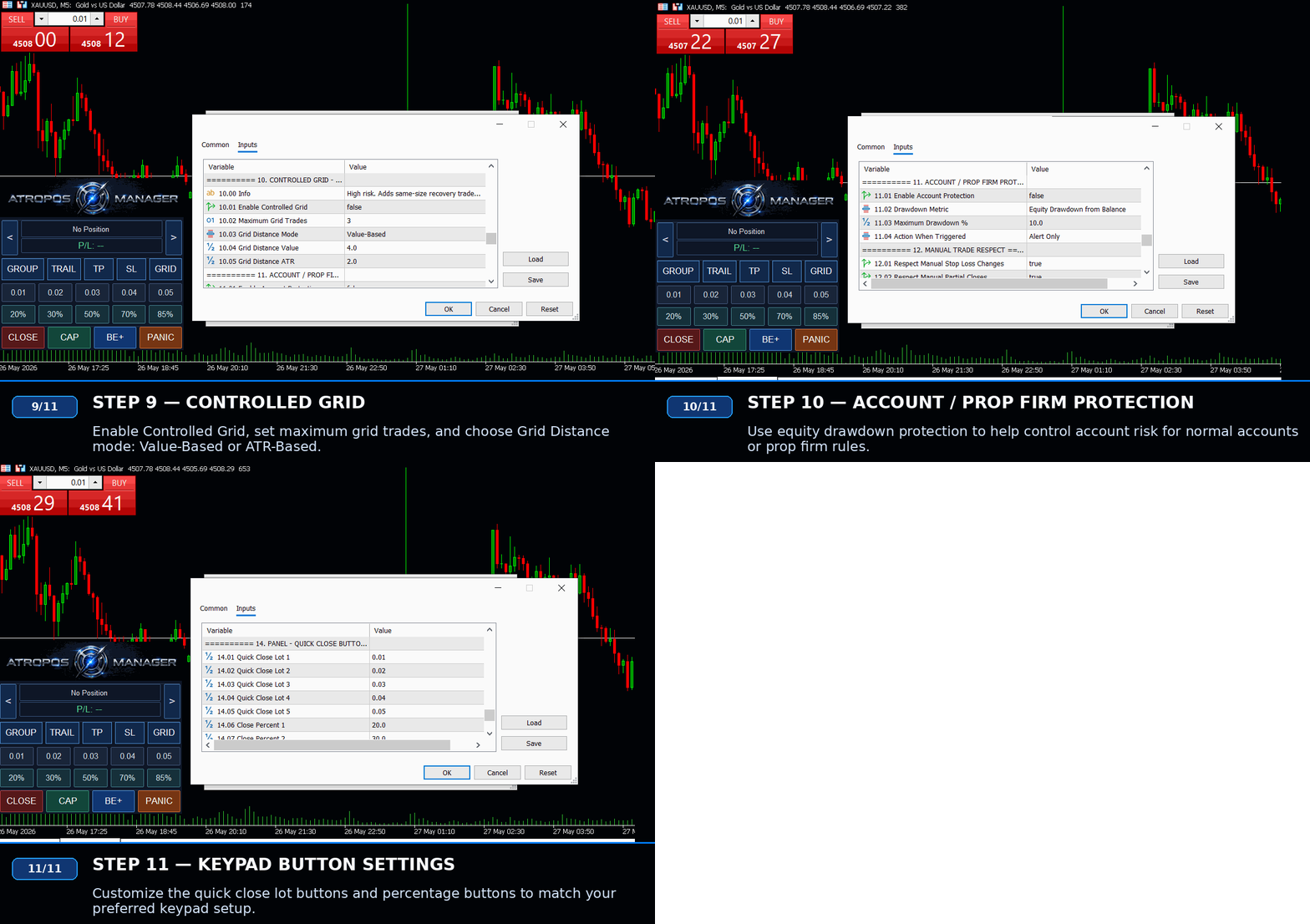
## Controlled grid
Controlled Grid allows the manager to add follow-up trades based on your grid settings.
You can configure:
- Enable or disable grid
- Maximum grid trades
- Grid distance mode
- Grid distance value
- Grid distance ATR
Grid is designed to work together with group logic.
That means the focus is not just one trade alone, but how the whole group is managed.
Grid trading can increase risk, so it should always be tested carefully on demo first.
---
## Trail, TP, SL and BE+
Atropos Manager gives you flexible protection tools.
You can enable or disable TP and SL from the inputs, and you can also control them per selected trade from the panel.
The manager also includes:
- Trail after TP
- Early trail
- Break-even plus
- Step-based movement after BE+
- Move stop to TP1 level after TP2 if enabled
This gives you more control over how profit is protected after the trade starts moving.
---
## Partial close tools
The panel includes two types of partial close buttons.
### Fixed lot partial close
You can set buttons such as:
- 0.01
- 0.02
- 0.03
- 0.04
- 0.05
These are useful when you want to close a specific lot amount.
### Percentage partial close
You can set percentage buttons such as:
- 20%
- 30%
- 50%
- 70%
- 85%
These are useful when you want to close a percentage of the selected position.
Both sets of buttons can be customized from the inputs.
---
## Fast action buttons
The panel includes quick action buttons for faster management.
### CLOSE
Closes only the selected trade.
### CAP
Closes profitable managed trades.
### BE+
Moves the selected trade to Break-Even Plus. Repeated clicks can move the stop further based on your input settings.
### PANIC
Emergency close for managed trades.
These buttons are designed for speed when the market is moving and you do not want to search through trade lists manually.
---
## Account and prop firm protection
Atropos Manager includes optional equity drawdown protection.
This can help traders who want an extra safety layer for:
- Personal risk control
- Prop firm rules
- Accounts with strict drawdown limits
- Emergency account protection
This feature does not replace proper risk management, but it can help enforce limits when account conditions become dangerous.
---
## Current symbol or broader management
Depending on your settings, Atropos Manager can focus on the current symbol or manage broader positions.
This gives flexibility for different workflows.
For example:
- You may want one chart to manage only XAUUSD.
- Or you may want broader account-level management depending on your setup.
Always check your symbol and management settings before using it on live accounts.
---
## Recommended first use
For a new user, the best approach is simple:
1. Start on demo.
2. Use small test positions.
3. Keep default settings first.
4. Test TP, SL, Group, Grid, Trail, BE+, CAP, Close, and Panic.
5. Adjust slowly.
6. Save your preferred setup.
7. Move to live only after you understand the behavior.
Do not start with large lot sizes or aggressive grid settings before testing.
---
## Visual user manual
A visual PDF manual is available for this product.
It explains the main inputs, the control panel, Value-Based mode, ATR-Based mode, group management, grid settings, account protection, and quick action buttons.
---
## Product page
Atropos Manager is available in the MQL5 Market.
Product page:
---
## Important note
Atropos Manager is a trade management utility.
It does not guarantee profit.
It does not predict market direction.
It does not replace your trading strategy.
Results depend on your broker, symbol, spread, execution, lot size, leverage, volatility, account type, and risk settings.
Always test on a demo account first.
Files:
Atropos_Manager_User_Manual.zip
2448 kb