PUSH NOTIFICATION SYSTEM - SkyAuro Royal King EA SSR — Semi-Automatic Gold Trading Panel
12 July 2026, 08:48

0
118
SkyAuro Royal King EA SSR — Semi-Automatic Gold Trading Panel
=== PUSH NOTIFICATION SYSTEM ===
This EA includes a built-in real-time push notification system
that sends alerts directly to your mobile MT5 app, keeping you
informed of every important trading event even when away from
your computer.
── Notification Events ──
✅ EA Started / Stopped
Receive an instant alert whenever the EA is launched
or shut down on your terminal.
✅ Position Opened
Notified immediately when a BUY or SELL position is
executed, including symbol, direction, lots, price, SL and TP.
✅ SL/TP Auto-Set
When a position is detected without SL or TP, the EA
automatically assigns them and sends a confirmation push.
❌ SL/TP Update Failed
If the SL/TP assignment fails for any reason, you will
receive an error alert with the ticket number and error code.
✅ Position Closed (Profit / Loss)
Every closed position triggers a push showing the symbol,
direction, lots, and final P/L amount.
✂️ Partial Close
When a partial close is executed, you receive the ticket
number, closed lots, and current floating P/L.
✅ +CP Triggered
Closed a position where profit exceeded your set target.
✅ -CP Triggered
Closed a position where profit was below your set target.
🔴 +CL Triggered
Closed a position where floating loss exceeded your set limit.
🔴 -CL Triggered
Closed a position where floating loss was below your set limit.
✅ BUY Max Profit Reached
All BUY positions and pending orders closed when BUY-side
profit hit the target. (Supports negative value for loss cut.)
🔴 BUY Max Loss Reached
All BUY positions closed when BUY-side loss hit the limit.
✅ SELL Max Profit Reached
All SELL positions and pending orders closed when SELL-side
profit hit the target.
🔴 SELL Max Loss Reached
All SELL positions closed when SELL-side loss hit the limit.
🟢 Trailing Stop Activated
Notified when the trailing stop system engages, showing
the activation profit level and initial stop level.
📈 Trailing Stop New High
Sent once per new equity peak — shows the new highest
profit and the updated trailing stop level.
🔴 Trailing Stop Triggered
All positions closed by the trailing stop. Shows final
profit, highest profit reached, and stop level.
🔄 Trailing Stop Reset
Sent when Auto Reopen is enabled and the trailing stop
system resets for the next cycle.
✅ / 🔴 Total Close Executed
Triggered when the Total Close button is pressed manually.
Shows profit or loss, account balance, and equity.
⚠️ Account Alert (Optional)
Can be configured to alert on significant balance or
drawdown changes.
=== SETUP INSTRUCTIONS ===
Step 1 — Get your MetaQuotes ID
Open MT5 on your mobile phone.
Go to: Messages → (top right menu) → MetaQuotes ID
Copy the ID shown on screen.

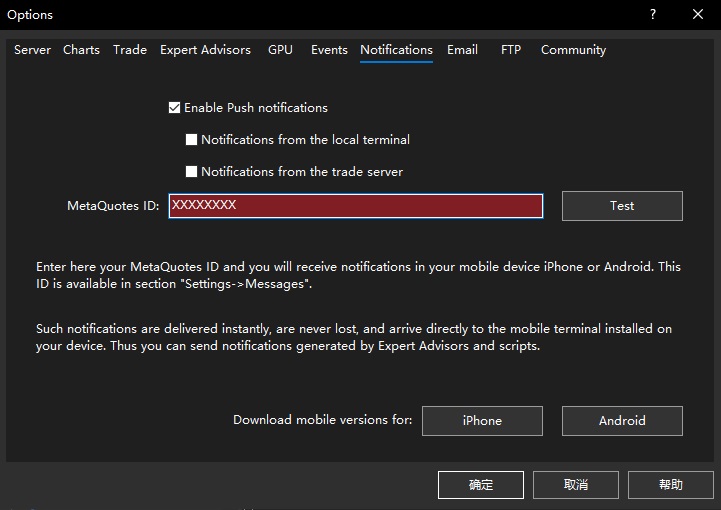
Step 2 — Enter the ID on your PC terminal
In MT5 desktop: Tools → Options → Notifications
Check: Enable Push Notifications
Paste your MetaQuotes ID into the field.
Click OK.
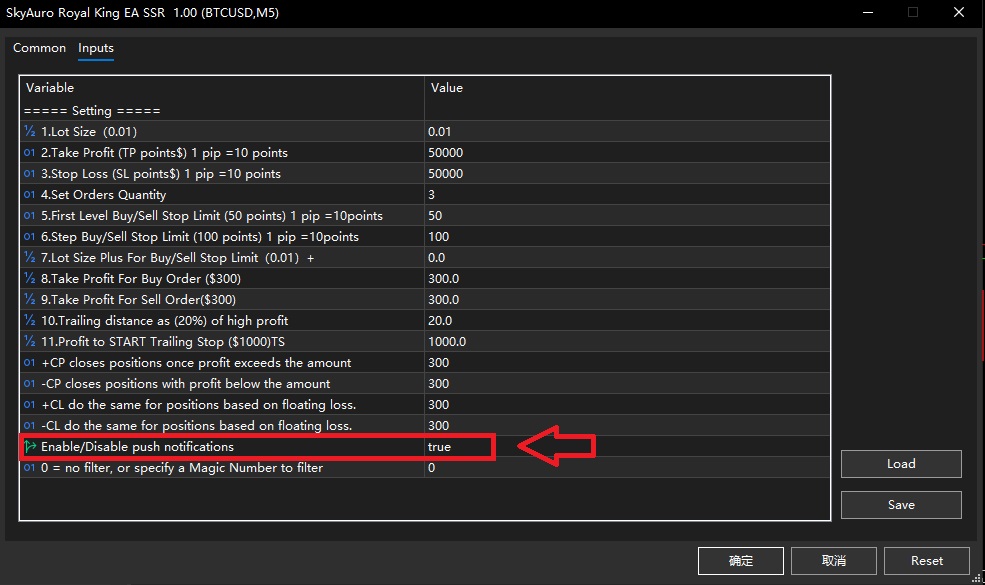
Step 3 — Enable in EA settings
In the EA input parameters:
Enable_Notification = true
Step 4 — Allow notifications in EA properties
Right-click the EA on chart → Properties
Go to the Dependencies tab
Check: Allow Push Notifications
Click OK.
=== IMPORTANT NOTES ===
- Your mobile MT5 app must be logged into the same
MQL5 account as your desktop terminal.
- Push notifications require an active internet connection
on both devices.
- MT5 allows a maximum of 1 push notification per second.
In high-frequency scenarios, some alerts may be queued.
- Notifications are sent for actual execution events only —
no spam, no repeated alerts for the same condition.
- The tsAlertFired flag ensures Trailing Stop New High
alerts fire only once per peak, not on every tick.


![[EURUSD]: Weekly Liquidity Activation Points (LAP), October 12-16, 2026](https://c.mql5.com/6/1035/splash-preview-777305.png "[EURUSD]: Weekly Liquidity Activation Points (LAP), October 12-16, 2026")
![[XAUUSD]: Weekly Liquidity Activation Points (LAP), October 12-16, 2026](https://c.mql5.com/6/1035/splash-preview-777299.png "[XAUUSD]: Weekly Liquidity Activation Points (LAP), October 12-16, 2026")
![[Nasdaq]: Weekly Liquidity Activation Points (LAP), October 12-16, 2026](https://c.mql5.com/6/1035/splash-preview-777311.png "[Nasdaq]: Weekly Liquidity Activation Points (LAP), October 12-16, 2026")