📖 USER MANUAL: AURA TRADE ASSISTANT PRO v2.00
"Simplify Your Trade, Master Your Risk."
Welcome to the AURA Trade Assistant Pro v2.00 (TradeCop Edition) ecosystem! Thank you for trusting us with your trade execution management.
The v2.00 update transforms AURA from a standard execution panel into a Professional Account Guardian Engine. This EA is specifically engineered to simplify risk calculations, mechanically secure your profits, and protect your account from Prop-Firm violations and extreme price maneuvers during high-impact news releases.This manual will guide you from the initial setup to mastering the advanced protection logic.
- Take complete control of your trading psychology and secure your live funds today. [Get the Full Version of AURA Trade Assistant Pro Here].
- Want to forward-test your strategy risk-free? [Download AURA Trade Assistant Free (Demo Account Only)] and experience the power of automated risk management for free.
- FREE Multi Timeframe Countdown Monitor [A Must Have Utility for Precision Traders (Download Here)]
⚙️ CHAPTER 1: PREPARATION & INSTALLATION (CRITICAL)
Before attaching the EA to your chart, you MUST grant internet access in MetaTrader 5. This allows the EA to scrape live economic calendar data (News Engine) and send real-time reports to your Telegram.
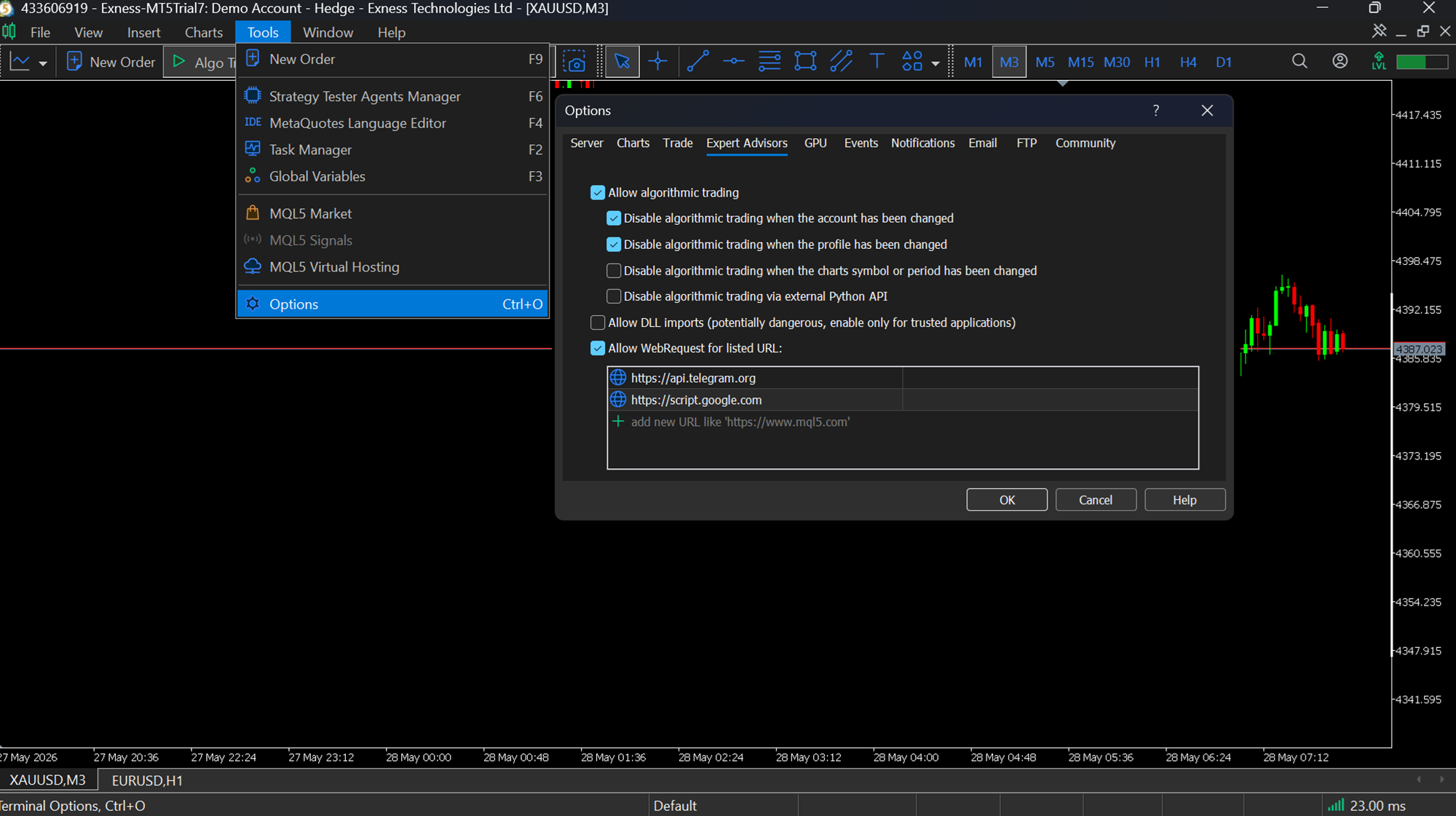
Allowing WebRequest URLs:
- Open your MetaTrader 5 terminal.
- Go to Tools > Options (or press CTRL+O).
- Select the Expert Advisors tab.
- Check the box for "Allow WebRequest for listed URL".
-
Add the following link to the list (click the green + icon):
- https://api.telegram.org (Required for Telegram reporting)
- Click OK.
EA Installation Steps:
- Go to File > Open Data Folder.
- Open the MQL5 > Experts folder.
- Copy and Paste the AURA Trade Assistant Pro.ex5 file into this folder.
- Open the Navigator panel in MT5, right-click on Expert Advisors, and select Refresh.
- Drag & Drop the EA onto your desired chart (e.g., XAUUSD M15).
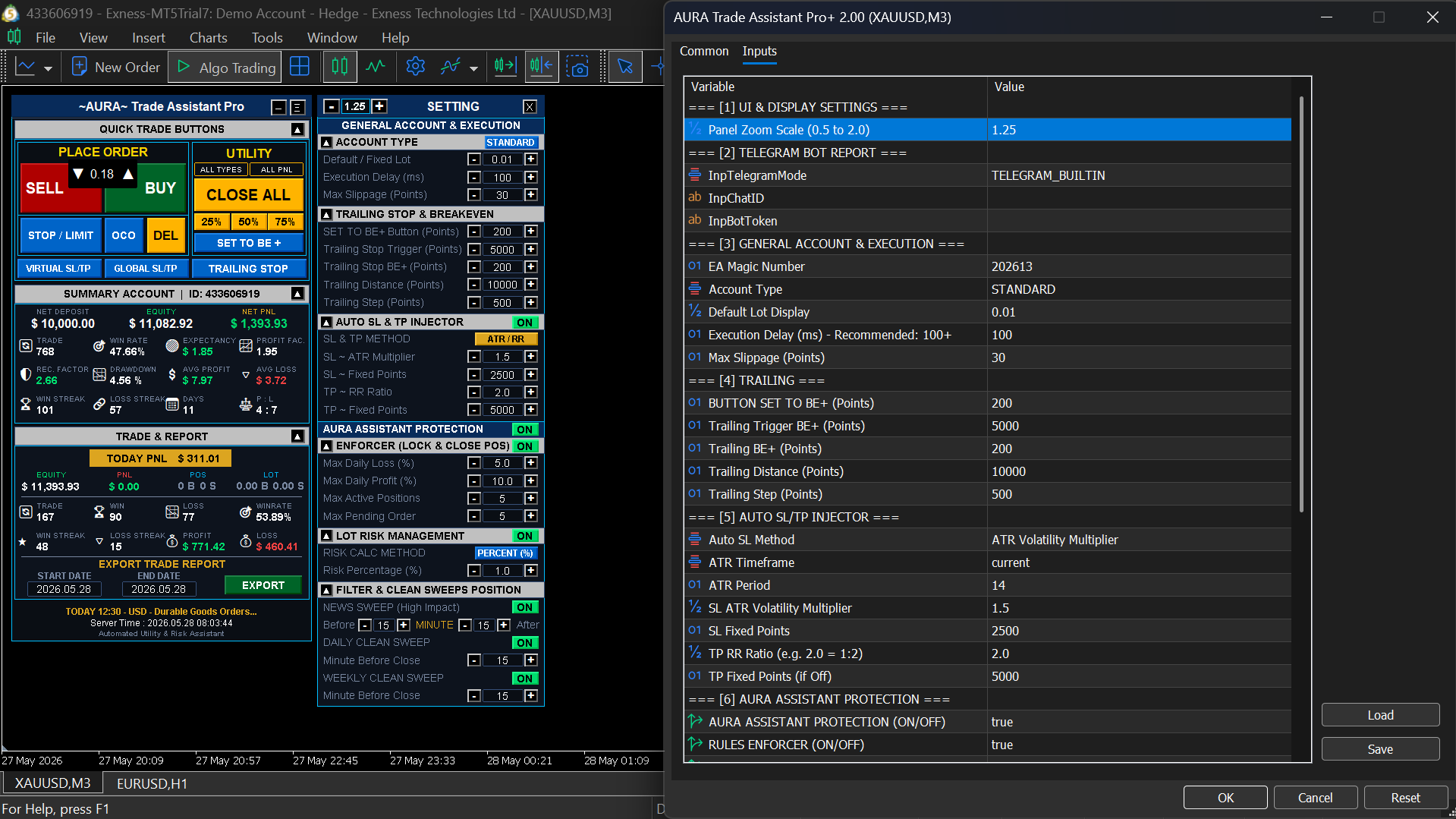
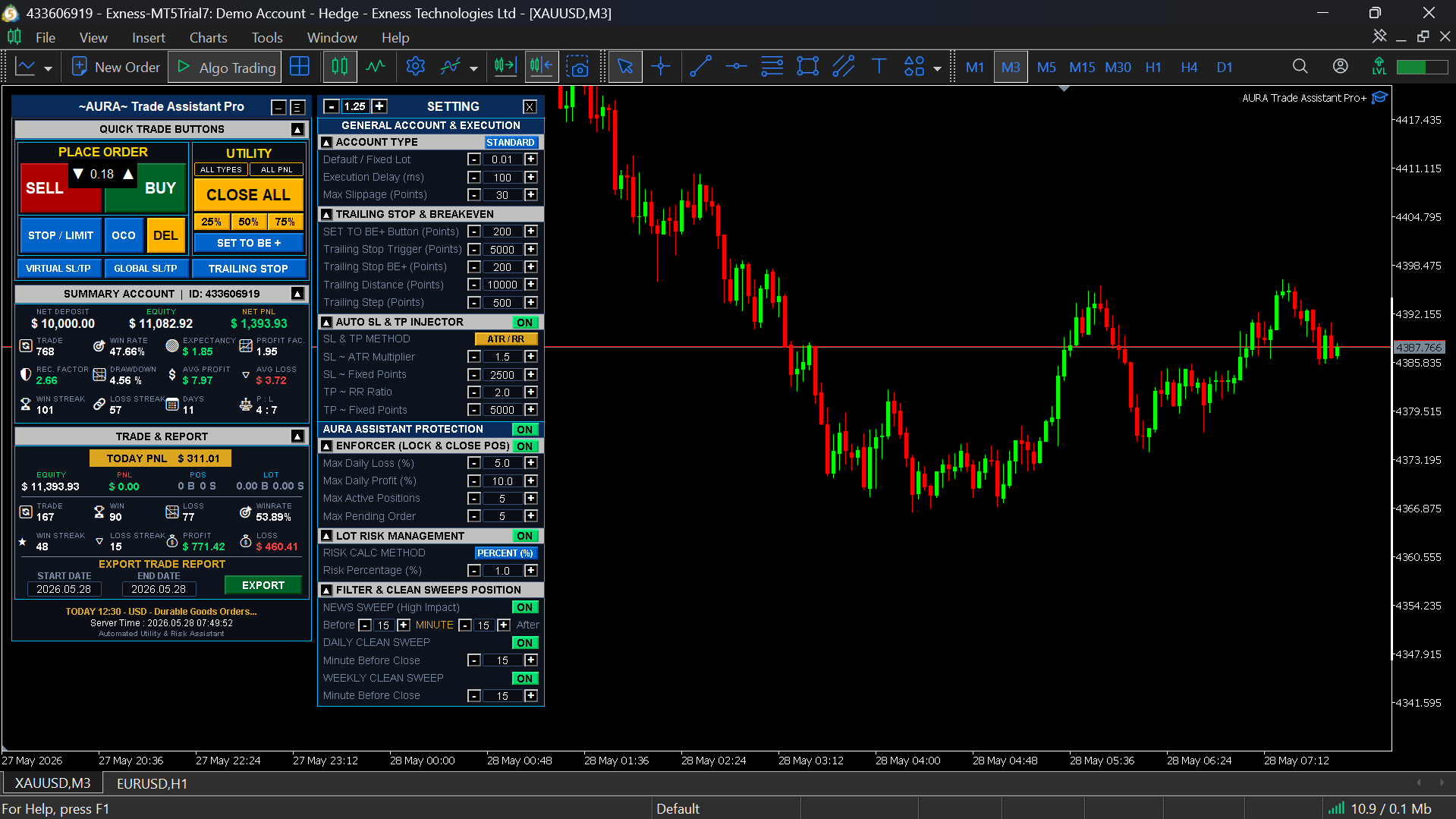
The SETTING panel is the command center of your risk infrastructure. Click the [ Ξ ] button in the top right corner of the main UI to slide open this panel. Settings in this area are synced directly with the native MT5 Inputs menu!
⚠️ AUTOMATIC STATE SAVER (MEMORY FILE):
- Master Inputs: When you first attach the EA, the values in the MT5 Inputs window serve as your Master Settings.
- Auto-Save: Every time you change a number or toggle an [ON/OFF] button on the UI Panel, AURA automatically saves it to a background memory file ( .bin ). If you change your Timeframe or restart MT5, your settings will not be lost.
- Memory Wiping: Removing the EA from the chart or changing the symbol will reset this memory.
1. GENERAL ACCOUNT & EXECUTION
- Panel Zoom Scale: Adjust the size of the EA (Zoom in/out) instantly without restarting MT5, ensuring a perfect fit for any screen resolution (supports 4K displays).
- Account Type (STANDARD / CENT): Adjust your account type to keep the financial display ($) accurate. In CENT mode, hundreds of thousands of cents are normalized into clean dollar formats (e.g., 10,000 cents is displayed as $100).
- Execution Delay (ms): The anti-spam engine that throttles order queuing so your EA doesn't get banned by the broker server. Recommendation: Keep at 100-150ms.
- Max Slippage: Your maximum tolerable price deviation for market orders.
2. TRAILING STOP & BREAKEVEN
- Trailing Trigger BE+: The floating profit (in points) that must be reached to activate the Trailing Stop for the first time.
- Trailing BE+ Buffer: Your "First Profit Lock" zone. The EA will move the SL to your Entry Price + this Buffer.
- Trailing Distance & Step: The tracking distance behind the current price, and the step interval required before the EA modifies the SL again (reduces server load).
3. AUTO SL & TP INJECTOR
-
SL & TP Method [FIXED PTS / ATR]:
- FIXED PTS: The EA uses absolute point distances (e.g., 5000 points = 50 pips).
- ATR / RR (Recommended): The EA calculates the SL dynamically based on the current volatility of the active Timeframe (ATR Indicator).
- TP ~ RR Ratio: The EA automatically places your Take Profit target based on the SL ratio (e.g., 2.0 = 1:2 Risk-to-Reward).
4. AURA ASSISTANT PROTECTION (The TradeCop Enforcer) A high-level discipline policing system. Crucial for Prop-Firm Traders.
- How the Enforcer Logic Works: The Enforcer operates as a 24/7 background watchdog. It scans your account equity, open positions, and margin every single second. It does not just send warnings; it takes mechanical action. If it detects a violation—such as a trade that breaches your Max Daily Loss or an attempt to overtrade—the Enforcer will ruthlessly intercept the action. It will force-close violating positions, delete pending orders, and lock your terminal to protect your capital from emotional decisions.
- Max Daily Loss / Profit (%): Your daily tolerance and profit target. If triggered, AURA initiates an Emergency Shutdown. It automatically closes all trades, deletes pending orders, and LOCKS DOWN your MT5 terminal until the next server day.
- Max Active Pos / Pending: The maximum number of allowed layers. If you exceed this quota, the EA will immediately delete the excess orders to prevent Overtrading.
5. LOT RISK MANAGEMENT
- Risk Calc Method [DOLLAR ($) / PERCENT (%)]: Choose whether to risk a fixed dollar amount (e.g., $100 per trade) or a percentage of your balance (e.g., 1% per trade). AURA will dynamically calculate the most precise Lot Size based on your SL distance.
6. FILTER & CLEAN SWEEPS POSITION
- News Sweep (High Impact): AURA automatically detects Red-Impact economic news! Based on your Before/After minutes setting, the EA will liquidate risky positions and lock your trading during the news storm.
- Daily / Weekly Clean Sweep: Automatically closes all positions a few minutes before the daily rollover (to prevent Swap/rollover fees) or Friday market close (to prevent Monday Gaps).
🖥️ CHAPTER 3: MAIN INTERFACE (DASHBOARD)
A. QUICK TRADING BUTTONS (Place Order)
This area is designed for lightning-fast, visually precise trade execution.
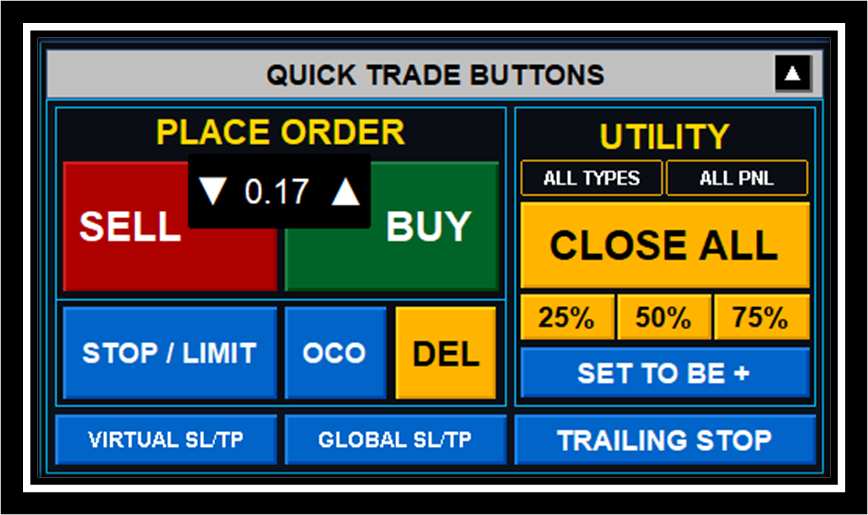
- BUY / SELL : Instantly executes Market orders. If Auto SL & TP is active in the settings, the order will automatically open with defined risk boundaries.
- Lot Input (▲ / ▼) : The central box used to adjust your lot size. The EA is intelligently designed (supporting up to 3 decimal places) and automatically complies with your broker's minimum and maximum lot size rules.
- STOP / LIMIT (SMART VISUAL PLANNER FEATURE) : Unlike standard EAs, this button is equipped with basic Artificial Intelligence (AI) logic. You no longer need to stress over choosing between a Buy Limit, Buy Stop, Sell Limit, or Sell Stop. The system will detect and adapt the order type automatically!
- OCO (One Cancels the Other) SMART OCO FEATURE : OCO is a strategy for placing 2 Pending Orders simultaneously, highly effective for trapping price movements during Fundamental News or Breakouts. If one of the orders is triggered by the market and becomes active, the EA will instantly delete the opposite order automatically!
- DEL (DELETE) : A single-click button to instantly delete all your Pending Orders (Limits/Stops) on the current chart.
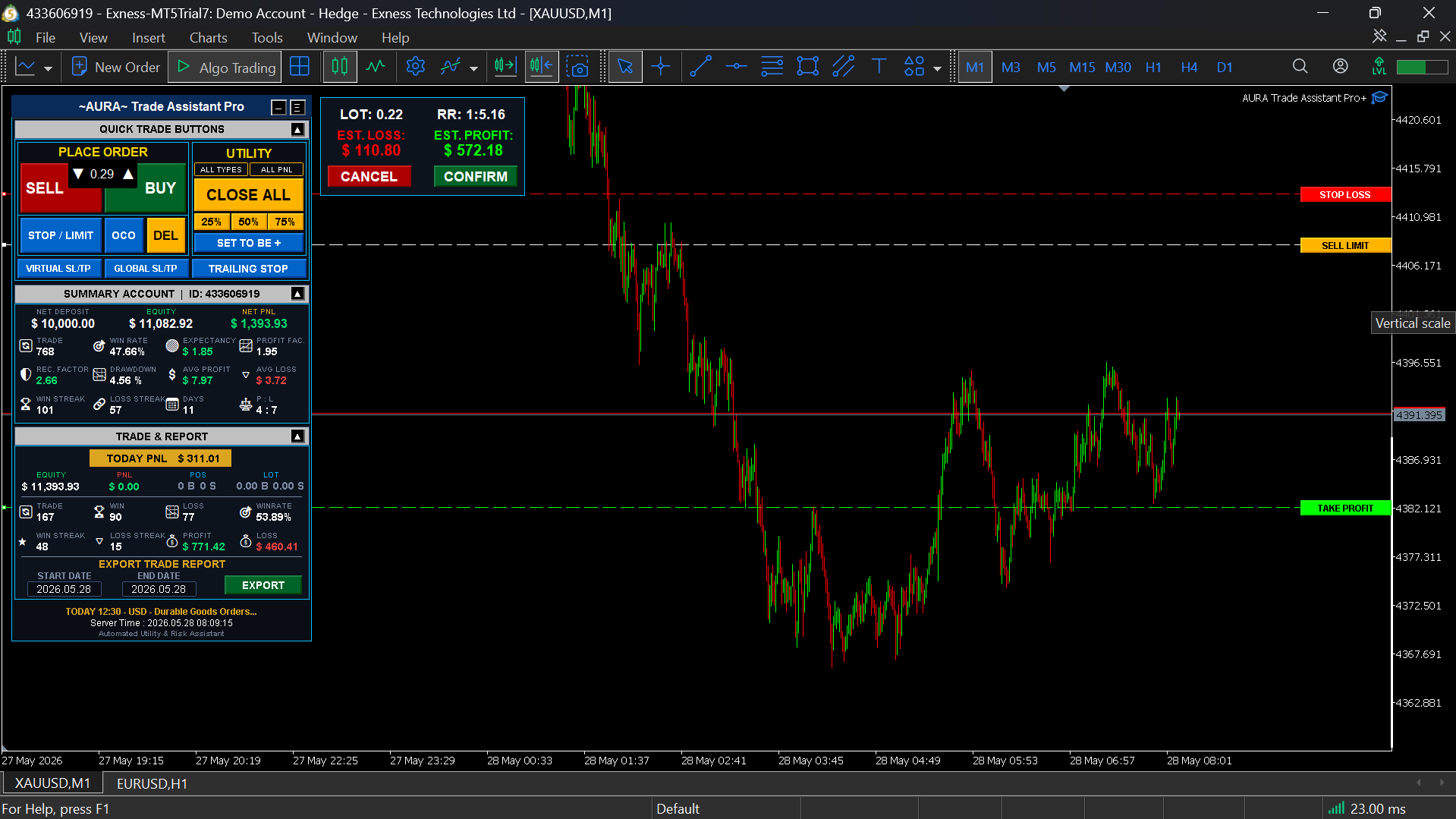
🎯 VISUAL PLANNER [ STOP / LIMIT ] : Unlike standard EAs, this button features basic AI logic. You no longer need to choose the order type manually. Click STOP / LIMIT to spawn 3 lines: Entry (White), Stop Loss (Red), and Take Profit (Lime).
-
Smart Direction Logic (Buy/Sell):
- Drag the SL line (Red) BELOW the Entry line (White) ➔ The system prepares a BUY setup.
- Drag the SL line (Red) ABOVE the Entry line (White) ➔ The system prepares a SELL setup.
-
Smart Order Logic (Stop/Limit):
- BUY Setup: Entry above current price = BUY STOP. Entry below = BUY LIMIT.
- SELL Setup: Entry below current price = SELL STOP. Entry above = SELL LIMIT.
- The confirmation box will display your Estimated Profit & Loss in Dollars ($). Click CONFIRM to execute, or CANCEL to abort.
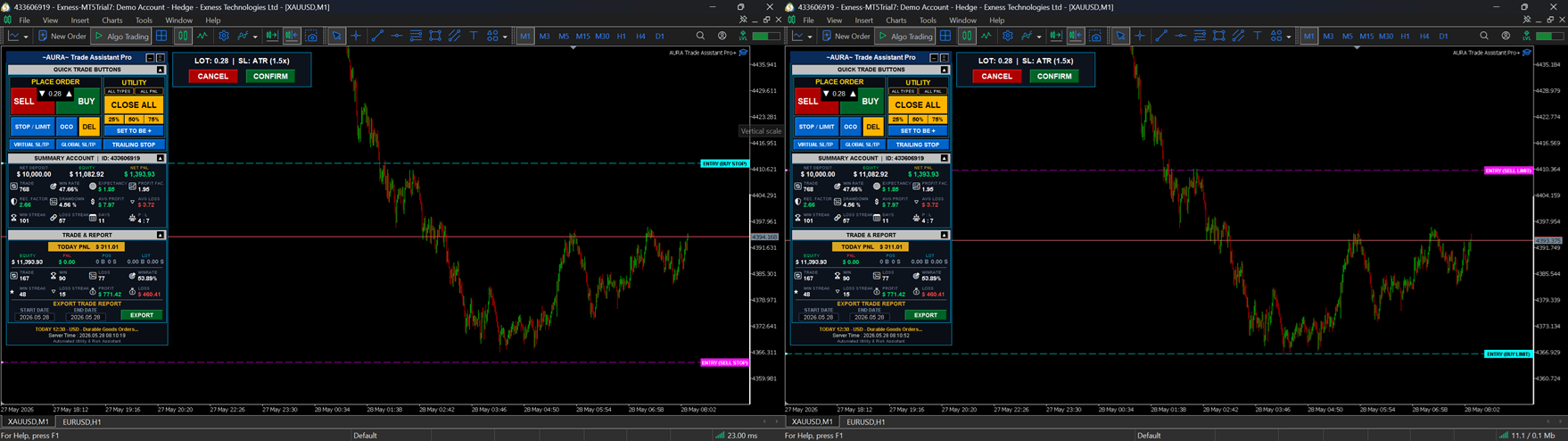
🎯 SMART OCO PLANNER [ OCO ] (One-Cancels-The-Other) : The ultimate tool for Breakout and Retest (Reversal) strategies. OCO allows you to set two opposite pending traps simultaneously. When the market triggers one of the orders, the EA will instantly delete the opposite pending order.
-
Click OCO to spawn an Upper line (Cyan) and a Lower line (Magenta).
-
Smart Auto-Adapt Logic:
-
The Upper line (Cyan) is strictly for BUY orders.
-
The Lower line (Magenta) is strictly for SELL orders.
-
The Magic: You don't need to manually select "Stop" or "Limit". AURA dynamically adapts the order type based on where you drag the lines relative to the current market price.
-
-
Strategy Use Cases:
-
🚀 For Breakout Traders (News Trading): Drag the Cyan line above the current price and the Magenta line below it. AURA will automatically place a Buy Stop and a Sell Stop. When a massive news spike hits one direction, you catch the breakout, and the opposite trap is safely deleted.
-
🧲 For Retest / Bounce Traders: Expecting the price to bounce off a key level? Drag the Cyan line below the current price (at a Support zone) and the Magenta line above the current price (at a Resistance zone). AURA will automatically place a Buy Limit and a Sell Limit. Whichever zone gets retested and triggered first becomes your active trade, canceling the other.
-
-
Click CONFIRM to execute the trap. AURA will automatically calculate the strict risk-based lot size and inject your predefined SL/TP into both pending orders.
B. UTILITY & MANAGEMENT (Profit Securing Area)
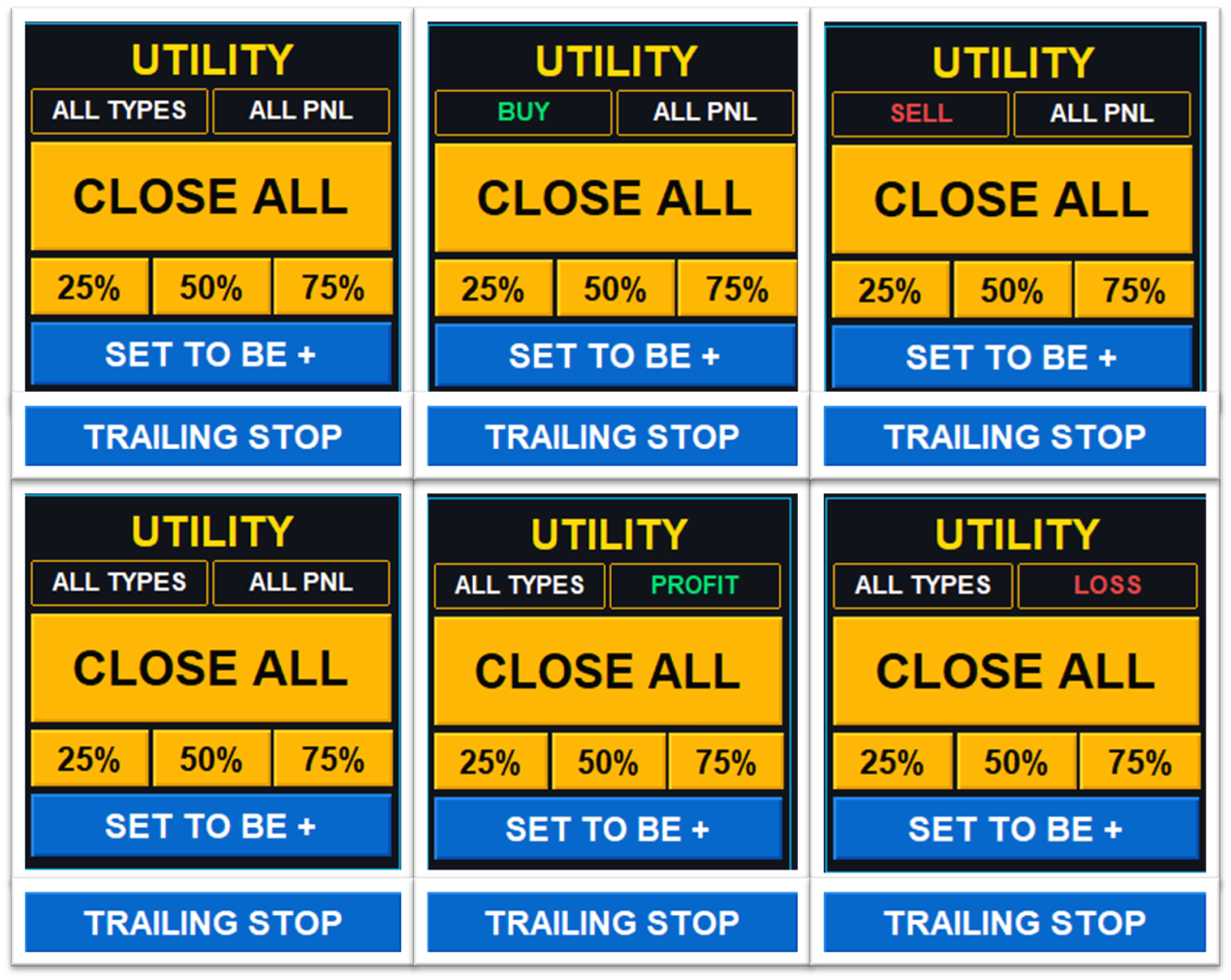
- Target Logic [ALL POSITIONS / PROFIT / LOSS]: A smart filter. Click to select which positions the action buttons below will affect. (Example: Select SELL and PROFIT , and the buttons will only manipulate Sell positions that are currently floating in green).
- [ CLOSE ALL ]: Mass liquidates positions based on the filter above.
- [ 25% ] [ 50% ] [ 75% ]: Partial Close! Secure a portion of your active lot size. AURA automatically handles broker minimum volume step constraints to prevent errors.
- [ SET TO BE+ ]: Instantly moves the physical Stop Loss to the Entry Point plus your Buffer distance to secure a risk-free trade.
- [ TRAILING STOP ]: Activates the automated price tracking engine (Indicator turns Green when active).
C. ADVANCED PROTECTIONS (Institutional Safeguards)
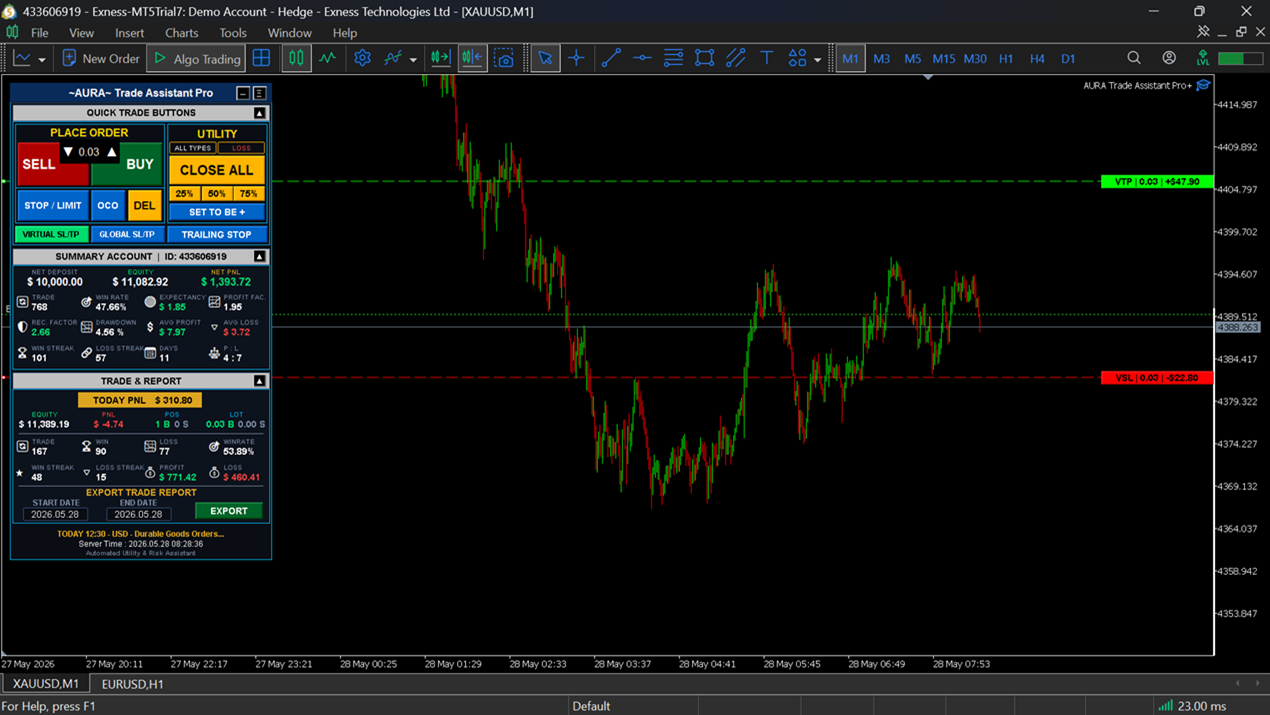
- [ VIRTUAL SL/TP ] (Ghost Mode): Converts your hard SL and TP into virtual dashed lines. Your broker cannot see your Stop Loss (Anti Stop-Hunting). AURA closes them via Market Order locally when the price touches the lines. (Note: Your MT5/VPS and internet must remain active).
-
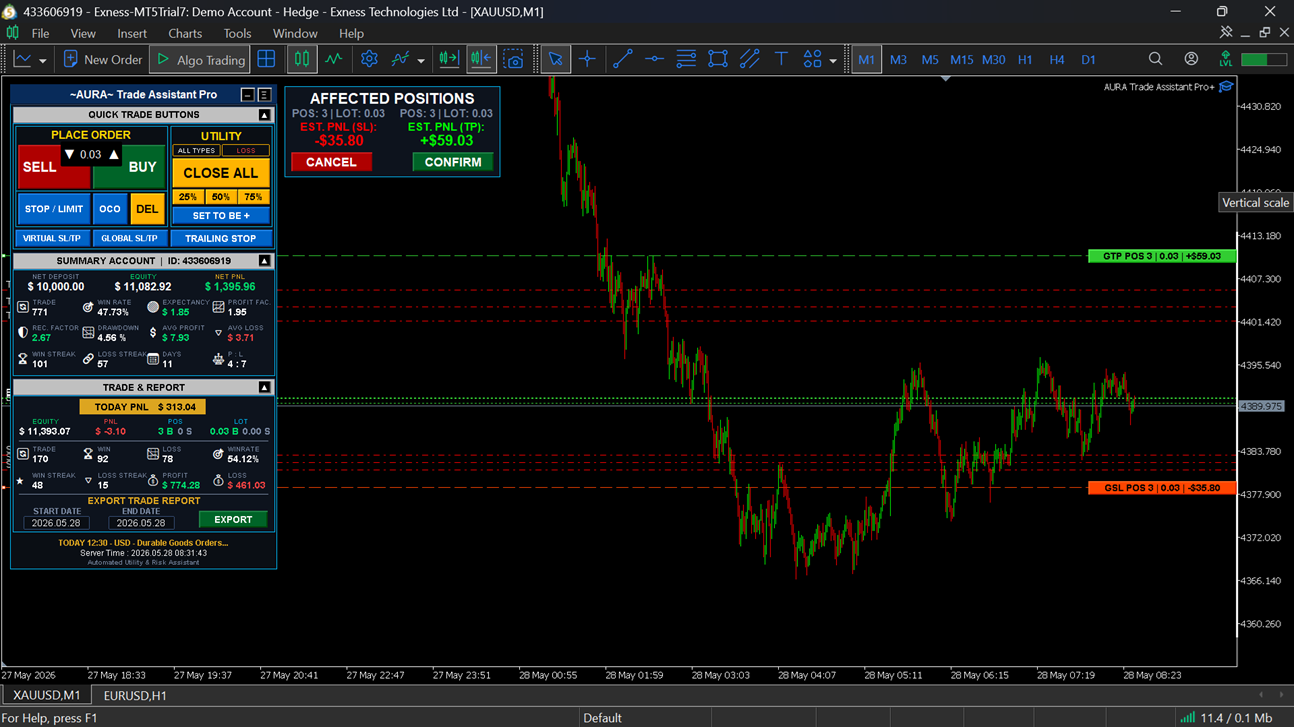
[ GLOBAL SL/TP ]: Consolidates your basket of trades (ideal for Hedging/Grid layers). Click to spawn a Master SL and Master TP line.
- As you drag the lines, the EA uses a VWAP (Volume-Weighted Average Price) formula to calculate the aggregated PnL of all layers at that exact price level in real-time.
- Click CONFIRM ➔ All your layers will instantly be modified to share the exact same SL and TP price levels on the broker server.
D. LIVE ANALYTICS & DASHBOARD DATA
Throw away your external trading journals! AURA delivers real-time stats directly to your chart.
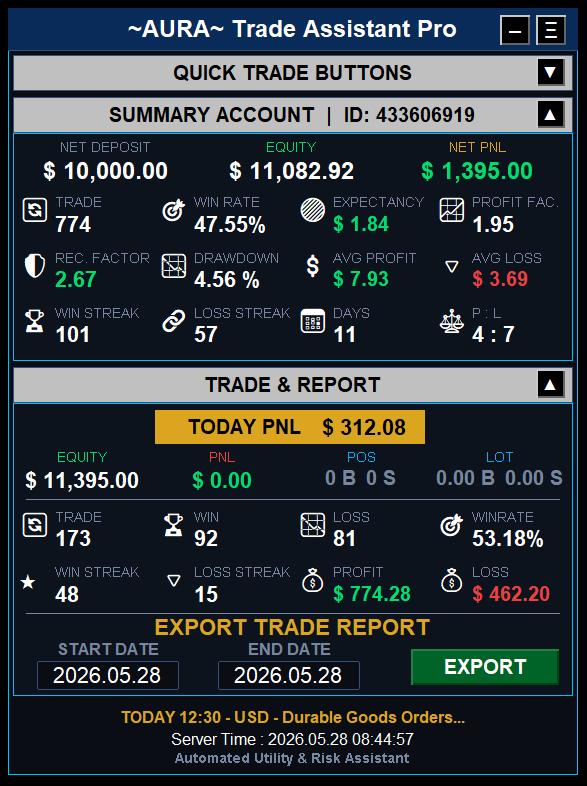
SUMMARY ACCOUNT :
- NET DEPOSIT: Total funds deposited minus all withdrawals. (Benefit: Shows your actual invested capital).
- EQUITY: Real-time account value (Balance +/- floating PnL). (Benefit: Shows your true current purchasing power).
- NET PNL: Total lifetime Net Profit/Loss realized. (Benefit: The ultimate bottom line of your account).
- Grid Metrics (The 12 Data Points):
- 🔄 TRADE: The total number of closed trades in the account’s history. (Shows your sample size).
- 🎯 WIN RATE: The percentage of total trades that ended in profit. (Measures strategy accuracy).
- 🟣 EXPECTANCY: The mathematical average dollar amount you expect to win/lose per trade. (Proves if you have a statistical edge).
- 📈 PROFIT FAC. (Profit Factor): Gross Profit divided by Gross Loss. (Scores risk efficiency; >1.0 is profitable).
- 🛡 REC. FACTOR (Recovery Factor): Net Profit divided by Maximum Drawdown. (Measures how fast you recover from losing streaks).
- 📉 DRAWDOWN: The largest peak-to-trough equity drop, displayed in both % and $. (AURA uses Withdrawal-Aware logic so payouts do not cause fake drawdown spikes).
- 💲 AVG PROFIT: The average dollar amount made on winning trades.
- 🔻 AVG LOSS: The average dollar amount lost on losing trades. (Compare this to Avg Profit to see your true Risk/Reward).
- 🏆 WIN STREAK: The highest number of consecutive winning trades.
- 🔗 LOSS STREAK: The highest number of consecutive losing trades. (Crucial for mental preparation).
- 📅 DAYS: Total number of days you have actively traded.
- ⚖ P : L (Profit vs. Loss Days): The ratio of days that ended in net profit versus days that ended in net loss. (Measures daily consistency).
TODAY TRADE AND REPORT:
- EQUITY: Your live equity at this exact moment.
- PNL: The live floating profit/loss of currently open trades.
- POS (B/S): Live exposure showing the exact number of active Buy (B) and Sell (S) positions.
- LOT (B/S): Live exposure showing the total lot volume allocated to Buys and Sells. (Helps you spot if you are over-leveraged on one side).
- TODAY PNL (The Gold Box): The absolute total of today's secured profit PLUS your currently floating profit/loss. (This dictates exactly how close you are to your Daily Loss/Profit limits).
- EXPORT REPORT: Send a detailed performance report, Holding Time analytics, and the AURA AI Grade Score (A+, A, B, or C) straight to your Telegram.
- Grid Metrics (The 8 Data Points):
- 🔄 TRADE: Total number of trades executed and closed today.
- 🏆 WIN: Number of winning trades today.
- 📉 LOSS: Number of losing trades today.
- 🎯 WINRATE: Your accuracy percentage specifically for today's session.
- ★ WIN STREAK: Consecutive winners today.
- ⛓ LOSS STREAK: Consecutive losers today. (A high loss streak is a psychological warning to stop trading).
- 💰 PROFIT: Gross dollar amount made from today's winning trades.
- 🔻 LOSS: Gross dollar amount lost from today's losing trades. (Reveals the volatility of your daily session).
FOOTER STATUS (System Control Center)
Located at the very bottom of the panel, this section has been completely upgraded in v2.00 to serve as your dynamic live monitor. It keeps you informed of critical market events and the EA's internal operations:
- Live News Tracker: Displays the exact time and affected currency of the next High-Impact News event, scraped directly from the live economic calendar (e.g., "TODAY 19:30 (USD)"). If the news storm has passed, it will show the recently released data.
-
System Status Monitor: Acts as the heartbeat of your EA. Under normal conditions, it displays your Broker's Server Time. However, during critical events, it will override the clock and flash color-coded warnings to keep you informed:
- 🟡 PROCESSING DATA... PLEASE WAIT: The Asynchronous Queue is currently handling mass executions (e.g., closing multiple orders or modifying Global SL/TP).
- 🔴 SAFE GUARD LOCKDOWN ACTIVE: The terminal is currently frozen because your Daily Limits were hit, or the Auto News Sweep protocol is actively shielding your account.
- 🔴 EA DISABLED BY SERVER: The anti-spam engine caught a broker rejection and is temporarily pausing execution to protect your account from being banned by the broker.
📱 CHAPTER 4: THE SHADOW GUARD & RULES ENFORCER (24/7 Account Police)
AURA doesn't just work when you click a button on the panel. It acts as your absolute 24/7 Account Police. The system continuously monitors every transaction on your account in real-time, including those executed outside the EA's interface. If you are away from your desk and open a Buy/Sell position or place a Pending Order using your MetaTrader Mobile App, the AURA EA running on your VPS/PC will immediately intercept that action within milliseconds and execute one of the following 5 strict discipline-enforcement scenarios:1. Auto-Inject SL & TP (Naked Order Protection)
Often forget to set a Stop Loss during a quick mobile entry? AURA will detect your "naked" order and instantly inject the protective Stop Loss and Take Profit levels based on your predefined PC settings (This feature also fully supports Virtual/Ghost SL & TP modes).
2. Auto-Replace & Lot Correction (Fat Finger / Overlot Correction)
This is your ultimate margin savior. If you make a typo (e.g., trying to open 0.10 lots but accidentally executing 1.00 lot) or intentionally increase your lot size out of emotion, AURA will detect the Risk % violation. The system will automatically destroy the hazardous order (FORCE CLOSE), and seamlessly REPLACE it at the exact same price level with the corrected, 100% safe lot size based on your strict risk tolerance.
3. Overtrade Interception (Max Limit Enforcement)
AURA stops the habit of bombarding the market with unnecessary positions. If your Max Active Positions or Max Pending Orders limit is fully utilized, and you try to force a new order from your phone, AURA will instantly track and FORCE DELETE the newest opened order to ensure your risk exposure stays within the safe zone.
4. Revenge Trade Lockdown (Daily Limit Quarantine)
This is your final line of defense. If your account has entered Lockdown Mode because you hit your Max Daily Loss Limit, but you still attempt to force a "revenge trade" from your phone, AURA will show no mercy. The system will instantly execute a Force Close on that new position to protect you from yourself!
5. News Flash-Crash Rejection (News Execution Block)
📬 CHAPTER 5: TELEGRAM NOTIFICATIONS & REPORT EXPORT
AURA comes with a built-in asynchronous remote reporting assistant.
- Open Telegram and search for our bot: @auratradeassistant_bot for Trade Assistant Pro and @auratradeexecution_bot for Trade Execution Panel (or use your custom bot).
- Press START on the bot.
- Find your Telegram Chat ID (You can use bots like @userinfobot).
- Enter this Chat ID into the EA's Inputs menu ( InpChatID ) when attaching the EA to the chart.
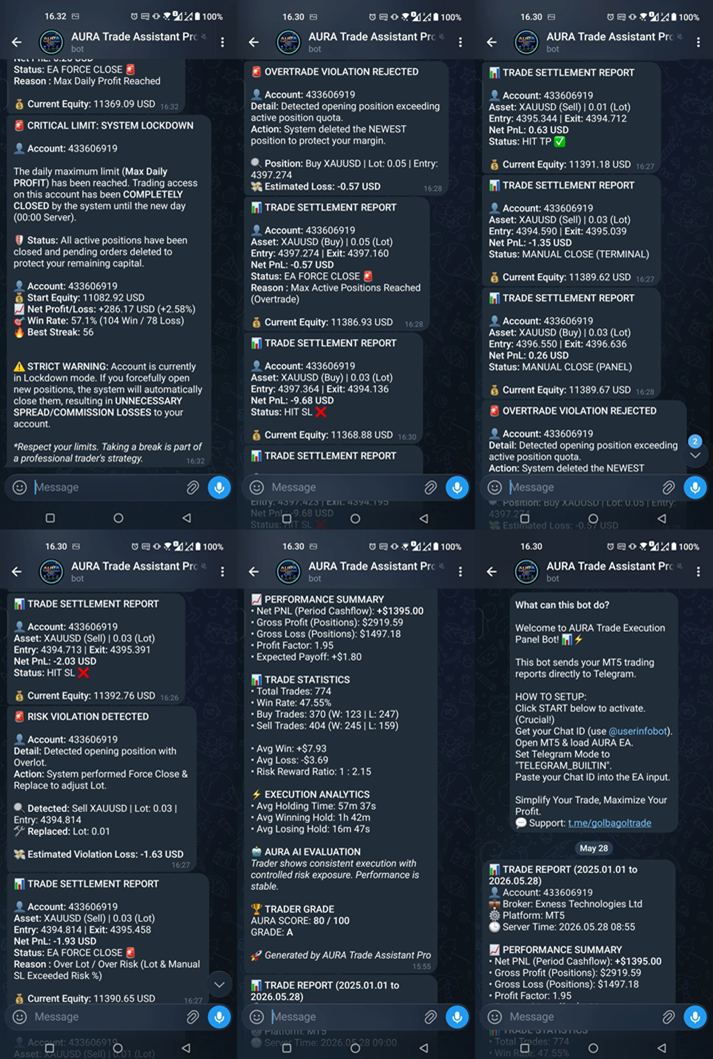
- Done! Your Telegram will now ping you with PnL details every time a position closes (Hit SL, TP, or Manual). You will also receive Early Warnings for High Impact News or Account Lockdowns.
🤖 APPENDIX: HOW TO CREATE A CUSTOM TELEGRAM BOT & FIND YOUR CHAT ID
If you prefer to use your own private Telegram Bot instead of the built-in AURA Bot, follow these simple steps to generate your Bot Token and find your Chat ID .
STEP 1: Create Your Telegram Bot (Get the Bot Token)
- Open your Telegram app and search for the official @BotFather (Look for the verified blue tick).
- Start a chat and send the command: /newbot
- Choose a Name: Give your bot a display name (e.g., My AURA Tracker).
- Choose a Username: Give your bot a unique username. It must end with the word bot (e.g., AuraTrade123_bot).
-
Copy the Token: BotFather will congratulate you and provide a long string of characters called the HTTP API Token (e.g., 1234567890:ABCDefGhIjKlMnOpQrStUvWxYz ).
- 📌 Save this Token. You will paste this into the Bot Token input in the EA.
STEP 2: Activate Your New Bot (CRITICAL STEP)
A Telegram bot cannot send you messages unless you start the conversation first.
- Click the link to your new bot provided by BotFather (e.g., t.me/AuraTrade123_bot ), or search for your bot's username in Telegram.
- Open the chat and press the START button at the bottom of the screen. (Do not skip this step!)
STEP 3: Find Your Personal Chat ID
To tell the EA exactly where to send the message, you need your unique Telegram Chat ID.
- In the Telegram search bar, look for @userinfobot or @getidsbot.
- Start a chat with the bot and press START.
-
The bot will instantly reply with your account details. Look for the Id number (e.g., 123456789 ).
- 📌 Copy this number. You will paste this into the Chat ID input in the EA.
- (Note: If you want the EA to send messages to a Telegram Group/Channel instead, add your newly created bot to that group as an Admin, then use a bot like @getidsbot inside the group to find the Group Chat ID, which usually starts with a minus sign like -100123456789 ).
STEP 4: Connect to AURA Trade Assistant Pro
- Open MetaTrader 5 and drag the AURA EA onto your chart.
- Go to the Inputs tab.
-
Under the === [2] TELEGRAM BOT REPORT === section:
- Set Telegram Mode to TELEGRAM_CUSTOM .
- Paste your Chat ID into the InpChatID field.
- Paste your Bot Token into the InpBotToken field.
- Click OK.
You are all set! AURA will now use your personal bot to deliver all trade reports and emergency lockdown alerts securely.
❓ CHAPTER 6: FREQUENTLY ASKED QUESTIONS (FAQ)
Q: I clicked Confirm on the Visual Planner, but the lines vanished and no order was placed? A: This is AURA's Asynchronous Queue Engine (Anti-Freeze) at work. You likely placed the Limit/Stop order too close to the current price (violating the broker's StopLevel rules) or experienced heavy Slippage. The broker rejected the order (Error 10016), and AURA skipped the execution to prevent your MT5 terminal from freezing. Simply move your Entry line a bit further away and try again.
Q: Why does Telegram show the status as "MANUAL TERMINAL 💻" instead of "PANEL CLOSE 🖱️" when I close a trade? A: AURA precisely categorizes the closure source. "PANEL CLOSE" only appears if you use the yellow buttons inside the AURA UI. If you close a trade using MT5's native (X) button, right-click close, or from your mobile phone, AURA categorizes it as manual user intervention outside the EA.
Q: Why did the Mobile Auto-Replace (Lot Correction) fail and just close my order instead of replacing it? A: The Replace process requires price validation. If, during the milliseconds AURA attempts to open the corrected order, the market price has spiked violently (heavy slippage) or your margin is insufficient, the broker will reject the replacement. AURA prioritizes your safety by deleting the dangerous order, even if the replacement fails.
Q: Can I use this EA for Prop-Firms like FTMO or MFF? A: Absolutely! We recommend utilizing the [VIRTUAL SL/TP] feature if the Prop-Firm restricts visible stop losses. Furthermore, set the [Daily Loss Limit] in AURA slightly below the Prop Firm's threshold (e.g., if the Prop Firm allows 5%, set AURA to 4.5%) as an absolute, unbreakable safety net.
END OF MANUAL Use AURA Trade Assistant Pro as your security infrastructure. Follow your Trading Plan, and let AURA's mathematics and robotics secure the rest. Trade safe and stay consistent!
🎁 Complete Your Trading Tools!
Thank you for checking out my product. If you want to take your trading to the next level, don't miss out on our other exclusive tools:
-
Download Our FREE Tools: Looking for more edge without extra cost? Visit my author profile to explore and download our collection of high-quality FREE indicators designed to complement your daily analysis.
-
Meet Your New Trading Assistant: Tired of calculating lots manually or managing open trades? Check out our EA Trading Assistant! It’s a powerful semi-automated tool that handles your risk management, automatic lot sizing, trailing stops, and breakeven functions effortlessly. Let the EA do the hard work while you focus on the strategy.
👉 [https://www.mql5.com/en/users/golbagoltrade/seller]