Phoenix Trade Manager MT5 – Complete Installation Guide
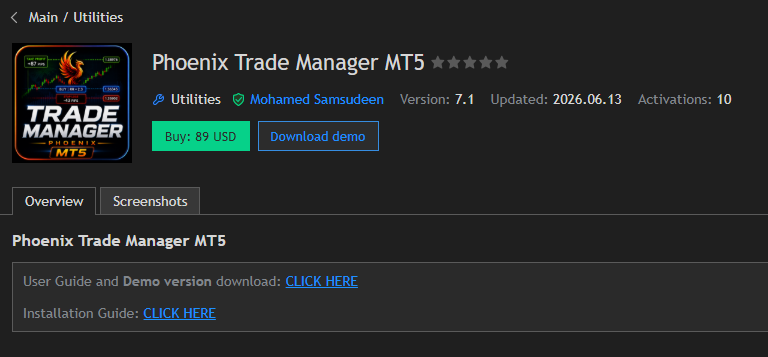
Phoenix Trade Manager MT5 is a trade management utility for MetaTrader 5 designed to assist traders with order execution, position sizing, risk management, and trade monitoring. It is not an automated trading system and does not generate trading signals or make trading decisions on behalf of the user.
This guide covers the complete installation process from downloading MetaTrader 5 to successfully loading Phoenix Trade Manager MT5 on a chart.
---
Step 1: Download MetaTrader 5
If MetaTrader 5 is not already installed:
1. Download MetaTrader 5 from your broker's website or the official MetaTrader 5 website.
2. Run the installation file.
3. Follow the installation wizard.
4. Complete the installation.
5. Launch MetaTrader 5.
---
Step 2: Log Into Your Trading Account
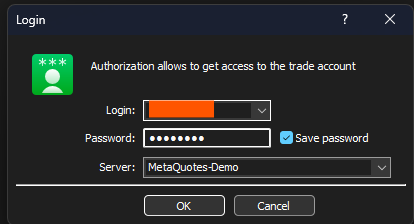
1. Open MetaTrader 5.
2. Click **File → Login to Trade Account**.
3. Enter:
* Login Number
* Password
* Server Name
4. Click **Login**.
### Verify Connection
Check the bottom-right corner of MetaTrader 5. A stable connection status indicates successful login.
---
# Step 3: Log Into Your MQL5 Account
An MQL5 account is required to install products purchased from the MQL5 Market.
### Option 1 – Community Tab
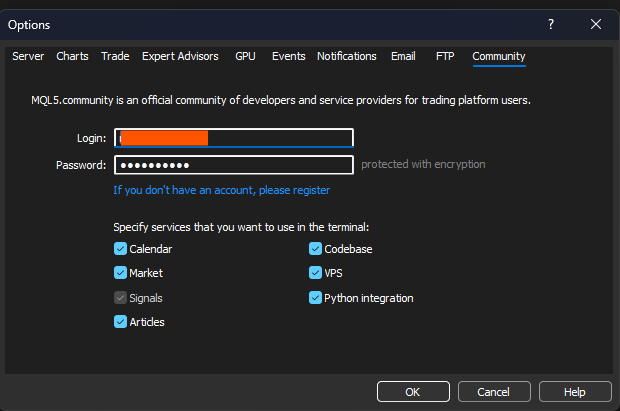
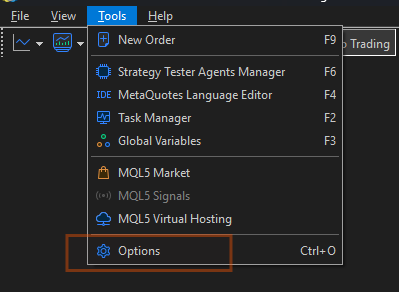
1. Click **Tools → Options**.
2. Open the **Community** tab.
3. Enter your:
* MQL5 Login
* MQL5 Password
4. Click **OK**.
---
# Step 4: Install Phoenix Trade Manager MT5
Depending on your MetaTrader 5 version, installation may be performed using one of the following methods.
## Method 1 – Install from the Market Tab
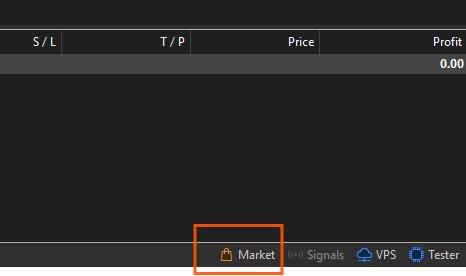
1. Press **Ctrl + T** to open Toolbox.
2. Open the **Market** tab.
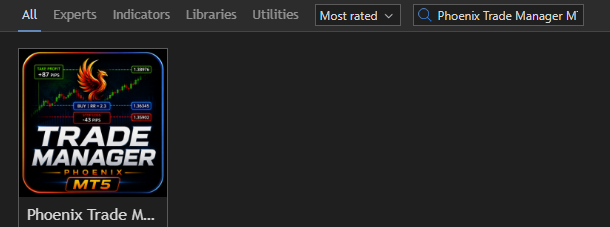
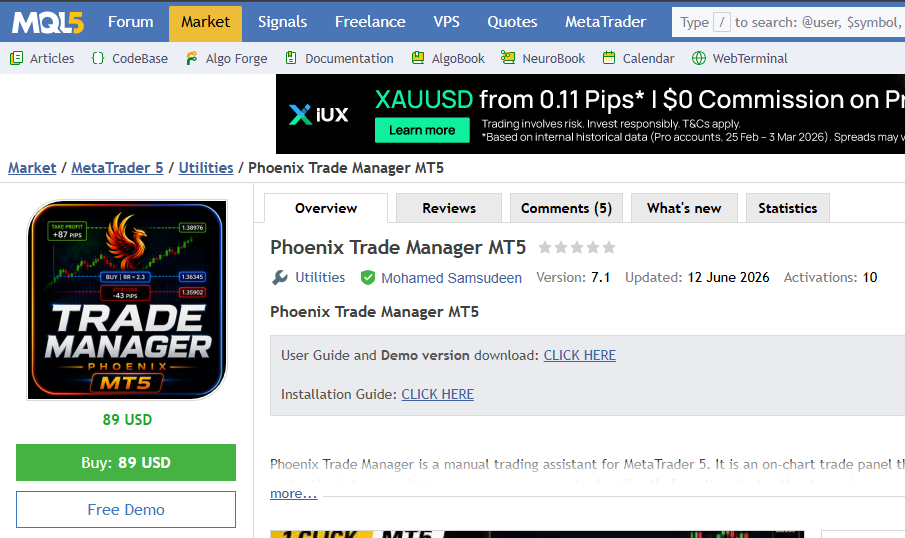
3. Search for **Phoenix Trade Manager MT5**.
4. Open the product page.
5. Click **Install** or **Download**.
6. Wait for the installation to complete.
### Reference Image
---
Method 2 – Install from the MQL5 Website
1. Log in to your MQL5 account on the MQL5 website.
2. Open **Purchases** in your MQL5 profile.
3. Verify that Phoenix Trade Manager MT5 is listed.
4. Open MetaTrader 5 using the same MQL5 account.
5. Restart MetaTrader 5.
6. The utility should become available automatically.
---
## Important Note About "Buy" Section
Some MetaTrader 5 versions do not display a dedicated **Buy** folder or menu.
If you cannot find a "Buy" section:
* Verify that you are logged into your MQL5 account.
* Restart MetaTrader 5.
* Check the Market tab.
* Check Navigator after installation.
This behavior depends on the MetaTrader 5 version and broker build.
---
Step 5: Open the Navigator Panel
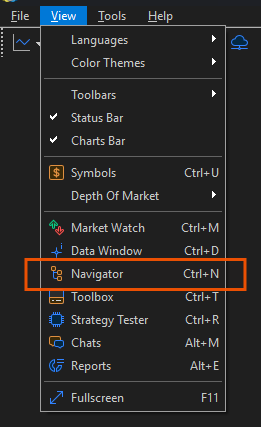
1. Click **View → Navigator**
or
2. Press **Ctrl + N**
The Navigator panel will appear on the left side of MetaTrader 5.
---
Step 6: Locate Phoenix Trade Manager MT5
After installation:
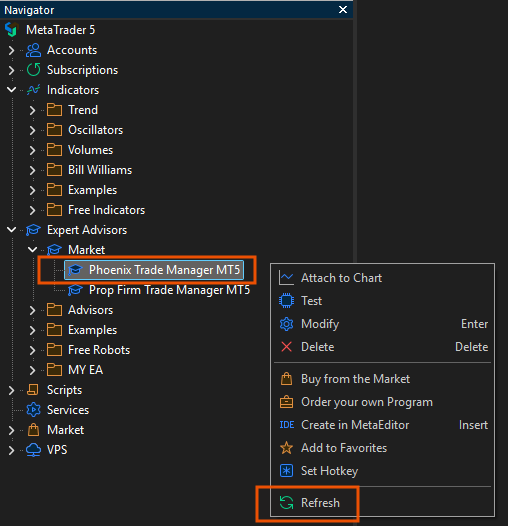
1. Expand **Expert Advisors** in Navigator.
2. Locate **Phoenix Trade Manager MT5**.
If the utility does not appear:
1. Right-click inside Navigator.
2. Select **Refresh**.
3. If not visible Restart MetaTrader 5.
4. Verify MQL5 login status.
---
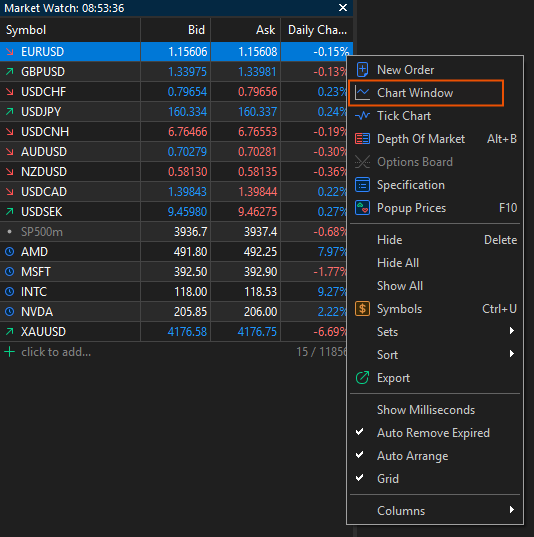
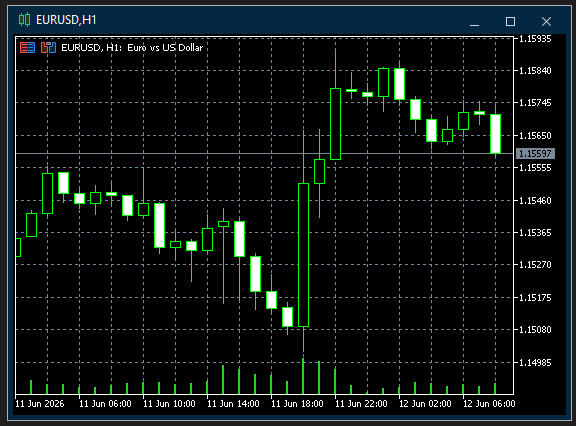
Step 7: Open a Trading Chart
1. Press **Ctrl + M** to open Market Watch.
2. Select the desired symbol.
3. Right-click the symbol.
4. Click **Chart Window**.
Examples:
* EURUSD
* GBPUSD
* USDJPY
* XAUUSD
* NAS100
* US30
### Reference Image
---
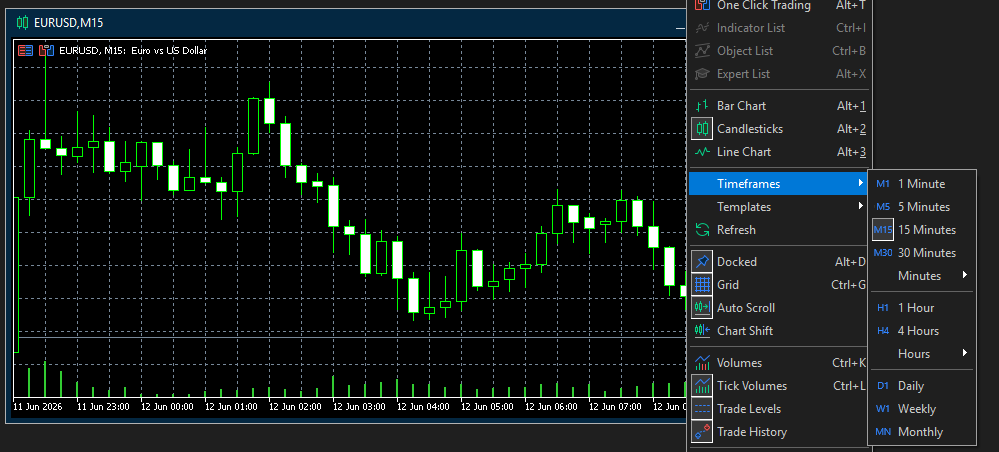
Step 8: Select a Timeframe
Choose the timeframe you wish to use.
Recommended:
* M15 (15 Minutes)
Phoenix Trade Manager MT5 can also be attached to other timeframes if preferred.
---
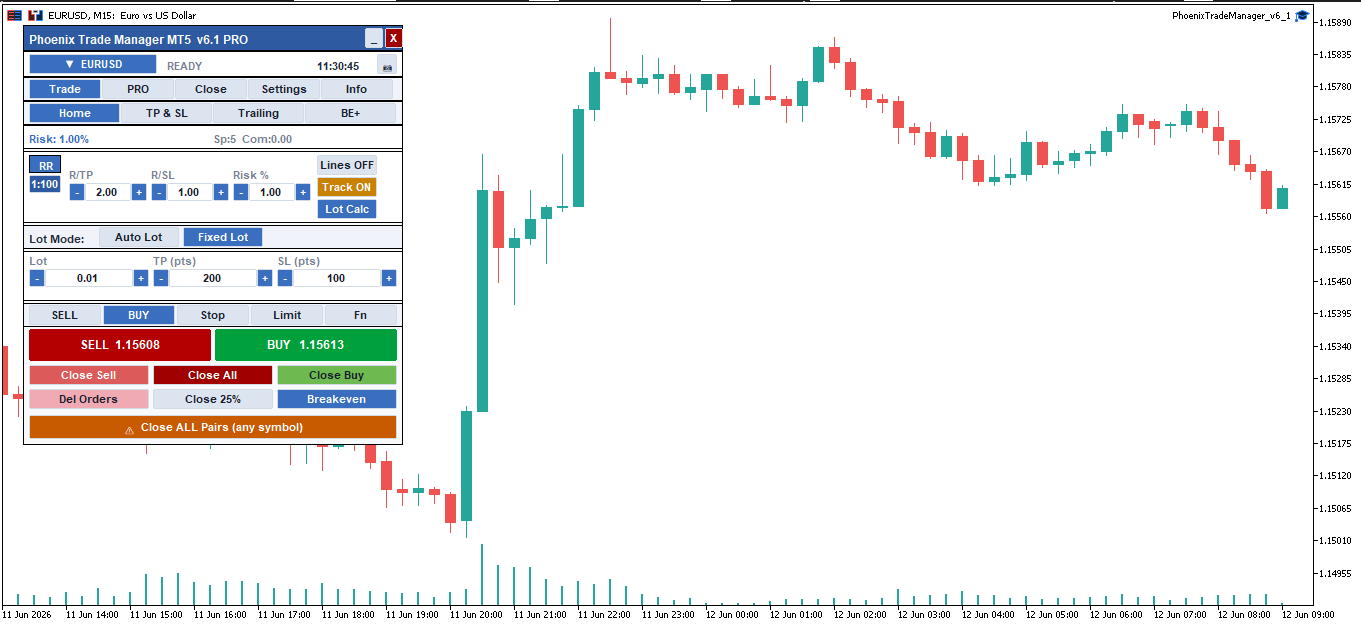
Step 9: Attach Phoenix Trade Manager MT5
Method 1 – Drag and Drop
1. Locate Phoenix Trade Manager MT5 in Navigator.
2. Drag it onto the chart.
## Method 2 – Double Click
1. Double-click Phoenix Trade Manager MT5.
2. Select the chart where you want to load the utility.
The settings window will appear.
---
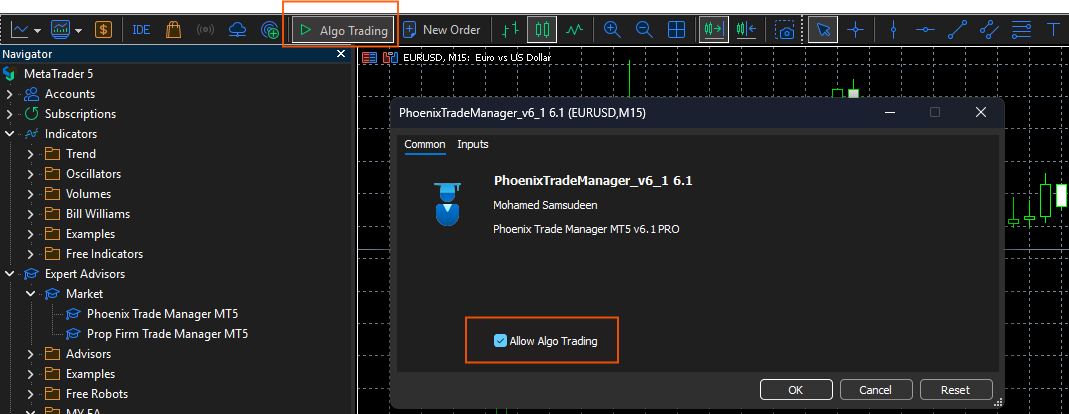
Step 10: Configure Common Settings
In the Common tab:
Enable:
☑ Allow Algo Trading
Click **OK** to continue.
---
# Step 11: Enable Algo Trading
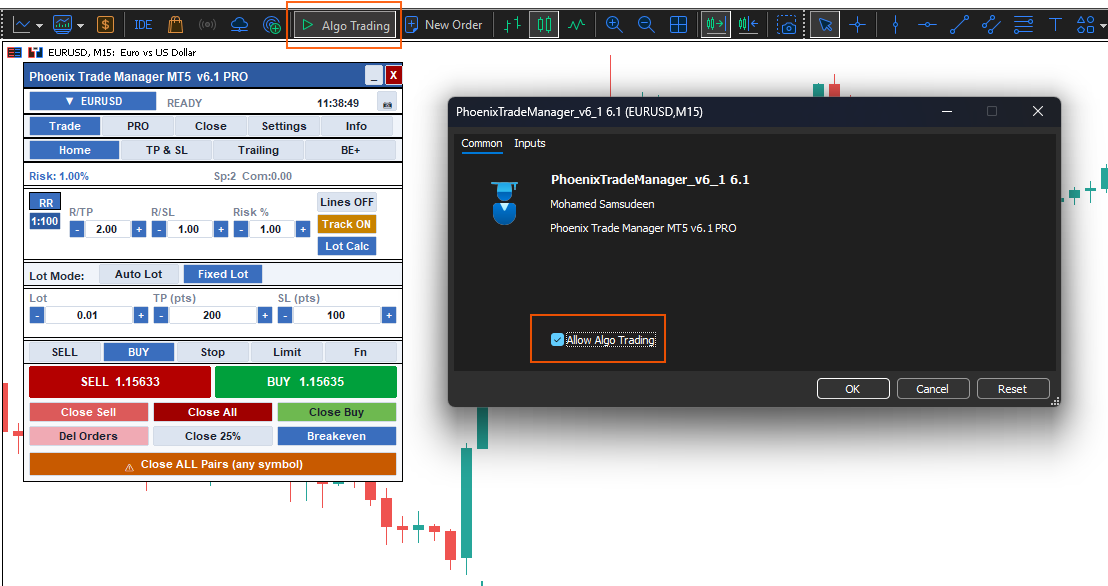
On the MetaTrader 5 toolbar:
1. Locate the **Algo Trading** button.
2. Ensure it is enabled.
The button must remain active while using Phoenix Trade Manager MT5.
---
Step 12: Start Using Phoenix Trade Manager MT5
Phoenix Trade Manager MT5 assists with:
* Market Order Execution
* Buy and Sell Orders
* Position Sizing
* Stop Loss Management
* Take Profit Management
* Risk Management
* Trade Monitoring
* Position Management
The trader remains responsible for all trading decisions.
---
Troubleshooting
Product Does Not Appear in Navigator
1. Refresh Navigator.
2. Restart MetaTrader 5.
3. Verify MQL5 login.
4. Reinstall the product.
5. Check internet connectivity.
---
Cannot Install Market Product
1. Verify MQL5 account login.
2. Verify purchase status.
3. Restart MetaTrader 5.
4. Check Community tab credentials.
---
Algo Trading Disabled
1. Enable the Algo Trading button.
2. Reattach Phoenix Trade Manager MT5 if necessary.
---
Panel Does Not Appear on the Chart
1. Verify Algo Trading is enabled.
2. Check the Experts tab for messages.
3. Remove and reattach the utility.
4. Restart MetaTrader 5.
---
Important Notice
Phoenix Trade Manager MT5 is a trade management utility intended to assist traders with order execution and trade management.
It does not provide investment advice, trading recommendations, automated trading decisions, or guaranteed results. All trading decisions, risk management, and account management remain the sole responsibility of the user.
Free demo version (MetaQuotes-Demo account only)
A free demo version of Phoenix Trade Manager MT5 is available so you can try every function of the panel on a live chart before purchasing. The demo version works only on a MetaQuotes-Demo account — on any other broker server (demo or real) the panel will display a notice and will not trade.
How to use the demo version
- In MetaTrader 5, open a MetaQuotes demo account: File → Open an Account, select MetaQuotes Ltd (server MetaQuotes-Demo), and create the demo account.
- Log in to that account (File → Login to Trade Account) and make sure the connection status in the lower-right corner is active.
- Download the demo version from the MQL5 Market and attach it to any chart.
- Enable Allow Algo Trading in the EA dialog and the Algo Trading toolbar button, exactly as described in section 1.
- All tabs and functions described in this guide — order entry, multi TP/SL, trailing, break-even, the PRO suite — are fully working on the MetaQuotes-Demo account, so you can evaluate the complete workflow risk-free.
| Note. If you attach the demo version while logged in to any other server, it will not operate — this is a limitation of the demo version, not an error. The full version from the product page works on any broker, on both demo and real accounts. |
| Disclaimer. This utility executes the actions you configure; it does not provide trading advice or signals. Past performance of any manual strategy does not indicate future results. Always validate your settings on a demo account first. |
Phoenix Trade Manager MT5 v6.1 PRO — © Mohamed Samsudeen.
Product page: https://www.mql5.com/en/market/product/177690
For questions and support, please use the Comments section of the product page.