

Risk Reducer is a trading panel for manual trading with risk-based order preparation.
It helps you:
- choose risk in percent or account currency
- place Stop Loss directly on the chart
- calculate lot size automatically
- optionally calculate RR-based Take Profit
- preview the full trade before execution
- confirm orders manually
- monitor account-level Day / Week / Month stats
- apply account-level Limits guardrails
Risk Reducer is not a signal EA, not an automatic strategy, and not a profit-promise product.
Main features:
- Automatic lot/position sizing
- Risk input in percent or account currency
- 1 click Stop Loss placing on the chart
- RR-based Take Profit
- Trade preview before execution
- Account-level Stats
- Account-level Limits guardrails
- Cooldown after Stop Loss
- Minimize/Maximize panel function
- Close All button
How to use / detailed description
Main panel is organized in such a way that it has Header, Main area, and Footer.
Header contains status info and validation messages, minimize/maximize button, settings button.
Main area contains tabs and main working area.
Footer contains floating P/L info and Close all button.

HEADER
Info and validation messages give you various information regarding panel and orders. Their purpose is to inform trader about various important things. They are color coded so know visually what is happening. There are 4 colors: green, red, blue and amber.
Examples of messages are:
- Ready
- Algo trading disabled
- Market Closed
- Position opened
- Minimum lot applied
- Invalid BUY stop loss
- Insufficient margin.
Minimize/maximize button has a job to minimize or maximize main panel. When panel is maximized, we can see the whole area of the panel (default state).
When panel is minimized, only header and footer are shown so traders can focus on the chart but still have overview of the status and P/L. Header always shows you the status, and footer always shows you floating profit/loss and Close all button.

Settings button opens a modal dialog on top of main panel. You can switch between dark and light theme there.

FOOTER
Floating P/L shows profit/loss of all open trades combined. It shows account currency next to the amount. It also shows P/L as the percentage of balance next to the amount.

Close All button is used for closing all open account positions. After clicking on Close All button, confirmations dialog opens. After confirming with Yes, all account open positions are instantly closed and info message is shown in the header.


MAIN AREA
On the top of the main area there are 3 tabs: Order, Stats and Limits. Clicking on a tab changes panel view. Tab with the blue line above the text is the currently selected tab.
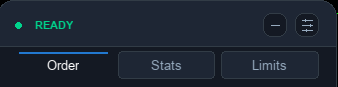
Order tab
Order tab has a trading purpose. I will describe workflow and all functions here.
- RR button (On/Off) - enable/disable placing of automatic Take Profit based on risk reward coefficient.
- RR = 1.00 means TP = SL . If SL is set 20 pips from entry, then TP will also be 20 pips.
- RR = 2.00 means TP = 2 x SL. If SL is 20 pips, then TP will be 40 pips.
- RR = 0.5 menas TP = 0.5 x SL. If SL is 20 pips, then TP will be 10 pips.
- Risk selector button - choose type of risk you want. You can select percentage (%), or account currency (USD, EUR, etc...).
- % - risk based on a percentage of account balance. If set to 1%, the next trade will risk 1% of the account balance.
- USD - risk based on account currency. If set to 100, the next trade will risk 100 USD. Risk Reducer automatically shows your account currency here.
- Both RR and Risk selection values are persistent. That means they will always show last used setting, even after platform restart.
- RR and Risk can be changed by clicking on a + / - buttons (default step is 0.25 for RR and %, and 100 for currency). You can also enter the numbers manually.
- Trade preview area - shows all important info about the order you are about to place. It is divided in 3 columns: trade, SL and TP. This area is dynamic, so it shows any change you make instantly.
- Trade column shows: position size and RR coefficient
- SL column shows: SL distance in pips, Loss amount in account currency, Loss in percentage of account balance, SL price
- TP column shows: TP distance in pips, Profit amount in account currency, Profit in percentage of account balance, TP price
- SELL/BUY buttons - choose order direction
- After clicking on a button, you enter into "Select SL" mode where you can click on a chart to place SL. Every chart click will place the SL on the current mouse position. You can also click and drag SL line on chart. If you place SL on the wrong side of the entry line, you will be notified in the header. After correctly placing SL, OK button will become enabled. Here, you can also change risk settings and see the changes in the preview area.
- Click on Cancel button to cancel the trade
- Click on OK button to confirm the trade


To open a new trade:
- Choose risk mode:
- %
- account currency
- Enter risk value
- Turn RR On or Off
- Click BUY or SELL
- In Stop Loss selection mode: Click the chart background to place Stop Loss
- Review the trade in preview area
- Click OK to confirm market order
- Click CANCEL to cancel the order
Stop Loss
- selected directly on the chart
- can be moved by chart clicks
- can be dragged after placement
- must be valid for the selected BUY or SELL direction
Take Profit
- optional
- created only when RR is On
- calculated from Stop Loss distance and RR value
- non-draggable
Stats tab
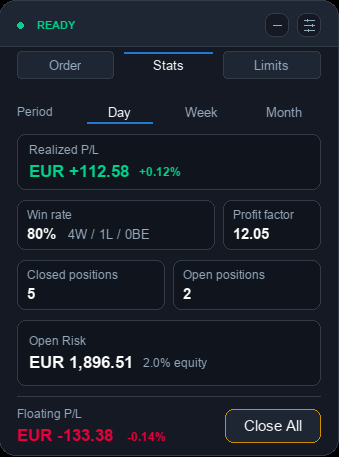
The Stats tab is read-only. The purpose of the Stats is to show some important trading metrics. They are calculated based on selected period.
Available periods:
- Day - from start of day up until now
- Week - from start of week up until now
- Month - from start of month up until now
Metrics:
Realized P/L
Net result of positions with closing activity in the selected period.
Includes profit, swap and commission where available.
Realized P/L %
Realized P/L divided by selected-period start balance.Win rate
Winning closed positions divided by total closed positions.
Profit factor
Gross profit divided by gross loss.
Closed positions
Positions with closing activity in the selected period.
Open positions
Current account-wide open positions.
Open Risk
Estimated account-currency loss if all current open positions hit their Stop Loss.
Positions without Stop Loss are shown separately.
Limits tab
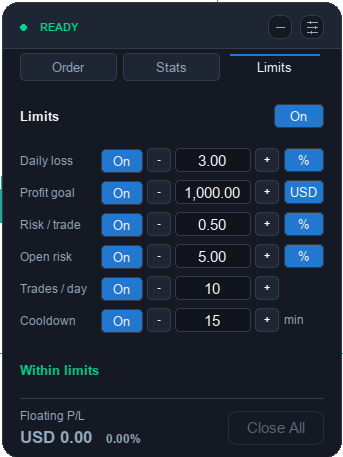
Limits are account-level guardrails. They can block new order confirmation, but they do not manage existing trades.
Important: Limits only block new orders. They do not auto-close trades, move Stop Loss, move Take Profit, or open trades automatically.
Limits master switch
The master switch enables or disables all Limits. If it is Off, no limit blocks new orders. Individual limit settings are preserved.
Daily loss
Blocks new orders after the daily realized P/L exceeds Daily loss limit.
Risk Reducer monitors Floating P/L also, so when Realized P/L combined with Floating P/L reaches set Daily loss limit, user is notified with a warning.
Profit goal
Blocks new orders after the daily realized profit goal is reached. Uses realized P/L only, floating P/L is not included.
Risk/trade
Blocks a prepared order if the new trade risk exceeds the configured maximum risk per trade.
Open risk
Blocks a prepared order if current known open risk plus new trade risk exceeds the configured maximum open risk.
Trades/day
Blocks new orders after the configured number of daily trades is reached. Trades are counted account-wide using positions opened during the broker/server day.
Cooldown
Blocks new order confirmation for the configured number of minutes after a Stop Loss is hit.
Cooldown starts only when a position is closed by Stop Loss and the full net position result is negative.
Limits summary
The bottom of the Limits tab shows a compact global status:
- Limits disabled
- Within limits
- Cooldown: 12m remaining
- Trading disabled: Daily Loss Limit
- Trading disabled: Profit Goal Reached
- Trading disabled: Trade Count Limit
Multiple charts / multiple instances
Risk Reducer can run on multiple charts. Account-level settings are shared, chart-specific workflow state is not shared.
Shared: Theme, Limits settings, cooldown state.
Instance-local: Active tab, prepared order, selected SL/TP lines, modal state, hover/pressed state.


![[EURUSD]: Weekly Liquidity Activation Points (LAP), October 12-16, 2026](https://c.mql5.com/6/1035/splash-preview-777305.png "[EURUSD]: Weekly Liquidity Activation Points (LAP), October 12-16, 2026")
![[Nasdaq]: Weekly Liquidity Activation Points (LAP), October 12-16, 2026](https://c.mql5.com/6/1035/splash-preview-777311.png "[Nasdaq]: Weekly Liquidity Activation Points (LAP), October 12-16, 2026")
![[XAUUSD]: Weekly Liquidity Activation Points (LAP), October 12-16, 2026](https://c.mql5.com/6/1035/splash-preview-777299.png "[XAUUSD]: Weekly Liquidity Activation Points (LAP), October 12-16, 2026")