
| HAVEN PANEL: Main Status and Error Codes |
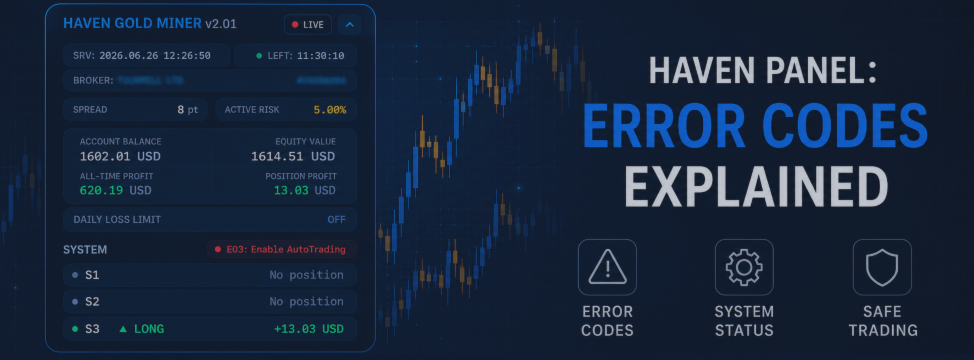
This guide describes in detail the statuses and error codes that may appear on the trading panels of the Haven family of Expert Advisors. If your EA stops opening new trades, the first thing to check is the status on the panel, then find its explanation in the handy cards below.
| Where the Status Is Displayed |
- In multi-system EAs, the status is displayed in the upper part of the panel next to the SYSTEM section.
- In single-system robots, the status is located in a prominent place on the main panel (individual strategy rows may be absent).
- Each status change is logged in the terminal's "Experts" tab exactly once to avoid cluttering the logs with repetitive second-by-second updates.
Example of a log entry when an issue occurs:
| HGM INFO: STATUS | E15: Spread too high |
When the issue is resolved and operation is restored:
| HGM INFO: STATUS | Trading allowed | previous=E15 |
Note: the text prefix depends on the specific product (for example, HGM INFO, ORB INFO, HGDB INFO, etc.).
| Status Color Coding on the Panel |
The color of the status badge on the trading panel allows you to instantly assess the criticality of the current situation:
| GREEN INDICATOR |
| What it means: Trading is allowed. All main checks have passed, and new trade entries are fully available. |
| ORANGE INDICATOR |
| What it means: A temporary restriction, protective filter, or market condition. Usually, the EA automatically returns to active duty without human intervention. |
| RED INDICATOR |
| What it means: Trading is blocked, or immediate action is required from the user (checking settings, enabling buttons, etc.). |
| GREY INDICATOR |
| What it means: The trading system is intentionally disabled by the user in the settings (input parameters). |
| Normal Operating State |
| Trading allowed (Green) |
| All main checks have passed, and new trade entries are allowed. The EA is in standby mode, waiting for a trading signal. |
| Trading Panel Codes (E01-E19) |
These codes may display periodically on the panel during operation. They do not always signify a malfunction. Some codes represent standard protection rules (closed market, high spread, daily drawdown limit).
| E01 | No connection |
| What it means: The MetaTrader terminal is not connected to the broker's trading server. What to do: Check your internet connection, VPS, account login status, and the broker's server status. Recovery: Automatically once connection is restored. |
| E02 | Market closed |
| What it means: The trading session for the current symbol is closed. What to do: Wait for the market to open according to your broker's schedule. For gold (XAUUSD), schedules may vary across different brokers. Recovery: Automatically once the trading session opens. |
| E03 | Enable AutoTrading |
| What it means: The main AutoTrading / Algo Trading button is disabled in the terminal. What to do: Enable the Algo Trading (AutoTrading) button in the top panel of the MetaTrader terminal. Recovery: Automatically once the button is enabled. |
| E04 | EA trading disabled |
| What it means: Trading operations are disabled for this specific running EA. What to do: Open the EA's properties on the chart (F7), go to the "Common" tab, and allow algorithmic trading. Recovery: Automatically once allowed. |
| E05 | Account restricted |
| What it means: The account prohibits EA trading, or trading is restricted by the broker (for example, logged in using an investor password). What to do: Check the account type, investor password, trading permissions, and restrictions. Contact your broker if necessary. Recovery: After manual removal of restrictions by the broker. |
| E06 | Symbol disabled |
| What it means: The broker has completely disabled trading for the current symbol. What to do: Make sure you have selected the correct tradeable symbol (for example, XAUUSD.pro instead of the basic XAUUSD). Recovery: Once trading for the symbol is enabled on the broker's side. |
| E07 | Close-only mode |
| What it means: The broker only allows closing existing positions on this symbol. New entries are blocked. What to do: Wait for full trading to be restored by the broker or check the contract specifications. Recovery: Automatically after the symbol's trading mode is changed. |
| E08 | Trading system OFF |
| What it means: The trading system or all internal strategies of the EA have been disabled by the user in the settings. What to do: Enable the trading system or at least one strategy in the EA's inputs (F7). Open positions may continue to be managed if supported by the EA. Recovery: Immediately after enabling the required strategy in the settings. |
| E09 | Daily DD limit |
| What it means: The specified daily drawdown limit has been reached. In standard mode, new entries are blocked. In Prop Firm mode, the EA may force-close its positions if enabled in the parameters. What to do: Check your Daily Drawdown / Prop Daily DD parameters, current Equity, and daily limit reset time. Recovery: After the daily limit is reset based on broker time (baseline), Equity is restored, or settings are manually adjusted. |
| E10 | Overall DD limit |
| What it means: The overall account drawdown limit has been reached. In prop mode, this can serve as a hard protection mechanism (Total DD) to preserve the account. What to do: Check Overall Drawdown / Prop Total DD settings, initial balance, and current Equity. Recovery: After Equity is restored, settings are adjusted, or after a restart if the product utilizes a startup baseline. |
| E11 | Skip window active |
| What it means: A restricted entry time window (Skip Window) is currently active, such as a clearing or rollover period. What to do: Wait for the skip interval to end or adjust its settings in the EA's parameters. Recovery: Automatically after exiting the configured time interval. |
| E12 | Outside trading hours |
| What it means: Current server time is outside the EA's allowed trading hours. What to do: Wait for allowed trading hours to begin or adjust the Trading Hours parameter. Recovery: Automatically upon entering the allowed trading period. |
| E13 | Trading day disabled |
| What it means: The current day of the week is disabled in the EA settings (for example, trading on Friday is disabled). What to do: Wait for an allowed trading day or enable the current day in the Trading Days parameters. Recovery: Automatically once an allowed day of the week begins. |
| E14 | Max positions reached |
| What it means: The EA's open position limit for the current symbol has been reached. What to do: Wait for some positions to close via Take Profit / Stop Loss, or increase the Max Open Positions parameter. Recovery: Automatically once the number of open positions drops below the limit. |
| E15 | Spread too high |
| What it means: The current market spread is higher than allowed by the Max Spread filter. This frequently occurs during market open/close rollover periods and major news releases. What to do: Wait for the spread to narrow or verify the Max Spread setting in the input parameters. Recovery: Automatically once the market spread drops below your limit. |
| E16 | No valid price |
| What it means: The terminal has not received valid Bid/Ask quotes for the symbol from the broker. What to do: Check your internet connection, verify that the symbol is active in Market Watch, and check if quotes are ticking. Recovery: Automatically as soon as valid market prices are received. |
| E17 | Insufficient margin |
| What it means: There is insufficient free margin on the account to open a trade with the calculated lot size. What to do: Decrease the risk/lot parameters in the settings, deposit funds, or verify your trading account leverage. Recovery: Typically calculated on the next working bar or after a successful margin update. |
| E18 | Invalid volume |
| What it means: The calculated lot size is not a multiple of the broker's lot step, or falls outside the Min/Max lot range (smaller than the minimum or larger than the maximum allowed volume) in the contract specifications. What to do: Check your lot calculation mode, minimum lot size, and lot step in the symbol's official specifications. Recovery: Upon the next working bar or after adjusting the calculation parameters. |
| E19 | Invalid stops |
| What it means: The SL/TP levels are closer than allowed by the broker's Stop Level or Freeze Level. What to do: Review the Stop Level limits in the symbol specifications and adjust your SL/TP settings. Recovery: Usually on the next tick/bar after correcting the SL/TP settings. |
| Critical Startup Errors (E20-E25) |
These codes occur prior to the EA's full startup and are checked during the initialization stage (inside the OnInit function). If such an error is triggered, the EA completely blocks its operations and will not begin trading until the user corrects the settings or the account type.
Example of a critical error in the log:
| HGM ERROR: SETUP | E20: Hedging account required |
| E20 | Hedging account required |
| What it means: The EA requires a hedging account, which allows multiple independent positions (including opposite directions) to coexist simultaneously on the same symbol. Netting / Exchange accounts are not supported by this product. What to do: Open and use an account with your broker that supports the Hedging position accounting system. |
| E21 | Magic must be greater than zero |
| What it means: One or more Magic Number parameters in the EA's input settings are set to zero or a negative value. What to do: Set a valid, strictly positive Magic Number for each internal EA module in its properties. |
| E22 | Magic numbers must be unique |
| What it means: ID clash detected: multiple internal systems or strategies of the EA are utilizing the exact same Magic Number. What to do: Assign a unique, individual Magic Number to each strategy/system in the input parameters (F7). |
| E23 | Invalid position size settings |
| What it means: The selected lot sizing mode contains invalid or conflicting values. For example, a zero fixed lot, zero risk percentage, or invalid lot step has been specified. What to do: Carefully review the money management inputs: Fixed Lot, Risk Percent, Lot Per Balance, and Balance Step. |
| E24 | Invalid drawdown settings |
| What it means: The enabled DD protection has been configured with a logical error. For example, the drawdown limit is set to zero, an invalid reset time is provided, Prop Initial Balance is blank while Prop Total DD is enabled, or the safety buffer is larger than the drawdown limit itself. What to do: Double-check the drawdown block settings: Daily DD, Overall DD, Prop Firm Protection, Prop Initial Balance, Total DD, and Safety Buffer. |
| E25 | Invalid skip window |
| What it means: The time specified in the Skip Window is written in an invalid or unsupported format. What to do: Use strictly 24-hour time format HH:MM (for example: 22:45 and 00:00). |
| Important Explanations on DD and Prop Firm Protection |
Drawdown protection statuses E09 and E10 can operate differently depending on the specific characteristics and architecture of a particular Haven product, but their core purpose is always the same:
- E09 strictly handles Daily Drawdown monitoring.
- E10 strictly handles Overall Drawdown monitoring.
- In standard mode: DD protection acts softly, blocking only new initial entries. This allows the EA to systematically manage and close previously opened grids of trades according to schedule.
- In Prop Firm mode: Protection switches to an active phase. The EA can force an emergency closure of its own current positions to protect the account from committing a critical prop company rule violation.
- Important slippage factor: The EA physically cannot guarantee instant, precise execution of trades exactly at the defined drawdown percentage. The final outcome of the recovery depends on current market spreads, broker server slippage, commissions, and the actual execution speed of market orders.
| What to Do If the EA Is Not Trading |
- Check the current technical status on the robot's trading panel.
- Find its numeric code in the cards of this manual.
- Methodically verify the basic requirements: active AutoTrading button, your trading account type, correct symbol suffix/prefix, current trading session status, and risk settings.
- If the status points to broker-side restrictions, open the Market Watch window, right-click the symbol, and study the Specification tab.
- If the technical status on the panel persists, open the Experts tab in the terminal and look for log lines containing the keyword STATUS.
- If you need to contact Haven's technical support, please make sure to send a screenshot of the entire EA panel and copy several lines from the system Experts log around the time the status appeared.
| Examples of System Log Entries (Logs) |
Below are examples of entries generated by the EAs in the Experts tab:
Temporary block triggered due to a high spread:
| HGM INFO: STATUS | E15: Spread too high |
Successful return to normal operation after spread normalization:
| HGM INFO: STATUS | Trading allowed | previous=E15 |
Critical duplicate Magic Number error that blocked the Expert Advisor's startup:
| HGM ERROR: SETUP | E22: Magic numbers must be unique | Strategies=S1,S2 |
Automatic daily report on connection instability with the broker's server:
| HGM INFO: CONNECTION | 18 short interruptions | total=29s | longest=3s |
Example of position recovery initialization during strict prop account protection:
| HGM INFO: RISK | Prop daily DD reached | close started | DD=4.76% / 5.00% | Buffer=0.25% |
| Notes |
- Not every Haven trading robot is required to support and utilize the entire line of E01-E25 codes (some simple utilities use a truncated set).
- Potential Telegram notification delivery errors are for reference purposes only. They do not affect the EA's trading logic in any way and do not alter its trading status on the panel.
- Temporary market statuses, such as E02, E11, E12, E15, or E16, are routine and will almost always resolve themselves as external conditions change.
- Conversely, red statuses almost always require direct user intervention or adjustments to account parameters.
- Remember: if the panel displays the Trading allowed status, it merely indicates that all technical or broker-side restrictions are absent. The EA will only execute a trade once a precise mathematical signal is generated according to the strategy.


![[EURUSD]: Weekly Liquidity Activation Points (LAP), October 12-16, 2026](https://c.mql5.com/6/1035/splash-preview-777305.png "[EURUSD]: Weekly Liquidity Activation Points (LAP), October 12-16, 2026")
![[Nasdaq]: Weekly Liquidity Activation Points (LAP), October 12-16, 2026](https://c.mql5.com/6/1035/splash-preview-777311.png "[Nasdaq]: Weekly Liquidity Activation Points (LAP), October 12-16, 2026")
![[BRENT]: Weekly Liquidity Activation Points (LAP), October 12-16, 2026](https://c.mql5.com/6/1035/splash-preview-777303.png "[BRENT]: Weekly Liquidity Activation Points (LAP), October 12-16, 2026")