

Haven Risk Control 2.0 - Quick Start & Practical Guide
This guide will help you get started quickly and correctly with Haven Risk Control 2.0. It covers the keyboard workflow, panel tabs, position management, risk protection, statistics, and answers to frequently asked questions.
The main strength of version 2.0 is its keyboard-driven workflow for fast trade planning and position management directly on the chart.
1. Before You Start
-
Attach the Expert Advisor to a chart in MetaTrader 5.
-
Ensure Algo Trading is enabled.
-
Open the chart of the instrument you intend to trade.
-
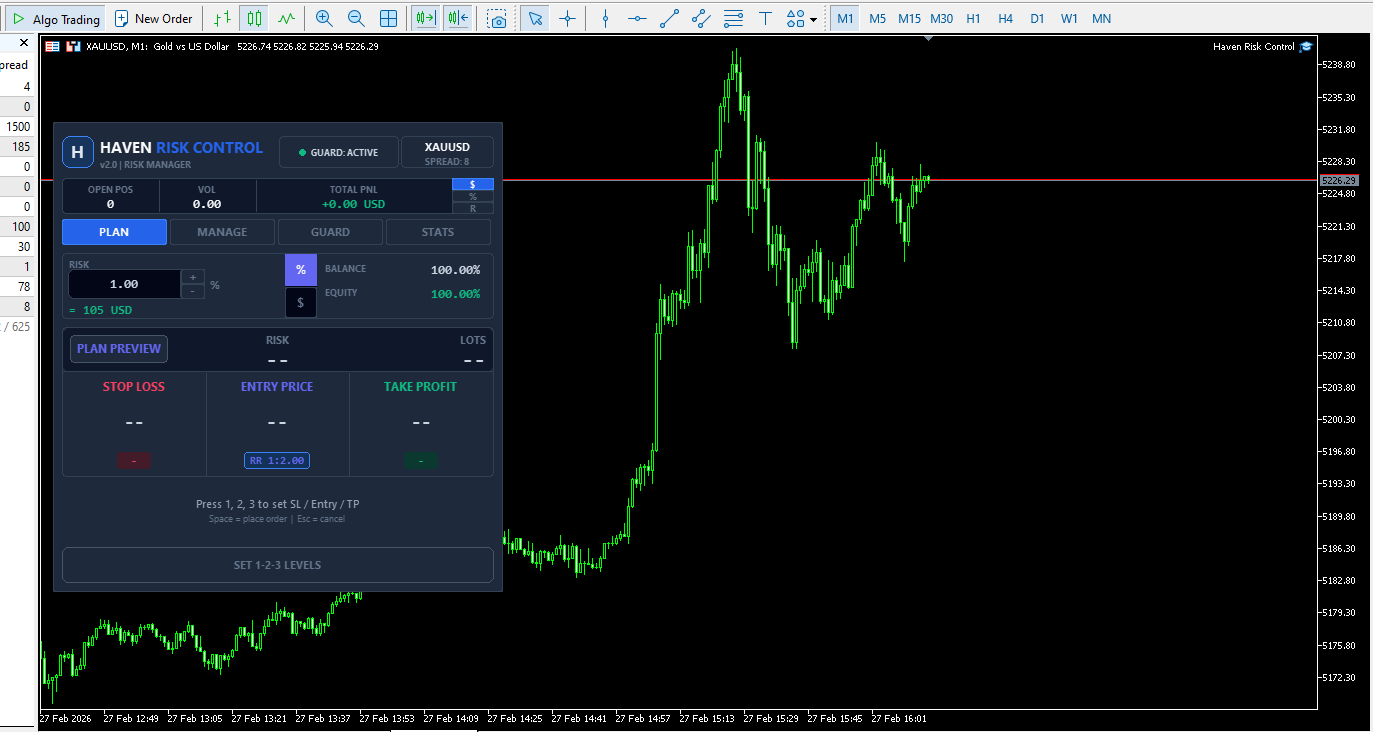
For maximum speed, use the PLAN tab as your primary workspace.
2. Keyboard Workflow (Key Concept)
The fastest way to work with Haven Risk Control v2 is via the keyboard:
-
1 - set Entry line
-
2 - set Stop Loss line
-
3 - set Take Profit line
-
Space - send order (if the plan is valid)
-
Esc - cancel / clear current plan
-
5 - activate TOTAL line for bulk SL/TP updates (MANAGE workflow)
Tip: Hotkeys 1 / 2 / 3 / Space automatically return you to the PLAN tab (except when the SET window is open).
3. PLAN Tab - Creating a Trading Plan
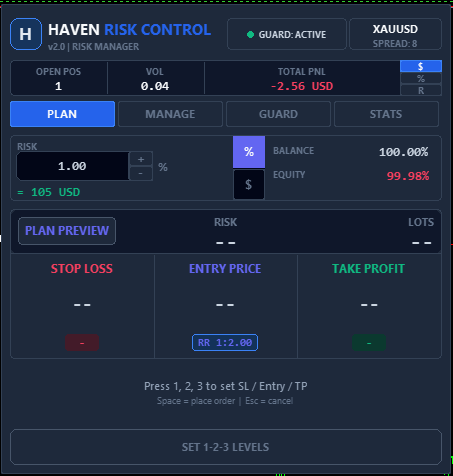
In the PLAN tab, you create and send trades directly from the chart.
Step 1 - Set Your Risk
-
Enter a value in the RISK field.
-
Choose risk mode: % or $.
-
The panel automatically calculates the lot size based on the risk and your plan.
Step 2 - Place Entry / SL / TP Lines
Use the keyboard:
-
Press 1 and set the Entry line.
-
Press 2 and set the Stop Loss line.
-
Press 3 and set the Take Profit line.
After placing them, you can visually adjust the lines on the chart.
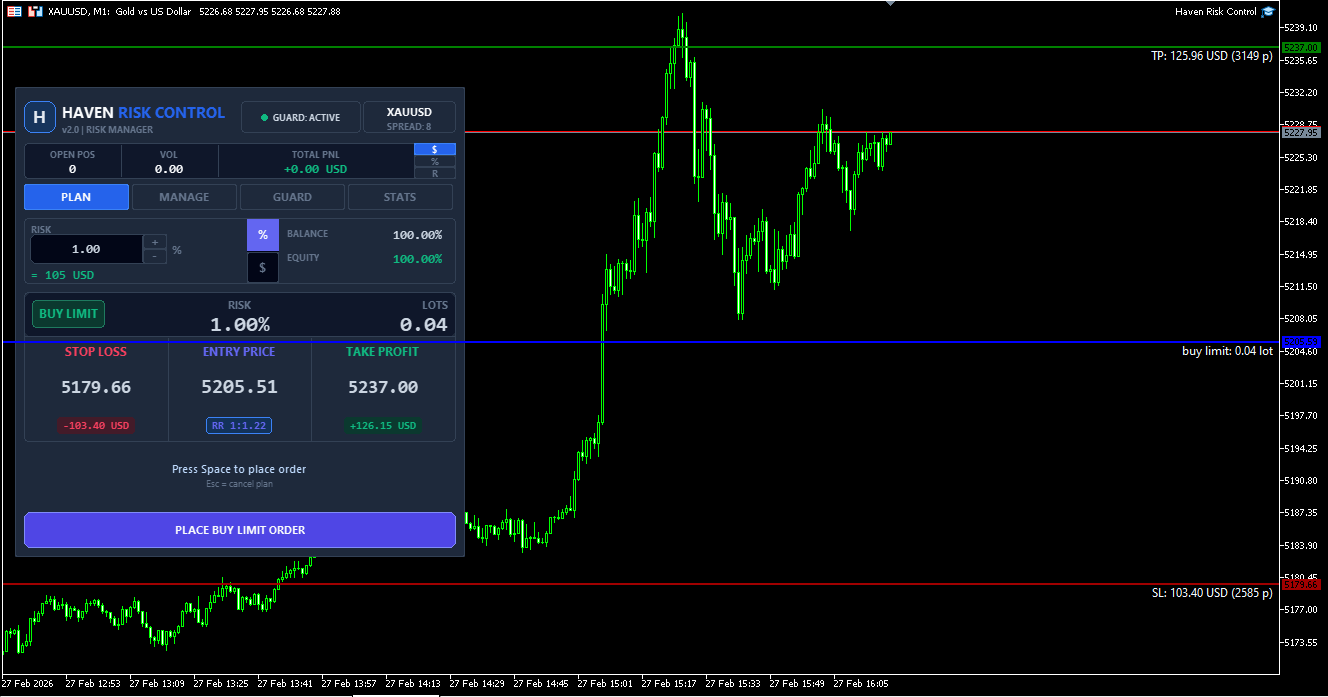
Step 3 - Check PLAN PREVIEW
The PLAN PREVIEW block displays:
-
Entry / SL / TP prices
-
Risk and potential profit in money
-
RR (Risk/Reward ratio)
-
Calculated lot size
-
Selected risk size (% or $)
This allows you to verify the trade idea before sending the order.
Step 4 - Sending the Order
-
Press Space or the action button in the PLAN tab.
-
The button text changes automatically based on the order type:
-
PLACE BUY MARKET ORDER
-
PLACE SELL MARKET ORDER
-
PLACE BUY LIMIT ORDER
-
PLACE SELL STOP ORDER
If the plan is not ready, the button will display SET 1-2-3 LEVELS.
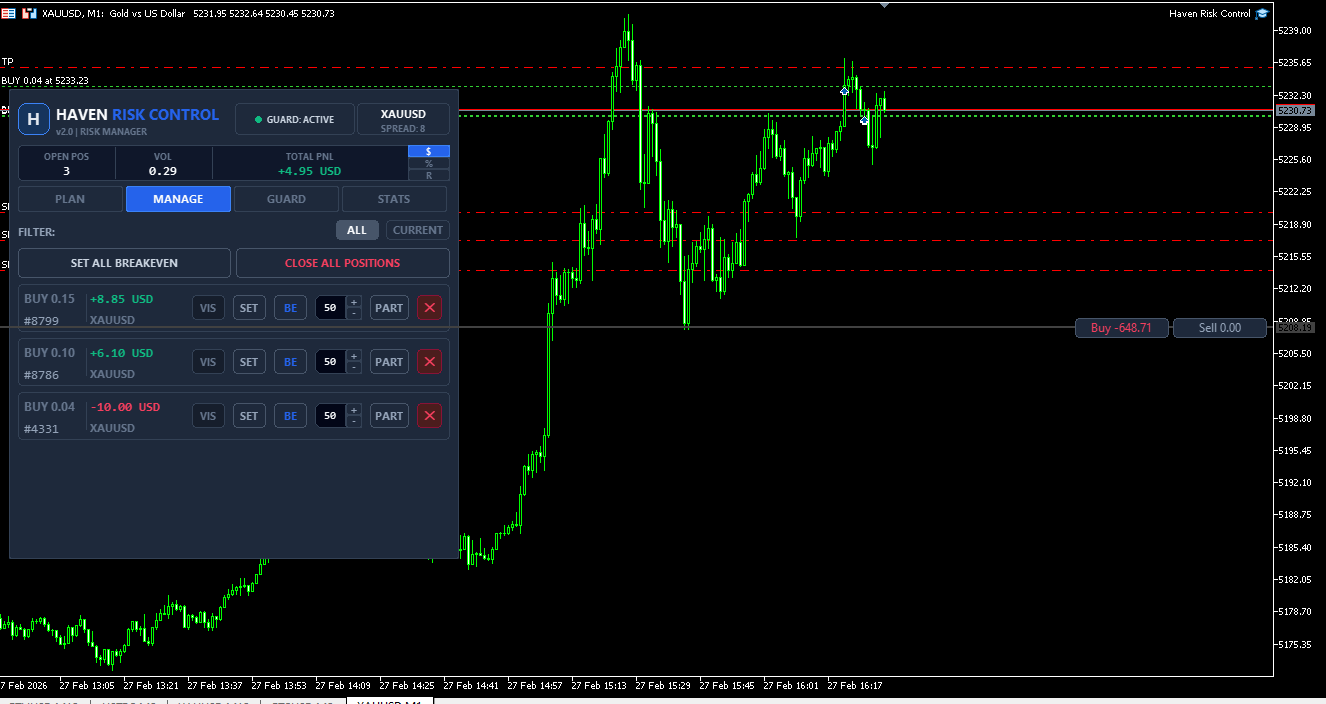
4. MANAGE Tab - Quick Position Management
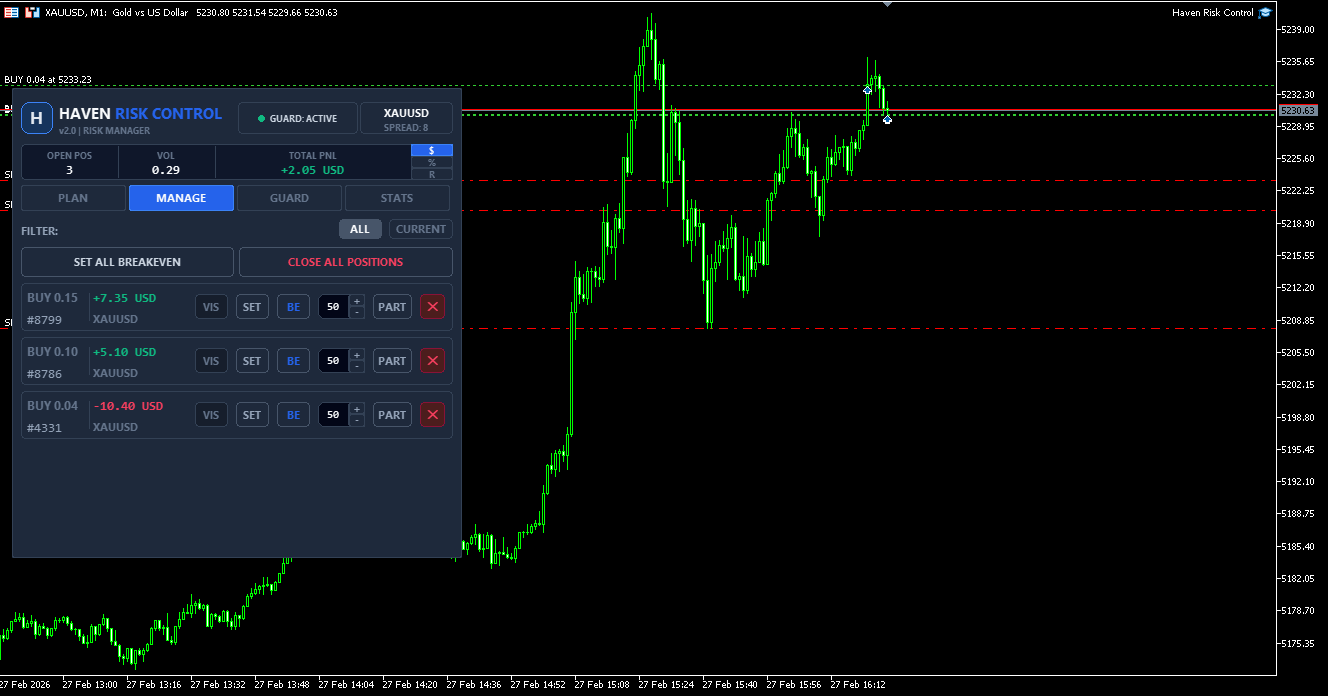
MANAGE is designed for fast actions on open positions.
Key actions:
-
BE - move Stop Loss to Breakeven
-
PART - partial position closure
-
Close - close the position
-
SET - open position settings (SET)
-
VIS - show/focus position objects
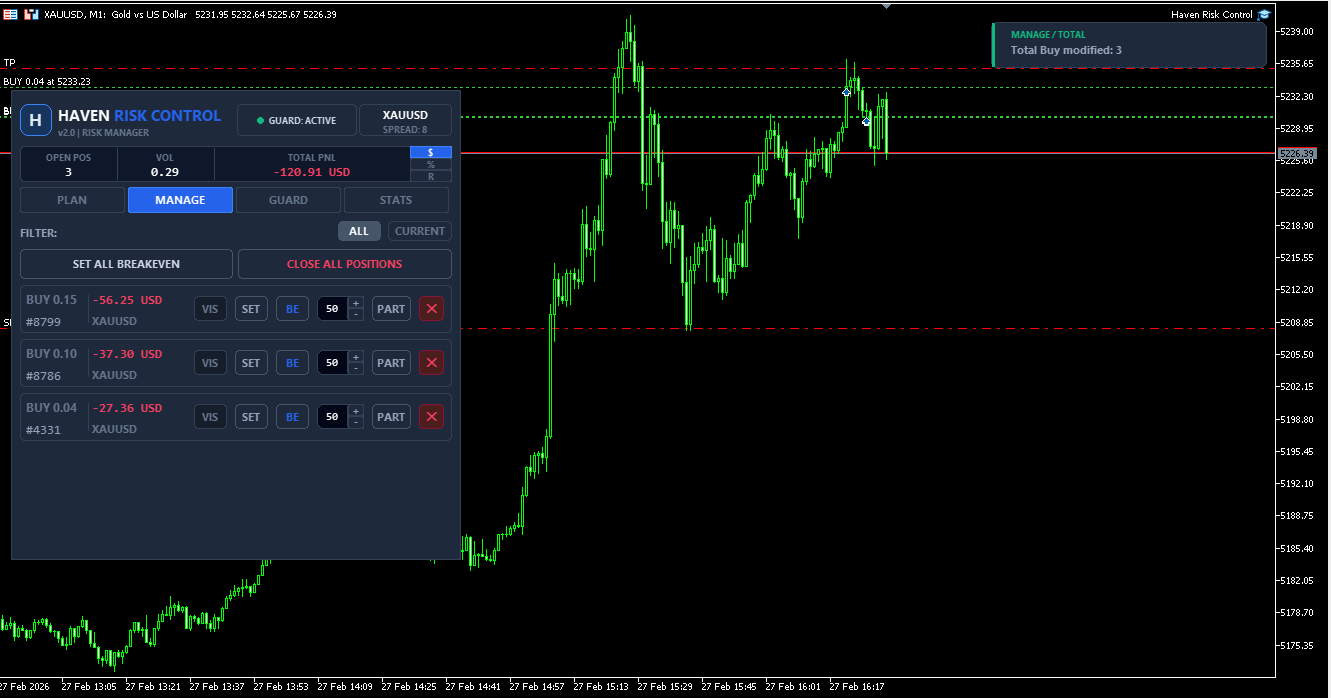
TOTAL Line (Bulk SL/TP Update)
The TOTAL line allows you to update SL/TP levels for multiple positions at once.
-
Move the TOTAL line to the desired level.
-
Use the TOTAL action (key 5 / panel elements) to apply the level.
If the operation cannot be performed, v2 shows a clear reason (rather than just "modified: 0").
Possible reasons:
-
The line is on the wrong side relative to the current price.
-
The line is too close to the price (broker limits: Stops/Freeze).
-
This level is already set.
-
No suitable positions in the current scope (symbol / magic filter).
5. GUARD Tab - Risk Protection & Discipline
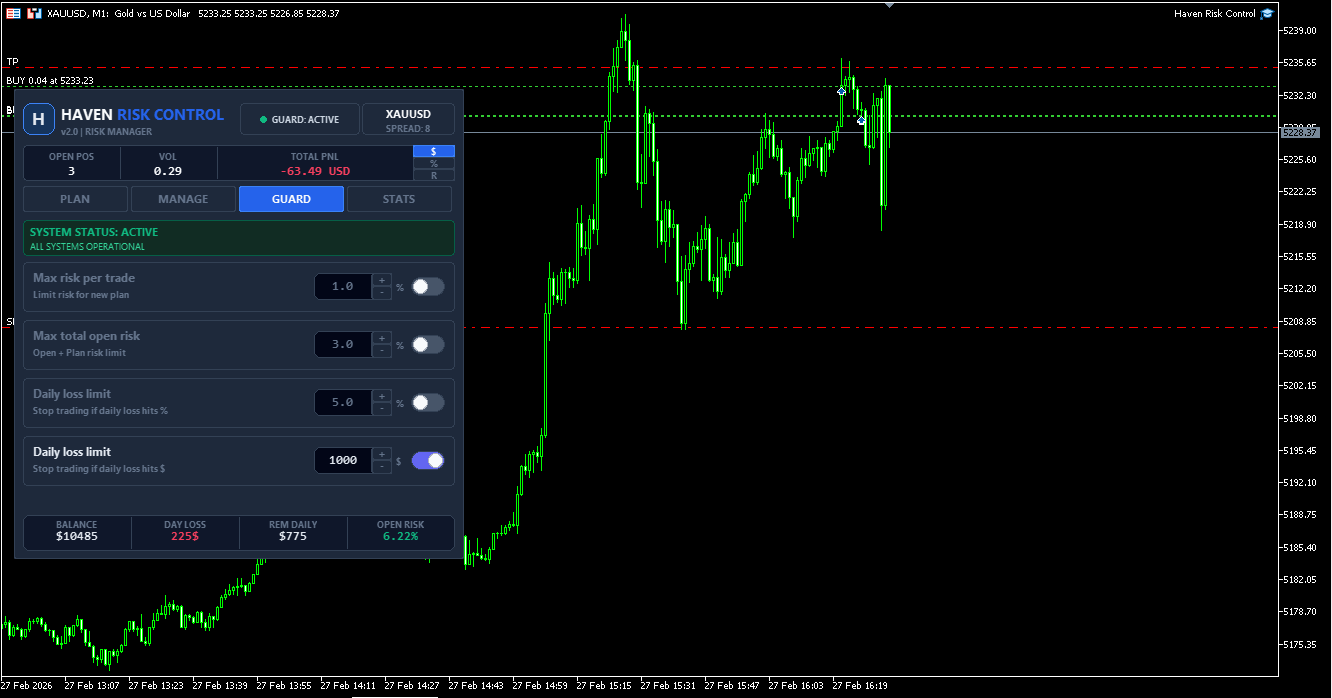
GUARD is one of the most important parts of v2. This tab helps protect your deposit from impulsive and undisciplined trading.
You can set limits for:
-
Max Risk per Trade (%)
-
Max Total Open Risk (%)
-
Daily Loss Limit (%)
-
Daily Loss Limit (Money)
If a limit is exceeded, the EA can block the opening of new trades via the PLAN workflow.
Practical use: GUARD is especially useful for traders who want to strengthen discipline and protect themselves from emotional decisions.
6. STATS Tab - Quick Performance Overview
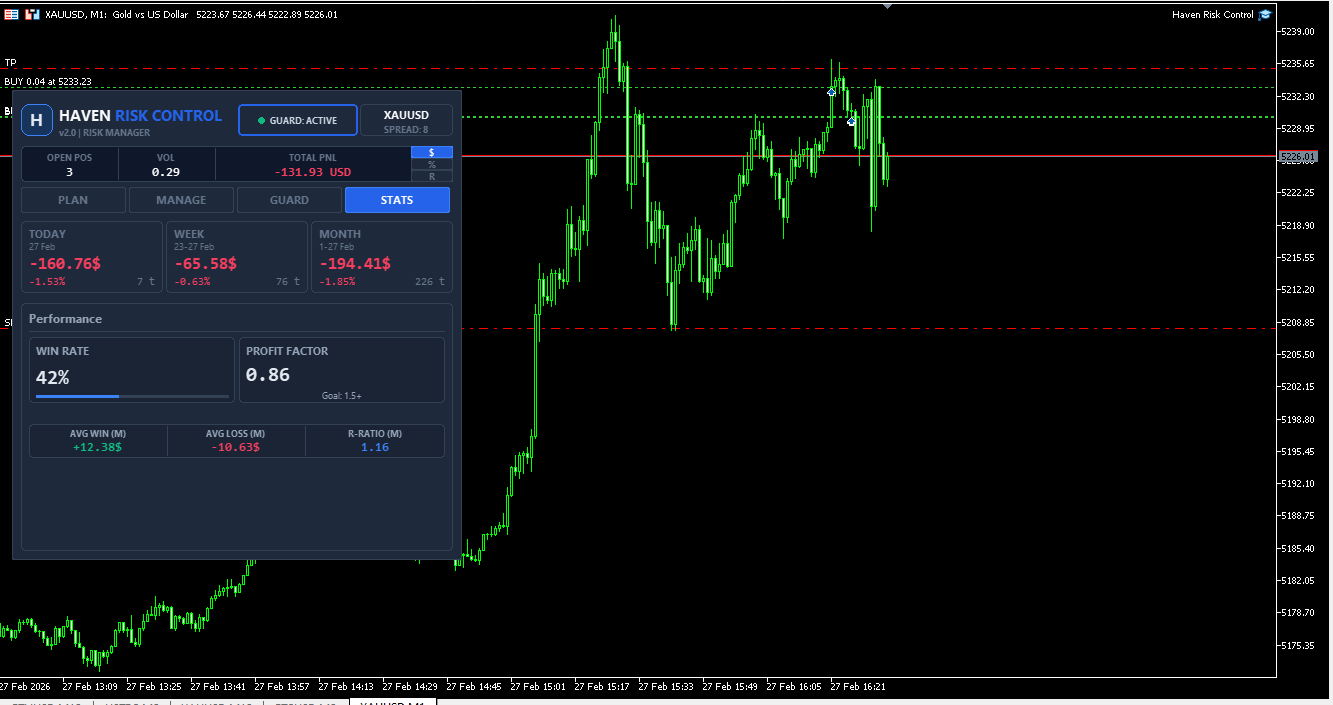
In the STATS tab, you can see statistics directly on the chart:
-
TODAY - current day (calendar day, from 00:00 to current time)
-
WEEK - current week (calendar week, not the last 7 days)
-
MONTH - current month (calendar month, not the last 30 days)
STATS shows the NET result:
Profit + Commission + Swap (+ Fee, if provided by the broker)
Therefore, STATS values may not match the Profit column in MT5, as the MT5 Profit column usually excludes commissions and swaps.
If Magic-only mode is enabled, STATS will use the same scope and only account for trades from this EA Magic.
7. SET (Per-Position Settings)
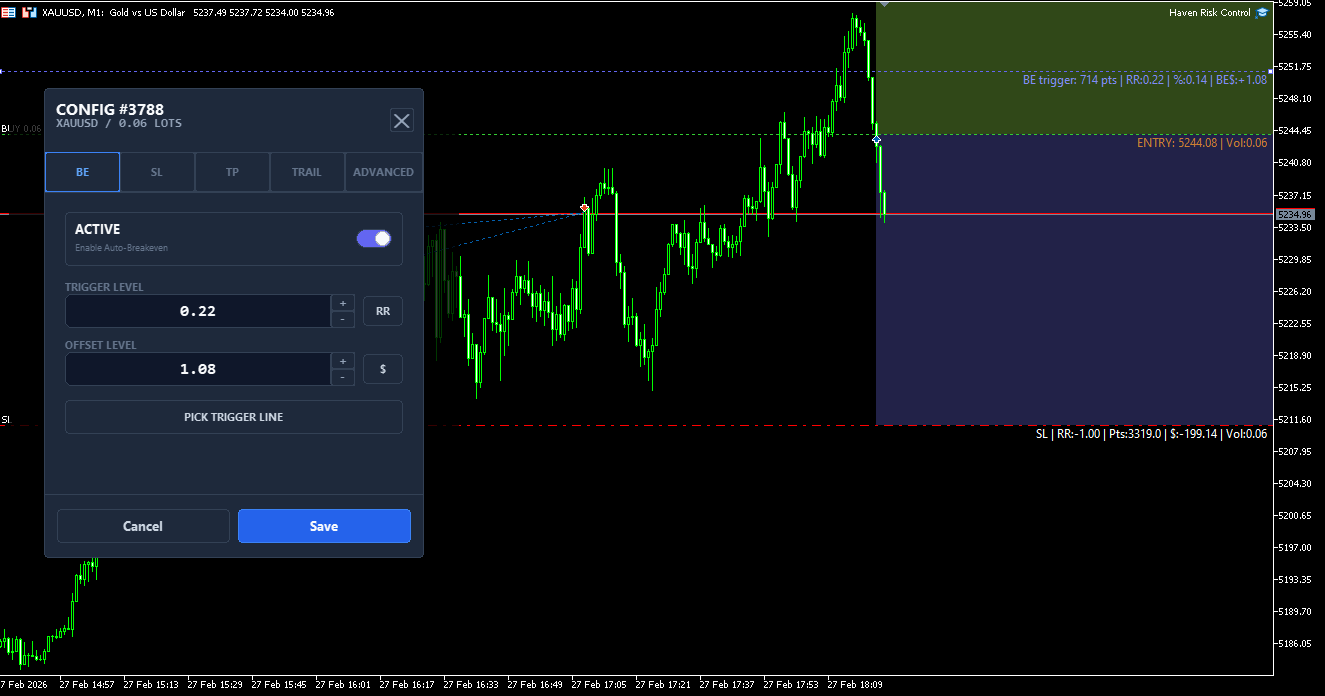
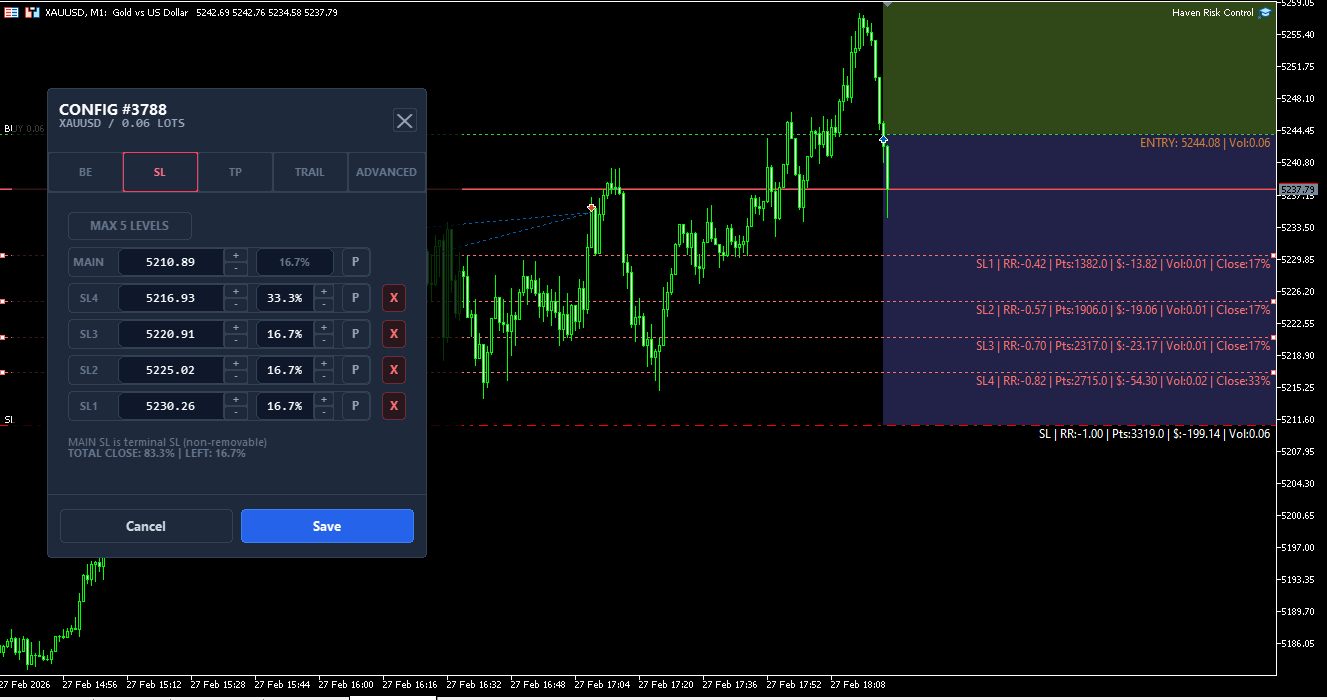
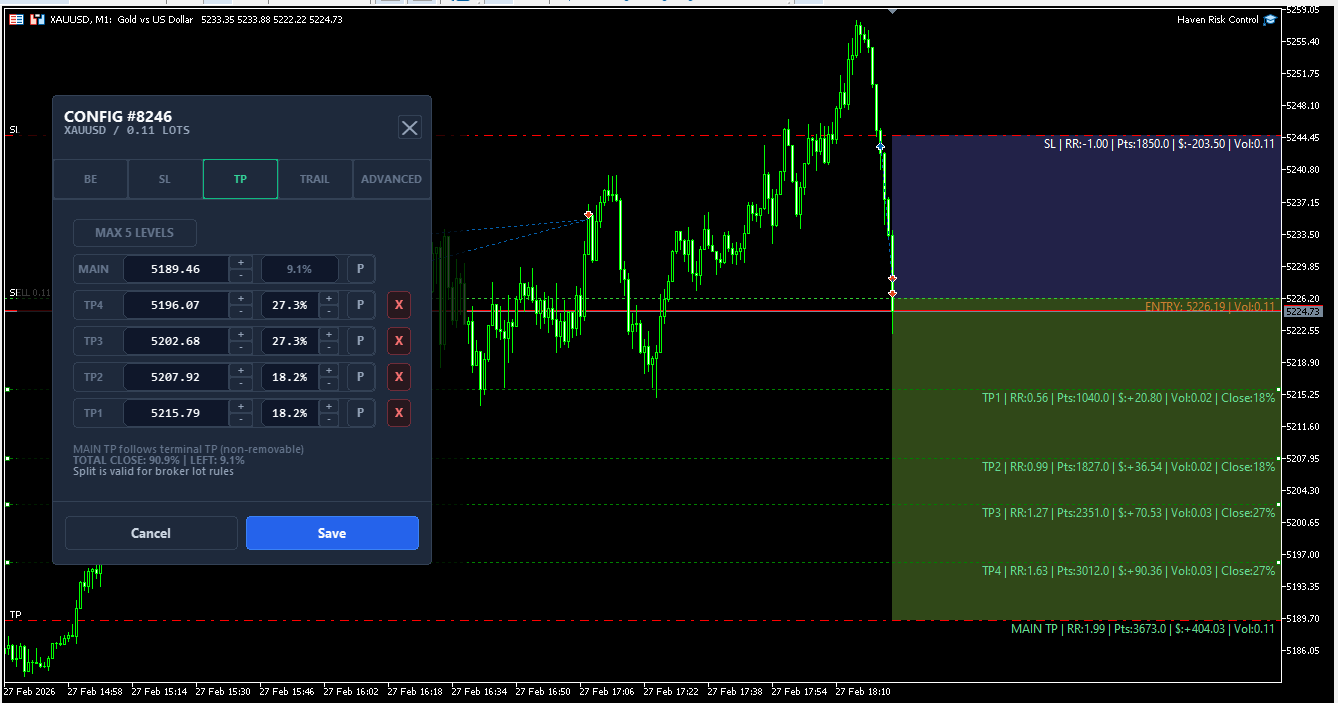
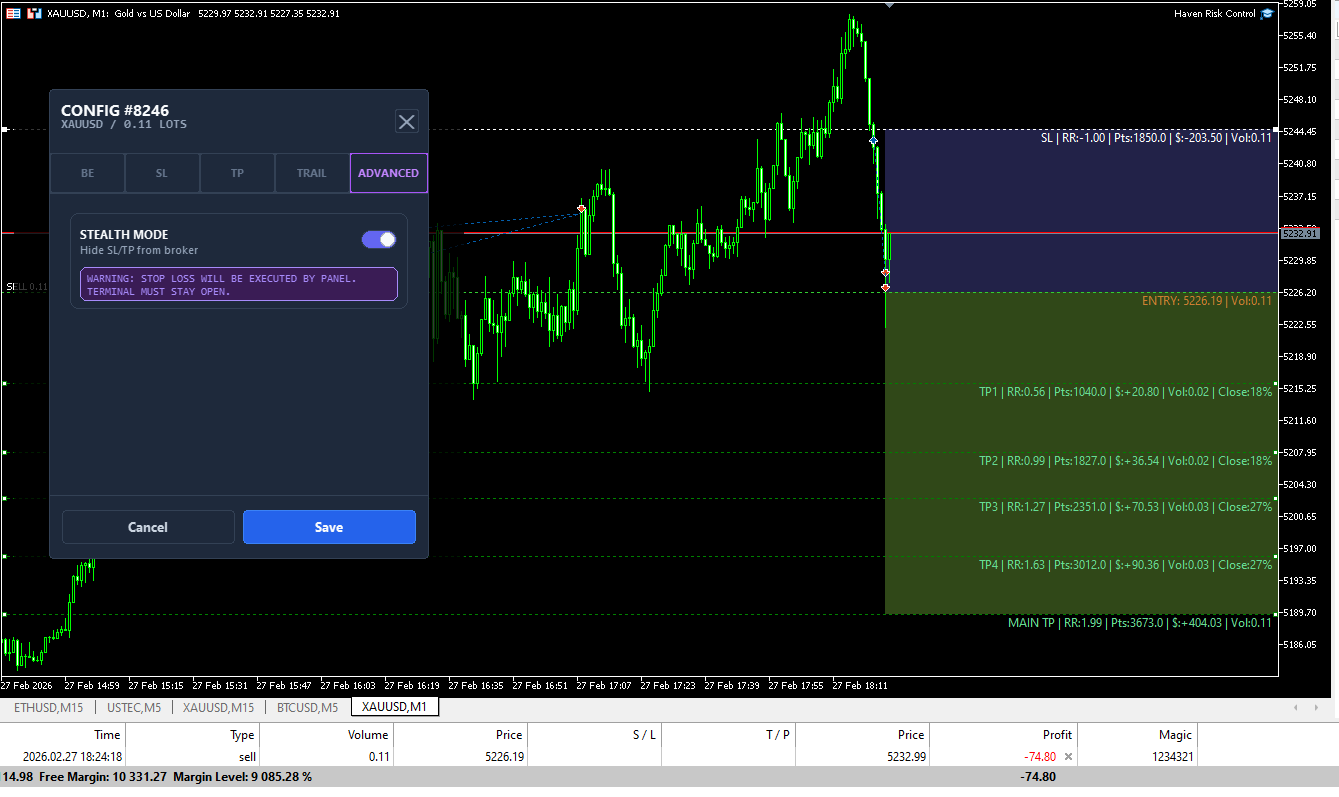
The SET window allows you to define management behavior separately for each position.
Depending on your scenario, you can configure:
-
TP levels
-
SL levels
-
Auto-BE
-
Additional management rules for a specific position
The TRAIL tab is currently under development.
8. Tips for Fast Workflow
-
Keep your hand on the keyboard: 1 / 2 / 3 / Space / Esc.
-
Use GUARD if you are prone to overtrading.
-
Use MANAGE for quick BE/partial/close instead of manual terminal windows.
-
Check STATS during the session to monitor your daily/weekly/monthly results.
9. FAQ (Frequently Asked Questions)
Q: Why doesn't Space open a trade?
A: The trading plan is not yet valid. Ensure that the Entry / SL / TP (1/2/3) lines are set correctly.
Q: Why does the PLAN button show “SET 1-2-3 LEVELS”?
A: The panel does not see a complete valid plan. Set all 3 lines first.
Q: Why is TOTAL SL/TP not being applied?
A: Common reasons: broker limits (Stops/Freeze), line on the wrong side, level already set, or no suitable positions in the current scope.
Q: Why doesn't STATS match the “Profit” column in MT5?
A: STATS shows the NET result (Profit + Commission + Swap [+ Fee]), whereas the MT5 Profit column usually does not include commission and swap.
Q: Why does STATS change when Magic-only is enabled?
A: Because STATS and MANAGE work within the EA Magic scope when Magic-only mode is active.
Q: Can I use hotkeys from any tab?
A: Yes. Hotkeys 1 / 2 / 3 / Space automatically switch you to the PLAN tab (unless the SET window is open).
Q: Is the TRAIL tab working yet?
A: Not yet. TRAIL is currently under development.
10. Conclusion
Haven Risk Control MT5 v2 is built for traders who value speed, clear logic, and risk control directly on the chart.
Start simple: use the PLAN workflow (1 / 2 / 3 / Space), then gradually integrate GUARD and SET to fit your trading style.
If you have questions or ideas for improvement, please leave a comment on the product page or under this post.
The previous basic version of Haven Risk Control v.1.5




