X2 Copy MT4 | X2 Copy MT5 | X2 Copy MT4/5 Free Trial
Copy | Add | Filters | Symbols
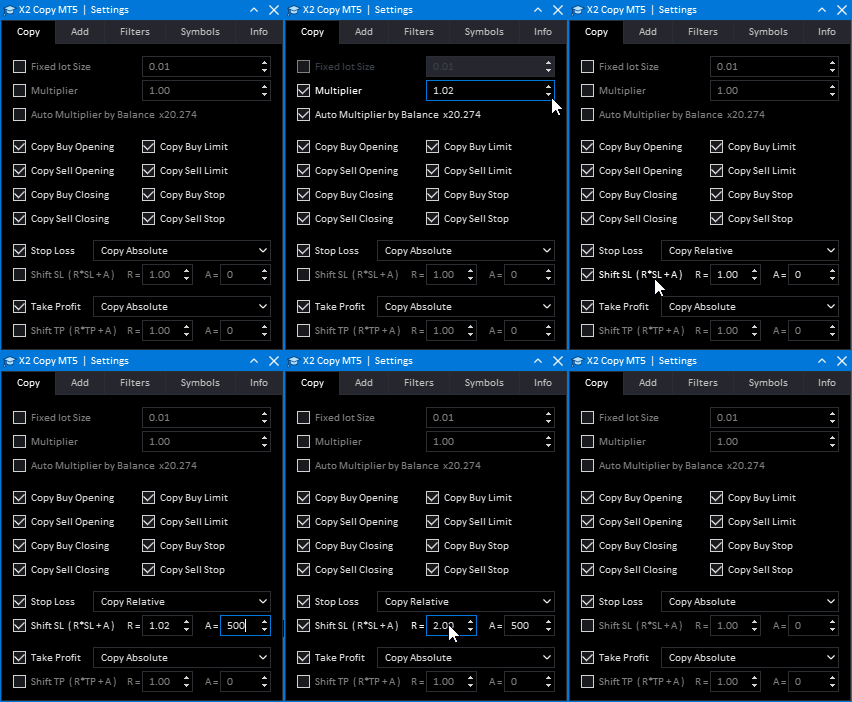
Fixed lot Size — When this setting is enabled, the program will copy all trades from the source account to the receiving account using a strictly fixed lot size specified in the field. This overrides all other volume calculation rules (including multipliers, balance-based calculations, and per-symbol settings).
Multiplier — Sets a volume multiplication coefficient for all copied trades. The original lot is multiplied by the specified value (e.g., 2.00 for doubling). Works in conjunction with other volume management settings.
Auto Multiplier by [Balance / Equity / Margin] — Automatically calculates the volume multiplier based on the relative financial state of the accounts. Instead of a fixed coefficient, the program dynamically scales the multiplier by comparing the selected parameter of the SLAVE account to the MASTER account.
• Balance — Multiplier = SLAVE Balance / MASTER Balance.
• Equity — Multiplier = SLAVE Equity / MASTER Equity.
• Margin — Multiplier = SLAVE Margin / MASTER Margin.
Example: If the MASTER account balance is $1,000 and the SLAVE account balance is $2,500, the resulting multiplier will be 2.5. A trade with a 0.10 lot on the Master will be copied as a 0.25 lot on the Slave. This ensures automatic risk scaling proportional to the available capital on each account.
Copy Buy Opening — Allows copying the opening of market buy (BUY) trades.
Copy Buy Closing — Allows copying the closing of market buy (BUY) trades.
Copy Sell Opening — Allows copying the opening of market sell (SELL) trades.
Copy Sell Closing — Allows copying the closing of market sell (SELL) trades.
Copy Buy Limit — Allows copying Buy Limit pending orders.
Copy Sell Limit — Allows copying Sell Limit pending orders.
Copy Buy Stop — Allows copying Buy Stop pending orders.
Copy Sell Stop — Allows copying Sell Stop pending orders.
Stop Loss — Enables copying and management of the Stop Loss level.
• Copy Absolute — the level is copied as the exact price value from the source trade.
• Copy Relative — the level is copied as a distance in points from the opening price.
• Fixed Value — the level is set manually as a fixed value (set the absolute shift in the field below).
Shift SL (R×SL + A) — Allows shifting the Stop Loss level using the formula.
• R — relative shift coefficient (R=1.00 - no change | R=1.05 - increases distance by 5% | R=0.95 - decreases distance by 5%).
• A — absolute shift in points, positive or negative value (A=100 - increase by 100 points | A=-50 - decrease by 50 points).
Take Profit — Enables copying and management of the Take Profit level.
• Copy Absolute — the level is copied as the exact price value from the source trade.
• Copy Relative — the level is copied as a distance in points from the opening price.
• Fixed Value — the level is set manually as a fixed value (set the absolute shift in the field below).
Shift TP (R×TP + A) — Allows shifting the Take Profit level using the formula.
• R — relative shift coefficient (R=1.00 - no change | R=1.05 - increases distance by 5% | R=0.95 - decreases distance by 5%).
• A — absolute shift in points, positive or negative value (A=100 - increase by 100 points | A=-50 - decrease by 50 points).
Copy | Add | Filters | Symbols
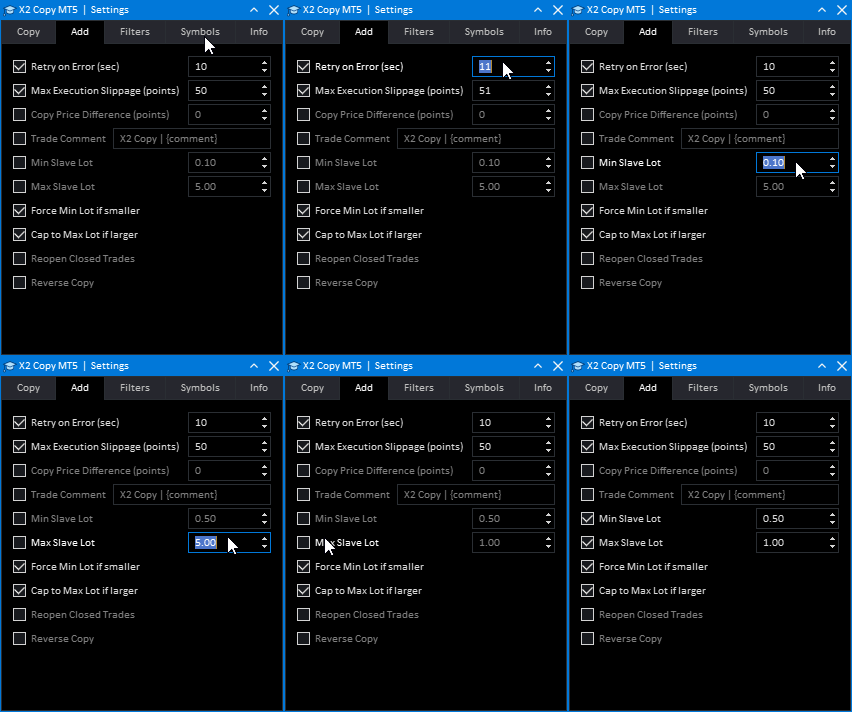
Retry on Error (sec) — If an execution error occurs on the broker's side, the program will automatically retry the request after the specified number of seconds. This allows handling temporary network or server failures without manual intervention.
Max Execution Slippage (points) — The maximum allowable slippage the broker can apply when executing copied orders. It sets an upper limit for the deviation of the execution price from the requested price. If the broker's proposed price exceeds this limit, the order will not be executed and an error will be returned. Measured in points.
Copy Price Difference (points) — The copy price difference, automatically adapted for Buy/Sell trades: (0 = copy at the same price or better), (+N = required price improvement), (-N = allowable price worsening). Example: +30 for a Buy = opening 30 points below the MASTER's price.
Trade Comment — A parameter for customizing the comment of copied trades on the SLAVE account. You can set any text using macros: {ticket} inserts the original order ticket from the MASTER trade, and {comment} inserts the original comment from the MASTER trade. Example: "Copy of {ticket} | {comment}" — if the original trade has ticket 12345 and comment "MySignal", the copied trade will have comment "Copy of 12345 | MySignal".
Min Slave Lot — The minimum volume threshold for trades on the SLAVE account. If the final calculated lot (after applying the Multiplier) is less than this value, the trade will be skipped (unless the Force option is enabled).
Max Slave Lot — The maximum allowable trade volume on the SLAVE account. This helps manage risks and prevent the execution of excessively large lots. If the calculated lot exceeds this value, the trade will be skipped (unless the Cap option is enabled).
Force Min Lot if smaller — Forces the copying of small volumes. If the calculated volume is less than the Min Slave Lot (or the broker's minimum), the trade will not be skipped; instead, it will open with the minimum allowed volume.
Cap to Max Lot if larger — Limits the maximum volume ("ceiling"). If the calculated volume exceeds the Max Slave Lot (or the broker's maximum), the trade will not be skipped; instead, it will open with the maximum allowed volume.
Reopen Closed Trades — Allows automatically reopening trades on the SLAVE account if they were closed (manually or otherwise) while the corresponding trades on the MASTER account are still active.
Reverse Copy — Inverts all trade and order types during copying: market BUY trades become SELL and vice versa, TP/SL levels are swapped, and pending orders are transformed (BUY LIMIT ↔ SELL STOP), (SELL LIMIT ↔ BUY STOP).
Copy | Add | Filters | Symbols
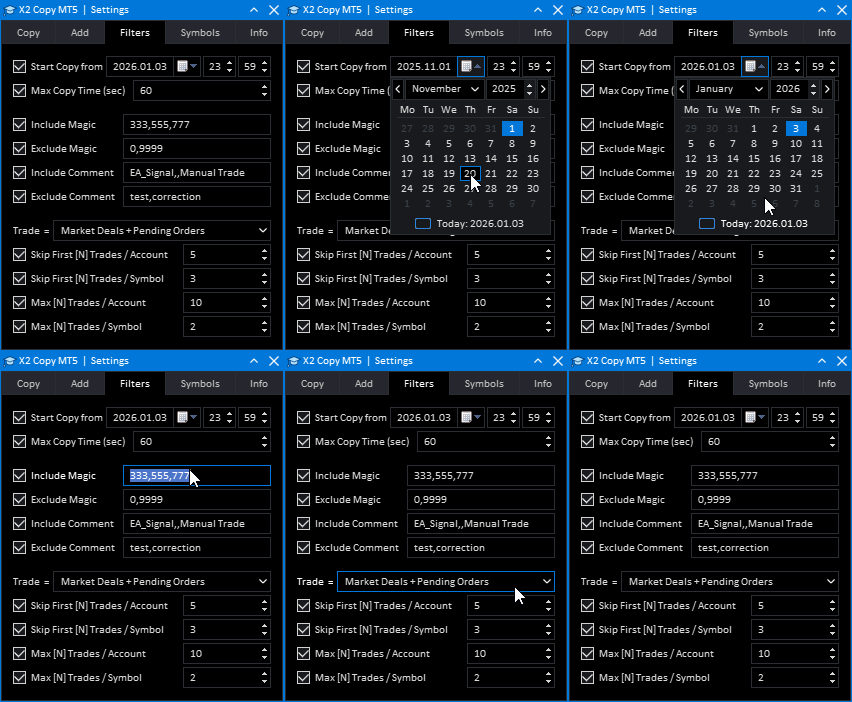
Start Copy from — Copy only trades opened after specified date/time (Master server time)
Max copy time (sec) — A trade can only be copied within N seconds of being opened on Master account
Include Magic — A parameter for filtering trades by their unique identifier (Magic Number). Specify comma-separated Magic Number values of the trades on the MASTER account that should be copied to the SLAVE. Only trades with the specified identifiers will be copied. Example: "333, 555, 777" — the program will copy only trades with these three Magic Numbers.
Exclude Magic — A parameter for excluding trades from copying by their unique identifier (Magic Number). Specify comma-separated Magic Number values of the trades on the MASTER account that should NOT be copied to the SLAVE. This filter has the highest priority — trades with the specified Magic Numbers will not be copied, even if they are present in the Include Magic list. Example: "0, 9999" — the program will not copy manual trades (Magic=0) and trades with Magic=9999.
Include Comment — A parameter for filtering trades by the exact comment text. Specify complete comment texts separated by commas. The program will copy to the SLAVE account only those trades from the MASTER account whose comment exactly matches one of the specified values. To copy trades with an empty comment, add an empty value to the list. Example: "EA_Signal,,Manual Trade" — only trades with the comments: (EA_Signal), (), (Manual Trade) will be copied.
Exclude Comment — A parameter for excluding trades from copying by the exact comment text. Specify complete comment texts separated by commas. Trades from the MASTER account whose comment exactly matches one of these values will NOT be copied to the SLAVE. This filter has the highest priority. To exclude trades with an empty comment, add an empty value to the list. Example: "test,correction," — trades with the comments (test), (correction) or with an empty comment will not be copied.
Trade Type for Counters — Defines which trades participate in the counting for the trade limitation rules below. The (Skip First [N] Trades) and (Max [N] Trades) limits apply only to the selected trade type.
• Trades = Market Deals + Pending Orders: All trades (both market deals and pending orders) are counted and filtered.
• Trades = Market Deals: Only market deals are counted for the limits. Pending orders are ignored by the counters and filter.
• Trades = Pending Orders: Only pending orders are counted for the limits. Market deals are ignored by the counters and filter.
Skip First [N] Trades / Account — A permanent rule to ignore the first N trades on the entire MASTER account. The program will NEVER copy the first N trades (taking into account the "Trade Type for Counters" setting), but will start copying from the trade number N+1 and all subsequent ones. Example: a value of 5 means that the first 5 trades on the account will be ignored, and copying will start from the 6th trade.
Skip First [N] Trades / Symbol — A permanent rule to ignore the first N trades for each symbol (currency pair). For each symbol, the program skips its first N trades and starts copying only from the trade number N+1 for that symbol. Example: a value of 3 — the first 3 trades for each symbol will be ignored, and copying will start from the 4th trade.
Max [N] Trades / Account — The maximum number of simultaneously open trades allowed on the entire SLAVE account. Copying of new trades from MASTER will be suspended as soon as the total number of open trades (of the type selected in "Trade Type for Counters") on SLAVE reaches the specified value N. Copying will resume after some trades are closed and their count falls below the limit.
Max [N] Trades / Symbol — The maximum number of simultaneously open trades allowed for each individual symbol (currency pair) on the SLAVE account. Each symbol has its own independent limit. Copying of a new trade for a symbol will be blocked if the number of already open trades for this symbol on SLAVE is equal to or exceeds N. Example: with N=2, you can have no more than 2 open trades per symbol simultaneously.
Copy | Add | Filters | Symbols
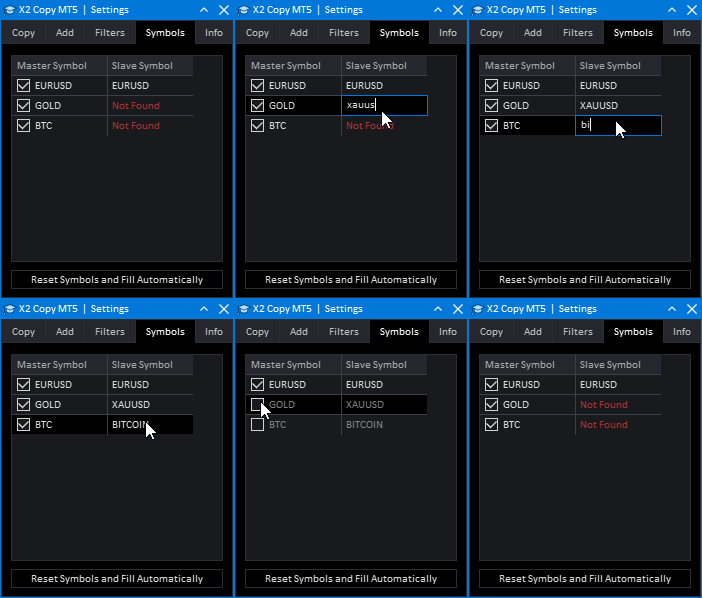
Symbols Mapping — Tab for configuring the correspondence of symbols (currency pairs/instruments) between MASTER and SLAVE accounts.
Master Symbol (Left Table) — List of all symbols on which there are or have been trades on the MASTER account. The checkbox to the left of each symbol allows you to temporarily disable copying of trades specifically for this symbol.
Slave Symbol (Right Table) — List of symbols on the SLAVE account to which trades will be copied. Opposite each MASTER symbol, you can specify the corresponding SLAVE symbol.
Logic of Operation:
• Auto-Matching: On first launch, the program automatically searches for symbols on the SLAVE account with exactly the same name (ignoring suffixes and prefixes) and full trading permission.
• Manual Configuration (Double-Click): If copying to a different instrument is required (e.g., MASTER: "BITCOIN" → SLAVE: "BTCUSD"), double-click the cell in the right column and enter the desired SLAVE symbol name. After input (pressing Enter or clicking elsewhere), the program will verify the existence of this symbol with the SLAVE broker.
• Verification Result: If the symbol is found — the mapping is saved. If not — a red "Not Found" label will appear, and the mapping will not be used.
Reset Symbols and Fill Automatically — Resets all manual mappings and attempts to automatically match SLAVE symbols by name again, following the auto-matching rule.
Support in personal messages or Telegram.