MT5 to MT5 Copier (MetaTrader 5 to MetaTrader 5 Copier) | Fast Local Trade Copier Expert Advisor (EA) for MetaTrader 5

Copier MT5 To MT5 https://www.mql5.com/en/ market/product/191385
Copier MT4 To MT4 https://www.mql5.com/en/market/product/150647
Overview
MT5 to MT5 Copier (MetaTrader 5 to MetaTrader 5 Copier) is a next-generation, ultra-fast local trade copier (Local Trade Replicator) designed for all traders, especially professional traders (Pro Traders), account managers (AM), signal providers (Trading Signal Providers), prop-firm users (Proprietary Trading Firm Users), and more.
It delivers the following features:
Full Slave (Receiver) health monitoring with Offline timer and disable controls
• Ultra-fast trade replication (less than 10 milliseconds)
• 100% safe architecture (no DLLs and no external dependencies)
• Real-time dashboard monitoring (Live Visual Interface)
• Advanced Slave (Receiver) health-monitoring system
• Automatic warnings for terminal crashes, restarts, disconnects, and more
This copier provides a true Master → Slave (Sender → Receiver) multi-account environment, giving you full control and real-time monitoring of all accounts connected to the Master (Sender).
________________________________________
Dashboard Overview
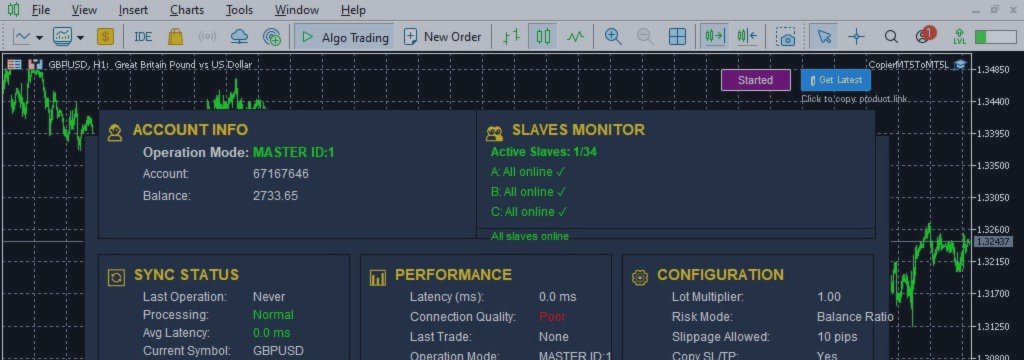
The integrated dashboard (Control Panel / Visual Interface) is one of the most advanced visual interfaces among all trade copiers. It displays real-time system health, performance, Slave (Receiver) status, configuration, and synchronization operations exactly like the product screenshot.
Account Info
• Operation Mode → Master ID (Sender ID) / Slave ID (Receiver ID)
• Account Number
• Balance & Equity
Instantly confirms that you are controlling the terminal correctly.
Slaves Monitor (Real-Time Health Tracking)
Displays all active Slave (Receiver) accounts with current status:
• Active Slaves count → e.g., 2 of 34
• Status: ONLINE / OFFLINE SHORT (<1 min) / OFFLINE LONG (>1 min)
If a Slave (Receiver) becomes Offline:
• Warning line appears
• Count-up timer shows offline duration
• Disable button for manually closed Slave terminals
Pop-up alerts notify the Master (Sender) when:
• A Slave goes Offline
• A Slave reconnects
• A Slave returns to normal operation
Ensures you always know the health of every connected Slave without opening their terminals.
Sync Status
• Last Operation (e.g., last copy performed)
• Processing Status → Normal / Wait / Hold
• Average Latency (Delay in milliseconds)
• Last Sync Time (Timestamp)
Provides full transparency for trade copying activity.
Performance
• Latency (milliseconds) → e.g., 0.0 ms
• Connection Quality → Excellent / Good / Poor
• Last trade copied or executed
• Operation Mode confirmation
Instantly see how fast and stable the system is running.
Configuration
• Lot Multiplier (Lot Size Multiplier)
• Risk Mode (Risk Management Mode)
• Slippage Allowed (Max Allowed Slippage)
• Copy SL/TP (Copy Stop Loss / Take Profit): Yes / Custom / No
• Reverse Mode (Invert Trade Direction): ON / OFF
Know exactly how trades will copy without reopening Inputs.
Slave Monitoring (Offline Detection System)
• Every Slave (Receiver) sends status to Master (Sender)
• If signal stops → detected as OFFLINE
• Dashboard highlights the Slave immediately
• Counter shows offline duration
• Disable button appears automatically
• Pop-up alerts notify instantly
Protects system from terminal freezes, MT5 crashes, VPS interruptions, internet disconnects, closed terminals, CPU overload, lost connections, etc.
Benefit: Instantly notified when a Slave goes offline, with duration.
________________________________________
Parameters
Main Settings
• CopyMode: Default MODE_MASTER → Master/Slave (Sender/Receiver) selection
• MasterID: Default 1 → Unique ID for Master (Sender)
• CopyFromMasterID: Default 1 → Master ID to copy from (Slave only / Receiver)
• SlaveNumber: Default 1, Range 1–34 → Identify multiple Slaves (Receivers)
Trade Settings
• SendPending: Default true → Copy pending orders (Pending Order Replication)
• CopyWithReversal: Default false → Reverse trade direction (Invert Trades)
• CopyStopLoss: Default true → Copy Stop Loss
• CustomStopLoss: Default 0 → Overrides SL if >0
• CopyTakeProfit: Default true → Copy Take Profit
• CustomTakeProfit: Default 0 → Overrides TP if >0
• SlippagePips: Default 10 → Max allowed slippage
• MaxSpread: Default 0.0 → Max allowed spread
Trade Filtering
• CopyLongOnly: Default false → Only copy BUY trades
• CopyShortOnly: Default false → Only copy SELL trades
Symbol Mapping
• EnableSymbolMapping: Default true → Automatic symbol mapping (Broker Symbol Adjustment)
• SymbolMappings: "EURUSD:EURUSDm,GBPUSD:GBPUSDm,XAUUSD:Gold,US30:US30mini"
• Prefix / Suffix / RemoveSuffixes: Default ""
Advanced Settings
• MaxTrades: Default 600 → Max trades to handle
• ShowEvents: Default true → Show event alerts
• SlaveMagicNumber: Default 1 → Magic number for slave trades
Lot Management
• UseBalanceRatio: Default true → Balance ratio calculation
• BalanceBasedLot: Default true → Balance-based lot sizing
• LotMultiplier: Default 1
• FixedLotSize: Default 0.0 → Overrides other lot calculations if >0
• MaxLotSize: Default 0.0 → Max allowed lot size
Day Filtering
• AllowMonday to AllowSunday: Default true → Which days trading allowed
Notifications
• EnableNotifications: Default true
• EmailAddress: Default "" → Email alerts
Dashboard Settings
• Show/hide panels: Top, Left, Center, Right, Bottom → Default true
• ShowAllPanels: Default true → Overrides individual settings
• ShowTopRightPanel: Default true → Quick actions
Multi-Master Configuration Notes
• Note_MM: "Tip: Restart MetaTrader (MT5) after switching Master/Slave to ensure proper synchronization."
________________________________________
Important Usage Notes
• Restart MetaTrader (MT5) after changing Master/Slave (Sender/Receiver) mode
• Ensure MasterID and SlaveNumber are unique
• AutoTrading must be enabled
• Requires access to shared files in MetaTrader's common folder
• Ensure all symbols are available and tradable
________________________________________
Key Features
• Full Slave (Receiver) health monitoring with Offline timer and disable controls
• Ultra-fast execution (<10 ms)
• Smart sync logic
• Automatic prefix/suffix detection
• Automatic Symbol Mapping (Broker Symbol Adjustment)
• Reverse mode (Invert Trade Direction)
• Day/time filters
• Pending order copying
• Advanced lot control (balance-based, fixed, multiplier, ratio)
• Pop-up, email, and push notifications
• Full professional dashboard with performance
• Multi-Master / Multi-Slave support
________________________________________
Setup Guide
Master Terminal (Sender)
• Attach EA (Expert Advisor)
• Set CopyMode = MODE_MASTER
• Set MasterID
• Enable Algo Trading
Slave Terminal (Receiver)
• Attach EA (Expert Advisor)
• Set CopyMode = MODE_SLAVE
• Set CopyFromMasterID
• Assign unique SlaveNumber
• Enable Algo Trading
________________________________________
FAQ
General
Q1: Does it support MT5 → MT5 only?
A: Yes
Q2: Multi-master and multi-slave supported?
A: Fully supported
Q3: Latency on VPS?
A: Typically 5–10 milliseconds
Q4: Does it copy pending orders?
A: Yes, enable SendPending = true
Q5: Is it prop-firm safe?
A: Yes, no DLLs or external executables
Slave Monitoring
Q1: What happens if a Slave goes Offline?
A: Dashboard shows clear warning and duration
Q2: Do I get alerts?
A: Yes, instant pop-ups
Q3: Can I remove an Offline Slave?
A: Yes, use Disable button
Q4: Does it detect MT5 crash or freeze?
A: Yes
Q5: Do I need to check Slave terminals manually?
A: No, dashboard monitors everything
Symbol Mapping
Q1: Why is Symbol Mapping needed?
A: For brokers with different formats or unusual symbols
Q2: Can I map multiple symbols?
A: Yes, unlimited mapping supported
Q3: Does Symbol Mapping slow things down?
A: No, operates instantly
Additional FAQ
Q1: Can the copier filter and copy trades only with a specific Magic Number?
A: Yes, a Magic Number filter can be enabled to copy only trades that match a specific Magic Number.
Q3: Can the EA calculate lot size based on a percentage of the Slave account balance?
A: Yes, when BalanceBasedLot is enabled, lot size is automatically adjusted based on the balance ratio.
Q4: What happens if a symbol does not exist on the Slave terminal?
A: The trade will not be copied, and a warning about the missing symbol will be logged. You can use Symbol Mapping to fix this. Simply enter the Master symbol and the corresponding Slave symbol in the mapping list using a single colon (:) to ensure proper copying.
• If the Master has EURUSD and the Slave has EURUSDm, enter in Symbol Map: EURUSD:EURUSDm
• If the Master has EURUSDm and the Slave has EURUSD, enter in Symbol Map: EURUSDm:EURUSD
If you enjoy Copier MT5 to MT5, please rate it ★★★★★ and leave your feedback — it keeps updates coming faste
• For better understanding of how this copier works and its speed on different MetaTrader platforms, please watch the tutorial video.
The Complete Guide to Using the CopierMT5ToMT5 Expert Advisor - Your Ultimate MT5 to MT5 Trade Copier
Introduction to Automated Trade Copying
Welcome to the world of automated trade copying! The CopierMT5ToMT5 Expert Advisor (EA) is a powerful MT5 trade copier and account mirroring tool that allows you to automatically copy trades from one MetaTrader 5 account, known as the "Master" or "Sender", to another MetaTrader 5 account, known as the "Slave" or "Receiver".
This comprehensive guide will walk you through every single step, from installation to advanced configuration, as if you've never done it before. By the end, you'll be able to set up and run your own robust copy trading system with complete confidence.
________________________________________
Revolutionary Slave Monitor Feature - Your All-Seeing Dashboard for Multi-Account Management
This is one of the most important and unique features that sets our local trade copier apart from all others!
While most copy trading systems leave you in the dark about your Slave/Receiver accounts, our advanced Slave Monitor provides a real-time account status dashboard that gives you complete visibility over your entire copy trading network.
What makes this Slave Monitor feature so special for MT5 copy trading?
With traditional trade copier EAs, you have to manually check each Slave/Receiver account to see if they're working properly. This is incredibly time-consuming and inefficient, especially when managing multiple accounts. Our Slave Monitor (Receiver Monitor) eliminates all this guesswork by providing real-time status updates for ALL your Slaves/Receivers in one centralized copier dashboard.
How this Real-Time Monitoring transforms your experience:
At a single glance, you can see exactly which Slaves/Receivers are online and actively copying trades, and which ones have problems. The system continuously monitors each Slave/Receiver and immediately alerts you if any of them:
• Disconnect from the Master/Sender
• Crash or stop working
• Close their MetaTrader platform
• Close their trading account
• Experience any other technical issues
Smart Alerting and Network Management for your Trade Copier:
• When a Slave/Receiver goes offline, the dashboard clearly displays the problematic Slave number with a detailed message.
• If you intentionally closed a Slave/Receiver and don't want to see alerts for it, you can simply press the "DISABLE" button next to that Slave in the monitor. This removes it from the monitoring list while keeping your dashboard clean and focused on active accounts.
This advanced monitoring feature alone saves you hours of manual checking and gives you peace of mind knowing that your entire MT5 to MT5 copy trading network is under constant supervision.
________________________________________
Step 1: Installation - Getting the EA onto Your MetaTrader 5 Chart
Before anything else, you need to install this MetaTrader 5 copier EA on your platform.
1. Locate the File: You should have the compiled CopierMT5ToMT5.ex5 file.
2. Copy to Terminal:
o Open your MetaTrader 5 platform.
o Press Ctrl+O to open the "Navigator" window (usually on the left side).
o Find the "Expert Advisors" folder.
o Open the "File" menu at the top left of your computer and navigate to the folder where you have the CopierMT5ToMT5.ex5 file.
o Click and drag the .ex5 file from its folder directly onto the "Expert Advisors" section in the MetaTrader 5 Navigator.
3. Ready to Use: Since you have the compiled .ex5 file, no compilation is needed. The EA is now ready to be attached to a chart for fast and reliable MT5 trade copying.
________________________________________
Step 2: Basic Setup - Attaching the EA to a Chart
The EA must be running on a chart to work. It doesn't matter which symbol's chart you use, but it must be open.
1. Open a Chart: Open any financial symbol chart (e.g., EURUSD).
2. Attach the EA:
o From the "Navigator" window, find "Expert Advisors". You should see CopierMT5ToMT5 listed.
o Click and drag CopierMT5ToMT5 from the Navigator onto your open chart.
3. Configure Settings: A large input parameters window will pop up. This is where you tell the EA how to behave. We will configure this in the next steps.
4. Enable AlgoTrading: Before pressing "OK", you must allow the EA to trade.
o Look at the top toolbar of your MT5 platform. Find the button that says "AlgoTrading" or has a traffic light icon. It must be enabled (green). If it's red, click it to turn it green.
o Crucial Note: If AlgoTrading is off, the EA will not be able to open or close any trades. The EA's dashboard will show a big warning if this is the case, halting the trade replication process.
________________________________________
Step 3: The Heart of the System - Master/Sender vs. Slave/Receiver Mode
The most important decision is choosing the CopyMode. You will be either a Master/Sender (Source Account) or a Slave/Receiver (Target Account).
• Master/Sender (MODE_MASTER): This is the source account. All trades opened on this account will be copied and sent out to all the Slaves/Receivers that are listening.
• Slave/Receiver (MODE_SLAVE): This is the receiving account. It listens for trades from a specific Master/Sender account and copies them onto itself.
You can only be one at a time. You cannot be both a Master/Sender and a Slave/Receiver on the same chart.
________________________________________
Part A: How to Set Up a MASTER/SENDER Account
If you want your current account to be the source of trades for others to copy, follow these steps:
1. Set CopyMode to MODE_MASTER.
2. Configure MasterID:
o What it is: A unique number that identifies THIS Master/Sender. Think of it as your Master's "name" or "Signal Source ID".
o How to use it: You can use any number you like (e.g., 1). All your Slave/Receiver accounts will need to know this exact number to connect to you.
o Can I use multiple Master IDs? Yes! You can run multiple copies of this EA on different charts, each with a different MasterID (e.g., 1 for Strategy A, 2 for Strategy B). You can use infinite Master IDs, allowing you to copy to unlimited accounts.
3. Ignore CopyFromMasterID and SlaveNumber: These inputs are only for Slaves/Receivers. The Master/Sender doesn't need them.
4. Click "OK": The EA will start, and you will see a dashboard on your chart. The Master's/Sender's job is to write its trade information to a shared file location for the Slaves/Receivers to read, enabling low-latency copying.
________________________________________
Part B: How to Set Up a SLAVE/RECEIVER Account
If you want your current account to copy trades from a Master/Sender account, follow these steps:
1. Set CopyMode to MODE_SLAVE.
2. Configure CopyFromMasterID:
o What it is: This is the "name" of the Master/Sender you want to copy from.
o How to use it: You must enter the exact same MasterID that the Master/Sender account is using. If the Master/Sender uses 1, you must enter 1. This is how the Slave/Receiver finds the correct signal source.
3. Configure SlaveNumber:
o What it is: A unique number for this specific Slave/Receiver.
o How to use it: Start with 1. If you add another Slave/Receiver, set it to 2, and so on, up to 34.
o Can I use the same Slave Number twice? No. Duplicate MasterID and SlaveNumber combinations will interfere with order mirroring and cause errors.
________________________________________
Step 4: Understanding Key Inputs and Features of Your MT5 Trade Copier
Trade Management and Execution
• SendPending: If true, the Slave/Receiver will copy pending orders (Limit, Stop) from the Master/Sender. If false, only market execution trades are copied.
• CopyWithReversal: If true, trades are copied in the opposite direction of the Master/Sender.
• CopyStopLoss / CopyTakeProfit: If true, uses the same SL/TP as the Master/Sender. If false, you can set custom SL/TP.
Symbol Mapping - Critical for Multi-Broker Copying
• Why: Brokers use different symbol names. Example: Master uses XAUUSD, Slave uses GOLD.
• How to use:
1. Set EnableSymbolMapping to true.
2. Define pairs in SymbolMappings box: MasterSymbol:SlaveSymbol
3. Multiple pairs separated by commas.
4. Example: XAUUSD:GOLD, US30:US30mini, GBPUSD:GBPUSDm
Lot Management - Risk Control
• FixedLotSize: Use the same lot size for every trade.
• LotMultiplier: Multiply the Master’s lot size by your chosen factor.
• UseBalanceRatio & BalanceBasedLot: Automatically adjust lot size based on the ratio of Slave to Master balance.
Trade Filtering
• CopyLongOnly / CopyShortOnly: Filter trades by direction.
• MaxSpread: Skip trades with spreads higher than the defined value.
Day Filtering
• Enable/disable each day (AllowMonday, AllowTuesday, …)
• Example: Disable Fridays by setting AllowFriday = false.
Notifications & Alerts
• EnableNotifications: Desktop alerts.
• EmailAddress: Receive email alerts for critical events.
• ShowEvents: Pop-ups and warnings (recommended true).
Dashboard Settings
• Customizable dashboard: show/hide panels (ShowTopPanel, ShowLeftPanel, ShowAllPanels).
________________________________________
Step 5: Monitoring and Troubleshooting Your Copy Trading Network
1. Dashboard: Shows mode, account info, connection, last copied trade, and Slave Monitor for Masters.
2. Start/Stop Button: Temporarily pause copying without removing the EA.
3. Terminal Logs: Check logs if ShowEvents is enabled.
4. Restart After Changes: Critical settings (MasterID, CopyFromMasterID, SlaveNumber) require EA/chart restart for clean synchronization.
________________________________________
Summary Checklist for Your MT5 to MT5 Trade Copier Setup
Master/Sender (Signal Source):
• [ ] EA attached to a chart, AlgoTrading ON
• [ ] CopyMode = MODE_MASTER
• [ ] MasterID set
• [ ] Dashboard visible in "MASTER" mode
• [ ] Slave Monitor active
Slave/Receiver (Target Account):
• [ ] EA attached, AlgoTrading ON
• [ ] CopyMode = MODE_SLAVE
• [ ] CopyFromMasterID matches Master
• [ ] Unique SlaveNumber
• [ ] Symbol Mapping configured
• [ ] Lot size set (LotMultiplier / FixedLotSize)
• [ ] Day Filtering configured
• [ ] Notifications set
• [ ] ShowEvents = true
• [ ] Dashboard visible in "SLAVE" mode
________________________________________
Conclusion
You are now fully equipped to install, configure, and run the CopierMT5ToMT5 Expert Advisor.
The revolutionary Slave Monitor feature gives you unprecedented control and visibility over your copy trading network—a capability that most other copiers lack.
Tips for success:
• Always test on a demo account first.
• Ensure clear Master ID communication.
• Apply proper risk management on the Slave/Receiver side.
This professional copying tool is suitable for retail traders and prop firm environments, offering a robust copier engine for all your trade replication needs.
Happy copying!
https://www.mql5.com/en/ market/product/191385




