
🚀 Equity Tracker MT5 – Help and Setup Guide
The Equity Tracker MT5 keeps you connected to your MT5 account by sending Telegram or Discord messages whenever key events happen: new trades, risk alerts, uptime signals (“I’m alive”), and periodic profit reports. It can also draw a profit summary directly on the chart so you can quickly confirm that the EA is running.

Important: Equity Tracker MT5 does not open, close, or manage trades. It is a monitoring tool only, safe to use alongside any strategy or EA.
1️⃣ Getting Started

- Attach Equity Tracker MT5 to any chart you already have open. The symbol and timeframe do not matter – it monitors the whole account.
- Before pressing OK, open the Inputs (Parameters) tab and adjust your preferences.
- Enable at least one notification channel (Telegram or Discord) and fill in the required token, chat ID or webhook URL.
- Click OK.
Tip: After you configure everything, save your setup as a template or profile so you can reuse it on other charts and accounts.
2️⃣ Telegram Setup
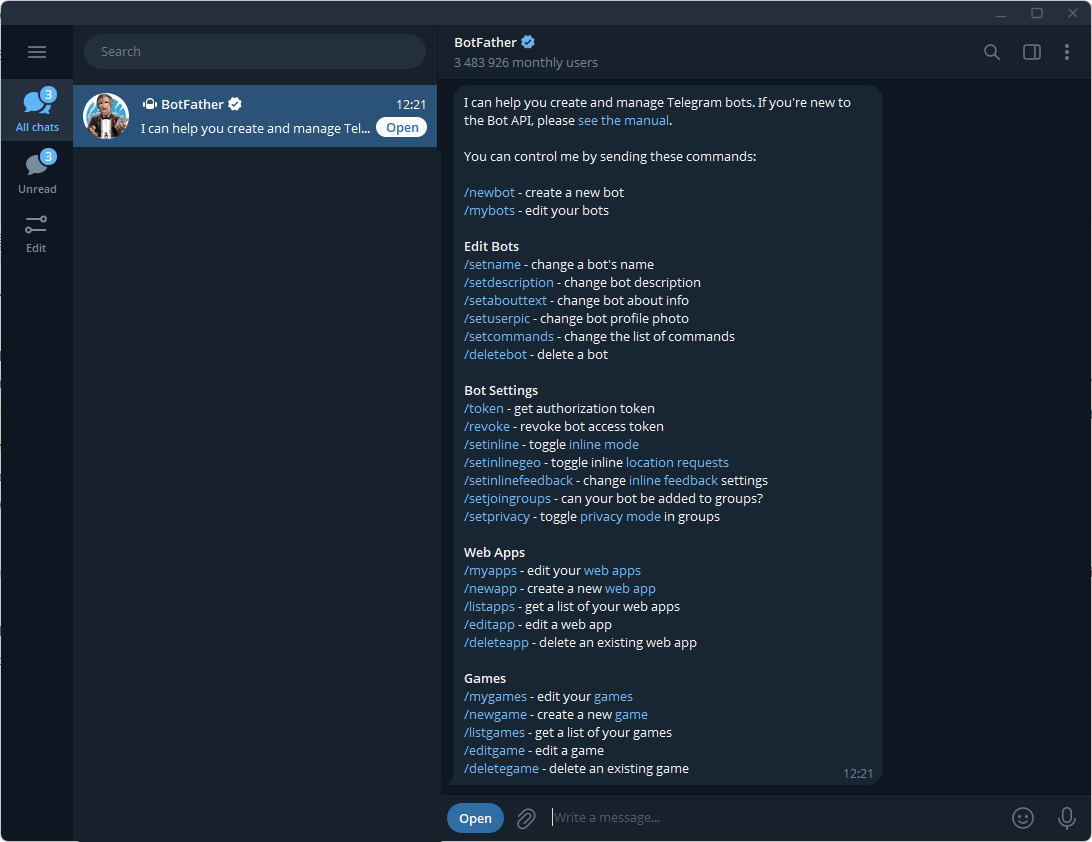
Example of Telegram notifications on a mobile phone
- In Telegram, search for @BotFather.
- Send the command /newbotand follow the instructions to create a new bot.
- BotFather will give you a Bot Token similar to 123456789:ABCdefGHIjklMNOpqrsTUVwxyz. Copy this token.
- Open your new bot in Telegram and send it any message (for example, “Hello”).
- Open this link in your browser (replace <YOUR_TOKEN> with the token you copied):
https://api.telegram.org/bot<YOUR_TOKEN>/getUpdates - Look in the JSON response for the "chat" section and copy the value of "id". This is your chat or channel ID (for channels it is usually negative, for example, -1001234567890 ).
- In MT5, open the Equity Tracker MT5 inputs and paste:
- Bot token into Bot token from @BotFather.
- Chat or channel ID into Target chat/channel ID.
- Switch Enable Telegram notifications to true.
3️⃣ Discord Setup
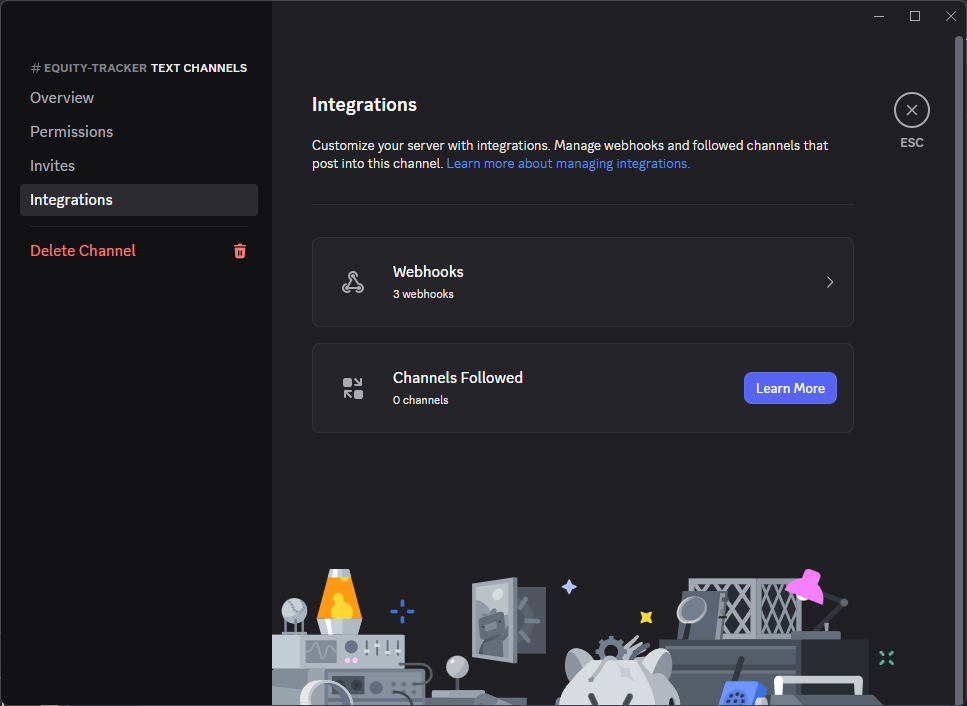
Discord Webhook configuration for alerts
- Open your Discord server and select the channel where you want to receive alerts.
- Click the gear icon for that channel, then go to Integrations → Webhooks.
- Create a new webhook, give it a name and copy the Webhook URL.
- In MT5, open the Equity Tracker MT5 inputs and paste this URL into Webhook URL for the target channel.
- Set Enable Discord notifications to true.
4️⃣ Allow WebRequest in MT5 (Required)
MT5 blocks external HTTP requests by default. You must allow WebRequest for Telegram and/or Discord or no messages will be sent.
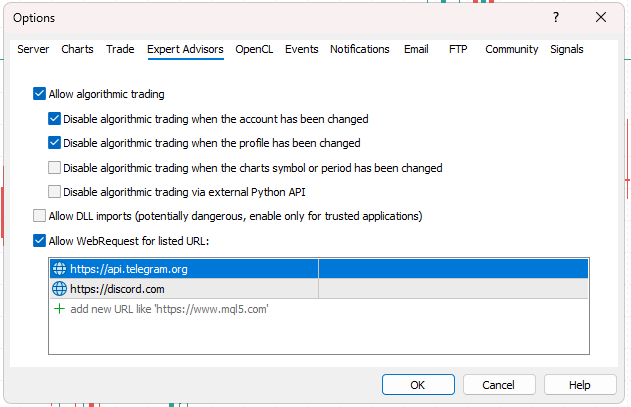
Enable WebRequest in MT5 Expert Advisors settings
- In MT5, go to Tools → Options → Expert Advisors.
- Tick the box “Allow WebRequest for listed URL”.
- Add these URLs (one per line):
- Click OK.
5️⃣ Configurable Inputs (Parameters)
The Inputs tab is organized by sections. Below is a description of each field using the same headings you see inside MT5.
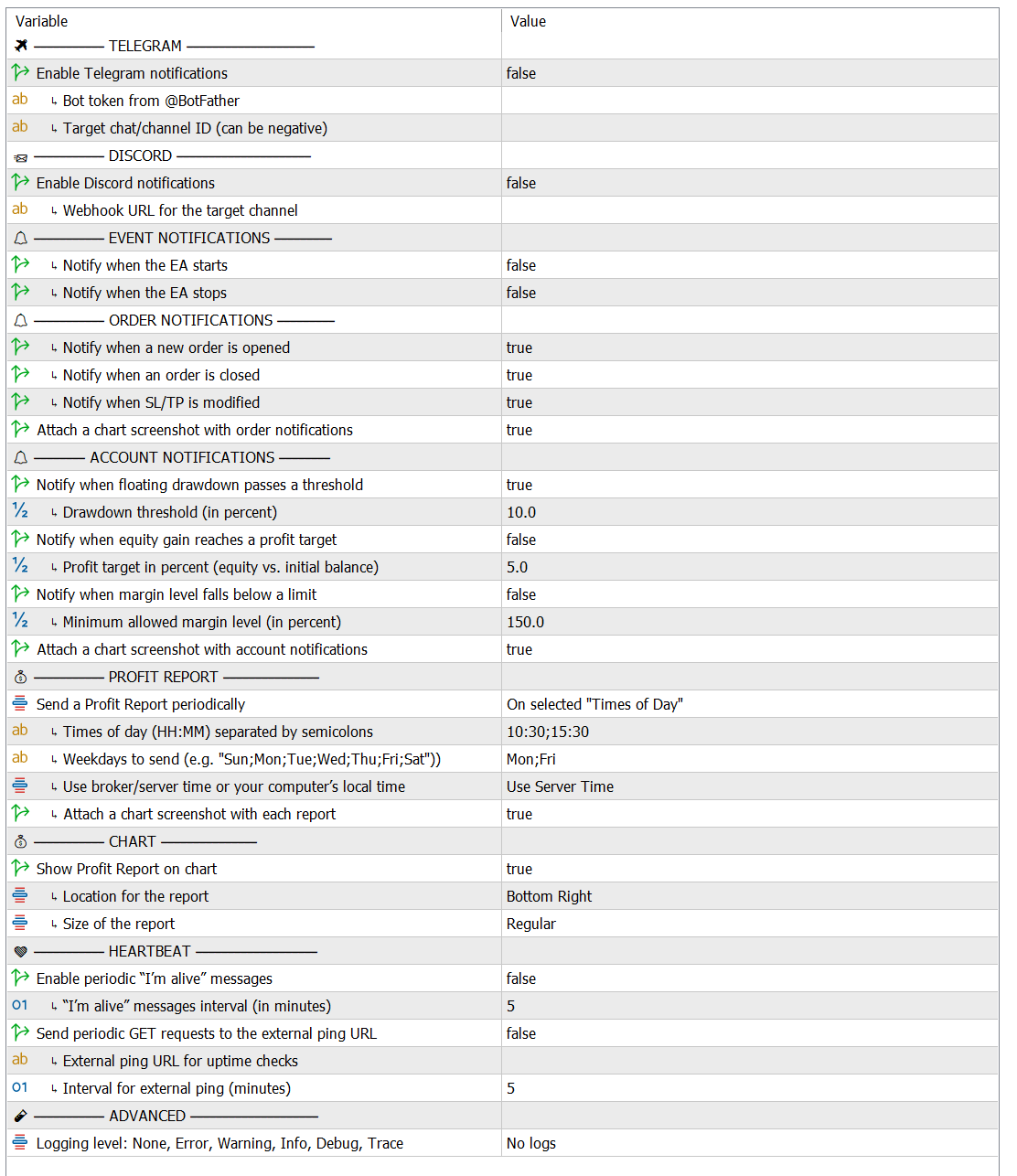
Inputs are grouped by section for easier configuration
TELEGRAM
- Enable Telegram notifications – turn Telegram alerts on or off (true/false, default false).
- Bot token from @BotFather – paste the token given by @BotFather.
- Target chat/channel ID (can be negative) – chat or channel ID where messages will be sent.
DISCORD
- Enable Discord notifications – turn Discord alerts on or off (true/false, default false).
- Webhook URL for the target channel – paste your Discord webhook URL.
EVENT NOTIFICATIONS
- Notify when the EA starts – send a message when Equity Tracker MT5 is attached and begins running.
- Notify when the EA stops – send a message when the EA is removed or stops.
ORDER NOTIFICATIONS
- Notify when a new order is opened – alert for new positions (true/false, default true).
- Notify when an order is closed – alert for closed positions (true/false, default true).
- Notify when SL/TP is modified – alert when stop-loss or take-profit is changed (true/false, default true).
- Attach a chart screenshot with order notifications – include screenshots with trade alerts (true/false, default true).
ACCOUNT NOTIFICATIONS
- Notify when floating drawdown passes a threshold – enable drawdown alerts (true/false, default true).
- Drawdown threshold (in percent) – percentage of floating loss that will trigger an alert (default 10.0).
- Notify when equity gain reaches a profit target – enable profit target alerts (true/false).
- Profit target in percent (equity vs. initial balance) – percentage gain to trigger an alert (default 5.0).
- Notify when margin level falls below a limit – enable low-margin alerts (true/false).
- Minimum allowed margin level (in percent) – margin level threshold (default 150.0).
- Attach a chart screenshot with account notifications – include screenshots with risk alerts (true/false, default true).
PROFIT REPORT
- Send a Profit Report periodically – choose how often reports are sent:
REPORT_DISABLED , REPORT_HOURLY , REPORT_DAILY , REPORT_WEEKLY (default REPORT_DAILY). - Times of day (HH:MM) separated by semicolons – list of send times, for example 10:30;15:30 .
- Weekdays to send (e.g. "Sun;Mon;Tue;Wed;Thu;Fri;Sat") – weekdays when reports are active, for example Mon;Fri .
- Use broker/server time or your computer's local time – choose TIME_SERVER or TIME_LOCAL (default TIME_SERVER).
- Attach a chart screenshot with each report – attach a screenshot to every report (true/false, default true).
CHART
- Show Profit Report on chart – show or hide the profit summary overlay (true/false, default true).
- Location for the report – choose a corner (for example Bottom Right).
- Size of the report – choose from Large, Regular or Compact (default Regular).
HEARTBEAT
- Enable periodic "I'm alive" messages – send regular status messages (true/false, default false).
- "I'm alive" messages interval (in minutes) – interval between heartbeat messages (default 5 minutes).
- Send periodic GET requests to the external ping URL – enable external uptime pings (true/false, default false).
- External ping URL for uptime checks – URL to ping (for example a service like UptimeRobot or HealthChecks).
- Interval for external ping (minutes) – delay between pings (default 5 minutes).
ADVANCED
- Logging level: None, Error, Warning, Info, Debug, Trace – choose how much information is logged (default “no logs”).
6️⃣ Message & Screenshot Preferences
- Toggle screenshots for order notifications and account notifications independently to control how many images are sent.
- Use order and account screenshots to see the exact chart context of each alert without logging into the VPS.
7️⃣ Event Coverage & Risk Alerts
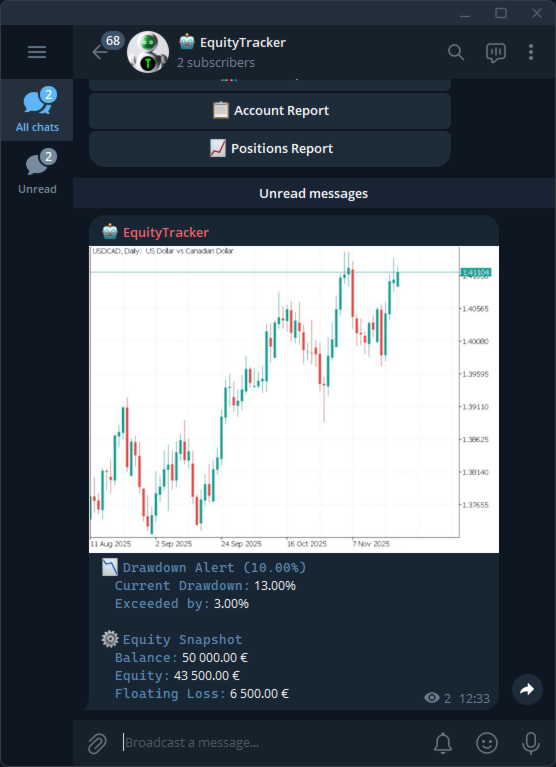
Visual example of trade and risk notifications
- Receive alerts when orders are opened, closed or modified so you never miss a trade.
- Use drawdown alerts to protect prop-firm challenges: set the drawdown threshold below the broker’s rule to get advance warning.
- Use profit target alerts to know the exact moment your account passes a target percentage (for example 8% to complete Phase 1).
- Use margin-level alerts as an early warning system before a margin call.
- Combine alerts with screenshots to speed up investigation when something unusual happens.
8️⃣ Reports
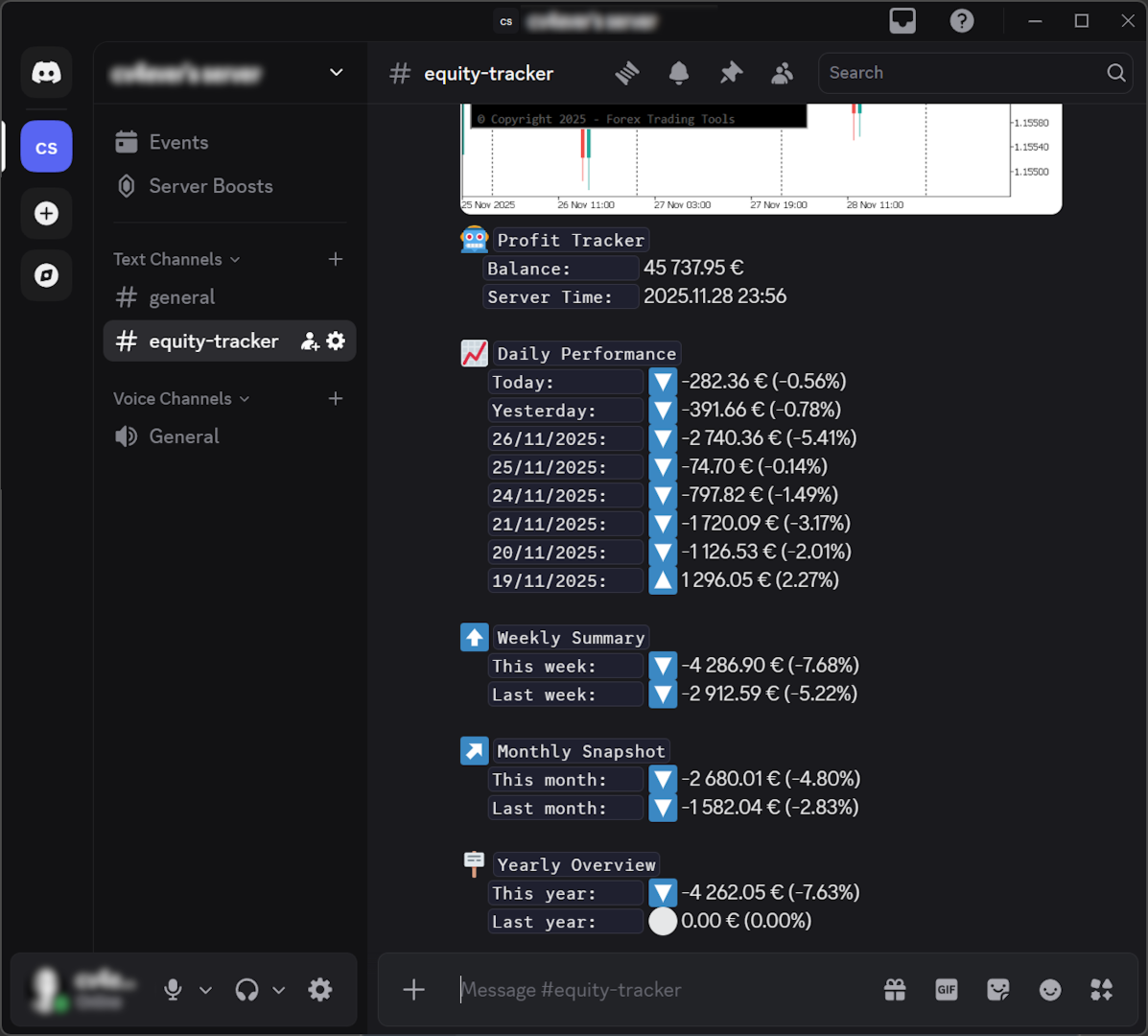
Profit report example with key statistics
- Enable periodic Profit Reports to receive automated snapshots of your profit and loss.
- Choose hourly, daily, or weekly depending on how active your trading is.
- Set multiple send times using semicolon-separated HH:MM values (for example 09:00;12:00;17:00 ).
- Select which weekdays should send reports (for example Mon;Fri ).
- Choose whether times are interpreted using server time or local time.
- Attach screenshots to reports to see all the important information plus a visual snapshot of the chart.
- Show the profit report directly on the chart to confirm, at a glance, that Equity Tracker MT5 is running and updating correctly.
9️⃣ Manual Commands (Telegram Only)
When Telegram is enabled, Equity Tracker MT5 sends inline buttons that allow you to request information on demand.

Inline buttons for instant status updates
- 📈 Profit Report – sends the latest profit breakdown.
- 💼 Account Status – shows balance, equity, margin and summary of open positions.
- 📊 Open Positions – lists all currently open trades with key details.
After you attach the EA and configure Telegram, these buttons are sent automatically. You can tap them whenever you want an instant update, without waiting for the next scheduled report.
🔟 Use Cases and Best Practices
Prop-Firm Traders
- Set the drawdown threshold slightly below the prop-firm daily limit so you are warned before rules are violated.
- Configure the profit target percentage to match each phase target and celebrate the moment a phase is completed.
- Enable heartbeat messages or external pings to detect VPS crashes or frozen terminals immediately.
Multi-EA Portfolios
- Attach Equity Tracker MT5 to a single chart; it monitors all trades on the account, regardless of which EA opened them.
- Use logs and screenshots to quickly identify which strategy produced each trade or spike in drawdown.
- Combine periodic Profit Reports with on-chart profit display to track daily and weekly performance without opening statements.
Mobile Traders
- Receive instant messages on Telegram or Discord instead of constantly checking MT5 or your VPS.
- Use compact messages if you prefer shorter notifications, or keep full details for deeper information.
- Rely on manual buttons from Telegram to pull fresh reports whenever you have a moment, even away from your desk.
1️⃣1️⃣ Troubleshooting
Not Receiving Any Notifications
- Check the Experts tab in MT5 for error messages from Equity Tracker MT5.
- Confirm that WebRequest is enabled for https://api.telegram.org and https://discord.com .
- Verify your Telegram bot token and chat/channel ID, or your Discord webhook URL.
- Make sure the relevant notification options are enabled in the Inputs (for example Enable Telegram notifications and Enable Discord notifications).
- Test your Telegram bot with
https://api.telegram.org/bot<YOUR_TOKEN>/getMe .
If everything is correct, it should return basic information about the bot.
Screenshots Are Missing
- Confirm that screenshot options are enabled for the type of alert you are expecting (order or account notifications, or reports).
Heartbeat Messages Stopped
- The EA may have been removed from the chart or MT5 was closed.
- The VPS may have restarted, lost internet connection or crashed.
- Log into your VPS or PC and check MT5 immediately; the heartbeat is designed to warn you of exactly this situation.
Too Many Notifications
- Disable SL/TP modification alerts if your trading system adjusts stops very frequently.
- Reduce report frequency (for example, switch from hourly to daily or weekly).
1️⃣2️⃣ FAQ
Does Equity Tracker MT5 open or close trades?
No. Equity Tracker MT5 is a monitoring tool only. It does not execute, modify or cancel any orders.
Can I use it with other EAs?
Yes. It is designed to run side-by-side with any number of EAs and monitors all trades on the account.
Do I need a VPS?
A VPS is recommended for 24/7 monitoring, but not required. Equity Tracker MT5 works on any MT5 terminal that is running and connected.
Can I send alerts to multiple chats or channels?
One instance of Equity Tracker MT5 can send to one Telegram chat and one Discord channel. If you want more destinations, attach additional instances to other charts with different tokens or webhooks.
Does it work in Strategy Tester?
No. WebRequest and screenshots are restricted in backtesting. Equity Tracker MT5 is intended for live and demo accounts.
What happens if Telegram or Discord is temporarily down?
Equity Tracker MT5 will try to resend messages according to its internal logic. Any errors are logged in the Experts tab.
1️⃣3️⃣ Final Tips
- Configure your first setup carefully, then save it as a template so you can apply it to any new account in seconds.
- Start with daily reports and a moderate number of alerts. You can always increase the frequency after you get used to the flow of messages.
- Combine Equity Tracker MT5 with your existing trading system to turn your phone into a remote monitoring terminal and keep your account under control 24/7.
Thank you for using Equity Tracker MT5.
May your trades be well protected and your account always under your control, even when you are away from the screen.


![[Action Required]: Manual EA Pause Recommended](https://c.mql5.com/6/1027/splash-preview-775266.png "[Action Required]: Manual EA Pause Recommended")