

INSTRUCTIONS FOR THE PRODUCT:
https://www.mql5.com/en/blogs/post/768995
Version: 64.2 (Patched & Corrected – Perfected Interactive UI)
Developer: BATIK
Description: EA More 22 Pairs is an advanced multi-pair averaging and smart hedging Expert Advisor for MetaTrader 4 (MT4). It supports trading up to 22 pairs, including XAUUSD and major Forex crosses, with trend-following or reversal strategies. This guide provides detailed instructions on setup, usage, and optimization.
Introduction
EA More 22 Pairs is designed for automated trading across multiple symbols with built-in averaging, hedging, and trend detection. It features a visual WYSIWYG control panel for easy monitoring and manual intervention. Key benefits include:
- Multi-symbol trading (up to 22 pairs).
- Dynamic lot sizing based on risk percentage.
- Trend-following or reversal modes.
- Four aggression levels: Hyper Aggressive, Aggressive, Moderate, and Conservative.
- Automatic restart after reaching ROI targets.
- Special handling for XAUUSD (Gold).
Installation and Setup
- Download the EA file (.ex4) from your MQL5 purchase.
- Open MT4 and navigate to File > Open Data Folder > MQL4 > Experts.
- Copy the .ex4 file into the Experts folder.
- Restart MT4 or refresh the Navigator panel.
- Attach the EA to any chart. Ensure "Allow DLL imports" and "Allow live trading" are enabled in the EA properties.
- Configure inputs as described below.
Note: The EA has been designed to be compatible with common symbols. Suffixes ={"m","pro","#",".","r","ecn","micro","cent","!","".pro"."".ecn".".micro","live","demo"}
Activation with Personal ID-Code
Every client must activate a personal ID-Code to enable full functionality. This ID-Code connects the EA to the system's Google Development server for verification, updates, and secure operation.
- After attaching the EA, it will prompt for your ID-Code (or check automatically if integrated).
- Contact the developer (BATIK) via MQL5 profile or provided channels to obtain your unique ID-Code.
- Enter the ID-Code in the EA inputs or follow on-screen instructions.
- Once activated, the EA will link to the Google server for ongoing validation. Internet connection is required for initial activation and periodic checks.
Important: Without activation, the EA may run in demo mode only. ID-Code is non-transferable and tied to your account.
Input Parameters
Configure these in the EA properties window. Defaults are provided for moderate risk.
| Section | Parameter | Description | Default |
|---|---|---|---|
| Mode & Style | TrendDetectionMode | Trend detection: TREND_SLOPE, TREND_CROSS, TREND_STRENGTH | TREND_SLOPE |
| Mode & Style | TrendDetectionStyle | Aggression level: HyperAggressive, Aggressive, Moderate, Conservative | Moderate |
| Symbols | SymbolsList | Comma-separated pairs (e.g., XAUUSD,AUDUSD,...) | 22 pairs listed |
| Trade | StepDistancePips | Distance between averaging orders (pips) | 25.0 |
| Trade | TakeProfitPips | Take profit distance (pips) | 25.0 |
| Trade | StopLossPips | Stop loss distance (pips) | 500.0 |
| Trade (XAU) | XAU_StepDistance / XAU_TakeProfit / XAU_StopLoss | Special settings for XAUUSD | 50.0 / 50.0 / 1000.0 |
| General | UseHedging | Enable hedging | true |
| General | UseTrendFilter | true = Trend-following; false = Reversal | true |
| General | MaxLotDifference | Max buy/sell lot imbalance | 10.0 |
| General | MaxOpenPerPair | Max orders per symbol | 5 |
| General | thresholds | ROI threshold % for restart | 1.0 |
| Restart | ResetAfterCloseAll | Reset signals after Close ALL | true |
| Restart | DelayAfterCloseAll | Delay (seconds) after Close ALL | 10 |
| Filter | MaxSpreadMultiplier | Max spread (x average) | 3.0 |
| Filter | MinWaitSeconds | Min wait before opposite closure | 60 |
| Filter | RequireProfitPositive | Require positive profit for closure | true |
| Risk | RiskPerTradePercent | Risk % per trade (A:<3 | M:3~9 | C:>9) | 25.0 |
| Risk | FixedLotSize | Fixed lot (if dynamic=false) | 0.10 |
| Risk | UseDynamicLotScaling | Enable dynamic scaling | true |
| Risk | TargetSymbol | "ALL" or specific symbol | ALL |
How the EA Works
The AutoRobot aims to achieve the target ROI threshold. Once reached, the system performs a Close ALL operation, refreshes signals, and waits for new positions with an updated deposit base. It uses averaging to add positions at defined step distances and hedging (if enabled) to balance exposures.
- Signal Generation: Based on MA crossovers, slope, or strength, filtered by trend mode.
- Entry: Opens BUY/SELL when signals align, respecting max orders and distances.
- Closure: Automatic on TP/SL or manual via panel. Opposite closure requires conditions (spread, time, profit).
- Restart: After Close ALL, delays and resets for fresh trading.
User Interface (Control Panel)
The EA displays a visual panel on the chart:
- Header: Close BUY/SELL/ALL globally; AutoRobot ON/OFF toggle.
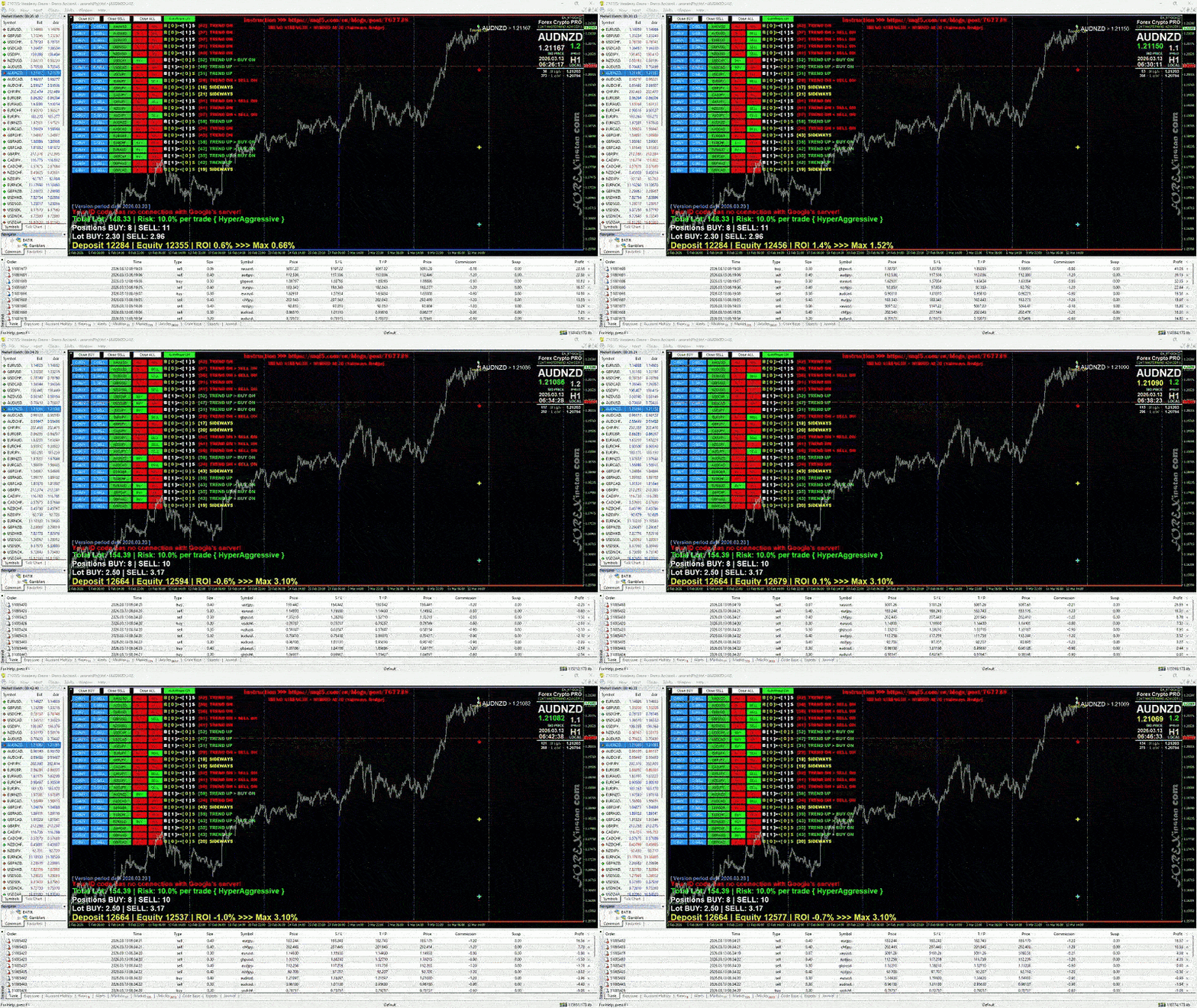
- Rows per Pair: C-BUY/C-SELL (close type), Pair name (toggle active), BUY/SELL signals (color-coded), Info (open counts).
- Footer: Total lots, positions, deposit/equity/ROI/Max ROI.
Click buttons for manual actions. Signals turn green when active.
Risk Management and Lot Sizing
Lot sizes are dynamic, calculated automatically based on deposit, stop loss distance, and "Risk Per Trade %" input. This ensures balanced exposure:
- Equity-based scaling reduces lots if drawdown exceeds thresholds.
- Special 50% lot reduction for XAUUSD/XAGUSD.
- Total risk capped at ~25% per new trade.
Monitor footer for ROI; adjust risk % based on style (lower for conservative).
Trading Strategies and Styles
Choose from four styles to match your trading character:
- Hyper Aggressive: High-frequency entries, minimal filters – for risk-tolerant traders.
- Aggressive: Fast signals with basic filters – suits active markets.
- Moderate: Balanced with trend strength filter – default for most users.
- Conservative: Strict filters (trend + pullback) – for steady, low-risk growth.
Combine with UseTrendFilter for trend-following (safer) or reversal (higher reward/risk).
Troubleshooting
- EA Not Trading: Check activation, internet, hedging allowance, and signals.
- Panel Not Showing: Ensure chart is active; restart MT4.
- Errors: Review MT4 journal for logs (e.g., spread too high, invalid symbols).
- Symbol Issues: Verify pairs in Market Watch; adjust SymbolsList if suffixes differ (e.g., EURUSDm).
If issues persist, contact developer via MQL5.
[Free Product Tester] https://www.mql5.com/en/blogs/post/768995
Disclaimer: Trading involves risk. Past performance is not indicative of future results. Use on demo accounts first.


