

EA Games Changer – MultiPair Averaging + Hedge System User Guide
1. Introduction
Welcome to the AI Games Changer – MultiPair Averaging + Hedge System (Smart Directional Extended), a cutting-edge Expert Advisor (EA) designed for MT4 platforms. This system combines multi-pair averaging strategies with optional hedging, powered by advanced AI technology integrated with Google Development servers for real-time, persistent market analysis and optimal executions.
The EA transforms trading into a strategic, high-probability endeavor by monitoring up to 20+ currency pairs simultaneously, reducing single-pair risks through diversification. It operates on the "Games Changer Philosophy": embracing trading's gambling-like nature with intelligent multi-pair balance for exponential growth. This approach leverages complementary price patterns across pairs to create a stable ecosystem where losses in one area are offset by gains in others, enhancing overall profitability and risk control.
Key Highlights:
- Dual functionality: Automated AutoRobot trading and interactive manual panel, allowing users to switch seamlessly between hands-free operation and precise manual interventions.
- AI-driven signals via cloud connection (requires script.google.com), ensuring decisions are based on global market data processed in real-time for superior accuracy.
- No backtesting possible due to multi-pair simultaneity and server dependency, emphasizing forward-testing on demo accounts to validate performance in live conditions.
- Target: 100% returns in 1 week to 1 month with hit-and-run strategies on cent accounts, ideal for scaling small capitals into significant gains through disciplined activation.
This guide provides step-by-step instructions to set up, configure, and use the EA effectively. For best results, start with a cent account ($100 real capital for $10,000 virtual) and join our pre-trading briefing. Every new client must obtain a unique, personal Code ID (request via message) to activate the EA for demo and real accounts (default: demo only). This Code ID ensures secure, personalized access and prevents unauthorized use.
Disclaimer: Trading involves risks. Past performance is not indicative of future results. Use at your own discretion. Always verify settings and test thoroughly before live trading.
2. System Requirements
To ensure optimal performance and seamless integration of the AI Games Changer EA, meet the following specifications. These requirements are designed to support the EA's multi-pair processing, cloud connectivity, and real-time execution without interruptions.
- Platform: MetaTrader 4 (MT4) build 1380 or higher. Older versions may lack necessary features for DLL imports and web requests, leading to connectivity issues.
- Account Type: Cent account recommended for low-risk starts ($100 real = $10,000 virtual), allowing micro-lot trading to test strategies with minimal capital exposure. Standard/ECN accounts supported for higher volumes, but ensure low slippage and commissions.
- Broker: Any MT4-compatible broker with low spreads (under 1 pip for majors) and reliable execution. Avoid brokers restricting hedging if enabled, as this could trigger order rejections. Test broker compatibility on demo first to avoid live surprises.
- Internet Connection: Stable, always-on connection required for AI integration with script.google.com. Minimum speed: 10 Mbps download/upload; use wired or high-quality Wi-Fi to prevent disconnections during market volatility.
- Hardware: Windows/macOS/Linux PC with at least 4GB RAM and dual-core processor; or VPS (free "Core 4" VPS offered for one-year renters) for 24/7 operation, ensuring the EA runs continuously without local power interruptions.
- Additional: Active MQL5.com purchase or trial; Google account for server linkage. Every new client must request a personal Code ID via message to activate demo/real usage (default: demo only), which integrates with your MT4 setup for secure operation.
Note: The EA cannot function without a constant connection to Google servers—standalone use is impossible. If using a VPS, ensure it supports MT4 and has firewall rules allowing outbound connections to api.telegram.org and script.google.com.
3. Installation Instructions
Installing the AI Games Changer EA is straightforward but requires careful configuration to enable all features, including trading execution and cloud connectivity. Follow these steps meticulously to avoid common pitfalls like permission errors or incomplete setups.
- Download the EA: Purchase or download the trial from MQL5.com (seller: BATIK). Extract the .ex4 file to your MT4 Experts folder (e.g., C:\Program Files\MetaTrader 4\MQL4\Experts). Verify the file integrity by checking its size and date against the provided details.
- Attach to Chart: Open MT4 and launch a chart (any symbol/timeframe, e.g., EURUSD M1). Navigate to Navigator > Expert Advisors > Right-click "AI Games Changer" > Attach to Chart. In the EA properties window, configure inputs (see Section 5) and enable "Allow live trading" and "Allow DLL imports".
- Verify Installation: The EA panel should appear on the chart: Header buttons (Close BUY/SELL/ALL, AutoRobot ON/OFF), pair rows, and footer summary. Check the Experts tab in MT4 Terminal for initialization messages (e.g., "MT4-GC-1 initialized | Managing X symbols"). If no panel shows, restart MT4 and confirm DLL settings.
- Initial Setup: Ensure SymbolsList includes your desired pairs (up to 21). Test on a demo account first to familiarize yourself. Every new client must request a personal Code ID via message to activate the EA for demo and real accounts (default: demo only). This ID is entered in the EA inputs or via support for full functionality.
- Enable Trading Execution: Go to Tools > Options > Trade > Check "One Click Trading". This allows fast order executions without confirmation dialogs, essential for the EA's averaging strategy during volatile markets.
- Enable Telegram Bot and Web Requests: Go to Tools > Options > Expert Advisors > Check "Allow algorithmic trading" and "Allow WebRequest for listed URL". Add: https://api.telegram.org (for notifications) and https://script.google.com (for AI Google server development integration). This setup enables real-time market analysis and activations from global capital markets, ensuring the EA's AI core processes data persistently.
If issues arise, restart MT4 or check the Journal tab for errors. For personalized assistance, provide your Code ID when contacting support.
4. Connecting to Google Servers
The AI core relies on a mandatory connection to Google Development servers via script.google.com for persistent, real-time analysis. This integration powers the EA's signal generation and market optimizations, but requires secure setup to avoid disruptions.
- Setup Google Script: Visit script.google.com and sign in with your Google account. Create a new project and paste the provided script code (available in your MQL5 purchase downloads or contact support). Deploy as a web app: Set "Execute as: Me" and "Who has access: Anyone". Copy the deployment URL. Ensure the script includes your personal Code ID for authenticated access.
- Integrate with EA: In MT4, go to Tools > Options > Expert Advisors > Enable "Allow WebRequest for listed URL". Add the deployment URL. Restart the EA—check Experts tab for connection confirmation (e.g., "AI connected to Google servers"). This link activates global capital market analysis, allowing the EA to process data from multiple sources for informed decisions.
- Troubleshoot Connection: If disconnected, the panel may show warnings. Ensure stable internet and valid deployment. Re-deploy if needed; contact support for script assistance, quoting your Code ID. Note: Without this, signals won't generate, limiting to manual mode only.
Specific Tip: For enhanced security, use a dedicated Google account for this script to isolate from personal data. Test connection on demo before live to confirm real-time updates.
5. Input Parameters Configuration
Customize the EA via the inputs dialog when attaching to a chart. Defaults are optimized for balanced risk, but adjustments allow tailoring to your strategy, risk tolerance, and market conditions. Always back up settings before changes.
Symbols Configuration
- SymbolsList: Comma-separated symbols (default: XAUUSD,AUDUSD,EURUSD,GBPUSD,NZDUSD,USDCHF,USDCAD,USDJPY,...). Select pairs based on correlation (e.g., majors for stability, exotics for volatility). Limit to 10-15 for beginners to manage exposure; expand as you gain experience.
General Settings
- StepDistancePips: Distance in pips between averaging orders (default: 20.0). Increase to 30-50 for volatile pairs like XAUUSD to avoid over-trading; decrease for tight ranges but monitor drawdowns.
- TakeProfitPips: Take profit distance in pips (default: 50.0; 0 = disabled). Set based on pair volatility—e.g., 30 for forex majors, 100 for gold—to capture quick wins while allowing room for trends.
- StopLossPips: Stop loss distance in pips (default: 500.0; 0 = disabled). Use as a safety net; pair with dynamic scaling for protection without premature closures in ranging markets.
- TargetSymbol: "ALL" = manage all symbols, or specify one (e.g., "EURUSD"). Ideal for focusing on high-confidence pairs during testing.
- UseHedging: Enable hedging (default: false). If true, allows opposite positions for drawdown management; if false, closes opposites first—check broker rules to avoid rejections.
- MaxSpreadMultiplier: Max spread ≤ X * avg spread (default: 3.0). Prevents entries during news spikes; adjust to 2.0 for conservative setups.
- MinWaitSeconds: Min wait (seconds) since opposite signal (default: 10). Delays for better conditions, reducing whipsaw risks.
- RequireProfitPositive: Must have Profit > 0 to close opposite (default: true). Ensures hedges are profitable before reversal.
- UseTrendFilter: True = Trend-following (default); false = Reversal. Trend mode aligns with market direction for safety; reversal for counter-trend opportunities.
- MaxLotDifference: Max difference between buy & sell lots (default: 10.0). Maintains balance to avoid directional bias in hedging.
- MaxOpenPerPair: Max simultaneous opens per symbol (default: 5). Caps exposure; increase cautiously with larger accounts.
- Thresholds: Profit % for restart (default: 10.0). Triggers gain-locking; set lower for frequent compounding.
Filter Settings
- ForceOptimalEntryFilter: Enable optimal filter (default: true). Combines RSI/BB for quality entries, reducing false signals in choppy markets.
- RSI_Period: RSI period (M1) (default: 14). Shorter for scalping, longer for trends.
- RSI_Oversold: Oversold for BUY (default: 30.0). Adjust to 20 for aggressive entries.
- RSI_Overbought: Overbought for SELL (default: 70.0). Adjust to 80 for stronger filters.
- BB_Period: BB period (M1) (default: 20). Measures volatility; pair with deviation for band sensitivity.
- BB_Deviation: BB deviation (default: 2.0). Higher for wider bands in volatile pairs.
- BB_Touch_Tolerance_Pips: Touch tolerance (default: 5.0). Allows entries near bands without exact touch.
Risk Management
- RiskPerTradePercent: Risk % per trade (default: 5.0; 0 = fixed). Calculates lots based on SL and equity for consistent exposure.
- FixedLotSize: Fixed lot if dynamic off (default: 0.10). Use for testing fixed strategies.
- UseDynamicLotScaling: Enable scaling (default: true). Reduces lots during drawdowns (e.g., 70% at <90% equity) for capital preservation.
- TrendDetectionMode: SLOPE (default) or CROSS. SLOPE uses MA slopes for direction; CROSS for crossovers in volatile conditions.
Save changes and reload the EA. Use your Code ID to unlock advanced parameters if restricted.
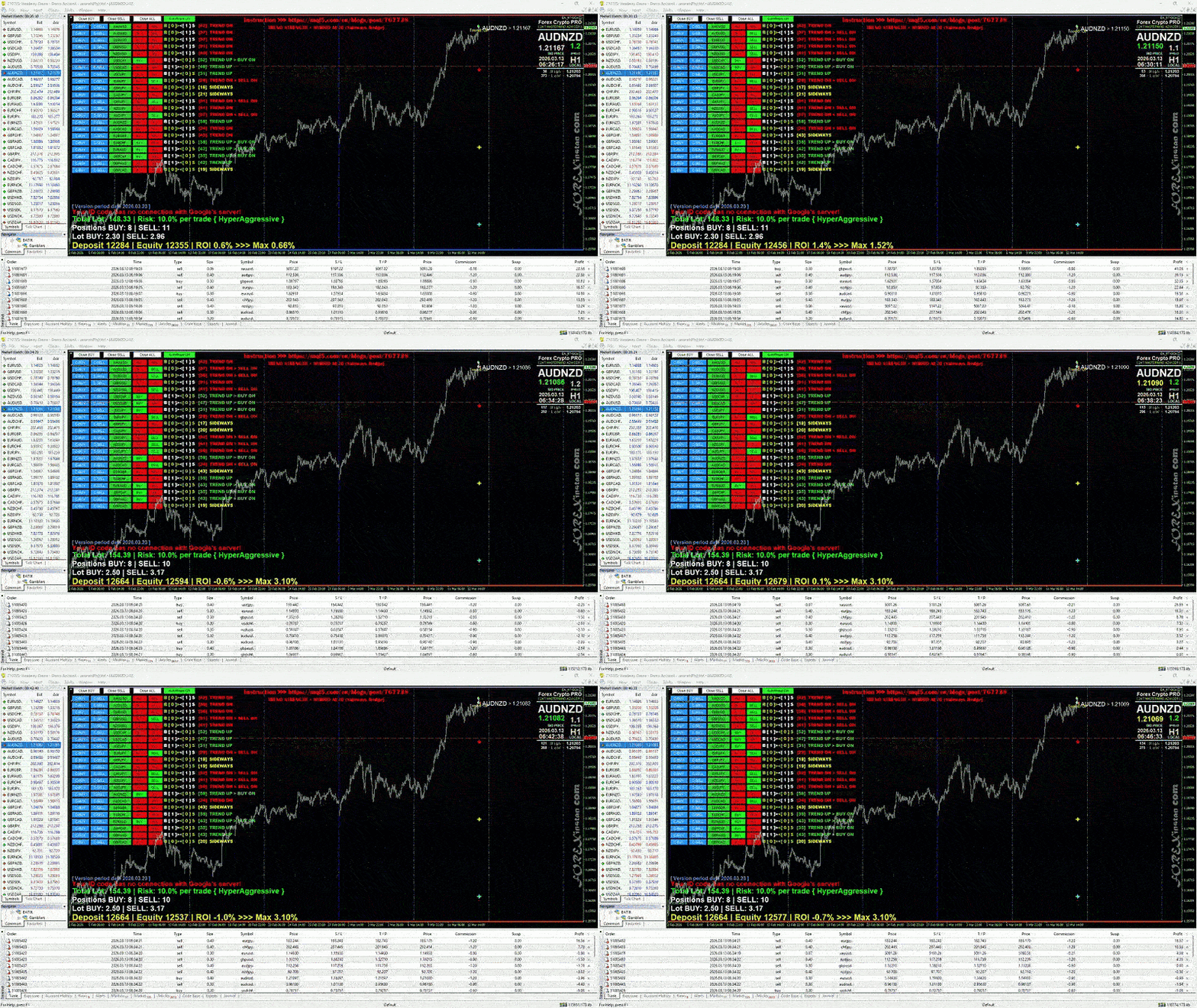
6. User Interface Overview
The EA features an interactive MT5-style panel for intuitive control and monitoring. This visual interface provides real-time feedback, making it easy to manage multi-pair trades without constant chart switching.
- Header: Global buttons like Close BUY/SELL/ALL for quick position management, and AutoRobot ON/OFF toggle (green when active, red when off). Use for emergency closures or mode switches during high volatility.
- Pair Rows: Per-symbol: C-BUY/C-SELL (close specific directions), PAIR (toggle active/inactive, green for active), BUY/SELL (signal buttons, lime when active for entry cues), INFO (shows open BUY/SELL counts like "B [3] >< [2] S"). Click to interact; colors indicate status for at-a-glance decisions.
- Footer: Summaries including total lots/risk/status (e.g., "Total Lot: 2.50 | Risk: 5.0% | Status OK"), positions/lots by type, deposit/equity/ROI/Max ROI. Monitor ROI closely to anticipate restarts.
Specific Tip: The panel updates every second; use it alongside MT4's Trade tab for detailed order history. If panel doesn't appear, check chart properties (right-click > Properties > Common > Allow DLL imports).
7. Using the AutoRobot Mode
AutoRobot mode automates trading based on AI signals from Google servers, ideal for hands-free operation while maintaining oversight through the panel.
- Activate: Click "AutoRobot ON" (turns green). The EA begins monitoring pairs, generating signals, and executing averaging orders when conditions (distance, filters, risk) are met.
- Operation: AI analyzes global data in real-time, opening positions with dynamic lots. Monitors for TP/SL and profit thresholds; hedges if enabled. Expect 1-5 orders per pair daily in active markets.
- Deactivate: Click to OFF (red) to switch to manual-only mode, useful during news events or for custom adjustments.
- Best Practices: Run on VPS for 24/7 uptime; monitor footer ROI daily; use cent accounts for hit-and-run (activate daily, close at targets). Integrate your Code ID for real account activation beyond demo defaults.
Specific Tip: In volatile sessions (e.g., London open), observe signal frequency; adjust MaxOpenPerPair if over-trading occurs.
8. Manual Trading with the Panel
The panel supports manual interventions, overriding AI for precise control in specific scenarios like news trading or signal confirmation.
- Toggle Pairs: Click PAIR button to activate/deactivate (green/active, maroon/inactive). Deactivate low-confidence pairs to focus resources.
- Manual Signals: Click BUY/SELL to force signals (lights green), triggering orders if conditions met. Use for counter-AI entries based on personal analysis.
- Closures: C-BUY/C-SELL for per-pair directions; header Close ALL for global reset. Buttons flash yellow on action for visual feedback.
- Executions: Active signals open orders manually even if AutoRobot off, with lots calculated per risk settings.
Specific Tip: Combine with external tools like Telegram bots (enabled in MT4 options) for notifications on manual actions, enhancing responsiveness.
9. Risk Management and Safety Features
The EA includes robust risk controls to protect capital while optimizing for growth, drawing from multi-pair diversification and AI filters.
- Dynamic Lots: Based on risk % and SL distance; scales down during drawdowns (e.g., 70% at <90% equity) to preserve balance.
- Caps: MaxOpenPerPair limits per-symbol exposure; MaxLotDifference ensures BUY/SELL balance, preventing directional skew.
- Filters: Spread checks (≤ MaxSpreadMultiplier * avg), min wait/profit positive for hedges, reducing slippage and unprofitable reversals.
- Warnings: Red zones on chart for lot imbalances; voice alerts hourly to prompt reviews.
Specific Tip: For aggressive strategies, lower RiskPerTradePercent to 2-3%; monitor via footer status ("LIMIT" if exceeded) and adjust thresholds accordingly.
10. Monitoring and Visual Aids
Real-time monitoring tools provide insights at a glance, aiding decision-making without deep dives into logs.
- Panel Updates: Every second: Signal colors (lime/red), open counts, footer metrics (lots, ROI).
- Chart Visuals: Trend Signal lines (orange dash for H1 Signal), labels (UP/DOWN/FLAT), order lines (lime/red dots), warning zones (red rectangle for lot differences).
- Alerts: Hourly voice; button flashes on actions; Telegram integration (via enabled URLs) for mobile notifications.
Specific Tip: Customize chart colors in MT4 properties to match visuals; use alongside external AI tools (e.g., Gemini) for fundamental confirmations.
11. Profit Restart Logic
This feature locks in gains by automating closures and resets, compounding profits systematically.
When equity ROI exceeds threshold (default: 2.0% from deposit), the EA closes all positions, updates deposit to current balance, delays 10 seconds, and restarts with fresh variables. SL threshold increases +2% each cycle for progressive protection.
Specific Tip: Monitor MaxROI in footer; set lower thresholds for frequent small wins in ranging markets, higher for trending ones. Use Code ID to access advanced restart customizations.
12. Troubleshooting
Common issues and resolutions to keep the EA running smoothly.
- No Panel: Check DLL imports; restart MT4; ensure Code ID activation for full UI access.
- No Signals: Verify Google/Telegram URLs in options; test connection; request Code ID if demo-locked.
- Errors: Experts tab – e.g., "Price invalid" (select symbols in Market Watch); "Connection failed" (check internet/firewall).
- Hedging Rejections: Disable UseHedging or switch brokers.
Specific Tip: Log errors with timestamps and Code ID when contacting support for faster resolution.
13. Frequently Asked Questions (FAQs)
- Why no backtest? Due to multi-pair simultaneity and real-time Google server dependency; use forward demo testing instead.
- How to get Code ID? Request via message to support; required for real account activation (demo default).
- Telegram not working? Ensure api.telegram.org added in WebRequests; check chatID setup.
- Can I use on multiple accounts? Yes, but each needs a unique Code ID for personalization.
Specific Tip: For advanced queries, join our briefing sessions via livestream links.
14. Support and Resources
We provide comprehensive support to ensure your success with the AI Games Changer EA.
- Livestreams: youtube.com/forexTV/live; for 24/7 demos and tips.
- MQL5 Seller: mql5.com/en/users/BATIK/seller for updates and purchases.
- Contact: mql5.com/en/users/BATIK include your Code ID for priority assistance.
- Extras: Free premium "Core 4" VPS for 5 accounts + EA for one-year renters (T&Cs apply); leverage AI insights from GPT-5, Copilot AI, DeepSeek AI, Meta AI, Claude AI, Manus AI, and Google AI Gemini for psychology and fundamentals.
Specific Tip: Join our client community for shared strategies; request briefing with Code ID for tailored guidance.
Thank you for choosing AI Games Changer Series. Trade smart, win big!
[Free Product Tester]: https://www.mql5.com/en/blogs/post/768995


