
Gold (XAUUSD) is one of the most actively traded instruments in the world — and for CMP zone traders, it offers some of the cleanest breakout and retest setups available. The strong trending moves, clear zone formations, and respect for technical levels make it an ideal instrument for automated CMP trading.
This guide walks you through everything you need to know to get The CMP Trader running on your Gold chart in MetaTrader 5 — from installation to recommended settings — so you can be live and trading within minutes of reading this.
Why Gold Works So Well for CMP Zone Trading
Gold tends to consolidate tightly before making large directional moves. These consolidation periods form excellent CMP zones — well-defined, clearly bounded price ranges that the market respects when it eventually breaks out. When Gold breaks out of a CMP zone with momentum, the subsequent retest of that zone is often precise and reliable, giving the EA a clean entry point with a clearly defined stop loss level.
The main difference between trading Gold and standard Forex pairs is the scale of movement. Gold can move 100 to 300 pips in a single session where EURUSD might move 50 to 80 pips. This means the settings you use for Gold need to account for this wider range — particularly your stop loss, take profit, and minimum zone size.
Understanding ATR Stop Loss on Gold
One of the most important settings for Gold is Use_ATR_SLTP set to TRUE. Here is why this matters so much on XAUUSD specifically.
On a quiet Monday morning, Gold might move 20 to 30 pips per candle. During a major economic release like NFP or a Fed rate decision, that same candle might span 200 to 400 pips. A fixed 50-pip stop loss that works perfectly during quiet sessions will be violated instantly during a volatile session — not because your trade was wrong, but simply because the market moved further than your fixed stop allowed.
ATR-based stop loss solves this by measuring the actual volatility of the market in real time and placing the stop at a distance proportional to that volatility. When Gold is quiet, the ATR stop is tighter. When Gold is volatile, the ATR stop gives more room. Your stop is always calibrated to what the market is actually doing.
Step 1 — Install the EA in MetaTrader 5
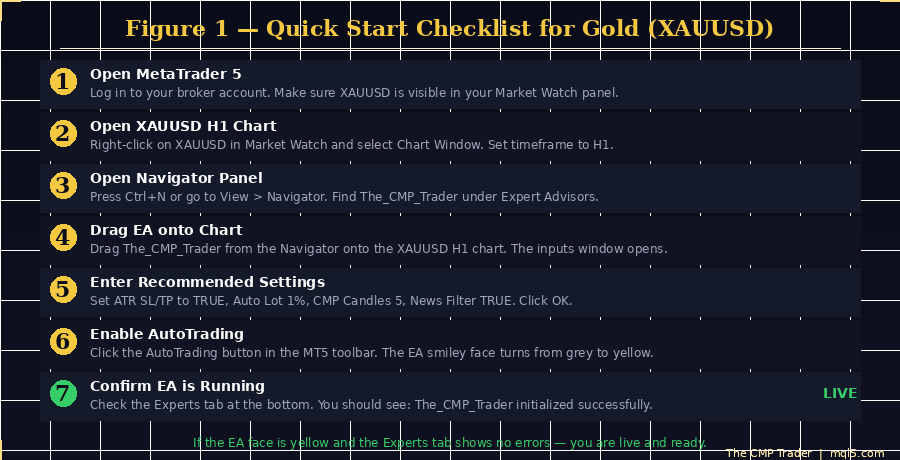
If you have purchased or downloaded the demo version of The CMP Trader from the MQL5 Market, the installation process is straightforward.
Open MetaTrader 5 and go to Tools > Options > Expert Advisors. Make sure the following options are enabled: Allow automated trading, Allow DLL imports. Once those settings are confirmed, the EA will be available in your Navigator panel and ready to attach to any chart.
Step 2 — Open Your XAUUSD H1 Chart
In your Market Watch panel on the left side of MT5, locate XAUUSD. If it is not visible, right-click in the Market Watch and select Show All to display all available instruments.
Right-click on XAUUSD and select Chart Window. Once the chart opens, set the timeframe to H1 by clicking the H1 button in the toolbar. The H1 timeframe is the recommended starting point for Gold — it produces well-formed CMP zones without the excessive noise of lower timeframes.
Step 3 — Attach the EA and Enter Settings
Press Ctrl+N to open the Navigator panel. Expand the Expert Advisors section, locate The_CMP_Trader, and drag it directly onto your XAUUSD H1 chart. The EA inputs window opens automatically.
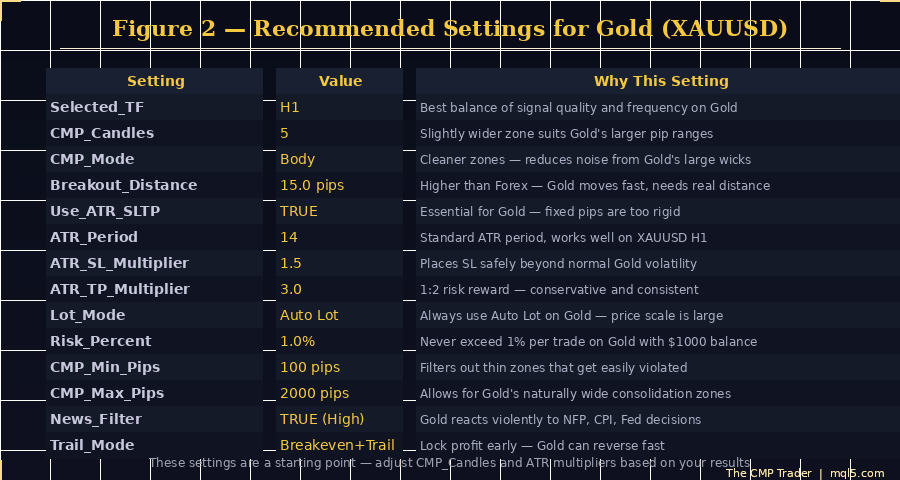
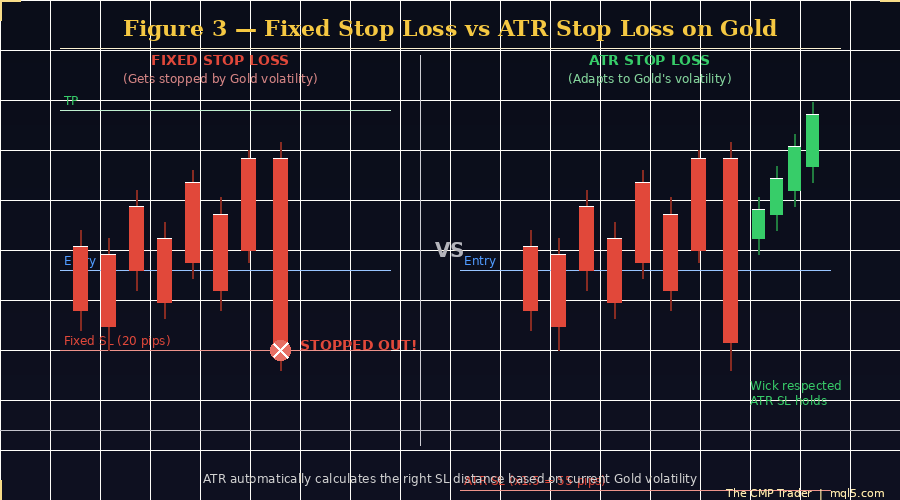
This is the most important step. The default settings are a starting point, but Gold requires specific adjustments. Use the recommended settings table below as your guide.
Understanding ATR Stop Loss on Gold
One of the most important settings for Gold is Use_ATR_SLTP set to TRUE. Here is why this matters so much on XAUUSD specifically.
On a quiet Monday morning, Gold might move 20 to 30 pips per candle. During a major economic release like NFP or a Fed rate decision, that same candle might span 200 to 400 pips. A fixed 50-pip stop loss that works perfectly during quiet sessions will be violated instantly during a volatile session — not because your trade was wrong, but simply because the market moved further than your fixed stop allowed.
ATR-based stop loss solves this by measuring the actual volatility of the market in real time and placing the stop at a distance proportional to that volatility. When Gold is quiet, the ATR stop is tighter. When Gold is volatile, the ATR stop gives more room. Your stop is always calibrated to what the market is actually doing.
Understanding Auto Lot Sizing on Gold
The Lot_Mode setting should always be set to Auto Lot when trading Gold. Here is why.
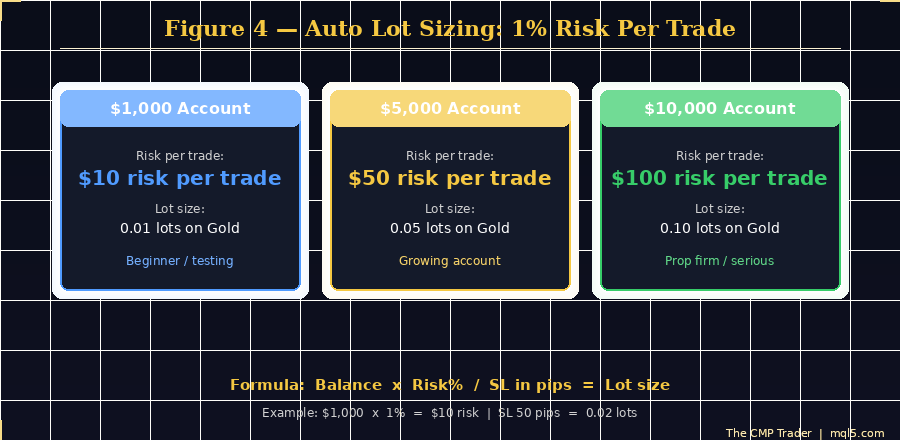
XAUUSD has a much larger pip value than standard Forex pairs. Getting the lot size wrong on Gold by even a small amount can result in losses much larger than intended. Auto lot eliminates this risk entirely by calculating the correct position size automatically based on your account balance, risk percentage, and the stop loss distance for each specific trade.
The formula is: account balance multiplied by risk percentage divided by stop loss in pips equals your lot size. Using 1% risk on a $1,000 account means every trade risks exactly $10 regardless of market conditions. Your position size scales automatically as your account grows — no manual adjustment ever needed.
Gold Tip:
Never exceed 1% risk per trade on XAUUSD, especially on accounts under $5,000. Gold's volatility can chain multiple losses together quickly if risk is set too high. Start at 1% and only increase after you have seen consistent results over at least 3 months of live trading.
Step 4 — Enable AutoTrading and Confirm the EA is Running
With the EA attached and settings confirmed, click the AutoTrading button in the MT5 toolbar. The smiley face icon on your chart will change from grey to yellow — this means the EA is active and monitoring your chart.
Click the Experts tab at the bottom of MT5. You should see a log entry confirming the EA has initialised successfully. Every action the EA takes from this point — zone detection, breakout monitoring, retest entry, trade management — is logged here in real time.
Common Issue:
If the smiley face stays grey, check that AutoTrading is enabled in the toolbar AND that Allow automated trading is ticked in Tools > Options > Expert Advisors. Both must be active.
What to Expect in the First Few Days
Once the EA is running, the first thing most new users notice is that it does not trade immediately. This is completely normal and expected.
The EA needs to observe candles closing on H1 to build a valid CMP zone. Depending on when you start the EA, it may take several hours to identify the first qualifying zone. Once a zone is identified, it then waits for a confirmed breakout and a retest before entering. This entire process can take anywhere from a few hours to a few days depending on market conditions.
During this time, check your Experts tab regularly. Every action the EA takes is logged there. If you want to understand exactly what the EA is doing and why, the log is your answer.
- No trades after 2 days — check that CMP_Max_Pips is high enough for current Gold volatility. Increase to 3000 temporarily if Gold is ranging unusually wide.
- EA face is grey — AutoTrading is disabled. Click the AutoTrading button in the toolbar.
- Error in Experts tab — most commonly caused by Selected_TF not matching the chart timeframe. Both must be H1.
Summary
Setting up The CMP Trader on Gold takes less than five minutes. The key points to remember:
- Use H1 as your timeframe — best balance of quality and frequency on Gold
- Always enable ATR-based SL/TP — essential for Gold's variable volatility
- Use Auto Lot with 1% risk — never manually size lots on XAUUSD
- Set CMP zone filters correctly — minimum 100 pips, maximum 2000 pips for Gold
- Keep News Filter enabled on High impact — Gold reacts hard to major news events
- Check the Experts tab — every action is logged, use it to monitor the EA
The EA will do the rest — monitoring the chart 24 hours a day, 5 days a week, identifying CMP zones, waiting for confirmed breakouts, and entering on retests with full automated trade management.
Get Started with The CMP Trader
The CMP Trader is available now in the MQL5 Market. A free demo version is available to test on your demo account before purchasing. Monthly, 3-Month, and Lifetime plans available.
If you have any questions about setup, settings, or getting the best results on Gold — post in the comments section on the product page. Every question is answered within 24 hours.
Set it up. Let it run. Let The CMP Trader find your Gold setups for you.




