

Introduction to MQL5 (Part 35): Mastering API and WebRequest Function in MQL5 (IX)
 2 070
2 070
 0
0

Introduction
Welcome back to Part 35 of the Introduction to MQL5 series! In the last article we concentrated on developing the MetaTrader 5 chart's interactive control panel as the project's front end. We learned how to create the panel's layout, incorporate buttons and input boxes, and show text within the panel. The panel did not yet communicate with any external services and was only visual at that point. By linking that control panel to the backend logic, we take the project one step further in this section. This article's primary focus is on managing user interaction using chart events, identifying when the send button is clicked, and utilizing the WebRequest function to get user data ready for sending to an external API.
Additionally, we will outline the fundamental framework for obtaining the server response and getting it ready for panel display. As in earlier parts of this series, we won't try to go into great detail about every idea. Rather, we will just concentrate on what is required to complete the assignment. This prevents you from being overloaded with irrelevant information and keeps the learning process applicable. Your control panel won't be static after reading this article. It will interact with an external API server and actively react to user input.
Detecting Button Clicks Using Chart Events
We'll concentrate on how MetaTrader 5 recognizes and responds to user input within a control panel in this section. MetaTrader 5 does not consider a user's click on a button, such as the send button in our panel, to be a straightforward object click. Rather, it creates a chart event. When a mouse click, key press, or interaction with a control element occurs on the chart, the platform sends messages known as chart events to your program. The most important thing to realize in this situation is that buttons and other controllers do not carry out logic independently. They just indicate the occurrence of an activity. The task of listening for these signals and determining what to do next falls to your program. This is accomplished using the chart event handling system, which enables your code to respond when the user presses the Send button.
MetaTrader 5 provides an event with details on what was interacted with when the button is pressed. The type of event and the control's identification that caused it are included in this data. Your program can ascertain if the Send button was pressed or whether the event originated from another location on the chart by examining this data. The program can read the user's input and get it ready for the API call after verifying that the send button caused the event. This distinct division of responsibilities is crucial. The chart event reports the user's action, which is represented by the button, and your code determines what should happen next. Linking the control panel to the backend logic that will interact with the AI in the following section of the series requires an understanding of this flow.
Example://+------------------------------------------------------------------+ //| ChartEvent function | //+------------------------------------------------------------------+ void OnChartEvent(const int32_t id, const long &lparam, const double &dparam, const string &sparam) { //--- if(id == CHARTEVENT_OBJECT_CLICK) { if(sparam == send_button_name) { Comment("BUTTON WORKING PERFECTLY"); } } }
Output:
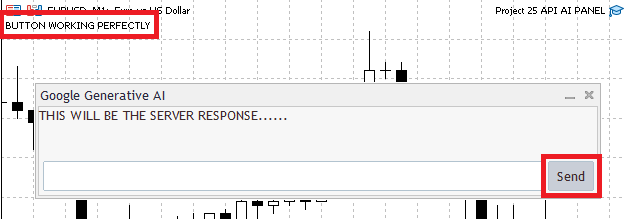
Explanation:
MetaTrader 5 automatically calls the OnChartEvent method, a unique event handler, anytime something occurs on the chart. It only operates when an interaction or event has taken place, unlike OnTick, which runs constantly. Mouse clicks, key presses, object interactions, and control panel operations are a few instances of such occurrences. Listening for those occurrences and responding to them is the function's goal. The type of chart event that just occurred is indicated by the first parameter, id. When an object is clicked, a key is tapped, or the chart is resized, MetaTrader 5 describes these actions using predefined constants. Here, the code determines whether the event type matches a click on an object. This indicates that the program ignores all other chart events and is only interested in those where the user clicked.
The subsequent check concentrates on determining which object caused the event after it has been verified that an object was clicked. Next, the sparam parameter is useful in this situation. The name of the object that was interacted with is contained in the sparam value. The program may ascertain if the click originated solely from the send button or from another object on the chart by comparing this to the send button's name. The code in this block is run if both requirements are met, which means that an item was clicked and that object is the send button. In this instance, the chart displays a message confirming that the button click was successfully recognized. The button's proper wiring to the chart event system is demonstrated by this straightforward test.
Here, the idea of separation of responsibilities is crucial. When clicked, the button itself accomplishes nothing. Rather, it communicates with the chart. Your code then determines what to do depending on the event information after the chart initiates the chart event handler. When you later connect the Send button to logic that reads user input and submits a request to the API, you will need complete control over how your program reacts to user interactions.
Analogy:
Imagine the chart to be an active workspace and the OnChartEvent function to be a security guard watching over the space. The guard does nothing most of the time, but when anything happens, such as a button being hit, they immediately notice it and take action. The event identifier functions similarly to informing the receptionist of the type of action that recently took place. Was a button being pressed, someone knocking, or a phone ringing? The receptionist in this instance is just concerned with one particular action, and that is someone touching a button on the desk. The room's other activities are disregarded.
The receptionist determines which button was pressed after noticing that one had been pressed. This is comparable to seeing the name on a button by looking at its label. The receptionist will know exactly what the visitor wants if the label corresponds to the Send button. The receptionist does nothing if the button or object is different. The receptionist completes the necessary task after verifying that the Send button was pressed. Later on, this same step will be expanded to read the user's message and transmit it to the server. In the example, this task only announces that the button is operational, which is similar to the receptionist saying, "Your request has been received."
This comparison draws attention to a crucial concept. The action is not carried out by the button itself. All it does is indicate that it was pressed. As the chart event handler, the receptionist's desk is where the actual decision-making takes place. For this reason, MetaTrader 5 handles button clicks through chart events instead of the button itself.
Sending API Requests in Response to User Actions
When the user inputs a prompt into the control panel and clicks the send button. That click serves as a signal for the software to proceed and interact with the API. To ensure that the software operates consistently and effectively, we purposefully wait for this user input rather than sending queries automatically or on each tick. This link between logic and human input is managed by chart events in MetaTrader 5. The program initiates and records a chart event when the transmit button is pressed. The program can determine which control was clicked and take appropriate action within this event handler. The WebRequest logic can be carried out once the send button has been verified as the event's origin. This guarantees that only when the user specifically wants them are API requests sent.
This strategy is crucial for a number of reasons. To avoid exceeding API rate constraints, it first stops pointless queries from being made to the server. Secondly, it allows the user complete control over the sending and receiving of data. Lastly, by keeping background logic and user interaction apart, it maintains a well-structured code. While the backend logic manages communication with the API, the interface manages input and clicks. You may establish a clear and responsive workflow by directly connecting WebRequest to user actions. The control panel transforms from a visual component into an interactive gateway that gives the user control over how and when the program interacts with outside services.
Example:#include <Controls\Dialog.mqh> #include <Controls\Edit.mqh> #include <Controls\Button.mqh> #include <Controls\Label.mqh> CAppDialog panel; CEdit input_box; CButton send_button; string send_button_name = "SEND BUTTON"; CLabel response_display; string response_text_name = "AI REPONSE"; int panel_x = 32; int panel_y = 82; int panel_w = 600; int panel_h = 200; ulong chart_ID = ChartID(); string panel_name = "Google Generative AI"; string input_box_name = "INPUT BOX"; //+------------------------------------------------------------------+ //| Expert initialization function | //+------------------------------------------------------------------+ int OnInit() { panel.Create(chart_ID,panel_name,0,panel_x,panel_y,panel_w,panel_h); input_box.Create(chart_ID,input_box_name,0,5,55,0,0); input_box.Width(500); input_box.Height(30); panel.Add(input_box); send_button.Create(chart_ID,send_button_name,0,510,55,556,85); send_button.Text("Send"); panel.Add(send_button); response_display.Create(0, "PanelText", 0, 0, 0, 0, 0); response_display.Text("THIS WILL BE THE SERVER RESPONSE......"); panel.Add(response_display); panel.Run(); //--- return(INIT_SUCCEEDED); } //+------------------------------------------------------------------+ //| Expert deinitialization function | //+------------------------------------------------------------------+ void OnDeinit(const int reason) { panel.Destroy(reason); } //+------------------------------------------------------------------+ //| Expert tick function | //+------------------------------------------------------------------+ void OnTick() { //--- } //+------------------------------------------------------------------+ //| ChartEvent function | //+------------------------------------------------------------------+ void OnChartEvent(const int32_t id, const long &lparam, const double &dparam, const string &sparam) { //--- if(id == CHARTEVENT_OBJECT_CLICK) { if(sparam == send_button_name) { //Comment("BUTTON WORKING PERFECTLY"); string API_KEY = "AbcdefKJXiFPdvvM6f4ivPZ-zA2Qnoq612345"; string url = "https://generativelanguage.googleapis.com/v1beta/models/" "gemini-2.5-flash-lite:generateContent?key=" + API_KEY; string headers = "Content-Type: application/json\r\n"; string body = "{" "\"contents\": [" "{" "\"parts\": [" "{" "\"text\": \"" + input_box.Text() + "\"" "}" "]" "}" "]" "}"; char data[]; int copied = StringToCharArray(body, data, 0, WHOLE_ARRAY, CP_UTF8); if(copied > 0) ArrayResize(data, copied - 1); char result[]; string result_headers; int timeout = 15000; int response = WebRequest("POST",url,headers,timeout,data,result,result_headers); if(response == -1) { Print("WebRequest failed. Error: ", GetLastError()); return; } string response_text = CharArrayToString(result); Print(response_text); } } }
Output:
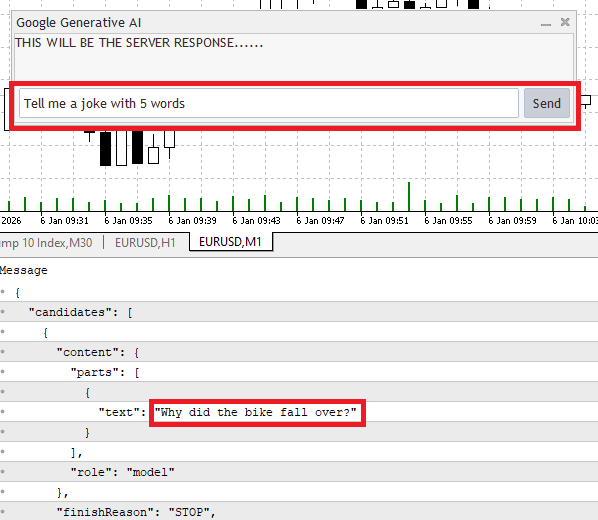
Explanation:
To understand what occurs from the moment the user hits the button until the server responds, let's walk through this code step by step. It all starts within the chart event handler. MetaTrader 5 initiates this feature immediately anytime a mouse click, key press, or control panel element is used on the chart. MetaTrader gives four parameters when this function is called. The event identifier, which indicates the kind of action that took place, and the text argument, which provides the name of the object involved, are the most crucial of them in this instance.
The first criterion determines if the event identifier corresponds to the object click value. This ensures that the internal logic only runs when a chart object is clicked by the user. The code might react to other events, like mouse movements or chart changes, if this check were absent, which could result in unexpected behavior. The subsequent check checks the object name from the event to the send button name after a click event has been verified. Because multiple things may appear on the chart simultaneously, this step is essential. The computer verifies that the click originated from the transmit button and not from any other control or object by looking up the object name. The program doesn't proceed unless this condition is met.
The code sets up everything required to interact with the Google Generative AI API after verifying that the send button was pressed. The API key is defined first. In addition to identifying your application to Google, this key enables the server to measure usage, apply limitations, and authenticate requests. The request would be denied without this key. The request URL is then created. The URL specifies the activity to be performed, the server, the selected AI model, and the API version. The server can identify the requester by attaching the API key to the URL. This ensures that the application is fully aware of both the location handling the request and the service it is dealing with.
Next is the request header setup. The content type header alerts the server that the data is being sent in JSON format as required by the API. Without this header, the request may not be correctly parsed by the server. After the headers are defined, the request body is constructed. The actual message that will be transmitted to the AI is contained in this body. Rather than utilizing a hardcoded prompt, the text is extracted straight from the control panel input box. In other words, the AI receives the prompt that the user entered. The user's text is positioned inside the relevant JSON fields, and the body is organized to conform to the format specified by the API.
The body has to be transformed into a character array after it has been produced as a string. This is required because strings are not directly accepted for the request body by MQL5's WebRequest method. UTF-8 encoding is utilized throughout this conversion to guarantee accurate transmission of all characters, including special symbols. To ensure that the JSON is still valid after conversion, the array is expanded to eliminate the extra null character that is automatically inserted.
The WebRequest function in MQL5 only accepts data in that format; thus, when the request body is built as a string, it is transformed into a character array. To ensure that all characters, including special symbols, are conveyed correctly, UTF-8 encoding is used in this phase. The JSON structure is then preserved by resizing the array to eliminate the extra null character that was inserted during conversion. Variables are then configured to record the server's answer. The response data is stored in one, the response headers are stored in another, and a timeout setting is set to regulate how long the program waits for a response before terminating.
After that, the WebRequest function is run. The request is actually submitted to the server at this point. The function accepts the response into the prepared variables after sending the HTTP method, URL, headers, timeout, and request body. A value indicating whether the request was successful is returned by the function. The code validates the return value right after the request. Execution is halted, and an error message and the most recent error code are shown if the value indicates failure. This error-handling phase is crucial because it makes debugging simpler and stops the program from running with incorrect or missing data. The answer data, which was received as a character array, is transformed back into a readable string if the request is successful. The raw response that the AI server returned is represented by this last string. The program has now successfully finished the entire cycle. In response to a button click, it gathered user input, transmitted it to the API, and got a response that could be viewed, further processed, or saved for later use.
Analogy:
Imagine your panel as a tiny desk and your chart as a busy office. A message can be written in the input box, which functions similarly to a notepad, and the send button is a physical button on the desk that says "Send." The AI server functions similarly to a remote workplace where a specialist is on hand to respond to inquiries. The chart event function is similar to a desk receptionist who is always on the lookout for activity. The receptionist notices and reports anything that occurs, such as someone touching a button. However, the receptionist first investigates the specifics of the incident before taking any action. She determines which button was clicked if she observes a "button click" event. She is aware that the message needs to be forwarded if the "Send" button is present.
The program collects all the information required to send the message after the button click is verified. The expert's remote office can be accessed by your office using the API key, which functions similarly to a secret passcode. The URL is the precise address of the expert's remote workplace. To prevent confusion for the expert, the headers function as a kind of note that says, "The message is written in a language you understand." The message is then meticulously copied into an envelope from the notepad's input box, which is similar to turning a string into a character array. To ensure that nothing additional is conveyed, the envelope is then resized so that only the message fits precisely.
The envelope is now given to the WebRequest function, a courier service, along with a deadline known as the timeout. After delivering it to the expert's office, the courier waits for an answer. You receive an error notice indicating that something went wrong if the courier is unable to deliver. If it is successful, the courier returns an envelope containing the expert's response, which is subsequently opened and transformed into a readable format for you to view. To put it briefly, the user writes a message and clicks the send button, which causes the receptionist to check the action, prepare the message with all required information, send it to the expert via courier, and then return the expert's response to show on your desk. This is precisely how MetaTrader 5's event-driven, interactive frontend activities communicate with backend services.
Extracting Useful Data from the API Response
Your WebRequest will often receive a response from the server in a structured format like JSON. This response contains more information, such as metadata or internal details, in addition to the AI's generated response. We solely concentrate on obtaining the actual text that the AI generated in response to human input for the purposes of our project. To extract information, we first create a readable text from the raw byte array that was obtained from the WebRequest. This provides us with the complete server answer in a manipulable manner. The section of the string that includes the AI's text is then located. This is usually marked with a particular key, as "text" in the Google Generative AI response. After determining the key's beginning location using string functions, we extract the substring that contains the AI's actual message.
The extracted text can now be used anywhere in the application, including on the panel, and stored in a variable. We make sure that the remainder of the server answer doesn't affect the display or subsequent processing by isolating only the pertinent data. This stage is essential to maintaining the cleanliness and focus of our application, enabling the user to view only the significant results produced by the AI.
Example:#include <Controls\Dialog.mqh> #include <Controls\Edit.mqh> #include <Controls\Button.mqh> #include <Controls\Label.mqh> CAppDialog panel; CEdit input_box; CButton send_button; string send_button_name = "SEND BUTTON"; CLabel response_display; string response_text_name = "AI REPONSE"; int panel_x = 32; int panel_y = 82; int panel_w = 600; int panel_h = 200; ulong chart_ID = ChartID(); string panel_name = "Google Generative AI"; string input_box_name = "INPUT BOX"; string ai_response; //+------------------------------------------------------------------+ //| Expert initialization function | //+------------------------------------------------------------------+ int OnInit() { panel.Create(chart_ID,panel_name,0,panel_x,panel_y,panel_w,panel_h); input_box.Create(chart_ID,input_box_name,0,5,55,0,0); input_box.Width(500); input_box.Height(30); panel.Add(input_box); send_button.Create(chart_ID,send_button_name,0,510,55,556,85); send_button.Text("Send"); panel.Add(send_button); response_display.Create(0, "PanelText", 0, 0, 0, 0, 0); panel.Add(response_display); panel.Run(); //--- return(INIT_SUCCEEDED); } //+------------------------------------------------------------------+ //| Expert deinitialization function | //+------------------------------------------------------------------+ void OnDeinit(const int reason) { panel.Destroy(reason); } //+------------------------------------------------------------------+ //| Expert tick function | //+------------------------------------------------------------------+ void OnTick() { //--- } //+------------------------------------------------------------------+ //| ChartEvent function | //+------------------------------------------------------------------+ void OnChartEvent(const int32_t id, const long &lparam, const double &dparam, const string &sparam) { //--- if(id == CHARTEVENT_OBJECT_CLICK) { if(sparam == send_button_name) { //Comment("BUTTON WORKING PERFECTLY"); string API_KEY = "AIzaSyCKJXiFPdvvM6f4ivPZ-zA2Qnoq6g62X7M"; string url = "https://generativelanguage.googleapis.com/v1beta/models/" "gemini-2.5-flash-lite:generateContent?key=" + API_KEY; string headers = "Content-Type: application/json\r\n"; string body = "{" "\"contents\": [" "{" "\"parts\": [" "{" "\"text\": \"" + input_box.Text() + "\"" "}" "]" "}" "]" "}"; char data[]; int copied = StringToCharArray(body, data, 0, WHOLE_ARRAY, CP_UTF8); if(copied > 0) ArrayResize(data, copied - 1); char result[]; string result_headers; int timeout = 15000; int response = WebRequest("POST",url,headers,timeout,data,result,result_headers); if(response == -1) { Print("WebRequest failed. Error: ", GetLastError()); return; } string response_text = CharArrayToString(result); // Print(response_text); string pattern = "\"text\": "; int pattern_lenght = StringFind(response_text,pattern); pattern_lenght += StringLen(pattern); int end = StringFind(response_text,"}",pattern_lenght + 1); ai_response = StringSubstr(response_text,pattern_lenght,end - pattern_lenght); response_display.Text(ai_response); } } }
Output:
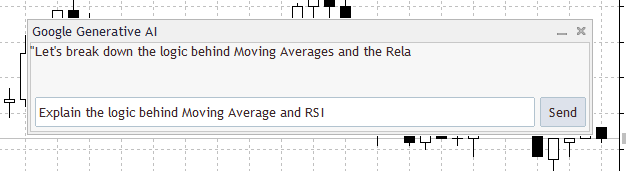
Explanation:
To store the AI's response, we first declare a variable. Only the pertinent text that was taken out of the longer server response and separated from metadata or other data will be stored in this variable, ai_response. The key in the server's response where the text produced by the AI is kept is then represented by a pattern string that we define. The actual response in the Google Generative AI JSON response is labeled "text"; therefore, this pattern instructs the program where to search for the beginning of the pertinent message. Next, we use a string search function to look for this pattern in the entire response message. This yields the text's first location of the pattern. We add the pattern's length to this position to make sure we begin extracting the material right after the key. This provides us with the precise beginning of the AI's message.
After the start point, we look for the next closing curly brace } to determine the message's finish. This lets us know when the AI's text ends, so we can only record the pertinent part of the response and exclude the rest. We use a substring function to retrieve the substring containing the AI's response after we know the start and end places. The ai_response variable contains the generated text. Lastly, we update the label's content to show the extracted text on the panel. This step guarantees that the control panel interface displays the AI's response directly to the user.
Analogy:
Let's say you are a librarian and a publishing business sends you a hefty envelope. There are numerous documents inside, including reports, posters, announcements, and bills. The book review you are interested in is on one page out of all of them. It is your responsibility to go through the papers, locate that particular page, and post it for everyone to read on the library notice board. To save the book review alone, you must define a unique folder named ai_response. This is equivalent to declaring, "I have a place where I will keep only the message I care about, nothing else." Next, you are aware that every letter has a header that reads "text". Like a sticky note on the envelope that says, "The message starts here," this is your hint. You look for the first envelope with that label in the stack. The beginning point for the letter you wish to extract is the location where you locate it.
But simply locating the label is insufficient. To avoid inadvertently adding the additional documents to your display, you must know where the letter ends. You search for the closing mark that appears after each section in the JSON answer. This is similar to opening an envelope, reading the final line of a letter, and realizing that anything that follows is part of something else. You carefully cut out the letter from the rest of the mail after you are certain of its beginning and ending. This is precisely what the substring function does; it extracts only the text between the beginning and the finish, providing you with a clear book review free of extraneous details. Lastly, you place the letter on the response_display display board. The message is now easily visible to everyone who visits the library. The pertinent information is presented neatly in the frame, saving the visitors from having to sort through the pile of documents themselves.
Implementing Scrollable Text in Your Control Panel
We'll look at how to make the AI answer scroll within the control panel in this section. The control panel in MQL5 does not recognize line breaks using \n, in contrast to conventional text areas in programming. This implies that if the server answer is lengthy, the text will just go beyond what is visible; it won't automatically wrap or start new lines. We address this by implementing a scrolling mechanism that gradually shifts the text's viewable section across the label.
The aim is to progressively change which portion of the text is visible while only displaying a portion of the response at any given time. We accomplish this by utilizing a timer that periodically initiates a function. The function creates the illusion of a continuous scroll by updating the label with a new portion of the response each time it executes. This method guarantees that even extremely lengthy AI responses are understandable within the panel's specified size without omitting crucial information or necessitating laborious scrolling. Users can read the entire AI response with ease thanks to the implementation of scrollable text, which also keeps the panel small and well-integrated within the chart. To guarantee a fluid and understandable presentation, we will dissect the code logic for extracting content, updating the label, and regulating the scroll speed in the following sections.
Example://+------------------------------------------------------------------+ //| Expert initialization function | //+------------------------------------------------------------------+ int OnInit() { EventSetMillisecondTimer(150); return(INIT_SUCCEEDED); } //+------------------------------------------------------------------+ //| Expert deinitialization function | //+------------------------------------------------------------------+ void OnDeinit(const int reason) { EventKillTimer(); } //+------------------------------------------------------------------+ //| Timer function for animation | //+------------------------------------------------------------------+ void OnTimer() { Print("EURUSD") }
Explanation:
A millisecond timer with a brief interval is started by the initialization part of the program. The software can repeatedly refresh the user interface by using the consistent and predictable rhythm that this timer produces. The timer enables the software to update the shown text gradually over time rather than attempting to display the complete server response at once, which is impractical in control panels. The timer handler is automatically called each time the timer event occurs. This allows you to slightly shift the text's viewable section on each call. For instance, the application can imitate upward or sideways movement, change the text's starting location, or display the following set of characters. The text appears to scroll slowly instead of jumping suddenly since the timer runs frequently. By doing this, we can simulate scrolling without the need for line break characters.
The de-initialization part ends the timer when the Expert Advisor is deleted from the chart or the chart's state changes. This is crucial since scrolling is an ongoing activity that requires frequent updates. To prevent the scrolling logic from continuing to operate in the background after the panel has disappeared, the timer must be stopped. Additionally, it prevents needless processing and maintains platform stability.
Analogy:
Imagine the control panel as a little electronic notice board with a restricted word display capacity. The answer from the server resembles a lengthy letter written on a piece of paper that is significantly longer than the notice board's screen. You need a method to move the paper slowly so that different portions of the message become visible over time because the screen cannot display the entire message at once and does not support line breaks. It's similar to turning on a tiny motor within the notice board when you set the timer during initialization. This motor operates at a set frequency, which is 150 milliseconds in this instance. The motor instructs the system to move the paper a little bit each time it ticks. The movement is smooth and controlled rather than haphazard because of the consistent ticking.
The real movement takes place in the timer handler. You can change the portion of the message that is now displayed on the screen each time the motor ticks. Although the screen itself never increases in size or adds new features, it appears to a viewer that the text is scrolling. Every time, you are only displaying a different portion of the same lengthy message. The motor is turned off when the notice board is removed or turned off. This stops it from operating when there isn't a screen to show the message. Similarly, when the application ends, pausing the timer guarantees that the scrolling process ends properly and doesn't waste any resources.
The next step is to use the OnTimer event handler to make the text scroll now that we know how it operates. We will use the timer to periodically refresh the text displayed in the control panel rather than displaying the complete server response at once. A tiny piece of the response will be shown each time the timer goes off, and it will be slightly moved on the subsequent tick. The text looks to flow smoothly across the display when this is done repeatedly. Even though control panels do not accept multiline text or line breaks, this method enables us to handle lengthy AI responses in a straightforward and understandable manner.
Example:int display_length; //+------------------------------------------------------------------+ //| ChartEvent function | //+------------------------------------------------------------------+ void OnChartEvent(const int32_t id, const long &lparam, const double &dparam, const string &sparam) { //--- if(id == CHARTEVENT_OBJECT_CLICK) { if(sparam == send_button_name) { //Comment("BUTTON WORKING PERFECTLY"); string API_KEY = "AIzaSyCKJXiFPdvvM6f4ivPZ-zA2Qnoq6g62X7M"; string url = "https://generativelanguage.googleapis.com/v1beta/models/" "gemini-2.5-flash-lite:generateContent?key=" + API_KEY; string headers = "Content-Type: application/json\r\n"; string body = "{" "\"contents\": [" "{" "\"parts\": [" "{" "\"text\": \"" + input_box.Text() + "\"" "}" "]" "}" "]" "}"; char data[]; int copied = StringToCharArray(body, data, 0, WHOLE_ARRAY, CP_UTF8); if(copied > 0) ArrayResize(data, copied - 1); char result[]; string result_headers; int timeout = 15000; int response = WebRequest("POST",url,headers,timeout,data,result,result_headers); if(response == -1) { Print("WebRequest failed. Error: ", GetLastError()); return; } string response_text = CharArrayToString(result); // Print(response_text); string pattern = "\"text\": "; int pattern_lenght = StringFind(response_text,pattern); pattern_lenght += StringLen(pattern); int end = StringFind(response_text,"}",pattern_lenght + 1); ai_response = StringSubstr(response_text,pattern_lenght,end - pattern_lenght); // response_display.Text(ai_response); Print(ai_response); int res_lenght = StringLen(ai_response); if(res_lenght < 100) { display_length = res_lenght; } if(res_lenght >= 100) { display_length = 100; } } } }
Explanation:
In this case, the code's function is to specify how much of the text produced by AI should show up in the control panel at once. The response length is first calculated, which entails counting each character in the text. Before managing its presentation, the program has a clear grasp of the response size thanks to this information. Based on that length, a straightforward choice is then made. The program adjusts the display length to reflect the entire response if the response is less than 100 characters. Because the text already fits properly within the panel, it can be displayed in its entirety at once without the need for scrolling.
The program restricts the visible portion to 100 characters at a time when the AI response is longer than 100 characters. At first, only this section is visible; the remainder of the text eventually becomes visible through scrolling. This keeps the panel neat and keeps lengthy responses from taking up too much room while yet enabling the entire message to be viewed over time.
Analogy:
Picture a bookshelf window. A long stack of books on the shelf represents the AI response. Like measuring the length of the response, you start by counting the number of volumes. The window can display all the books simultaneously if there are fewer than 100, allowing you to see everything without sliding the window. Only 100 books fit inside the window when there are more than 100. You have to shift the window to see the others. To keep the shelf looking neat while you browse through all the books, setting the display limit is similar to appropriately sizing the window to prevent overflow.
The OnTimer event handler is used to make the text scroll after you've decided how many characters you want to display in the panel at once. To gradually display even lengthy AI responses inside the panel's fixed space, the OnTimer function functions as a mechanism that repeatedly moves the visible portion of the text, one character at a time. This gives the user a smooth scrolling experience by enabling the panel to display the entire content without overflowing.
Example:
#include <Controls\Dialog.mqh>
#include <Controls\Edit.mqh>
#include <Controls\Button.mqh>
#include <Controls\Label.mqh>

CAppDialog panel;
CEdit input_box;
CButton send_button;
string send_button_name = "SEND BUTTON";

CLabel  response_display;
string response_text_name = "AI REPONSE";

int panel_x = 32;
int panel_y = 82;
int panel_w = 600;
int panel_h = 200;
ulong chart_ID = ChartID();
string panel_name = "Google Generative AI";
string input_box_name = "INPUT BOX";

string ai_response = " ";

int    display_length; // Number of characters visible at once
int    scroll_pos = 0;
//+------------------------------------------------------------------+
//| Expert initialization function                                   |
//+------------------------------------------------------------------+
int OnInit()
  {
   panel.Create(chart_ID,panel_name,0,panel_x,panel_y,panel_w,panel_h);

   input_box.Create(chart_ID,input_box_name,0,5,55,0,0);
   input_box.Width(500);
   input_box.Height(30);
   panel.Add(input_box);

   send_button.Create(chart_ID,send_button_name,0,510,55,556,85);
   send_button.Text("Send");
   panel.Add(send_button);

   response_display.Create(0, "PanelText", 0, 0, 0, 0, 0);
   response_display.Text(ai_response);
   panel.Add(response_display);

   EventSetMillisecondTimer(150);
   panel.Run();

//---
   return(INIT_SUCCEEDED);
  }
//+------------------------------------------------------------------+
//| Expert deinitialization function                                 |
//+------------------------------------------------------------------+
void OnDeinit(const int reason)
  {
   EventKillTimer();
   panel.Destroy(reason);
  }
//+------------------------------------------------------------------+
//| Timer function for animation                                     |
//+------------------------------------------------------------------+
void OnTimer()
  {
   int message_len = StringLen(ai_response);

// SAFETY CHECK (very important)
   if(message_len == 0)
      return;

   string visible_text = "";

   for(int i = 0; i < display_length; i++)
     {
      int char_index = (scroll_pos + i) % message_len;
      visible_text += StringSubstr(ai_response, char_index, 1);
     }

   response_display.Text(visible_text);

   scroll_pos++;
   if(scroll_pos >= message_len)
      scroll_pos = 0;
  }
Output:
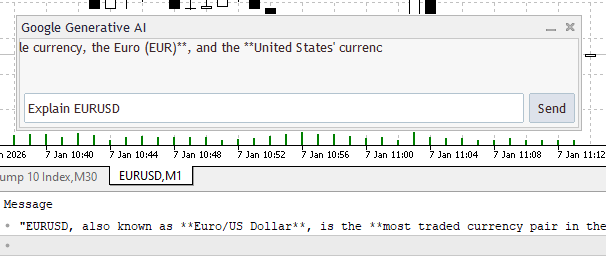
Explanation:
First, the function determines how long the AI response string is overall. This provides the application with the message's character count, which is crucial for determining when to wrap the text while scrolling. It can be compared to measuring a lengthy ribbon's complete length before feeding it through a display window. There is a safety inspection after that. The function immediately stops and does nothing if the AI answer is blank. This stops the software from attempting to scroll a string that doesn't exist. It's comparable to making sure the ribbon is present before attempting to move it through the display. The portion of the AI response that will now appear in the panel is stored in a temporary string. Imagine opening a little window on a long ribbon so you can only view a portion of it. Similar to moving the ribbon across the window to show one portion at a time, a loop then adds each character from the AI response to the visible string for the amount of characters determined by the display length.
The program determines which character of the AI response to display next within the loop. The modulo procedure ensures that the scrolling will continue indefinitely by wrapping back to the beginning when the response's end is reached. Like feeding a ribbon through a tiny window, each selected character is added to the visible string one at a time, allowing the viewer to view a continuous text flow. The program displays this section of the AI response to the user by setting the visible text on the panel after collecting all the characters for the current frame. It's similar to putting the ribbon completely inside a tiny window for the reader to view. The scroll beginning point advances by one character once the display is changed, resulting in a smooth scrolling effect when the following timer tick displays the subsequent segment.
Analogy:
Imagine the AI response as a lengthy ribbon with a message on it. The display panel allows you to see only a portion of the ribbon at a time, much like a little window on a wall. The program initially determines the ribbon's length. Before beginning to scroll the ribbon through the window, it is similar to stretching it out to determine its length. Understanding the entire length is crucial since it indicates when we will reach the end and must return to the beginning. The program then runs a safety check. The ribbon stops and does nothing in the absence of text, avoiding mistakes or blank displays. Then, just like when you set up a frame and choose which part of the ribbon to display to the viewer, an empty string is formed to hold the bit of the ribbon that will be seen via the window.
To fill this window, a loop is executed. The computer selects the matching character from the ribbon for each character in the display length and inserts it into the visible text. To make the message viewable, it's similar to sliding the ribbon in front of the window and inserting each character one at a time. The program adjusts the panel to display this portion of the ribbon once all the characters for the current frame are in place. This is similar to being able to plainly see the present portion of the ribbon through a glass. In order for the window to display the next section of the ribbon during the subsequent timer tick, the scroll position is advanced by one character after it has been displayed. To ensure that the message flows across the window smoothly, this is similar to pushing the ribbon forward.
Finally, the program resets the position to the beginning when the scroll reaches the end of the ribbon. This guarantees that the message continues to loop, similar to returning the ribbon to the beginning to display the message indefinitely.
Conclusion
In this article, we explored how to make our MetaTrader 5 control panel interactive by detecting user actions and sending requests to an API. We learned how to handle chart events, allowing the program to respond when the user clicks the send button, and how to process the server response to extract the useful AI-generated text. We also introduced the concept of scrolling text, using the OnTimer event handler to create a smooth, continuous display for responses that are longer than the panel can show at once.
Warning: All rights to these materials are reserved by MetaQuotes Ltd. Copying or reprinting of these materials in whole or in part is prohibited.
This article was written by a user of the site and reflects their personal views. MetaQuotes Ltd is not responsible for the accuracy of the information presented, nor for any consequences resulting from the use of the solutions, strategies or recommendations described.

 Price Action Analysis Toolkit Development (Part 55): Designing a CPI Mini-Candle Overlay for Intra-bar Pressure
 Market Simulation (Part 09): Sockets (III)
 Creating Custom Indicators in MQL5 (Part 5): WaveTrend Crossover Evolution Using Canvas for Fog Gradients, Signal Bubbles, and Risk Management
 Neural Networks in Trading: Two-Dimensional Connection Space Models (Final Part)

- Free trading apps
- Over 8,000 signals for copying
- Economic news for exploring financial markets
You agree to website policy and terms of use