

Introduction to MQL5 (Part 34): Mastering API and WebRequest Function in MQL5 (VIII)
 1 527
1 527
 0
0

Introduction
Welcome back to Part 34 of the Introduction to MQL5 series! In the previous article, we focused on the fundamentals of sending API requests from MetaTrader 5 to Google Generative AI. We looked at the structure of requests, how responses are received, and how the WebRequest function operates. There was no direct contact with the chart itself at that point; all communication with the AI was done in code.
In this article, we’ll develop an interactive control panel directly on the MetaTrader 5 chart, which is a practical advancement. This panel will enable users to enter a query, send it to the AI, and view the outcome within the terminal. Since this series has not yet covered graphical panels in MQL5, we will present the basic concepts required to create and manage them. We won't, however, explore deeply the entirety of graphical interface development. We will only discuss the panel features required for this project because this article is still primarily focused on APIs and the WebRequest function in MQL5.
Throughout this article, we’ll follow a project-based approach. Instead of learning panel concepts in isolation, you will see how each part is implemented for a real purpose. We'll go over how to build buttons, input fields, and a basic panel. We will go into great detail on the backend logic in the upcoming article, including how the Send button is handled through chart events, how user input is recorded, and how the server response is processed and presented.
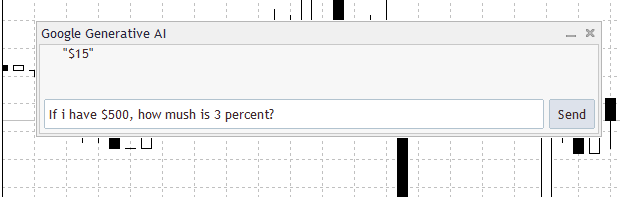
Creating Control Panels in MQL5
We won't go into every aspect of MQL5's graphical user interfaces in this part. The objective of this article is not to become an expert in UI creation; instead, it is still centered on APIs and the WebRequest function. However, since this series is project-based and we haven't used graphical panels before, it's crucial to lay out the fundamental ideas needed to complete this project. We will just concentrate on the particular elements required to construct a straightforward and useful control panel, rather than discussing the entire range of graphical controls in MQL5. This entails building a panel on the chart, positioning fundamental components like buttons, input fields, and text labels, and comprehending how these components work with your code. You may avoid becoming bogged down in pointless minutiae by keeping the scope small.
In MQL5, a control panel is a graphical user interface that appears immediately on the MetaTrader 5 chart and enables users to visually communicate with an Expert Advisor. A control panel allows you to submit commands, enter text, and see feedback in real time rather than depending only on input parameters. Your tool becomes more interactive and user-friendly as each interaction on the panel creates events that your program may react to. The control panel serves as the link between the user and the API logic in this project. In the same panel, you may enter a message, send it with a button, and see the response. While maintaining the main focus of this article, you will be able to expand this concept in subsequent projects by learning only the necessary components of panel design and text handling.
Example:#include <Controls\Dialog.mqh>
CAppDialog panel;
Explanation:
The Dialog control library must be included before we can develop any kind of control panel in MetaTrader 5. Adding the dialog include file to our program accomplishes this. This line basically instructs the compiler to search the MQL5 directory, then navigate to the Include folder, open the Controls folder, and load the Dialog file. The predefined classes and functions needed to generate dialog-based UI elements on the chart, like panels, windows, and containers, are contained in this file. The program wouldn't recognize any dialog-related classes without this file, making it impossible to create a control panel.
We use the CAppDialog class to declare a dialog object after the Dialog file has been included. Our control panel will be an instance of a dialog created by this declaration. To put it simply, this object is a representation of the panel, which will be the primary container on the chart. The layout, interaction, and future controls of the user interface will all be managed by this one object. Because the panel is defined in the global space, it may be formed during initialization and appropriately destroyed when the Expert Advisor is removed from the chart, allowing it to remain available for the duration of the Expert Advisor's lifecycle.
Analogy:
Consider MQL5's Include system as a sizable library. MQL5 is the primary library in MetaTrader 5. This library has a dedicated section called Include that contains pre-made utilities that programmers can utilize rather than creating everything from scratch. A book named Dialog is located on the Controls shelf, which is another shelf inside the Include section. In reality, when we write the include line for the Dialog file, we are instructing our program to enter the MQL5 library, navigate to the Include section, locate the Controls shelf, and open the Dialog book to read and utilize its instructions.
Detailed instructions for creating windows, panels, and interactive components on the chart are included in that Dialog book. Similar to how a reader cannot utilize information from a book that has never been opened, our program has no concept of how dialog panels operate without opening that book. Declaring the dialog object now resembles putting an empty bookcase inside our office. We are not yet adding anything to the shelf when we declare a CAppDialog object. "I want a bookshelf that will hold all my interface elements" is all we're saying.
Later on, this bookshelf will be positioned in the room, given a size, and utilized to hold things like input fields, buttons, and text displays. Everything pertaining to the control panel is stored and arranged in the dialog object, which serves as its primary container. We are not stocking the bookshelf with every feasible item in the framework of this project-based piece. We are simply setting up the shelf to accommodate the precise items we require for this particular project, which is a straightforward interactive panel that can handle and display AI responses without providing the reader with an excessive amount of information.
Next, we can start building the control panel itself now that we have access to the Dialog tools. By now, the program is well aware of where to look for constructing panel instructions and how they appear on the chart. This implies that we are no longer operating in a blind manner because we have the tools we need.
Example:#include <Controls\Dialog.mqh> CAppDialog panel; int panel_x = 32; int panel_y = 82; int panel_w = 600; int panel_h = 200; ulong chart_ID = ChartID(); string panel_name = "Google Generative AI"; //+------------------------------------------------------------------+ //| Expert initialization function | //+------------------------------------------------------------------+ int OnInit() { panel.Create(chart_ID,panel_name,0,panel_x,panel_y,panel_w,panel_h); panel.Run(); //--- return(INIT_SUCCEEDED); }
Output:
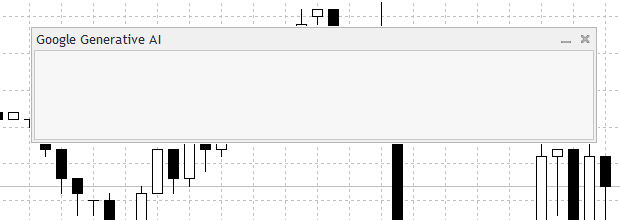
Explanation:
Recall that we utilized a unique function created especially to create chart elements like trend lines, labels, and rectangles. For basic graphical elements, this method is effective. But in this instance, we are no longer dealing with simple chart objects. Control panels are what we are dealing with. MetaTrader 5 handles panels differently, even if a control panel is still constructed from graphical components behind the scenes. The dialog and control system, which offers a higher-level framework for creating interactive interfaces, includes panels. We no longer rely on the object-creation strategy as a result. Rather, we make use of the panel's built-in construction process, which is intended to manage layout, interaction, and events automatically.
To determine how and where the panel should appear, MetaTrader 5 requires a number of pieces of information. The chart ID is one of the most crucial. This value specifies the precise chart to which the panel should be associated on the platform. The panel will display on the proper chart if the chart ID is explicitly specified, as an Expert Advisor can technically interact with many charts. The panel name, which functions as a distinctive identifier for the panel, is another crucial aspect. This name is what MetaTrader 5 uses to identify, control, and distinguish the panel from other graphical elements on the chart. Keeping your code tidy and simpler to maintain is another benefit of using a clear and meaningful name.
Additionally, the panel must be aware of the chart window in which it should be displayed. The most popular and useful choice for interactive tools like this one is to place panels in the main chart window by default. Positioning is another important factor. The panel's location on the chart is indicated by the horizontal and vertical values, which use pixels in relation to the upper-left corner. This guarantees that the panel fits neatly and permits precise layout customization without interfering with important price information.
The width and height of a panel establish its size. The amount of space allotted for components like text inputs, buttons, and labels is determined by these numbers. Size values are kept structured and simple to change in the code by being stored in separate variables. Size variables determine scale, so you can change the layout later without changing the panel creation logic. Position variables are responsible for placement. The panel must still be engaged after it has been created. Running the panel enables it to begin listening for user input, including text entry, button clicks, and event triggers. The panel would be visible without this step, but it would not react to user input.
Analogy:
Imagine your chart as a wall in a room where you wish to put a notice board or poster to display information. You call the panel to accomplish this. The instruction to actually hang the poster is similar to the panel.Create(). The panel's name and the chart on which it should appear are the first two things you set. While the panel name is similar to writing a title on the poster so you can quickly identify it later, the chart instructs the panel which wall to attach itself to.
The panel's horizontal and vertical offsets are then specified to determine its location on the chart. One determines its distance from the left, while the other determines its distance from the top. This is similar to choosing the ideal location for a poster to place on a wall so that it is both visible and well-positioned. Next, you specify the width and height of the panel to determine its size. The amount of horizontal and vertical space that the panel takes up is determined by these parameters. This is comparable to choosing a poster's size so that it can display all the information you want without taking up too much space on the wall.
panel.Run() is similar to activating a smart poster so that buttons, input forms, scrolling text, and information are displayed. The panel would not react to any interactions if it weren't operating, much like a featureless poster affixed to the wall. When you run the program, you will see that the panel vanishes from the chart whenever you compile the EA or alter the timeframe. In certain situations, the chart may even close. This occurs because MetaTrader 5 automatically eliminates all objects and controls established by the previous instance of the EA when it reloads the EA due to a recompile or chart change. This is because the panel is by default linked to the EA's lifecycle. Unless you specifically instruct it to handle de-initialization correctly, the panel is essentially deleted along with the EA.
The answer is to call the panel.Destroy() function with the de-initialization reason as an argument using the OnDeinit event handler. This prevents crashes by ensuring that the panel is thoroughly cleaned up whenever the EA pauses or reloads. MetaTrader 5 can safely handle the removal of the panel by supplying the cause to the destruct method. This keeps your chart stable and prevents unexpected behavior.
//+------------------------------------------------------------------+
//| Expert deinitialization function                                 |
//+------------------------------------------------------------------+
void OnDeinit(const int reason)
  {
   panel.Destroy(reason);
  }
Adding User Input to Your Panel
Recall that the project we are developing in this article requires the user to provide a prompt, which will then be transferred straight from the panel to the AI. I'll walk you through creating an input box inside the panel so the user may type their message in this part. This will enable the panel to record the text, which your MQL5 software can utilize to interact with the AI. Since the focus of this article is still on API requests and WebRequest capabilities, we won't be going over every aspect of input controls in MQL5. Rather, we will concentrate only on the elements required to effectively collect user input and incorporate it into the panel.
Example:#include <Controls\Dialog.mqh> #include <Controls\Edit.mqh> CAppDialog panel; CEdit input_box; int panel_x = 32; int panel_y = 82; int panel_w = 600; int panel_h = 200; ulong chart_ID = ChartID(); string panel_name = "Google Generative AI"; string input_box_name = "INPUT BOX"; //+------------------------------------------------------------------+ //| Expert initialization function | //+------------------------------------------------------------------+ int OnInit() { panel.Create(chart_ID,panel_name,0,panel_x,panel_y,panel_w,panel_h); input_box.Create(chart_ID,input_box_name,0,5,55,0,0); input_box.Width(500); input_box.Height(30); panel.Add(input_box); panel.Run(); //--- return(INIT_SUCCEEDED); } //+------------------------------------------------------------------+ //| Expert deinitialization function | //+------------------------------------------------------------------+ void OnDeinit(const int reason) { panel.Destroy(reason); }
Output:
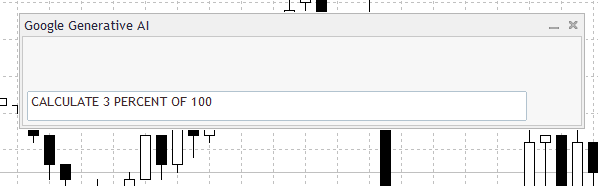
Explanation:
The first line instructs your MQL5 software to load the file containing all the definitions for editable text fields inside a panel by first navigating to the Include folder and then the Controls subdirectory. The program wouldn't know how to handle input boxes without the code found in this file. It might be compared to providing your application with instructions on how to create and manage text input boxes.
A variable for your editable text field is declared on the second line. This specific text field is identified by the variable name, and the data type instructs the program to act like an editable input control. The input box is currently merely a definition in the code that is awaiting creation and addition to the panel; it is not visible on the chart. Declaring the variable is equivalent to saying that you intend to construct a single container called input_box that you can then put on a shelf and use, and including the file is equivalent to visiting a library to obtain the blueprint for a particular kind of container.
You can give the text field an identity that the program can use internally by defining a string variable for the input box name. When there are several controls on a single panel, this avoids confusion. It functions similarly to labeling storage containers, where each box has a name that makes it easier to identify and engage with the appropriate one. The editable text field on your panel then actually appears thanks to the code that generates the input box. When you create it, you provide it a number of parameters, including the chart where it should show, the name you just defined, a parent identification (often the panel), and the initial x-y coordinates. The width and height are initially set to zero in the construction function, but they are quickly changed using different commands to specify the input box's visual dimensions, making it sufficiently tall and broad for the user to type comfortably.
Lastly, the input box is added to the panel; this is similar to putting the container in a bigger display area. The input box is present in memory but cannot be viewed or used until it is added to the panel. This is like naming a container, providing its measurements, setting it on a table, and then allowing anyone to place objects within.
Analogy:
Consider the first line as instructing your application to enter a large library, open a special shelf titled "Include," locate a smaller area called "Controls," and retrieve the instructions for creating editable containers. For your application to know what to do, this handbook provides detailed instructions on how to design and handle input boxes. The application wouldn't know how to handle text fields without this manual. The second line is similar to notifying the librarian that you would like to use that handbook to create a new container. The type guarantees that this container will behave like a genuine editable box, ready to hold text, and you give it a name so you can recognize it later. It's still simply an empty blueprint that needs to be put on a shelf at this stage; it's in memory, but nobody can see it.
It's similar to labeling a container so that anyone looking at the shelf knows which one is which when you generate a separate string for the input box name. Similar to pointing out "this is the red box" among several boxes, this label aids the program in identifying the container whenever it has to interact with it. The final placement of the container on the shelf is the stage where the input box is produced. You now select the chart to which it belongs, label it, affix it to the main shelf, and adjust its horizontal and vertical placement to suit your preferences. You then resize it to ensure that it is tall and wide enough to accommodate text, even if it is initially little. This is comparable to modifying a container so that books may easily fit inside.
Lastly, adding the input box to the panel is similar to putting the labeled container on the library table's assigned shelf. It exists in theory but is inaccessible until you take this action. Just as anyone could put books inside the container once it is on the shelf, once it is introduced, it becomes a functional container where users can input content.
Adding Action Buttons to Your Panel
Making an action button for the control panel is the next stage. In this instance, the button functions as a transmit button, transferring user input from the text field to the API. Because they allow the user to take charge of starting tasks, action buttons are crucial. In this instance, pressing the send button indicates to the software that the user is prepared for the AI to process their input.
Example:#include <Controls\Dialog.mqh> #include <Controls\Edit.mqh> #include <Controls\Button.mqh> CAppDialog panel; CEdit input_box; CButton send_button; string send_button_name = "SEND BUTTON"; int panel_x = 32; int panel_y = 82; int panel_w = 600; int panel_h = 200; ulong chart_ID = ChartID(); string panel_name = "Google Generative AI"; string input_box_name = "INPUT BOX"; //+------------------------------------------------------------------+ //| Expert initialization function | //+------------------------------------------------------------------+ int OnInit() { panel.Create(chart_ID,panel_name,0,panel_x,panel_y,panel_w,panel_h); input_box.Create(chart_ID,input_box_name,0,5,55,0,0); input_box.Width(500); input_box.Height(30); panel.Add(input_box); send_button.Create(chart_ID,send_button_name,0,510,55,556,85); send_button.Text("Send"); panel.Add(send_button); panel.Run(); //--- return(INIT_SUCCEEDED); } //+------------------------------------------------------------------+ //| Expert deinitialization function | //+------------------------------------------------------------------+ void OnDeinit(const int reason) { panel.Destroy(reason); }
Output:
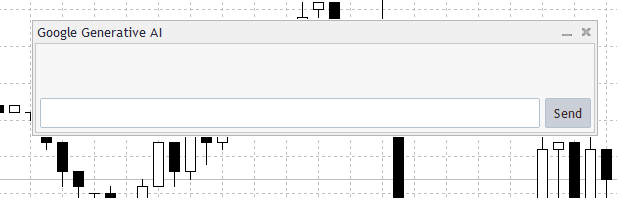
Explanation:
The first section loads the file containing all the necessary information for MetaTrader 5 to operate buttons within a panel. You are granting your program access to the definitions and behaviors needed to make clickable buttons, including managing clicks, displaying text, and responding to user actions, by adding this file. The program wouldn't understand what a button is or how it ought to function without this step. Following that, a button variable is declared.
This declaration indicates to the program that you wish to work with the button control and gives it a name that you may use to alter its look or respond to user input. The button does not yet appear on the chart and is currently only a planned control. The name of the button is then defined as a string. To help MetaTrader 5 differentiate this button from other controls that can be on the same panel or chart, this name serves as an internal identification. It serves as more than just a visual label; it allows the platform to track and handle the button uniquely in the background.
The button's real appearance on the chart occurs during the creation process. At this point, you designate which chart it belongs on, give it the name you came up with earlier, and specify the position coordinates that dictate where it goes in the panel. These coordinates regulate the button's overall size and distance from the upper-left corner of the panel. You can place the button nicely next to the input box or anyplace else in the panel by carefully adjusting them.
A label is given to the button when it is built. The button's function is indicated by this text that the user sees on it. The phrase "Send" in this instance indicates to the user that pressing the button will submit their input. The button is incorporated into the panel's interface after the text has been assigned. The button is present in memory but not functional until it is inserted. After it is added, users can click on it to start actions, making it an interactive element.
Analogy:
This process can be compared to setting up a dedicated action desk in a library. To begin with, adding the button control file is similar to picking up a manual from the library's reference section that describes how push buttons function, how they look, and how users can interact with them. You would have no idea how to construct or operate a button without this guide. Saying, "I want to put a button on my desk," even though the button hasn't been put there yet, is equivalent to declaring the button variable. It's merely a strategy that makes room for it.
Giving the button a name is similar to labeling a library drawer. The tag may go unnoticed by patrons, but it enables the librarian to swiftly determine which drawer to open when necessary. In a similar vein, naming a button makes it easier for your application to identify it in the future when the panel has several controls.
Making the button is similar to setting a labeled container on a shelf. The shelf to which it belongs, its precise location, and the amount of space it takes up are all up to you. The button will appear just where you need it, next to the message input field, thanks to this thoughtful positioning. Pressing the button is similar to inserting a book or box into a designated slot on a table. You choose the table, where it will sit on the table, and how much space it will require. The button is just where it should be for easy user engagement when it is positioned correctly.
Displaying Text in the Control Panel
In this section, we'll concentrate on showing text within the control panel, particularly the AI server's response. Keep in mind that we are just demonstrating text display in this tutorial. Because MetaTrader 5's control panels cannot detect line breaks like \n, handling lengthy responses or scrolling will be discussed in the following article. The panel's label object is used to show text. The label serves as a container for the server's answer. The label's name, position inside the panel, width, height, and chart it belongs to are all specified when you first declare a variable for the label. The server answer is assigned to the label's text attribute after it has been created, and it is then added to the panel for visibility.
With this configuration, you may display basic AI responses right in the panel, providing the user with instant visual feedback. This step is crucial because it introduces the idea of showing dynamic content in a panel, even though longer responses will be clipped for now. To ensure that no information is lost, we will discuss how to make the text automatically scroll when the server answer is too long to fit in the upcoming article.
Example:
#include  <Controls\Dialog.mqh>
#include <Controls\Edit.mqh>
#include <Controls\Button.mqh>
#include <Controls\Label.mqh>

CAppDialog panel;
CEdit input_box;
CButton send_button;
string send_button_name = "SEND BUTTON";

CLabel  response_display;
string response_text_name = "AI RESPONSE";

int panel_x = 32;
int panel_y = 82;
int panel_w = 600;
int panel_h = 200;

ulong chart_ID = ChartID();
string panel_name = "Google Generative AI";
string input_box_name = "INPUT BOX";

//+------------------------------------------------------------------+
//| Expert initialization function                                   |
//+------------------------------------------------------------------+
int OnInit()
  {
   panel.Create(chart_ID,panel_name,0,panel_x,panel_y,panel_w,panel_h);

   input_box.Create(chart_ID,input_box_name,0,5,55,0,0);
   input_box.Width(500);
   input_box.Height(30);
   panel.Add(input_box);

   send_button.Create(chart_ID,send_button_name,0,510,55,556,85);
   send_button.Text("Send");
   panel.Add(send_button);

   response_display.Create(0, "PanelText", 0, 0, 0, 0, 0);
   response_display.Text("THIS WILL BE THE SERVER RESPONSE......");
   panel.Add(response_display);

   panel.Run();

//---
   return(INIT_SUCCEEDED);
  }
//+------------------------------------------------------------------+
//| Expert deinitialization function                                 |
//+------------------------------------------------------------------+
void OnDeinit(const int reason)
  {
   panel.Destroy(reason);
  }
Output:
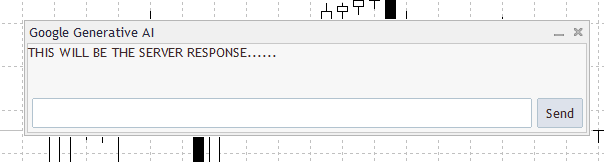
Explanation:
The label definition is first imported from the Controls folder using the include line. This file gives your program access to all the code required to generate and maintain label objects, which are used to display text inside a panel. The program wouldn't be able to handle labels without this file. It can be compared to obtaining a blueprint for a unique kind of container made just to store text in your toolkit.
The CLabel variable declaration then generates response_display, a particular label object. By serving as a stand-in for the label, this variable informs the program that you intend to have a text container that can store and display content. The label does not yet show up on the chart; at this point, it is merely a mental reference that is prepared to be made and affixed to the panel. According to the bookshelf analogy, it's similar to having an empty container with a label in your storage area that is ready to be put on a particular shelf.
This label is identified by the string variable for its name. This is significant because it makes it possible for the software to use this particular text container in the future. It's similar to naming a specific container in your library so you know just which one you want to transfer or fill. The label on the panel truly comes to life during the creation function. Here, you designate the chart to which it belongs, give it a name, designate the parent panel, and establish its starting size and position. To appropriately fit the text, the position and size in this example can be changed once they are first set to zero. This is similar to putting your labeled container on a designated shelf, even if it is originally empty and ready to hold books, according to the bookshelf example.
The label's content is then assigned via the text function. In this instance, the server response will be displayed here, as indicated by a placeholder message. This step is similar to placing a sample note inside your container so that anyone viewing it will know what it is supposed to contain. Lastly, attaching the label to the panel makes it visible and interactive. The label is in memory up until this point, but it is not visible or usable. Putting it on the panel makes it usable, much like putting the labeled container on the shelf at your library.
Conclusion
The foundation for creating interactive control panels in MetaTrader 5 and linking it to API requests was the main emphasis of this article. You gained knowledge of the fundamental ideas behind panels, how they are different from standard chart objects, and how to use the Controls library to create and manage them. To get the panel ready for user interaction, we also discussed how to add crucial UI components like action buttons and input boxes. The panel is currently completely constructed and operational; however, it is not yet linked to any backend logic or API. In the next article, we’ll explore handling chart events, recording button clicks, sending API queries, and showing the server response within the panel.
Warning: All rights to these materials are reserved by MetaQuotes Ltd. Copying or reprinting of these materials in whole or in part is prohibited.
This article was written by a user of the site and reflects their personal views. MetaQuotes Ltd is not responsible for the accuracy of the information presented, nor for any consequences resulting from the use of the solutions, strategies or recommendations described.

 Forex arbitrage trading: A simple synthetic market maker bot to get started
 Creating Custom Indicators in MQL5 (Part 4): Smart WaveTrend Crossover with Dual Oscillators
 From Basic to Intermediate: Events (I)
 Fibonacci in Forex (Part I): Examining the Price-Time Relationship

- Free trading apps
- Over 8,000 signals for copying
- Economic news for exploring financial markets
You agree to website policy and terms of use