

Introduction to MQL5 (Part 39): Beginner Guide to File Handling in MQL5 (I)
 1 853
1 853
 0
0

Introduction
Welcome back to Part 39 of the Introduction to MQL5 series! In this part, we will focus on file handling in MQL5 and how to manage files effectively within your programs. Files play an important role in many real-world trading applications. They can be used to store market data, save indicator values, log trading activity, record errors, or keep historical information that needs to persist even after MetaTrader is restarted. This article was written with beginners in mind. Code examples are divided down into straightforward, understandable sections, and each step is thoroughly described. Beginner-friendly analogies are utilized whenever appropriate to relate technical concepts to actual circumstances.
In this article, we'll look at how MQL5 handles files, where files are kept on your computer, and how to open, read from, write to, and close them correctly. Practical use cases, including data analysis, strategy logging, configuration storage, and data exchange among various MQL5 programs, will also be examined. We will take a project-based approach, as is customary in this series. Instead of studying file handling separately, we will use it immediately in a real-world project. We will write an MQL5 script that functions as a basic trading log in this article. The script will automatically create a file and record account history information, including trade ticket, symbol, order type, lot size, open time, open price, stop loss, take profit, closing time, close price, profit in dollars, and trade result, when it is activated.
The journal will also provide the account name, balance, and login number in addition to trading history. The trading history will be transferred into the journal for a predetermined period of time, and the file will note the time of the most recent update. This project will provide a clear example of how files can be utilized in MQL5 to manage, store, and arrange trading data in a reusable and structured fashion.
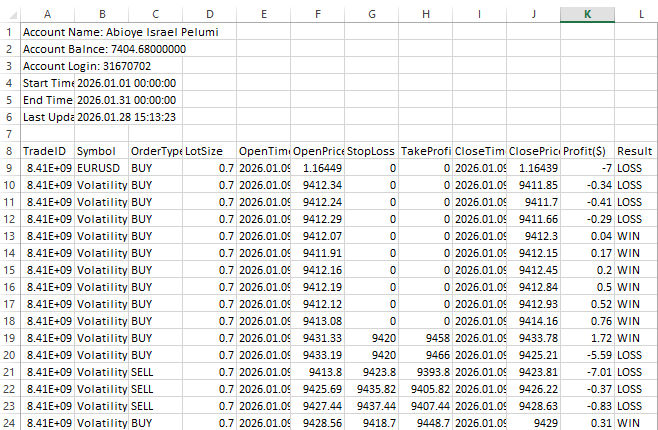
The project will be split into two sections. Instead of manually generating the file inside your code, you will learn how to use the FileSelectDialog function to generate a file straight from MetaTrader 5 in this article. After that, we'll go over how to open the chosen file, add data to it, and properly close it after the process is finished. The goal of this first section is to give you a firm foundation and aid in your understanding of MQL5's fundamental file handling routine.
Building on this foundation, we will demonstrate how to retrieve past trading data automatically and store it in the journal file in the following article. Everything will come together in this step, which will show how file handling may be utilized to produce fully automated and useful trading tools.
Using FileSelectDialog to Create and Select Files in MQL5
The first prerequisite for working with a file in MQL5 is having a file. For instance, the software has to know precisely which file your account data should be written to if you want to duplicate and keep it inside a trading journal. Directly hardcoding the file name into your software is one easy method. This is quite limiting and rigid, especially for real-world tools that are intended to be shared or reused, even though it works in certain situations. Imagine what would happen if you wanted the user to select the journal's storage location or if you wanted to select a different file every time. When the script or Expert Advisor is engaged on many machines, accounts, or environments, this becomes even more crucial. It is no longer ideal to force a fixed file name inside the code in circumstances like these.
The function comes in very handy in this situation. By using this function, MetaTrader 5 can ask the user which file they wish to work with rather than assuming or hardcoding a file path. A recognizable file selection window shows up on the screen when the EA or script is turned on. You can browse already existing files from this window, select one, or even enter a new file name. The adaptability and convenience of this approach are two of its main benefits. You can choose the existing trade journal file and continue adding new information to it. If it doesn't already exist, MetaTrader will generate it for you if you simply write in a new file name. This spares you from having to manually create files or deal with naming and location problems.
User-friendliness is another significant advantage. Your program acts more like a typical desktop application when FileSelectDialog is used. The location of the file, its name, and its intended use for data storage are all readily visible to the user. This lowers mistakes and improves the use and safety of your equipment, particularly for novices. This enables you to launch the script in a trading journal setup, select an already-existing journal file or make a new one, and immediately start entering account information, trade history, and changes in a structured manner. Using this approach is perfect for creating dependable and user-friendly MQL5 tools since it provides complete control over file processing while staying straightforward and intuitive.
Example://+------------------------------------------------------------------+ //| Script program start function | //+------------------------------------------------------------------+ void OnStart() { //--- string arrays_filename[]; string default_filename = "Trading_Journal.csv"; int result = FileSelectDialog("Select a File", NULL,"CSV files|*.csv", FSD_WRITE_FILE,arrays_filename,default_filename); string filename; if(result == 0) { Print("No file selected"); } else if(result > 0) { Print("The trading journal will be saved in ",arrays_filename[0]); filename = arrays_filename[0]; } else { Print(GetLastError()); } }
Output:
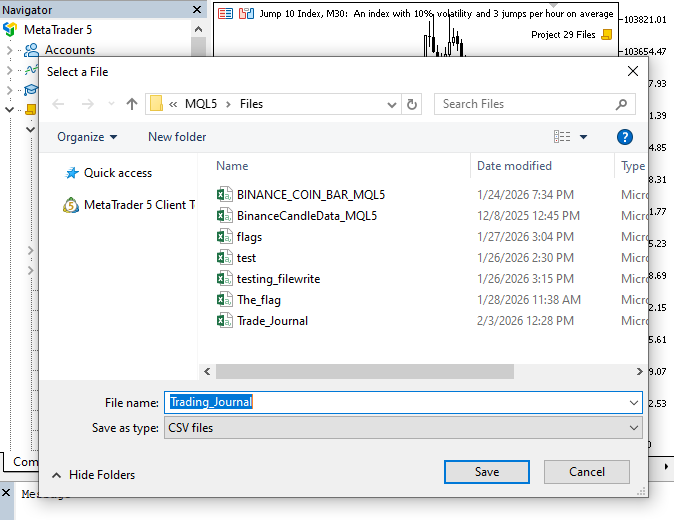
Explanation:
Multiple file names are intended to be stored in the first variable. Because it can store several text values at once, it was developed as an array. When working with file selection dialogs, where a user may select numerous files or the software may receive various file paths from the system, this is particularly useful. Using an array keeps the software flexible and ready for future expansion. It can currently manage a single file, but in the future, handling several files will be effortless. In short, it works as a box that can contain many file names or paths instead of just one.
A backup or initial file name is represented by the second variable. Its function is to specify the default file name that should be used or recommended when the program launches or the file selection window opens. The trader no longer has to consider what name to type each time, which enhances the user experience. Accepting this default name means that the program already knows which file to use. If a new file doesn't already exist, it can be created automatically using this name. It essentially serves as a preset option that expedites the procedure and reduces mistakes like typing the wrong file name.
This line retains the outcome of whatever action the user takes and opens the file selection window in MetaTrader 5. The value indicates to the application if the dialog was successfully finished, i.e., whether the user created or picked a file rather than shutting off the window. The application can safely proceed with the selected file when the outcome is affirmative. A zero or negative result indicates that no choice was made. The first argument directs the user and creates a more streamlined and polished interface by setting the title displayed at the top of the dialog box.

The first folder that the file selection window will open in is specified by the second option. MetaTrader is instructed not to impose any custom beginning directory when this parameter is set to NULL. Rather, the platform launches the dialog in the MQL5\Files directory, which is its default working location. This behavior is helpful since it maintains file operations in accordance with MetaTrader's file system standards and guarantees compatibility across many systems. Because users are not restricted to a hard-coded folder path, it also enhances mobility and usability.
The third option manages file filtering, which establishes the kinds of files that can be viewed and chosen within the file dialog. A vertical bar separates the two sections of the format, which follows a straightforward structure. While the second section is the actual file pattern that MetaTrader is permitted to display, the first part is the label that the user sees in the dialog.
When it comes to CSV files|*.csv, the user is presented with a pleasant summary of the text CSV files:
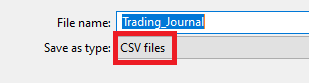
They are aware of the kind of files they are working with thanks to this. The rule that instructs MetaTrader to display only files ending in the CSV extension is the section that comes after the bar, *.csv. The user cannot unintentionally choose an unsupported file type because any file that does not fit this pattern will be hidden. It is also possible to modify this filtering method for various kinds of files. For instance, a log file filter can limit the list to log files, but a text file filter will only display .txt files. Users can choose from various supported formats by including numerous file types in a single filter. This facilitates communication and helps guarantee that your program only opens files that it can recognize.
The fourth argument determines what the user is allowed to do within the window, hence controlling the file dialog's behavior. With a mode like FSD_WRITE_FILE, the user is not restricted to choosing just pre-existing files in the dialog. Additionally, the user can enter a new, uncreated file name, and MetaTrader will immediately create the file. This is especially useful for trading diaries, as a trader may choose to update an existing diary or start from scratch without needing to prepare the file in advance.
By combining many dialog options, MQL5 also permits more sophisticated behavior. One mode, for instance, enables the simultaneous selection of many files. The vertical bar character can be used to combine these options when you wish to allow multiple behaviors. This instructs MetaTrader to enable many features simultaneously, including enabling file creation and multiple file selection. Depending on how basic or sophisticated your file handling logic has to be, this architecture makes the file dialog extremely versatile and adaptable to various use cases.
The fifth parameter is used to hold the outcome of the file selection procedure, which could be the name of a newly typed file name in the dialog or the name of an existing file the user picked. Once the user accepts their selection, this variable gets the file names straight from the dialog, making those files accessible for subsequent activities like reading data, adding new entries, or writing new information. Because the file dialog might provide numerous file names when multiple file selection is enabled, it is constructed as an array rather than a single value. Using an array guarantees compatibility with situations when the user selects multiple files at once, even if your present project only uses one file. The system is more adaptable thanks to this architecture, which also guarantees that all chosen file names are accurately recorded.
The final parameter defines the default file name shown in the dialog:
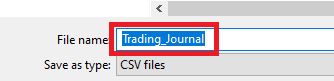
This saves time and serves as useful advice for the user. The name is utilized automatically if the user simply confirms it as is. The system generates the file with that name if it doesn't already exist, streamlining the procedure and preventing errors from manual typing. The program then deals with the result of the file selection procedure. A notice stating that no file was selected is printed if the user cancels. It saves the name for subsequent use and prints the file location if a file is selected. The program can securely handle all possible outcomes of the file dialog by catching and displaying any unexpected errors.
Creating Files in MQL5
The FileSelectDialog function, which enables users to choose already existing files or input a new file name and location, was covered in the previous chapter. But FileSelectDialog doesn't really make a file by itself. Its function is restricted to gathering user input and deciding on the location and name of the file. This chapter presents the FileOpen function and describes how it gets a file ready to be used in an MQL5 program. FileOpen either creates a new file or opens an existing one when the file name and location are chosen via FileSelectDialog. Because it connects the software to the file and enables safe data reading and writing, this phase is crucial.
Combining FileSelectDialog and FileOpen gives us control and flexibility. While the program makes sure the file is correctly generated and prepared for file operations, the user can choose the file's name and storage location. This method makes MQL5's file handling process more dependable and user-friendly, particularly for practical uses like exporting account data or recording trading activities.
Example:
//+------------------------------------------------------------------+
//| Script program start function                                    |
//+------------------------------------------------------------------+
void OnStart()
  {
//---
   string arrays_filename[];
   string default_filename = "Trading_Journal.csv";

   int result = FileSelectDialog("Select a File", NULL,"CSV files|*.csv", FSD_WRITE_FILE,arrays_filename,default_filename);

   string filename;
   if(result == 0)
     {

      Print("No file selected");

     }

   else
      if(result > 0)
        {

         Print("The trading journal will be saved in ",arrays_filename[0]);

         filename = arrays_filename[0];

        }

      else
        {

         Print(GetLastError());

        }

   int handle = FileOpen(filename, FILE_WRITE|FILE_CSV|FILE_SHARE_READ|FILE_ANSI, ',');

   if(handle == INVALID_HANDLE)
     {

      Print("Error opening file for writing. Error code: ", + GetLastError());

     }

   else
      if(handle != INVALID_HANDLE)
        {

         Print("File Sucessfully Opened");
         FileClose(handle);

        }
  }
Explanation:
With MQL5, FileOpen gives your program access to a file so it can write to or read from it. FileOpen will immediately create the file using the name chosen or entered via FileSelectDialog if the file name you input does not already exist. It will merely open the file for use if it already exists. Since all of this takes place in the background, the file won't seem open on your screen. As a result, you should refrain from manually accessing the file because doing so may result in FileOpen failing with an error.
The file name, which instructs MQL5 on which file to open or create, is the first parameter of FileOpen. Usually, this is the name that you previously chose with FileSelectDialog. The file's opening mode is specified by the second option. The software may write data to the file in this example thanks to FILE_WRITE. The file will be handled as a comma-separated values file, which is helpful for structured data like a trading journal, according to FILE_CSV, which informs MQL5. Other programs can read the file while your program is writing to it thanks to FILE_SHARE_READ. To guarantee that the text is written in a standard readable manner, FILE_ANSI defines the file's character encoding.
The delimiter, which is a comma in this instance, is the third parameter. This instructs MQL5 on how to divide the file's values, which is crucial for CSV files since this character separates each data column. The FileOpen function guarantees that your file is prepared to receive data in the appropriate format and permits other programs to safely read it if necessary by combining these parameters. This serves as the basis for effectively tracking your account history and keeping your trading log.
A handle, which functions as a distinct ID for the file your program is working on, is returned when you use FileOpen. It can be thought of as a ticket or key that instructs MQL5 on which file to read from or write to. Every file you open is assigned a handle, which is used in all subsequent operations to access the appropriate file. In this manner, numerous files can be handled simultaneously by your software without being mixed. It is crucial to verify that the file opening attempt was successful. The software determines whether the handle equals an invalid handle, a value that indicates the file was not created or opened. If this happens, GetLastError returns a code and prints an error message that explains why. This can be the result of the file being used, inadequate permissions, or another problem.
The handle's validity is confirmed by the second requirement. This attests to the successful generation or opening of the file. In this instance, the program indicates that the file is prepared for writing by printing a message. Limiting file actions to legitimate handles helps guard against mistakes and guarantees the security of your information. The FileClose function allows files opened with FileOpen to be properly closed. Which file is closed depends on the given handle. To guarantee that all written data is correctly saved and to free up system resources, a file must be closed. Data might not be entirely written if a file is left open, and other programs or scripts might not be able to access it until MetaTrader is stopped.
Analogy:
FileOpen can be thought of as providing your program with a personal locker to store and retrieve data. The locker you choose will be created immediately by FileOpen if it doesn't already exist, much like when you pick a new locker at school. The software just opens the locker if it's already there so it can access its contents. You won't see the locker open on your screen because everything is done in the background. Because the locker is already in use, you should refrain from manually accessing it at the same time to prevent the software from receiving an error.
Writing the locker number on a label is analogous to using FileOpen's first argument. It instructs the program to open or create a locker, typically using the name you previously chose using FileSelectDialog. The guidelines for using the locker are established by the second parameter. For instance, FILE_ANSI guarantees that everything you store is in a readable, standard format; FILE_WRITE allows the locker to accept new items; FILE_CSV arranges items into distinct compartments for structured storage; and FILE_SHARE_READ allows others to view the locker without moving anything.
The locker's divider, which resembles labeled compartments for various kinds of stuff, is the third parameter. In this instance, each item of data is separated by a comma, allowing everything to be arranged neatly in columns. Because it keeps all the account history, deals, and numbers organized and readable, this configuration is particularly helpful for a trading journal. FileOpen sets up the locker so you may securely store and retrieve your trading data by combining these options.
Lastly, the handle that FileOpen returns is comparable to the locker key. Every locker has its own key, which the program utilizes for all subsequent file actions. The software verifies the key's functionality after opening the locker. The program will display an error with a reason if the key is invalid, preventing the locker from being created or opened. The software can safely store or read data without running the risk of errors or conflicts if the key is legitimate and the locker is ready for usage.
FileClose (handle) can be compared to locking your locker once you have completed storing or retrieving your belongings. It is locked one final time with the key (handle). All of your possessions are securely kept in the locker once it is locked, and it is then made available for use by others if necessary. If you neglect to lock it, other students or programs may not be able to properly access the locker, and the goods inside may not be entirely secured. By locking the locker, you can be sure that everything inside has been completed and preserved and that your key is inactive until you unlock it again.
Writing Data to Files in MQL5
Using the FileOpen function to write within the newly formed file is the next step. Recall that the program can write data into the file because we applied the permission FILE_WRITE when we opened the file. You wouldn't be able to store any data without this permission; thus, the file would only be readable. Writing to the file enables you to store account history, trade data, and any other information you require, making your trading journal useful.
As in previous sections, we will thoroughly illustrate each process and offer simple explanations and examples to help you grasp how writing to files in MQL5 operates. Adding the initial information that will be your trading journal's header is the first thing you should do when writing to the file. The account name is written on the first line, while the account balance is written on the second. The account login is in the third line. The start time, which indicates when the account data should begin to be copied from, is then included. The end time for the data range is then included. The last update time, which indicates when the program most recently updated the file, is finally recorded in the following line.
We give the trading journal a systematic foundation by writing these details at the top of the file first. This guarantees that before examining specific trades, any program processing the file or anyone reading it later may quickly grasp the context of the data.
Example:
int handle = FileOpen(filename, FILE_WRITE|FILE_CSV|FILE_SHARE_READ|FILE_ANSI, ',');
if(handle == INVALID_HANDLE)
  {

   Print("Error opening file for writing. Error code: ", + GetLastError());

  }

else
   if(handle != INVALID_HANDLE)
     {

      Print("File Sucessfully Opened");

      string account_name = AccountInfoString(ACCOUNT_NAME);
      double account_balance = AccountInfoDouble(ACCOUNT_BALANCE);
      long account_login = (long)AccountInfoInteger(ACCOUNT_LOGIN);

      FileWrite(handle, "Account Name: " + account_name);
      FileWrite(handle, "Account Balnce: " + DoubleToString(account_balance));
      FileWrite(handle, "Account Login: " + IntegerToString(account_login));
      FileWrite(handle, "Start Time: ", start_time);
      FileWrite(handle, "End Time: ", end_time);
      FileWrite(handle, "Last Update: ", TimeCurrent());

      FileClose(handle);
     }
Output:
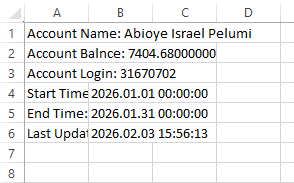
Explanation:
The first line maintains the account name as a text string after retrieving it from MetaTrader 5. Typically, the name you registered with your broker is the account information designated as the name that the function uses to query the platform for. This enables the software to determine which trading account is active at any given time. The account balance is retrieved and saved as a decimal value in the second line. This is the entire amount of money that is currently available in the account. Accurate storage of fractional quantities, such as, is ensured by using a double type, which is crucial for computations involving trades, profit, or risk management.
The account login number, a special identification number for the account, is retrieved in the third line. Although it is retrieved as an integer, we convert it because we want to keep it as a long type so that it may carry big numbers without compromising accuracy. When storing information in your trade journal or carrying out any automatic tracking, the account login aids in pinpointing the precise account. A variable called start_time is created. Without modifying the software itself, input variables let users change values directly from the settings. This variable contains a particular date and time, which in this instance is midnight on January 1, 2026. It instructs the software where to begin copying or examining account history.
We then defined end_time, another input variable of type datetime. It is scheduled for midnight on January 31, 2026. This variable indicates the most recent moment account history will be included by the software. A time window is defined by start_time and end_time taken together. Only account data that falls inside this range will be processed by the program. Because the trader can change the time period to replicate without modifying the code, using input variables for this gives the EA or script flexibility.
The account name is written into the file in the first line. It combines the trading account's real name with the label "Account Name:." This guarantees that the account to which the file belongs is clearly identified in the journal's initial line. If you need to share the diary with others or manage several accounts, it is extremely useful to include the account name. In the second line, the account balance is recorded to the file. Since the balance is a numerical number with decimals, it must be converted to a text format before publication. By doing this, the program ensures that the value is accurately stored in the file and is visible or readable later. This line makes it easy to track changes in the account's balance over time because it displays the amount of money in the account at the time the journal is generated.
The account login ID is written in the third line. The account is uniquely identified by the login, which is an integer value. It can be written into the file in a legible fashion by converting it to text. Including the login ID in the journal guarantees that the data is accurately linked to the relevant account and aids in differentiating between accounts. The start and finish times for the data that will be transferred into the journal are written in the fourth and fifth lines. The program should start recording past trades at the start time, and the data collecting period should finish at the end time. When these times are included in the file, it becomes evident which time period the journal covers and guarantees that the reader is aware of the extent of the data.
The journal's last update time is recorded in the last line. To tell you the precise moment the file was last refreshed, this fetches the current server time and adds it into the file. When the script is executed repeatedly, it is crucial to include this data since it enables you to monitor the most recent modifications or additions to the trade log. This section's lines collectively function as the trading journal's header, offering crucial account details and background information for the ensuing historical data. The journal is well-organized, readable, and prepared for additional data to be appended below thanks to this methodical technique.
Conclusion
This article taught you how to use the FileSelectDialog and FileOpen functions in MQL5 to create and manage files. You learned how to choose a file or make a new one, open it securely with the right permissions, and enter important account data into it, such as the account name, balance, login, data collecting period, and most recent update time. This article provides an introduction to file management in MQL5 and lays the groundwork for creating a functioning, well-organized, and user-friendly trading journal. In the next article, you will export trading history within the specified period into the journal.
Warning: All rights to these materials are reserved by MetaQuotes Ltd. Copying or reprinting of these materials in whole or in part is prohibited.
This article was written by a user of the site and reflects their personal views. MetaQuotes Ltd is not responsible for the accuracy of the information presented, nor for any consequences resulting from the use of the solutions, strategies or recommendations described.

 From Basic to Intermediate: Indicator (IV)
 The MQL5 Standard Library Explorer (Part 8) : The Hybrid Trades Journal Logging with CFile
 Integrating MQL5 with Data Processing Packages (Part 7): Building Multi-Agent Environments for Cross-Symbol Collaboration
 From Basic to Intermediate: Indicator (III)

- Free trading apps
- Over 8,000 signals for copying
- Economic news for exploring financial markets
You agree to website policy and terms of use