

Introduction to MQL5 (Part 42): Beginner Guide to File Handling in MQL5 (IV)
 4 434
4 434
 2
2

Introduction
Welcome back to Part 42 of the Introduction to MQL5 series. Many traders keep their trade history in a CSV file containing profit and loss values for closed trades, but they analyze it only as a table. Whether viewed in Excel or as a raw CSV document, the data remains static and fragmented. You can see individual results, but cannot quickly evaluate balance progression, drawdown dynamics, or the cumulative impact of each trade directly on the MetaTrader 5 chart. The information exists, yet it is not visually integrated into the trading environment where analysis naturally takes place.
The Strategy Tester in MetaTrader 5 does provide balance curves and performance statistics, but those results are strictly based on the Expert Advisor being tested. They do not reflect the actual live trades executed in a real trading account, especially when manual trades are involved. In the previous article, we explained how to export your complete trading history from MetaTrader 5 into a CSV file and how to read that file inside MQL5. We extracted key fields such as the Profit($) column and the total number of closed trades, stored them in dynamic arrays, and prepared the data for structured processing. With that foundation in place, we can now transform raw historical data into a practical analytical tool inside the terminal.
By the end of this article, you will have a fully functional MQL5 indicator for MetaTrader 5 that reads a CSV file containing your trade history, specifically the example file created in the previous article, which will also be attached to this guide. You will learn where to place the CSV file so that it is accessible to MetaTrader 5. The indicator will extract the Profit($) values from this CSV and calculate a cumulative balance curve. The curve will then be plotted in another window, with the vertical axis automatically scaled according to the progression's minimum and maximum values.
Both horizontal and vertical axes will be drawn to align the curve with the data, and an input setting allows you to enable or disable numeric profit/loss labels for each trade directly on the chart. Using the OnInit and OnTimer event handlers, you will set up the indicator to update dynamically while ensuring the curve only redraws when new trades appear in the CSV. This provides a clear, verifiable visual representation of account performance, turning static CSV data into an actionable trading tool.
Understanding the Project
Understanding exactly what we are attempting to create and the kind of data we are dealing with is crucial before we start putting the solution into practice. This project's objective is to use trade data from a CSV file to visualize a balance curve. To accomplish this properly, we must first understand the project and the file's structure (the example file is attached to this post).
Understanding Balance Curve
It's critical to understand the definition of a balance curve and its significance in trading before we start working with the indicator. A trading account's growth or depreciation over time is represented graphically by a balance curve. Plotting the total profit and loss from closed trades is how it is made. The balance curve shows the overall performance trend of the account by combining the results of individual trades rather than examining them separately. In simple terms, the profit or loss from each trade is added to the total from the previous closing. The curve rises when a trade turns a profit. The curve shifts downward if a trade ends in a loss. We create a curve that illustrates the account's development by consistently adding each trade outcome to the running balance.
Important questions are answered by traders with the use of the balance curve. Is the approach consistently successful? Are there protracted drawdowns? Is performance really erratic or steady? While a curve with sudden declines may indicate uneven performance or problems with risk management, a smooth rising curve often shows stable progress. Making the distinction between equity and balance is also crucial. While equity includes the floating profit and loss from open trades, balance solely refers to the account value following closed trades. The balance curve we create in this instance will be based on realized profit and loss values because we are extracting historical data from a file that includes closed deals.
We turn unprocessed numerical data into an understandable performance narrative by visualizing the balance curve from the profit and loss history kept in the file. We can quickly see whether the account is increasing, decreasing, or stagnating over time rather than having to go through rows of numbers. Before putting the indication into practice, it is imperative to understand this idea because its purpose is to meaningfully and analytically depict account performance rather than merely display statistics.
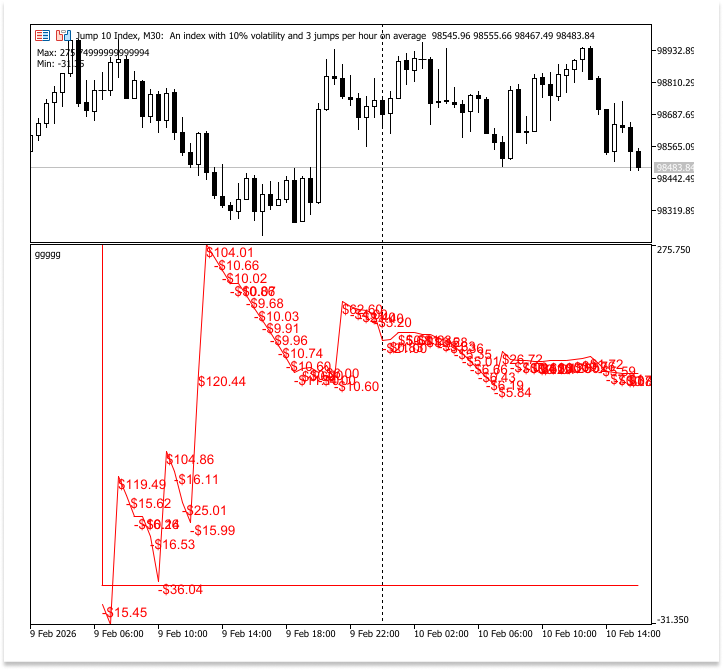
You will be able to choose how you want the data to show up on the chart in this project. Both the balance curve line and the specific profit and loss figures for every trade can be shown immediately on the chart. This makes it easy for you to see how each closed trade affects the performance of your account as a whole.
To better understand how particular trades affected the account, for instance, you would want to view the precise profit or loss amount at each stage along the curve. When examining strategy behavior or examining drawdowns and recovery phases, this can be extremely helpful.
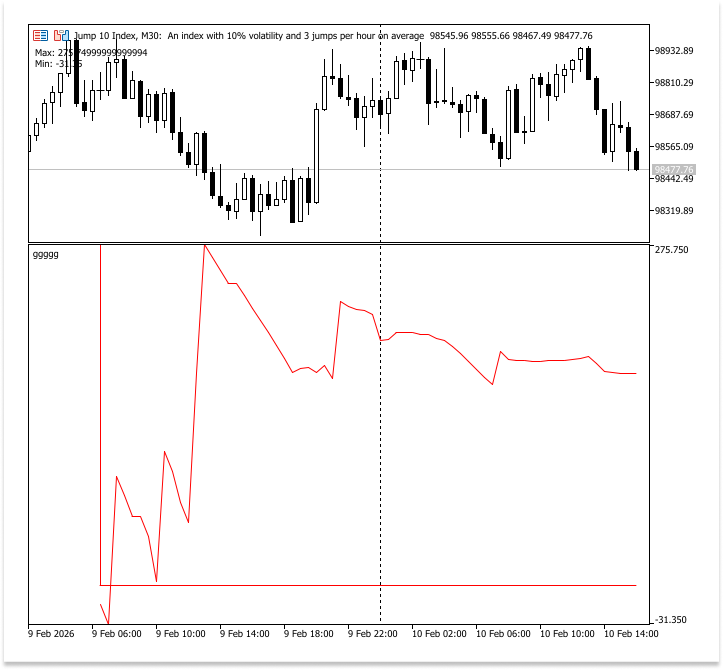
However, you could choose a more straightforward and uncluttered graphic depiction. In that scenario, you have the option to see just the balance curve line rather than the individual profit and loss figures. Without extra information, it is simpler to concentrate on the general increase or fall trend thanks to this option's smoother, less cluttered chart.
Interpreting the Balance Curve
It's crucial to understand what the balance curve in the indicator window indicates regarding your trading account after you've plotted it. Every point on the curve, which shows the cumulative account balance, exactly correlates to a closed trade from your CSV file. The trade's profit or loss dictates whether the curve is pointing upward or downward. The curve rises with a successful trade and falls with a lost trade. The curve's movement and slope offer instant insight into performance patterns. Dips show losses, whereas a continuously rising curve shows a string of positive trades and sustained progress. You can determine the size of gains or drawdowns by examining how steep these changes are.
The vertical distance between a prior peak and a subsequent low is a measure of drawdowns. The maximum drawdown is the largest drop from a peak to a trough over the entire trading period. It shows the most significant loss experienced by the account before it recovered. This is an important risk metric because it tells you how much the account could fall in unfavorable periods and helps assess the risk of your trading strategy. Since each point is tied to an individual trade, you can also see exactly which trades contributed to the largest drawdowns. 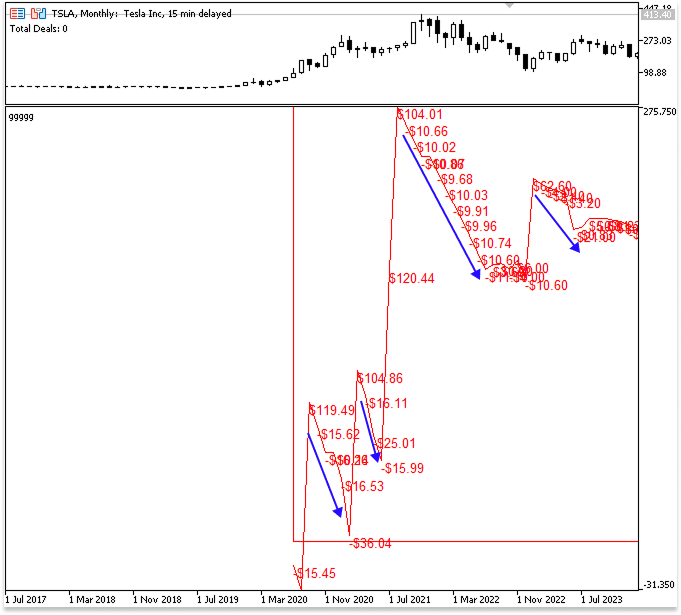
You may determine the maximum and minimum consecutive wins and losses by looking at the curve. Trades that consistently close in the negative are known as consecutive losses, and they can assist you in identifying times when your strategy may be stressed. A string of profitable deals that demonstrate times of high performance and momentum are known as consecutive wins. You may learn more about the dependability and volatility of your trading method by keeping an eye on both. The numeric profit and loss labels added to the curve make this even clearer. By showing the actual P/L of each trade, you can quickly identify which trades had the greatest impact on your cumulative balance and understand why the curve rises or falls at specific points.
You can use this curve to assess overall profitability, identify risky times, and determine how well your trading strategy turns opportunities into account growth. The maximum drawdown and successive wins or losses offer precise indicators of risk and consistency, while the curve turns raw CSV data into a visual and useful depiction of your trading record. This is further demonstrated by the addition of numerical profit and loss labels to the curve. You can easily determine which trades had the biggest influence on your cumulative balance and comprehend why the curve rises or falls at particular places by displaying the real P/L of each trade. You can use this curve to assess overall profitability, identify risky times, and determine how well your trading strategy turns opportunities into account growth. The curve transforms raw CSV data into a visual and actionable representation of your trading performance.
File Structure
The first step in working with external data in MQL5 is to understand the file's structure. Your program's logic is totally dependent on the format of each CSV file, which has a set amount of columns and headers.
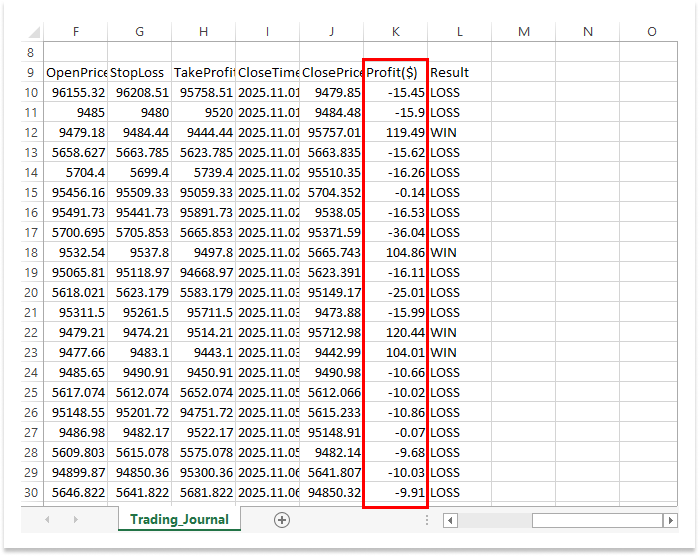
In the example file that we will be using in this article, we have 12 columns and 12 corresponding headers. Each column represents a specific piece of trade information, such as time, symbol, order type, lot size, open time, profit, and results.
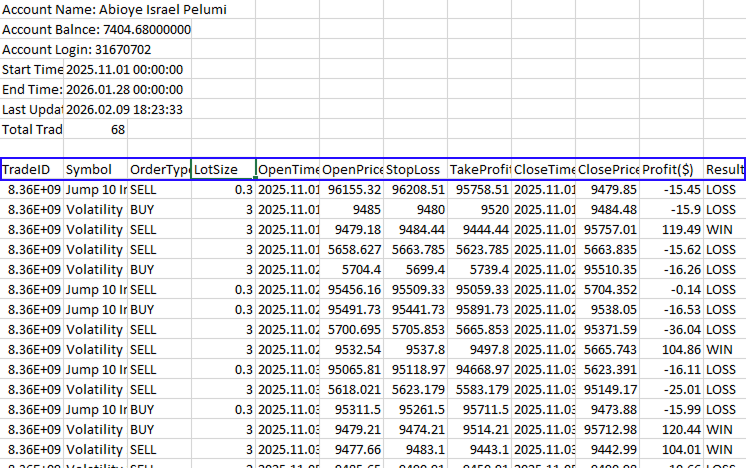
We previously discussed how indexing functions while reading CSV data into arrays in the previous article. We use the index to access each value, which is stored based on where it is in the row. As a result, the column order needs to stay the same.
For the purpose of building the balance curve, the only column we need is Profit($). All required data comes strictly from the values listed under that header. By extracting the profit values in their indexed positions and cumulatively summing them, we can calculate the balance curve. If the column order changes or if the Profit ($) column is moved, the indexes will no longer point to the correct data, and the program will not function as intended.
How to Access Files from Your MQL5 Program
This section will demonstrate how to put the required file in the appropriate folder and discuss the significance of doing so. We are working with a CSV file in this article. For the sake of illustration, let's assume we have a CSV file (the file is attached to this article). This file needs to be placed in one of two distinct directories, each with its own path and function, for your MQL5 program to be able to access it.
The terminal-specific MQL5\Files folder is the first folder. This folder, which is associated with the MetaTrader 5 terminal you are presently using, is where program-specific data should be stored. The path appears as follows on the majority of systems:
C:\Users\Dell\AppData\Roaming\MetaQuotes\Terminal\D0E8209F77C8CF37AD8BF550E51FF075\MQL5\Files
Here, D0E8209F77C8CF37AD8BF550E51FF075 stands for a specific installation of the MetaTrader 5 terminal on my PC. Only that particular terminal can access any file stored in this folder. This avoids issues with other terminals and guarantees that your program will consistently locate the file. When your program requires regular access to its files, this is the safest choice.
The second folder is the common terminal folder, which is shared among all MetaTrader 5 terminals installed on the same computer. Its path is usually:
C:\Users\Dell\AppData\Roaming\MetaQuotes\Terminal\Common\Files
Files kept here are accessible from any terminal on the machine. Although this can be useful for data sharing across terminals, many programs attempting to read or write the same file simultaneously may cause issues. When working on a single program, it is generally recommended to use the terminal-specific MQL5\Files folder. Putting your CSV file in this folder ensures that your program can consistently access it and keeps your files organized and apart from other terminals.
For the sake of this post, make sure your MQL5 program can access the CSV file without any additional flags or setup by placing it inside the terminal-specific MQL5\Files folder. This makes the setup straightforward and prevents needless misunderstandings when following the examples. However, based on how you plan to access and manage those files across all of your MetaTrader 5 installations, you can determine whether to place your own files in the common folder or in the terminal-specific folder.
Plotting Objects in the Indicator Window
The "Profit ($)" header will then be found inside the file using a loop. We can confidently extract the profit values by increasing the index by 12 after determining the beginning position of the profit column because we have already examined the file structure and found that each trade record has 12 columns. Additionally, the "Total Trades:" entry that is kept in the file will be found using a different loop. This guarantees that we retrieve only legitimate trading data and enables us to calculate the overall number of executed trades. An array will be created once all profit values under the "Profit ($)" column have been gathered. The cumulative result, which shows the balance progression over time, will then be computed using these values. The balance curve is based on the cumulative computation.
The function will calculate the indicator window's minimum and maximum values after calculating the cumulative values. This guarantees that the balance curve is fully visible and appropriately sized inside the subwindow. When the indicator starts, the OnInit() event handler will call this data-processing procedure to load the data. Additionally, it will be called within the OnTimer() event handler, enabling the indicator to automatically update at certain intervals.
Lastly, OnCalculate() will draw the graphical elements (such as trend lines and text labels). This is required to place the objects properly, as OnCalculate() provides access to chart bar data. To increase performance, a condition will be introduced so that OnCalculate() only performs the drawing logic when the total number of deals differs from the value that was previously determined. This enhances performance and avoids needless redrawing.
Opening the CSV File in MQL5
We will describe how to open a CSV file in MQL5 in this section. This time, we'll take a more methodical and effective approach than in the last post, where the file was opened directly inside event handlers. The file-opening procedure will be handled by a dedicated function rather than being opened inside OnCalculate(). Because of this design, the file is not opened every tick, which would impair performance and use more resources than necessary.
The function will take care of all file-related tasks, such as opening the CSV file, verifying the file handle, and getting the data ready for processing. Code is made clearer, more modular, and easier to maintain by enclosing its logic inside a function. To load the file when the indicator is first initialized, this function will be called inside the OnInit() event handler. The OnTimer() event handler will also call it. By enabling the file to be reloaded at a predetermined interval, the timer makes sure that modifications are handled regularly as opposed to every market tick.
Meanwhile, just the graphical object painting will be handled by the OnCalculate() event handler. A condition will be added to further increase efficiency, ensuring that OnCalculate() only performs its drawing logic when the total number of deals has changed in relation to the value that was previously computed. This prevents needless recalculations and object redrawing by ensuring that the indicator only updates when fresh trade data is discovered.
Example:#property indicator_separate_window //+------------------------------------------------------------------+ //| Custom indicator initialization function | //+------------------------------------------------------------------+ int OnInit() { //--- create timer EventSetTimer(60); //--- return(INIT_SUCCEEDED); } //+------------------------------------------------------------------+ //| Expert deinitialization function | //+------------------------------------------------------------------+ void OnDeinit(const int reason) { //--- destroy timer EventKillTimer(); } //+------------------------------------------------------------------+ //| Custom indicator iteration function | //+------------------------------------------------------------------+ int OnCalculate(const int32_t rates_total, const int32_t prev_calculated, const datetime &time[], const double &open[], const double &high[], const double &low[], const double &close[], const long &tick_volume[], const long &volume[], const int32_t &spread[]) { //--- return(rates_total); } //+------------------------------------------------------------------+ //| Timer function | //+------------------------------------------------------------------+ void OnTimer() { } //+-----------------------------------------------------------------+ //| Balance curve function | //+------------------------------------------------------------------+ void BalanceCurve(string Filename) { int file_handle = FileOpen(Filename, FILE_READ | FILE_CSV | FILE_ANSI, ','); if(file_handle == INVALID_HANDLE) { Print("Failed to open file. Error: ", GetLastError()); } else if(file_handle != INVALID_HANDLE) { FileClose(file_handle); } }
Explanation:
Indicator_separate_window is our indicator's first crucial setting. This setting instructs MetaTrader to show the indicator beneath the primary price chart in a different window. It is more suitable to keep the visualization and the candlesticks apart because we are working with account performance data rather than price data. In contrast to market price movement, the balance curve shows cumulative profit and loss over time. The chart remains clean, and the performance analysis is simpler to understand when it is displayed in a separate window. The price chart would display the balance curve directly if this feature weren't used. That might make it more difficult to understand both kinds of information since it would muddle them together. Clarity and improved organization are guaranteed when using a separate window.
A function called BalanceCurve that returns nothing is defined with the function declaration void BalanceCurve(string Filename). The function does activities internally but does not return any results to the caller, as indicated by the keyword void. The name of the CSV file that we wish to open is represented by the function's single parameter, string Filename. The function is made more flexible and reusable by supplying the file name as a parameter rather than hardcoding it. This implies that we can use multiple CSV files to call the same function without altering the core logic.
A parameter inside the function tries to open the given file in read mode with ANSI encoding and CSV format, then saves the outcome in a variable called file_handle. An integer known as a file handle is returned by the system in MQL5 upon successful file opening. The program can interact with that particular file by reading from it or carrying out other file actions thanks to this handle, which serves as a unique identifier. The function indicates failure by returning an invalid handle, which indicates that the operation was unsuccessful, if the file cannot be opened for whatever reason.
The program is instructed which file to open by the first argument, Filename. MQL5 searches the terminal-specific MQL5\Files folder by default for files. This folder is part of the MetaTrader 5 terminal installation that is presently operating. Without further setup, any file stored in that directory can be retrieved immediately. When working with indicator-specific data, this is the suggested place.
File access flags are present in the second argument. The file's opening and processing methods are specified by these flags. The file will be opened in read-only mode if the FILE_READ flag is set. This parameter is necessary since the objective is to extract data from the CSV file rather than alter it. MQL5 is informed to consider the file as a CSV file using the FILE_CSV flag. The system automatically divides data into fields according to the supplied separator when this flag is used.
As a result, reading each component separately is made simpler. The encoding of the file is defined by the FILE_ANSI flag. MQL5 is informed that ANSI encoding is being used to save the file. It would be necessary to use the FILE_UNICODE flag if the file were saved in Unicode format instead. For characters to be accurately read, the encoding needs to match the file format.
The comma character, which is the last argument, designates the CSV file's separator. Because values in ordinary CSV files are separated by commas, this argument instructs MQL5 on how to divide each row into distinct fields. A separator, such as a semicolon, would need to be given if the file utilized one. An extra flag called FILE_COMMON has to be added to the FileOpen function if the file is in the common terminal directory rather than the terminal-specific MQL5\Files folder. All the computer's installed MetaTrader 5 terminals can access the Terminal\Common\Files folder, which is where MQL5 looks for the file when this flag is present. When sharing a file across several terminals, this feature is helpful.
Upon attempting to open the file, the function immediately determines whether the handle returned matches INVALID_HANDLE. To help diagnose problems like missing files or incorrect directories, the program emits an error message along with the exact error code that was retrieved from GetLastError() when this occurs. The file is correctly closed using FileClose if it opens successfully. In addition to preventing possible file access conflicts, properly shutting the file guarantees that system resources are relinquished. The file-reading logic would normally run before the closing process in a complete implementation.
Storing File Elements in a Dynamic Array
All the contents of the file must be saved in a dynamic array after it has been opened. The program needs to first ascertain how many items are present in the file to accomplish this safely. Dynamic arrays must be the same size as the number of items to be stored because they must be adjusted before being used. Out-of-range errors will occur while trying to access more elements if the array is too tiny.
By reading the file one after the other and incrementing a counter after each item is handled, the items are tallied. The counter indicates the total number of records in the file. To read the contents again from the beginning, the file position is then reset to the beginning. The dynamic array is resized to accommodate every element once the total count is known. Each record is then read and added to the array as the file is browsed again.
Example://+------------------------------------------------------------------+ //| Balance curve function | //+------------------------------------------------------------------+ void BalanceCurve(string Filename) { int file_handle = FileOpen(Filename, FILE_READ | FILE_CSV | FILE_ANSI, ','); if(file_handle == INVALID_HANDLE) { Print("Failed to open file. Error: ", GetLastError()); } else if(file_handle != INVALID_HANDLE) { //counting total elements int total_elements_count = 0; while(!FileIsEnding(file_handle)) { FileReadString(file_handle); total_elements_count++; } FileSeek(file_handle, 0, SEEK_SET); //storing in array string TotalElements[]; ArrayResize(TotalElements,total_elements_count); for(int i = 0; i < total_elements_count; i++) { TotalElements[i] = FileReadString(file_handle); } FileClose(file_handle); } }
Explanation:
We are prepared to store every element in a dynamic array once we have counted the total number of elements in the file. Initially, we declare TotalElements, a dynamic string array. Because it can be resized to precisely match the number of elements we need to hold, a dynamic array is adaptable. After calculating the entire count, the array is resized to reflect that figure. This guarantees that each component of the file has a distinct location in memory. Additionally, if the array is smaller than the amount of elements being saved, out-of-range problems could happen. This is avoided by properly enlarging the array.
The array is filled by sequentially reading the file after it has been allocated correctly. A loop that begins with the first index and keeps going until each element has been processed is used to achieve this. The subsequent file item is read and assigned to the appropriate array index in each cycle. The data is delivered in an orderly and continuous sequence because the file pointer automatically advances following each read operation.
By the time the loop is complete, every element from the file is progressively organized in the array. Any particular element can be easily accessed later with its index thanks to this structure. Additionally, it offers a basis for more complex processing, including arranging the data into columns or carrying out computations like cumulative profit when creating a balance curve. A counter variable is first declared and set to zero to determine the number of elements in the file. Since no elements have been counted yet, it makes sense to start at zero. Then, as long as the file hasn't ended, a loop keeps running. The program will continue to read until there is no more data available thanks to this situation.
The program reads the file element by element inside the loop. The counter is increased to indicate that another element has been counted each time a value is correctly acquired. Next, the file is processed sequentially since the file pointer advances automatically with every read. The counter holds the final sum of all the elements in the file at the end of the loop. Next, the pointer is now at the last location since the full file has already been read. The pointer must be returned to the start of the file if further processing is needed. By doing this, you may make sure that subsequent operations access the data from the beginning rather than the end, where there are no pieces left to read.
Locating the Profit($) Column in the CSV File
We'll go over how to find the file's index for a given piece of information or element in this part. I described how indexing in a CSV file allows you to know each element's position in the previous article. The Profit($) header may be found at index 22 if you look at the example file. I won't hardcode that index in this explanation, though. This method guarantees that you may use the same technique while working with other files, enabling your code to dynamically locate the necessary column rather than depending on set locations.
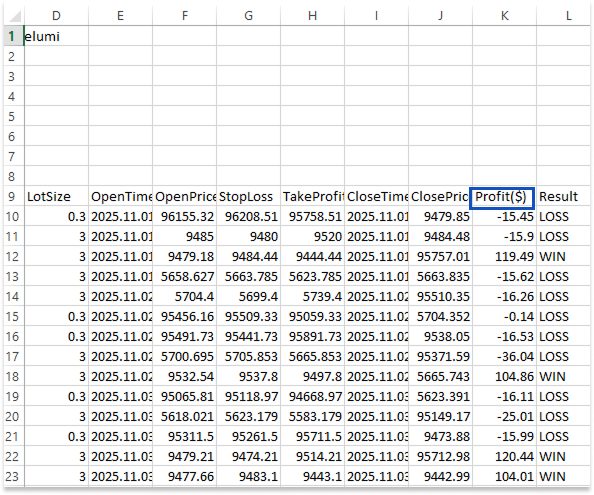
Example:
#property indicator_separate_window


string File_name = "Trading_Journal.csv";
//+------------------------------------------------------------------+
//| Custom indicator initialization function                         |
//+------------------------------------------------------------------+
int OnInit()
  {

   BalanceCurve(File_name);

//--- create timer
   EventSetTimer(60);

//---
   return(INIT_SUCCEEDED);
  }
//+------------------------------------------------------------------+
//| Expert deinitialization function                                 |
//+------------------------------------------------------------------+
void OnDeinit(const int reason)
  {

//--- destroy timer
   EventKillTimer();
  }
//+------------------------------------------------------------------+
//| Custom indicator iteration function                              |
//+------------------------------------------------------------------+
int OnCalculate(const int32_t rates_total,
                const int32_t prev_calculated,
                const datetime &time[],
                const double &open[],
                const double &high[],
                const double &low[],
                const double &close[],
                const long &tick_volume[],
                const long &volume[],
                const int32_t &spread[])
  {
//---

   return(rates_total);
  }
//+------------------------------------------------------------------+
//| Timer function                                                   |
//+------------------------------------------------------------------+
void OnTimer()
  {

  }
//+-----------------------------------------------------------------+
//| Balance curve function                                           |
//+------------------------------------------------------------------+
void BalanceCurve(string Filename)
  {

   int file_handle = FileOpen(Filename, FILE_READ | FILE_CSV | FILE_ANSI, ',');

   if(file_handle == INVALID_HANDLE)
     {
      Print("Failed to open file. Error: ", GetLastError());
     }

   else
      if(file_handle != INVALID_HANDLE)
        {

         //counting total elements
         int   total_elements_count = 0;
         while(!FileIsEnding(file_handle))
           {
            FileReadString(file_handle);
            total_elements_count++;
           }

         FileSeek(file_handle, 0, SEEK_SET);

         //storing in array
         string TotalElements[];
         ArrayResize(TotalElements,total_elements_count);

         for(int i = 0; i < total_elements_count; i++)
           {

            TotalElements[i] = FileReadString(file_handle);

           }

         //Serching Profit($) header
         int profit_header_index;

         for(int i = 0; i < total_elements_count; i++)
           {

            if(TotalElements[i] == "Profit($)")
              {

               profit_header_index = i;

               break;
              }
           }

         Comment(profit_header_index);

         FileClose(file_handle);

        }
  }
Explanation:
Finding the index of the CSV file's "Profit($)" column is the focus of the first section of the program. The computer knows where to begin reading the profit numbers since a variable stores this index for subsequent use. The code looks at each component of the file one after the other, and when it finds the header, it instantly ends the search and logs the location. The program briefly shows the found index to verify that the correct column has been located to assure accuracy. The CSV file is then chosen, its contents are read and organized into arrays, and the profit data is ready for the balance curve plot.
Finding the Total Trades Count in the CSV File
The program may now search the file for "Total Trades:," just as it does for the "Profit($)" header. The number of trades can be found in the value to the right of the search. It is more dependable to search for the text rather than the number because the text is constantly the same while the number can change. The program just needs to advance one step to get the actual total trades value after locating the position of "Total Trades:," making sure that it constantly returns the right number regardless of its current value.
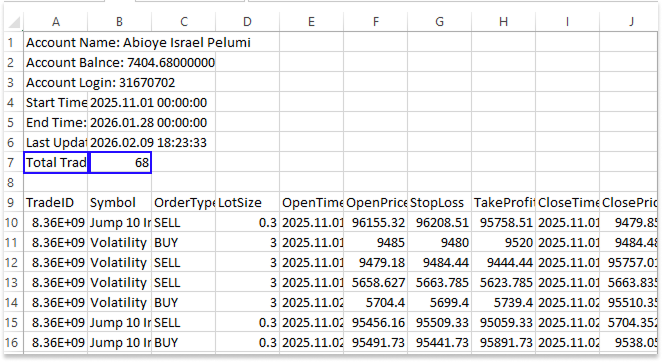
Example:
//+------------------------------------------------------------------+
//| Balance curve function                                           |
//+------------------------------------------------------------------+
void BalanceCurve(string Filename, int &total_deals)
  {
   int file_handle = FileOpen(Filename, FILE_READ | FILE_CSV | FILE_ANSI, ',');

   if(file_handle == INVALID_HANDLE)
     {
      Print("Failed to open file. Error: ", GetLastError());
     }

   else
      if(file_handle != INVALID_HANDLE)
        {

         //counting total elements
         int   total_elements_count = 0;
         while(!FileIsEnding(file_handle))
           {
            FileReadString(file_handle);
            total_elements_count++;
           }

         FileSeek(file_handle, 0, SEEK_SET);

         //storing in array
         string TotalElements[];
         ArrayResize(TotalElements,total_elements_count);

         for(int i = 0; i < total_elements_count; i++)
           {

            TotalElements[i] = FileReadString(file_handle);

           }

         //Serching Profit($) header
         int profit_header_index;

         for(int i = 0; i < total_elements_count; i++)
           {

            if(TotalElements[i] == "Profit($)")
              {

               profit_header_index = i;

               break;
              }
           }

         //Comment(profit_header_index);

         //Getting total deals
         int total_deal_index;

         for(int i = 0; i < total_elements_count; i++)
           {

            if(TotalElements[i] == "Total Trades:")
              {

               total_deal_index = i + 1;

               break;
              }
           }

         total_deals = (int)StringToInteger(TotalElements[total_deal_index]);

         FileClose(file_handle);
        }
  }
string File_name = "Trading_Journal.csv";
int Total_deals;
//+------------------------------------------------------------------+
//| Custom indicator initialization function                         |
//+------------------------------------------------------------------+
int OnInit()
  {

   BalanceCurve(File_name,Total_deals);
   Comment("Total Deals: ", Total_deals);

//--- create timer
   EventSetTimer(60);

//---
   return(INIT_SUCCEEDED);
  }
Explanation:
The purpose of the BalanceCurve function is to process the CSV file and monitor the total number of trades. The usage of a reference indicates that it accepts a reference variable for the total trades. This effectively enables the function to "return" a value without the need for a conventional return statement, as any modifications made to the total trades inside the function automatically update the variable outside the function.
To regulate when the OnCalculate function plots objects on the chart, a reference variable is used. In particular, only when the total number of deals has changed can chart elements be drawn. The program can identify when a new transaction has been added or withdrawn since the last calculation by keeping track of the current trade count in the reference variable. This prevents needless drawing and enhances performance. The program calculates how many trades there are in the CSV file overall within the function. Next, the label "Total Trades:" is located by searching through the array of file items. The computer recognizes the element that holds the actual number of trades as soon as it finds the label. As soon as the target is located, the search is terminated to prevent needless processing.
The reference variable is then used to store the number of trades after it has been transformed from a string to an integer. As a reference, this value is automatically available outside the function, enabling other indication components to utilize it as required. Lastly, the external variable is updated with the current number of transactions when BalanceCurve is called with the CSV file and the total trades variable. As a confirmation, the program can then show this figure on the chart. By using this method, efficiency and accuracy are increased because the indicator is always aware of the current trade count and may regulate plotting in OnCalculate according to whether the number of trades has changed.
Calculating Balance Progression
In this section, we will calculate the balance progression step by step using a for loop. The objective is to convert each trade's profit and loss figures into a cumulative sequence that illustrates how the account performance changes over time. Let's start by defining profit progression precisely. The running sum of gains and losses as deals are added one after the other is referred to as profit progression. We constantly add each new profit or loss to the initial total rather than examining each transaction result separately. The cumulative value rises when a trade closes in profit. The total value drops if it closes in a loss. The balance curve is built upon this running total.
The profit and loss figures under the Profit($) column will then be combined into a single dynamic array. This guarantees that we only separate the values required to compute the progression. The outcome of a single closed deal will be represented by each element in this array.
A for loop will be used to determine the cumulative advancement after all the profit and loss numbers have been saved in a single array. The profit or loss from the current deal will be added to a running total variable at each loop iteration. This modified cumulative value will be simultaneously stored inside a different dynamic array. The entire profit progression sequence, in which each index shows the account performance following a particular trade, will be contained in this second array. The balance curve will be plotted on the chart using this array. We preserve a clean data structure and simplify and organize the graphing process by isolating the calculated progression values from the raw profit numbers.
Example://+------------------------------------------------------------------+ //| Balance curve function | //+------------------------------------------------------------------+ void BalanceCurve(string Filename, int &total_deals, double &cumulative[]) { int file_handle = FileOpen(Filename, FILE_READ | FILE_CSV | FILE_ANSI, ','); if(file_handle == INVALID_HANDLE) { Print("Failed to open file. Error: ", GetLastError()); } else if(file_handle != INVALID_HANDLE) { //counting total elements int total_elements_count = 0; while(!FileIsEnding(file_handle)) { FileReadString(file_handle); total_elements_count++; } FileSeek(file_handle, 0, SEEK_SET); //storing in array string TotalElements[]; ArrayResize(TotalElements,total_elements_count); for(int i = 0; i < total_elements_count; i++) { TotalElements[i] = FileReadString(file_handle); } //Serching Profit($) header int profit_header_index; for(int i = 0; i < total_elements_count; i++) { if(TotalElements[i] == "Profit($)") { profit_header_index = i; break; } } //Comment(profit_header_index); //Getting total deals int total_deal_index; for(int i = 0; i < total_elements_count; i++) { if(TotalElements[i] == "Total Trades:") { total_deal_index = i + 1; break; } } total_deals = (int)StringToInteger(TotalElements[total_deal_index]); // saving all profit/loss in one dynamic array double pro_loss[]; ArrayResize(pro_loss,total_deals); int profit_count = 0; for(int i = profit_header_index + 12; i < total_elements_count; i += 12) { pro_loss[profit_count] = StringToDouble(TotalElements[i]); profit_count++; } Print("Profit/Loss:"); ArrayPrint(pro_loss); //saving all progit progression in one dynamic array ArrayResize(cumulative,total_deals); double running_total = 0.0; for(int i = 0; i < total_deals; i++) { running_total += pro_loss[i]; cumulative[i] = running_total; } FileClose(file_handle); } }
double balance_progression[];
//+------------------------------------------------------------------+
//| Custom indicator initialization function                         |
//+------------------------------------------------------------------+
int OnInit()
  {

   BalanceCurve(File_name,Total_deals,balance_progression);
   Print("\nBalance Progression: ");
   ArrayPrint(balance_progression);

//--- create timer
   EventSetTimer(60);

//---
   return(INIT_SUCCEEDED);
  }
Explanation:
Any modifications made inside the BalanceCurve function immediately update the original array defined outside, in this instance balance_progression[], since the argument for the cumulative array is supplied by reference. Because it allows other indicator components, such as data verification or balance curve charting, to access the calculated cumulative profit progression, passing the array via reference is crucial. The function would only alter a local copy in the absence of passing by reference; the outcomes would not be available outside the function.
The function starts by compiling each profit and loss figure into its own array. Each value is taken from the CSV file, omitting any header information, and this array is resized to accommodate the total number of deals. The program keeps the values in order after converting each text value to a numeric format that may be used for computations. All trade results are progressively contained in the array at the end, which can be reported to the log for debugging or verification.
After organizing the individual outcomes, the cumulative balance progression is computed. This is a running total of the account's performance throughout time. It initializes a running total and resizes the cumulative array to correspond with the amount of deals. The function then adds each trade's outcome to the running total and stores the revised total in the cumulative array at the appropriate location as it iterates through the profit and loss values. This converts the series of results from individual trades into a cumulative series in which the account balance following each trade is reflected in each index.
The dynamic array balance_progression[], specified at the top of the indicator, contains the cumulative balance progression. The array, the CSV file name, and the total trades variable are supplied by reference when OnInit invokes BalanceCurve. This enables the function to directly add the running totals to the array, providing other program components with instant access to the cumulative data. To verify that the computation is accurate, the cumulative advancement can be reported to the log once the function is finished. This method bridges the gap between computation and display by keeping the raw and cumulative data apart and preserving a clear structure. In the end, you can view account performance over time by using the cumulative array as the basis for charting the balance curve in the indicator window.
Output: 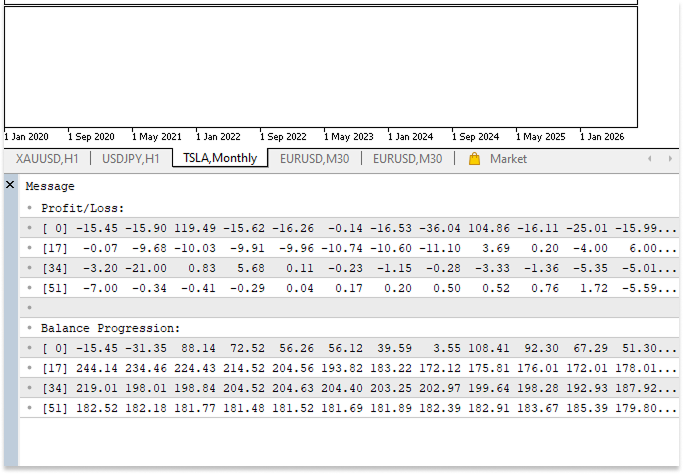
Defining Indicator Window Boundaries
When dealing with a separate indicator window in MQL5, it is imperative to define the boundaries of the indicator window. The indicator does not automatically know which scale of values to display when you plot data, such as a balance curve. It could be difficult to visually grasp the results if the chart does not identify the lowest and maximum levels since it may compress or extend the data excessively. You may make sure the plotted line fits neatly inside the indicator window and appropriately depicts the variances in your data by defining these bounds.
Finding the range of values that your data can take is the first step in setting the boundaries. We are dealing with the array's cumulative balance progression in this instance. This array's highest value will establish the indicator window's maximum level, and its lowest value will define its minimum. Peaks and troughs are accurately depicted, and the full balance curve is seen as a result. It is possible to apply the minimum and maximum values straight to the characteristics of the indicator. This instructs the independent window on how to scale the Y-axis such that the plotted line effectively fills the available space. By establishing the bounds of the indicator window, we provide a readable, undistorted chart that makes it simple for traders to see performance trends over time.
Example:
         //saving all progit progression in one dynamic array
         ArrayResize(cumulative,total_deals);
         double running_total = 0.0;

         for(int i = 0; i < total_deals; i++)
           {

            running_total += pro_loss[i];
            cumulative[i] = running_total;
           }

         //MAX AND MIN Indicator Window
         double max_cumulative  = cumulative[ArrayMaximum(cumulative,0,WHOLE_ARRAY)];
         double min_cumulative  = cumulative[ArrayMinimum(cumulative,0,WHOLE_ARRAY)];

         IndicatorSetDouble(INDICATOR_MAXIMUM, max_cumulative);  // maximum value
         IndicatorSetDouble(INDICATOR_MINIMUM,min_cumulative);  // minimum value

         FileClose(file_handle);

        }
  }
Explanation:
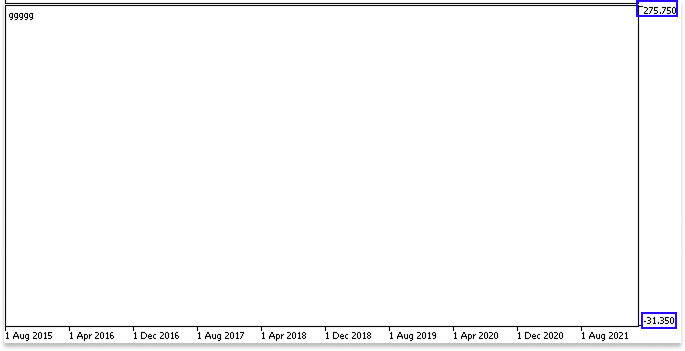
The program finds the maximum and minimum values of the cumulative balance progression in this part to establish the range of the indicator window. This is crucial because to properly display the balance curve, a different indicator window must be aware of the data range. The curve's top is indicated by the cumulative array's highest value, while its bottom is indicated by its lowest value. The vertical span used to plot the balance curve is defined by these numbers taken together.
The computed maximum and minimum are then momentarily displayed on the chart using the Comment function, which helps confirm their accuracy before implementing them. The IndicatorSetDouble function is used to assign the maximum and minimum values to set the indicator's actual display limitations. As a result, the full balance curve fits nicely inside the window thanks to MetaTrader's ability to scale the Y-axis accordingly. The indicator effectively depicts the account's highs and lows by establishing these boundaries, which facilitates the visualization of trends, the recognition of patterns, and the evaluation of trading success.
Output:
Drawing the Horizontal and Vertical Axes
The X and Y axes must be carefully designed before the indicator's balance curve is plotted. This necessitates considering both the total number of trades in the CSV file and the typical candlestick chart's bar count. Profit levels along the balance curve are shown by the Y-axis, while the X-axis shows the evolution of trades over time.
We begin by figuring out how far back on the chart we must go to reflect the initial trade in the file to properly match the balance curve with historical data. To achieve this, we count backwards from the current candle until we get to the bar that represents the first trade in the file. The intersection of the X and Y axes is represented by this bar, which represents the plot's origin. From there, the X-axis is drawn horizontally, from the bar of the first trade to the current bar, and the Y-axis extends vertically to show the growth of profits. In many real-world situations, the time between trades can be very long, sometimes up to two months, so we use the number of candle bars on the chart instead of the trade times contained in the CSV file. The depicted curve might be improperly compressed or extended if we relied just on transaction timings.
The indicator window is always compatible with the main chart window, which is another incentive to use the bars on the chart. This means that while both windows scroll together, the indicator window cannot scroll past the last bar on the main chart. All that has to happen is that the chart's bar count must match the total number of deals in the CSV file. Using candlestick bars instead of actual trade times also ensures the indicator works well across all timeframes. If we based the X-axis on trade times, switching to a higher timeframe would force the curve to shrink, making it harder to read and interpret. By using the bars themselves, the balance curve maintains its correct proportion and spacing regardless of the chart timeframe.
Example:#property indicator_separate_window string File_name = "Trading_Journal.csv"; int Total_deals; double balance_progression[]; int last_total_deals = 0; string y = "Y Axis"; string x = "X Axis"; double max_cumulative; double min_cumulative; //+------------------------------------------------------------------+ //| Custom indicator initialization function | //+------------------------------------------------------------------+ int OnInit() { BalanceCurve(File_name,Total_deals,balance_progression); // Print("\nBalance Progression: "); // ArrayPrint(balance_progression); //--- create timer EventSetTimer(60); //--- return(INIT_SUCCEEDED); } //+------------------------------------------------------------------+ //| Expert deinitialization function | //+------------------------------------------------------------------+ void OnDeinit(const int reason) { //--- destroy timer EventKillTimer(); } //+------------------------------------------------------------------+ //| Custom indicator iteration function | //+------------------------------------------------------------------+ int OnCalculate(const int32_t rates_total, const int32_t prev_calculated, const datetime &time[], const double &open[], const double &high[], const double &low[], const double &close[], const long &tick_volume[], const long &volume[], const int32_t &spread[]) { //--- if(rates_total >= Total_deals && Total_deals != last_total_deals) { //MAX AND MIN Indicator Window max_cumulative = balance_progression[ArrayMaximum(balance_progression,0,WHOLE_ARRAY)]; min_cumulative = balance_progression[ArrayMinimum(balance_progression,0,WHOLE_ARRAY)]; // Creating y and x axis ObjectCreate(0,y,OBJ_TREND,1,time[rates_total - Total_deals],0,time[rates_total - Total_deals],max_cumulative); ObjectCreate(0,x,OBJ_TREND,1,time[rates_total - Total_deals],0,time[rates_total - 1],0); IndicatorSetDouble(INDICATOR_MAXIMUM, max_cumulative); // maximum value IndicatorSetDouble(INDICATOR_MINIMUM,min_cumulative); // minimum value last_total_deals = Total_deals; } return(rates_total); } //+------------------------------------------------------------------+ //| Timer function | //+------------------------------------------------------------------+ void OnTimer() { BalanceCurve(File_name,Total_deals,balance_progression); }
Explanation:
Two crucial pieces of information are retrieved by the program after executing the BalanceCurve function with the CSV file, total trades variable, and cumulative balance array. While the cumulative profit progression is computed and stored in the array containing the running totals, the total number of deals is kept in the variable monitoring trades. Plotting the balance curve in the indicator window requires this cumulative array, which shows the account's running earnings and losses for each trade.
By running the code in the OnInit handler, the indicator is instantly active upon attachment to the chart. This guarantees that the starting setup is correctly established, including the total number of trades and cumulative earnings. Next, OnTimer is set to run every 60 seconds by using EventSetTimer to specify a timer. BalanceCurve in OnTimer updates the total number of trades and cumulative progress. The indicator will appropriately initialize and update automatically at predetermined intervals if the function is called in both OnInit and OnTimer. EventKillTimer prevents needless updates and saves system resources by stopping the timer when the indication is removed or the terminal is closed.
A variable in the global space keeps track of the most recent known total number of trades. A condition inside the OnCalculate handler makes sure that the charting code only runs when there are sufficient bars to match every trade and when the overall number of deals has changed since the last calculation. To guarantee that the indicator only recalculates when required, the variable monitoring the most recent total trades is updated following the update. This method eliminates unnecessary calculations and increases efficiency.
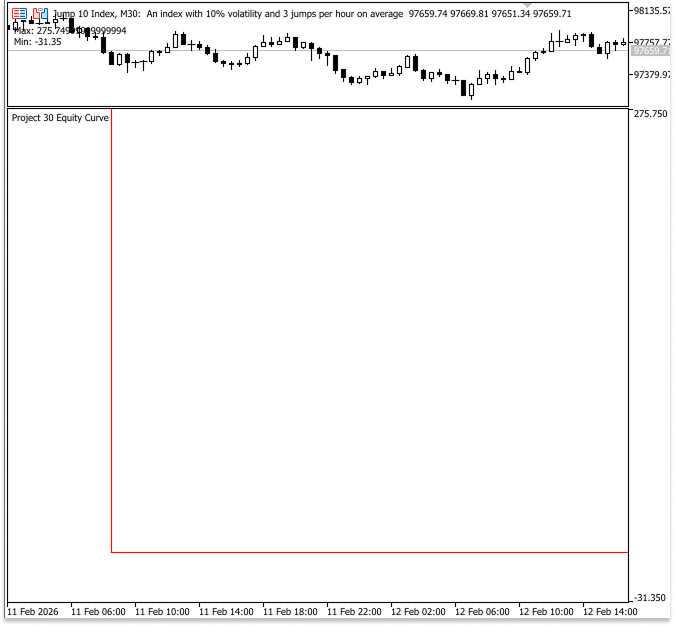
The maximum and lowest levels of the indicator are specified within OnCalculate since the axis values are necessary for charting. The program locates the greatest and lowest values in the cumulative array to identify the top and bottom of the Y-axis. From the bar of the first trade to the last bar on the chart, the X-axis expands horizontally, while the Y-axis begins at the bar of the first trade and extends to the greatest cumulative value. By using these constraints, the balance curve is guaranteed to fit within the indicator window and to be in proper alignment with the axes.
With this setup, the balance curve is guaranteed to fit the chart accurately, line up with the candles, and only refresh when new trades are entered. The indicator is dependable across all timeframes and smoothly manages irregular trade intervals because it plots against bar positions rather than timestamps. In contrast to a time-based approach, which would cause the curve to shrink or expand when timeframes change, referencing bars guarantee that the curve maintains its proper proportions and alignment.
Output:
Plotting the Balance Curve on the Indicator Chart
The final stage in the preparation process is to plot the balance curve on the indicator chart. Thus far, we have established the X and Y axes to frame the chart, determined the maximum and minimum values for the indicator window, read the profit and loss data from the file, and computed the cumulative balance progression. The balance curve itself, which shows how the account balance changes over time based on past trades, is now ready to be seen. We iterate through each value in the cumulative profit array to plot the balance curve. We map each number to a bar on the chart, which reflects the account balance at a certain deal. Using the total number of trades listed in the file, the position along the X axis is calculated by counting backward from the current candle.
This guarantees that the most recent trade corresponds with the current bar on the chart, and the first trade in the file corresponds with the curve's beginning point. The cumulative profit at that point, which positions the point vertically based on the account balance, is the Y-axis value. The program creates the continuous balance curve by joining each point on the chart based on its X and Y coordinates.
//+------------------------------------------------------------------+
//| Balance curve function                                           |
//+------------------------------------------------------------------+
void BalanceCurve(string Filename, int &total_deals, double &cumulative[], double &pro_loss[])
  {
//+------------------------------------------------------------------+
//| Custom indicator initialization function                         |
//+------------------------------------------------------------------+
int OnInit()
  {

   BalanceCurve(File_name,Total_deals,balance_progression,profit_loss);
// Print("\nBalance Progression: ");
// ArrayPrint(balance_progression);

//--- create timer
   EventSetTimer(60);

//---
   return(INIT_SUCCEEDED);
  }
//+------------------------------------------------------------------+
//| Expert deinitialization function                                 |
//+------------------------------------------------------------------+
void OnDeinit(const int reason)
  {

//--- destroy timer
   EventKillTimer();
  }
//+------------------------------------------------------------------+
//| Custom indicator iteration function                              |
//+------------------------------------------------------------------+
int OnCalculate(const int32_t rates_total,
                const int32_t prev_calculated,
                const datetime &time[],
                const double &open[],
                const double &high[],
                const double &low[],
                const double &close[],
                const long &tick_volume[],
                const long &volume[],
                const int32_t &spread[])
  {
//---

   if(rates_total >= Total_deals && Total_deals != last_total_deals)
     {

    IndicatorSetString(INDICATOR_SHORTNAME, "Balance Curve");
    int indicator_window = ChartWindowFind(ChartID(),"Balance Curve");

   // Comment(indicator_window);

      ObjectsDeleteAll(ChartID(),indicator_window,OBJ_TREND);

      //MAX AND MIN Indicator Window
      max_cumulative  = balance_progression[ArrayMaximum(balance_progression,0,WHOLE_ARRAY)];
      min_cumulative  = balance_progression[ArrayMinimum(balance_progression,0,WHOLE_ARRAY)];

      // Creating y and x axis
      ObjectCreate(0,y,OBJ_TREND,indicator_window,time[rates_total - Total_deals],0,time[rates_total - Total_deals],max_cumulative);
      ObjectCreate(0,x,OBJ_TREND,indicator_window,time[rates_total - Total_deals],0,time[rates_total - 1],0);

      IndicatorSetDouble(INDICATOR_MAXIMUM, max_cumulative);  // maximum value
      IndicatorSetDouble(INDICATOR_MINIMUM,min_cumulative);  // minimum value

      int c = 0;

      for(int i = rates_total - Total_deals; i <= rates_total - 2; i++)
        {

         chart_lines = StringFormat("Lines %d", c);

         if(ObjectFind(0, chart_lines) == -1)
           {

            ObjectCreate(0,chart_lines,OBJ_TREND,indicator_window,time[i],balance_progression[c],time[i+1],balance_progression[c+1]);

           }
         else
           {
            ObjectMove(0, chart_lines, 0, time[i], balance_progression[c]);
            ObjectMove(0, chart_lines, 1, time[i+1], balance_progression[c+1]);
           }

         p_l = StringFormat("Profit-Loss %d", c);
         if(show_pro == true)
           {
            if(ObjectFind(0, p_l) == -1)
              {
               ObjectCreate(0,p_l,OBJ_TEXT,1,time[i],balance_progression[c]);
              }
            else
              {
               ObjectMove(0, p_l, 0, time[i], balance_progression[c]);

              }

           }
         else
           {
            ObjectDelete(0,p_l);
           }

         if(profit_loss[c] > 0)
           {

            d_sign = "$";

           }

         if(profit_loss[c] <= 0)
           {

            d_sign = "-$";

           }

         ObjectSetString(0,p_l,OBJPROP_TEXT, d_sign + DoubleToString(MathAbs(profit_loss[c]),2));

         c++;

        }

      last_total_deals = Total_deals;
     }

   return(rates_total);
  }
//+------------------------------------------------------------------+
//| Timer function                                                   |
//+------------------------------------------------------------------+
void OnTimer()
  {

   BalanceCurve(File_name,Total_deals,balance_progression,profit_loss);
  }
Explanation:
A reference-provided extra parameter for the profit-loss array was added to improve the BalanceCurve function. Instead of making a local copy, the function can connect directly with the original array produced outside by passing via reference. This makes the results available throughout the program and allows the procedure to fill the array with precise profit or loss values extracted from the Profit($) column of the CSV file. The function now also provides access to the individual outcome of each trade, when previously it simply generated the cumulative balance progression. The profit-loss array specified in the global space was added to the function calls in OnInit and OnTimer to accommodate this, guaranteeing that both cumulative totals and individual trade outcomes are available throughout the program.
The loop variable represents the chart bars, and a counter is initialized to track the index within the cumulative balance array. Although they move in tandem, these two indices have distinct functions: one tracks the file's trade number, while the other tracks the candle positions on the chart.
Previously we assumed that the indicator would always be connected to the second chart window and used the fixed subwindow index value of 1 for producing graphical objects like trend lines. This method is only effective under that particular premise; if the indicator is moved or more indicators are added, it becomes unreliable. Additionally, deleting objects using that hardcoded window index would erase all trend lines from that subwindow if the number of deals changed, which can inadvertently harm other objects.
We now use the IndicatorSetString() function to set the indicator short name and the ChartWindowFind() function to retrieve the actual subwindow index at runtime to make the solution dynamic and reliable. We may utilize this value consistently when adding or removing objects by saving it in a variable like indicator_window. This guarantees that object management is carried out in the appropriate window independent of the chart setup and removes the requirement to assume the indicator is always in window 1.
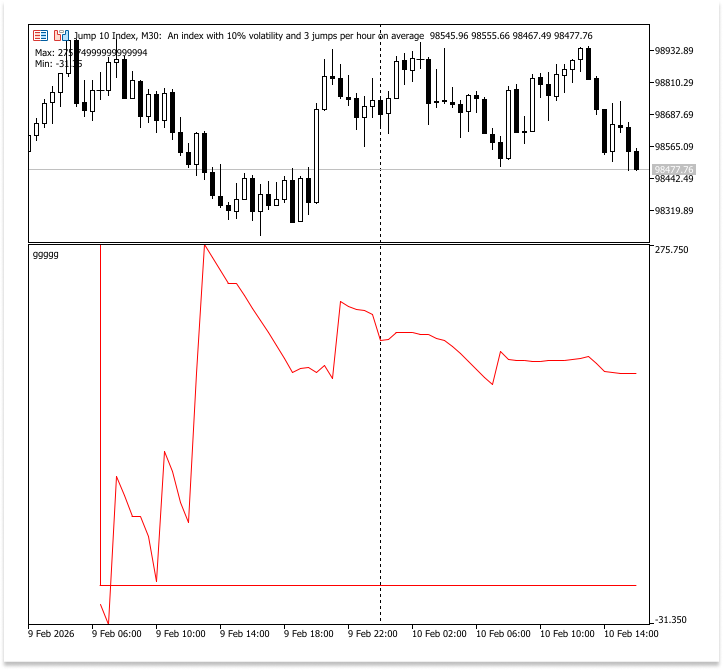
To map every trade inside the chart's range, the plotting loop connects each pair of consecutive bars from the bar of the first trade to the second-to-last bar. The trade index is used to give each section of the balance curve a distinct name. The trend line's existence is confirmed using ObjectFind. ObjectCreate draws the boundary between two successive cumulative balance points if it doesn't. To improve performance and enable dynamic updating of the balance curve with fresh data or chart refreshes, ObjectMove moves the line, if it exists.
Likewise, a distinct name is created for the text object that shows each trade's profit or loss. Whether these text labels are seen depends on the show_pro variable, which controls visibility. If enabled, the program verifies that the object is there and either moves the current object to the updated location or generates a new OBJ_TEXT object at the appropriate bar and cumulative balance level. To maintain a clean chart with the balance curve intact, ObjectDelete eliminates the text objects if show_pro is false.
Each profit or loss amount is formatted by the computer by identifying the appropriate sign and eliminating any negative sign from the numerical value using MathAbs. The formatted text is then assigned to the object using ObjectSetString, creating a clear representation like “$25.50” for a profit or "-$12.30" for a loss. To guarantee that the subsequent iteration handles the subsequent trade, the trade index counter is finally increased. The indicator can dynamically display or conceal correctly styled profit and loss labels that are precisely matched with each point on the balance curve thanks to this logic.
Output:
Conclusion
Through this article, you have learned how to read a CSV trade history file in MQL5 and extract key data such as Profit($) values and total trades. You also learned how to place the required file in the appropriate folder. By now, you know how to calculate the cumulative balance progression and use it to determine the maximum and minimum values for the indicator window. Plotting a continuous balance curve, creating and aligning horizontal and vertical axes, and optionally displaying profit and loss labels for every trade were all skills you acquired. Additionally, you learned how to make sure the curve only redraws when fresh trades arrive and how to update the indicator dynamically using the OnInit and OnTimer event handlers. All things considered, you learned how to use MetaTrader 5 to convert raw CSV trade data into a meaningful, visual chart that lets you examine account performance, drawdowns, and individual transaction contributions right within the program.
Warning: All rights to these materials are reserved by MetaQuotes Ltd. Copying or reprinting of these materials in whole or in part is prohibited.
This article was written by a user of the site and reflects their personal views. MetaQuotes Ltd is not responsible for the accuracy of the information presented, nor for any consequences resulting from the use of the solutions, strategies or recommendations described.

 Statistical Arbitrage Through Cointegrated Stocks (Final): Data Analysis with Specialized Database
 Swing Extremes and Pullbacks in MQL5 (Part 2): Automating the Strategy with an Expert Advisor
 Price Action Analysis Toolkit Development (Part 62): Building an Adaptive Parallel Channel Detection and Breakout System in MQL5
 Implementing of a Breakeven Mechanism in MQL5 (Part 1): Base Class and Fixed-Points Breakeven Mode

- Free trading apps
- Over 8,000 signals for copying
- Economic news for exploring financial markets
You agree to website policy and terms of use
Waw, you’re a great teacher. Will never stop reading your articles