

Introduction to MQL5 (Part 41): Beginner Guide to File Handling in MQL5 (III)
 1 862
1 862
 0
0

Introduction
Welcome to Part 41 of the Introduction to MQL5 series! In this article, we continue our beginner's guide to file handling in MQL5 by building on everything we have learned so far. In the previous parts, we explored how to create files, write structured trade data into them, and organize both entry and exit information in a readable trading journal. At this point, you already understand how files work in MQL5 and how to store trading data safely in a persistent format.
In the previous article, we focused mainly on sending or writing data from MetaTrader 5 into files. Writing data is just one aspect of the process, though. What happens if you wish to read a file's contents and then utilize them to conduct statistical analysis or trade? This tutorial will teach you how to retrieve stored trading information in a systematic and useful manner by reading data from files in MQL5. As usual in this series, we will use a project-based approach to make the learning process clearer and more practical. Rather than studying file reading in isolation, we will apply it directly to a real-world task that traders and developers often need.
The project we will be working toward is an indicator that reads a CSV file containing your trading history and uses the profit and loss data within a specified period to plot a balance curve. This balance curve will visually represent how your account balance evolves based on your trading performance.
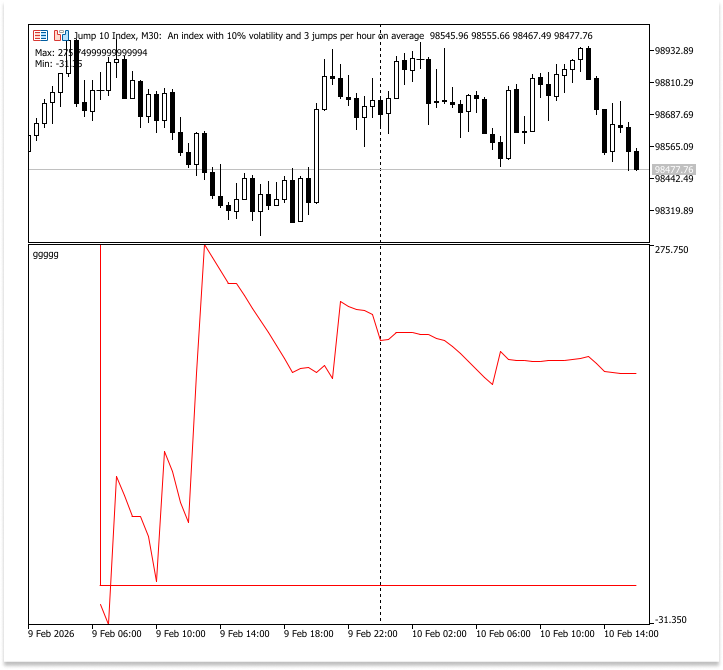
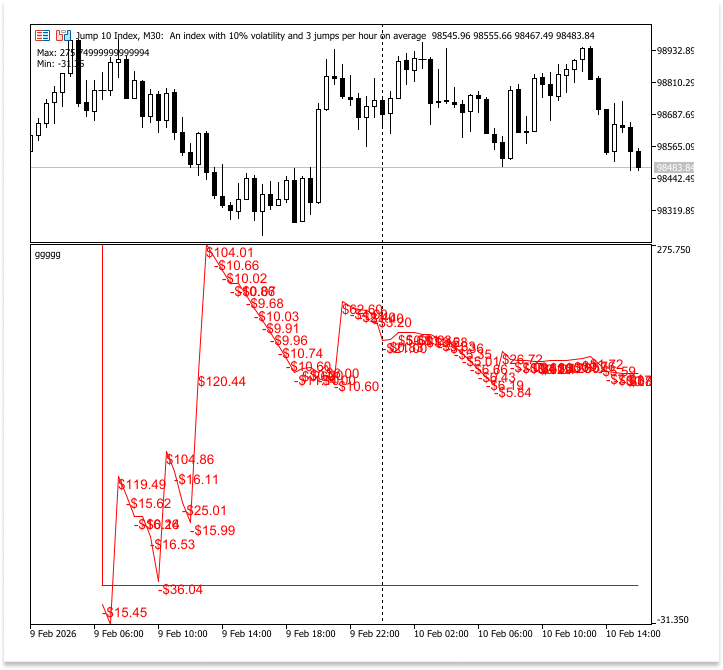
We will first concentrate on understanding how file reading functions in MQL5, as going right into developing the entire indicator could be too much for novices. The focus of this article is on efficiently arranging and correctly reading data from a file. By putting all TradeID values in one array and all LotSize values in another, you will discover how to divide related values into distinct arrays. You will then repeat this process for the remaining columns.
You may recall Part 32, when we talked about working with APIs and grouping data read from a file, if you have been paying close attention to this series. At the time, the primary objective was to understand how APIs function rather than exploring extensively into file handling, and that approach was purposefully beginner-focused. Simpler methods like static arrays and distinct variables for every data collection were therefore used in the instances. Using dynamic arrays, we will adopt a more adaptable and scalable strategy in this post. As a result, we may store as much data as we require without creating a new variable for each value, strengthening the basis for useful and effective file handling in MQL5.
Counting the Total Number of Records in the File
The program must first determine how many records are accessible before it can read data from a file. This data guarantees secure and effective access to every record and aids in defining the proper loop bounds. Incorrect or incomplete results could occur from the program referencing nonexistent data if this isn't done. Counting file records is hence a necessary first step in each file reading operation.
And now a common question arises. Specifically, what are we counting in the file? Are full sentences, words, or characters counted? Unlike people who work with ordered files, like CSV files, the program does not think in terms of text. It treats data as separate parts instead. Line breaks are used as row separators in this file layout, and each comma-separated value is regarded as a distinct data piece. The CSV file looks neat and organized in Excel since each value is precisely placed in the designated column.
A CSV file appears structured and ordered once it has been opened in Excel, with each piece of data accurately positioned in its own column. Users can rapidly grasp the text thanks to this picture arrangement. The file is still a straightforward text document in the background, though. In contrast to spreadsheets, which show data as a grid of cells, MetaTrader reads data as text, with separators supplied by CSV between each line.
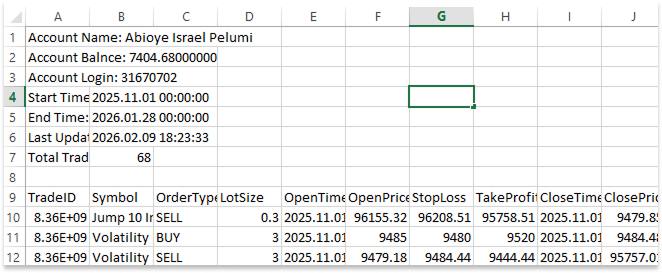
However, this is how the program actually sees the same data inside a CSV file:
Account Name: Abioye Israel Pelumi,
Account Balance: 7404.68000000,
Account Login: 31670702,
Start Time:, 2025.11.01 00:00:00,
End Time:, 2026.01.28 00:00:00,
Last Update:, 2026.02.09 18:23:33,
Total Trades:, 68,
Internally, MetaTrader uses its separators to read the file, examining it one column and one row at a time. Each column value denotes a single data point, and each additional row becomes a separate record. This method verifies that the system is counting structured cells arranged in rows and columns rather than evaluating text length or word count.
The quantity of usable data cells, such as header cells and non-trade data like account details, is basically counted when the file's elements are counted. An empty row is still regarded as one element even if there is no data visible in the file; this increases the total number of elements by one when the file is read.
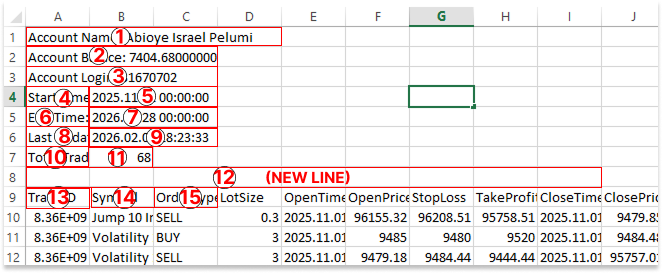
It is critical to understand this distinction. What the user considers to be tidy rows and columns are actually items that are ordered sequentially for the program. We may safely loop through the file and allocate dynamic arrays of the right size to extract only the information we need, such as trade profit or loss statistics, if we count these components accurately. This phase ensures accuracy by preventing array-out-of-range errors while processing the file to generate a balance curve later.
Remember how we talked about FileOpen earlier? It is the initial stage of any file processing process. Your program uses the file handle that is returned by calling this function as a unique reference to manage the file. To define whether the file should be opened for reading, writing, or another purpose, you must simultaneously select the proper access mode.
Example://+------------------------------------------------------------------+ //| Script program start function | //+------------------------------------------------------------------+ void OnStart() { //--- string Filename = "Trading_Journal.csv"; int file_handle = FileOpen(Filename, FILE_READ | FILE_CSV | FILE_ANSI, ','); if(file_handle == INVALID_HANDLE) { Print("Failed to open file. Error: ", GetLastError()); } else if(file_handle != INVALID_HANDLE) { FileClose(file_handle); } }
Explanation:
A string variable called Filename was first created, and its value is set to Trading_Journal.csv. Holding the file name that the program will refer to is its function. This method makes the code more organized and guarantees that the file name can be changed with ease if needed. We call FileOpen after defining the file name, and we give file_handle the return value. The file handle, represented by the returned integer, gives the file a unique program identification. The program uses this handle each time it reads from the file. The program is granted permission to view and read the contents of the file by setting the FILE_READ flag when using FileOpen. The FILE_WRITE flag was left off in this case since no changes or updates are needed. This reduces the possibility of inadvertently changing the data that has been stored.
We let MetaTrader know that the file contains column-based data in CSV format. Each value is delimited by the provided comma, and the character encoding standard is set by the FILE_ANSI option. Together, these settings guarantee that the file is successfully opened and processed as intended. The next crucial step is to confirm whether the process was successful after trying to open the file. The variable file_handle is checked to see if it equals invalid. If FileOpen fails, no standard handle value is returned. On the contrary, it returns an invalid handle, indicating that the attempt to read the file was unsuccessful.
When a file fails to open, the program displays an error message and the associated problem identification. Because of access constraints, the file being in use, or the file not being discovered, this identifier provides an explanation for why the operation failed. This type of diagnostic data is useful since it points you in the direction of the right answer. When the file opens successfully, the program can proceed safely. Since the purpose at hand is merely to verify accessibility, the file is closed. Closing it guarantees that the file won't stay open or unavailable for further activities and helps free up system resources.
Analogy:
First, it's similar to writing the name of the book you want on a request slip when you declare the variable Filename and assign it to Trading_Journal.csv. You just keep it written down in one spot rather than shouting the book title as you go. Only that slip needs to be updated if the book title changes; the others don't. Then, using the FileOpen function is similar to asking for the book at the library. You are given a claim ticket by the librarian when they locate it. The file handle is represented by that claim ticket. Your distinct identity serves as proof that you are the one with access to that book right now. You have to present that ticket whenever you wish to read from it. You can't access the book without it.
It is equivalent to telling the librarian, "I only want to read this book inside the library," when we provide FILE_READ. You are not requesting authorization to alter its content or put notes inside of it. For this reason, FILE_WRITE is not included. We are not changing the material; we are just reading it. This guards against unintentional modifications to the original content. The FILE_CSV flag is equivalent to informing the librarian that the book is set up with rows and columns in a table format. The language or text style used to write the book is indicated by the FILE_ANSI flag, while the librarian knows how to divide the content while handing it to you. The comma separator is like telling you that each item of information in the book is separated by a certain symbol.
Constantly confirm that the librarian located the book you requested. There is a problem if the librarian says it cannot be found. You might not be able to access the book: it could not exist, or it might be checked out right now. Finding out the cause gives you direction on how to resolve the issue. Everything is OK if the librarian can provide you with the claim ticket. You can now read the book. After finishing, you give the claim ticket back and return the book. What FileClose does is this. In addition to releasing the resources and ensuring the book is no longer locked under your name, it notifies the system that you are done.
Now that the file is open, we determine how many elements there are in total, which will greatly simplify reading and processing the file.
Example:
//+------------------------------------------------------------------+
//| Script program start function                                    |
//+------------------------------------------------------------------+
void OnStart()
  {
//---

   string Filename = "Trading_Journal.csv";

   int  file_handle = FileOpen(Filename, FILE_READ | FILE_CSV | FILE_ANSI, ',');

   if(file_handle == INVALID_HANDLE)
     {
      Print("Failed to open file. Error: ", GetLastError());
     }

   else
      if(file_handle != INVALID_HANDLE)
        {

         int total_elements_count = 0;
         while(!FileIsEnding(file_handle))
           {
            FileReadString(file_handle);
            total_elements_count++;
           }

         Print(total_elements_count);


         FileClose(file_handle);
        }
  }
Explanation:
A variable named total_elements_count must be declared and given the value zero as the first step. Tracking the total amount of elements read from the file is done with this variable. The program hasn't read any data yet; therefore, the value starts at zero. The overall count will be shown by this variable steadily increasing as the program reads elements from the file. As long as there is data available, the loop reads the file repeatedly. To see if there is any more material, a monitoring function looks at where the file reference is. The loop continues if there is additional data; the function signals the loop to cease when the file is finished.
The program reads the following element from the file within the loop. The file pointer is automatically advanced by this function in addition to retrieving data in string format. Because the file is CSV organized, each call usually reads one element, separated by the delimiter that has been provided. Using this method guarantees that the program treats each component separately instead of trying to read the full file at once. Following each element's reading, the program adds one to the total_elements_count value. Keeping track of the number of elements that have been successfully read makes this step crucial. The counter rises to reflect the most recent total each time a new element is loaded.
The program has reached the end of the file and tallied all the elements accessible when the loop is finished. Displaying the value of total_elements_count is the last step. This output verifies that the reading procedure was successful and displays the total amount of elements contained in the file.
Analogy:
Assume you are carrying a notebook when you enter a library and wish to determine the number of books on a specific shelf. First, you write 0 at the top of the page of your notepad. That zero is how many books you have counted thus far. Since nothing has been counted as yet, zero makes logical sense. It would be equivalent to declaring and setting the variable total_elements_count to zero. That's where you begin.
Then you begin to move through the shelves from left to right. Before choosing the next book, you always look to the shelf to see whether there are more. You go on to the next book, if there are any. You stop checking if the shelf is empty and there are no more books left. Exactly what FileIsEnding does is this. It is similar to checking to see if you have reached the end of the shelf. “No, you are not at the end yet,” it responds if there are still books to go, and you keep counting. You stop when it says, "You have reached the end," if there are no more books.
Now, before you take up a book and move on down the shelf, you check to make sure it's there. This procedure is similar to reading a file element by element, where each read receives a single bit of information before proceeding automatically. The file's columnar layout, which is similar to a CSV format, enables processing of each item sequentially. You increase the running total in the notebook by one as you examine each book. The count goes from 0 to 1, then to 2, then to 3, and so on. This only keeps track of the number of objects encountered, which is similar to increasing a counter each time a new element is processed.
You eventually come to the shelf's end. No more books need to be counted. That's when you pause and check the number on your notebook. The precise quantity of books on the shelf is indicated by that last figure. Similarly, the program reports total_elements_count at the end of the loop. That figure indicates how many elements there are in the file overall, indicating that the count was successful.
Grouping All File Elements into a Dynamic Array
Each element is then iterated through and stored in a single dynamic array when the total number of items has been determined. Your program can swiftly and consistently retrieve any piece of data since each element is indexed based on where it is in the file. Because dynamic arrays may dynamically adapt to accommodate as many elements as needed, they are particularly helpful for files of different sizes. You can quickly get specific data, such as TradeIDs, LotSizes, or any other column from your trading journal, by referencing each element by its index once it has been put in the array.
Example:
if(file_handle == INVALID_HANDLE)
  {
   Print("Failed to open file. Error: ", GetLastError());
  }

else
   if(file_handle != INVALID_HANDLE)
     {

      int total_elements_count = 0;
      while(!FileIsEnding(file_handle))
        {
         FileReadString(file_handle);
         total_elements_count++;
        }

      // Print(total_elements_count);

      FileSeek(file_handle, 0, SEEK_SET);
      string TotalElements[];
      ArrayResize(TotalElements,total_elements_count);

      for(int i = 0; i < total_elements_count; i++)
        {

         TotalElements[i] = FileReadString(file_handle);

        }

      Print(TotalElements[1]);

      FileClose(file_handle);
     }
Explanation:
To enable reading of every element, we first reset the file to the beginning. If we omit this step, the pointer stays at the end after counting; therefore, nothing will be read. To see all the content from the beginning, this is like rewinding a tape before playing it. After that, the program uses a for loop to iterate through each element. The loop continues until the entire number of elements measured is reached, starting with the beginning element, 0. With this method, every component of the file is processed independently and methodically.
The program reads the next piece that becomes available and inserts it into the array at the current index at each loop iteration. For the next loop cycle, the procedure automatically advances to the next element. Any item can be accessed later in a systematic and effective way thanks to the use of a dynamic array to store the elements. One element is taken from the file and added to the array at the appropriate index by the program for each loop iteration. Each element is treated independently, whether it be headings, text, or numbers. To avoid repetition in later rounds, the reading mechanism automatically moves on to the next element after each phase.
By giving each read element a distinct location in the dynamic array, the program arranges the data. This enables you to use its index to access any element at a later time. The first element, for instance, is kept at index 0, the second at index 1, and so forth. Using a dynamic array is practical since it eliminates the need to guess how many elements the file will contain. Every item of data can be safely stored in the array once it has been resized to fit all the pieces. This guarantees that all data is saved and accessible for later analysis, categorization, or processing. Lastly, we printed the array's second element to verify that the elements have been stored appropriately. As a quick check, this step demonstrates that indexing is operating properly and that the array contains the file content as anticipated.
Analogy:
We begin by using FileSeek to transfer the file pointer to the beginning. Rewinding a VHS or cassette tape before playing it again is comparable to this. Nothing would be read without this step because the pointer is at the end after all the items have been counted. FileSeek makes sure we start reading from the file's first element. A for loop is then used by the program to iterate through each element. Consider a conveyor belt that is moving boxes one after the other. Beginning with the first box, the loop proceeds progressively until the last. A file element is represented by each box. To make sure no element is missed, the program goes through each box individually.
The following file element is read and added to the array at the appropriate index at the end of each loop cycle. Consider this as removing goods from a conveyor belt and placing them in labeled containers. Every following item is placed in the next bin, which is designated with the number 0. When the conveyor moves forward on its own, the subsequent item is prepared for the subsequent cycle. The program assigns each element a designated slot by storing them in a dynamic array. This is similar to numbering every shelf in a warehouse so that you can easily locate any item afterward. Utilizing a dynamic array eliminates the need to estimate the number of elements in advance, making it similar to having a warehouse that can grow to accommodate as many products as you have.
Grouping File Data by Column into Dynamic Arrays
After reading every relevant element from the file into a single dynamic array, we will proceed to the following step in this section. Even while it is helpful to have all the items in one array, it is not very practical for processing or analyzing some sorts of data, such as TradeID, LotSize, or OpenPrice. We will organize all elements under the same column header into distinct dynamic arrays to make the data easier to handle. For instance, one array will include all the TradeID data, another will contain all the LotSize values, and so forth. With this method, we can quickly access, examine, and work with each kind of data separately.
Imagine it similar to filing cabinet organization. At first, all the documents may be in one big stack, making it difficult to locate the ones you need. Each category, such as invoices, receipts, or reports, can have its own folder so that you can easily find and work with any document. The file data can also be grouped into column-specific arrays to guarantee that each sort of information has its own memory folder. This makes your program more organized, effective, and prepared for additional processing or analysis.
First, let's combine all TradeID values into one group. Each entry in this array, which will be our first column-specific array, corresponds to a TradeID from the file. We establish a systematic method for rapidly accessing each trade's unique identifier by separating TradeID into its own dynamic array. The first thing we should do is see if the file contains the total number of trades. After verifying this, we must locate its index within the array.
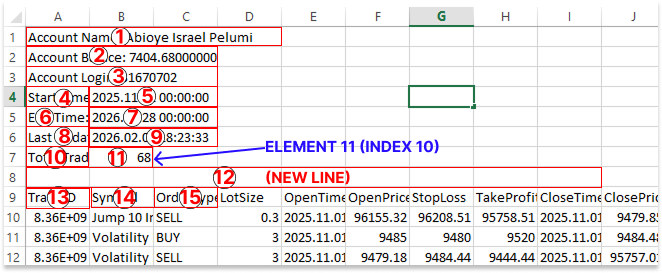
This step is crucial because the total number of trades directly affects how many TradeID values are saved in the dynamic array. Understanding this count helps us to properly allocate the array and prevent mistakes like filling it with TradeID values that are out of range.
Example:
FileSeek(file_handle, 0, SEEK_SET);
string TotalElements[];
ArrayResize(TotalElements,total_elements_count);

for(int i = 0; i < total_elements_count; i++)
  {

   TotalElements[i] = FileReadString(file_handle);

  }

int total_deals = (int)StringToInteger(TotalElements[10]);
Explanation:
Every element in the file was saved in a dynamic string array named TotalElements in the preceding section. The total number of deals can be found at the eleventh element, or index 10, since array indexing begins at zero. The variable total_deals is allocated this value after it has been transformed from a string to an integer. To properly size the TradeID array and for any loops that process the deals, this numeric value, which reflects the total number of trades, is required.
Analogy:
One way to conceptualize the dynamic array TotalElements is as a row of numbered mailboxes, each of which contains a piece of file information. We begin from zero; thus, the entire number of deals is in the eleventh mailbox, which is at index 10. The number in the mailbox is now written as text on a piece of paper; thus, we are unable to use it for calculations just yet. StringToInteger is used to "translate" the text into a usable number. Comparable to taking a piece of paper out of the mailbox and turning it into a real coin that may be tallied or utilized in computations. We can plan to fill the TradeID slots in our dynamic array without worrying about running out of space once we have the number converted to an integer.
Finding the index in the TotalElements array where the TradeID values begin is the next step. This is crucial because, to properly recover all ensuing trade tickets, we must know the precise location of the original TradeID. After determining this beginning point, we may store all the tickets for the total number of trades in a single dynamic array of type ulong. We make sure that every TradeID from the file is recorded in an orderly manner, prepared for use in subsequent processing or written back into the file, by looping from the starting index and filling this array.
Example:else if(file_handle != INVALID_HANDLE) { int total_elements_count = 0; while(!FileIsEnding(file_handle)) { FileReadString(file_handle); total_elements_count++; } // Print(total_elements_count); FileSeek(file_handle, 0, SEEK_SET); string TotalElements[]; ArrayResize(TotalElements,total_elements_count); for(int i = 0; i < total_elements_count; i++) { TotalElements[i] = FileReadString(file_handle); } int total_deals = (int)StringToInteger(TotalElements[10]); ulong TradeID[]; ArrayResize(TradeID,total_deals); int id_count = 0; for(int i = 24; i < total_elements_count; i += 12) { TradeID[id_count] = (ulong)StringToInteger(TotalElements[i]); id_count++; } ArrayPrint(TradeID); FileClose(file_handle); }
Explanation:
First, a dynamic array of type ulong named TradeID is declared. Because they might be enormous numbers, the ticket numbers assigned to each trade in MQL5 are saved as unsigned long integers. The array may securely store any potential ticket number by using ulong, which eliminates the possibility of overflow or negative values. We utilize a dynamic array as we don't know how many trade tickets we'll have until we count them. We resize the array based on the total number of deals found, which is kept in total_deals, after it has been declared. This stops mistakes from happening if we try to add more items than the array can hold. The position of the next trade ticket in the TradeID array is tracked by the id_count variable, which starts at zero. The counter is increased to indicate the next available index each time a ticket is added.
Beginning at index 24, trade tickets are retrieved from the TotalElements array during the loop. Headers and account-related data are among the first 24 elements of the CSV file format, which is where this arrangement originates. The first TradeID is found at the 25th element of the file, which is equivalent to index 24 in the array since the array employs zero-based indexing. Each trade is broken down into 12 distinct elements in the file. To make sure it lands on the start of the subsequent trade, the loop advances by 12 each time. This phase maintains the reading's alignment with the file's structure.
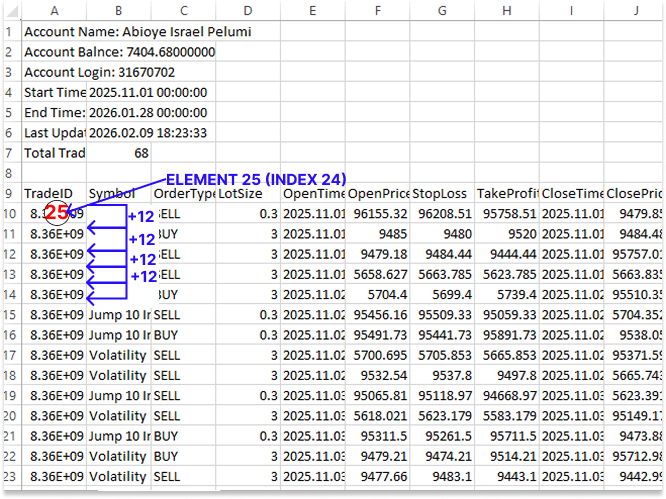
The program saves the element at the current index in TotalElements in the TradeID array at the location denoted by id_count within the loop. Id_count is increased by one once it is stored, allowing the subsequent ticket to occupy the subsequent position in the array. Until every ticket for every deal is saved, this process is repeated.
Analogy:
The TradeID array can be compared to a row of empty pigeonholes, each of which is prepared to receive one trade ticket. Like a unique key or ID card, each trade in your account has a ticket number, and these numbers can be rather big. Choosing a pigeonhole system that is large enough to securely contain all the keys without shattering or overflowing is similar to using ulong. We make the row of pigeonholes dynamic so that it can extend to accommodate precisely the number of keys required because we are unsure of how many transactions we will have in advance. To match the total number of trades, we enlarge the row before we begin inserting keys into the pigeonholes. To ensure that there are precisely enough slots for each key, this is analogous to measuring the row of pigeonholes.
Some keys might fall to the ground if we miscalculated the amount of slots, which in programming is equivalent to receiving an out-of-range error. The id_count variable serves as a counter, informing us of the appropriate pigeonhole to place the subsequent key in. When we insert a key, the counter advances to the subsequent pigeonhole.
Next, visualize a lengthy table with trade facts arranged in rows. The TradeID is located in the first of the 12 compartments in each row. Since the first 24 compartments are occupied by headers and account information, the loop begins at the first TradeID, which is located at the 25th place on the table. To get to the TradeID in the following row, we proceed along the table, navigating through 12 compartments at a time. We pick up each TradeID as we come across it and put it in the following vacant slot in our TradeID array. By the end, the trade tickets are placed in the appropriate pigeonholes. By searching for a certain slot, you may now quickly locate any trade ticket.
After successfully assembling all the TradeID values into a dynamic array, we can proceed to the remaining columns. Symbol, OrderType, LotSize, OpenTime, OpenPrice, StopLoss, TakeProfit, CloseTime, ClosePrice, Profit, and Result are just a few of the CSV file's columns that can be retrieved and saved in a separate dynamic array. By grouping all the elements in a column together, the trade order is maintained, and it becomes simple to get any particular piece of data at a later time.
Example://symbol string symbol[]; ArrayResize(symbol,total_deals); int sym_count = 0; for(int i = 25; i < total_elements_count; i += 12) { symbol[sym_count] = TotalElements[i]; sym_count++; } //OrderType string OrderType[]; ArrayResize(OrderType,total_deals); int order_type_count = 0; for(int i = 26; i < total_elements_count; i += 12) { OrderType[order_type_count] = TotalElements[i]; order_type_count++; } //LotSize double LotSize[]; ArrayResize(LotSize,total_deals); int lot_count = 0; for(int i = 27; i < total_elements_count; i += 12) { LotSize[lot_count] = StringToDouble(TotalElements[i]); lot_count++; } //OpenTime datetime OpenTime[]; ArrayResize(OpenTime,total_deals); int open_time_count = 0; for(int i = 28; i < total_elements_count; i += 12) { OpenTime[open_time_count] = StringToTime(TotalElements[i]); open_time_count++; } //OpenPrice double OpenPrice[]; ArrayResize(OpenPrice,total_deals); int open_price_count = 0; for(int i = 29; i < total_elements_count; i += 12) { OpenPrice[open_price_count] = StringToDouble(TotalElements[i]); open_price_count++; } //StopLoss double StopLoss[]; ArrayResize(StopLoss,total_deals); int StopLoss_count = 0; for(int i = 30; i < total_elements_count; i += 12) { StopLoss[StopLoss_count] = StringToDouble(TotalElements[i]); StopLoss_count++; } // TakeProfit double TakeProfit[]; ArrayResize(TakeProfit,total_deals); int TakeProfit_count = 0; for(int i = 31; i < total_elements_count; i += 12) { TakeProfit[TakeProfit_count] = StringToDouble(TotalElements[i]); TakeProfit_count++; } //CloseTime datetime CloseTime[]; ArrayResize(CloseTime,total_deals); int close_time_count = 0; for(int i = 32; i < total_elements_count; i += 12) { CloseTime[close_time_count] = StringToTime(TotalElements[i]); close_time_count++; } //ClosePrice double ClosePrice[]; ArrayResize(ClosePrice,total_deals); int close_price_count = 0; for(int i = 33; i < total_elements_count; i += 12) { ClosePrice[close_price_count] = StringToDouble(TotalElements[i]); close_price_count++; } //Profit double Profit[]; ArrayResize(Profit,total_deals); int Profit_count = 0; for(int i = 34; i < total_elements_count; i += 12) { Profit[Profit_count] = StringToDouble(TotalElements[i]); Profit_count++; } //Result string Result[]; ArrayResize(Result,total_deals); int Result_count = 0; for(int i = 35; i < total_elements_count; i += 12) { Result[Result_count] = TotalElements[i]; Result_count++; } ArrayPrint(Result);
Explanation:
The first column we look at is Symbol. To store all the symbols for every deal, we first declare a dynamic string array named symbol. We resize the array to total_deals as we now know how many trades there are overall, allowing it to securely hold all trade symbols. A counter sym_count that is initialized to zero is also created. The current index in the array that will hold the following symbol is tracked by this counter. Since the symbol occurs right after the trade identifier at index 24, the loop starts at index 25 of the TotalElements array. The loop progresses in stages of twelve, with each trade having twelve elements. The current element is copied into the symbol array at the end of every iteration. After being saved, the sym_count variable is raised to indicate the array's subsequent open slot.
The OrderType column comes next. We resize OrderType to total_deals and declare another dynamic string array. A counter, order_type_count, is also used. Because the OrderType appears immediately after Symbol in the CSV file, the for loop begins at index 26. The loop jumps to the next OrderType of the subsequent trade by increasing by 12 each iteration, just like it does with symbols. Each value is stored in the OrderType array, and the counter increases. This guarantees that the type of deal is recorded in the correct sequence. We declare a dynamic double array called LotSize since lot sizes are decimal numbers. We utilize a lot_count counter and enlarge it. Starting at index 27, the for loop increases by 12 once more. Before being stored in the array, each element undergoes a StringToDouble conversion from a string to a double. To store the subsequent lot size in the subsequent slot, the counter increases.
Since date and time are stored in the OpenTime column, we define a datetime array and a counter called open_time_count. The loop uses StringToTime to convert each element after starting at index 28 and increasing by 12. This guarantees that the array appropriately stores the open time of each trade as a datetime value. We declare a double array for OpenPrice, resize it, and then utilize open_price_count. Beginning at index 29, the loop increases by 12, doubles each string element, and then puts it in the array. The next open price is guaranteed to enter the following slot by the counter.
The TakeProfit and StopLoss columns exhibit the same pattern. A counter, a double array, and a loop that begins at index 30 for StopLoss and 31 for TakeProfit are all present in each. As the counters keep track of the positions, each string element from the file is transformed to a double and saved in the appropriate array. CloseTime, which is comparable to OpenTime, comes next. A counter called close_time_count is initialized, and a datetime array is generated and resized. The loop begins at index 32, increases by 12, uses StringToTime to convert each element, and then stores the result.
We once more utilize arrays and counters for ClosePrice, Profit, and Result. We convert the file elements to double before storing them because ClosePrice and Profit are doubles. A string array is the result. To advance to the next equivalent column for the subsequent trade, the loops begin at indices 33, 34, and 35, respectively, and increase by 12 each time. Each array's counters guarantee that each element is inserted into the appropriate position. After the procedure is finished, each column's data is saved in a separate dynamic array. A single trade is represented by the same index position in each array, and all arrays have the same amount of entries (total_deals). Trade information may be accessed, reviewed, and altered in a structured and trustworthy manner thanks to this well-organized framework.
Conclusion
By learning how to read a CSV file and arrange its contents into dynamic arrays, we have made significant progress in our understanding of file handling in MQL5. After determining the file's total element count, we combined all the data into a single array and then divided each column into a distinct dynamic array. This method not only makes it possible for us to rapidly access and examine every deal, but it also establishes the groundwork for more complex initiatives like statistical analysis and balance curve mapping. By structuring file data in this way, we have created a solid framework for managing trading history programmatically, preparing you for the next part where we will use these arrays to visualize trading performance.
Warning: All rights to these materials are reserved by MetaQuotes Ltd. Copying or reprinting of these materials in whole or in part is prohibited.
This article was written by a user of the site and reflects their personal views. MetaQuotes Ltd is not responsible for the accuracy of the information presented, nor for any consequences resulting from the use of the solutions, strategies or recommendations described.

 Market Simulation (Part 15): Sockets (IX)
 Market Simulation (Part 13): Sockets (VII)
 MQL5 Trading Tools (Part 19): Building an Interactive Tools Palette for Chart Drawing
 Using the MQL5 Economic Calendar for News Filtering (Part 1): Implementing Pre- and Post-News Windows in MQL5

- Free trading apps
- Over 8,000 signals for copying
- Economic news for exploring financial markets
You agree to website policy and terms of use