

Risk-Based Trade Placement EA with On-Chart UI (Part 2): Adding Interactivity and Logic
 3 680
3 680
 0
0

Introduction
In the first part of this series, we focused on designing a static on-chart control panel for our Risk-Based Trade Placement tool. The goal was to create a clean and organized user interface that allows traders to enter trade parameters such as order type and entry price directly from the chart. At that stage, the interface was only visual and could not respond to user actions.
In this second part, we will make the interface interactive and functional. Our main objective is to connect the graphical components to real logic so that when a user clicks the Calculate Lot button, the program reads the input fields, computes the correct lot size based on the defined risk, and displays the result instantly on the chart. Similarly, when the Send Order button is clicked, the system will execute a trade using the calculated lot size and user-defined parameters.
By the end of this article, you will have a fully functional on-chart lot size calculator that reacts to user actions and performs real-time computations. This practical step transforms our static panel into an intelligent trading assistant, enhancing precision and control when planning trades.
Preparing for Interactivity
In part one of this series, our control panel was static. It could display buttons and input fields, but it could not respond when a user clicked them. In this part, we will make the panel interactive by handling user actions such as button clicks.
In MQL5, interactivity is made possible through a special event-handling function called OnChartEvent. This function is automatically called by the terminal whenever a specific chart event occurs, such as a mouse click on a chart object, keypress, or a custom event generated by the program.
Here is the structure of this function as already defined in our source code:
//+------------------------------------------------------------------+
//| ChartEvent function                                              |
//+------------------------------------------------------------------+
void OnChartEvent(const int32_t id,
                  const long    &lparam,
                  const double  &dparam,
                  const string  &sparam)
{

}
This function has four parameters:
- id - identifies the type of event that occurred. For example, CHARTEVENT_OBJECT_CLICK represents a click on a chart object.
- lparam - stores additional data depending on the event type, such as the X coordinate of the mouse or the key code.
- dparam - usually holds numerical data related to the event, such as the Y coordinate of the mouse.
- sparam - is a string parameter that often contains the name of the object involved in the event. This is the one we will rely on to know which button or label was clicked.
Now, let us detect click events within this function. Since we are only interested in user clicks on our graphical components, we will focus on the CHARTEVENT_OBJECT_CLICK event. We can do this by adding the following conditional statement inside the body of our function:
//+------------------------------------------------------------------+
//| ChartEvent function                                              |
//+------------------------------------------------------------------+
void OnChartEvent(const int32_t id,
                  const long    &lparam,
                  const double  &dparam,
                  const string  &sparam)
{

   //--- Handle click events
   if(id == CHARTEVENT_OBJECT_CLICK){
   }

}
This ensures that our program only reacts when a user clicks on any chart object. From here, we can use the sparam parameter to determine exactly which object was clicked and then respond accordingly.
Capturing and Handling User Actions
The first action we want to handle is closing the GUI when the user clicks the X icon at the top-right corner of the control panel.
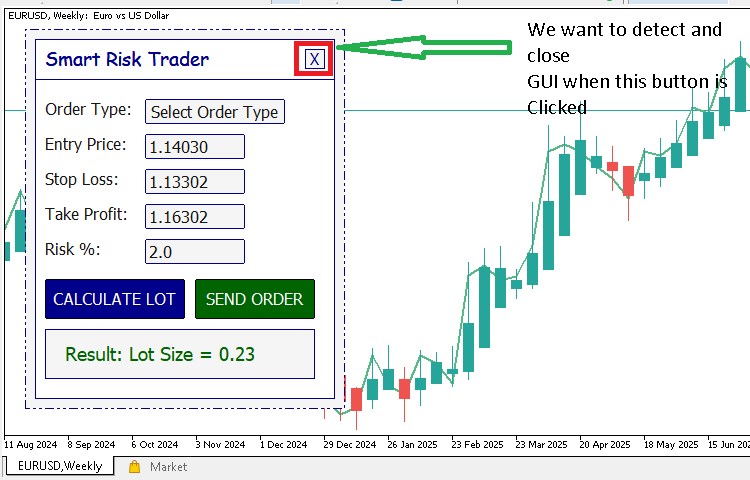
To make this possible, we will define a new function named DESTROY_GUI. This function will remove all objects that form our user interface and refresh the chart.
Here is the function definition:
//+------------------------------------------------------------------+
//| Function to destroy the main GUI                                 |
//+------------------------------------------------------------------+
void DESTROY_GUI(){
   ObjectsDeleteAll(0, SmartRiskTrader);
   ObjectDelete(0, BTN_CLOSE_GUI);
   ObjectDelete(0, BTN_ORDER_TYPES);
   ObjectDelete(0, FIELD_ENTRY_PRICE);
   ObjectDelete(0, FIELD_STOP_LOSS);
   ObjectDelete(0, FIELD_TAKE_PROFIT);
   ObjectDelete(0, RISK);
   ObjectDelete(0, BTN_CALC_LOT);
   ObjectDelete(0, BTN_SEND_ORDER);
   ObjectDelete(0, RESULTS_TEXT);
   ObjectsDeleteAll(0, "ORDER_TYPE_GROUP");
   ChartRedraw();
}
This function ensures that when the GUI is closed, every graphical component is removed from the chart, leaving it clean. The call to ChartRedraw updates the chart immediately to reflect these changes.
Next, we need to detect when the user actually clicks the X icon. We do this inside our event-handling function, OnChartEvent. We simply check if the event was an object click and whether the clicked object name matches BTN_CLOSE_GUI. If it does, we call our DESTROY_GUI function to remove the interface.
Here is how we handle it:
//+------------------------------------------------------------------+
//| ChartEvent function                                              |
//+------------------------------------------------------------------+
void OnChartEvent(const int32_t id,
                  const long    &lparam,
                  const double  &dparam,
                  const string  &sparam)
{

   //--- Handle click events
   if(id == CHARTEVENT_OBJECT_CLICK){

      //--- To close GUI
      if(sparam == BTN_CLOSE_GUI){
         DESTROY_GUI();
      }
   }
}
When you compile and run the code, clicking the X icon will instantly remove the entire GUI from the chart. This gives the user a clean and responsive way to close the panel, just like any standard application interface.
After closing the control panel, it would not be practical if the user had no way to open it again. To solve this, we will create a small “Open GUI” button that appears at the bottom-left corner of the chart. When the user clicks this button, it will bring back the main panel.
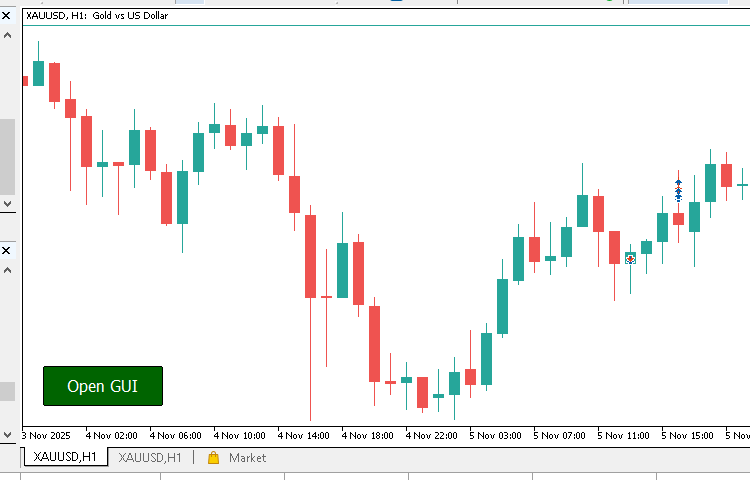
We will start by defining a macro to give our button a unique name that we can easily reference later:
//+------------------------------------------------------------------+
//| Macros                                                           |
//+------------------------------------------------------------------+

...

#define BTN_GUI_OPEN      "BTN_GUI_OPEN"
Next, we define a function named CREATE_GUI_OPEN_BUTTON. This function will draw the Open GUI button on the chart and position it neatly at the bottom-left corner:
//+------------------------------------------------------------------+
//| Function to create the GUI open button                           |
//+------------------------------------------------------------------+
void CREATE_GUI_OPEN_BUTTON(){
   CREATE_OBJ_BUTTON(BTN_GUI_OPEN, 20, 60, 120, 40, "Open GUI", clrWhite, 12, 2, clrDarkGreen, clrBlack);
   ObjectSetInteger(0, BTN_GUI_OPEN, OBJPROP_CORNER, CORNER_LEFT_LOWER);
   ChartRedraw();
}
The call to ObjectSetInteger ensures that the button’s position is anchored to the lower-left corner of the chart. The ChartRedrawcommand refreshes the chart immediately so that the button appears without delay.
Finally, we should display this button right after the GUI is closed. To do that, we simply call the CREATE_GUI_OPEN_BUTTON function inside our event-handling logic when the X icon is clicked:
//+------------------------------------------------------------------+
//| ChartEvent function                                              |
//+------------------------------------------------------------------+
void OnChartEvent(const int32_t id,
                  const long    &lparam,
                  const double  &dparam,
                  const string  &sparam)
{

   //--- Handle click events
   if(id == CHARTEVENT_OBJECT_CLICK){

      //--- To close GUI
      if(sparam == BTN_CLOSE_GUI){

         ...

         CREATE_GUI_OPEN_BUTTON();
      }
   }
}
Now that we have created the Open GUI button, we need to make it functional. When the user clicks this button, the main control panel should be displayed again on the chart. To achieve this, we will add a small piece of logic to our event-handling function.
The idea is simple. When the Open GUI button is clicked, we first remove the button from the chart to avoid duplicates, and then recreate the main GUI using our existing CREATE_GUI function. Here is how the updated event-handling function looks:
//+------------------------------------------------------------------+
//| ChartEvent function                                              |
//+------------------------------------------------------------------+
void OnChartEvent(const int32_t id,
                  const long    &lparam,
                  const double  &dparam,
                  const string  &sparam)
{

   //--- Handle click events
   if(id == CHARTEVENT_OBJECT_CLICK){

      ...

      //--- To open GUI
      if(sparam == BTN_GUI_OPEN){
         DESTROY_GUI_OPEN_BUTTON();
         CREATE_GUI();
      }
   }
}
In this code, the DESTROY_GUI_OPEN_BUTTON function is responsible for removing the “Open GUI” button before the main panel is created again.
//+------------------------------------------------------------------+
//| Function to destroy the GUI open button                          |
//+------------------------------------------------------------------+
void DESTROY_GUI_OPEN_BUTTON    (){
   ObjectDelete(0, BTN_GUI_OPEN);
   ChartRedraw();
}
This ensures that the chart remains clean and avoids overlapping graphical elements.
Once you compile and test this code, you will notice that clicking the Open GUI button neatly brings back your main control panel, just as it was before. This simple functionality makes the interface feel much more interactive and complete.
Next, we will automate the order types dropdown. We will make it functional so that when a trader clicks the button, the dropdown appears, and when it is clicked again, the dropdown disappears. To achieve this, we first define a function that will destroy or tear down the dropdown list whenever it is not needed.
//+------------------------------------------------------------------+
//| Function to destroy the order type dropdown                      |
//+------------------------------------------------------------------+
void DESTROY_ORDER_TYPE_DROPDOWN(){
   ObjectsDeleteAll(0, "ORDER_TYPE_GROUP");
   ChartRedraw();
}
The function above removes all chart objects that belong to the group "ORDER_TYPE_GROUP." Every object created when building the dropdown will be assigned to this group. Once removed, the ChartRedraw function refreshes the chart to reflect the changes immediately.
Now we need to control when the dropdown should appear and when it should be hidden.
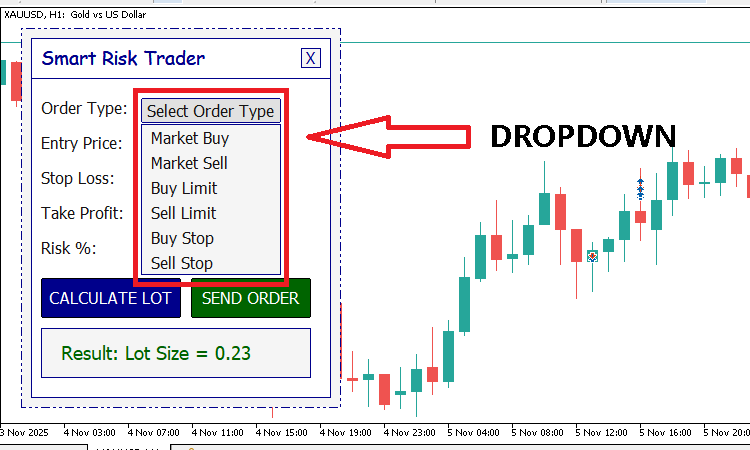
This is done through the OnChartEvent function, which handles all user interactions on the chart. We modify it to detect when the Order Types button is clicked, and then show or hide the dropdown accordingly.
//+------------------------------------------------------------------+
//| ChartEvent function                                              |
//+------------------------------------------------------------------+
void OnChartEvent(const int32_t id,
                  const long    &lparam,
                  const double  &dparam,
                  const string  &sparam)
{

   //--- Handle click events
   if(id == CHARTEVENT_OBJECT_CLICK){

      ...

      //--- To handle order types dropdown
      if(sparam == BTN_ORDER_TYPES){

         bool state = ObjectGetInteger(0, BTN_ORDER_TYPES, OBJPROP_STATE);

         if(state == true) {
            CREATE_ORDER_TYPE_DROPDOWN();
         }

         if(state == false){
            DESTROY_ORDER_TYPE_DROPDOWN();
         }
      }
   }
}
The OBJPROP_STATE property tells us whether the button is pressed (true) or released (false). When the button is pressed, the function CREATE_ORDER_TYPE_DROPDOWN is called to display the dropdown. When it is released, the function DESTROY_ORDER_TYPE_DROPDOWN is called to hide it. This simple mechanism makes the button responsive. The trader can now click it to show the list of order types and click again to hide it.
In part one of this series, we created a static GUI that displayed hardcoded values for the entry price, stop-loss, and take-profit fields. While this was useful during the design phase, it is not ideal for real-world use. In live trading, prices are constantly changing, and these fields should display values that reflect the current market environment.
To achieve this, we will first create two helper functions — one for retrieving the current Ask price and another for retrieving the Bid price of the symbol on which our interface is loaded. These functions will make it easy to reference live prices anywhere in our code without repeating the same logic.
//+------------------------------------------------------------------+
//| Function to get Ask Price                                        |
//+------------------------------------------------------------------+
double Ask(){
   double askPrc = SymbolInfoDouble(_Symbol, SYMBOL_ASK);
   return NormalizeDouble(askPrc, _Digits);
}

//+------------------------------------------------------------------+
//| Function to get Bid Price                                        |
//+------------------------------------------------------------------+
double Bid(){
   double bidPrc = SymbolInfoDouble(_Symbol, SYMBOL_BID);
   return NormalizeDouble(bidPrc, _Digits);
}
Both functions use the built-in SymbolInfoDoublefunction to fetch price data for the current chart symbol. The SYMBOL_ASK and SYMBOL_BID constants specify the type of price to retrieve. We then use the NormalizeDouble function to round the result to match the number of decimal places used by the symbol, represented by the predefined variable _Digits. With these two functions, we can now easily reference ask or bid functions from anywhere in our code, and they will always return accurate and updated prices.
Next, let us modify the CREATE_GUI function so that the entry price, stop-loss, and take-profit fields display values based on the current ask price instead of fixed text values. Originally, these fields had been created using hardcoded numbers such as:
//+------------------------------------------------------------------+
//| Function to render the main GUI                                  |
//+------------------------------------------------------------------+
void CREATE_GUI(){

   ...

   //--- Entry Price
   CREATE_OBJ_LABEL(GenerateUniqueName(SmartRiskTrader), 40, 125, "Entry Price: ", C'20, 20, 20');
   CREATE_OBJ_EDIT(FIELD_ENTRY_PRICE, 140, 125, 100, 25, "1.14030", C'20, 20, 20', 12, clrWhiteSmoke, clrDarkBlue);

   //--- Stop Loss
   CREATE_OBJ_LABEL(GenerateUniqueName(SmartRiskTrader), 40, 160, "Stop Loss: ", C'20, 20, 20');
   CREATE_OBJ_EDIT(FIELD_STOP_LOSS, 140, 160, 100, 25, "1.13302", C'20, 20, 20', 12, clrWhiteSmoke, clrDarkBlue);

   //--- Take Profit
   CREATE_OBJ_LABEL(GenerateUniqueName(SmartRiskTrader), 40, 195, "Take Profit: ", C'20, 20, 20');
   CREATE_OBJ_EDIT(FIELD_TAKE_PROFIT, 140, 195, 100, 25, "1.16302", C'20, 20, 20', 12, clrWhiteSmoke, clrDarkBlue);

   ...

}
While this worked visually, it did not represent the real market prices of the financial instrument being viewed. To make our interface more useful, we replace those values with expressions that use live price data. Here is the updated version of that section:
//+------------------------------------------------------------------+
//| Function to render the main GUI                                  |
//+------------------------------------------------------------------+
void CREATE_GUI(){

   ...

   //--- Entry Price
   CREATE_OBJ_LABEL(GenerateUniqueName(SmartRiskTrader), 40, 125, "Entry Price: ", C'20, 20, 20');
   CREATE_OBJ_EDIT(FIELD_ENTRY_PRICE, 140, 125, 100, 25, DoubleToString(Ask(), Digits()), C'20, 20, 20', 12, clrWhiteSmoke, clrDarkBlue);

   //--- Stop Loss
   CREATE_OBJ_LABEL(GenerateUniqueName(SmartRiskTrader), 40, 160, "Stop Loss: ", C'20, 20, 20');
   CREATE_OBJ_EDIT(FIELD_STOP_LOSS, 140, 160, 100, 25,   DoubleToString(Ask() - (200 * Point()), Digits()), C'20, 20, 20', 12, clrWhiteSmoke, clrDarkBlue);

   //--- Take Profit
   CREATE_OBJ_LABEL(GenerateUniqueName(SmartRiskTrader), 40, 195, "Take Profit: ", C'20, 20, 20');
   CREATE_OBJ_EDIT(FIELD_TAKE_PROFIT, 140, 195, 100, 25, DoubleToString(Ask() + (400 * Point()), Digits()), C'20, 20, 20', 12, clrWhiteSmoke, clrDarkBlue);

   ...

}
Let us break this down:
- The entry price field now displays the current ask price directly using DoubleToString(Ask(), Digits()). This gives us a clean price string that matches the instrument’s price scale.
- The stop-loss field is calculated as the ask price minus 200 points, while the take-profit field is set to the ask price plus 400 points. This gives the trader a logical reference for setting their trade levels without typing values manually.
- The Point function ensures that the offsets adjust according to the symbol’s price format, whether it is a forex pair, a stock CFD, or a commodity.
By doing this, our GUI automatically adapts to the instrument being traded. It gives traders realistic entry and exit levels as soon as the interface loads, making the calculator more practical and intuitive to use.
So far, we have built a dropdown menu that appears when the user clicks the Order Type button and disappears when it’s clicked again. However, the dropdown itself does nothing yet — selecting an order type doesn’t update the interface. In this section, we’ll handle that interaction so that when a trader clicks a specific order type (like Market Buy), the main button updates to display that choice, the dropdown closes automatically, and the entry price, stop-loss, and take-profit fields are filled with reasonable values.
Here’s the code that does that when the user chooses the 'Market Buy' option.
//+------------------------------------------------------------------+
//| ChartEvent function                                              |
//+------------------------------------------------------------------+
void OnChartEvent(const int32_t id,
                  const long    &lparam,
                  const double  &dparam,
                  const string  &sparam)
{

   //--- Handle click events
   if(id == CHARTEVENT_OBJECT_CLICK){

      ...

      //--- To select the market buy order
      if(sparam == "ORDER_TYPE_GROUP_MARKET_BUY"){
         bool   state = ObjectGetInteger(0, BTN_ORDER_TYPES, OBJPROP_STATE);
         string text  = ObjectGetString (0, "ORDER_TYPE_GROUP_MARKET_BUY", OBJPROP_TEXT);

         ObjectSetString(0, BTN_ORDER_TYPES, OBJPROP_TEXT, text);

         DESTROY_ORDER_TYPE_DROPDOWN();

         if(state == true){
            ObjectSetInteger(0, BTN_ORDER_TYPES, OBJPROP_STATE, false);
         }

         //--- Set reasonable values to start with
         ObjectSetString(0, FIELD_ENTRY_PRICE, OBJPROP_TEXT, DoubleToString(Ask(), Digits()));
         ObjectSetString(0, FIELD_STOP_LOSS,   OBJPROP_TEXT, DoubleToString(Ask() - (200 * Point()), Digits()));
         ObjectSetString(0, FIELD_TAKE_PROFIT, OBJPROP_TEXT, DoubleToString(Ask() + (400 * Point()), Digits()));

         ChartRedraw();
      }
   }
}
Let us break it down step by step.
bool   state = ObjectGetInteger(0, BTN_ORDER_TYPES, OBJPROP_STATE);
string text  = ObjectGetString (0, "ORDER_TYPE_GROUP_MARKET_BUY", OBJPROP_TEXT);
Here, we're doing two thing:
- Checking the current state of the order type button (whether it's pressed or not).
- Reading the text from the clicked dropdown item, which in this case should be "Market Buy."
ObjectSetString(0, BTN_ORDER_TYPES, OBJPROP_TEXT, text);
This line updates the label of the main order type button so it now reads “Market Buy”. This gives immediate feedback to the user — they can clearly see the selected order type displayed on the main button.
DESTROY_ORDER_TYPE_DROPDOWN();
Once the selection is made, we call our earlier function DESTROY_ORDER_TYPE_DROPDOWN, which deletes all dropdown objects from the chart.
Then, to make sure the main button looks unpressed again, we reset its state:
if(state == true){
   ObjectSetInteger(0, BTN_ORDER_TYPES, OBJPROP_STATE, false);
}
Next, we automatically populate the key input fields with realistic default values:
ObjectSetString(0, FIELD_ENTRY_PRICE, OBJPROP_TEXT, DoubleToString(Ask(), Digits()));
ObjectSetString(0, FIELD_STOP_LOSS,   OBJPROP_TEXT, DoubleToString(Ask() - (200 * Point()), Digits()));
ObjectSetString(0, FIELD_TAKE_PROFIT, OBJPROP_TEXT, DoubleToString(Ask() + (400 * Point()), Digits()));
Here is what each line does:
- Entry Price: Set to the current Ask price, since that’s the price at which a market buy executes.
- Stop Loss: Positioned 200 points below the Ask price, to represent a logical safety margin.
- Take Profit: Positioned 400 points above the Ask price, giving a favorable risk-to-reward ratio.
Finally, we call:
ChartRedraw();
This command forces the chart to update immediately, ensuring that the latest changes to objects and their text appear instantly on screen.
Now, we want every order type in the dropdown to be functional. Whenever a trader selects one of the order types, three things should happen automatically:
- The chosen order type text appears on the Order Type button.
- The dropdown closes and the button returns to its normal state.
- The entry price, stop-loss, and take-profit fields update with reasonable default values for that specific order type.
When the trader selects Market Sell, the EA does the following:
- Updates the main order-type button to display “Market Sell.”
- Closes the dropdown and restores the order types button’s state.
- Automatically fills in the entry price, stop-loss, and take-profit with values suitable for a sell order.
//+------------------------------------------------------------------+
//| ChartEvent function                                              |
//+------------------------------------------------------------------+
void OnChartEvent(const int32_t id,
                  const long    &lparam,
                  const double  &dparam,
                  const string  &sparam)
{

   //--- Handle click events
   if(id == CHARTEVENT_OBJECT_CLICK){

      ...

      //--- To select the market sell order
      if(sparam == "ORDER_TYPE_GROUP_MARKET_SELL"){
         bool   state = ObjectGetInteger(0, BTN_ORDER_TYPES, OBJPROP_STATE);
         string text  = ObjectGetString (0, "ORDER_TYPE_GROUP_MARKET_SELL", OBJPROP_TEXT);

         ObjectSetString(0, BTN_ORDER_TYPES, OBJPROP_TEXT, text);

         DESTROY_ORDER_TYPE_DROPDOWN();

         if(state == true){
            ObjectSetInteger(0, BTN_ORDER_TYPES, OBJPROP_STATE, false);
         }

         //--- Set reasonable values to start with
         ObjectSetString(0, FIELD_ENTRY_PRICE, OBJPROP_TEXT, DoubleToString(Bid(), Digits()));
         ObjectSetString(0, FIELD_STOP_LOSS,   OBJPROP_TEXT, DoubleToString(Bid() + (200 * Point()), Digits()));
         ObjectSetString(0, FIELD_TAKE_PROFIT, OBJPROP_TEXT, DoubleToString(Bid() - (400 * Point()), Digits()));

         ChartRedraw();
      }
   }
}
Since this is a Market Sell, the order executes at the bid price. The stop-loss is set above the entry (200 points higher) while the take-profit is below the entry (400 points lower). This gives a realistic setup for a typical sell trade.
For Buy Limit, the logic is similar but the prices are adjusted to reflect a pending order below the current market price.
//+------------------------------------------------------------------+
//| ChartEvent function                                              |
//+------------------------------------------------------------------+
void OnChartEvent(const int32_t id,
                  const long    &lparam,
                  const double  &dparam,
                  const string  &sparam)
{

   //--- Handle click events
   if(id == CHARTEVENT_OBJECT_CLICK){

      ...

      //--- To select the buy limit order
      if(sparam == "ORDER_TYPE_GROUP_BUY_LIMIT"){
         bool   state = ObjectGetInteger(0, BTN_ORDER_TYPES, OBJPROP_STATE);
         string text  = ObjectGetString (0, "ORDER_TYPE_GROUP_BUY_LIMIT", OBJPROP_TEXT);

         ObjectSetString(0, BTN_ORDER_TYPES, OBJPROP_TEXT, text);

         DESTROY_ORDER_TYPE_DROPDOWN();

         if(state == true){
            ObjectSetInteger(0, BTN_ORDER_TYPES, OBJPROP_STATE, false);
         }

         //--- Set reasonable values to start with
         ObjectSetString(0, FIELD_ENTRY_PRICE, OBJPROP_TEXT, DoubleToString(Ask() - (200 * Point()), Digits()));
         ObjectSetString(0, FIELD_STOP_LOSS,   OBJPROP_TEXT, DoubleToString(Ask() - (400 * Point()), Digits()));
         ObjectSetString(0, FIELD_TAKE_PROFIT, OBJPROP_TEXT, DoubleToString(Ask() + (200 * Point()), Digits()));

         ChartRedraw();
      }
   }
}
A Buy Limit order is placed below the current Ask price. The stop-loss is set further down, while the take-profit is placed above the Ask.
A Sell Limit is the opposite of a Buy Limit — it’s placed above the current Bid price.
//+------------------------------------------------------------------+
//| ChartEvent function                                              |
//+------------------------------------------------------------------+
void OnChartEvent(const int32_t id,
                  const long    &lparam,
                  const double  &dparam,
                  const string  &sparam)
{

   //--- Handle click events
   if(id == CHARTEVENT_OBJECT_CLICK){

      ...

      //--- To select the sell limit order
      if(sparam == "ORDER_TYPE_GROUP_SELL_LIMIT"){
         bool   state = ObjectGetInteger(0, BTN_ORDER_TYPES, OBJPROP_STATE);
         string text  = ObjectGetString (0, "ORDER_TYPE_GROUP_SELL_LIMIT", OBJPROP_TEXT);

         ObjectSetString(0, BTN_ORDER_TYPES, OBJPROP_TEXT, text);

         DESTROY_ORDER_TYPE_DROPDOWN();

         if(state == true){
            ObjectSetInteger(0, BTN_ORDER_TYPES, OBJPROP_STATE, false);
         }

         //--- Set reasonable values to start with
         ObjectSetString(0, FIELD_ENTRY_PRICE, OBJPROP_TEXT, DoubleToString(Bid() + (200 * Point()), Digits()));
         ObjectSetString(0, FIELD_STOP_LOSS,   OBJPROP_TEXT, DoubleToString(Bid() + (400 * Point()), Digits()));
         ObjectSetString(0, FIELD_TAKE_PROFIT, OBJPROP_TEXT, DoubleToString(Bid() - (200 * Point()), Digits()));


         ChartRedraw();
      }
   }
}
The entry price is placed above the current market level. The stop-loss is even higher, while the take-profit is lower, aligning with how Sell Limit orders are typically structured.
A Buy Stop order is placed above the market, expecting price to continue rising.
//+------------------------------------------------------------------+
//| ChartEvent function                                              |
//+------------------------------------------------------------------+
void OnChartEvent(const int32_t id,
                  const long    &lparam,
                  const double  &dparam,
                  const string  &sparam)
{

   //--- Handle click events
   if(id == CHARTEVENT_OBJECT_CLICK){

      ...

      //--- To select the buy stop order
      if(sparam == "ORDER_TYPE_GROUP_BUY_STOP"){
         bool   state = ObjectGetInteger(0, BTN_ORDER_TYPES, OBJPROP_STATE);
         string text  = ObjectGetString (0, "ORDER_TYPE_GROUP_BUY_STOP", OBJPROP_TEXT);

         ObjectSetString(0, BTN_ORDER_TYPES, OBJPROP_TEXT, text);

         DESTROY_ORDER_TYPE_DROPDOWN();

         if(state == true){
            ObjectSetInteger(0, BTN_ORDER_TYPES, OBJPROP_STATE, false);
         }

         //--- Set reasonable values to start with
         ObjectSetString(0, FIELD_ENTRY_PRICE, OBJPROP_TEXT, DoubleToString(Ask() + (200 * Point()), Digits()));
         ObjectSetString(0, FIELD_STOP_LOSS,   OBJPROP_TEXT, DoubleToString(Ask(), Digits()));
         ObjectSetString(0, FIELD_TAKE_PROFIT, OBJPROP_TEXT, DoubleToString(Ask() + (600 * Point()), Digits()));


         ChartRedraw();
      }
   }
}
Here, the entry is placed slightly above the Ask price. The stop-loss is set near the current Ask, while the take-profit is placed higher to capture potential upward movement.
Lastly, the Sell Stop order is placed below the current price, expecting the price to drop further.
//+------------------------------------------------------------------+
//| ChartEvent function                                              |
//+------------------------------------------------------------------+
void OnChartEvent(const int32_t id,
                  const long    &lparam,
                  const double  &dparam,
                  const string  &sparam)
{

   //--- Handle click events
   if(id == CHARTEVENT_OBJECT_CLICK){

      ...

      //--- To select the sell stop order
      if(sparam == "ORDER_TYPE_GROUP_SELL_STOP"){
         bool   state = ObjectGetInteger(0, BTN_ORDER_TYPES, OBJPROP_STATE);
         string text  = ObjectGetString (0, "ORDER_TYPE_GROUP_SELL_STOP", OBJPROP_TEXT);

         ObjectSetString(0, BTN_ORDER_TYPES, OBJPROP_TEXT, text);

         DESTROY_ORDER_TYPE_DROPDOWN();

         if(state == true){
            ObjectSetInteger(0, BTN_ORDER_TYPES, OBJPROP_STATE, false);
         }

         //--- Set reasonable values to start with
         ObjectSetString(0, FIELD_ENTRY_PRICE, OBJPROP_TEXT, DoubleToString(Bid() - (200 * Point()), Digits()));
         ObjectSetString(0, FIELD_STOP_LOSS,   OBJPROP_TEXT, DoubleToString(Bid(), Digits()));
         ObjectSetString(0, FIELD_TAKE_PROFIT, OBJPROP_TEXT, DoubleToString(Bid() - (600 * Point()), Digits()));

         ChartRedraw();
      }
   }
}
This order assumes a breakout downward. The entry is below the Bid, stop-loss is placed higher, and take-profit is placed much lower, capturing potential downside continuation.
At this point, every order type in the dropdown is interactive and behaves as expected. When a trader clicks any of them, the interface instantly reacts:
- The selected type appears on the order types main button.
- The dropdown disappears.
- Default entry, stop loss, and take profit prices are automatically populated.
This creates a dynamic, user-friendly trading interface where the trader can explore different order types intuitively — without needing to manually type values every time.
Now let us add interactivity to our buttons so that when a user clicks the execution controls the EA will compute and show the lot size or actually send the order to the server. But before we wire the buttons we need a few supporting pieces. These will give our code trading ability, a unique trade id, and small helper routines that open specific order types.
First include the standard trade library. Place this line below the macros at the top of the file.
//+------------------------------------------------------------------+
//| Standard Libraries                                               |
//+------------------------------------------------------------------+
#include <Trade\Trade.mqh>
This library provides the CTrade class and ready made trading methods. Using the library keeps trade code simple and reliable.
Next declare a user input for the expert magic number. Place this input after the include section.
//+------------------------------------------------------------------+
//| User input variables                                             |
//+------------------------------------------------------------------+
input group "Information"
input ulong magicNumber = 254700680002;
The magic number uniquely identifies trades created by this EA. Making it an input lets the user change it without editing the source code.
Now define a few global variables. These belong just below the user input section.
//+------------------------------------------------------------------+
//| Global variables                                                 |
//+------------------------------------------------------------------+
CTrade Trade;
double accountBalance;
double contractSize;
The Trade object gives us simple methods to place market and pending orders. The other two variables are placeholders for account and contract information that we may use later.
Initialize the Trade object in OnInit by setting the expert magic number. Add this line to OnInit.
//+------------------------------------------------------------------+
//| Expert initialization function                                   |
//+------------------------------------------------------------------+
int OnInit()
{
   ...

   //--- Set Expert Magic Number
   Trade.SetExpertMagicNumber(magicNumber);

   return(INIT_SUCCEEDED);
}
We will now add small helper functions to place each kind of order. Each helper wraps a single trading call and returns true on success or false on failure. Wrapping the calls this way keeps the main workflow easy to read and maintain.
The market buy helper calls the Trade.Buy method with the provided volume entry price stop loss and take profit. If the call fails it prints the error code and the trade result information and returns false. If it succeeds it returns true.
//+------------------------------------------------------------------+
//| Function to open a market buy position                           |
//+------------------------------------------------------------------+
bool OPEN_MARKET_BUY(double entryPrice, double stopLoss, double takeProfit, double lotSize){
   if(!Trade.Buy(lotSize, _Symbol, entryPrice, stopLoss, takeProfit)){
      Print("Error while executing a market buy order: ", GetLastError());
      Print(Trade.ResultRetcode());
      Print(Trade.ResultComment());
      return false;
   }
   return true;
}
The market sell helper does the same using Trade.Sell. It handles errors in the same way and returns a boolean result to the caller
//+------------------------------------------------------------------+
//| Function to open a market sell position                          |
//+------------------------------------------------------------------+
bool OPEN_MARKET_SELL(double entryPrice, double stopLoss, double takeProfit, double lotSize){
   if(!Trade.Sell(lotSize, _Symbol, entryPrice, stopLoss, takeProfit)){
      Print("Error while executing a market sell order: ", GetLastError());
      Print(Trade.ResultRetcode());
      Print(Trade.ResultComment());
      return false;
   }
   return true;
}
We also add helpers for pending orders. The buy limit helper uses Trade.BuyLimit and the sell limit helper uses Trade.SellLimit. Both helpers accept entry price stop loss take profit and lot size. They report errors and return false on failure.
//+------------------------------------------------------------------+
//| Function to open a buy limit order                               |
//+------------------------------------------------------------------+
bool OPEN_BUY_LIMIT(double entryPrice, double stopLoss, double takeProfit, double lotSize){
   if(!Trade.BuyLimit(lotSize, entryPrice, _Symbol, stopLoss, takeProfit)){
      Print("Error while executing a buy limit order: ", GetLastError());
      Print(Trade.ResultRetcode());
      Print(Trade.ResultComment());
      return false;
   }
   return true;
}

//+------------------------------------------------------------------+
//| Function to open a sell limit order                              |
//+------------------------------------------------------------------+
bool OPEN_SELL_LIMIT(double entryPrice, double stopLoss, double takeProfit, double lotSize){
   if(!Trade.SellLimit(lotSize, entryPrice, _Symbol, stopLoss, takeProfit)){
      Print("Error while executing a sell limit order: ", GetLastError());
      Print(Trade.ResultRetcode());
      Print(Trade.ResultComment());
      return false;
   }
   return true;
}
Finally we add helpers for buy stop and sell stop orders using Trade.BuyStop and Trade.SellStop. Each helper follows the same pattern of attempting the trade printing diagnostic information on failure and returning a boolean result.
//+------------------------------------------------------------------+
//| Function to open a buy stop order                                |
//+------------------------------------------------------------------+
bool OPEN_BUY_STOP(double entryPrice, double stopLoss, double takeProfit, double lotSize){
   if(!Trade.BuyStop(lotSize, entryPrice, _Symbol, stopLoss, takeProfit)){
      Print("Error while executing a buy stop order: ", GetLastError());
      Print(Trade.ResultRetcode());
      Print(Trade.ResultComment());
      return false;
   }
   return true;
}

//+------------------------------------------------------------------+
//| Function to open a sell stop order                               |
//+------------------------------------------------------------------+
bool OPEN_SELL_STOP(double entryPrice, double stopLoss, double takeProfit, double lotSize){
   if(!Trade.SellStop(lotSize, entryPrice, _Symbol, stopLoss, takeProfit)){
      Print("Error while executing a sell stop order: ", GetLastError());
      Print(Trade.ResultRetcode());
      Print(Trade.ResultComment());
      return false;
   }
   return true;
}
Using these small wrappers makes the Send Order workflow simple. Later we will call the appropriate helper based on the selected order type. Any error messages printed by these helpers will help diagnose issues such as insufficient margin or invalid parameters.
Now let us add interactivity to our Calculate Lot and Send Order buttons so that the EA can respond when a user clicks them.
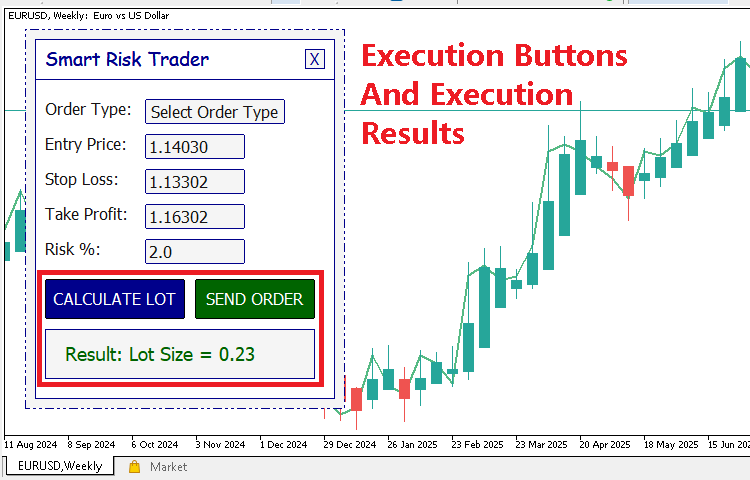
These two buttons represent the final stage of our graphical interface. The first computes the correct lot size based on a defined risk percentage, while the second sends the selected order type to the market or server. To make this possible, we must detect when each button is clicked and then perform the appropriate action.
We start by expanding our OnChartEvent function. As you know, this function is called automatically whenever a user interacts with the chart. Here, we specifically handle CHARTEVENT_OBJECT_CLICK, which is triggered when the user clicks on a button. Inside this event, we check the object name to know which button was pressed.
//+------------------------------------------------------------------+
//| ChartEvent function                                              |
//+------------------------------------------------------------------+
void OnChartEvent(const int32_t id,
                  const long    &lparam,
                  const double  &dparam,
                  const string  &sparam)
{
   //--- Handle click events
   if(id == CHARTEVENT_OBJECT_CLICK){

      ...

      //--- When the lot calculation button is clicked
      if(sparam == BTN_CALC_LOT)  {

      }

      //--- When the send order button is clicked
      if(sparam == BTN_SEND_ORDER){

      }
   }
}
If the object name matches BTN_CALC_LOT, it means the user clicked the Calculate Lot button. Similarly, if it matches BTN_SEND_ORDER, the Send Order button was clicked. At this stage, the event only detects clicks, but it does not perform any actual work. To handle each action properly, we define two helper functions — one for lot calculation and one for order execution.
Handling Lot Size Calculation
//+------------------------------------------------------------------+
//| Function to handles lot calculation process                      |
//+------------------------------------------------------------------+
void HandleLotCalculation(){

   string order_type  = ObjectGetString(0, BTN_ORDER_TYPES, OBJPROP_TEXT);
   string entry_price = ObjectGetString(0, FIELD_ENTRY_PRICE, OBJPROP_TEXT);
   string stop_loss   = ObjectGetString(0, FIELD_STOP_LOSS, OBJPROP_TEXT);
   string take_profit = ObjectGetString(0, FIELD_TAKE_PROFIT, OBJPROP_TEXT);
   string riskPercent = ObjectGetString(0, RISK, OBJPROP_TEXT);
   accountBalance     = AccountInfoDouble(ACCOUNT_BALANCE);
   contractSize       = SymbolInfoDouble(_Symbol, SYMBOL_TRADE_CONTRACT_SIZE);

   if(order_type == "Select Order Type"){
      ObjectSetString(0, RESULTS_TEXT, OBJPROP_TEXT, "Please Select Order Type!");
      ChartRedraw();
      return;
   }

   if(order_type == "Market Buy "){
      double stopDistance      = Ask() - StringToDouble(stop_loss);
      double riskPercentValue  = StringToDouble(riskPercent);
      double amountAtRisk      = (riskPercentValue / 100.0) * accountBalance;
      double lotSize           = amountAtRisk / (contractSize * stopDistance);
      lotSize                  = lotSize             = NormalizeDouble(lotSize, 2);
      ObjectSetString(0, RESULTS_TEXT, OBJPROP_TEXT, "Result: Lot Size = " + DoubleToString(lotSize, 2));
      ChartRedraw();
   }

   if(order_type == "Market Sell"){
      double stopDistance      = StringToDouble(stop_loss) - Bid();
      double riskPercentValue  = StringToDouble(riskPercent);
      double amountAtRisk      = (riskPercentValue / 100.0) * accountBalance;
      double lotSize           = amountAtRisk / (contractSize * stopDistance);
      lotSize                  = lotSize             = NormalizeDouble(lotSize, 2);
      ObjectSetString(0, RESULTS_TEXT, OBJPROP_TEXT, "Result: Lot Size = " + DoubleToString(lotSize, 2));
      ChartRedraw();
   }

   if(order_type == "Buy Limit  "){
      double stopDistance      = StringToDouble(entry_price) - StringToDouble(stop_loss);
      double riskPercentValue  = StringToDouble(riskPercent);
      double amountAtRisk      = (riskPercentValue / 100.0) * accountBalance;
      double lotSize           = amountAtRisk / (contractSize * stopDistance);
      lotSize                  = lotSize             = NormalizeDouble(lotSize, 2);
      ObjectSetString(0, RESULTS_TEXT, OBJPROP_TEXT, "Result: Lot Size = " + DoubleToString(lotSize, 2));
      ChartRedraw();
   }

   if(order_type == "Sell Limit "){
      double stopDistance      = StringToDouble(stop_loss) - StringToDouble(entry_price);
      double riskPercentValue  = StringToDouble(riskPercent);
      double amountAtRisk      = (riskPercentValue / 100.0) * accountBalance;
      double lotSize           = amountAtRisk / (contractSize * stopDistance);
      lotSize                  = lotSize             = NormalizeDouble(lotSize, 2);
      ObjectSetString(0, RESULTS_TEXT, OBJPROP_TEXT, "Result: Lot Size = " + DoubleToString(lotSize, 2));
      ChartRedraw();
   }

   if(order_type == "Buy Stop   "){
      double stopDistance      = StringToDouble(entry_price) - StringToDouble(stop_loss);
      double riskPercentValue  = StringToDouble(riskPercent);
      double amountAtRisk      = (riskPercentValue / 100.0) * accountBalance;
      double lotSize           = amountAtRisk / (contractSize * stopDistance);
      lotSize                  = lotSize             = NormalizeDouble(lotSize, 2);
      ObjectSetString(0, RESULTS_TEXT, OBJPROP_TEXT, "Result: Lot Size = " + DoubleToString(lotSize, 2));
      ChartRedraw();
   }

   if(order_type == "Sell Stop  "){
      double stopDistance      = StringToDouble(stop_loss) - StringToDouble(entry_price);
      double riskPercentValue  = StringToDouble(riskPercent);
      double amountAtRisk      = (riskPercentValue / 100.0) * accountBalance;
      double lotSize           = amountAtRisk / (contractSize * stopDistance);
      lotSize                  = lotSize             = NormalizeDouble(lotSize, 2);
      ObjectSetString(0, RESULTS_TEXT, OBJPROP_TEXT, "Result: Lot Size = " + DoubleToString(lotSize, 2));
      ChartRedraw();
   }
}
The function HandleLotCalculation manages everything related to computing the correct lot size. When this function is called, it first retrieves all relevant data from the GUI fields —order type, entry price, stop loss, take profit, and the risk percentage. It also reads the current account balance and contract size from the trading environment.
The first check ensures that the user has selected an order type. If not, a friendly message appears on the chart telling the user to select an order type before proceeding. This prevents unnecessary calculations.
Once a valid order type is confirmed, the function computes the lot size differently depending on whether the order is a Market Buy, Market Sell, Buy Limit, Sell Limit, Buy Stop, or Sell Stop. Each case calculates the distance between the entry price and the stop loss to measure risk in price terms.
It then calculates the amount at risk by multiplying the risk percentage by the account balance. Dividing this risk amount by the product of the contract size and stop distance gives the correct lot size for the defined risk. The result is normalized to two decimal places and then displayed neatly on the results field in the GUI.
This allows traders to instantly see the lot size required to risk, for example, 2% or 3% of their balance without doing manual math.
Handling Order Execution
//+------------------------------------------------------------------+
//| Function to handles order execution process.                     |
//+------------------------------------------------------------------+
void HandleOrderExecution(){

   string order_type  = ObjectGetString(0, BTN_ORDER_TYPES, OBJPROP_TEXT);
   string entry_price = ObjectGetString(0, FIELD_ENTRY_PRICE, OBJPROP_TEXT);
   string stop_loss   = ObjectGetString(0, FIELD_STOP_LOSS, OBJPROP_TEXT);
   string take_profit = ObjectGetString(0, FIELD_TAKE_PROFIT, OBJPROP_TEXT);
   string riskPercent = ObjectGetString(0, RISK, OBJPROP_TEXT);
   accountBalance     = AccountInfoDouble(ACCOUNT_BALANCE);
   contractSize       = SymbolInfoDouble(_Symbol, SYMBOL_TRADE_CONTRACT_SIZE);

   if(order_type == "Select Order Type"){
      ObjectSetString(0, RESULTS_TEXT, OBJPROP_TEXT, "Please Select Order Type!");
      ChartRedraw();
      return;
   }

   if(order_type == "Market Buy "){
      double stopDistance      = Ask() - StringToDouble(stop_loss);
      double riskPercentValue  = StringToDouble(riskPercent);
      double amountAtRisk      = (riskPercentValue / 100.0) * accountBalance;
      double lotSize           = amountAtRisk / (contractSize * stopDistance);
      lotSize                  = lotSize             = NormalizeDouble(lotSize, 2);
      ObjectSetString(0, RESULTS_TEXT, OBJPROP_TEXT, "Result: Lot Size = " + DoubleToString(lotSize, 2));
      OPEN_MARKET_BUY(Ask(), StringToDouble(stop_loss), StringToDouble(take_profit), lotSize);
      ChartRedraw();
   }

   if(order_type == "Market Sell"){
      double stopDistance      = StringToDouble(stop_loss) - Bid();
      double riskPercentValue  = StringToDouble(riskPercent);
      double amountAtRisk      = (riskPercentValue / 100.0) * accountBalance;
      double lotSize           = amountAtRisk / (contractSize * stopDistance);
      lotSize                  = lotSize             = NormalizeDouble(lotSize, 2);
      ObjectSetString(0, RESULTS_TEXT, OBJPROP_TEXT, "Result: Lot Size = " + DoubleToString(lotSize, 2));
      OPEN_MARKET_SELL(Bid(), StringToDouble(stop_loss), StringToDouble(take_profit), lotSize);
      ChartRedraw();
   }

   if(order_type == "Buy Limit  "){
      double stopDistance      = StringToDouble(entry_price) - StringToDouble(stop_loss);
      double riskPercentValue  = StringToDouble(riskPercent);
      double amountAtRisk      = (riskPercentValue / 100.0) * accountBalance;
      double lotSize           = amountAtRisk / (contractSize * stopDistance);
      lotSize                  = lotSize             = NormalizeDouble(lotSize, 2);
      ObjectSetString(0, RESULTS_TEXT, OBJPROP_TEXT, "Result: Lot Size = " + DoubleToString(lotSize, 2));
      OPEN_BUY_LIMIT(StringToDouble(entry_price), StringToDouble(stop_loss), StringToDouble(take_profit), lotSize);
      ChartRedraw();
   }

   if(order_type == "Sell Limit "){
      double stopDistance      = StringToDouble(stop_loss) - StringToDouble(entry_price);
      double riskPercentValue  = StringToDouble(riskPercent);
      double amountAtRisk      = (riskPercentValue / 100.0) * accountBalance;
      double lotSize           = amountAtRisk / (contractSize * stopDistance);
      lotSize                  = lotSize             = NormalizeDouble(lotSize, 2);
      ObjectSetString(0, RESULTS_TEXT, OBJPROP_TEXT, "Result: Lot Size = " + DoubleToString(lotSize, 2));
      OPEN_SELL_LIMIT(StringToDouble(entry_price), StringToDouble(stop_loss), StringToDouble(take_profit), lotSize);
      ChartRedraw();
   }

   if(order_type == "Buy Stop   "){
      double stopDistance      = StringToDouble(entry_price) - StringToDouble(stop_loss);
      double riskPercentValue  = StringToDouble(riskPercent);
      double amountAtRisk      = (riskPercentValue / 100.0) * accountBalance;
      double lotSize           = amountAtRisk / (contractSize * stopDistance);
      lotSize                  = lotSize             = NormalizeDouble(lotSize, 2);
      ObjectSetString(0, RESULTS_TEXT, OBJPROP_TEXT, "Result: Lot Size = " + DoubleToString(lotSize, 2));
      OPEN_BUY_STOP(StringToDouble(entry_price), StringToDouble(stop_loss), StringToDouble(take_profit), lotSize);
      ChartRedraw();
   }

   if(order_type == "Sell Stop  "){
      double stopDistance      = StringToDouble(stop_loss) - StringToDouble(entry_price);
      double riskPercentValue  = StringToDouble(riskPercent);
      double amountAtRisk      = (riskPercentValue / 100.0) * accountBalance;
      double lotSize           = amountAtRisk / (contractSize * stopDistance);
      lotSize                  = lotSize             = NormalizeDouble(lotSize, 2);
      ObjectSetString(0, RESULTS_TEXT, OBJPROP_TEXT, "Result: Lot Size = " + DoubleToString(lotSize, 2));
      OPEN_SELL_STOP(StringToDouble(entry_price), StringToDouble(stop_loss), StringToDouble(take_profit), lotSize);
      ChartRedraw();
   }
}
The second helper function, HandleOrderExecution, performs the same steps as the previous one but goes a step further — it places the actual trade. Once the function confirms the order type and computes the correct lot size, it calls the respective trade execution function defined earlier (like OPEN_MARKET_BUY(), OPEN_SELL_LIMIT(), and so on).
Just like the lot calculation function, this one also checks if an order type has been selected. If not, a message prompts the user to make a choice. After this, it calculates the stop distance, amount at risk, and final lot size in the same way. The key difference is that once the lot size is determined, it uses the appropriate helper function to send the order to the trading server.
Each helper function handles its respective order type and prints useful messages in the Experts tab in case an error occurs — such as invalid prices or insufficient margin. After the trade is placed, the function updates the chart to show the result and lot size used.
Finally, we call these two functions from within our event handler. Inside the OnChartEvent function, we simply check which button was clicked and call the corresponding handler:
//+------------------------------------------------------------------+
//| ChartEvent function                                              |
//+------------------------------------------------------------------+
void OnChartEvent(const int32_t id,
                  const long    &lparam,
                  const double  &dparam,
                  const string  &sparam)
{
   //--- Handle click events
   if(id == CHARTEVENT_OBJECT_CLICK){

      ...

      //--- When the lot calculation button is clicked
      if(sparam == BTN_CALC_LOT)  {
         HandleLotCalculation();
      }

      //--- When the send order button is clicked
      if(sparam == BTN_SEND_ORDER){
         HandleOrderExecution();
      }
   }
}
This makes the interface fully interactive. When the Calculate Lot button is pressed, the EA instantly computes and displays the proper lot size. When the Send Order button is pressed, it opens the appropriate trade using the computed parameters.
This approach makes the GUI not only visually complete but also functional and practical. The trader can now perform risk-based trade management directly from the chart without typing commands or switching between different panels.
Conclusion
We have now come to the end of Part 2, marking the completion of our project. In this second and final part, we took our GUI from being static to fully interactive and functional. We connected every button, dropdown, and input field to real trading actions, allowing our EA to calculate risk-based lot sizes and execute trades directly from the chart.
Through this journey, you have learned not only how to design a visually appealing interface but also how to make it respond intelligently to user actions using OnChartEvent. You now understand how to structure helper functions for clean and modular trade execution logic — something that forms the backbone of any professional-grade Expert Advisor.
With this newfound knowledge, you can extend what we built here to create even more sophisticated and feature-rich GUIs — from advanced order panels to full-fledged trade management dashboards. The foundation is already laid; it’s only your creativity that sets the limit.
Finally, as a bonus, we’ve attached the complete source code of this project so you can explore, modify, and adapt it to your own trading ideas. Whether you are building tools for personal trading or for clients, this project gives you a powerful starting point to develop interactive, risk-aware trading interfaces entirely within MQL5.
This concludes our series on building a Risk-Based Trade Placement Expert Advisor with an On-Chart Control Panel — a practical tool you can start using right away, and a strong step forward in mastering MQL5 GUI development.
Warning: All rights to these materials are reserved by MetaQuotes Ltd. Copying or reprinting of these materials in whole or in part is prohibited.
This article was written by a user of the site and reflects their personal views. MetaQuotes Ltd is not responsible for the accuracy of the information presented, nor for any consequences resulting from the use of the solutions, strategies or recommendations described.

 MQL5 Trading Tools (Part 10): Building a Strategy Tracker System with Visual Levels and Success Metrics
 Developing a Trading Strategy: The Triple Sine Mean Reversion Method
 Analyzing all price movement options on the IBM quantum computer
 Automating Trading Strategies in MQL5 (Part 39): Statistical Mean Reversion with Confidence Intervals and Dashboard

- Free trading apps
- Over 8,000 signals for copying
- Economic news for exploring financial markets
You agree to website policy and terms of use