

Risk-Based Trade Placement EA with On-Chart UI (Part 1): Designing the User Interface
 3 720
3 720
 0
0

Introduction
Many traders struggle with calculating the right lot size for every trade while keeping their risk consistent. Doing these calculations manually before each entry is repetitive and time-consuming; even a small mistake can lead to unwanted losses. Traders need a way to make this process faster and more reliable, directly from the chart.
This article introduces a practical solution by showing how to design an on-chart control panel for a risk based trade placement expert advisor. The interface we will build is the foundation of a complete system that will later automate lot size calculation and order placement. In this first part, our focus is to create the static graphical layout that will form the visual core of the tool.
The purpose of this project goes beyond creating a simple design. The aim is to build something that can eventually be used in real trading conditions. Readers will also learn how to position and style chart objects properly so that they can later create their own professional interfaces for custom Expert Advisors.
At the beginning, the reader comes with a need to understand how to design an organized and attractive GUI in MQL5. By the end, they will have the knowledge and example code to construct a complete static panel on the chart. This article forms the first step in a two-part series that moves from visual design to full functionality.
Concept and Design
Before starting any coding work, it is important to have a clear picture of what we want to build. The graphical user interface for this Expert Advisor is designed to make a trader’s work easier and faster. It brings together all the key inputs needed to calculate lot size and place an order within a single on-chart panel.
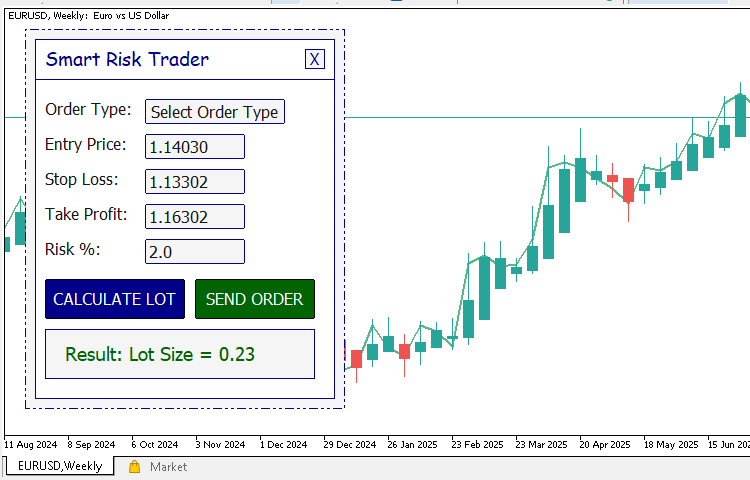
The interface allows a trader to choose the type of order they wish to place. They can enter an entry price for pending orders and specify the stop-loss and take-profit levels. It also includes a field to set the percentage of risk per trade. Two main buttons are available. One button calculates the correct lot size based on the user’s inputs, while the other calculates and instantly sends the trade to the server.
The panel also includes a small section that displays the calculated lot size so that the user can see the result before sending the trade. To improve usability, there is a button to close the panel when it is not needed and another button to open it again. This ensures that the interface remains clean and does not interfere with the chart view during trading.
The design follows a simple and modern layout. All elements are arranged neatly in a straight line to make the panel easy to read and interact with. The color theme uses a soft light background with minimal accent colors to keep the focus on the information. The title is larger and highlighted in a different color so that the user can immediately identify the purpose of the tool. The action buttons use bright colors that draw attention and guide the trader toward the next step.
At a quick glance, a user can understand what the panel does and how to interact with it. The layout gives a clear sense of structure and purpose, making the tool both professional and pleasant to use.
Preparing the EA Structure
Let us start by creating our working file. Open MetaEditor, go to File --> New --> Expert Advisor (template), and create an empty EA file. Name it SmartRiskTrader. We choose this name because it clearly reflects the purpose of our tool. This is a smart trading assistant that manages risk-based trade placements.
Once the file is created, delete any automatically generated code inside it, then paste the following source code:
//+------------------------------------------------------------------+
//|                                              SmartRiskTrader.mq5 |
//|          Copyright 2025, MetaQuotes Ltd. Developer is Chacha Ian |
//|                          https://www.mql5.com/en/users/chachaian |
//+------------------------------------------------------------------+

#property copyright "Copyright 2025, MetaQuotes Ltd. Developer is Chacha Ian"
#property link      "https://www.mql5.com/en/users/chachaian"
#property version   "1.00"

//+------------------------------------------------------------------+
//| Expert initialization function                                   |
//+------------------------------------------------------------------+
int OnInit()
{
   //--- create timer
   EventSetTimer(60);

   return(INIT_SUCCEEDED);
}

//+------------------------------------------------------------------+
//| Expert deinitialization function                                 |
//+------------------------------------------------------------------+
void OnDeinit(const int reason)
{
   //--- destroy timer
   EventKillTimer();

}

//+------------------------------------------------------------------+
//| Expert tick function                                             |
//+------------------------------------------------------------------+
void OnTick()
{

}

//+------------------------------------------------------------------+
//| Timer function                                                   |
//+------------------------------------------------------------------+
void OnTimer()
{

}

//+------------------------------------------------------------------+
//| TradeTransaction function                                        |
//+------------------------------------------------------------------+
void OnTradeTransaction(const MqlTradeTransaction &trans,
                        const MqlTradeRequest     &request,
                        const MqlTradeResult      &result)
{

}

//+------------------------------------------------------------------+
//| ChartEvent function                                              |
//+------------------------------------------------------------------+
void OnChartEvent(const int32_t id,
                  const long    &lparam,
                  const double  &dparam,
                  const string  &sparam)
{

}

//+------------------------------------------------------------------+
This code acts as a boilerplate. It is a clean foundation upon which we will build the full functionality of our EA. Let us go through the main parts briefly:
- OnInit -This function is called when the EA is first loaded onto a chart. Inside it, we set a timer event that triggers after a specified time interval. In this case, after every 60 seconds. Inside this function is typically where EA initialization operations are performed.
- OnDeinit- This function executes when the EA is detached from the chart or when the terminal shuts down. It clears any timer and resource created by the EA.
- OnTick - This function is called every time a new price tick arrives. Later, we will use it to handle trading logic.
- OnTimer - This function runs periodically based on the timer we set in OnInit. It is great for background tasks such as updating panels or checking trade conditions.
- OnTradeTransaction- This function is called every time a trade action like opening, modifying, and closing a position occurs. We can use it to monitor and respond to trading activity.
- OnChartEvent- This function handles user interactions on the chart, such as button clicks. It is essential for building our on-chart control panel.
With this structure ready, we now have all the necessary "hooks" where we can attach our logic step-by-step. Let us move on and define a few utility functions that will make it easier to create and manage graphical objects on our chart. Add the following functions just below our existing source code. They will serve as reusable building blocks when constructing our user interface.
//--- UTILITY FUNCTIONS

//+------------------------------------------------------------------+
//| Function to generate a unique object name with a given prefix    |
//+------------------------------------------------------------------+
string GenerateUniqueName(string prefix){
   int attempt = 0;
   string uniqueName;
   while(true)
   {
      uniqueName = prefix + IntegerToString(MathRand() + attempt);
      if(ObjectFind(0, uniqueName) < 0){
         break;
      }
      attempt++;
   }
   return uniqueName;
}

//--- Reusable GUI elements
//+------------------------------------------------------------------+
//| 1. To create a Rectangular panel                                 |
//+------------------------------------------------------------------+
bool CREATE_OBJ_RECTANGLE_LABEL(
   string objName,
   int xDistance,
   int yDistance,
   int width,
   int height,
   color clrBackground,
   int borderWidth,
   color borderColor            = clrNONE,
   ENUM_BORDER_TYPE borderType  = BORDER_FLAT,
   ENUM_LINE_STYLE  borderStyle = STYLE_SOLID
){

   ResetLastError();

   //--- Create a rectangular panel
   if(!ObjectCreate(0, objName, OBJ_RECTANGLE_LABEL, 0, 0, 0)){
      Print("Error while creating a rectangular panel: ", GetLastError());
      return false;
   }

   //--- Set values for corresponding object properties
   ObjectSetInteger(0, objName, OBJPROP_XDISTANCE, xDistance);
   ObjectSetInteger(0, objName, OBJPROP_YDISTANCE, yDistance);
   ObjectSetInteger(0, objName, OBJPROP_XSIZE, width);
   ObjectSetInteger(0, objName, OBJPROP_YSIZE, height);
   ObjectSetInteger(0, objName, OBJPROP_CORNER, CORNER_LEFT_UPPER);
   ObjectSetInteger(0, objName, OBJPROP_BGCOLOR, clrBackground);
   ObjectSetInteger(0, objName, OBJPROP_BORDER_TYPE, borderType);
   ObjectSetInteger(0, objName, OBJPROP_STYLE, borderStyle);
   ObjectSetInteger(0, objName, OBJPROP_WIDTH, borderWidth);
   ObjectSetInteger(0, objName, OBJPROP_COLOR, borderColor);
   ObjectSetInteger(0, objName, OBJPROP_BACK, false);
   ObjectSetInteger(0, objName, OBJPROP_STATE, false);
   ObjectSetInteger(0, objName, OBJPROP_SELECTABLE, false);
   ObjectSetInteger(0, objName, OBJPROP_SELECTED, false);

   ChartRedraw();
   return true;
}

//+------------------------------------------------------------------+
//| 2. To create a Button Object                                     |
//+------------------------------------------------------------------+
bool CREATE_OBJ_BUTTON(
   string objName,
   int xDistance,
   int yDistance,
   int width,
   int height,
   string text           = "Activate",
   color textColor       = clrDarkGray,
   int fontSize          = 12,
   int borderWidth       = 0,
   color backgroundColor = clrWhiteSmoke,
   color borderColor     = clrBlack,
   string font           = "Tahoma"
){

   ResetLastError();

   //--- Create a button object
   if(!ObjectCreate(0, objName, OBJ_BUTTON, 0, 0, 0)){
      Print("Error while creating a button: ", GetLastError());
      return false;
   }

   //--- Set values for corresponding object properties
   ObjectSetInteger(0, objName, OBJPROP_XDISTANCE, xDistance);
   ObjectSetInteger(0, objName, OBJPROP_YDISTANCE, yDistance);
   ObjectSetInteger(0, objName, OBJPROP_XSIZE, width);
   ObjectSetInteger(0, objName, OBJPROP_YSIZE, height);
   ObjectSetInteger(0, objName, OBJPROP_CORNER, CORNER_LEFT_UPPER);
   ObjectSetString (0, objName, OBJPROP_TEXT, text);
   ObjectSetInteger(0, objName, OBJPROP_COLOR, textColor);
   ObjectSetInteger(0, objName, OBJPROP_FONTSIZE, fontSize);
   ObjectSetString (0, objName, OBJPROP_FONT, font);
   ObjectSetInteger(0, objName, OBJPROP_BGCOLOR, backgroundColor);
   ObjectSetInteger(0, objName, OBJPROP_BORDER_TYPE, BORDER_FLAT);
   ObjectSetInteger(0, objName, OBJPROP_WIDTH, borderWidth);
   ObjectSetInteger(0, objName, OBJPROP_BORDER_COLOR, borderColor);
   ObjectSetInteger(0, objName, OBJPROP_BACK, false);
   ObjectSetInteger(0, objName, OBJPROP_SELECTABLE, false);
   ObjectSetInteger(0, objName, OBJPROP_SELECTED, false);

   ChartRedraw();
   return true;
}

//+------------------------------------------------------------------+
//| 3. To create an Input field                                      |
//+------------------------------------------------------------------+
bool CREATE_OBJ_EDIT(
   string objName,
   int xDistance,
   int yDistance,
   int width,
   int height,
   string text           = "Say sth'...",
   color textColor       = clrGray,
   int fontSize          = 12,
   color backgroundColor = clrWhite,
   color borderColor     = clrBlack,
   string font           = "Tahoma"
){

   ResetLastError();

   //--- Create an input field
   if(!ObjectCreate(0, objName, OBJ_EDIT, 0, 0, 0)){
      Print("Error while creating a text input: ", GetLastError());
      return false;
   }

   //--- Set values for corresponding object properties
   ObjectSetInteger(0, objName, OBJPROP_XDISTANCE, xDistance);
   ObjectSetInteger(0, objName, OBJPROP_YDISTANCE, yDistance);
   ObjectSetInteger(0, objName, OBJPROP_XSIZE, width);
   ObjectSetInteger(0, objName, OBJPROP_YSIZE, height);
   ObjectSetInteger(0, objName, OBJPROP_CORNER, CORNER_LEFT_UPPER);
   ObjectSetString (0, objName, OBJPROP_TEXT, text);
   ObjectSetInteger(0, objName, OBJPROP_COLOR, textColor);
   ObjectSetInteger(0, objName, OBJPROP_FONTSIZE, fontSize);
   ObjectSetString (0, objName, OBJPROP_FONT, font);
   ObjectSetInteger(0, objName, OBJPROP_BGCOLOR, backgroundColor);
   ObjectSetInteger(0, objName, OBJPROP_BORDER_COLOR, borderColor);
   ObjectSetInteger(0, objName, OBJPROP_ALIGN, ALIGN_LEFT);
   ObjectSetInteger(0, objName, OBJPROP_READONLY, false);
   ObjectSetInteger(0, objName, OBJPROP_BACK, false);
   ObjectSetInteger(0, objName, OBJPROP_STATE, false);
   ObjectSetInteger(0, objName, OBJPROP_SELECTABLE, false);
   ObjectSetInteger(0, objName, OBJPROP_SELECTED, false);

   ChartRedraw();
   return true;
}

//+------------------------------------------------------------------+
//| 4. To create a Text label                                        |
//+------------------------------------------------------------------+
bool CREATE_OBJ_LABEL(
   string objName,
   int xDistance,
   int yDistance,
   string text           = "Name sth'...",
   color textColor       = clrDarkGray,
   int fontSize          = 12,
   string font           = "Tahoma"
){

   ResetLastError();

   //--- Create a text label
   if(!ObjectCreate(0, objName, OBJ_LABEL, 0, 0, 0)){
      Print("Error while creating a text label: ", GetLastError());
      return false;
   }

   //--- Set values for corresponding object properties
   ObjectSetInteger(0, objName, OBJPROP_XDISTANCE, xDistance);
   ObjectSetInteger(0, objName, OBJPROP_YDISTANCE, yDistance);
   ObjectSetInteger(0, objName, OBJPROP_CORNER, CORNER_LEFT_UPPER);
   ObjectSetString (0, objName, OBJPROP_TEXT, text);
   ObjectSetInteger(0, objName, OBJPROP_COLOR, textColor);
   ObjectSetInteger(0, objName, OBJPROP_FONTSIZE, fontSize);
   ObjectSetString (0, objName, OBJPROP_FONT, font);
   ObjectSetInteger(0, objName, OBJPROP_BACK, false);
   ObjectSetInteger(0, objName, OBJPROP_STATE, false);
   ObjectSetInteger(0, objName, OBJPROP_SELECTABLE, false);
   ObjectSetInteger(0, objName, OBJPROP_SELECTED, false);

   ChartRedraw();
   return true;
}
Now, let us understand what each of these functions does.
1. GenerateUniqueName
Every graphical object on a chart must have a unique name. This function creates a unique name using a prefix and a random number. It helps prevent name conflicts when multiple objects are created dynamically.
2. CREATE_OBJ_RECTANGLE_LABEL
This function creates a rectangular panel. We will use it as a background or container to hold other GUI elements such as labels and buttons.
3. CREATE_OBJ_BUTTON
This function creates a clickable button with customizable text, size, and color. Buttons are essential for user actions such as placing trades or calculating lot sizes.
4. CREATE_OBJ_EDIT
This function creates an editable text box where the user can type input values. We will later use these boxes to capture inputs like entry price and risk percentage.
5. CREATE_OBJ_LABEL
This function creates a simple text label that displays information or descriptions beside input fields and buttons.
Together, these five functions form the foundation for our on-chart graphical interface. They simplify object creation and make our code more organized and readable. In the next section, we will use them to build our main GUI layout.
Step-by-Step: Assembling the User Interface
Now that we have all our helper functions in place, it is time to start assembling the actual user interface. To keep our code clean and organized, we will create a single function that handles the entire process of rendering the GUI. We will name this function CREATE_GUI. Making the interface modular in this way is very useful because later on we might want to destroy and rebuild the panel when a user clicks a UI close button. Having a single function responsible for creating all visual elements makes this process simple and manageable. For now, let us go ahead and declare this function just below our existing ones.
...

//+------------------------------------------------------------------+
//| Function to render the main GUI                                  |
//+------------------------------------------------------------------+
void CREATE_GUI(){

}

//+------------------------------------------------------------------+
We will also call it inside the OnInit function so that we can instantly see the effect of our code as we build the interface step-by-step.
...

//+------------------------------------------------------------------+
//| Expert initialization function                                   |
//+------------------------------------------------------------------+
int OnInit()
{
   //--- create timer
   EventSetTimer(60);

   //--- render the graphical user interface
   CREATE_GUI();

   return(INIT_SUCCEEDED);
}

...
Before we move on, there is one important step we should take to ensure that our interface is displayed cleanly on the chart. By default, MetaTrader charts show one-click trading buttons in the upper-left corner. These can overlap our custom interface and make it difficult to see clearly. To fix this, we will configure the chart’s appearance by disabling the one-click trading buttons when our EA starts.
We will achieve this using a simple function called ConfigureChartAppearance, which we will define just below our existing utility functions. This function sets the chart property to hide the one-click buttons.
//+------------------------------------------------------------------+
//| 4. This function configures the chart's appearance.              |                          |
//+------------------------------------------------------------------+
bool ConfigureChartAppearance()
{
   if(!ChartSetInteger(0, CHART_SHOW_ONE_CLICK, false)){
      Print("Error while setting one click buttons, ", GetLastError());
      return false;
   }
   return true;
}
Once this function is defined, we will call it inside the OnInit function so that it runs automatically when the Expert Advisor is loaded. This ensures the chart layout is adjusted before the GUI is rendered.
//+------------------------------------------------------------------+
//| Expert initialization function                                   |
//+------------------------------------------------------------------+
int OnInit()
{
   ...

   //--- Configure chart appearance
   if(!ConfigureChartAppearance()){
      Print("Error while customizing the chart's appearance");
      return(INIT_FAILED);
   }

   return(INIT_SUCCEEDED);
}
It is good practice to ensure that all graphical objects created by our EA are properly removed when the program is detached from the chart. This prevents clutter and avoids having leftover objects from previous sessions.
To handle this, we will add a simple line of code inside the OnDeinit function that clears all graphical objects when the EA is removed. The function ObjectsDeleteAll deletes every object from the current chart, leaving it clean and ready for future use.
//+------------------------------------------------------------------+
//| Expert deinitialization function                                 |
//+------------------------------------------------------------------+
void OnDeinit(const int reason)
{
   ...

   //--- delete all graphical objects
   ObjectsDeleteAll(0);

}
Before we begin creating the individual objects for our panel, we need to make sure that each object has a unique name. This helps us identify and manage them easily on the chart. To achieve this, we will use macros to store the names of our objects. For objects that we do not need to access or modify frequently, we will simply define a short prefix that will be used to generate their names. Let us add the following code snippet just below the section defining the EA property directives.
...

//+------------------------------------------------------------------+
//| Macros                                                           |
//+------------------------------------------------------------------+
#define SmartRiskTrader   "SmartRiskTrader"

...
We’ll begin our interface by creating the background panel, which will serve as the base container for all other elements of our GUI. Think of it as the canvas on which every button, label, and control will sit. To do this, we call our custom function CREATE_OBJ_RECTANGLE_LABEL, which draws a rectangle label object on the chart.
...

//+------------------------------------------------------------------+
//| Function to render the main GUI                                  |
//+------------------------------------------------------------------+
void CREATE_GUI(){

   //--- Background panel
   CREATE_OBJ_RECTANGLE_LABEL(GenerateUniqueName(SmartRiskTrader), 20, 20, 320, 380, clrWhiteSmoke, 1, clrDarkBlue, BORDER_FLAT, STYLE_DASHDOTDOT);

}

...
We use GenerateUniqueName(SmartRiskTrader) to ensure the object’s name is unique, and we give it a clean white smoke background with a dark blue border.
At this point, go ahead and compile your source code. Once compiled successfully, switch over to your chart and launch the EA. You should now see a neat rectangular panel sitting right where you defined it.
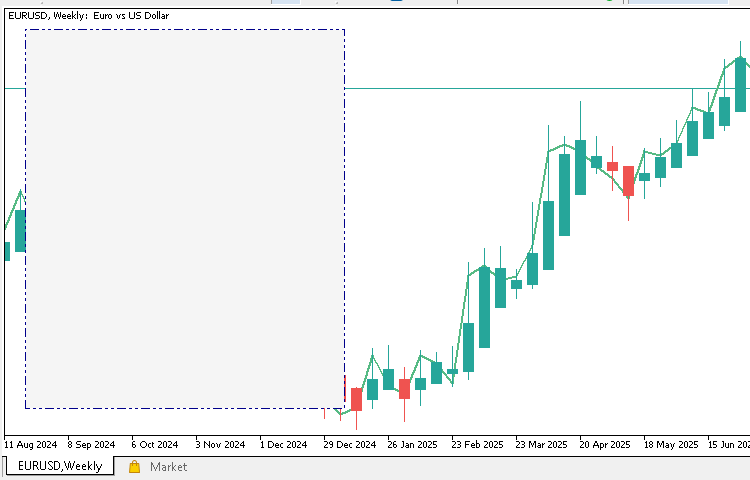
This confirms that our GUI creation function is working correctly. It’s always a good idea to test the code incrementally like this so you can spot and resolve any issues early before the interface becomes more complex.
Next, we’ll add another rectangular panel on top of our original background panel. This secondary panel doesn’t serve any functional purpose—it’s purely for visual appeal, helping give the interface a cleaner, layered look. We’ll simply overlay it on the first rectangle using slightly smaller coordinates so it sits nicely within the border of the main panel.
Once added, your code should now look like this:
...

//+------------------------------------------------------------------+
//| Function to render the main GUI                                  |
//+------------------------------------------------------------------+
void CREATE_GUI(){

   //--- Background panel
   CREATE_OBJ_RECTANGLE_LABEL(GenerateUniqueName(SmartRiskTrader), 20, 20, 320, 380, clrWhiteSmoke, 1, clrDarkBlue, BORDER_FLAT, STYLE_DASHDOTDOT);
   CREATE_OBJ_RECTANGLE_LABEL(GenerateUniqueName(SmartRiskTrader), 30, 30, 300, 360, clrWhite, 1, clrDarkBlue, BORDER_FLAT, STYLE_SOLID);

}

...
This simple addition gives our interface a more refined, layered appearance. Go ahead and compile and run it to admire your updated design.
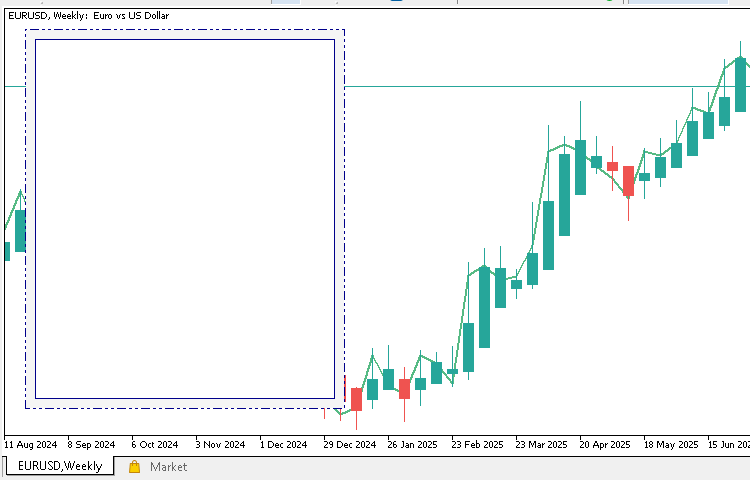
Now that our background is ready, let’s move on to building the header section of our GUI. This area will display the title of our tool and include a small button that allows the user to close the panel. We’ll also add a thin separating line to visually distinguish the header from the rest of the interface.
We’ll build this step-by-step, adding one component at a time and compiling after each addition to observe the changes in real time.
Let’s begin by creating a small rectangle that will hold our close button:
...

//+------------------------------------------------------------------+
//| Function to render the main GUI                                  |
//+------------------------------------------------------------------+
void CREATE_GUI(){

   //--- Background panel
   ...
   CREATE_OBJ_RECTANGLE_LABEL(GenerateUniqueName(SmartRiskTrader), 30, 30, 300, 360, clrWhite, 1, clrDarkBlue, BORDER_FLAT, STYLE_SOLID);

   //--- Header Section Components
   CREATE_OBJ_RECTANGLE_LABEL(GenerateUniqueName(SmartRiskTrader), 300, 40, 20, 20, clrWhiteSmoke, 1, clrDarkBlue, BORDER_FLAT, STYLE_SOLID);

}

...
Once you add this line, compile the code and run the EA to see the small header box appear in the top-right area of your panel.
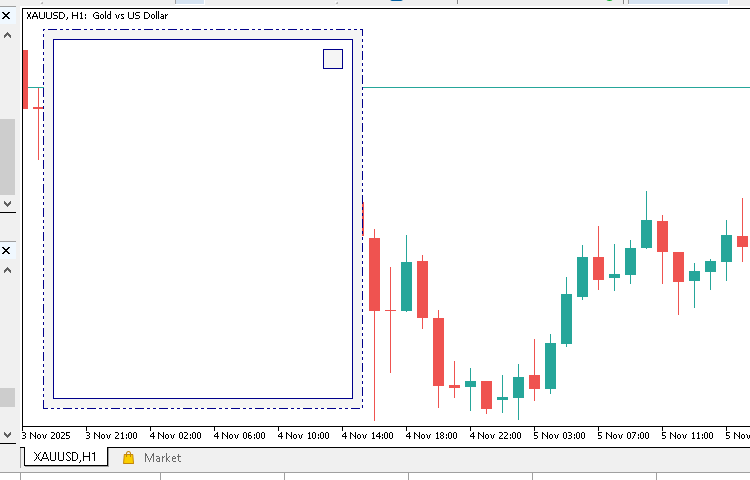
Next, let’s place the close button (“X”) right inside that box: Unlike the decorative components we’ve been creating so far, this button will actually respond to user interaction — when clicked, it will close our interface. For that reason, it’s important to give it a unique and easily recognizable name that we can later reference in our code.
...

//+------------------------------------------------------------------+
//| Macros                                                           |
//+------------------------------------------------------------------+
#define SmartRiskTrader   "SmartRiskTrader"
#define BTN_CLOSE_GUI     "BTN_CLOSE_GUI"

...
Let’s now add the code that actually displays the button.
...

//+------------------------------------------------------------------+
//| Function to render the main GUI                                  |
//+------------------------------------------------------------------+
void CREATE_GUI(){

   ...

   //--- Header Section Components
   CREATE_OBJ_RECTANGLE_LABEL(GenerateUniqueName(SmartRiskTrader), 300, 40, 20, 20, clrWhiteSmoke, 1, clrDarkBlue, BORDER_FLAT, STYLE_SOLID);
   CREATE_OBJ_LABEL(BTN_CLOSE_GUI, 305, 40, "X", clrDarkBlue, 12);

}
Compile your EA, and you should see the "X" symbol appear in the top-right part of your panel.
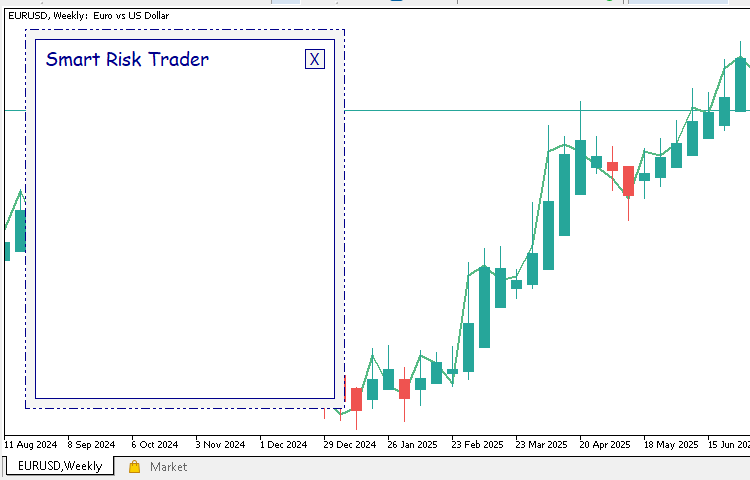
Now, we’ll add the title label for our GUI. This will make the panel look more professional and informative.
...

//+------------------------------------------------------------------+
//| Function to render the main GUI                                  |
//+------------------------------------------------------------------+
void CREATE_GUI(){

   ...

   CREATE_OBJ_LABEL(GenerateUniqueName(SmartRiskTrader), 40, 37, "Smart Risk Trader", clrDarkBlue, 14, "Comic Sans Ms");
   CREATE_OBJ_LABEL(GenerateUniqueName(SmartRiskTrader), 40, 37, "Smart Risk Trader", clrDarkBlue, 14, "Comic Sans Ms");

}

...
Compile and run your code again. You should now see the title displayed at the top of your panel in a friendly and readable font.
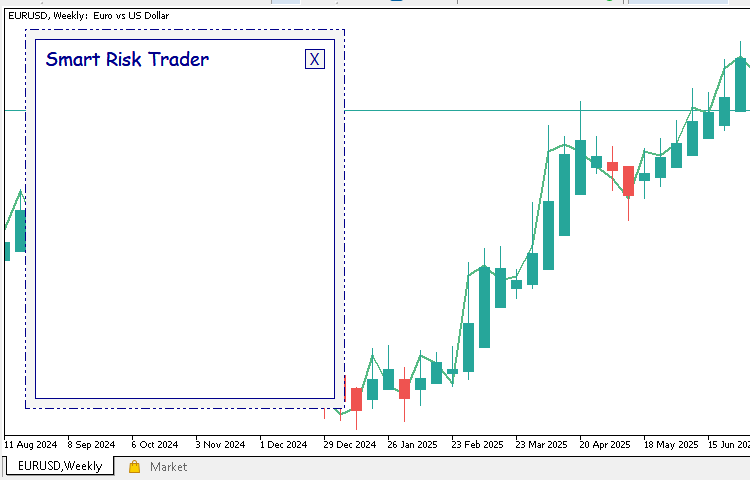
Finally, let’s create a horizontal line to separate the header from the rest of the components below it:
...

//+------------------------------------------------------------------+
//| Function to render the main GUI                                  |
//+------------------------------------------------------------------+
void CREATE_GUI(){

   ...

   CREATE_OBJ_LABEL(GenerateUniqueName(SmartRiskTrader), 40, 37, "Smart Risk Trader", clrDarkBlue, 14, "Comic Sans Ms");
   CREATE_OBJ_RECTANGLE_LABEL(GenerateUniqueName(SmartRiskTrader), 30, 70, 300, 1, clrDarkBlue, 1, clrDarkBlue, BORDER_FLAT);

}

...
Compile once more to confirm everything is in place.
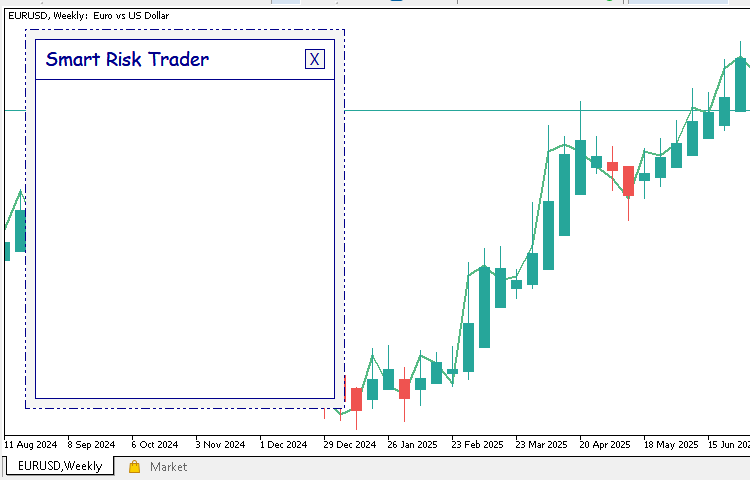
After these steps, your GUI now has a simple but elegant header section that gives it structure and identity — a small close button, a clean title, and a clear separation line below.
We will now add our first input field and its label. This input field allows the user to select an order type, such as Buy, Sell, Buy Limit, or others. Just like before, we start by displaying a text label to describe what the field represents.
Next, we create the actual button that will act as our input field. Since we want to access this button later programmatically—for example, to detect when it’s clicked—we need to assign it a fixed name instead of generating one dynamically. To achieve this, we first define a macro as follows:
...

//+------------------------------------------------------------------+
//| Macros                                                           |
//+------------------------------------------------------------------+
...

#define BTN_ORDER_TYPES   "BTN_ORDER_TYPES"

...
Once the macro is defined, we can proceed to create the label and the input field (which in this case is represented by a button). The label will serve as a title for the field, while the button will allow the user to interact with the interface and select the desired order type.
...

//+------------------------------------------------------------------+
//| Function to render the main GUI                                  |
//+------------------------------------------------------------------+
void CREATE_GUI(){

   ...

   //--- Order Types
   CREATE_OBJ_LABEL(GenerateUniqueName(SmartRiskTrader), 40, 90, "Order Type: ", C'20, 20, 20');
   CREATE_OBJ_BUTTON(BTN_ORDER_TYPES, 140, 90, 140, 25, "Select Order Type", C'20, 20, 20', 12, 1, clrWhiteSmoke, clrDarkBlue);

}

...
After adding this code, you can compile and run it to view the new input field displayed on the chart.
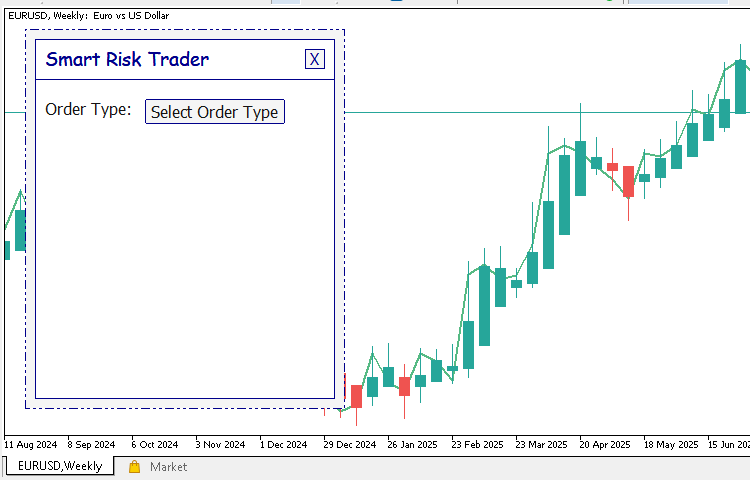
Before we create the dropdown menu for our order types, we first need to define a few macros. These macros will hold the unique IDs for each dropdown element so that we can easily identify and interact with them later. Since these elements will respond to user actions such as clicks, using fixed names instead of dynamically generated ones makes it simpler to handle events. Below are the macros that define the dropdown group and each order type option.
#define ORDER_TYPE_GROUP  "ORDER_TYPE_GROUP"
#define MARKET_BUY        "ORDER_TYPE_GROUP_MARKET_BUY"
#define MARKET_SELL       "ORDER_TYPE_GROUP_MARKET_SELL"
#define BUY_LIMIT         "ORDER_TYPE_GROUP_BUY_LIMIT"
#define SELL_LIMIT        "ORDER_TYPE_GROUP_SELL_LIMIT"
#define BUY_STOP          "ORDER_TYPE_GROUP_BUY_STOP"
#define SELL_STOP         "ORDER_TYPE_GROUP_SELL_STOP"
Now that we have defined the macros, we can go ahead and create a function that builds the dropdown. This function, named CREATE_ORDER_TYPE_DROPDOWN, will render all the dropdown elements — including the background panel and the individual order type labels. The dropdown will give users a clean and organized way to select an order type directly from the interface.
...

//+------------------------------------------------------------------+
//| Function to create the order types dropdown                      |
//+------------------------------------------------------------------+
void CREATE_ORDER_TYPE_DROPDOWN(){
   CREATE_OBJ_RECTANGLE_LABEL(GenerateUniqueName(ORDER_TYPE_GROUP), 140, 116, 140, 151, clrWhiteSmoke, 1, clrDarkBlue, BORDER_FLAT);
   CREATE_OBJ_LABEL(MARKET_BUY , 150, 120, "Market Buy ", C'20, 20, 20');
   CREATE_OBJ_LABEL(MARKET_SELL, 150, 145, "Market Sell", C'20, 20, 20');
   CREATE_OBJ_LABEL(BUY_LIMIT  , 150, 170, "Buy Limit  ", C'20, 20, 20');
   CREATE_OBJ_LABEL(SELL_LIMIT , 150, 195, "Sell Limit ", C'20, 20, 20');
   CREATE_OBJ_LABEL(BUY_STOP   , 150, 220, "Buy Stop   ", C'20, 20, 20');
   CREATE_OBJ_LABEL(SELL_STOP  , 150, 245, "Sell Stop  ", C'20, 20, 20');
}
To test this function, we can temporarily call it inside the OnInit function. This will allow us to see how the dropdown appears on the chart when the EA is launched.
...

//+------------------------------------------------------------------+
//| Expert initialization function                                   |
//+------------------------------------------------------------------+
int OnInit()
{
   //--- create timer
   EventSetTimer(60);

   //--- render the graphical user interface
   CREATE_GUI();
   CREATE_ORDER_TYPE_DROPDOWN();

   return(INIT_SUCCEEDED);
}

...
Now compile the source code and take a look at the chart — you should see a neat dropdown menu nicely displayed on your interface.
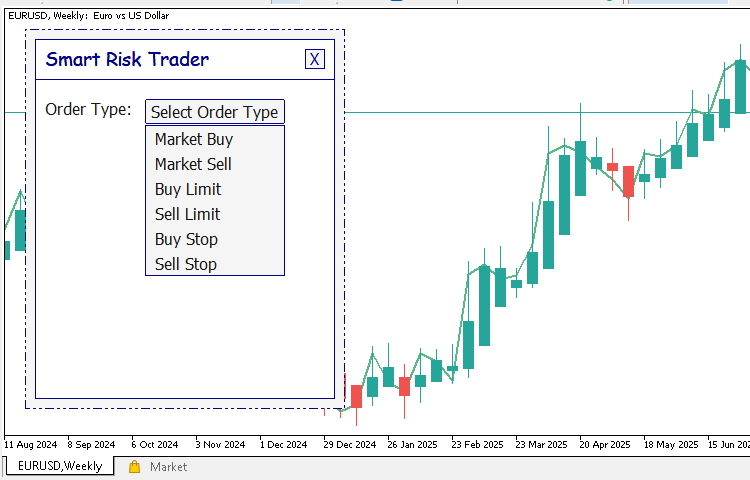
After verifying that it works correctly, it is important to comment out the function call because we will later display the dropdown only when the user clicks the “Select Order Type” button. This ensures that the dropdown behaves dynamically, just as it should in a professional interface.
...

//+------------------------------------------------------------------+
//| Expert initialization function                                   |
//+------------------------------------------------------------------+
int OnInit()
{
   //--- create timer
   EventSetTimer(60);

   //--- render the graphical user interface
   CREATE_GUI();
   //CREATE_ORDER_TYPE_DROPDOWN();

   return(INIT_SUCCEEDED);
}

...
Next, we are going to create the entry price field together with its label. Since we will need to access this field later in our code, we should assign it a fixed name for easy reference. We will define this name as a macro as shown below:
...

//+------------------------------------------------------------------+
//| Macros                                                           |
//+------------------------------------------------------------------+
...

#define FIELD_ENTRY_PRICE "FIELD_ENTRY_PRICE"

...
With the macro defined, we can now add the label and input field to our CREATE_GUI function. These two lines of code will display the designation “Entry Price” and an editable box where users can enter a value.
...

//+------------------------------------------------------------------+
//| Function to render the main GUI                                  |
//+------------------------------------------------------------------+
void CREATE_GUI(){

   ...

   //--- Entry Price
   CREATE_OBJ_LABEL(GenerateUniqueName(SmartRiskTrader), 40, 125, "Entry Price: ", C'20, 20, 20');
   CREATE_OBJ_EDIT(FIELD_ENTRY_PRICE, 140, 125, 100, 25, "1.14030", C'20, 20, 20', 12, clrWhiteSmoke, clrDarkBlue);

}
Now go ahead and compile the source code, then launch the EA on your chart. You should see a clean and well-aligned entry price field together with its label, ready for user input.
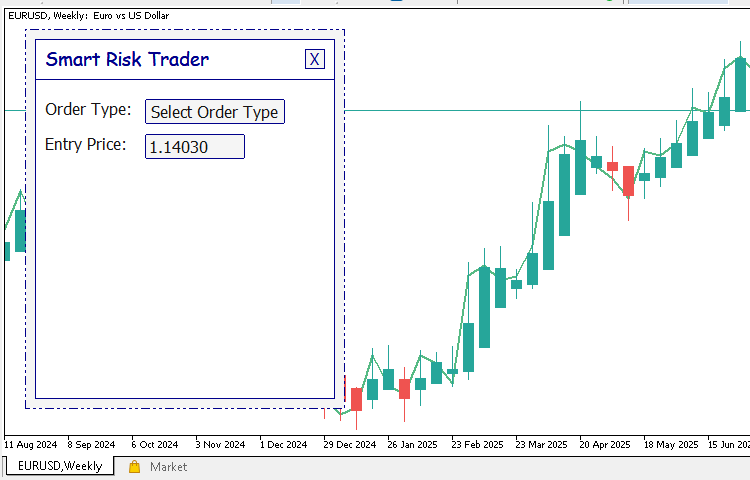
Now that we have added the entry price field, we will repeat the same procedure for the remaining input fields. These fields will allow the user to enter the stop-loss level, take-profit level, and risk percentage. Just like before, we will define macros for each of these fields to make it easy to reference them later in our code.
...

//+------------------------------------------------------------------+
//| Macros                                                           |
//+------------------------------------------------------------------+

...

#define FIELD_STOP_LOSS   "FIELD_STOP_LOSS"
#define FIELD_TAKE_PROFIT "FIELD_TAKE_PROFIT"
#define RISK              "RISK"
After defining these macros, we can move back to our CREATE_GUI function and add the code that creates the labels and input fields for each of them.
//+------------------------------------------------------------------+
//| Function to render the main GUI                                  |
//+------------------------------------------------------------------+
void CREATE_GUI(){

   ...

   //--- Stop Loss
   CREATE_OBJ_LABEL(GenerateUniqueName(SmartRiskTrader), 40, 160, "Stop Loss: ", C'20, 20, 20');
   CREATE_OBJ_EDIT(FIELD_STOP_LOSS, 140, 160, 100, 25, "1.13302", C'20, 20, 20', 12, clrWhiteSmoke, clrDarkBlue);

   //--- Take Profit
   CREATE_OBJ_LABEL(GenerateUniqueName(SmartRiskTrader), 40, 195, "Take Profit: ", C'20, 20, 20');
   CREATE_OBJ_EDIT(FIELD_TAKE_PROFIT, 140, 195, 100, 25, "1.16302", C'20, 20, 20', 12, clrWhiteSmoke, clrDarkBlue);

   //--- Risk
   CREATE_OBJ_LABEL(GenerateUniqueName(SmartRiskTrader), 40, 230, "Risk %: ", C'20, 20, 20');
   CREATE_OBJ_EDIT(RISK, 140, 230, 100, 25, "2.0", C'20, 20, 20', 12, clrWhiteSmoke, clrDarkBlue);

}
Once you have added these lines, compile the source code and run the EA on your chart. You should now see a clean and organized layout containing the three new input fields, each properly labeled and aligned with the rest of the interface.
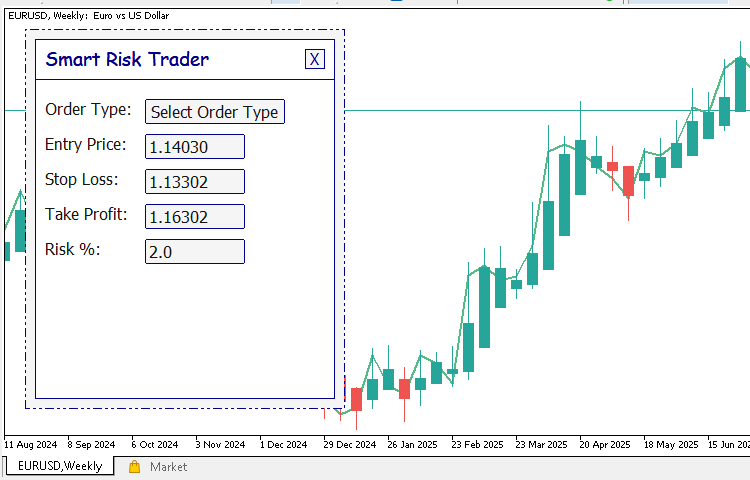
Next, we are going to add the execution buttons that will handle actions such as calculating lot size and sending trade orders. Since we will later need to detect when a user clicks on these buttons, it is important to assign each of them a unique and easily recognizable name. We will do this by defining macros for the buttons as shown below:
//+------------------------------------------------------------------+
//| Macros                                                           |
//+------------------------------------------------------------------+

...

#define BTN_SEND_ORDER    "BTN_SEND_ORDER"
#define RESULTS_TEXT      "RESULTS_TEXT"
#define BTN_GUI_OPEN      "BTN_GUI_OPEN"
Once we have defined these macros, we can proceed to create the actual button elements inside our CREATE_GUI function. The code below adds two buttons — one for calculating lot size and another for sending trade orders.
//+------------------------------------------------------------------+
//| Function to render the main GUI                                  |
//+------------------------------------------------------------------+
void CREATE_GUI(){

   ...

   //--- Execution Buttons
   CREATE_OBJ_BUTTON(BTN_CALC_LOT, 40, 270, 140, 40, "CALCULATE LOT", clrWhite, 12, 1, clrDarkBlue, clrBlack);
   CREATE_OBJ_BUTTON(BTN_SEND_ORDER, 190, 270, 120, 40, "SEND ORDER", clrWhite, 12, 1, clrDarkGreen, clrBlack);

}
Now go ahead and compile your source code, then attach the EA to a chart. You should see two neatly aligned buttons that will later allow the user to calculate lot size and send orders directly from the interface.
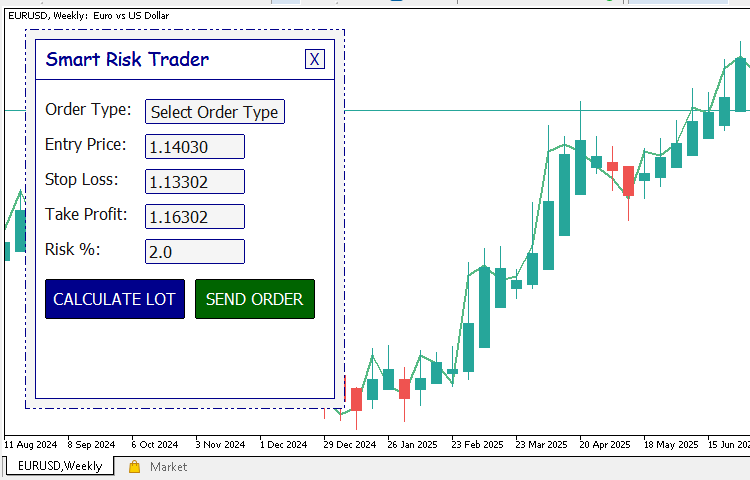
To complete the static layout of our user interface, we will now create a small display area where the calculated lot size will appear after the user performs a calculation. This display area will consist of a rectangular background panel and a text label placed inside it. Because we will later need to update the value shown on this label programmatically, we will give it a unique name defined as a macro for easy reference.
//+------------------------------------------------------------------+
//| Macros                                                           |
//+------------------------------------------------------------------+

...

#define RESULTS_TEXT      "RESULTS_TEXT"
Once the macro is defined, we can move on to creating the actual visual elements. Inside our CREATE_GUI function, we will add the following lines of code to draw the rectangular container and place the text label within it:
//+------------------------------------------------------------------+
//| Function to render the main GUI                                  |
//+------------------------------------------------------------------+
void CREATE_GUI(){

   ...

   //--- Execution Results
   CREATE_OBJ_RECTANGLE_LABEL(GenerateUniqueName(SmartRiskTrader), 40, 320, 270, 50, clrWhiteSmoke, 1, clrDarkBlue, BORDER_FLAT);
   CREATE_OBJ_LABEL(RESULTS_TEXT, 60, 333, "Result: Lot Size = 0.23", clrDarkGreen, 14);

}
Go ahead and compile your code, then attach the EA to a chart. You should now see a clean and simple area at the bottom of your interface showing a sample text that represents the calculated lot size.
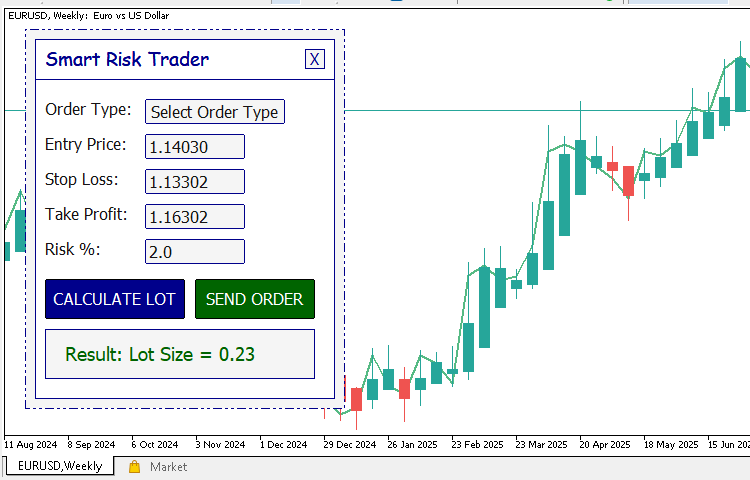
With this addition, we have completed the static design of our “Smart Risk Trader” interface. To make it easier for you to follow along, we’ve attached the full source code for the current stage of the project. You can open it in MetaEditor, inspect the functions we’ve discussed, and verify that everything compiles correctly. In the next section, we will shift our focus to making the GUI interactive and responsive to user actions — effectively bringing it to life.
Conclusion
At this point, we have successfully built a clean and functional on-chart graphical interface for our Smart Risk Trader Expert Advisor. You now understand how to use MQL5’s graphical objects to create panels, labels, buttons, and input fields — and how to structure your code in a modular way for easy maintenance and future expansion. What began as a blank EA template has grown into a visually appealing and well-organized foundation for a professional trading tool.
By following along step-by-step, you have not only learned how to create a GUI in MQL5 but also gained valuable insight into how these elements interact within the MetaTrader 5 environment. With this knowledge, you can now design and build even more advanced, stylish, and dynamic interfaces for your own Expert Advisors and indicators.
In Part 2, we will bring this interface to life by connecting each component to real functionality. You will learn how to detect and respond to user actions — such as button clicks and dropdown selections — and how to make the Smart Risk Trader fully interactiveWarning: All rights to these materials are reserved by MetaQuotes Ltd. Copying or reprinting of these materials in whole or in part is prohibited.
This article was written by a user of the site and reflects their personal views. MetaQuotes Ltd is not responsible for the accuracy of the information presented, nor for any consequences resulting from the use of the solutions, strategies or recommendations described.

 Bivariate Copulae in MQL5 (Part 2): Implementing Archimedean copulae in MQL5
 Developing a multi-currency Expert Advisor (Part 22): Starting the transition to hot swapping of settings
 From Novice to Expert: Forex Market Periods
 Neural Networks in Trading: Memory Augmented Context-Aware Learning (MacroHFT) for Cryptocurrency Markets

- Free trading apps
- Over 8,000 signals for copying
- Economic news for exploring financial markets
You agree to website policy and terms of use